


 Video Converter Ultimate
 Gravador de ecrã
 Reparo de vídeo
 Secure Download
Dicas e truques sobre como acelerar um vídeo QuickTime no Mac
To save some time watching a lengthy movie or video on Quicktime, it is ideal for speeding them up. You can quickly speed up the video playing on QuickTime by clicking the fast forward button. But did you know that there are other ways to use speed-up video using this media player on Mac? Today's article will highlight the best ways to quickly speed up the video in Quicktime on Mac. But if you think that Quicktime isn't sufficient as a speed controller, you must choose the alternative instead.

Parte 1. 3 maneiras de acelerar um vídeo no QuickTime
Com um media player pré-instalado como este, você não precisa se preocupar em assistir a maioria dos vídeos que tem no seu Mac. Mesmo sendo um reprodutor de mídia, você também pode usar seus outros recursos, como gravação, conversão, etc. Portanto, não vamos consumir mais tempo; aprenda como acelerar um vídeo QuickTime usando as duas formas no Mac.
1ª Via. Use o botão de avanço rápido para acelerar
Esta primeira maneira ensinará você a usar teclas de atalho em vez de clicar em muitas opções no Quicktime. Então, se você quiser saber como fazer isso, siga os dois passos abaixo.
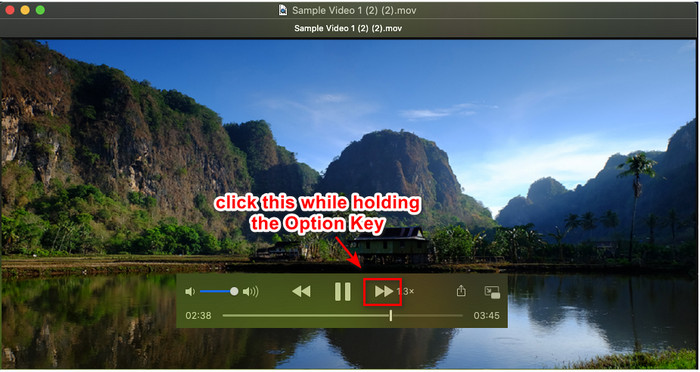
Step 1. Open the QuickTime on your Mac and play the video you want to watch in fast motion.
Step 2. Hold the Options button on your keyboard, and click the >> button. Every time you tap the >> while holding down the Options, you add 0.1x speed on speed; the maximum you can get is 2.0x.
2ª Via. Use as configurações de vídeo para acelerar
Essa segunda maneira usa a configuração de vídeo para acelerar o vídeo que você deseja neste media player. Se você não tem ideia do que estamos falando, as etapas abaixo irão esclarecer você. Essas etapas indicadas funcionam apenas no Quicktime versão 7, portanto, se você não atualizou ou atualizou seu Quicktime, tente usá-lo.
Step 1. Once you play the video on Quicktime, proceed to the Window menu located in the upper panel. Several options will show, but click the Show A/V Controls, or you can simply click Command + K because they do the same thing.
Step 2. The control will show on your screen; under Playback, you must move the playback speed slider according to your preferences and drag it to the left or right. Make sure that the speed you set isn't greater than 1.9x speed because if it exceeds, there will be no audio on the video when you play it.
Não há uma opção de visualização para ver se essa é a velocidade certa que você deseja e, depois de clicar em pausar e reproduzir, ela redefinirá a velocidade definida para o estado normal.
3ª Via. Use a opção de velocidade de reprodução para acelerar
Outra maneira que você pode fazer para aumentar a velocidade do vídeo do QuickTime é alterando a opção de velocidade de reprodução localizada na visualização. Você pode encontrar essa opção na parte superior da tela assim que abrir o vídeo.
Step 1. Once the video is open and playing on QuickTime, click the View place at the top section.
Step 2. Different options will show on your screen; click Playback Speed, and other playback speeds such as Half Speed, Normal Speed, One and a Quarter Speed, One and a Half Speed, and Double Speed. Choose the playback speed you want, and check the video if that is the speed you want.
Parte 2. Acelerar permanentemente o vídeo no QuickTime usando o melhor controlador de velocidade
Suponha que você queira acelerar o vídeo do QuickTime e salvá-lo com o media player embutido não pode dar isso a você. Com o melhor controlador de velocidade, você pode baixar no seu Windows e Mac, você pode salvar o vídeo de aceleração permanentemente, para que você não precise ajustar a velocidade de tempos em tempos.
FVC Video Converter Ultimate is the phenomenal software you can have on your desktop to easily speed-up the video upto 8x that Quicktime can't do. Although it can speed up the video you have, it also speeds up the audio in the video even though you set it as high as 8x. With a tool like this, you won't need to wait for the exporting process because it is also 30x faster than the other converter. Amazing right? If you are thinking of using its ultimate speed controller, you must follow and read the steps below to know how to finish it at speed.
Step 1. You can have the software on Mac and Windows by clicking the download button. Install the software next, follow the set-up process, and click Start Now to launch the software on your desktop.
Free DownloadFor Windows 7 or laterSecure Download
Free DownloadFor MacOS 10.7 or laterSecure Download
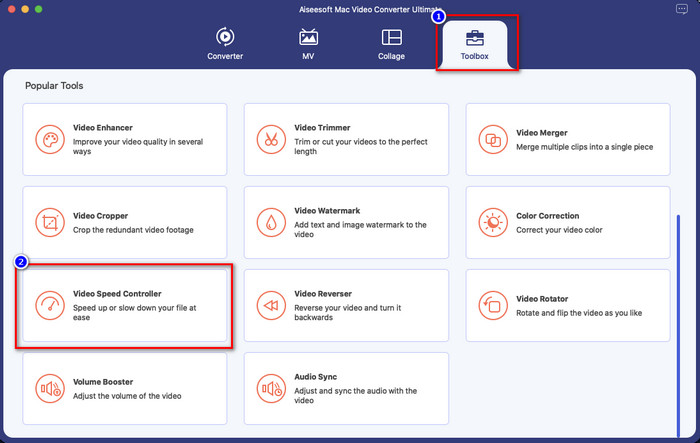
Step 2. Once the tool's interface shows, click the Toolbox and you can find the Video Speed Controller there who could help you finish the task of speeding up video.
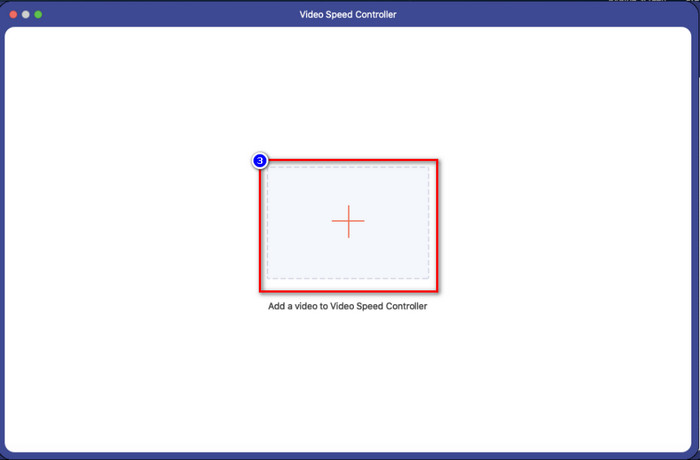
Step 3. Click + button, and a file folder will show; find the video file you want to speed and click Open to upload it.
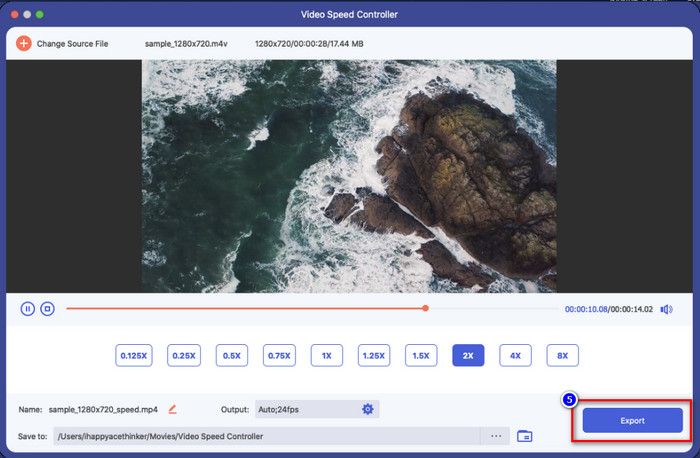
Step 4. A new window will show; you can now choose any playback speed you want on the option that will show on your screen. After you click the speed option you want, a preview will automatically play in this area, remember, 4x and 8x won't preview.

Step 5. Finally, you can save the speed-up video by clicking the Export button. As we said earlier, processing the file won't take long, supporting 30x processing speed. Once the process is finished, a notification box will show on your screen.
Related:
How to Speed up a Video on Windows and Mac
How to Speed up a Video on TikTok
Parte 3. Perguntas frequentes sobre como acelerar um vídeo do QuickTime
Por que não há som depois que acelero o vídeo no Quicktime?
Se a velocidade que você escolher for maior que 1,9x, espere que os sons não sejam gerados. Mas tem vezes que ele vai reproduzir o vídeo com áudio mesmo que esteja na velocidade de 1,9x, mas mais do que isso, não vai.
Como posso salvar o vídeo de aceleração no Quicktime?
Infelizmente, o Quicktime não suporta salvar a velocidade que você aplica no vídeo. Portanto, se você deseja salvar o vídeo em um movimento de alta velocidade, essa ferramenta não fará isso. Mas você pode usar um editor de vídeo para ajudá-lo a acelerar o vídeo e salvá-lo na unidade da área de trabalho. Assim, quando você assistir ao vídeo, não precisará configurá-lo.
Por que ficou lento depois que acelerei o vídeo no Quicktime?
Depois de começar a acelerar o vídeo, você notará que o vídeo começará a ficar lento. Nesse caso, pode ser necessário diminuir um pouco a velocidade de reprodução para evitar essa circunstância.
Conclusão
Overall, learning how to speed up a QuickTime video is essential not only for you to save time watching lengthy videos but also to be more productive in life. So, if you want to watch a video in a high-speed motion, you can follow the indicated steps above on Quicktime, and we assure you that you will have the speed up you need on the video you are watching. But if you want to save the speed-up video you apply on Quicktime; then it is impossible to do it because the media player doesn't have that function. Fortunately, FVC Video Converter Ultimate is here to rescue you. Read the details above to know more and save the speed-up video you want on your desktop in no particular time.
-
 Maneiras mais fáceis de acelerar um vídeo em seus dispositivos Android [2021]
 Você sabia que pode acelerar um vídeo no seu Android? Então, se você quiser saber como acelerar um vídeo em seu telefone Android, leia este artigo.
-
 Dicas excelentes de 2021: como acelerar um vídeo no iMovie
 Seu amigo sugere o iMovie para ajudá-lo com seu problema de como acelerar um vídeo usando o sistema operacional iOS, mas você não sabe o que fazer? Veja mais sobre isso enquanto você lê mais através deste artigo.
-
 Como acelerar o vídeo no Premiere Pro e com suas alternativas
 Quer saber como usar o Premiere Pro para acelerar um vídeo? Então você está no artigo certo, pois fornecemos etapas e outras alternativas acessíveis.
