


 Video Converter Ultimate
 Gravador de ecrã
 Reparo de vídeo
 Secure Download
Procedimentos para cortar partes de um vídeo no iPhone
You might have recorded a beautiful video with your iPhone or iPad during your free time and want to share it with your friends or post it on social media. But it would help if you edited the portions of a video you don't want to submit first. In this situation, you can rapidly edit films with your tools by shortening or editing them. So how to shorten a video on an iPhone? You will see the best approaches in this post. If you want to learn all the steps, read all the information below.

Parte 1. Procedimentos eficazes para cortar vídeo no iPhone
Usando o aplicativo Fotos
Se você é um usuário do iPhone e deseja reduzir a duração do seu vídeo, o aplicativo Fotos pode ajudá-lo. O aplicativo Fotos não é bom apenas para mostrar imagens e vídeos. Com a ajuda deste aplicativo pré-criado, você também pode cortar ou aparar seu vídeo. Por ser um aplicativo simples no iPhone, você pode encurtar o vídeo para apenas alguns toques. Dessa forma, todos os usuários, principalmente os iniciantes, podem utilizar o aplicativo. Além disso, por ser um aplicativo pré-construído, a instalação não é necessária. No entanto, mesmo sendo um aplicativo prático para cortar vídeos, o app Fotos possui algumas limitações. O aplicativo não é adequado se você deseja ferramentas de edição avançadas para aprimorar um vídeo, além de encurtar a duração do vídeo. O aplicativo Fotos pode oferecer apenas funções básicas de edição, como cortar, adicionar filtros e muito mais. Se você quiser saber como cortar um vídeo em um iPhone, siga as etapas abaixo.
Step 1. Open your iPhone and launch the Photos App.
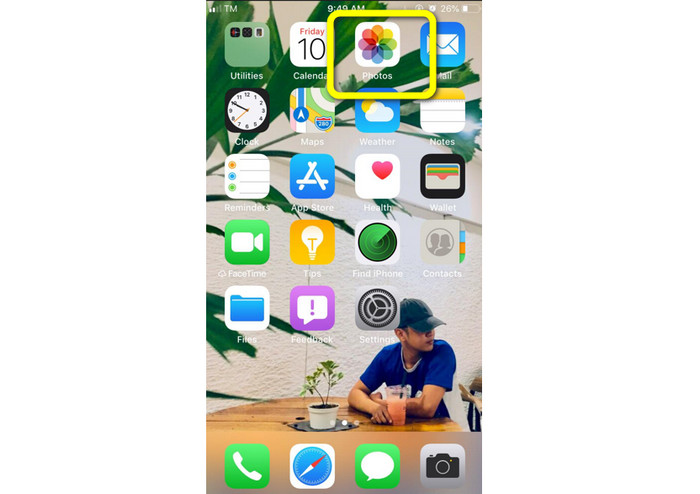
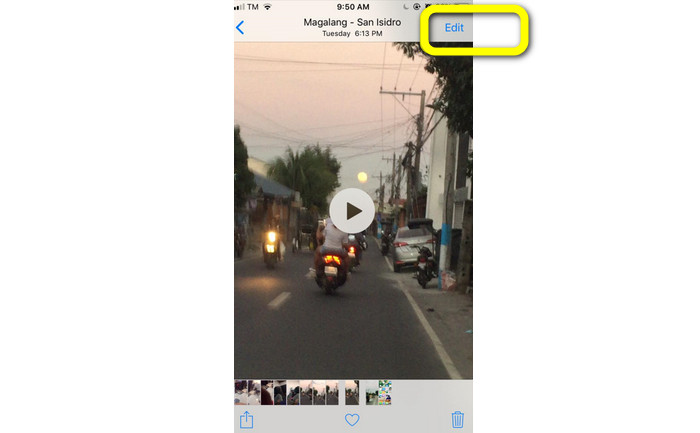
Step 2. After that, click the video you want to shorten. After that, press the Edit button on the right corner of the screen.
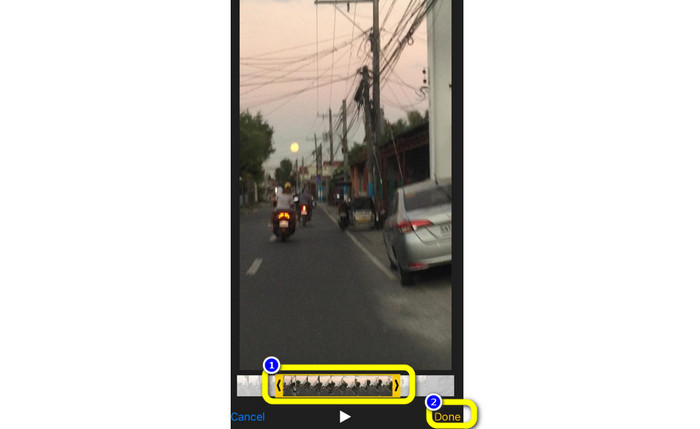
Step 3. Then you can already shorten the video by dragging the edge of the video. You can drag the left and right edges of the video. After cutting the video, click the Done button to save it on your phone.
Usando o iMovie
Do you want to edit some of the films you recorded with your iPhone, possibly to cut out the unnecessary parts, make them shorter, or make them more visually appealing? This is a straightforward and simple process when using the iMovie program, which is accessible for iOS devices. The default Photos app's built-in video editor is sufficient for most users. Still, you can't use it to access more sophisticated capabilities like the ability to monitor your timeline, apply transitions, merge numerous films, etc. A specialized video editing program like iMovie is beneficial in this situation. Apple's iMovie is superior to the other video editing tools on the App Store. And you can sync audio and video using iMovie. However, iMovie has some drawbacks. iMovie is only available on iPhone devices. It means that if you are an Android user, try to use another application to trim a video.
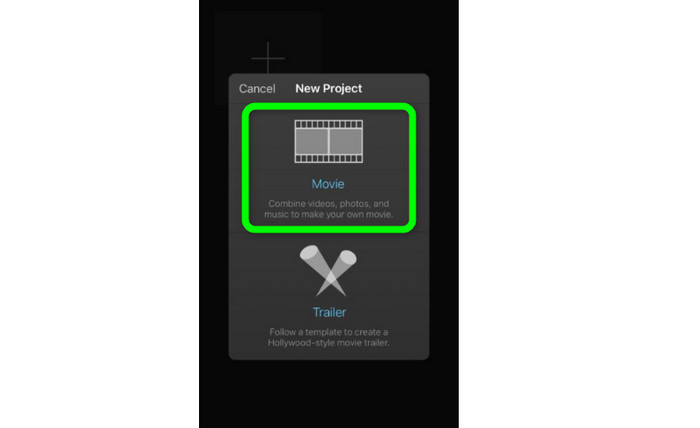
Step 1. Download and install the iMovie application on your iPhone device. Then, launch the application. After that, when the interface is already on the screen, click the Create Project > Movie option and add the video.
Step 2. The iMovie timeline will now include the video you choose. By default, the pointer will be at the end of the clip, but you can drag it gradually to the right and stop it there if you wish to cut the video.
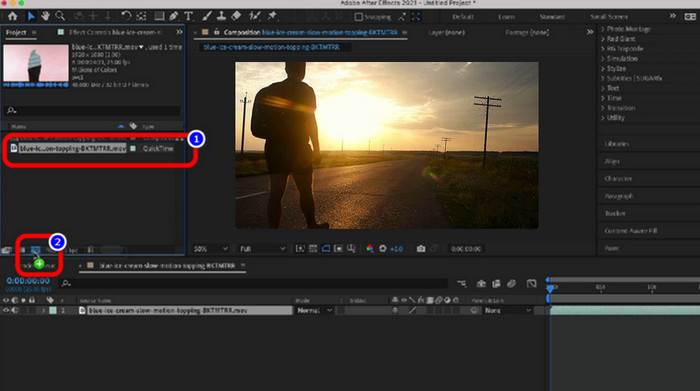
Step 3. You can now use several of the features that iMovie offers. As demonstrated below, the Scissor icon denotes the selection of the cut tool. Select the Split tool from the menu to trim the video clip exactly where you marked it.
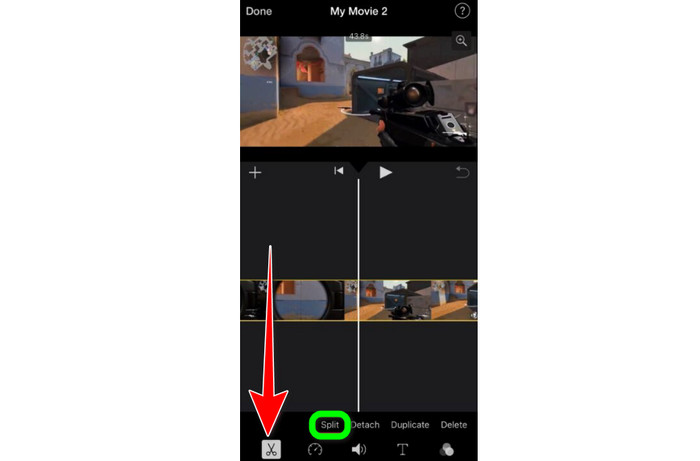
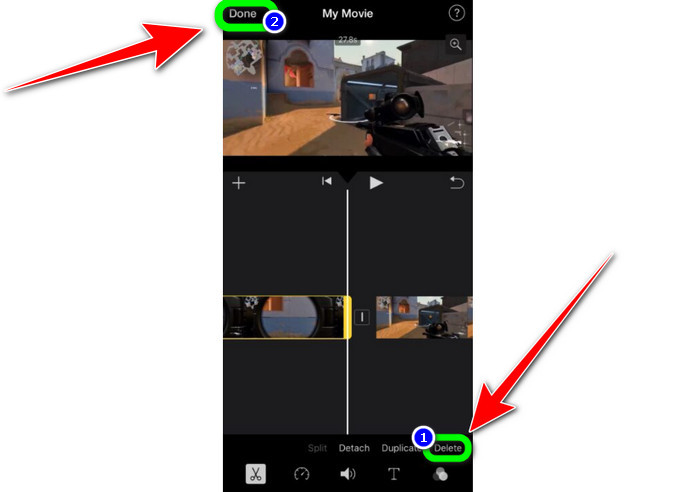
Step 4. Then, click the Delete option to remove the unnecessary part of the video. Then, when you are done trimming the video, click the Done button.
Parte 2. Como Cortar Vídeos no iPad
If you want to cut or trim video using an iPad, you no longer have to look for a downloadable application. Like in iPhone, you can trim or cut your video using the Photos application. The Photos app can still have some limitations when using an iPad device. If your goal is to cut video, it is good. But you can't use the application if you want to use advanced editing tools. Follow the steps below to cut or trim the video using the iPad.
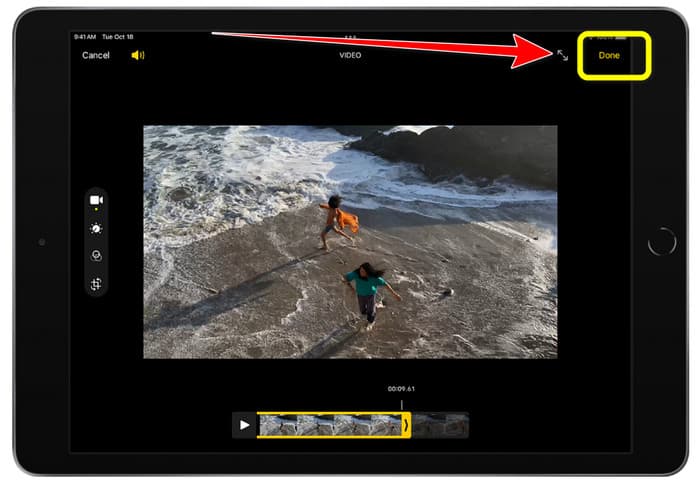
Step 1. Run the Photos app on your iPad, click the video clip you want to edit, and click the Edit option.
Step 2. Drag the edge of the frame viewer to shorten the length of the video to start trimming.
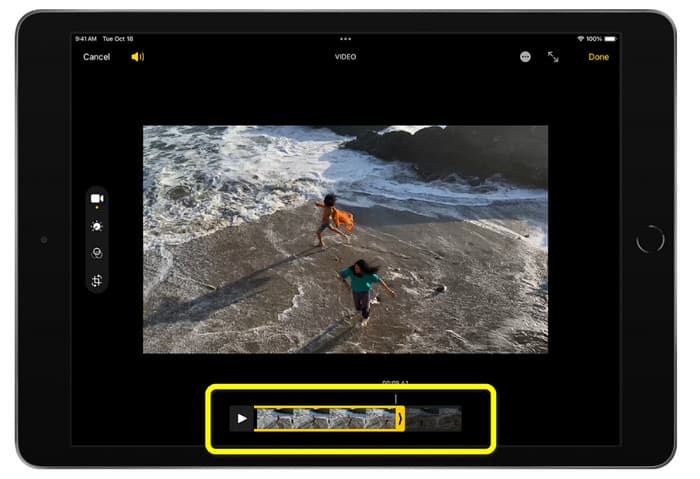
Step 3. Once you are done trimming the video, click the Done button.
Parte 3. Como cortar vídeos do iPhone no PC
Are you looking for the best way to cut iPhone videos on a PC? If that is the case, use Video Converter Ultimate. You may effortlessly cut your iPhone video with the help of offline software. It also provides an easy-to-use interface with straightforward procedures. So, it will be ideal for all users, especially beginners. You can also adjust various things by going to the Output settings. The video's resolution, clarity, and frame rate can all be altered. You can also change the audio's bitrate, sampling rate, and other aspects. You can also save the final output in various formats. It contains MP4, MOV, AVI, MKV, and so forth. It benefits users as Video Converter Ultimate is accessible and can be used on Windows and Mac computers. Moreover, the application won't add watermarks to the edited video. So you can still watch the video without getting annoyed.
Free DownloadFor Windows 7 or laterSecure Download
Free DownloadFor MacOS 10.7 or laterSecure Download
Step 1. Download Video Converter Ultimate on your PC. Click the Download button below to access the program easily.
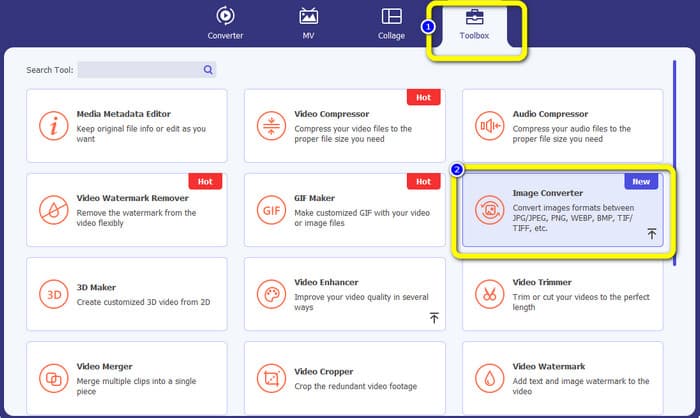
Step 2. After downloading, launch it to view the main interface. Ensure that the iPhone video is already transferred to the computer. After that, click the Toolbox > Video Trimmer Tool when the interface already shows up.
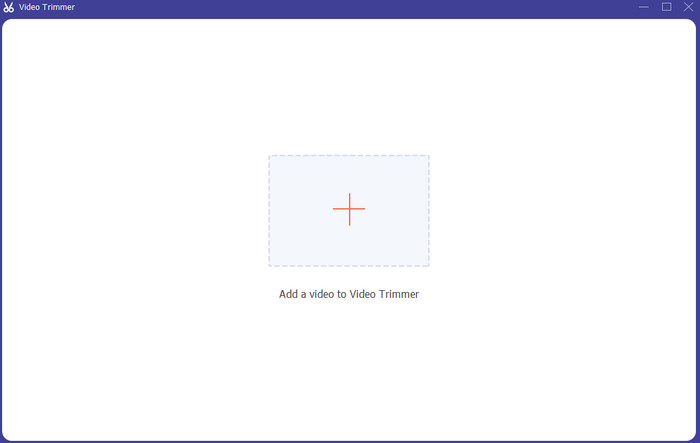
Step 3. When the new interface appears on the screen, click the + sign to add the iPhone video.
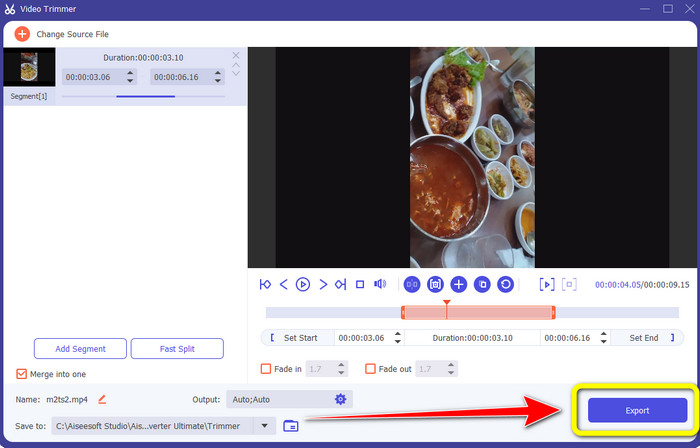
Step 4. Then, you can already adjust the edge of the video to trim. Also, you can use the Set Start and Set End option to trim the video manually.
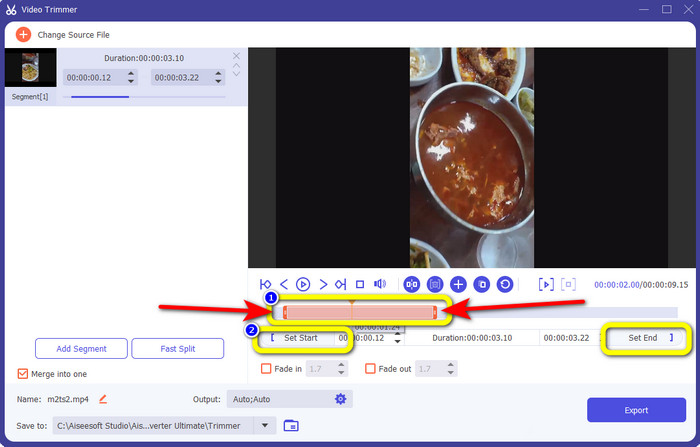
Step 5. Finally, click the Export button to save the video after trimming.
Parte 4. Perguntas frequentes sobre como encurtar um vídeo no iPhone
Como cortar o meio do vídeo em um iPhone?
Se você quiser cortar a parte do meio do seu vídeo usando o iPhone, ainda pode usar os métodos mencionados acima. O aplicativo Fotos e o iMovie também podem cortar a parte do meio de um vídeo.
Como cortar vídeo no telefone Android?
Você pode ir para o aplicativo Gallery. Em seguida, abra o vídeo e clique na opção Editar. Depois disso, você já pode recortar o vídeo arrastando as bordas do vídeo.
Como transferir vídeo para o iPhone do computador?
Você pode usar muitas ferramentas para transferir um vídeo de um computador para um iPhone. Você pode usar o iPhone Transfer Pro, Dropbox, AirDrop e muito mais.
Conclusão
Trimming a video is effective when you want to share or upload a video clip. In that case, this informative article talks about how to shorten a video on an iPhone. In addition, if you want to shorten the length of the iPhone video using a computer, you can use Video Converter Ultimate. With the help of this offline program, you can cut iPhone video easily and instantly using a PC.
-
 [4 soluções] Como desacelerar um vídeo no iPhone como um profissional
 Está com problemas para desacelerar um vídeo no iPhone? Se você encontrar esse problema, não se preocupe mais, pois ajudaremos você a resolver o problema lendo este artigo.
-
 Como avançar um vídeo no iPhone – Ajustar a velocidade do vídeo
 Como posso avançar um vídeo no meu iPhone? Como avançar um vídeo no iPhone usando o iMovie? Aprenda 3 maneiras de acelerar um vídeo em dispositivos iPhone e iPad.
-
 Tutorial - 4 maneiras gratuitas de mesclar vídeos do iPhone em um novo
 Leia e obtenha 4 maneiras fáceis de mesclar vídeos no iPhone. Todos os modelos de iPhone e versões iOS são suportados. Você pode combinar 2 ou mais vídeos no iPhone em um novo vídeo rapidamente.
