


 Video Converter Ultimate
 Gravador de ecrã
 Reparo de vídeo
Fortaleça seu conhecimento utilizando diferentes práticas sobre como desacelerar o vídeo MP4
Montage is a film editing technique that brings together fragments of thematically related film to create a single, seamless shot. Montage allows directors, film editors, and visual and sound technicians to piece together sections of a film piece by piece, cutting and fitting each one together. Some montage uses Slow motion video clips to execute the process of making a montage. But to acquire this sort of cinematic scene, you need to learn how to slow down MP4 videos or other different formats like MOV, AVI, etc. Regarding this issue to resolve, this article provides various topics to discuss and learn more about creating a montage, in short, slowing down a video film.

Parte 1. Por que você precisa desacelerar um vídeo?
Você já se perguntou por que alguns dos filmes que você assiste têm alguma cena em câmera lenta – exibição de atos que sempre são destacados, especialmente se houver alguma ação e transição implementada no filme – cena? E como você é fã de filmes de ação, quer reencenar seu filme de ação favorito, mas para alcançar o impacto de ação do filme, você precisa diminuir a velocidade de reprodução de algumas cenas, mas não sabe como realizar esta tarefa.
Parte 2. Melhores ferramentas para desacelerar vídeos MP4
Much webtool and software can edit the videos, including slowing down an MP4 video, but these are the best web tools and software you need to use to achieve your preferred customized video. Some need to download and install it on your desktop, and some only require your email, and you can already edit at the mainstream of the web tool.
Método 1. Use Video Converter Ultimate
Video Converter Ultimate is a free-to-download software that can slow down a video permanently. One of the features this software offers can make a video speed up and slow down in accessible ways. Besides the feature of controlling video speed, this software has additional features like trim, reverse, merge, edit, and create a collage from a video to improve the video you desire. In addition, all the tools available in this software can be used easily by all users. Here are the steps you need to follow to accomplish the adjustment you desire.
Step 1: Please click on the Free Download button to start the download to your computer. After that, you can customize your system by installing and configuring the software.
Free DownloadFor Windows 7 or laterSecure Download
Free DownloadFor MacOS 10.7 or laterSecure Download
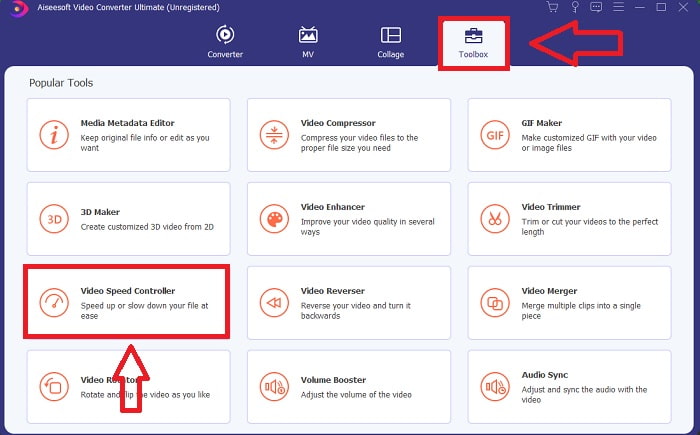
Step 2: Once the software has been installed, run it by selecting the Toolbox option from the menu bar and then selecting Video Speed Controller from the list that appears.
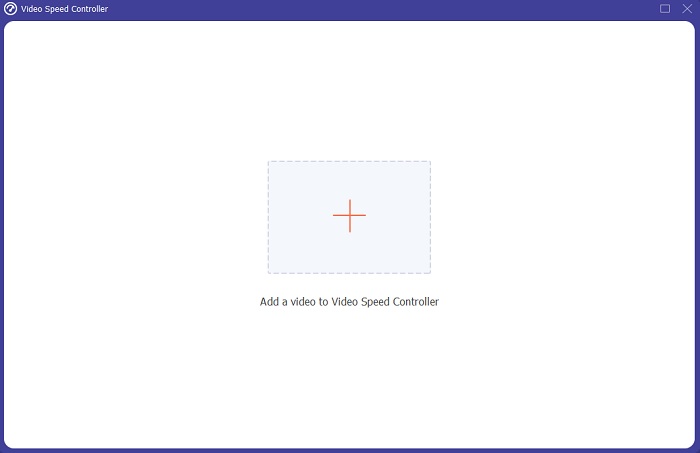
Step 3: Add any file by clicking the + button and modify the video clip.
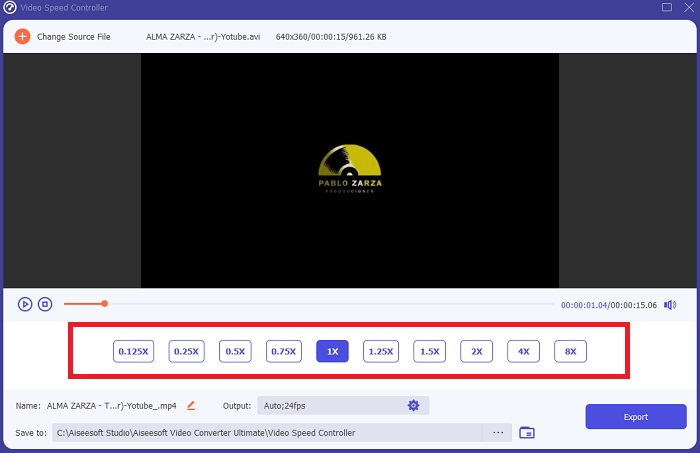
Step 4: Adjust the playback speed by adjusting the rate of the video.
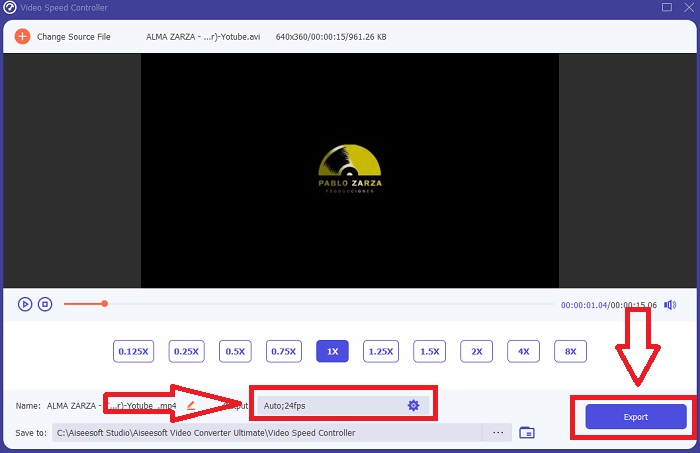
Step 5: After changing your video clip's playing speed, you may pick the export format, resolution, quality, etc. After that, click Export and choose a location to save your file.
Método 2. Use InVideo
When it comes to creating and sharing videos for social media and websites, InVideo is a web-based video editing tool, ideal for businesses of all sizes. It also has an image and video content library from various online repositories such as Story blocks and Shutterstock that can be used for the application. To use InVideo, you must first enter your email address, different from the previous web tool discussed in this article. This web tool offers a vast selection of templates for customizing your video. With its impressive features, this web application can elevate your editing skills to those of a professional. One of its features can slow down MP4 video accessible way possible; here are the steps provided:
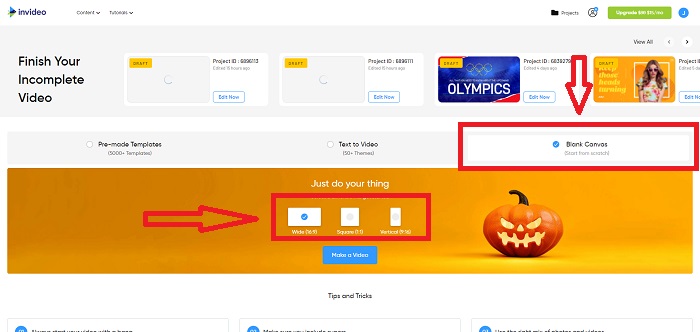
Step 1: Create an account on the web tool to gain access. The next step is to select the template you want to work with. Click the Upload button in the interface's left corner to begin the upload process.
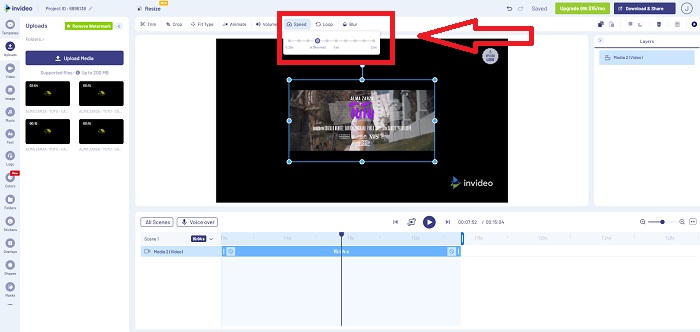
Step 2: To edit the playback speed of your video clip, click the Speed tab in the upper-right corner of the interface and drag it to the track. And drag the Slider to increase or decrease the playback speed of your video clip.
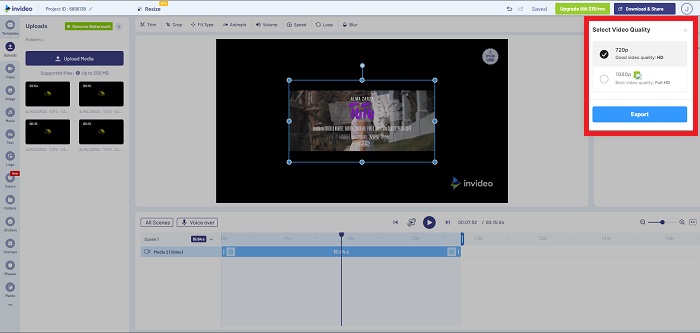
Step 3: When you're finished editing, click Download & Share and unlock Premium to get better results.
Método 3. VLC Media Player
Because it's free, VLC (Video Lan Client) is one of the most widely used media players on Windows and Mac. Playing different video clips like 360-degree videos or compressed file formats is possible even with the highest quality videos because it is flexible. The most widely used media player, on the other hand, can occasionally be a faulty product. In addition, this media player can slow down an MP4 file in easy ways. All the details about its feature are said below:
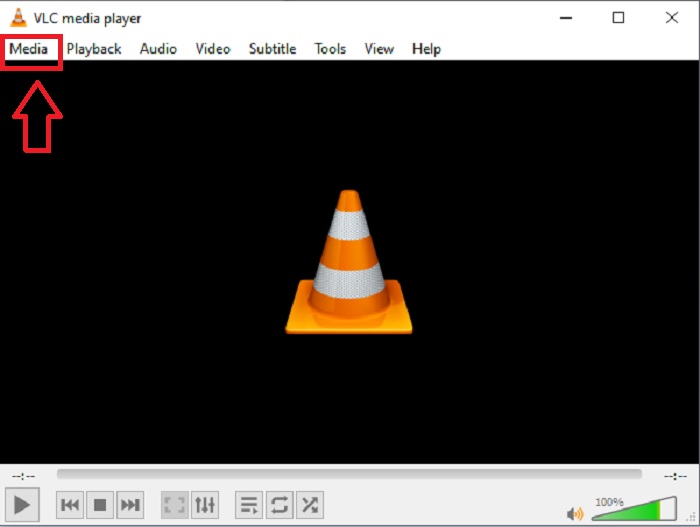
Step 1: First, you need to add your file in the Media tab and click Open File.
Step 2: Then, select the Playback tab and proceed to click the Speed section.
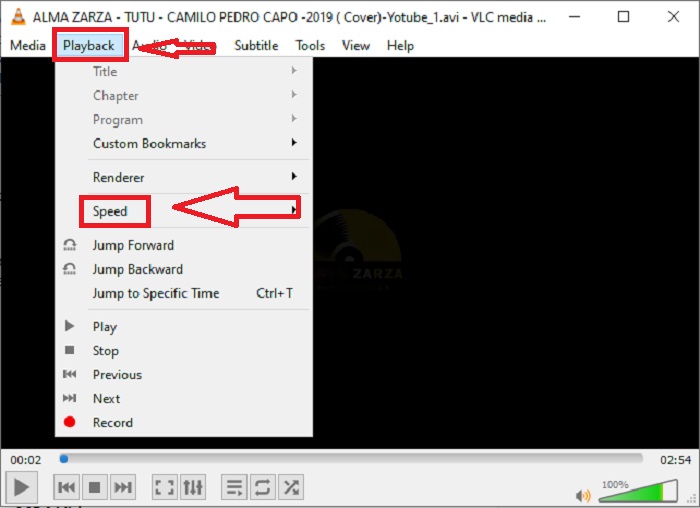
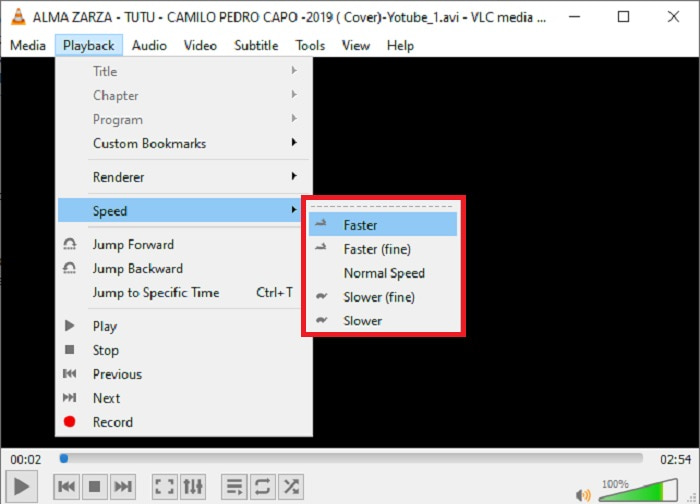
Step 3: With this, you will be given choices of which playback speed you will use. If you're going to slow down the speed of your video file, click the Slower (fine) and Slower, and if you want to increase its speed, click the Faster (fine) and Faster.
Related:
How to Fix VLC Not Playing DVD
Parte 3. Perguntas frequentes sobre como desacelerar vídeos MP4
Perco a qualidade do vídeo se diminuir a velocidade?
Não, o mesmo que aumentar a velocidade de reprodução do seu vídeo; abrandar o seu vídeo não perde a qualidade do seu vídeo. Por alguma razão, alguns dos vídeos ficam um pouco com falhas depois de reduzir a velocidade de reprodução do vídeo, pois a qualidade do vídeo já é monótona e baixa. Além disso, se você intensificar para diminuir a velocidade de reprodução do seu videoclipe, a taxa de quadros será dividida pela metade, causando um atraso e diminuindo a qualidade.
Posso desacelerar um vídeo offline?
Existe um software que funciona perfeitamente na redução da velocidade ou desaceleração de um vídeo. Video Converter Ultimate é um software feito para melhorar e aprimorar o vídeo de diferentes perspectivas. Além disso, com sua finalidade, é gratuito para download e acessível a usuários de uma ampla gama de públicos.
O que é melhor para desacelerar um vídeo? Off-line ou on-line?
Algumas das etapas online para desacelerar um vídeo têm muitos processos a serem seguidos que o tornam mais complicado do que usá-lo offline. A maioria dos softwares é gratuita para download, por isso é conveniente diminuir a velocidade de um vídeo offline.
Conclusão
To conclude, most of the media players nowadays support the MP4 format. That's why slowing down MP4 videos becomes a lot easier with these web tools and software presented in this article. To achieve the full potential of your video, download Video Converter Ultimate. Not just by slowing down your video, this software can turn your video to another level. With all the features available, you can call yourself a professional editor when using it.
-
 4 melhores conversores MP4 para M4V para transformar vídeos MP4 em M4V com facilidade
 Quando precisar alterar arquivos MP4 para M4V, você deve aprender mais detalhes sobre as diferenças entre os dois formatos, bem como os melhores conversores MP4 para M4V no artigo.
-
 AMV Converter - 3 melhores métodos para converter MP4 em AMV no Win / Mac
 Quais são os melhores conversores de MP4 para AMV para transformar os vídeos em Amine Music Video, você pode aprender mais sobre os 3 métodos mais eficientes para obter os vídeos desejados com facilidade a partir do artigo.
-
 WebM para MP4 | Converta grátis WebM para MP4 (online e desktop)
 Como assistir a arquivos WebM sem navegador da web? Você precisa converter WebM para MP4. Aqui estão os 10 principais conversores de WebM para MP4 gratuitos para alterar o WebM para MP4 online e em computadores Mac e Windows.
