


 Video Converter Ultimate
 Gravador de ecrã
 Reparo de vídeo
 Secure Download
Guia sobre como acelerar um vídeo no Instagram facilmente
With Instagram, we can upload or post a video easily without limitations as long as we want. Even though you can share your moments on Instagram, the app requires you to follow a standard on the duration of the video or need to cut it. But if you want to share the video in a full version without cutting it, we suggest you speed it up. By changing the normal playback to a speed one, you can share the video as a whole and no need to cut it because the duration of the video becomes shorter than before. Here, we will explain how to speed up a video on Instagram like a professional. Keep up the pace by reading this article to know how to make the video duration shorter.

Parte 1. Como acelerar um vídeo no Instagram usando o Reel
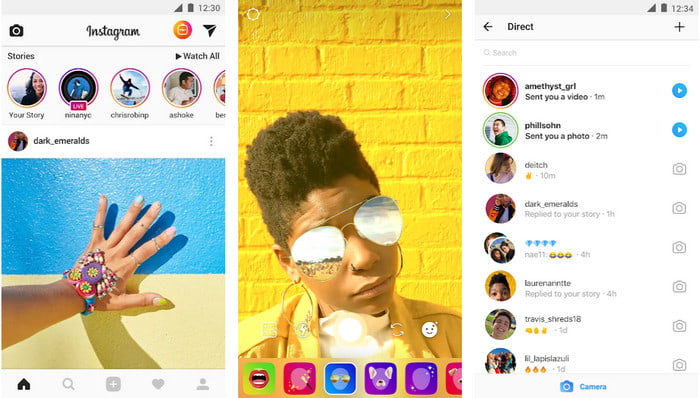
O recurso Reel pode acelerar o vídeo para o Instagram gratuitamente. Este recurso está disponível em dispositivos iOS e Android para capturar um vídeo em movimento de alta velocidade até 3x. Embora possa gravar um vídeo acelerado, ele também possui outros recursos, como adicionar música, definir a duração do vídeo, timer, etc. Para saber como usar esse recurso, você deve seguir os passos que adicionamos abaixo para acelerar o vídeo que você quer fotografar no Instagram como um profissional.
Step 1. After you've downloaded Instagram on your device, open it.
Step 2. Slide it to the left and look for the name REEL.
Step 3. You can now click the speed in this area and change it to your desired speed. As easy as that, you can now shoot in a high-speed motion.
Parte 2. Os 3 principais softwares para acelerar o vídeo para Instagram online e offline
FVC Video Converter Ultimate
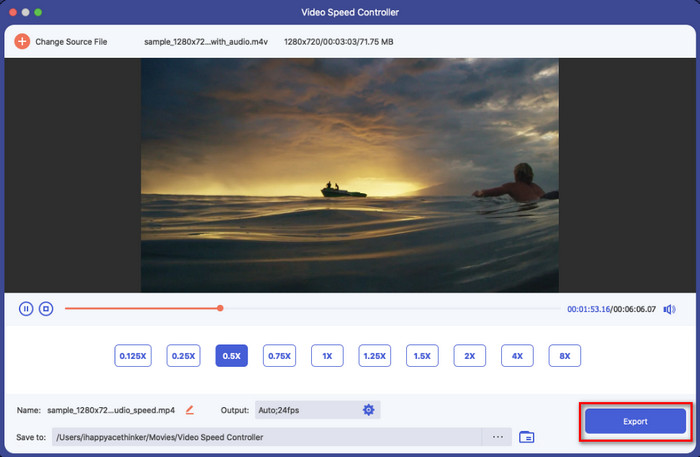
FVC Video Converter Ultimate is the most phenomenal desktop software you can use to speed up videos on Instagram instantly. It offers its users to do many amazing things to make the video even better when it is converted into a speed motion. Within a few clicks, you can easily change the speed of the normal video without worrying about the quality and the smoothness of the video you have. Amazing right? This tool offers you to slow down the video quickly; either way, the tool performs greatly.
Quer mais? Este software suporta mais de 1000 formatos de vídeo, portanto, não há necessidade de se preocupar se você acha que o formato de vídeo não é suportado porque está aqui. Além disso, existem recursos de edição adicionais que você pode gostar de usar, especialmente se quiser impressionar as pessoas que o verão. Seguindo as etapas indicadas em menos de um minuto, você pode alterar com sucesso a velocidade do vídeo.
Step 1. Download and install the ultimate converter on your drive, and choose which operating system you are currently using. After that, please open it and get familiarized with the GUI of the tool. In that way, you can easily follow the steps we will go into next.
Free DownloadFor Windows 7 or laterSecure Download
Free DownloadFor MacOS 10.7 or laterSecure Download
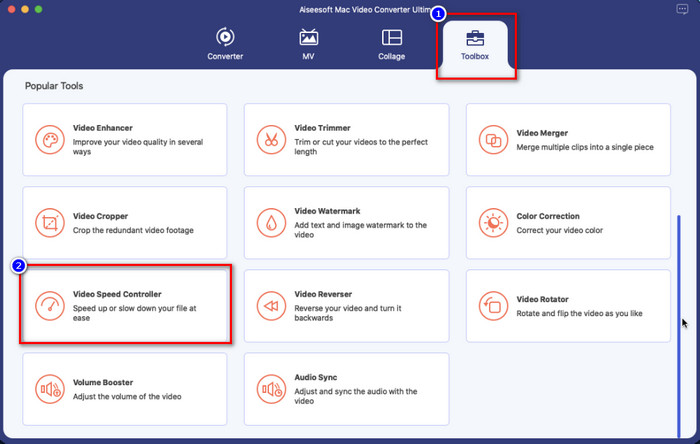
Step 2. Click the Toolbox section to open, and there is a setlist of features and functions you can use; click Video Speed Controller to change the speed of the video you want.
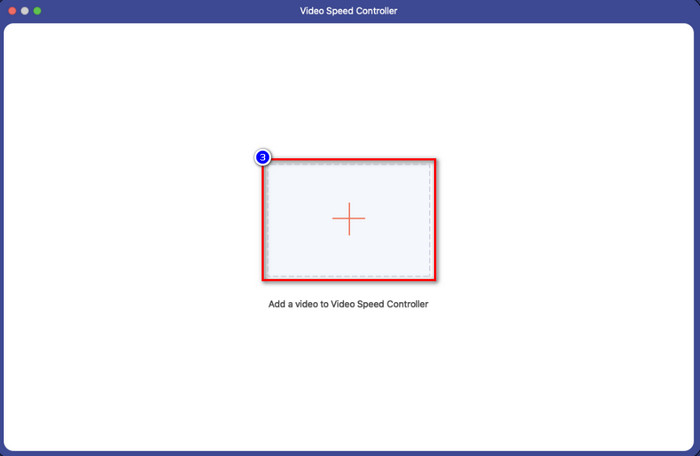
Step 3. Click the + icon, and the folder of your computer will show. Find the video you want to speed up and click Open to insert it.
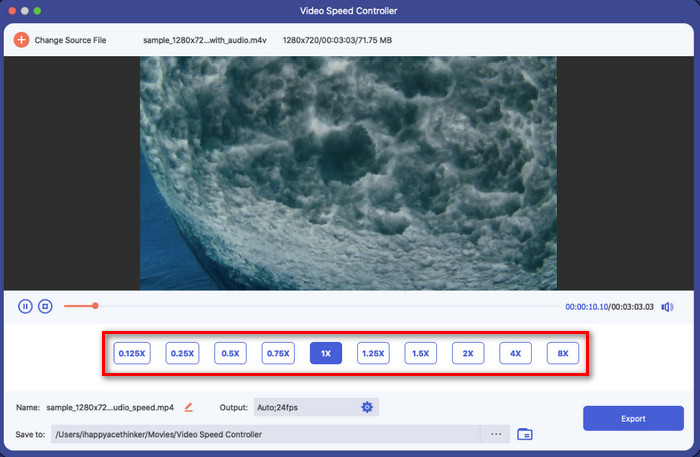
Step 4. As you upload the video, choose the video speed you want to apply to the available options in this part. Click them individually and see it on the preview if that is the right speed you want to achieve on the video you want to post on Instagram.
Step 5. Finally, to save the video, you change the speed click Export, and converting the motion of the video will start shortly. If converting is done, a folder will show on your screen, which means that the video inside the folder is the video that you changed speed.
iMovie
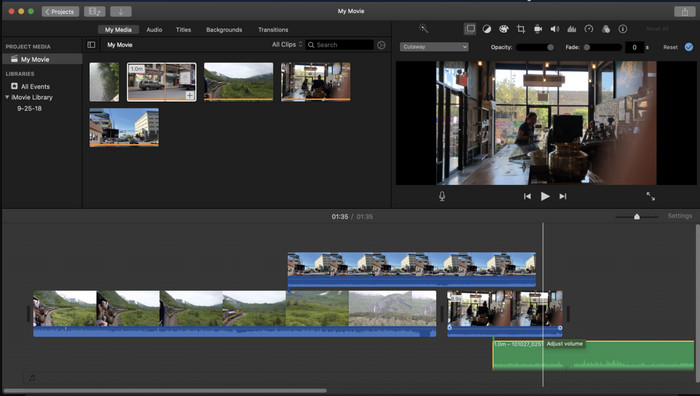
For Mac devices, downloading isn't necessary, especially if you have the iMovie. This built-in video editor can help you change the speed of the video you want to upload or share on Instagram. So, if you want to speed up a video and you are a Mac user, we recommend that you try using this video editor, for it is free. Although the software is free to use, there are still users who find that using this software is a bit stiff because you will need expertise in handling this type of editor. So, if you are looking for how to speed up a video on Instagram before posting it, then follow the steps below.
Step 1. Open the iMovie on your Mac, then add the video you want on the Timeline.
Step 2. Click the clip you upload, and there will be a speedometer icon that will show on your
Step 3. Choose the speed you want to add to the video on the speed menu. Then finally, Export it to save the video you speed up on your Mac.
Clideo
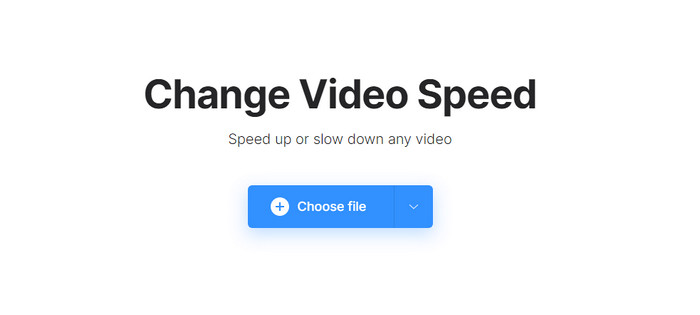
One of the best video editors you can access is Clideo. This web tool is your one-stop solution if you don't want to download the video editor on your desktop to save some space. Although you wouldn't need to download the web tool, you still need a stable internet connection to use this online tool and speed up the video you want. Suppose you try to use this to change the speed of the video, then expect that you can easily finish the job in a minute. Indeed, this web tool is great for speeding up video online, but it isn't as good as the other two editors. To know how to use the tool to speed up a video on Instagram, you can read and follow the steps.
Step 1. Open your web browser and search the Clideo; open its speed controller to begin. Click the Choose File to add the video you want to speed up here.
Step 2. In this area, you can either drag the slider to the left to speed up the video or choose the speed on the options. Either way, they do the same job.
Step 3. After you choose the speed, you want to click Export.
Parte 3. Perguntas frequentes sobre como acelerar o vídeo para Instagram
Qual é a duração padrão do vídeo no Instagram?
Você pode enviar um vídeo a partir de 3 segundos a 10 minutos. Não é muito, mas ainda é bom. Se o vídeo que você deseja gravar for longo, tente acelerá-lo um pouco para economizar algum tempo na duração do vídeo para postar o vídeo inteiro no Instagram em menos de 10 minutos.
Quão alto o Hyperlapse pode acelerar meu vídeo no Instagram?
Você pode usar o Hyperlapse para gravar um vídeo em movimento rápido no Instagram a partir de 1 até 12x de velocidade. Além de seu controle de velocidade, ele também suporta estabilização para tornar seu vídeo mais estável e reduzir a trepidação do vídeo que você está capturando.
Posso exportar o vídeo que acelero no Instagram?
Sim, você pode salvar o vídeo que você acelera no Instagram no seu telefone; depois de filmar, você pode tocar em salvar no dispositivo para salvar o vídeo na versão de aceleração que você escolher. Localize o vídeo que você acelera no Fotos, sua biblioteca para todas as imagens, imagens ao vivo e arquivos de vídeo.
Conclusão
Este artigo fornece uma explicação sólida e etapas para você lidar com vídeos de aceleração para Instagram. Como resolvemos seu problema de alterar a velocidade no Instagram, agora você pode lidar com isso de forma independente. Siga as etapas que adicionamos acima para gravar uma aceleração ou converter o vídeo de velocidade normal em uma aceleração usando a ferramenta definitiva. Qual caminho você escolheria? Seja qual for sua decisão, você terá a velocidade que deseja antes de publicá-la ou compartilhá-la em seu Instagram.
-
 Como acelerar um vídeo com os 5 principais softwares [Windows/Mac/Linux]
 Quer saber como acelerar o vídeo facilmente? Em seguida, leia este artigo enquanto explicamos como acelerar efetivamente no Windows, Mac e Linux.
-
 Maneiras mais fáceis de acelerar um vídeo em seus dispositivos Android [2021]
 Você sabia que pode acelerar um vídeo no seu Android? Então, se você quiser saber como acelerar um vídeo em seu telefone Android, leia este artigo.
-
 Como acelerar o vídeo no Premiere Pro e com suas alternativas
 Quer saber como usar o Premiere Pro para acelerar um vídeo? Então você está no artigo certo, pois fornecemos etapas e outras alternativas acessíveis.
