


 Video Converter Ultimate
 Gravador de ecrã
 Reparo de vídeo
 Secure Download
Como cortar um vídeo no Android usando os melhores aplicativos de aparador de vídeo
It's simple to record spectacular films or just your screen when you always have a smartphone. Modifying those films on your Android phone used to be challenging, but that is no longer the case. This topic will discuss easy ways to trim videos on Android devices. We will use numerous video editing applications/programs which will be effective for you. In addition, if you want to cut a video using your computer, you can do so. In this guidepost, you will learn the most straightforward methods to shorten the video length using a computer. In that case, if you want to learn all the methods on how to cut a part of a video on Android and computer, read the post right now.

Parte 1. Como Cortar Vídeos no Android
Nesta parte, daremos a você dois métodos eficazes para cortar seu vídeo usando o Android. O primeiro aplicativo é um aplicativo pré-criado e o outro é um aplicativo para download. Assim você vai dar uma opção do que usar na hora de cortar um vídeo. Sem mais delongas, vamos começar a descobrir esses métodos.
Usando a Galeria
Se você não deseja baixar nenhum aplicativo da Play Store, use o aplicativo Gallery. Este aplicativo pré-construído não é apenas capaz de mostrar imagens e vídeos. Ele tem mais recursos a oferecer do que você imagina. Se você planeja cortar seu vídeo usando este aplicativo, pode fazê-lo. A Gallery possui uma ferramenta de corte que permite cortar/aparar vídeos de forma fácil e instantânea. Ele também possui uma interface intuitiva, tornando-o mais adequado para todos os usuários do Android. Além disso, além de cortar vídeos, o app pode fazer mais. Você também pode ajustar a velocidade do vídeo usando o ajustador de velocidade do vídeo. No entanto, o aplicativo Gallery é adequado apenas para edição básica. Não é o aplicativo de que você precisa se quiser aprimorar seu vídeo e combinar todos os vídeos cortados. Você deve procurar um software de edição de vídeo mais avançado para obter o resultado desejado. Se você quer saber como cortar um videoclipe no Android usando este aplicativo, veja os passos abaixo.
Step 1. Open your Android device and launch the Gallery application. After that, see the video that you want to cut/trim.
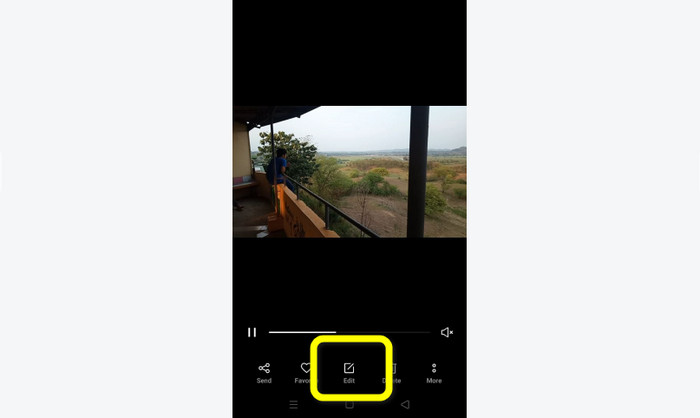
Step 2. After opening the video you want to trim/cut, go to the options below. Click the Edit option to proceed to the following process.
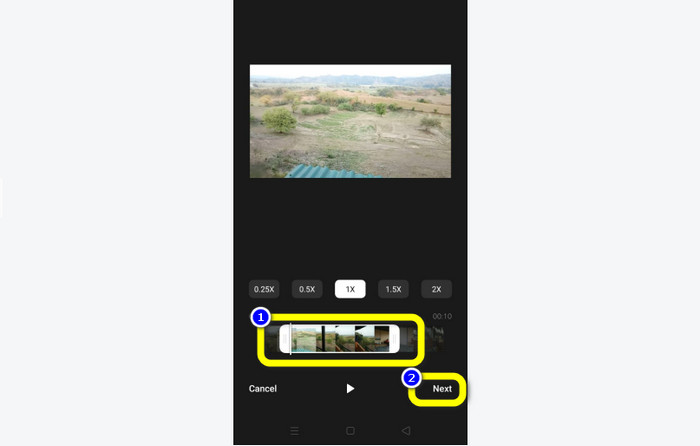
Step 3. After that, you can start trimming the video on your Android. Drag the edge of the video or the bar. Drag each side to trim the video. Then, after trimming, click the Next option on the lower-left corner of the interface.
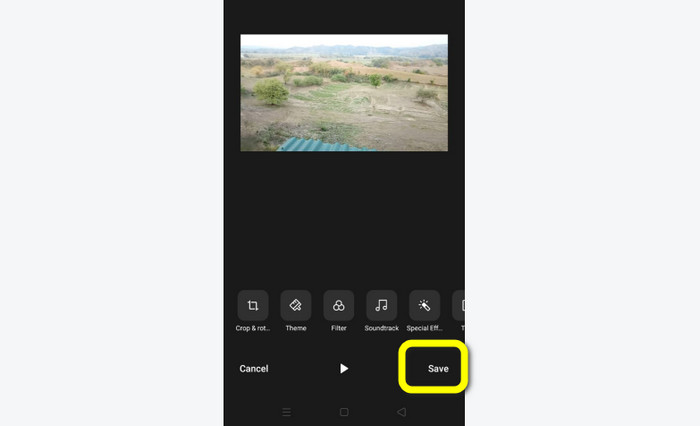
Step 4. Then, you can click the Save button to save the edited video on your phone. Also, if you want to edit your video more, you can crop, rotate, add filters, and more.
Usando o Vid.Fun
Aside from the Gallery app, you can also use a downloadable application to cut videos on Android. You can download the Vid.Fun application to cut videos using your Android. VidFun is a free to download application. In addition, it has a simple interface with a basic editing process. This way, even a non-professional user can utilize the app. Moreover, Vid.Fun has more features to offer besides cutting videos. You can also use this application if you want to put text on your videos. Additionally, you can use a volume booster tool to adjust the volume of the video. Furthermore, you can remove a watermark, adjust the video speed, add stickers, rotate a video, and more. However, Vid.Fun has some drawbacks. VidFun has a slow exporting process, which is time-consuming for users. Also, there are times when the application is not working well. See the methods below to cut videos using the Vid.Fun application.
Step 1. Visit Google Play Store and search for the Vid.Fun application. After that, install the application on your Android phone. Open the application after the installation process.
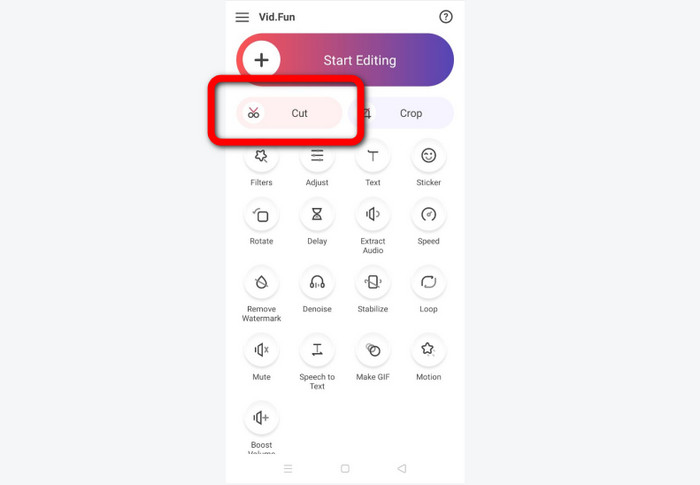
Step 2. When the app’s interface already appears, select the Cut option. Then, your files will show up on the screen. Click the video that you want to cut and press the Yes button.
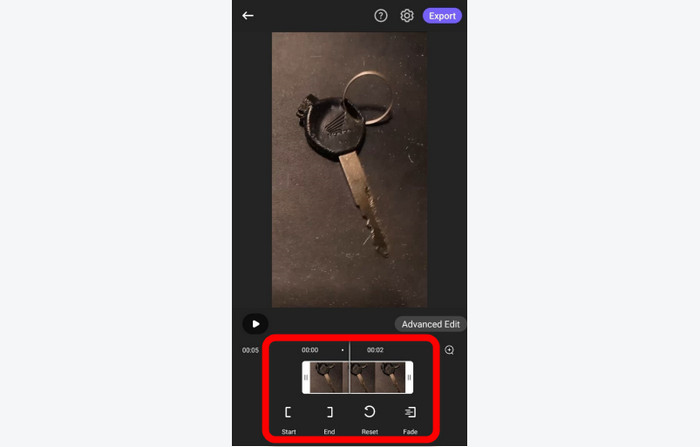
Step 3. After that, you can already proceed with the trimming process. Drag the edge of the video. You can also use the Start and End options for trimming.
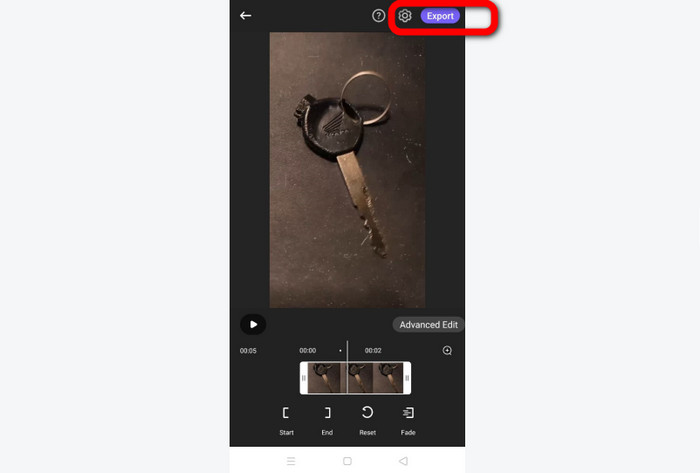
Step 4. When you are done trimming/cutting the video, you can click the Export button. Wait for the export process and keep the video on your Android device.
Parte 2. Como cortar vídeos do Android no PC
You learned how to cut videos using an Android device in the previous part. In this part, you will learn how to cut videos using computers. If you want to use your desktop to edit a video, significantly cutting or trimming it, use Video Converter Ultimate. This offline program has an intuitive interface allowing you to understand all the options quickly. Also, the trimming procedure is simple. You can trim/cut the video in just a few clicks. In addition, it has a fast export process, making it convenient for all users. Since it is an easy-to-use program, professionals and beginners can use it. Moreover, you can save your final output into various formats. It includes AVI, FLV, MOV, MP4, and more. Aside from that, Video Converter Ultimate is free to download and available on both Mac and Windows computers. Furthermore, the program allows you to change the video’s resolution, quality, frame rate, and encoder. Also, you can change the sample rate and bitrate of the audio. This way, you can ensure you will get the best result using this offline program. Follow the simple instructions below to know how to cut an Android video on pc.
Step 1. Download Video Converter Ultimate on your Mac or Windows computer. Click the Download button below to access the program. Both Windows and Mac versions are available. Then, run the program after the installation process.
Free DownloadFor Windows 7 or laterSecure Download
Free DownloadFor MacOS 10.7 or laterSecure Download
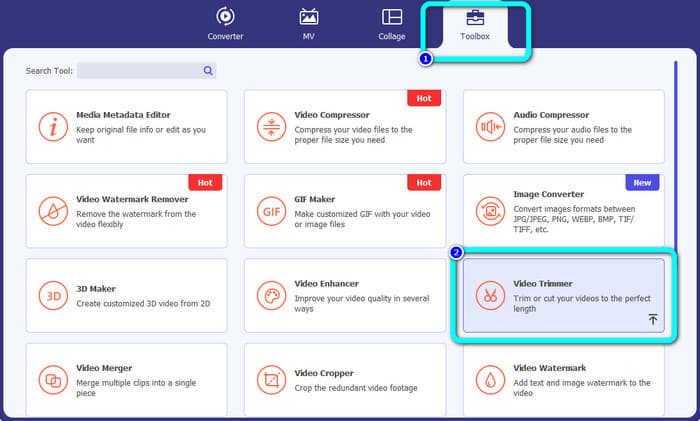
Step 2. When the program’s interface pops up, navigate to the Toolbox on the upper interface and select the Video Trimmer Tool.
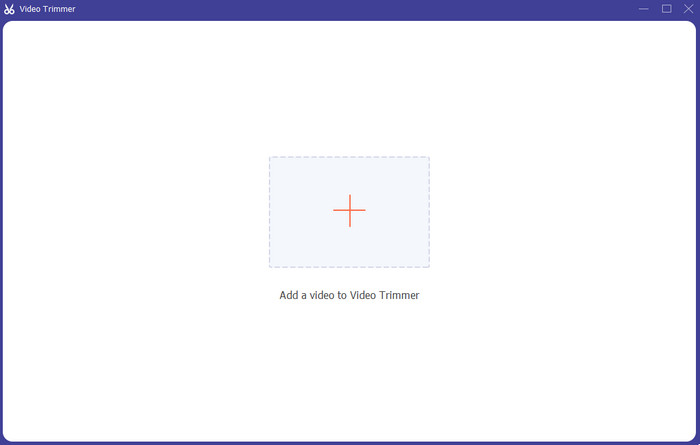
Step 3. Another interface will show up after clicking the Video Trimmer tool. Click the Plus symbol to insert the Android video. Note that the Android video is already transferred to the computer before using the program.
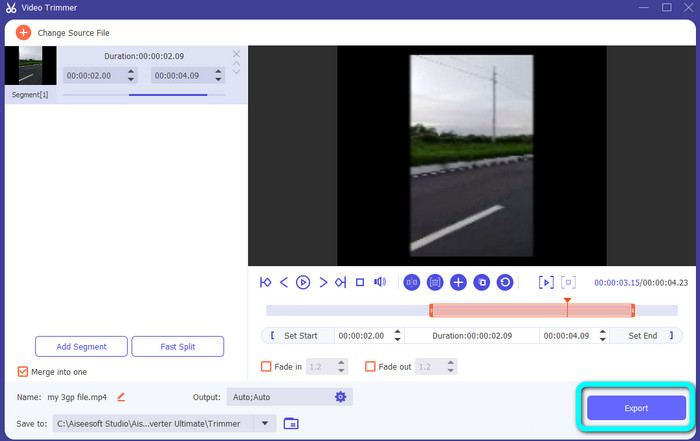
Step 4. Then, you are now in the trimming process. To trim the video, you need to adjust the edges of the video. You can adjust the starting edge and the ending edge.
Step 5. After the process, you can save your edited video by clicking the Export button. After the export process, you can now play the edited video.
Parte 3. Perguntas frequentes sobre como cortar vídeos no Android
Como cortar o meio de um vídeo no Android?
Se você deseja cortar a parte central do seu vídeo usando um dispositivo Android, ainda pode usar os aplicativos apresentados acima. Você pode seguir o mesmo procedimento e cortar a parte do meio do vídeo.
Como recuperar vídeos cortados no Android?
Vá para o aplicativo Galeria. Em seguida, clique nas opções do álbum. Depois disso, clique na opção Lixeira. Você verá os vídeos excluídos e clicará no botão Recuperar.
Posso cortar vídeo no Android usando o iMovie?
Absolutamente não. O iMovie é compatível apenas com dispositivos Apple, como iPhones, iPad e Macs.
Conclusão
Well, there you go! Now you have learned how to trim videos on Android and computers. So, if you are an Android user, you can follow the steps mentioned above. Also, if you want to use your computer to cut or trim an Android video, use Video Converter Ultimate. This offline program lets you cut and trim your Android video easily and quickly.
-
 Excelentes maneiras de cortar vídeos on-line de maneira conveniente
 Cortar um vídeo é a melhor maneira de criar destaques de vídeo. Portanto, esta postagem fornecerá os métodos para aparar vídeos online com facilidade. Leia para saber mais.
-
 Como encurtar um vídeo no iPhone [Tutoriais detalhados]
 Você é um usuário do iPhone e deseja cortar seus vídeos? Não se preocupe mais. Este guia fornecerá detalhes completos sobre como cortar um vídeo no iPhone e no iPad.
-
 Maneiras mais fáceis de acelerar um vídeo em seus dispositivos Android [2023]
 Você sabia que pode acelerar um vídeo no seu Android? Então, se você quiser saber como acelerar um vídeo em seu telefone Android, leia este artigo.
