


 Video Converter Ultimate
 Gravador de ecrã
 Reparo de vídeo
 Secure Download
Um guia completo sobre como cortar vídeos com o VLC no Win e Mac
VLC Player is truly a great tool for handling various video and audio editing tasks—it's free, open-source, and compatible with Windows, Mac, and Linux. It's incredibly versatile: it can play multimedia files, convert file formats, trim and edit video and audio, and even rip DVDs. It truly functions like a professional video editor.
This guide will focus on trimming videos with VLC, providing detailed steps for both Windows and Mac devices, while also introducing you to the best VLC alternatives that can perform the same task.

Parte 1. Como cortar vídeo no VLC no Windows e Mac
Primeiro, vamos começar com uma confirmação teórica: o VLC Player pode, sem dúvida, lidar com o corte de vídeos com facilidade, tanto no Windows quanto no Mac. No entanto, como ele é essencialmente um reprodutor de mídia, sua interface de edição difere da de softwares de edição de vídeo convencionais. Considerando que usuários iniciantes podem ter dificuldade em encontrar a função de corte em sua interface, este guia fornecerá instruções passo a passo nesta seção sobre como cortar um vídeo com o VLC Media Player.
Vamos começar com o Windows primeiro:
Cortar vídeo com VLC no Windows
Antes de começar, certifique-se de ter o seguinte:
• Uma conexão de internet estável
• VLC Media Player compatível com o seu computador Windows, de preferência a versão mais recente
Aqui está um guia sobre como cortar um vídeo com o VLC.
Step 1. Download and install the adapted VLC Media Player on your Windows computer from the official website of VideoLan.
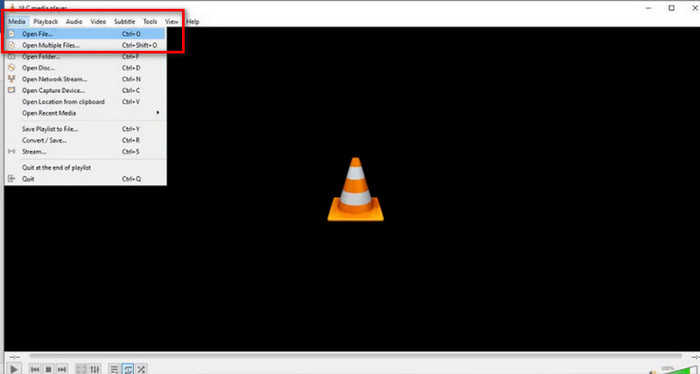
Step 2. Launch VLC Media Player. Go to the top left corner and click Media > Open File. Select the video you want to trim and click Open.
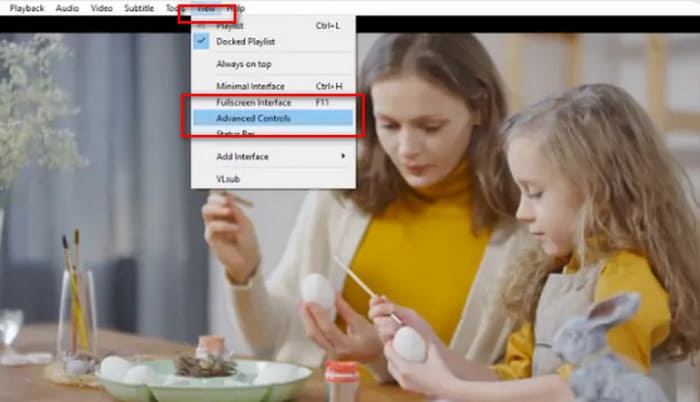
Step 3. Go to the top menu and click View > Advanced Controls. Then, you will see the editing functions displayed under the media viewer.
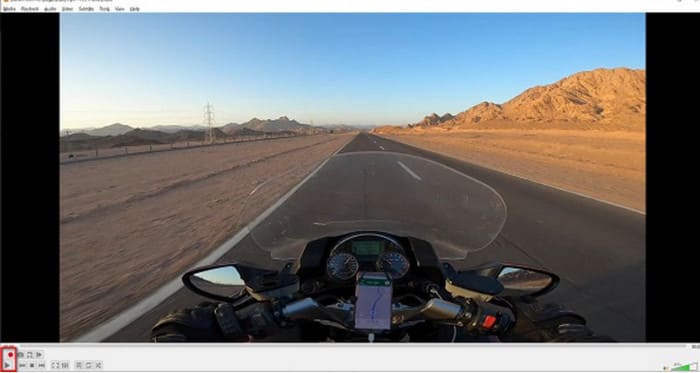
Step 4. Identify the section of the video you wish to trim and click the play button at the starting point. Press the red Record button.
Step 5. Play the video to the point where you want the clip to stop, then click the Record button again.
Agora, você cortou um vídeo com sucesso no VLC. Se quiser encontrar o local onde o vídeo cortado foi salvo, consulte:
Step 6. After finishing the clip, VLC will automatically save the file in the Videos folder on your Windows computer. You can find it from C:UsersUsersnameideo path.
Cortar vídeo com VLC no Mac
Os passos para cortar vídeo com o VLC em um Mac são igualmente simples.
Again, remember to make sure your Mac has a stable network connection and that the system and VLC video trimmere are compatible.
Agora, vamos aprender como recortar vídeo no VLC em um computador Mac.
Step 1. Download and install VLC Media Player on your computer.
Step 2. Launch VLC Media Player. Open the file you want to trim and drag it to the playlist of VLC. The video will start playing automatically. If it is not, double-click to play it manually.
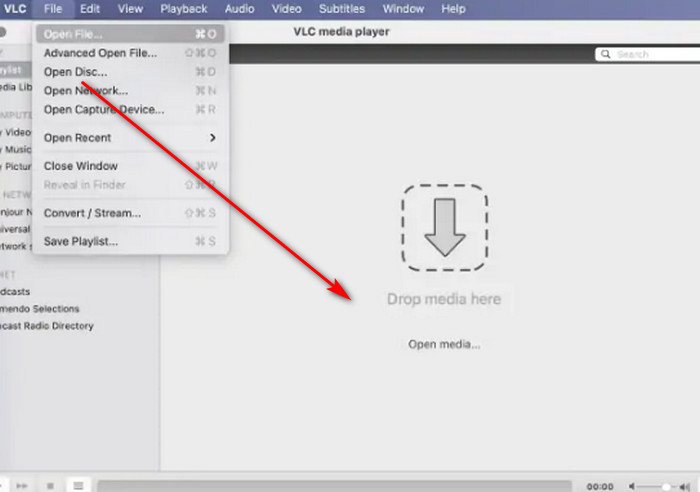
Step 3. Play or scrub to the starting point of the segment you want to keep. Go to the top menu and click Playback > Record.
Step 4. Let the video play until it reaches the endpoint of the segment. Click the Record button again to stop recording.
O vídeo cortado será salvo automaticamente na sua pasta Filmes. O nome do arquivo pode começar com vlc-record. Você pode tentar encontrá-lo.
Parte 2. Melhor alternativa ao VLC para cortar vídeos
É possível cortar vídeos com o VLC Player?
Sim, com base nas diretrizes das duas seções acima, cortar um vídeo com o VLC é bastante simples em computadores Windows e Mac.
No entanto, há algumas questões que você não pode ignorar:
• O módulo para selecionar a seção de edição no VLC não é muito flexível e só pode executar a seleção de seção contínua mais básica.
• O VLC não pode dividir um vídeo em vários segmentos menores, especialmente vários segmentos de igual duração.
• O VLC não pode processar cortes de vídeo em lote; cada processo só pode editar um arquivo por vez.
Currently, VLC Media Player's trimming functionality is only suitable for performing the most basic video editing tasks. If, after trying it out, you find its functionality insufficiently flexible to handle more complex segment editing, we strongly recommend exploring some of VLC alternatives.
Among all similar products, we highly recommend trying FVC Video Converter Ultimate. This software combines multiple functions such as video conversion, trimming, merging, compression, and enhancement, providing you with a one-stop solution for audio-visual and even image trimming and editing services. Additionally, it is compatible with both Windows and Mac systems, has no usage barriers, and features a clean and intuitive interface. You also need not worry about compatibility issues. FVC Video Converter Ultimate supports over a thousand multimedia formats, effectively covering any video format you might encounter in daily life.
Free DownloadFor Windows 7 or laterSecure Download
Free DownloadFor MacOS 10.7 or laterSecure Download
• Suporta mais de 1.000 formatos de vídeo, áudio e imagem.
• Oferece funções de aparar, cortar e dividir. Você não só pode editar a duração do vídeo, como também oferece suporte à divisão do vídeo em vários segmentos de igual duração.
• Suporta upload em lote de arquivos de vídeo para edição.
• Fornece configurações abrangentes de ajuste de reprodução de vídeo, incluindo ajuste de volume, ajuste de velocidade de reprodução e assim por diante.
Veja como cortar um vídeo com o FVC Video Converter Ultimate.
Step 1. Download and install FVC Video Converter Ultimate on your computer. Click Add Files to upload the video you want to trim.
Step 2. Click the Cut icon to launch its trimming interface. Drag the time bar to set the start and end points.
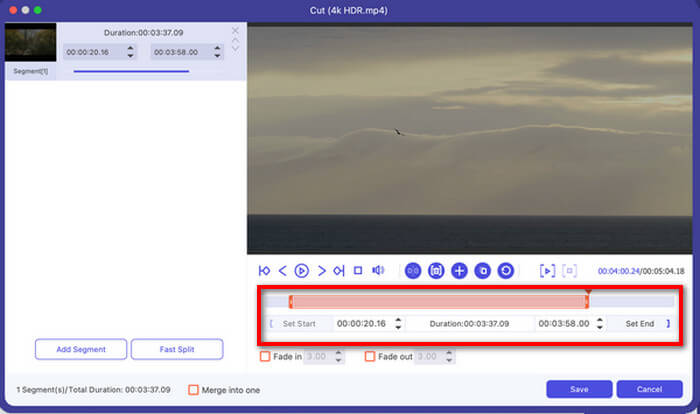
You can also use the Set Start and Set End button.
After finishing trimming, click Save.
Step 3. Go back to the main interface. Click Convert All to export your video.

Parte 3. Perguntas frequentes sobre como cortar vídeo com VLC
Posso cortar um vídeo com o VLC?
Sim, você pode cortar vídeos no VLC. Este player de vídeo possui um recurso de edição de vídeo que funciona tanto para usuários de Windows quanto de Mac. Você pode encontrar os passos detalhados no texto acima.
É possível converter arquivos de vídeo no VLC?
Sim. O VLC Media Player suporta uma ampla variedade de formatos de vídeo e pode ajudar você a concluir tarefas de conversão de formato. No entanto, seu processo de conversão de formato pode ser um pouco complexo, ao contrário dos conversores de vídeo tradicionais.
Existe algo melhor que o VLC?
Depois de usar o VLC para encurtar um vídeo, você pode achar que ele é menos intuitivo. O FVC Video Converter Ultimate tem um desempenho melhor nesse quesito. Além de simplificar os passos, ele também suporta processamento em lote.
Conclusão
We can now confirm with certainty that VLC Player supports video trimming. To help you better understand the process, we have prepared a comprehensive guide on how to trim videos with VLC, covering both Windows and Mac platforms. However, VLC Player does not support batch processing, and the trimming functionality is quite basic.
If you are looking for a simpler tool with more trimming options, such as splitting videos into multiple segments, we recommend using FVC Video Converter Ultimate as an alternative to snip video VLC.
-
 Como usar o VLC para reparar vídeos. Seu guia definitivo
 Você tem vídeos quebrados presos em seus arquivos? Explore o guia definitivo para reparo de vídeo VLC para reparar seus vídeos e reproduzi-los novamente com facilidade.
-
 Como gravar áudio com o VLC Media Player: um guia completo
 Neste post, você aprenderá como gravar áudio com o VLC Media Player. Este artigo apresenta etapas detalhadas e recomenda uma das melhores alternativas ao VLC.
-
 Captura de tela no VLC - Como fazer um instantâneo no VLC Media Player
 Como tirar instantâneos no VLC Media Player e onde salvá-los? Acesse o recurso de instantâneo do VLC e sua alternativa no artigo.
