


 Video Converter Ultimate
 Screen Recorder
 Reparație video
Aflați cum să sincronizați corect audio și video pe iMovie cu pașii furnizați
Nu este foarte enervant să urmărești un film în care sunetul nu este sincronizat cu imaginea? Ei bine, asta ni se întâmplă des multora dintre noi. Așadar, dacă întâmpini această problemă pe Mac, este esențial să o rezolvi cu ajutorul iMovie. În plus, nu trebuie să îți faci griji, pentru că nu îți va lua o oră să înveți cum să sincronizezi sunetul și imaginea în iMovie. Ai nevoie de doar 4 minute ca să citești acest articol cu atenție și de mai puțin de 3 minute ca să pui în practică. Dacă ești gata să aduci sunetul și imaginea în sincron, atunci să vedem cum poți folosi iMovie pe iPhone și Mac.

Partea 1. Cum să sincronizați audio și video în iMovie pe iOS
Cu iPhone-ul poți crea aproape orice poți crea și pe Mac. Un exemplu excelent este iMovie, deși interfața iMovie pe iPhone nu este identică cu cea de pe Mac. Totuși, poți obține în continuare sincronizarea audio-video chiar și fără un Mac. Așadar, dacă vrei să știi cum să sincronizezi sunetul și imaginea în iMovie pe iPhone, urmează pașii de mai jos.
Pasul 1. Caută iMovie în App Store și descarcă aplicația pe iPhone. După ce instrumentul a fost instalat, apasă pe el pentru a-l deschide.
Pasul 2. Apoi apasă butonul + pentru a adăuga un videoclip și apasă pe Movie. Găsește videoclipul pe care vrei să îl sincronizezi, apoi apasă pe Create Movie.
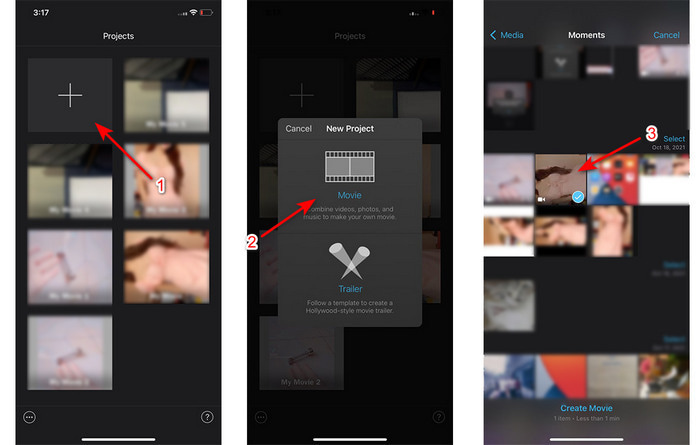
Apoi apasă din nou pe semnul + pentru a localiza același videoclip, dar de data aceasta vom adăuga doar sunetul. După ce ai localizat videoclipul, apasă pe cele trei puncte și selectează Audio Only.
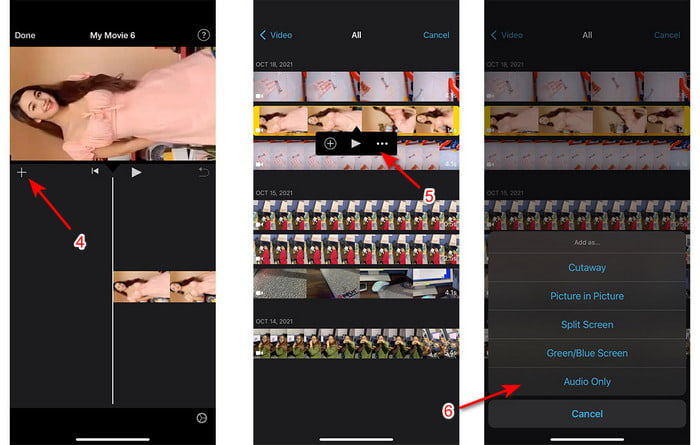
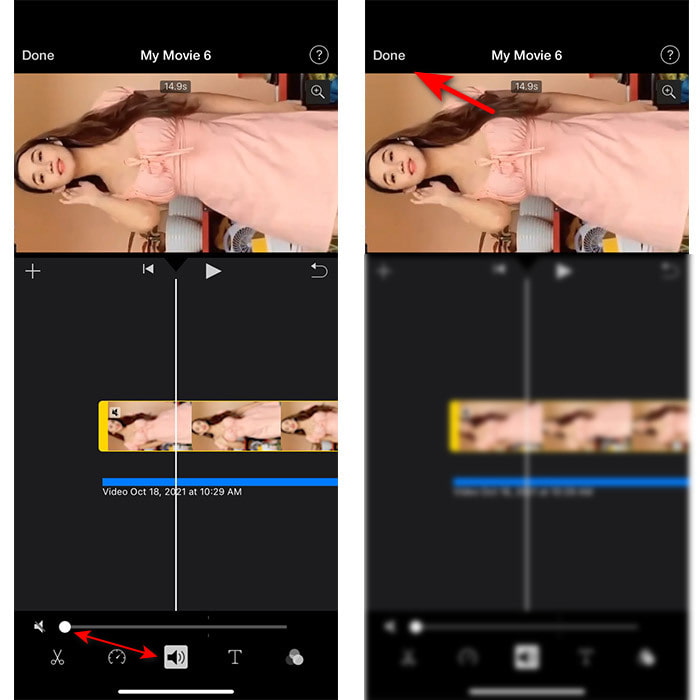
Pasul 3. Atinge videoclipul de pe linia de timp și apasă pe pictograma Speaker, apoi setează volumul audio la zero. Apoi ajustează fișierul audio pentru a-l aduce în sincron cu imaginea. Apasă pe Done pentru a salva editările făcute.
Partea 2. Cum să sincronizați audio și video în iMovie pe Mac
Dacă vrei să te bucuri de toate funcțiile avansate de editare pe care le oferă iMovie, folosește un Mac. Acest software este foarte elegant și funcționează excelent pe Mac. Așadar, dacă vrei să sincronizezi sunetul și imaginea, o poți face foarte ușor aici. Totuși, este puțin mai greu de utilizat pe Mac decât pe iPhone. Dacă vrei să afli cum să sincronizezi sunetul cu imaginea în iMovie pe Mac, urmează cei 3 pași simpli de mai jos.
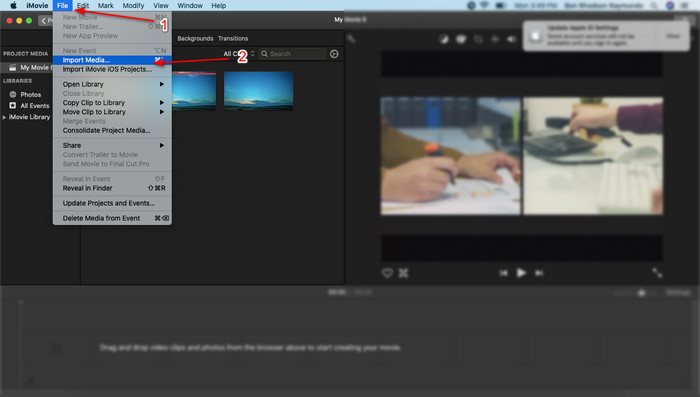
Pasul 1. Găsește iMovie în Finder și lansează-l. După ce instrumentul a fost deschis, apasă pe File, apoi mergi la Import Media. Selectează fișierul din folder și apasă pe Import Selected.
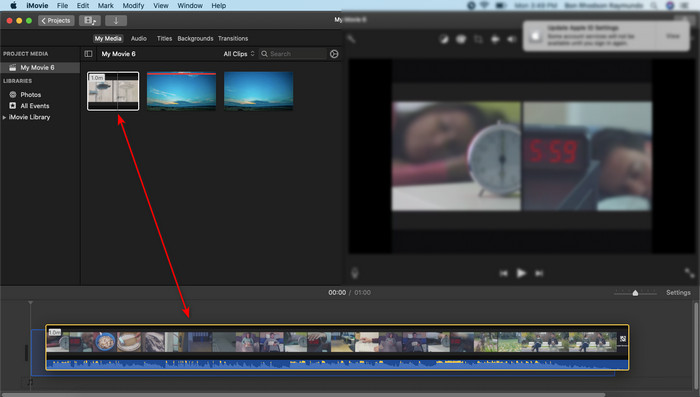
Pasul 2. Trage mai întâi fișierul video în Timeline, apoi fă același lucru cu fișierul audio.
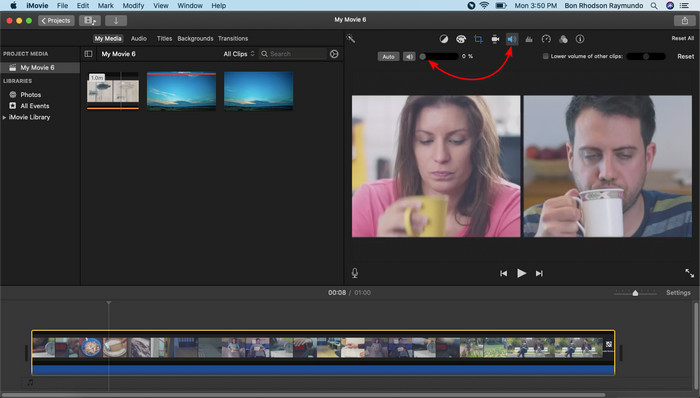
Apasă pe fișierul video și apasă pe butonul Speaker pentru a elimina sunetul din videoclip.
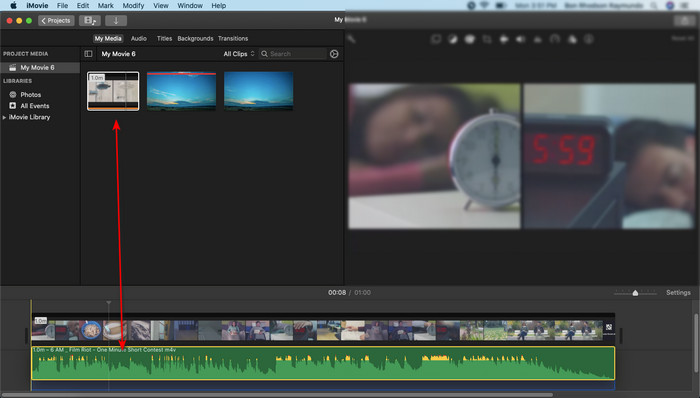
Adăugați același fișier, dar acum la audio, apoi reglați sunetul pentru a-l sincroniza pe videoclip.
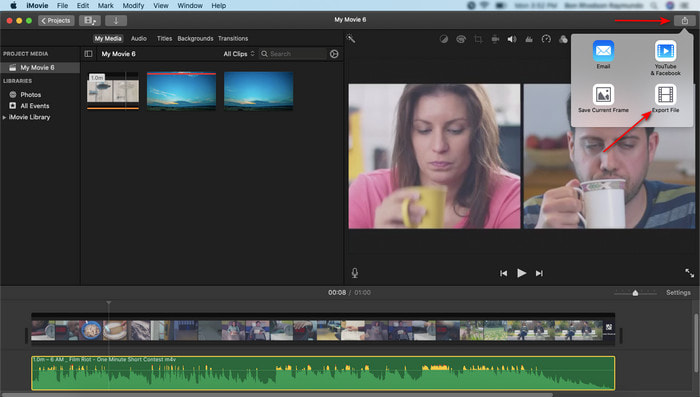
Pasul 3. Pentru a salva videoclipul pe disc, apasă pe butonul share și apoi pe Export File.
Partea 3. Cum să sincronizați audio și video folosind Windows Phenomenal Editor
Dacă nu ai un Mac sau un iPhone, poți totuși să sincronizezi sunetul și imaginea eficient și mult mai ușor cu Video Converter Ultimate. Acest software excepțional este mai bun decât iMovie și este disponibil pe toate platformele, cu excepția telefoanelor mobile. De asemenea, fie că ești începător sau profesionist, poți reuși să creezi un videoclip uimitor, cu efect de „wow” pentru cei care îl urmăresc. Prin urmare, dacă vrei să înveți cum să sincronizezi sunetul și imaginea într-o alternativă la iMovie, urmează pașii detaliați pregătiți pentru tine de autor și să mergem mai departe.
Pași pentru sincronizarea sunetului și imaginii pe Windows cu Video Converter Ultimate:
Pasul 1. Înainte de a putea folosi instrumentul, trebuie mai întâi să îl descarci. Apoi instalează-l și apasă pe Finish pentru a continua.
Descărcare gratuită pentru Windows 7 sau o versiune ulterioară Descărcare securizată
Descărcare gratuită pentru MacOS 10.7 sau o versiune ulterioară Descărcare securizată
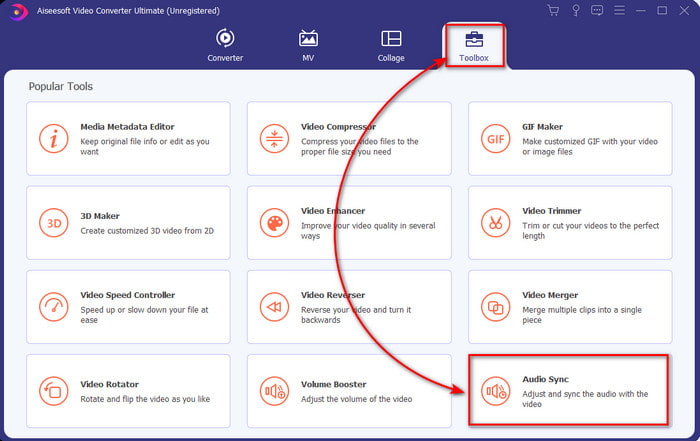
Pasul 2. După instalare, este momentul să lansezi programul. Apoi mergi la Toolbox și apasă pe Audio Sync.
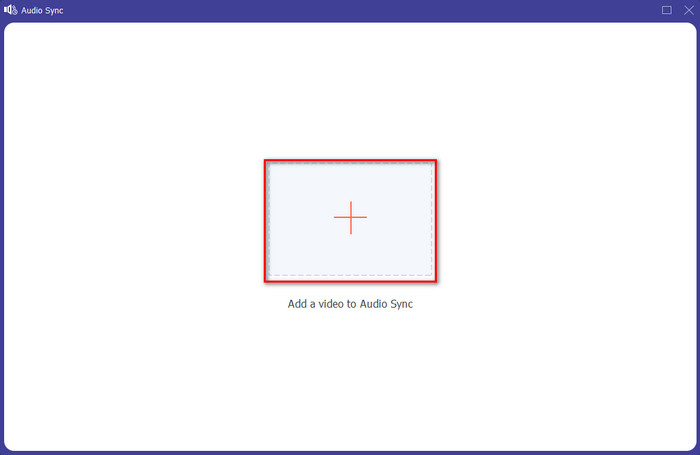
Pasul 3. Pentru a adăuga fișierul cu sunet nesincronizat, apasă pe butonul +, selectează fișierul din folder, apoi apasă pe Open.
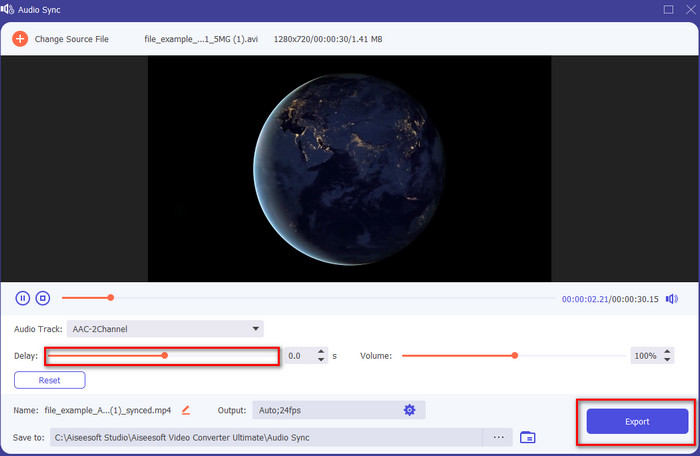
Pasul 4. Modifică slider-ul pentru întârziere astfel încât să potrivești sunetul cu imaginea. După ce ai terminat de ajustat sunetul la video, apasă pe butonul Export pentru a începe procesarea.
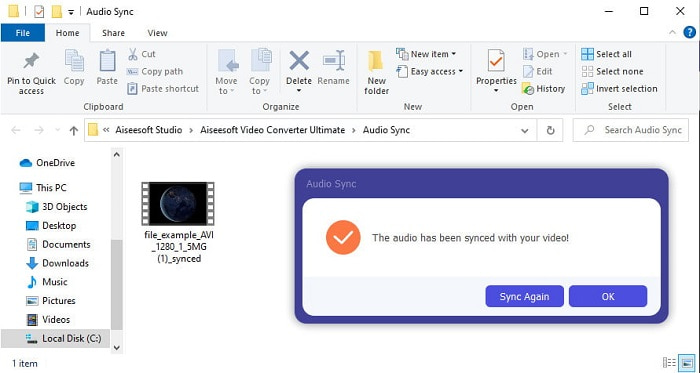
Pasul 5. După finalizare, pe ecran va apărea un folder cu fișierul sincronizat. Apasă pe fișier pentru a te bucura de un video în care sunetul și imaginea sunt sincronizate.
Partea 4. Întrebări frecvente despre sincronizarea audio și video în iMovie
Pot folosi iMovie pe Windows?
Din păcate, nu poți descărca iMovie pe Windows. Dar poți găsi alte alternative care oferă funcții similare sau chiar mai bune decât iMovie, cum ar fi aceste 5 editoare video asemănătoare cu iMovie.
De ce nu este acceptat AVI pe iMovie?
AVI nu este acceptat de iMovie din cauza structurii complicate a acestui format. Așadar, cea mai bună variantă pentru a edita un fișier video AVI este să îl convertești într-un fișier MOV. Dacă nu știi cum să convertești AVI în MOV, citește acest articol pentru mai multe informații.
Fișierul exportat pe iMovie are un filigran?
Fiecare proiect pe care îl exportați pe iMovie nu are un filigran până în ziua de azi. Deși instrumentul este gratuit pe dispozitivele Apple, filigranele nu sunt incluse în rezultatul final. Cu toate acestea, puteți adăuga propriul dvs. filigran acolo dacă doriți să aibă.
Pot folosi iMovie pentru a înregistra un videoclip cu camera pornită?
De fapt, poți face foarte ușor și înregistrări de ecran cu iMovie. Dacă vrei să afli mai multe, apasă pe acest link pentru a continua.
Concluzie
Acum că este clar că poți folosi iPhone-ul sau Mac-ul pentru a sincroniza sunetul și imaginea cu ajutorul iMovie, merită menționat că, deși interfața și unele funcții nu sunt disponibile pe iPhone, îl poți folosi cu ușurință chiar fără a fi expert. Totuși, dacă vrei o variantă și mai simplă, folosește Video Converter Ultimate. În loc să faci ajustări complicate, poți rezolva totul din câteva clicuri cu acest software. Așadar, aceasta este ziua ta norocoasă: dacă urmezi pașii de sincronizare a sunetului și imaginii în Ultimate Converter, îți garantăm reușita.
-
 Importați și convertiți AVI în format acceptat iMovie [2021]
 Aveți o problemă pentru că nu vă puteți importa fișierul AVI pe iMovie? Dacă citiți acest articol, atunci ați ales deja remediul potrivit pentru această problemă.
-
 Tutorial concret - Cum se îmbină două piese audio în Audacity
 Audacity se bucură de reputație pentru editarea audio. Ați descărcat Audacity, dar nu știți cum să îmbinați piesele audio în Audacity? Această postare vă va spune cum să îmbinați piesele în Audacity.
-
 Cum să decupați fișierul MP4 fără a pierde nicio calitate a videoclipului [2021]
 Aflați cum să decupați MP4 cu pași simpli furnizați doar pentru dvs. Așadar, ține pasul pentru că îți prezentăm cele mai bune dintre cele mai bune instrumente de decupare pe care le poți folosi.
