


 Video Converter Ultimate
 Skärminspelare
 Video reparation
 Säker nedladdning
Hur man tar bort människor från foton för att skapa rena resultat
Att fånga minnesvärda ögonblick har aldrig varit enklare än det är i dag. Men ibland råkar oönskade personer hamna i våra dyrbara foton och stjäl uppmärksamheten från det egentliga motivet. Oavsett om det gäller en turistattraktion full av folk, en livlig stadsvy eller ett kärt familjefoto uppstår behovet av att ta bort en person från foton för att skapa renare och mer visuellt tilltalande resultat.
I den här artikeln fördjupar vi oss i att ta reda på vad vi ska använda för att effektivt ta bort människor från dina foton. Från användarvänliga onlineverktyg till appar från tredje part, att läsa den här artikeln kan garantera dig pålitliga verktyg som passar dina problem med att ta bort en person eller ett föremål från dina foton. Vad väntar du på? Upptäck dessa onlineverktyg och appar som listas i den här artikeln och lär dig hur du uppnår professionella resultat.

Del 1. Onlinemetoder för att ta bort människor från foton
FVC Free Watermark Remover
FVC Free Watermark Remover är ett webbaserat verktyg som är gratis att använda i valfri webbläsare på din dator. Det här gratisverktyget tar inte bara bort vattenstämplar från dina foton, utan hjälper dig även att ta bort personer från dina bilder. FVC Free Watermark Remover stöder bildformat som är bland de mest använda, som JPG, PNG och BMP. Med det här verktyget kan du manuellt radera text, oönskade personer och objekt från dina bilder genom att helt enkelt använda dess lasso‑verktyg för precisa och exakta resultat. För att ta bort en person från ett foto behöver du bara följa fyra steg. Det enda som krävs är en internetanslutning – du behöver varken ladda ner något eller teckna abonnemang – vilket gör det perfekt tillgängligt både för proffs och nybörjare.
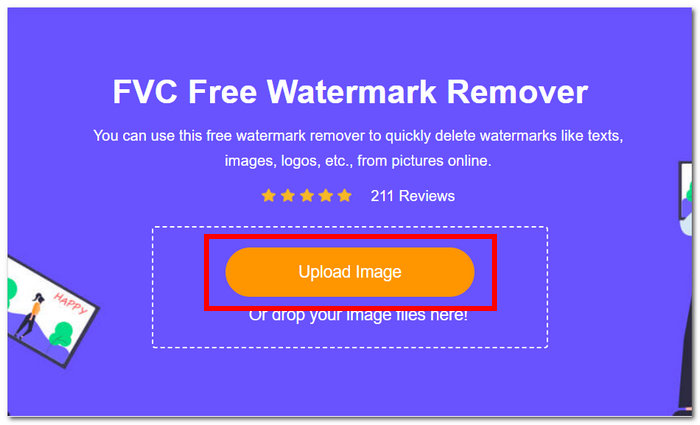
Steg 1. Gå till webbplatsen för FVC Free Watermark Remover och ladda upp din bild i det angivna fältet för bilduppladdning.
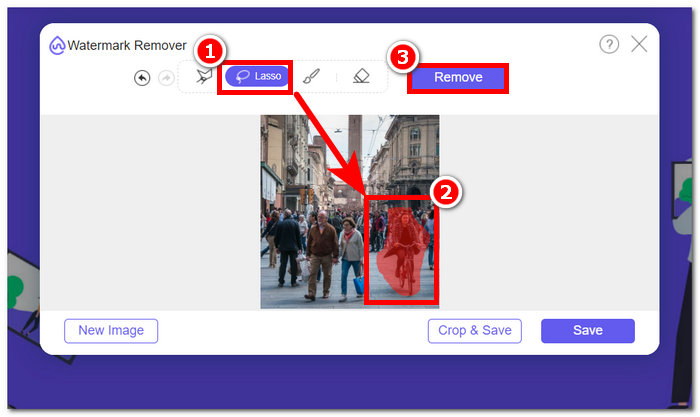
Steg 2. När din bild har laddats in i verktyget väljer du Lasso-verktyget högst upp på skärmen och markerar manuellt objektet eller personen du vill ta bort från bilden.
Steg 3. Det markerade objektet eller personen blir då rödmarkerad, vilket visar att det är valt för borttagning. Klicka på knappen Remove i navigationsfältet för att fortsätta borttagningsprocessen.
Steg 4. FVC Free Watermark Remover tar automatiskt bort objektet eller personen, och du klickar sedan på knappen Save för att ladda ner din bild till datorn.
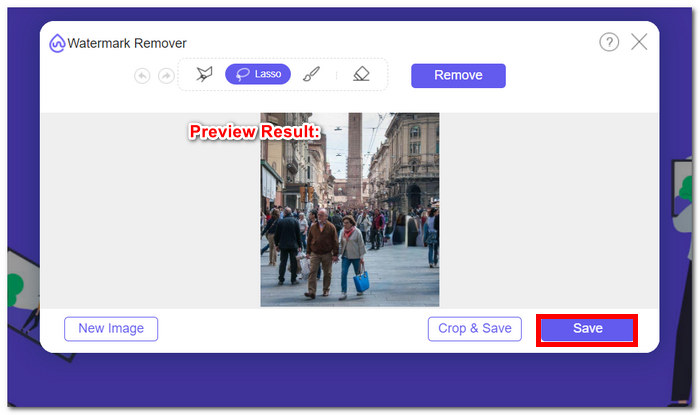
Med FVC Free Watermark Remover behöver du inte konsumera tid för att utföra uppgifter som att ta bort en person från ett foto. Faktum är att dessa verktyg prioriterar din tid för att skapa kvalitetsbilder som exporterar resultat utan att förlora kvaliteten.
PhotoRoom
PhotoRoom erbjuder ett kraftfullt webbtjänstverktyg utformat speciellt för att enkelt ta bort oönskade personer från dina foton. Det här verktyget kan snabbt radera oönskade objekt och människor med bara några klick genom att förlita sig på dess AI-funktioner. Med hjälp av dess magiska borste kan du ta bort föremål från dina älskade bilder även om du inte har avancerade fotoredigeringsfärdigheter.
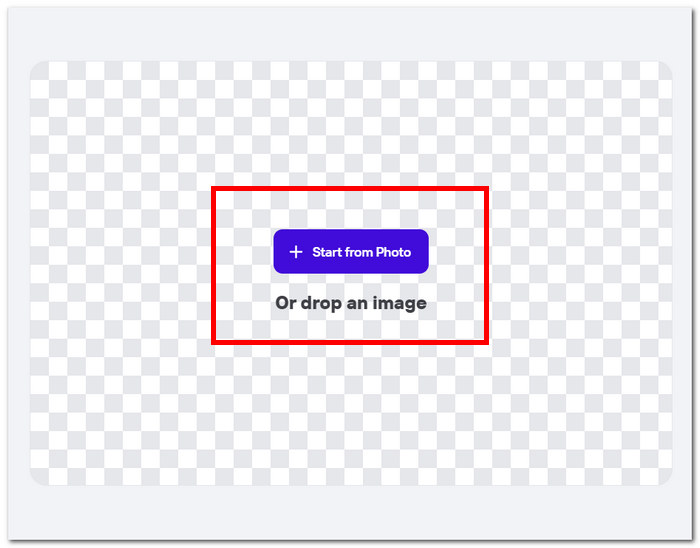
Steg 1. Gå till PhotoRooms officiella webbplats och släpp bilden du vill ta bort personer från genom att klicka på ”Start from Photo”.
Steg 2. När ditt foto har laddats in i verktyget klickar du på den person du vill ta bort. Bearbetningen startar automatiskt när du har markerat området med det oönskade objektet eller personen.
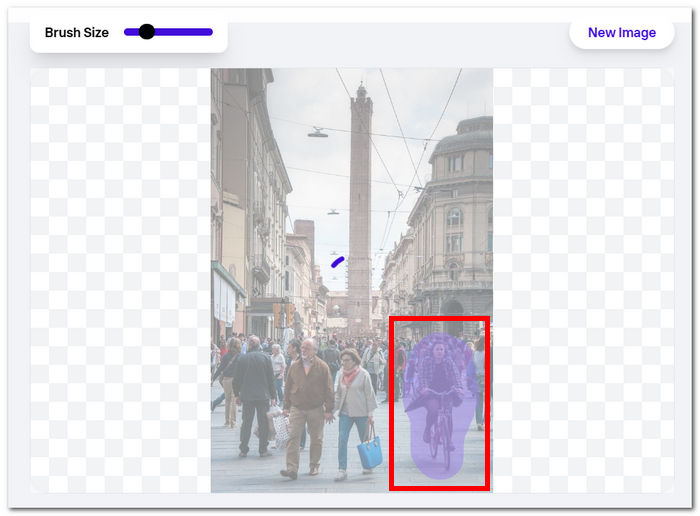
Steg 3. Verktyget tar på ett nästan magiskt sätt bort det valda objektet eller personerna; det enda du behöver göra därefter är att klicka på knappen Download.
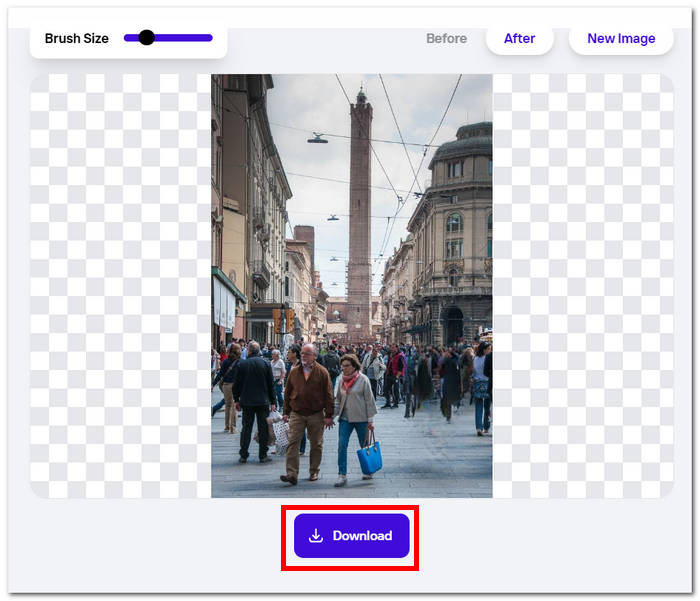
Med PhotoRoom är det alltid inom räckhåll att få rena, distraktionsfria bilder, vilket erbjuder en enkel lösning för att eliminera allt oönskat innehåll från dina bilder. För att ta bort en person från ett foto online bör du känna till ditt verktyg och PhotoRoom är ett verktyg att överväga.
Hotpot.ai
Hotpot.ai erbjuder enkel borttagning av människor, oönskade föremål och suddiga motiv. Genom att använda avancerad AI-teknik bearbetar den dina foton direkt vid uppladdning, vilket säkerställer snabb och exakt redigering. Denna strömlinjeformade process gör det enkelt att städa upp dina foton, vilket ger dig polerade resultat på nolltid. Att ta bort en person från ett foto med hjälp av AI är en av det här verktygets stolta funktioner.
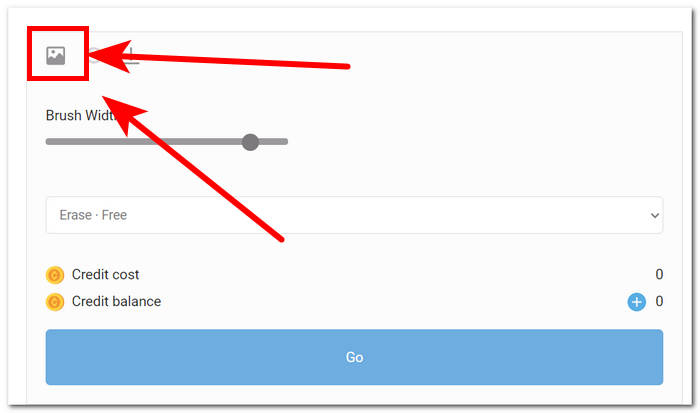
Steg 1. Gå till Hotpot.ai och klicka på ikonen Media uppe till vänster i inställningarna för att ladda upp din bild.
Steg 2. Täck över de oönskade personerna du vill ta bort genom att föra muspekaren över dem och lägga på vita markeringar för att dölja dem. När de oönskade personerna är täckta klickar du på knappen Go för att bearbeta bilden.
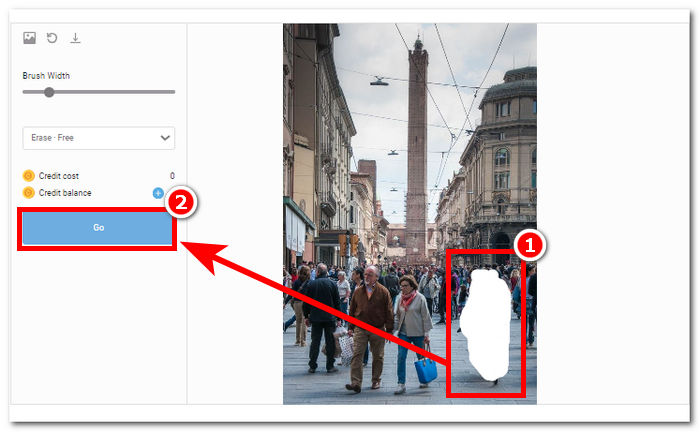
Steg 3. När verktyget har bearbetat bilden visas resultatet, och när du är nöjd klickar du på knappen Download uppe till vänster i verktygets inställningar.
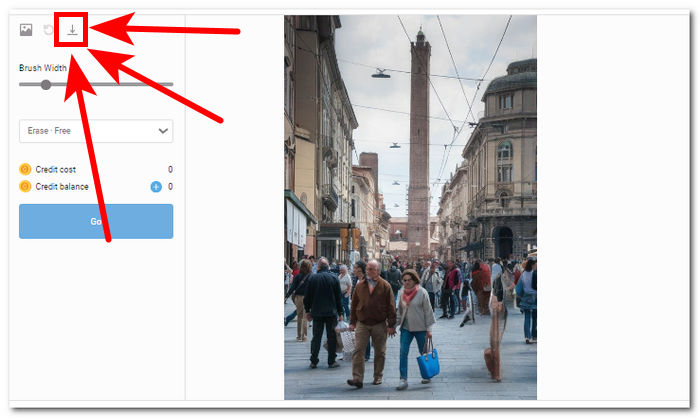
Med Hotpot.ai kan du skapa bilder som ser professionella ut och höjer det visuella intrycket i dina fotoprojekt. Säg hejdå till distraktioner och hej till felfria foton med verktyget för bildförbättring.
Photoeditor.ai
Photoeditor.ai erbjuder korrekta resultat eftersom det inte bara erbjuder en grundläggande fotoredigerare utan även borttagning av oönskade föremål eller personer som förstör dina bilder. Resultaten är jämförbara med betalda onlineverktyg som finns tillgängliga på internet. Det här verktyget är ett av de pålitliga verktyg som låter dig använda deras tjänst gratis; allt du behöver är en internetanslutning och ditt foto.
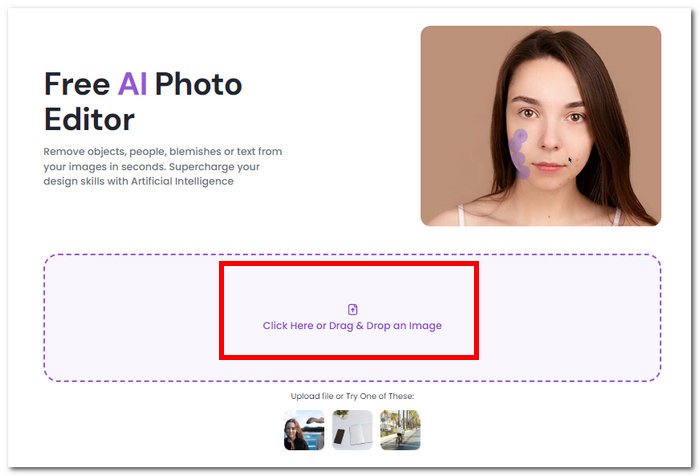
Steg 1. Gå till webbplatsen Photoeditor.ai och ladda in ditt foto genom att klicka på fältet Drop an Image i verktygets gränssnitt.
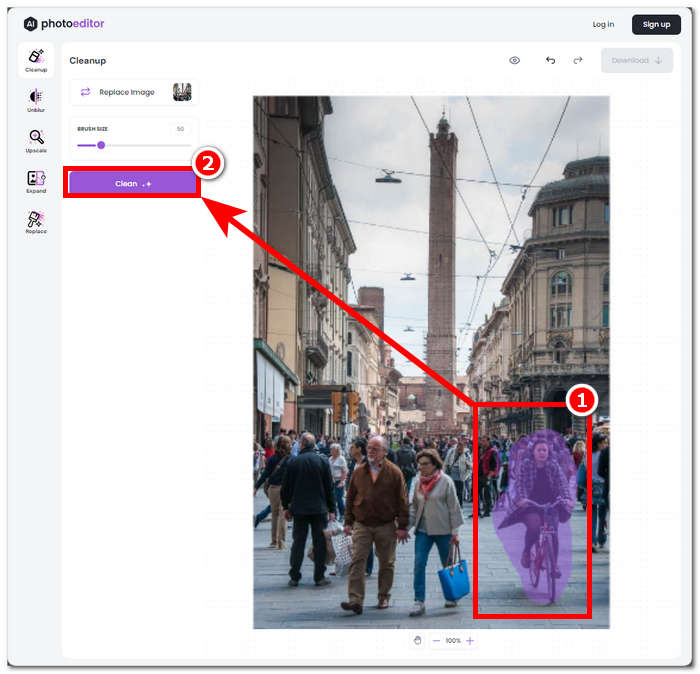
Steg 2. När ditt foto har laddats i verktyget markerar och ritar du manuellt runt de oönskade personerna på bilden och klickar på knappen Clean uppe till vänster i verktygets gränssnitt.
Steg 3. När processen är klar kan du förhandsgranska din bild, och när du är nöjd sparar du den genom att klicka på området med knappen Download.
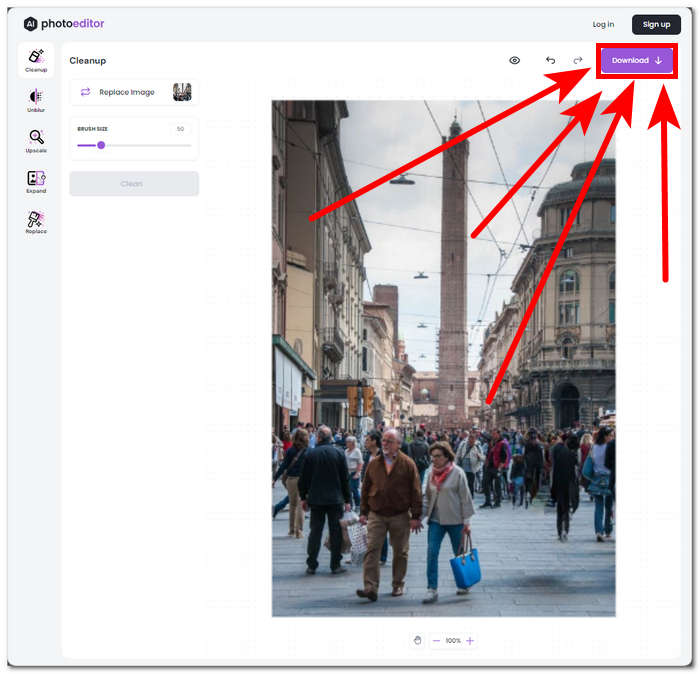
Photoeditor.ai är ett enkelt verktyg som låter dig ta bort oönskade föremål och människor på ett ögonblick utan att behöva oroa dig för att förlora kvalitet. Det här verktyget är bra för dem som letar efter ett verktyg som erbjuder grundläggande fotoredigering, som textborttagning och ansiktsförstärkare.
Del 2. Hur man tar bort människor från foton på iOS och Android
Fixa Photo Editor & Retusch
Hur tar man bort en person från ett foto på en iPhone? Den här appen har en utmärkt grundläggande till professionell fotoredigeringstjänst som ett objekt eller personborttagning. Appen finns att ladda ner på dina mobila enheter och innehåller en avancerad nivå av objektborttagning och bakgrundsförstärkare, ansikts- och kroppsförstärkare. Denna app använder professionella fotoredigerare för att arbeta med dina fotokonserter; därför kommer detta att ge appen ingen offlineåtkomst och kommer så småningom att kräva att du betalar.
Steg 1. Ladda ner appen Fix The Photo Editor & Retouch i App Store eller Play Store.
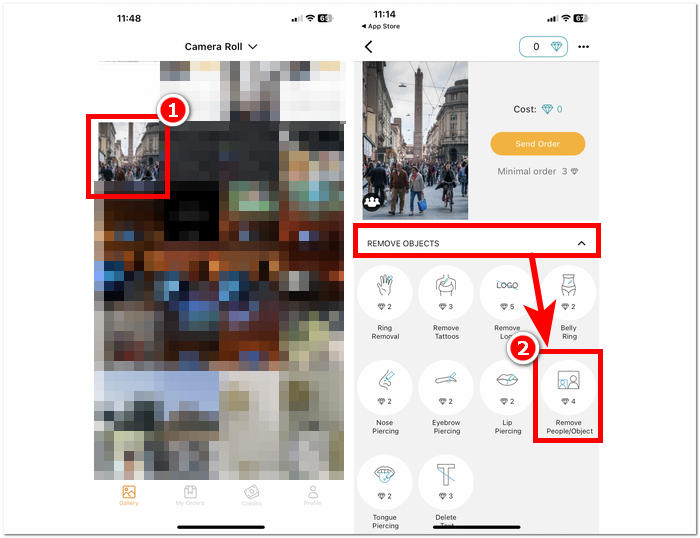
Steg 2. Öppna Fix The Photo Editor & Retouch‑appen; den låter dig sedan välja vilket foto du vill redigera. Gå därefter till avsnittet Remove Objects och klicka på ”Remove People/Object”.
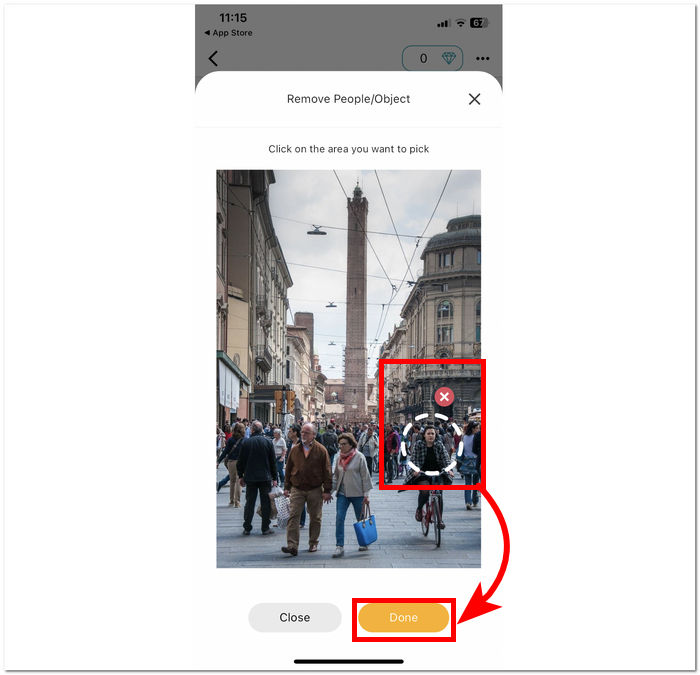
Steg 3. Klicka helt enkelt på området där personerna du vill ta bort finns. När du har markerat alla oönskade objekt eller personer klickar du på ”Done” för att slutföra processen.
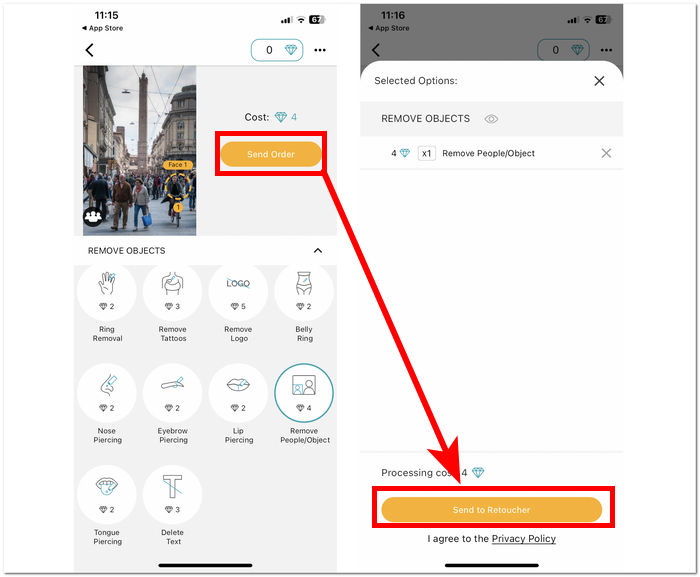
Steg 4. Klicka på Send Order och betala det belopp som krävs för att få din bild redigerad, så att du kan ta bort objekten och ladda ner din redigerade bild.
Utöver funktionen för att ta bort personer från dina foton är Fix The Photo Editor & Retouch en av de mer pålitliga apparna, eftersom den inte förlitar sig på AI för att redigera dina bilder utan använder riktiga bildredigerare för att optimera dina bilder. Därför är tjänsten inte gratis, men du kan prova den genom att utnyttja deras kostnadsfria testperiod.
PhotoDirector
PhotoDirector-appen låter dig ta bort personer eller oönskade föremål från dina foton utan ansträngning med dess enkla gränssnitt och funktioner. Denna app erbjuder snabb borttagning av objekt på dina mobila enheter med en mängd olika effekter som tillåter fotoredigering med hjälp av lager. Den här appen fokuserar inte bara på borttagning av objekt, utan dess AI har en stil på professionell nivå som kan göra att den här appen tar bort och redigerar dina foton exakt.
Steg 1. Ladda ner och öppna appen PhotoDirector på din mobila enhet, iOS eller Android, utan kostnad.
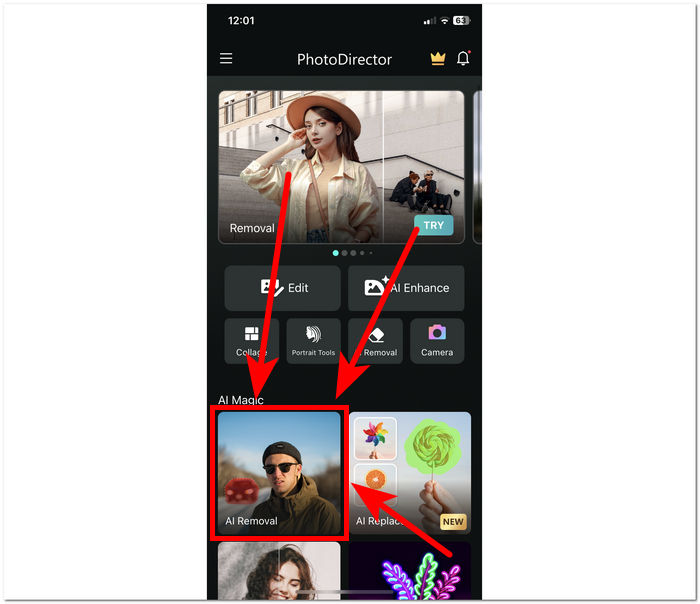
Steg 2. Klicka på AI Removal i appgränssnittet och välj fotot du vill redigera.
Steg 3. När ditt foto har laddats in i appen markerar du manuellt objektet eller personerna du vill ta bort.
Steg 4. När objektet eller personerna är rödmarkerade klickar du bara på knappen Remove. När processen är klar klickar du på bock‑ikonen under Remove‑knappen för att spara den redigerade bilden i ditt galleri.
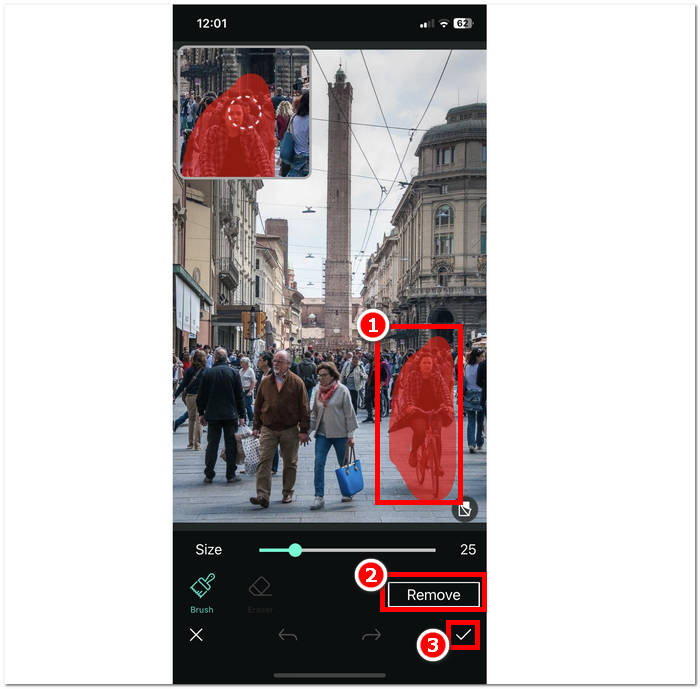
PhotoDirector-appen har flera praktiska funktioner som ger användare en anledning att välja appen för att utföra olika uppgifter förutom att ta bort personer. Frågor som hur man raderar en person från ett foto på en iPhone? Det är inte ett problem när den här appen utmärker sig för att ta bort oönskade objekt utan problem. Variationen av funktioner i appen kan ibland hindra prestandan eftersom det kan hindra bearbetningshastigheten.
Ta bort oönskat objekt
Den här appen tar enkelt bort oönskade motiv från dina foton, så att du enkelt kan torka bort oönskade personer. Remove Unwanted Object erbjuder inte bara borttagning av individer utan även föremål, klistermärken och text från dina foton. Det är gratis att ladda ner på dina Android-enheter, med ett enkelt gränssnitt som är perfekt för nykomlingar.
Steg 1. Ladda ner och öppna appen Remove Unwanted Object i Google Play Store på din Android‑enhet.
Steg 2. När du är i appens gränssnitt klickar du på ikonen Gallery och väljer fotot du vill redigera.
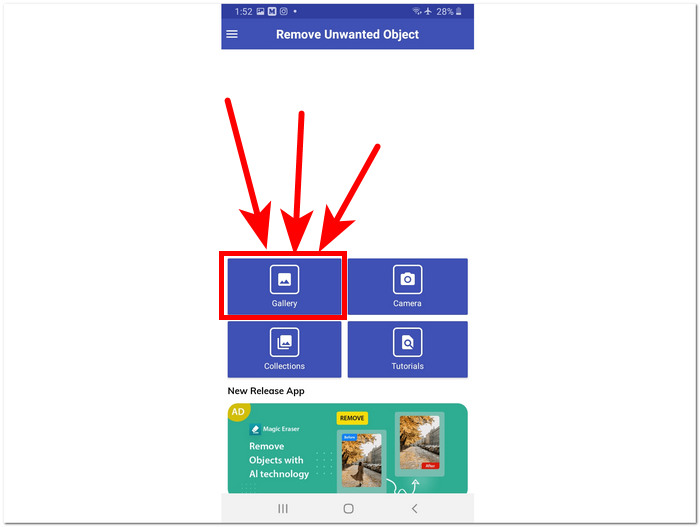
Steg 3. När du har laddat in ditt foto i appen klickar du på verktyget Lasso längst ned i appen och markerar sedan personen/objektet du vill ta bort.
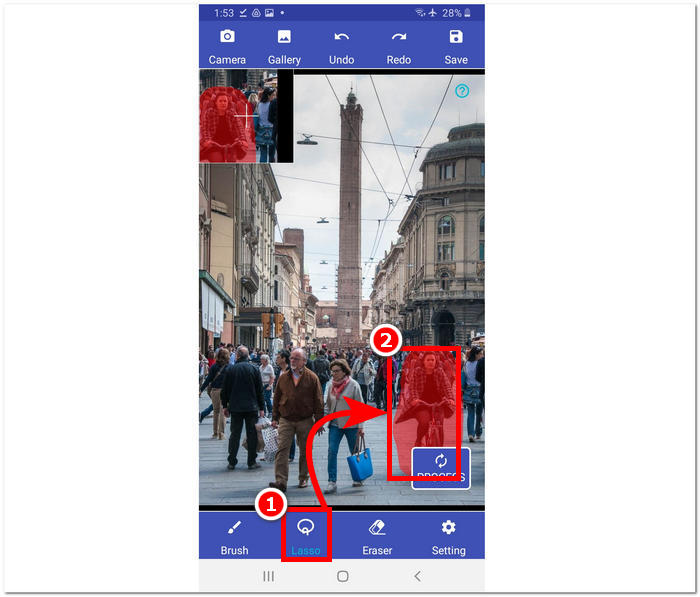
Steg 4. Klicka därefter på knappen Process för att ta bort det markerade området och klicka på knappen Save uppe till höger för att ladda ner bilden till ditt galleri.
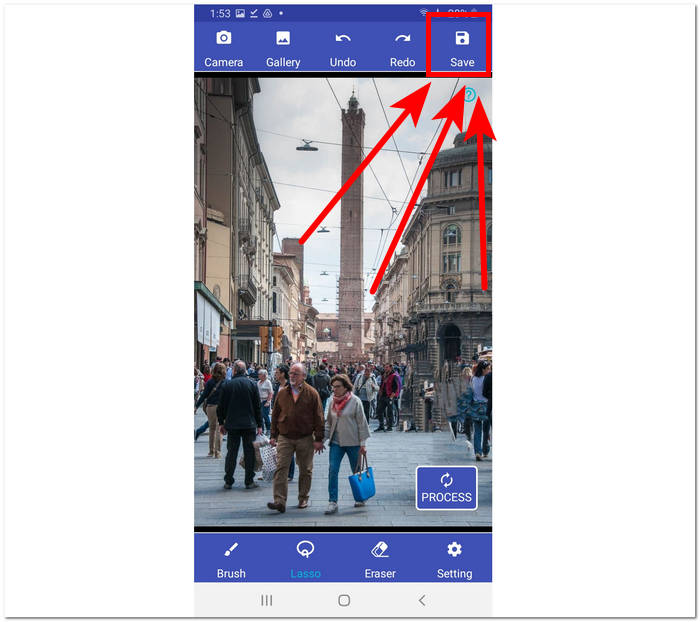
Ta bort oönskat objekt ger en enkel lösning för att ta bort alla oönskade objekt. Det är dock viktigt att notera att appen kommer med annonser, vilket kan försämra användarupplevelsen.
Retuschera - Ta bort objekt
Retuschering - Ta bort objekt är tillgänglig för gratis nedladdning på dina mobila enheter, och erbjuder en mängd kraftfulla funktioner till hands. Denna innovativa app utnyttjar banbrytande AI-teknik tillsammans med exakta borstverktyg, vilket gör borttagning av föremål enklare och effektivare än någonsin tidigare. Med sitt intuitiva gränssnitt och snabba resultat har det aldrig varit enklare att göra sömlösa redigeringar.
Steg 1. Ladda ner appen Retouch - Remove Objects till din Android‑enhet och öppna appen när installationen är klar.
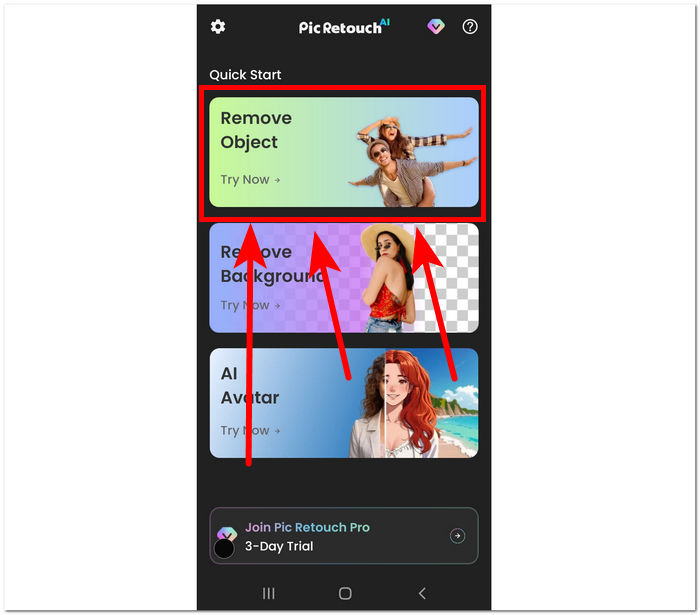
Steg 2. När du är i appens gränssnitt klickar du på avsnittet Remove Object för att välja det foto i ditt galleri som du vill redigera.
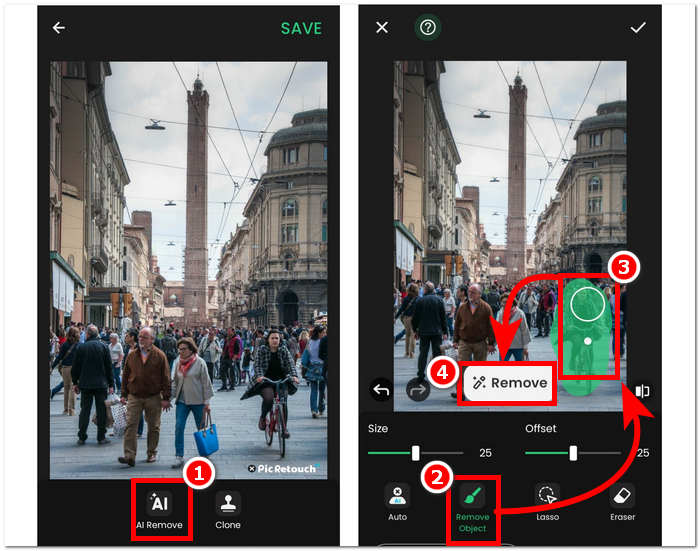
Steg 3. När ditt foto har laddats upp i appen klickar du på alternativet AI Remove. Längst ner i verktygets gränssnitt väljer du ”Remove object” och ritar runt objektet eller personen du vill ta bort från bilden. Starta sedan själva borttagningsprocessen genom att klicka på knappen Remove.
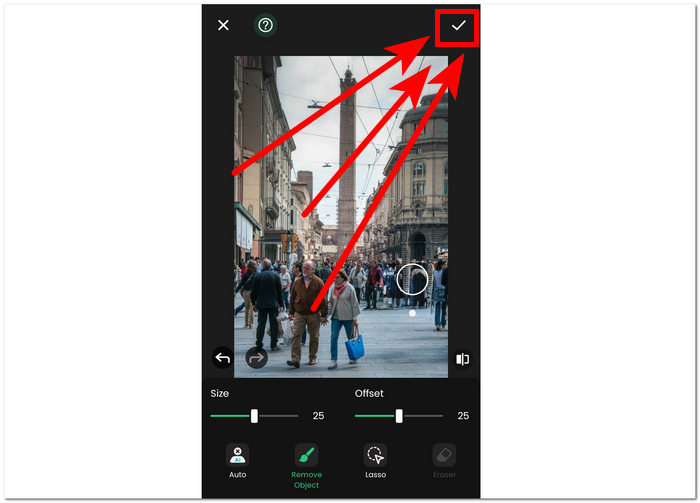
Steg 4. När bearbetningen är klar klickar du på bock‑ikonen uppe till höger för att slutligen ladda ner bilden till ditt galleri.
Retouch - Remove Objects är en gratisapp för Android‑enheter som finansieras genom annonser i appens gränssnitt. Trots detta erbjuder appen ett enkelt och tydligt arbetssätt för uppgifter som att ta bort objekt, ta bort bakgrunder, ta bort emojis och skapa AI‑avatarer.
Del 3. Vanliga frågor om att ta bort personer från foton
Har iPhone ett objektsuddare?
Nej, iPhone har ingen inbyggd objektsuddarfunktion i de senaste modellerna. Men du kanske vill kontrollera och göra din forskning om de tredjepartsappar som finns tillgängliga som erbjuder liknande funktionalitet för att ta bort objekt från foton.
Är det möjligt att fotografera någon ur en bild?
Ja, det är möjligt att fotografera någon ur en bild med hjälp av Adobe Photoshop eller annat fotoredigeringsprogram. Genom att noggrant välja och redigera området runt personen kan du sömlöst ta bort dem från bilden samtidigt som bakgrundens integritet bibehålls.
Behåller iPhone cut-out-funktionen hela bakgrunden?
Iphones utskärningsfunktion, tillgänglig i vissa redigeringsappar, syftar vanligtvis till att hålla motivet intakt samtidigt som bakgrunden tas bort. Framgången med att bevara hela bakgrunden beror dock på faktorer som bakgrundens komplexitet och utskärningsverktygets noggrannhet.
Är det svårt att ta bort personer från foton?
Svårighetsgraden beror på faktorer som bakgrundens komplexitet, kvaliteten på fotot och användarens redigeringsförmåga. Men med rätt verktyg och tekniker är det möjligt att uppnå sömlösa resultat.
Kan jag ta bort flera personer från ett gruppfoto?
Ja, du kan ta bort flera personer från ett gruppfoto med samma teknik som att ta bort en enda person. Det kan dock kräva mer tid och precision för att säkerställa att det slutliga resultatet ser sömlöst ut.
Slutsats
Sammanfattningsvis innebär att ta bort personer från foton oändliga möjligheter att ytterligare förbättra och reparera dina värdefulla minnen. Oavsett om du använder onlinetjänster eller mobilappar ger processen dig möjlighet att skapa renare och mer fängslande bilder. Med rätt verktyg kan du utan ansträngning få resultat som ser professionella ut och säkerställa att bilderna förblir trogna sitt ursprungliga fokus. Utforska de olika alternativ som presenteras i den här artikeln och ge dig ut på en resa mot rena och visuellt imponerande foton utan oönskade distraktioner.
-
 Top 9 Image Background Remover för snabba och exakta resultat
 Upplev snabbheten och noggrannheten hos det topppresterande radergummit för bakgrundsbilder. Säg adjö till komplex bakgrundsborttagare och omfamna nio effektiva sätt idag!
-
 Hur man tar bort text från bild på Windows/Mac/Online
 Säg adjö till distraherande text i dina bilder! Utforska hur du raderar text från bilder med dessa smidiga lösningar som är sömlöst utformade för borttagning av text.
-
 Hur man tar bort bakgrund från bild: problemfria verktyg
 Upptäck sex verktyg för att enkelt ta bort bakgrunden från vilken bild som helst. Säg adjö till komplicerad redigering och radera bildbakgrunder med lätthet idag!
