


 Video Converter Ultimate
 Skärminspelare
 Video reparation
 Säker nedladdning
6 bästa HEIC till JPG-omvandlare att använda för att konvertera HEIC till en standard JPG
In this day and age, many of us love to take snaps, whether they are selfies or groupies on our mobile devices, such as iPhones. The vast majority of the images taken on iOS devices are in the format of HEIC because it has become the standard image format for iOS. When you transfer the file to others that are non-iOS, it won't open because that device doesn't support it by default. If you want to send the image file on other devices, you must consider converting it into a JPG format because this format supports widely by many devices. The list below will teach you to convert HEIC to JPG with the five converters you can use to finish the job.

Del 1. Hur man konverterar HEIC till JPG med hjälp av webbverktygen [Online Ways]
Vi testar var och en av dessa tre nämnda HEIC-omvandlare online för att ge relevant information om dem. Om du vill använda ett gratis webbverktyg är det här delen för dig, men kom ihåg att det finns vissa begränsningar för att använda en omvandlare som denna. Ännu viktigare, se till en stabil internetanslutning om du använder verktygen nedan för att undvika avbrott under konverteringen. Läs den fullständiga informationen nedan för att känna till var och en av dem.
FVC Free HEIC till JPG Converter
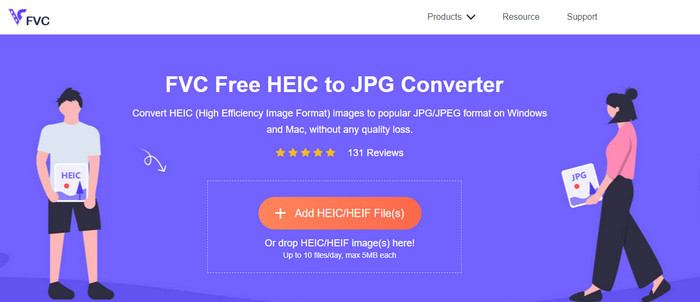
FVC Free HEIC to JPG Converter can help you convert HEIC files to JPG format in less than a few clicks. With this web tool, you won't need to download any additional installer on your drive or even sign up to use it. Although this tool is free to use, there are some limitations, like you can convert up to ten files per day, and the maximum file size for each image should be 5MB or less. Compared to some converters online, this might be enough, especially if you aren't using it often. So, if you want to test the online tool out, you can follow the instructions we include below.
Step 1. First and foremost, click this link to open a new tab on your web browser; this link will lead you to the main website of the online converter.
Step 2. Hit the Add HEIC/HEIF File (s), find the HEIC file on the folder that will show, click it and press Open to upload it.
Step 3. The conversion process will automatically start; you may now click the Download button when converting is finished.
HEIC till JPEG
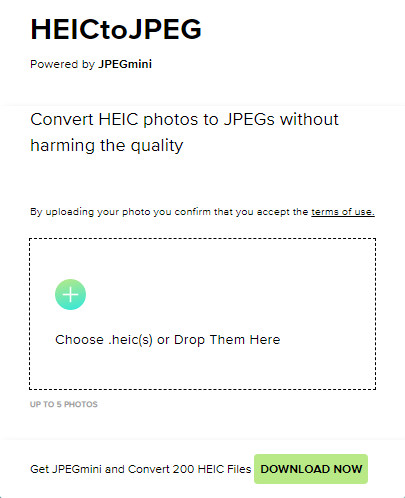
HEIC to JPEG is an online tool you can depend on how to convert HEIC to JPG, same as the online tool we mentioned this is free to access. With this tool, you can convert your HEIC file into a supported JPG then transfer it to the other device that doesn't support HEIC. Even though the tool can convert your HEIC, you will need to keep in mind that there are limitations on how many times you can convert per day. Unlike the online converter abovementioned, this web tool can only convert five HEIC files per day, which is much more limited than the other converters. If you want to use it, follow the steps given.
Step 1. Search the web converter on your search engine and open it.
Step 2. Click the plus button to upload the HEIC file you have on your desktop.
Step 3. Wait for the uploading process and optimizing, then click Download JPEG.
Image.convert-online
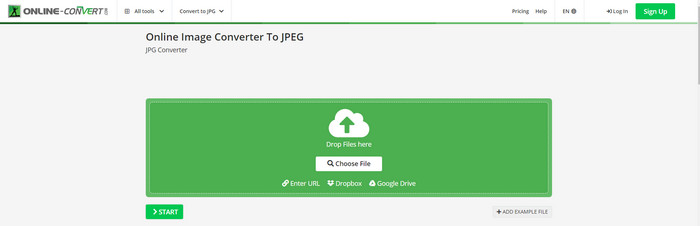
Image.convert-online allows you to convert HEIC to JPG online with the other optional setting to adjust the quality of the picture. Far from the first two converts, you can use on the webS, and you can use this web tool without limitation and convert your HEIC files here more than what the other two offer. Also, you can enhance the quality of the image and choose the compression you want to have. However, this tool's image editing features aren't as pro as the other dedicated editor you can use. Nonetheless, it is still a great HEIC converter you can use.
Step 1. Open your favorite browser, type the Image.convert-online, then click to open.
Step 2. Click Choose File and insert the HEIC file on the web tool.
Step 3. Adjust the image settings and compression; click Start if everything is settled in, then click Download to save it to your desktop.
Del 2. Hur man konverterar HEIC-fil till JPG eller JPEG på Windows och Mac [Offline Ways]
Om du har en dålig internetanslutning är webbverktyget vi nämnde ovan inte det bästa valet för att lösa och hantera detta problem. Så om du vill lösa problemet utan att använda en internetanslutning kan du läsa och följa stegen vi lägger till för varje verktyg som nämns nedan. Vänligen läs dem noggrant för att veta hur du konverterar HEIC på ditt skrivbord med offline-sätt.
Aiseesoft HEIC Converter – Bästa valet för att konvertera HEIC-filer
Aiseesoft HEIC Converter is the tool that you will ever need in regards to how to change HEIC to JPG problem you will encounter on your desktop. If you want the best tool for converting the HEIC file, then there is no doubt that this is the tool that can help you. With its straightforwardness, you won't need to be a professional to use the tool because, with just a few clicks, you can have the converted HEIC at your reach.
Förutom sin konverteringsförmåga stöder det här verktyget en blixtkonverteringsprocess, så oroa dig inte längre eftersom du omedelbart kan ha JPEG. Överraskande nog kan verktyget konvertera flera HEIC-filer samtidigt om du har olika HEIC-filer. Underbart, eller hur? Om du är förvånad över beskrivningen vi nämner, måste du fortsätta läsa de efterföljande stegen eftersom vi tillhandahåller en lättföljd handledning för att framgångsrikt konvertera HEIC till JPG på Windows och Mac.
Step 1. After downloading the software, follow the installation process, then open it.
Step 2. You can drag and drop the HEIC files in here for an easier process of uploading the file here, or you can either click the Add HEIC, find the file on your desktop, then click Open to place it.
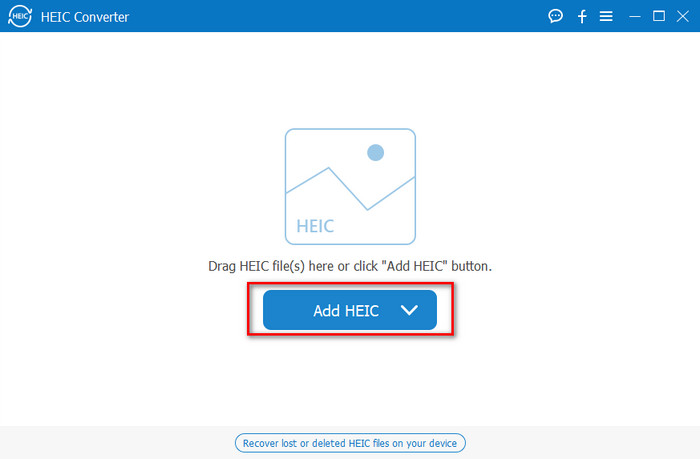
Du lägger till så många du vill ha en HEIC-fil här eftersom det här verktyget samtidigt kan konvertera HEIC-filen till en JPG.
Step 3. After uploading the HEIC file, click the drop-down button at the upper right corner of the interface and choose the JPEG/JPG.
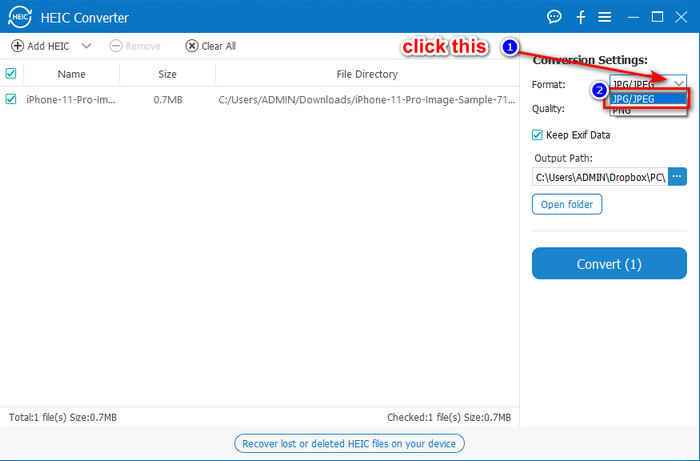
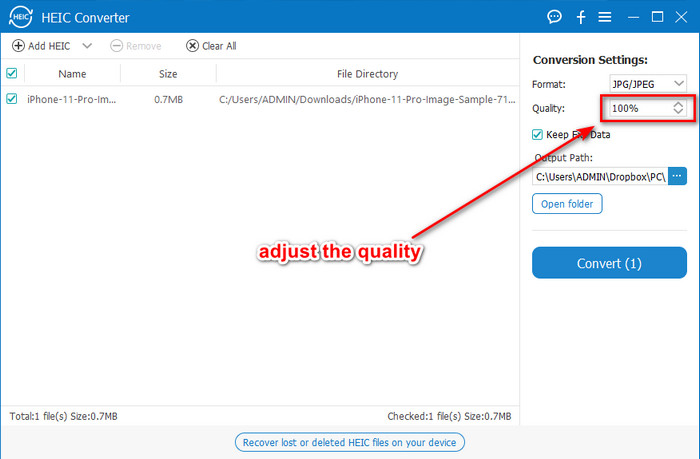
Optional. Unlike on some converters, here, you can adjust the quality of the HEIC image by changing it on the Quality before you export it.
Step 4. If everything is done and you're ready to convert the HEIC to JPG, you can now click the Convert button. The conversion process will begin; waiting is unnecessary because of the ultra-fast converting process this tool supports. As easy as that, you can now share the file in another format but in the .jpg extension.
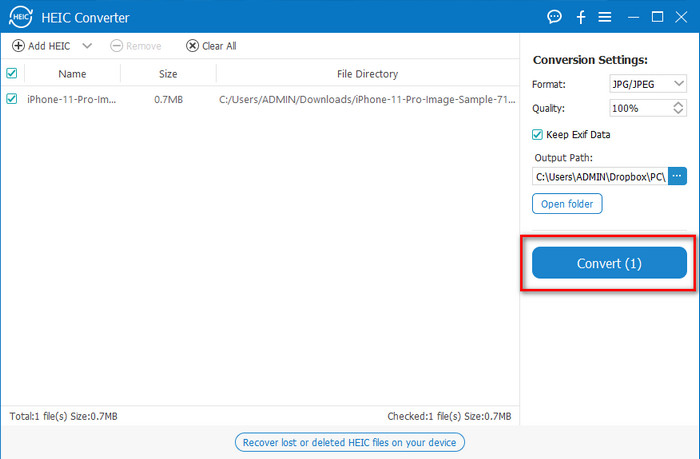
Det är allt för att konvertera ditt HEIC-foto till JPG. Du kan också använda det här verktyget för att konvertera HEIC till PNG i en batch.
Förhandsvisning
Preview is the native image viewer you can use to view and change the HEIC format. However, the converting this tool can do isn't usual that will take a process like the other tool in this article. If you use this default image viewer, you can change the file extension of the HEIC into .jpg.
Förutom dess förmåga att visa och konvertera, kan den också kryptera PDF-filer och begränsa användningen av filen, bildkorrigeringen och annat. Du kan följa stegen nedan för att konvertera HEIC till JPG på macOS om du är en Mac-användare.
Step 1. Open your Finder, locate the Preview, then open the HEIC file using the tool.
Step 2. Once you open the file with the Preview, go to the File menu and choose on the list Export.
Step 3. Click format and select either JPEG or JPEG-2000, and click Save if you are finished.
GIMP
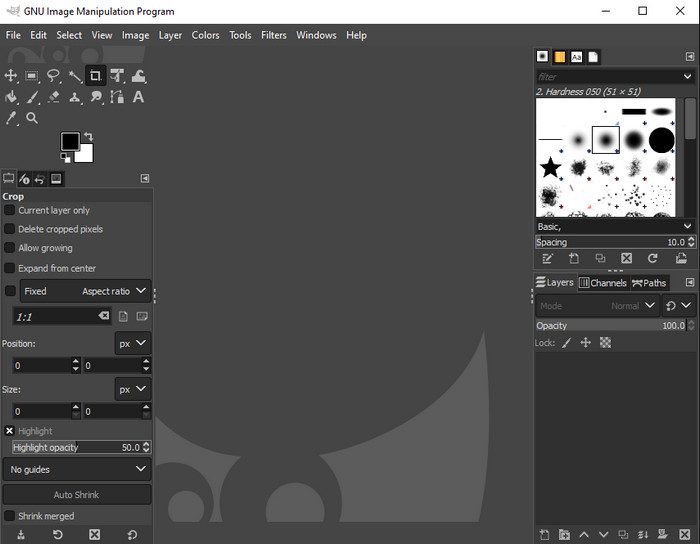
GIMP is a dedicated image editor you can download on your Windows and Mac. This tool supports editing the HEIC file; you have to make it look better, like adjusting the saturation, contrast, etc. Same as the Preview available on Mac, this tool performs not as a converter, but it can change the file extension of HEIC into a JPE, JPEG, JPG, or another image format you want.
Det finns inte mycket det här verktyget att erbjuda för konvertering, men om du vill lära dig hur du konverterar HEIC till JPG på PC, kan du kopiera stegen vi lägger till nedan.
Step 1. Download the software on your Windows or Mac, then launch it after the downloading process.
Step 2. Go to the File menu, click Open, select the HEIC file you have on your desktop and upload it.
Step 3. Back to the File menu, click Export As, then a panel of Export Image will show, click Select File Type (By Extension), then click the JPEG on the list. Lastly, click Export if you are done.
Del 3. Vanliga frågor om att konvertera HEIC till JPEG
Tar det bort transparensen efter att ha konverterat HEIC-bilder till JPG?
Yes, the transparency of HEIC will is unavailable after you convert the format to JPG. After all, JPEG or JPG doesn't support transparency like the PNG. Instead, you can use the Aiseesoft HEIC Converter to convert HEIC into a transparent PNG. In step 3, after clicking the drop-down button, choose the PNG instead of the JPG/JPEG, follow the succeeding steps to export the file.
Vad är HEIC-formatet?
HEIC is a known format containing image files but in a smaller file size than the JPG, but the quality is preserved and high-quality. Apple Inc now uses this format as a native image format on their iOS and Mac products. If you want to know more about the said format, you can click this link to learn more about the HEIC file format.
Kan jag batchkonvertera HEIC till JPG?
You can use the Aiseesoft HEIC Converter, a dedicated batch HEIC file converter you can download on your Windows and Mac. Upload as many as you want HEIC files in here, then convert them all into JPG or PNG without degrading their quality. Also, there isn't a limitation on how many times you can convert, and the file size doesn't matter with this tool.
Slutsats
Du kan nu hantera att konvertera HEIC-filerna till ett JPG-format med informationen och stegen. Välj om du vill använda en online HEIC till JPG-omvandlare eller offline; vad du än väljer är framgång bredvid dig när du läser den här artikeln noggrant.
If you haven't decided yet on what to use, we suggest that you download the Aiseesoft HEIC Converter, for it is the best HEIC converter among the rest on the list. You can test the tool by downloading it on your desktop, see if it fits you, and solve the problem by following the steps above.
-
 Bästa MOV till DivX gratis att använda omvandlare för Mac och Windows
 Vi har lösningen för dig om du letar efter MOV till DivX gratis omvandlare. Den här artikeln presenterar de bästa MOV till DivX-omvandlarna för Mac och Windows.
-
 Gratis WMV till DivX-omvandlare Användarens bästa val
 Här är de bästa gratis WMV till DivX-omvandlarna som användare oftast använder. Den här artikeln ger dig de bästa sätten att konvertera din WMV-fil till DivX.
-
 Tips om hur du ändrar videometadata på iPhone inom räckhåll
 Har du problem med att ändra videometadata på iPhone-enheter? Lyckligtvis talar den här artikeln om det bästa sättet att ändra videometadata på iPhone.
