


 Video Converter Ultimate
 Skärminspelare
 Video reparation
 Säker nedladdning
Lär dig hur du konverterar HEIC till JPG på Google Drive och alternativ
HEIC är Apples nyare filformat. Detta nya bildformat är ett bättre sätt att spara dina bilder på din enhet. Dessutom gör HEIC din bild mindre med bibehållen hög kvalitet. Många människor älskar också HEIC-formatet eftersom det är ett utmärkt bildformat för levande bilder. Dock stöds HEIC av Apple-enheter; därför är den inte kompatibel på många plattformar. Så om du vill använda HEIC-filer eller ladda upp HEIC på andra plattformar som Windows stöder, måste du konvertera det till JPG-filformat, vilket många plattformar och webbplatser stöder.
Visste du förresten att Google Drive började stödja HEIC-format så att iOS‑enheter kan säkerhetskopiera sina filer med denna molntjänst? Och om du undrar om du kan konvertera HEIC till JPG på Google Drive, läs vidare för att få svaret.

Del 1. Hur man konverterar HEIC till JPG på Google Drive förlustfritt
Google Drive är förmodligen den mest kända molnlagringstjänsten som finns tillgänglig. Med det här programmet kan du lagra och hämta alla bilder eller videor du vill ladda upp. Många Apple-användare föredrar också att använda Google Drive för att lagra sina bilder eller videor. Dessutom kan det här programmet frigöra utrymme på din enhet som en stor filstorlek upptar. Google Drive kan dock inte konvertera bilder eller videor. Därför, om du laddade upp en HEIC-fil på din enhet, kan du inte konvertera den till ett JPG-filformat.
Men i den här delen kommer vi att visa dig en metod för att ladda upp din HEIC-bild till JPG på Google Drive. Observera att detta endast är tillgängligt på webbversionen av Google Drive, inte appversionen.
Så här konverterar du HEIC till JPG på Google Drive genom att ladda ner HEIC som JPG:
Steg 1. Börja med att öppna appen Foton och välj den HEIC‑fil du vill konvertera. Tryck sedan på ikonen Dela och välj alternativet Google Drive.
Steg 2. Anslut din iPhone till ett nätverk så att bilderna överförs till ditt konto.
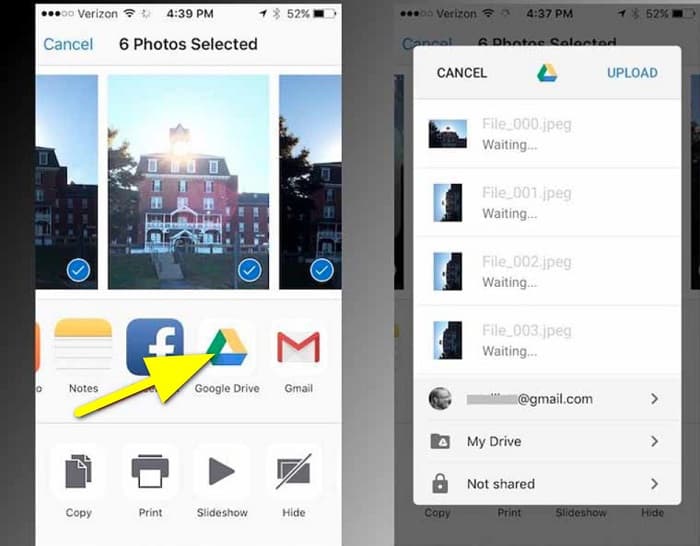
Steg 3. Öppna därefter en dator, starta webbläsaren och sök efter Google Drive i sökfältet. Logga in på kontot du använde för att säkerhetskopiera din HEIC‑bild.
Steg 4. Klicka sedan på HEIC‑bilden i ditt Google Drive och öppna den i full upplösning. Högerklicka därefter på bilden och klicka på Spara bild som.
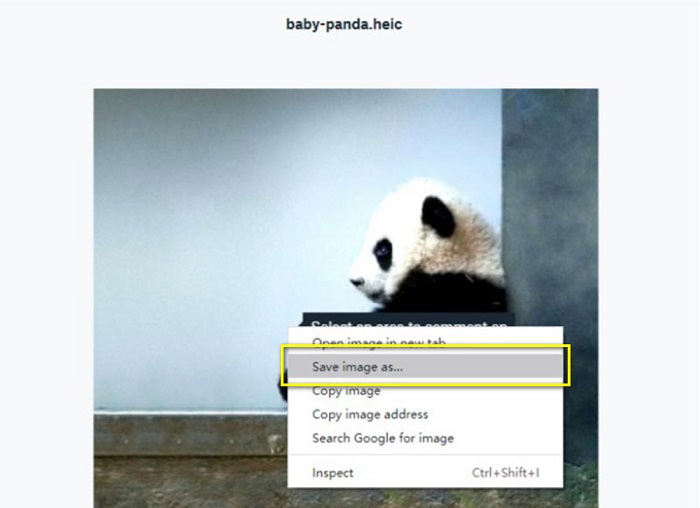
Steg 5. Leta i popup-menyn upp den mapp där du vill spara bilden. Ställ in filändelsen till .jpg och klicka sedan på knappen Spara för att bekräfta ändringarna.
Del 2. Hur man konverterar HEIC till JPG på Google Drive Alternative
Eftersom Google Drive inte har en funktion för att konvertera bilder eller videor, söker vi efter det du kan använda för att konvertera dina HEIC-bilder. Men många konverteringsverktyg finns tillgängliga på marknaden, alla stöder inte HEIC-formatet. Så vi sökte på webben efter den mest fantastiska omvandlaren som stöder HEIC-bildformat. Dessutom kommer vi att diskutera att använda denna bildkonverterare för att konvertera HEIC till JPG förlustfritt.
FVC Free HEIC till JPG Converter
FVC Free HEIC to JPG Converter är en online‑HEIC‑konverterare som du kan använda i alla webbläsare, som Google, Internet Explorer och Safari. Den här webbaserade applikationen stödjer konvertering från HEIC till JPG, något som många andra program inte gör. Dessutom kan du konvertera din HEIC till JPG och ändå behålla EXIF‑data, såsom dimensioner, format, storlek, datum/tid för fotografering, exponering med mera. Programmet låter dig konvertera din HEIC‑bild utan kvalitetsförlust. Vidare använder det en AI‑baserad konverteringsmetod som automatiskt konverterar bilder utan förlust. En ytterligare fördel med det här online‑verktyget är att du kan batchkonvertera två eller fler bilder samtidigt.
FVC Free HEIC to JPG Converter kräver inte att du registrerar dig, prenumererar eller använder plug-ins från tredje part för att använda den. Och du behöver inte vara orolig för din datas säkerhet eftersom den är 100% säker att använda. Läs de enkla stegen nedan för att lära dig hur du konverterar HEIC till JPG med FVC Free HEIC to JPG Converter.
Hur man konverterar HEIC till JPG på Google Drive alternativ:
Steg 1. Öppna först din webbläsare och sök efter FVC Free HEIC to JPG Converter i sökfältet.
Steg 2. Starta sedan appen innan du börjar använda den. Klicka därefter på knappen Add HEIC/HEIF Files i samma gränssnitt för att lägga till den HEIC‑bild du vill konvertera.
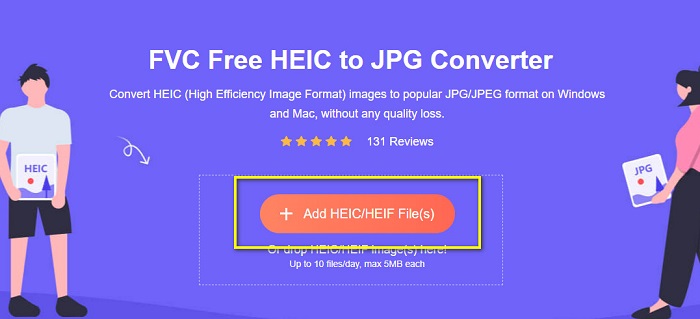
Steg 3. FVC Free HEIC to JPG Converter konverterar automatiskt din bild efter att du har laddat upp din HEIC‑fil. Du kommer att se ikonen Finished nedanför gränssnittet.
Steg 4. Ladda slutligen ner din konverterade bild genom att klicka på knappen Download. Leta sedan upp din utdatafil bland datorns filer.
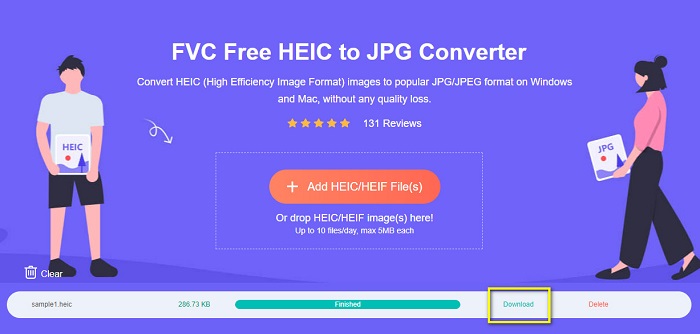
Lika enkelt som det kan du enkelt konvertera din HEIC till JPG på din dator.
Aiseesoft HEIC-omvandlare
Aiseesoft HEIC Converter är ett kostnadsfritt program du kan ladda ner om du letar efter den bästa HEIC‑konverteraren. Dessutom gör programmet det möjligt att konvertera HEIC till JPG samtidigt som EXIF‑data för bilden bevaras. Du kan också justera bildkvaliteten om du vill minska filstorleken. Dessutom stödjer det batchkonvertering, vilket gör att du kan konvertera två eller fler HEIC‑filer samtidigt. Dessutom kan du ladda ner det kostnadsfritt på alla plattformar, som Windows, Mac och Linux.
Aiseesoft HEIC Converter är ett användarvänligt verktyg eftersom det har ett intuitivt användargränssnitt. Dessutom stöder den standardfilformat, som HEIC, JPG och PNG. Du måste dock köpa appen först innan du kan använda dess andra funktioner.
Hur man konverterar HEIC till JPG med Aiseesoft HEIC Converter:
Steg 1. Ladda ner Aiseesoft HEIC Converter till din dator. När du har installerat appen kör du den på din enhet.
Steg 2. Klicka på knappen Add HEIC i huvudgränssnittet för att importera den HEIC‑bild du vill konvertera.
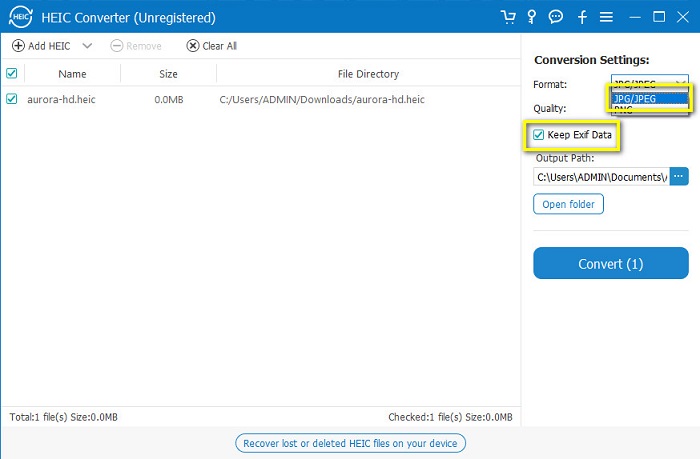
Steg 3. Välj sedan JPG/JPEG som utdataformat under alternativet Format. Kom ihåg att markera rutan bredvid Keep EXIF Data.
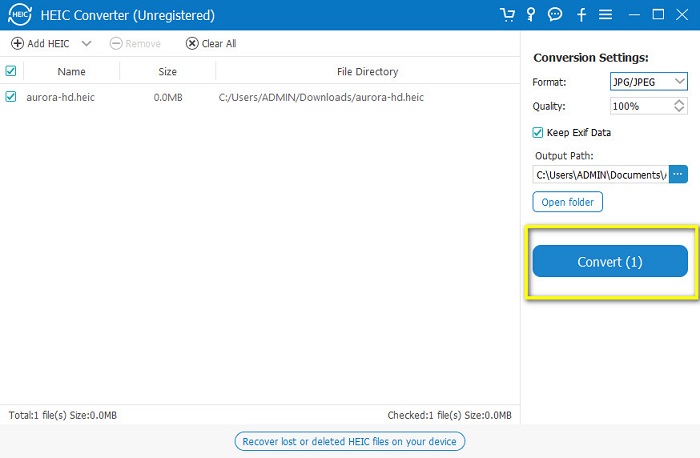
Steg 4. Klicka till sist på knappen Convert för att börja konvertera din HEIC till JPG. Vänta tills konverteringen är klar, och voilà – din HEIC‑bild är nu en JPG‑bild.
Del 3. Vanliga frågor om att konvertera HEIC till JPG på Google Drive
Hur hanterar man HEIC-bilder på Google Drive?
Du kan hantera dina HEIC-bilder i Google Drive via Google Foto. Sedan Google införde AI‑teknik i Google Foto kan du nu hantera dina bilder efter person, kategori eller motiv.
Varför laddas mina foton upp till Google Drive som HEIC?
Google Drive sparar dina uppladdade filer som HEIC eftersom din webbläsare bara sparar förhandsgranskningen av din bild på din dator.
Är HEIC bättre än JPG-format?
När det gäller komprimering och bildkvalitet är HEIC bättre än JPG-format. HEIC låter dig förbättra kvaliteten på din bild med transparens och bredare dynamik.
Slutsats
Nu när du vet att du inte kan konvertera HEIC till JPG i Google Drive-appen kan du använda metoden där du sparar din HEIC‑bild som JPG i Google Drives webbversion. Du kan dock bara behandla en bild i taget och måste arbeta i webbläsaren. Därför rekommenderar vi att du använder FVC Free HEIC to JPG Converter, som är gratis och enkel att använda.
-
 Konvertera HEIC till PDF med hjälp av de fyra bästa sätten 2022
 För att veta mer information om den bästa HEIC till PDF-omvandlaren kan du ladda ner denna 2022. Du kan läsa den här artikeln eftersom vi gav en recension om dem.
-
 5 av de bästa HEIC till JPG-omvandlarna väljer detta 2022
 Med HEIC till JPC-konverteraren kan du enkelt ändra bildformatet till en bärbar JPG. Vill du veta vilka dessa 5 verktyg är? Läs den här artikeln.
-
 Bästa gratis och betalda HEIC-konverterare du måste känna till [Uppdaterad 2022]
 Vill du veta vad HEIC-omvandlaren är? Om så är fallet inkluderar vi de 5 bästa gratis och betalda HEIC-omvandlarna som du kan använda för att ändra HEIC-formatet.
