


 Video Converter Ultimate
 Skärminspelare
 Video reparation
 Säker nedladdning
Mest utmärkta sätt att förstora en bild för utskrift
Att förstora en bild kan göras på två sätt. Du kan förstora ett foto genom att skala upp det eller genom att öka antalet pixlar i din bild. Ett annat sätt att förstora en bild är att ändra den faktiska storleken eller dimensionerna på fotografiet. I den här guiden visar vi dig dessa två sätt att förstora ett foto. Beroende på dina behov kommer du säkert att få svar på dina frågor. Läs den här guiden för att lära dig hur du förstorar en bild för utskrift, online och offline.

Del 1. Förstora bilden utan att förlora kvalitet online för utskrift
Det låter komplicerat när du först hör talas om att förstora en bildkvalitet. Men efter att ha läst det här inlägget kommer det säkert att vara enkelt för dig. Det finns massor av applikationer som kan hjälpa dig att förstora din bild. Men problemet är att det finns så många att det är svårt att välja en. Lyckligtvis hittade vi en applikation som kan hjälpa dig att förstora en bild enkelt och gratis.
FVC Free Image Upscaler är ett fantastiskt webbverktyg för att förstora foton som du kan använda online. Det fina med webbaserade program är att du inte behöver ladda ner dem, vilket gör att du sparar lagringsutrymme. Du kan förstora din bild med detta onlineverktyg med 2x, 4x, 6x eller 8x förstoring. Dessutom använder det en AI-baserad uppskalningsprocess som automatiskt upptäcker delar av bilden med låg kvalitet och förbättrar dem.
Dessutom kan nybörjare enkelt använda denna applikation eftersom den har ett intuitivt användargränssnitt. Dessutom har den en förhandsgranskningseffekt som gör att du kan kontrollera resultatet av din utdata innan du sparar den. FVC Free Image Upscaler är gratis att använda på alla webbläsare, som Google, Firefox och Safari.
Hur man förstorar en bild för utskrift med FVC Free Image Upscaler
Steg 1. Gå till din webbläsare och sök efter FVC Free Image Upscaler i sökrutan. Du kan klicka på den här länken för att komma direkt till huvudsidan.
Steg 2. På huvudgränssnittet klickar du på knappen Upload Photo för att lägga till bilden du vill förstora. Du kan också använda dra-och-släpp-metoden för att ladda upp din bild.
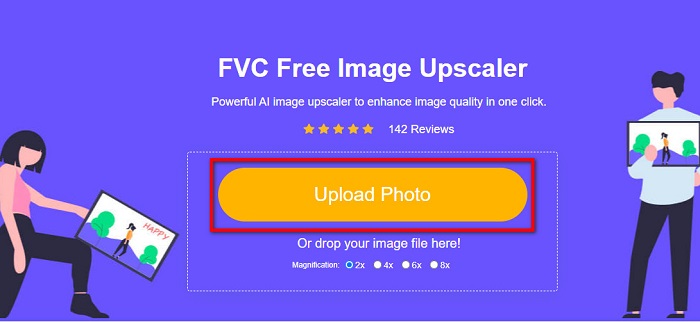
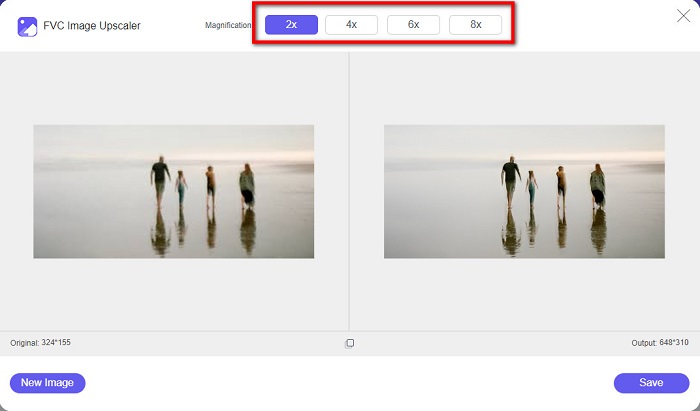
Steg 3. När din fil har laddats upp kommer du att föras till ett annat gränssnitt. Välj den förstoring du föredrar för din bild. Du kan välja mellan 2x, 4x, 6x och 8x. Ju lägre kvalitet din bild har, desto högre förstoring bör du välja.
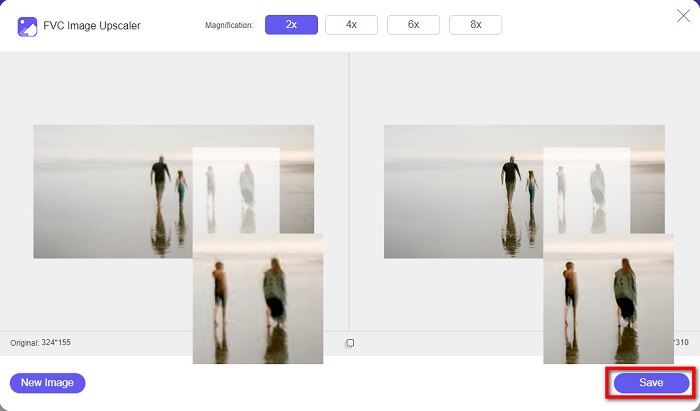
Steg 4. För muspekaren över bilden till vänster för att se resultatet av din förstoring. Ser du förändringarna? Klicka på knappen Save längst ned till höger i gränssnittet för att spara ditt resultat på din enhet.
Och det är de enkla stegen för att förstora en bild för utskrift online med FVC Free Image Upscaler. Lätt som en plätt, eller hur? Men om du vill förstora ett foto genom att ändra måtten på din bild, läs nästa del.
Del 2. Hur man förstora en bild i Photoshop utan att förlora kvalitet
Du har förmodligen stött på den här applikationen när du letar efter hur man förstorar ett foto. Och Adobe Photoshop är det mest framstående fotoredigeringsprogrammet på internet. Adobe Photoshop används främst av proffs som ofta redigerar bilder för att publicera på olika plattformar. Med verktygen och funktionerna i denna applikation kan du säkert producera fantastiska utgångar. Men visste du att du också kan förstora en bild med Adobe Photoshop? Ja, du läste rätt. Det är också ett lämpligt verktyg för att utöka bilder utan att förlora kvalitet. Med Adobe Photoshop kan du förstora din bild genom att ändra upplösningen eller manuellt mata in bildens bredd och höjd. Även om Adobe Photoshop är en proffsapp, är dess förstoringsfunktion enkel att använda. Utan vidare, dessa är stegen för att förstora en bild med Photoshop förlustfritt.
Steg 1. Börja med att ladda ner Adobe Photoshop på din dator. Det finns tillgängligt för de flesta operativsystem, som Windows och macOS. När programmet är installerat på din enhet, importera bilden du vill förstora.
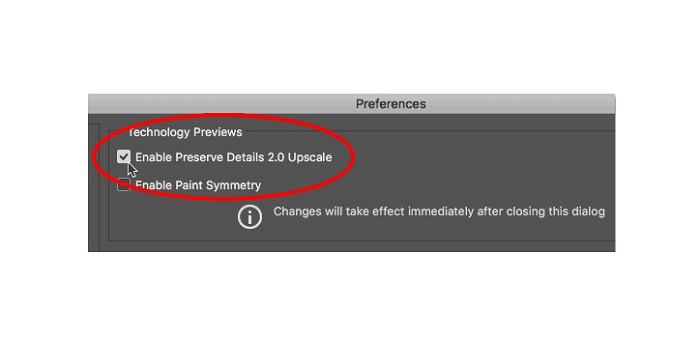
Steg 2. Aktivera sedan Preserve Details 2.0. Om du använder en Windows-dator går du till panelen Edit i Menu Bar. Om du använder en Mac-enhet går du till menyn Photoshop CC, väljer Preferences och klickar på knappen Technology Previews. Detta öppnar dialogrutan Preferences på alternativet Technology Previews. Markera rutan bredvid Enable Preserve Details 2.0 Upscale. Klicka sedan på OK för att stänga dialogrutan för Technology Previews.
Steg 3. Öppna sedan dialogrutan Image Size genom att gå till menyn Image och välja alternativet Image Size.
Steg 4. När vi förstorar eller skalar upp en bild i Photoshop vill vi justera bildens fysiska dimensioner, eller med andra ord lägga till eller ta bort pixlar. Se därför till att Resample är markerat.
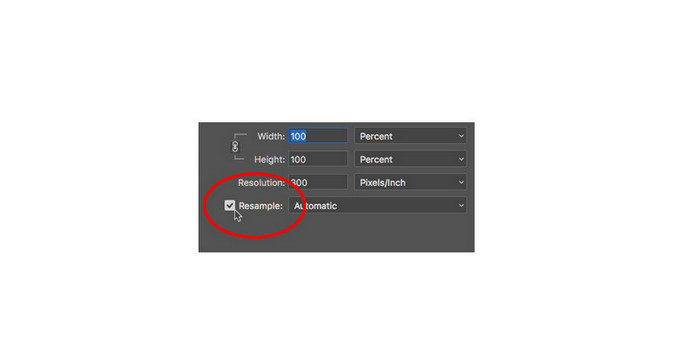
Steg 5. Ändra därefter height och width på ditt foto genom att skriva in de dimensioner du vill ha för bilden. Som standard är bredd och höjd länkade, så om du ändrar bildens bredd kommer höjden automatiskt att följa med.
Steg 6. Ändra slutligen Resample Method till Preserve Details 2.0. Den förvalda metoden för Resample är satt till Automatic. Men Photoshop väljer inte detta alternativ när Resample är inställt på Automatic. Ändra därför Resample genom att klicka på Automatic och välj sedan Preserve Details 2.0.
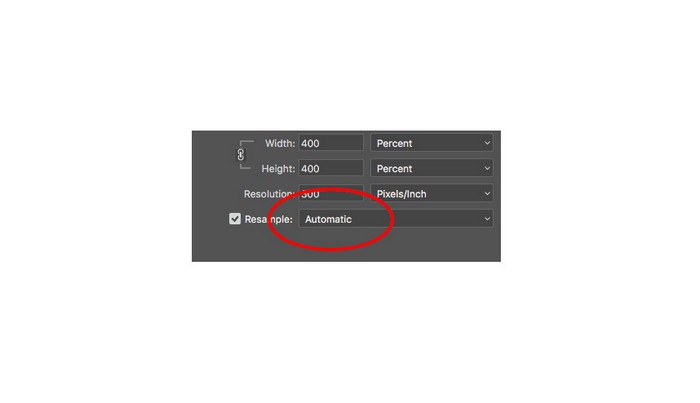
Steg 7. Nu är det dags att förhandsgranska resultatet. När du har valt Preserve Details 2.0 uppdateras förhandsgranskningen till vänster och visar hur din uppskalade bild kommer att se ut. Dra bilden med musen inne i förhandsgranskningsfönstret för att se olika delar av bilden.
Genom att följa dessa steg kommer du säkert att lära dig hur du förstora en bild för utskrift utan att förlora kvalitet.
Relaterat till:
De 7 bästa online- och offlineverktygen för att förstora foton
Topp 4 offline- och onlineverktyg för att förstora GIF-filer som du inte får missa
Del 3. Vanliga frågor om hur man förstorar bilden utan att förlora kvalitet
Kan jag förstora JPG-filstorlek online?
Du kan ändra filstorleken på din JPG-bild med hjälp av FVC Free Image Upscaler. Öka bara förstoringen till 6x eller 8x för att förstora storleken på din JPG-bild.
Stöder Adobe Photoshop PNG-filer?
Ja. PNG-filer stöds av många plattformar, inklusive Adobe Photoshop. Du kan importera nästan alla bildfilformat med Adobe Photoshop, som PNG, JPG, JPEG, BMP och WebP.
Påverkar förstoring av min bild dess filstorlek?
Ja det gör det. Filstorleken på din bild ökar eftersom du justerar det totala antalet pixlar i din bild eller antalet pixlar i varje tum. Men filstorleken blir också mindre när du sänker bildens bredd och höjd.
Slutsats
Och det här är metoderna för hur du förstorar en bild utan att tappa kvalitet. Oavsett om du använder online- eller offline-metoden kan du förstora din bild utan att kompromissa med kvaliteten. Men om du vill ha ett enklare sätt att förstora en bild rekommenderar vi att du använder FVC Free Image Upscaler, ett användarvänligt program.
-
 Hur man ändrar storlek på bild i Illustrator med 2 olika sätt
 Lär dig de bästa sätten att ändra storlek på en bild i Illustrator. Börja med att ladda ner och öppna Adobe Illustrator-appen på din dator och följ dessa enkla steg.
-
 6 sätt att ändra storlek på en bild på webben och offline [100% fungerar]
 Med handledningen vi lägger till här kan du nu enkelt ändra storlek på en bild baserat på din önskade storlek. Lär dig hur du gör det här!
-
 Bästa sätten att ändra storlek på foto på din iPhone gratis och utan installation
 Att ändra storlek på ett foto på din iPhone kan vara svårt att lära sig. Lyckligtvis ger den här artikeln en handledning om hur du enkelt ändrar dimensionen på bilder.
