


 Video Converter Ultimate
 Skärminspelare
 Video reparation
 Säker nedladdning
4 bästa gratis MP4 till MKV-omvandlare för att förvandla MP4-filer till MKV inom klick
Om du vill lägga till undertexter till en MP4-video, borde du konvertera MP4 till MKV istället. MKV är en Matroska-videofil som stöder ett obegränsat antal ljud-, bilder- och undertextspår. Det är inte svårt att konvertera MP4 till MKV-filer. Du kan lära dig mer information om de fyra bästa metoderna i artikeln. Dessutom är här en ultimat metod för att lägga till undertexter och redigera videon med lätthet du borde veta.

Del 1: 3 Bästa metoderna för att konvertera MP4 till MKV
Topp 1: Hur konverterar du MP4 till MKV online gratis
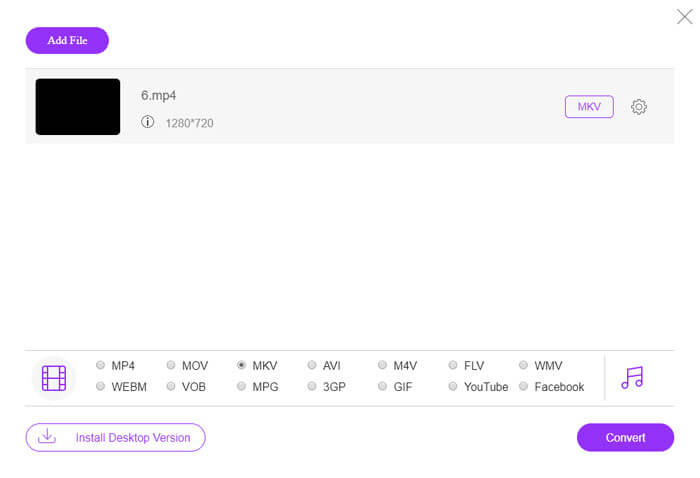
När du vill konvertera MP4‑filer till MKV online är FVC Free Online Video Converter en mångsidig videokonverterare som kan konvertera de flesta videoformat, såsom MP4, MKV och fler, helt gratis. Den låter dig även justera video- och ljudinställningar för utdatafilen. Dessutom stöder den batchkonvertering så att du enkelt kan konvertera flera video- eller ljudfiler samtidigt.
- 1. Konvertera MP4 till MKV, AVI, FLV och fler andra mediaformat / förinställningar.
- 2. Justera videokodeken, bildfrekvensen, videoformatet och videoformatet.
- 3. Omvandlingen är okomplicerad utan vattenstämpel eller andra begränsningar.
- 4. Ge ett enkelt gränssnitt för att konvertera MP4 till MKV-filer inom tre steg.
Steg 1. Gå till FVC Free Online Video Converter, och klicka på knappen Add Files to Convert för att lägga till MP4-filen i programmet. Om det är första gången du använder den här online-MP4-till-MKV‑konverteraren behöver du ladda ner installationsfilen i förväg.
Ladda ner Skrivbordsversionen för att konvertera filer i batch.

Steg 2. När du har importerat MP4‑videorna kan du välja alternativet MKV som utdataformat. Klicka på Gear-ikonen för att justera video- och ljudinställningar, såsom videoencoder, bildfrekvens, upplösning och andra inställningar.

Steg 3. Därefter kan du klicka på knappen Convert för att konvertera MP4 till MKV med önskad kvalitet. Det tar bara några sekunder att få den önskade MKV‑filen på din dator. Du kan förhandsgranska utdatafilen innan du sparar den på datorn.
Topp 2: Så här konverterar du MP4 till MKV med VLC Media Player
VLC Media Player är mer än en mediaspelare för MKV‑filer, den har också ett eget uppsättning codecs för de flesta video- och ljudformat. Om du inte har MKV som utdata kan du också söka efter vissa insticksprogram för att konvertera MP4 till MKV‑filer med VLC enligt nedan.
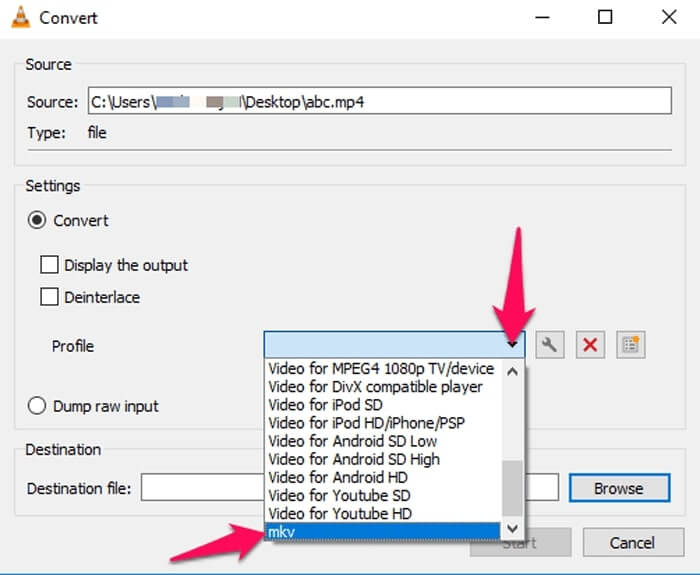
Steg 1. Starta VLC Media Player på din dator. Klicka på menyn Media och välj alternativet Convert/Save... för att importera MP4‑filen du vill konvertera.
Steg 2. I fönstret Open Media klickar du på alternativet File följt av ikonen Add. Välj MP4‑filen i din mapp. Välj sedan knappen Convert från rullgardinsmenyn Convert/Save.
Steg 3. Därefter kan du välja MKV som utdataformat. Klicka på alternativet Browse för att ange en målmapp för den konverterade filen. Välj sedan alternativet Start för att konvertera MP4 till MKV.
Topp 3: Hur man konverterar MP4 till MKV från en URL
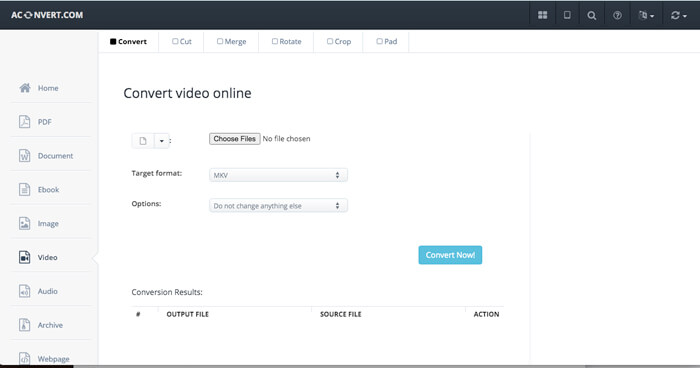
Är det möjligt att konvertera en online-MP4 till MKV direkt? AConvert har en serie video till MKV online-omvandlare, som du kan ange webbadressen till videon för att konvertera till önskat format. Naturligtvis gör det också att du kan justera videoinställningarna.
Steg 1. Gå till aconvert.com i valfri webbläsare, och välj menyn Convert uppe till vänster. Klicka på pilen för att välja alternativet Online File i rullgardinslistan.
Steg 2. Klicka på Target format och välj MKV som format. Klicka sedan på Options för att justera videostorlek, videobithastighet, bildfrekvens, bildförhållande och andra inställningar för att konvertera MP4 till MKV.
Steg 3. Klicka sedan på knappen Convert Now! för att starta batchkonverteringen. Utdatafilerna listas i avsnittet Conversion Results, där du kan ladda ner dem till din dator.
Del 2: Den ultimata metoden för att konvertera MP4 till MKV
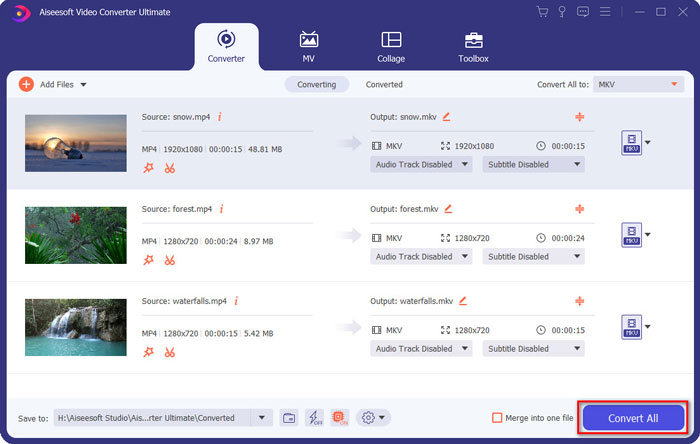
Finns det en metod för att konvertera MP4 till MKV med undertexter direkt? FVC Video Converter Ultimate är en ultimat MP4 till MKV-omvandlare som gör att du kan justera video- / ljudinställningarna, redigera videofilerna, lägga till undertexter / ljudspår och till och med rippa filer från DVD med lätthet.
- 1. Konvertera MP4 till MKV i en batchprocess med originalkvaliteten.
- 2. Justera bildfrekvensen, videokvaliteten, videokoden och fler andra.
- 3. Redigera videoklippen med klipp, rotera, klipp, klipp, komprimera, videofilter, etc.
- 4. Inbyggd mediaspelare för alla 4K / 1080p HD-videoformat och DVD-filer.
Gratis nedladdningFör Windows 7 eller senareSäker nedladdning
Gratis nedladdningFör MacOS 10.7 eller senareSäker nedladdning
Steg 1. Ladda ner och installera programmet på din dator. Klicka på Add File och välj Add File eller Add Folders, eller dra flera video- och ljudfiler direkt till programmet.

Steg 2. Därefter kan du välja MKV som utdatafil och justera profilinställningarna efter behov, såsom upplösning, bildfrekvens, ljudkodek och andra inställningar.

Steg 3. När du behöver lägga till undertexter eller ljudspår kan du klicka på ljudkanalen eller undertexten för att välja det önskade alternativet innan du klickar på knappen Convert All för att konvertera MP4 till MKV.
MP4 kontra MKV
MP4-formatet släpptes av Moving Picture Experts Group (MPEG) 2001 och kan hjälpa dig att spara video-, ljud-, undertext- och bilddata i separata spår. Det är en förkortning för MPEG-4 Part 14. Dessutom är det ett av de mest populära formaten som används för att streama och dela videor.
Matroskas multimediacontainerformat, som släpptes 2002, är ett format med öppen källkod som kan innehålla ett antal video-, ljud-, bild- och undertextspår. Så du kan enkelt använda den för att lagra korta videoklipp, TV-program och filmer. Det är ganska populärt för anime-fansubning.
Del 3: Vanliga frågor om hur man konverterar MP4 till MKV
1. Vad är fördelen med MKV?
I likhet med MP4-filformatet är MKV ett annat allmänt behållarformat. Den kan innehålla flera olika spår som alla använder olika komprimeringsformat. Du kan redigera undertexterna, till exempel SRT, PGS / SUP, VobSub och SSA. När du konverterar MP4 till MKV kan du alltid anpassa videorna med önskad textning och ljudspår i enlighet därmed.
2. Hur redigerar man MKV-filer på ett enkelt sätt?
Naturligtvis kan du helt enkelt använda en professionell MP4 till MKV-omvandlare för att redigera video- / ljudinställningarna, eller till och med redigera ljudspåret och undertexterna, till exempel FVC Video Converter Ultimate. Dessutom kan du också använda MKVToolNix gratis entrénivå för att enkelt redigera och hantera undertexter på Windows, Mac och Linux.
3. Vad är viktigt att konvertera MP4 till MKV?
Om du behöver konvertera MP4 till MKV bör du vara uppmärksam på storleken på utgångsvideon. MKV-filen är vanligtvis mycket större än MP4, särskilt när du behöver lägga till undertexter och ljudspår. När du använder videokonverterare online kanske du inte kan konvertera hela MKV-videor korrekt.
Slutsats
När du vill lokalisera online-streamingvideor kan du lära dig mer information om de bästa metoderna för att enkelt konvertera MP4 till MKV. Kontrollera bara de tre mest använda online-metoderna, liksom den ultimata lösningen från artikeln. Om du har frågor om att konvertera MP4-filer till MKV på Windows och Mac kan du gärna lämna en kommentar i artikeln.
-
 Hur man konverterar M2TS till MKV utan att förlora kvalitet
 Vill du konvertera M2TS till MKV samtidigt som du behåller originalkvaliteten? Det här inlägget visar dig gratis och online-metoder för att ändra M2TS till MKV förlustfritt.
-
 MKV vs MP4: Vad är skillnaderna och hur man konverterar
 Hur väljer man mellan MKV och MP4? Vilket format är bättre format för videokvalitet? I den här artikeln kommer vi att göra en detaljerad jämförelse av MKV vs MP4 för att hjälpa dig att göra ett val.
-
 Hur konverterar du MP4 till WMV för Mac / Windows
 Detta inlägg delar hur du konverterar MP4-video till WMV-format på Mac eller Windows. Vi kommer också att erbjuda dig flera alternativ, inklusive skrivbordsprogramvara och webbaserade omvandlare online. Redo att känna till de bästa MP4 till WMV-konverteringsverktygen?

