


 Video Converter Ultimate
 Skärminspelare
 Video reparation
 Säker nedladdning
3 sätt att spela MKV-filer i Windows Media Player
Kan du inte öppna MKV‑fil i Windows Media Player?
MKV är ett populärt videoformat. Du kan ha många filmer, tv‑serier eller andra videor i hög kvalitet sparade som MKV. Som Windows‑användare är dock standardvideospelaren, Windows Media Player, inte inbyggt kompatibel med att splitta (öppna) MKV‑behållare. Då är vi tillbaka vid frågan: hur spelar man MKV‑filer i Windows Media Center?

Även efter att du har uppgraderat Windows Media Player till den senaste versionen finns det ingen garanti för att du inte kommer att stöta på MKV-spelproblem. Med tanke på att detta inlägg gillar att dela 3 effektiva sätt att hjälpa dig att spela MKV-filer på din Windows-dator.
Del 1. Hur man öppnar MKV-filen i Windows Media Player
Windows Media Player kan främst inte spela MKV‑filer på grund av att codec saknas eller inte stämmer. Du bör veta att MKV egentligen är en mediabehållare för videoströmmar, ljudströmmar, undertexter och mer. Du måste ge WMP rätt splitter för MKV samt codecs och filter för video- och ljudfilen. Den här delen guidar dig till hur du spelar en MKV‑fil i Windows Media Player.
Steg 1. Öppna Windows Media Player och öppna MKV‑filen med den. Du kan också högerklicka på MKV‑filen och välja att öppna den med WMP.
Steg 2. Nu ser du ett felmeddelande som säger att Windows Media Player kan inte spela upp filen. Klicka på alternativet Webbhjälp i dialogrutan.
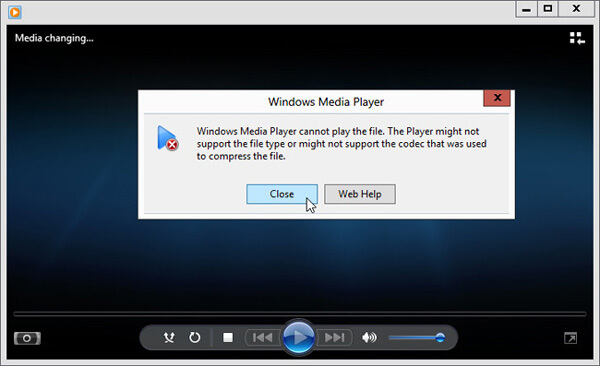
Steg 3. Klicka på codec‑länken under Codec saknas. Kopiera och klistra in länken i din webbläsare. Detta guidar dig till att hämta rätt MKV‑codec för Windows Media Player. Efter nedladdning följer du anvisningarna för att slutföra installationsprocessen för MKV i Windows Media Player.
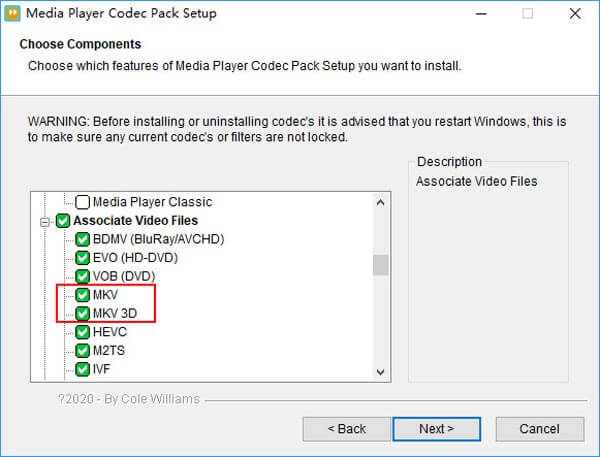
Steg 4. Starta om Windows Media Player och försök sedan spela din MKV‑fil igen.

Del 2. Bättre sätt att spela MKV-filer i Windows Media Player-alternativet
Med rätt MKV-codec kan du enkelt öppna MKV-filen i Windows Media Player. Men många användare rapporterade att det fortfarande finns några andra uppspelningsproblem när de spelar MKV med WMP. I så fall kan du välja ett Windows Media Player-alternativ som hjälper dig att spela MKV-filer.
FVC Free MKV Player är ett utmärkt alternativ till Windows Media Player. Den har inbyggt stöd för alla vanliga video- och ljudformat, såsom MKV, MOV, MP4, FLV, AVI, RMVB, MPEG, AAC, MP3, M4A, WMA och fler. Du kan använda den för att se MKV‑filmer i hög kvalitet.

Steg 1. Öppna din webbläsare och gå till denna kostnadsfria MKV‑spelarsida. Klicka på knappen Play Now för att installera en liten startfil för MKV‑uppspelningen. Därefter visas huvudfönstret för MKV‑uppspelning på skärmen.

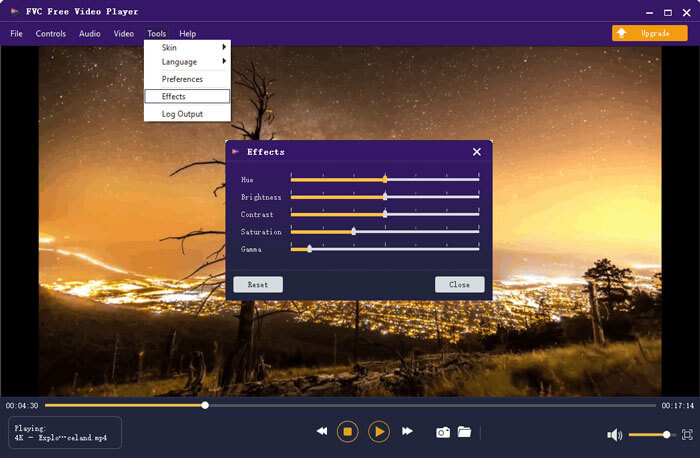
Steg 2. Klicka på knappen Open File för att bläddra fram och importera din MKV‑fil till spelaren. Sedan spelas videon upp automatiskt. Tack vare avancerad videokodningsteknik kan den spela MKV‑filer smidigt och med hög kvalitet. Dessutom stöder den DTS‑HD och Dolby TrueHD.

Du får alla kontroller för MKV-uppspelning. Förutom de grundläggande funktionerna som spela, pausa, bakåt, framåt, justera volymen och mer, gör det också att du kan justera effekter, ändra ljudspår och undertexter och anpassa andra inställningar.
Del 3. Konvertera MKV för uppspelning på Windows Media Player
För att spela MKV‑filer i Windows Media Player kan du också välja att konvertera MKV till ett format som stöds, som MP4. Här presenterar vi Free Online Video Converter för att hjälpa dig konvertera MKV till MP4 utan kvalitetsförlust.
Steg 1. Gå till denna kostnadsfria online‑konverteringssida för MKV till MP4 i din webbläsare. Den är kompatibel med alla vanliga webbläsare, inklusive Chrome, IE, Safari och Firefox.
Steg 2. När du är där klickar du på knappen Add File to Convert. Under detta steg behöver du installera en liten startmodul för MKV‑konverteringen. Därefter visas ett popupfönster på skärmen där du kan välja din MKV‑fil.
Steg 3. Du ser många populära videoformat listade där, som MP4, MOV, AVI, MKV, FLV osv. Kontrollera att utdataformatet är MP4 och klicka sedan på knappen Convert.
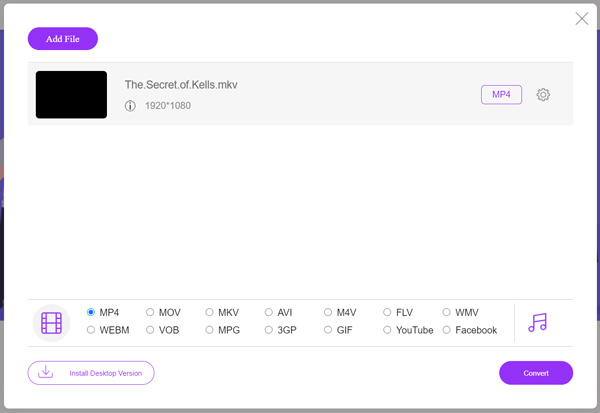
Efter konverteringen från MKV till MP4 kan du spela upp filen med Windows Media Player. Det blir ingen förlust av bild- eller ljudkvalitet under konverteringen.
Del 4. Vanliga frågor om att spela MKV i Windows Media Player
Fråga 1. Hur ändrar jag formatet på en video i Windows Media Player?
Öppna Windows Media Player och ladda in videofilen du vill konvertera. Klicka på den lilla pilen under fliken Rippa i toppmenyn. Välj Fler alternativ och klicka sedan på rullgardinsmenyn märkt Format. Här kan du välja ett lämpligt utdataformat och börja konverteringen.
Fråga 2. Vilket videoformat är Windows Media Player?
Standardfilformatet för Windows Media Player är WMV, Windows Media Video och WMA, Windows Media Audio. Det stöder också Advanced Systems Format och sitt eget XML-baserade spellistformat, Windows Playlist.
Fråga 3. Kan Windows 10 spela MKV-filer?
Nej. Den inbyggda Windows Media Player 12 i Windows 10 kan inte spela MKV-filer. Du måste installera MKV-codec för att få uppspelningen.
Slutsats
När Windows Media Player inte kan tolka MKV‑codecen visas helt enkelt ett felmeddelande. För att spela MKV‑filer i Windows Media Player måste du installera rätt codec. Du kan också använda en spelare från tredje part eller konvertera MKV‑formatet för uppspelning. Om du fortfarande har frågor om hur du öppnar MKV‑fil i Windows Media Player, tveka inte att lämna ett meddelande till oss.
-
 Topp 8 MKV-spelare för att spela MKV-filer med den önskade undertexten
 När du vill spela MKV-videon med önskad undertext kan du lära dig mer om de 8 bästa MKV-filspelarna för PC / Mac och välja önskad enligt dina behov.
-
 MKV till MOV - Hur konverterar man MKV till MOV
 Hur konverterar jag MKV till MOV på Mac? Kan iMovie läsa MKV? Vad betyder MOV-format? Det här inlägget berättar om två enkla sätt att hjälpa dig konvertera MKV till MOV med gratis online och professionella videokonverterare.
-
 AC3 Player - Recension av 10 bästa gratis AC3-spelare från 2021
 Vad är den bästa AC3-spelaren? Kan MX Player öppna AC3? Det här inlägget gör en lista över 10 gratis AC3-spelare för Mac, Windows PC, iOS och Android-enheter.
