


 Video Converter Ultimate
 Skärminspelare
 Video reparation
 Säker nedladdning
2 enkla sätt att spela MKV-filer på iPad
Can I play MKV files on iPad?
You can’t directly play MKV on iPad, whether you are using an iPad Pro, iPad Air, iPad mini or iPad 2/4/6/8. MKV is one kind of popular multimedia container format. But it can’t be supported by all Apple products including iPad, iPhone, iPod and Mac. Then how to play MKV on iPad?

You can use a third-party app to play MKV files on iPad. Also, you can choose to convert MKV to iPad supported format like MP4 or MOV. Here in this post, we will share 2 effective ways to help you play MKV files on iPad Pro, Air, mini and other models.
Del 1. Hur man direkt spelar MKV-filer på iPad med VLC
As it mentioned above, you are not allowed to directly play MKV files on iPad Pro, Air, mini or iPad 8/6/4/2. But there are some third-party MKV player apps offered in App Store that can help you play MKV on iPad, iPhone or iPod touch. You can rely on the popular media player, VLC to play any videos including MKV files on your iOS device.
VLC Media Player is a very popular media files playing tool that supports any frequently-used video formats including MKV, MOV, MP4, AVI, FLV, and more. It allows you to play media files on Windows, Mac and Linux computer. Moreover, VLC brings an iOS app which enables you to play MKV files on iPad and iPhone.
Step 1. Go to App Store on your iPad and search for VLC. The first searching result will be VLC for Mobile. Tap on it and then tap Get to free install it on your iPad. This VLC app is compatible with iPad, iPhone, iPod touch and Apple TV.
Step 2. Tap the VLC icon to open it. Now you can sync your MKV files through iTunes, Wi-Fi sharing or cloud services. After that, you can view them in Video. Here you can also check your MKV files in Files app. Choose the MKV file you want to play on iPad and then tap the Share button.
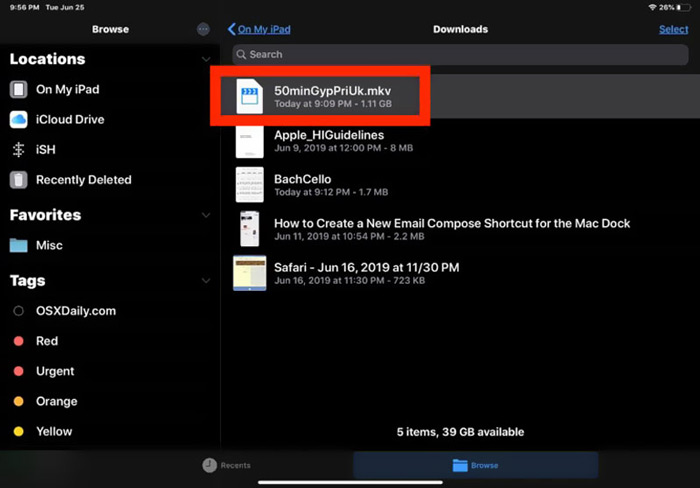
Step 3. Select the Open in VLC or Copy to VLC option from the drop-down list. Then you can play MKV on iPad with this VLC app.
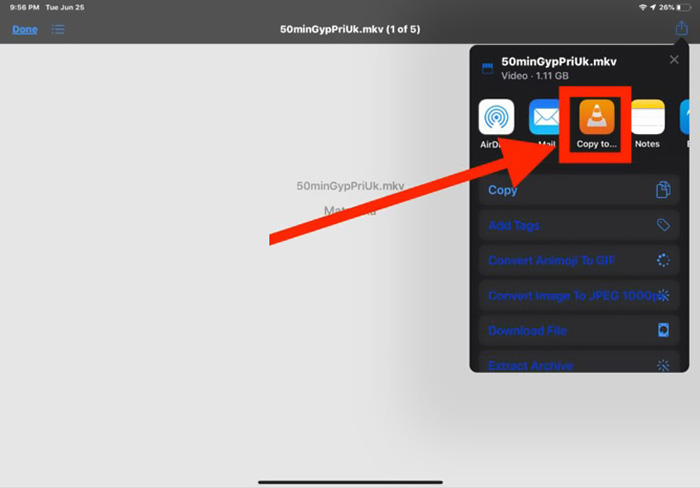
Besides MKV files, you can also rely on VLC to play other media files with ease. Surely there are some other MKV players like KMPlayer and more that can help you watch MKV files on iPad.
Del 2. Hur man konverterar MKV till MP4 för uppspelning på iPad
When you want to play MKV files on iPad, you can also choose to convert MKV to an iPad supported video format like MP4 or MOV. To do that, you can rely on the professional MKV converting software, Free Online Video Converter.
Denna MKV till iPad-omvandlare stöder starkt alla ofta använda video- och ljudformat. Det låter dig konvertera MKV till iPad-format som inkluderar MOV och MP4 utan kvalitetsförlust. Följande guide visar hur du använder den för att konvertera MKV till iPad.
Step 1. Open your browser like Chrome, IE, Firefox or Safari, and go to this Free Online Video Converter site. When you get there, click the Add Files to Convert and then download button to quickly install a small-size FVC Launcher for the MKV converting.

Step 2. There will be a pop-up Open File window appears on the screen for you to browse and import your MKV file. Then you will be taken to the main converting window. You can see many popular video formats like MP4, MKV, MOV, AVI, FLV, WMV, VOB, WEBM, and more are listed there. Here you should select MP4 or MOV as the output format.
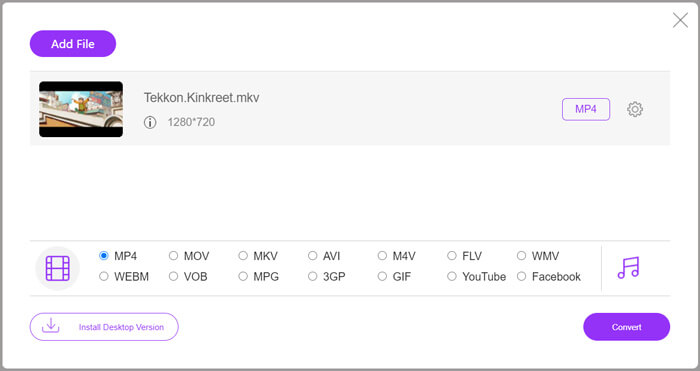
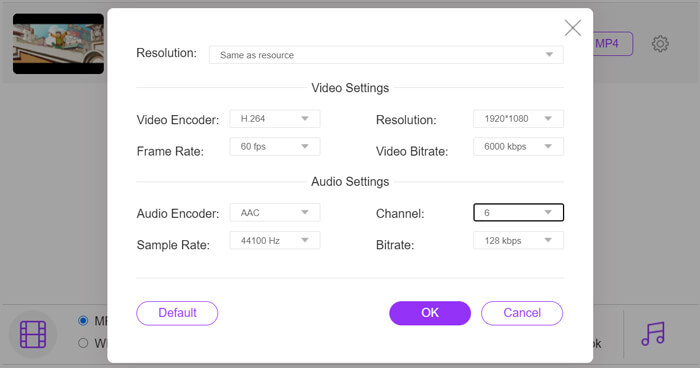
Step 3. Before converting, you can click on the Settings icon next to the output format to custom various video and audio settings. Here you are allowed to adjust video resolution, encoder, frame rate, bitrate, audio channel, sample rate and more. Click OK button to save your changes.
Step 4. After all these operations, you can click on Convert button to start converting MKV to MP4. The output file will keep exactly the original image and sound quality. Then you can transfer it to iPad for playback.
Del 3. Vanliga frågor om att spela MKV-filer på iPad
Fråga 1. Kan iMovie redigera MKV-filer?
Nej. Som vi nämnde ovan kan inte alla Apple-enheter och relaterad programvara stödja MKV-formatet. Som standardredigerare för iPad, iPhone och Mac kan iMovie inte öppna och redigera MKV-filer.
Fråga 2. Kan VLC konvertera MKV till MP4?
Ja. VLC Media Player har möjlighet att konvertera MKV-filer. Du kan öppna VLC, klicka på Media-menyn och använda funktionen Konvertera / Spara. I fönstret Öppna media kan du klicka på knappen Lägg till för att ladda din MKV-fil. Klicka på Konvertera-knappen och välj sedan MP4 som målformat. Därefter kan du välja en lämplig målmapp och byta namn på utdatafilen. Sedan kan du klicka på Start-knappen för att göra videokonvertering från MKV till MP4 med VLC.
Fråga 3. Kan Windows 10 spela MKV-filer?
Du kan inte lita på att standardspelaren, Windows Media Player, spelar MKV-filer på en Windows 10-dator. När du vill öppna MKV-filer måste du lita på någon tredjeparts mediaspelare som VLC, PotPlayer och mer.
Slutsats
After reading this post, you can get 2 useful tips to play MKV files on iPad. Whether you want to directly watch MKV on iPad, or convert MKV to iPad supported format, you can find a right tool. For more questions about playing MKV on iPad, you can leave us a message.
-
 M2TS till iPad - Gratis sätt att spela M2TS videofiler på din iPad
 Läs och få det bästa sättet att konvertera M2TS till iPad. Här är M2TS-filkonverterare online och offline för iPad M2TS-uppspelning. Läs bara och välj den lösning du gillar.
-
 MKV till MOV - Hur konverterar man MKV till MOV
 Hur konverterar jag MKV till MOV på Mac? Kan iMovie läsa MKV? Vad betyder MOV-format? Det här inlägget berättar om två enkla sätt att hjälpa dig konvertera MKV till MOV med gratis online och professionella videokonverterare.
-
 Handledning - 4 gratis sätt att slå samman videor på iPhone till en ny
 Läs och få fyra enkla sätt att slå samman videor på iPhone. Alla iPhone-modeller och iOS-versioner stöds. Du kan snabbt kombinera 2 och fler videor på iPhone till en ny video.
