


 Video Converter Ultimate
 Skärminspelare
 Video reparation
 Säker nedladdning
4 användbara tips för att fixa VLC Player spelar inte MKV
MKV (Matroska‑videofil) är ett fritt och öppet multimediakontainerformat. Men det stöds inte av många ofta använda spelare, inklusive Windows Media Player och QuickTime Player. Därför kan du vända dig till den populära VLC Media Player för att spela MKV‑filer. Många användare har dock stött på problemet att VLC spelaren inte spelar MKV.

Problem med MKV‑uppspelning kan variera, till exempel att ljudspåret i din MKV‑fil ligger efter, hackig uppspelning, suddig bild, samt olika buggar i gränssnittet och så vidare. Här i detta inlägg vill vi dela 4 användbara tips för att åtgärda problemet MKV‑filer spelas inte upp i VLC.
Del 1. Ställ in inställningar för att fixa VLC Player spelar inte MKV
VLC är ett mycket populärt mediefiler som spelar verktyg som kan stödja de flesta digitala video- och ljudformat inklusive MKV, MP4, AVI, FLV, MP3, AAC, M4A, FLAC, etc. och VCD, Audio CD och DVD.
VLC Media Player lockar miljontals användare eftersom den kan spela alla mediefiler du har. Men VLC-spelaren spelar inte upp MKV-filer problem uppstår då och då. Om VLC-spelare bara hoppar över din MKV- eller HD MKV-fil kan du anpassa inställningar för att fixa den.
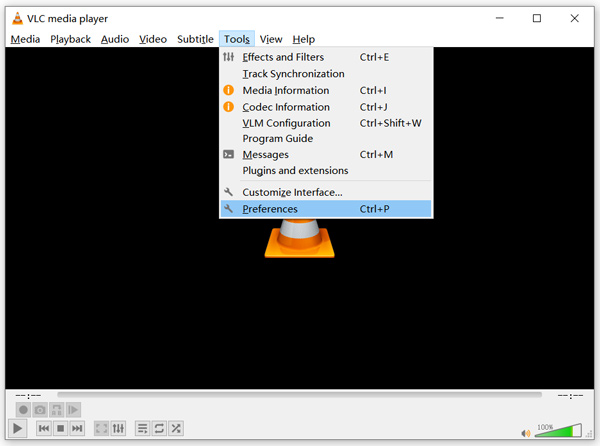
Steg 1. Öppna VLC Media Player och välj menyn Verktyg. Välj alternativet Inställningar i rullgardinsmenyn.
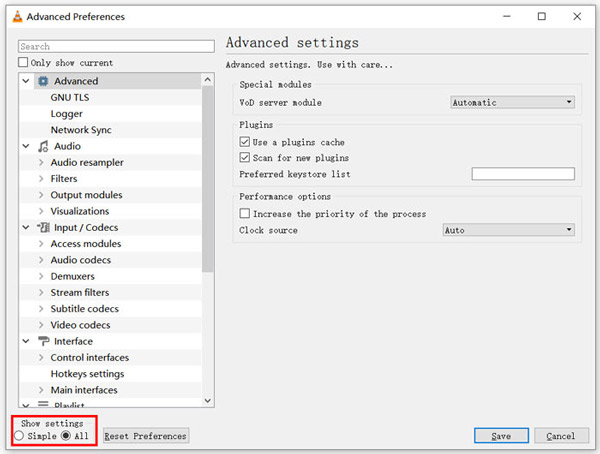
Steg 2. Markera Alla under Visa inställningar längst ned till vänster i dialogfönstret. Genom att göra det visar du fönstret Avancerade inställningar.
Steg 3. Välj avsnittet Inmatning/Kodekar till vänster och leta sedan upp alternativet File caching (ms) till höger. Du kan behöva rulla ned för att hitta det.
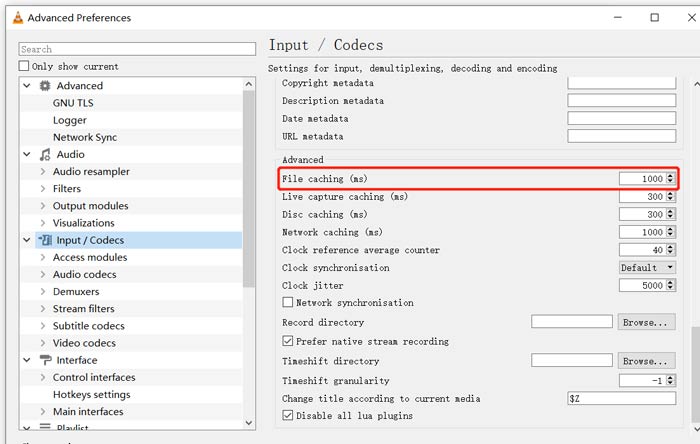
Steg 4. Ställ in File caching på 1000 och klicka sedan på knappen Spara för att bekräfta. Därefter kan du starta om VLC och spela upp din MKV‑fil igen.
Del 2. Uppdatera eller installera om VLC för att fixa spelaren spelar inte MKV
Om VLC-spelaren inte kan spela MKV-problemet fortfarande finns kan du välja att uppgradera till den senaste versionen. Du borde veta det, en ny version kommer alltid att fixa många buggar av gamla versioner. Du kan följa stegen nedan för att uppdatera din VLC Media Player.
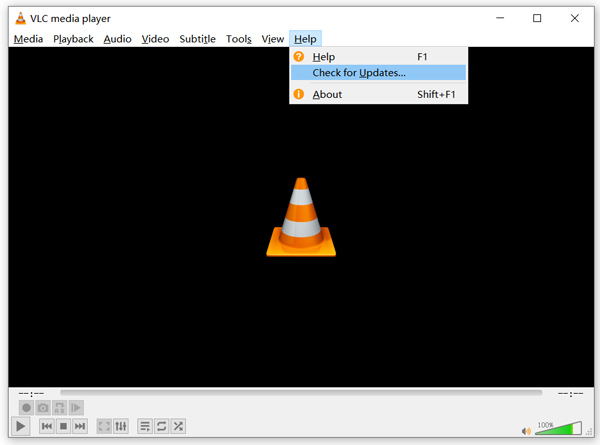
Öppna VLC och klicka på menyn Hjälp. Välj alternativet Sök efter uppdateringar i rullgardinsmenyn. VLC börjar då kontrollera om det finns en tillgänglig uppdaterad version. Följ sedan anvisningarna för att uppgradera VLC till den senaste versionen.
Du kan också avinstallera VLC helt från din dator och sedan gå till den officiella webbplatsen, VideoLAN, för att installera en lämplig version. När du har installerat en ny VLC Media Player kan du spela upp din MKV‑fil och kontrollera om den fungerar som den ska.
Del 3. Aktivera ljud för att fixa VLC-spelare Inget ljud medan du spelar MKV
Om din VLC Media Player kan spela MKV-fil men inget ljud, bör du kontrollera om dess ljudinställningar är korrekta.
Steg 1. Välj alternativet Verktyg i VLC:s menyrad. Välj Inställningar i rullgardinsmenyerna. Då kommer du till fönstret Enkla inställningar.
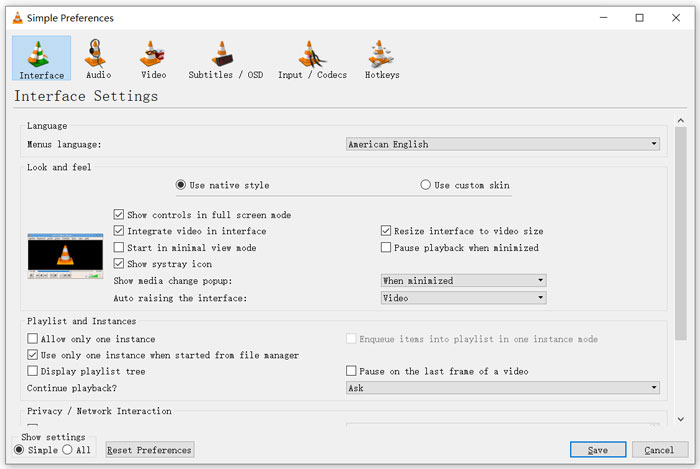
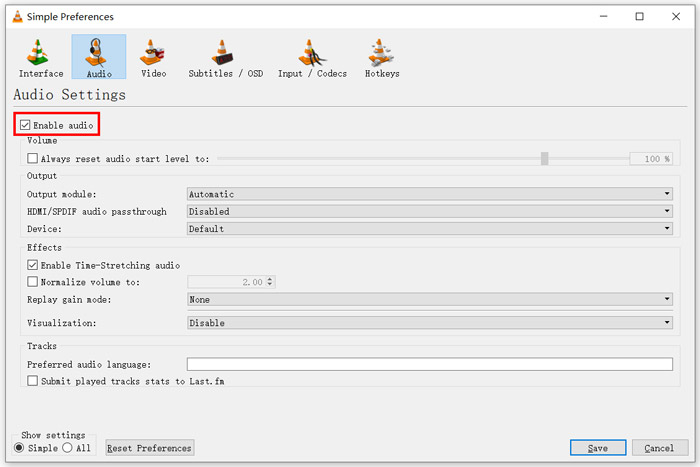
Steg 2. Klicka på fliken Ljud och markera sedan alternativet Aktivera ljud. Under det här steget kan du också anpassa Output Module, HDMI/SPDIF audio passthrough och Device efter behov. Klicka på knappen Spara för att spara ändringarna.
Nu är du tillbaka i VLC:s huvudgränssnitt. Du kan klicka på Media och sedan Öppna fil för att spela upp din MKV‑fil.
Del 4. Välj ett alternativ för VLC Player för att spela MKV-filer
När du vill titta på MKV‑filmer kan du också välja en annan spelare i stället för VLC. Du kan prova den populära Free Online Video Player. Oavsett om du använder en Windows 10/8/7‑dator eller en Mac kan du använda den för att spela upp alla MKV‑filer med hög kvalitet.
Denna gratis onlinespelare har möjlighet att spela 4K, 1080p / 720p HD, SD-videor, 3D-videor och ljudfiler smidigt. Förutom MKV stöder den också många andra format inklusive MP4, MOV, FLV, AVI, MPEG, WMV, WMA, AAC, MP3 och mer.
Steg 1. När du vill titta på MKV‑filer kan du gå till webbplatsen för Free Online Video Player. Den är kompatibel med alla webbläsare som Chrome, IE, Firefox och Safari. Klicka på knappen Play Now för att snabbt installera ett litet startprogram för MKV‑uppspelning.
Steg 2. När installationen är klar startas denna kostnadsfria online‑spelare för MKV‑filer automatiskt. Klicka på knappen Öppna fil för att importera din MKV‑fil. Här kan du också klicka på Öppna skiva för att titta på en DVD‑film.
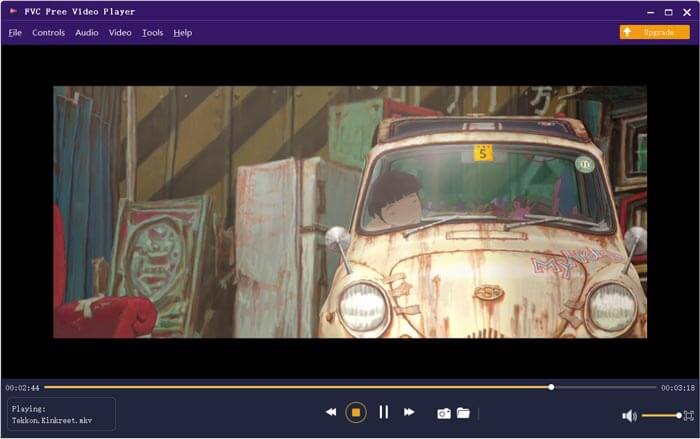
Din MKV‑video spelas upp automatiskt efter detta. Du får full kontroll över MKV‑uppspelningen. Jämfört med VLC Media Player erbjuder den ett enklare sätt att njuta av MKV‑filer. Denna kostnadsfria online MKV‑spelare stöder både DTS‑HD och Dolby TrueHD för att säkerställa en riktigt bra ljudupplevelse.
Del 5. Vanliga frågor om VLC Player kommer inte att spela MKV
Spelar smart TV MKV-filer?
Ja. Många smarta TV-apparater som Sony och Samsung som kan stödja MKV-filer. Du kan spela din MKV via en extern hårddisk eller UBS-enhet
Hur spelar jag DVD med VLC Media Player?
När du vill spela en DVD-film med VLC bör du först sätta in DVD-skivan i datorns skivenhet. Öppna VLC, klicka på Media i menyraden och välj sedan Öppna skiva. Bläddra och ladda den här DVD-filmen till VLC och spela den.
Hur inaktiverar jag avkodning av hårdvaruacceleration på VLC?
För att inaktivera avkodning av hårdvaruacceleration på VLC Media Player, bör du gå till Inställningar från Verktyg-menyn. Välj kategorin Input / Codecs och sedan Codecs. Leta reda på det hårdvaruaccelererade avkodningsalternativet och inaktivera det där.
Slutsats
När du stöter på problemet att VLC inte kan spela MKV kan du direkt använda en annan spelare, som den rekommenderade Free Online Video Player, för att titta på dina MKV‑filer. Du kan också välja att uppgradera VLC Media Player eller justera olika inställningar för att lösa det.
-
 Gratis och professionella sätt att konvertera MKV till MOV
 Hur konverterar jag MKV till MOV på Mac? Kan iMovie läsa MKV? Vad betyder MOV-format? Det här inlägget berättar om två enkla sätt att hjälpa dig konvertera MKV till MOV med gratis online och professionella videokonverterare.
-
 Hur man konverterar M2TS till MKV utan att förlora kvalitet
 Vill du konvertera M2TS till MKV samtidigt som du behåller originalkvaliteten? Det här inlägget visar dig gratis och online-metoder för att ändra M2TS till MKV förlustfritt.
-
 VLC Media Player - En kort recension av videospelare och bästa alternativ på Windows och Mac
 Varför fungerar inte ljudet på VLC Media Player? Om du vill lära dig mer om den populära mediaspelaren kan du lära dig mer om recensionen och de bästa alternativen från artikeln.
