


 Video Converter Ultimate
 Skärminspelare
 Video reparation
 Säker nedladdning
Varför Canva inte laddar upp video och hur du åtgärdar det (2026 års upplaga)
Det är varje innehållsskapares mardröm: Du har lagt timmar på att redigera den perfekta Reelen eller presentationsklippet. Du drar in den i webbläsaren, väntar på magin – och sedan händer ingenting. Eller ännu värre, en röd felrad visas. Plötsligt stannar hela ditt arbetsflöde upp eftersom Canva vägrar ladda upp videofiler, oavsett hur många gånger du uppdaterar sidan.
Du är inte ensam. Oavsett om du är student, social media‑manager eller företagare är problem med videouppladdning bland de vanligaste klagomålen i supportforum. Frågor som "why won't my video upload to Canvas" (en vanlig felskrivning av Canva) har skjutit i höjden i takt med att fler går över till videoförst‑strategier för innehåll.
Om du ser kryptiska popup‑rutor som säger "an error occurred uploading your media. canvas" eller helt enkelt märker att Canva inte fungerar som förväntat, är den här guiden för dig. Vi har satt ihop en djupgående ”masterclass” – tekniska steg, dolda inställningar och experttips – för att se till att ditt material hamnar online, varje gång.

Del 1: Diagnosen – varför händer detta?
Innan vi börjar klicka på knappar måste vi förstå grundorsaken. När du ser ett "canvas video error"-meddelande triggas det oftast av en av tre ”flaskhalsar”: Filen, Webbläsaren eller Nätverket.
1. Flaskhalsen i filen (kodekar och behållare)
Alla videofiler är inte lika. Du kanske har en .MP4‑fil, men om den har kodats med en proffskodek (som Apple ProRes 4444) eller en ny standard (som H.265/HEVC) som webbläsaren ännu inte har fullt stöd för, kommer uppladdningen att misslyckas. Detta är den vanligaste orsaken till att användare utbrister "Men det är ju en MP4!" medan de stirrar på en misslyckad uppladdning.
2. Flaskhalsen i webbläsaren och cachen
Moderna webbappar som Canva förlitar sig starkt på webbläsarens lokala cache. Om cachen är skadad, eller om ett tillägg (som en annonsblockerare) av misstag identifierar Canvas uppladdningsskript som en "tracker", kommer anslutningen att blockeras. Detta leder ofta till det vaga felet: "we couldn't upload some files canva".
3. Kontobegränsningarna
Är du på Gratis‑versionen eller Canva Pro? Visste du att det finns en hård gräns för lagringsutrymme som också kan orsaka felet "Canva won't upload video"?
Gratisanvändare: 5 GB total lagring.
Pro‑användare: 1 TB lagring.
Filgräns: Generellt har filer som är strikt över 1 GB ofta svårt att laddas upp via webbgränssnittet, oavsett plan.
Del 2: Snabba lösningar (testa dessa först)
Om du har bråttom kan du prova dessa två "silverkulor". De löser ungefär 50 % av alla fall där Canva inte laddar upp bilder eller videor.
Fix 1: Kontrollera "Canvas"-stavfelet och statusen
Kontrollera först att plattformen i sig inte ligger nere. Användare söker ofta efter "canvas video error message" när det i själva verket är Canva‑plattformen som har ett globalt avbrott.
Steg 1. Gå till status.canva.com.
Steg 2. Kontrollera avsnittet "Media Uploads". Om det är gult eller rött ska du sluta felsöka. Problemet ligger hos dem. Du måste vänta.
Fix 2: Inkognitotestet
Webbläsartillägg är ökända för att sabotera JavaScript, som Canva behöver för att hantera uppladdningar.
Steg 1. Öppna ett Inkognitofönster (Chrome) eller Privat fönster (Safari/Firefox).
Steg 2. Logga in på Canva och försök ladda upp videon.
Steg 3. Om det fungerar här är problemet definitivt ett av dina webbläsartillägg.
Fix 3: Byt namn på din fil
Det låter fånigt, men det stämmer. Om din fil heter Project_Final_@Video_2.mp4 kan specialtecken (@, ) ibland förvirra serverns filhanteringsbegäran. Du behöver bara döpa om filen till video1.mp4 (håll det enkelt, gemener, inga mellanslag) och försöka igen.
Del 3: Djupgående felsökning – steg-för-steg-guide
Om snabbfixarna inte fungerade måste vi gå djupare. Följ dessa steg i turordning för att lösa problemet canva won't upload video.
Sätt 1: Kontrollera videospecifikationerna
Canva är strikt med vad som accepteras. Om din video inte uppfyller dessa specifikationer kommer du att se notisen an error occurred uploading your media. canvas.
De gyllene standarderna för Canva:
Format: MP4 eller MOV är bäst. (WEBM fungerar, men MP4 är säkrare).
Ljudkodek: AAC (Advanced Audio Coding).
Videokodek: H.264 (mest kompatibel).
Bildfrekvens: 30 fps eller 60 fps är standard.
Upplösning: Upp till 4K stöds, men 1080p laddas upp mycket snabbare.
Så här kontrollerar du filinformationen:
Windows: Högerklicka på filen > Egenskaper > Detaljer.
Mac: Högerklicka på filen > Visa info. Om du ser en kodek som "HEVC" eller "ProRes" behöver du konvertera videon (se Metod 4 nedan).
Sätt 2: Rensa webbläsarens cache och cookies
Om du har använt Canva länge har din webbläsare lagrat tusentals temporära filer. När dessa hamnar i konflikt med en ny uppdatering från Canva slutar funktioner att fungera, vilket leder till att användare frågar why won't my video upload to canvas.
För Google Chrome:
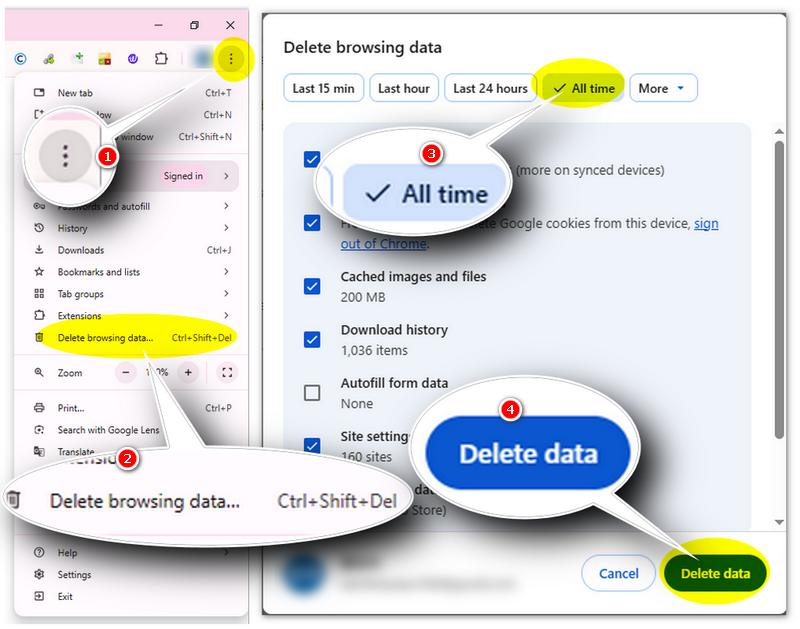
Steg 1. Klicka på de tre prickarna uppe till höger.
Steg 2. Gå till Rensa webbinformation.
Steg 3. Välj "Tidsintervall: Alla tider".
Steg 4. Markera "Cookies och andra webbplatsdata" och "Cachade bilder och filer".
Steg 5. Klicka på "Rensa data".
Steg 6. Starta om webbläsaren helt innan du försöker igen.
Sätt 3: Kontrollera din internetanslutning (uppladdningshastighet vs. nedladdningshastighet)
Många användare har snabba nedladdningshastigheter (för att titta på Netflix) men usla uppladdningshastigheter. Videofiler är stora. Om din uppladdningshastighet är instabil bryts anslutningen innan filen är färdig, vilket triggar meddelandet "we couldn't upload some files in Canva".
Steg 1. Testa din anslutning genom att gå till "speedtest.net".
Steg 2. Om din uppladdningshastighet är under 5 Mbps kommer du att få problem med att ladda upp 4K‑video.
Steg 3. Anslut din dator till routern med en nätverkskabel, flytta dig närmare Wi‑Fi‑routern eller byt till mobildata.
Sätt 4: Koda om videon (den magiska lösningen)
Om ditt internet är okej och servern är igång, men Canva vägrar ladda upp videofiler oavsett vad du gör, är problemet med största sannolikhet ett dolt kodekproblem eller en för hög bitrate.
Canva är kräsen. Även om filtillägget är .MP4 kan den använda en komprimeringsstandard (som HEVC/H.265) som Canvas webbupladdare inte kan bearbeta. För att lösa detta behöver du ett kraftfullt verktyg som "sanerar" filen. Vi rekommenderar att du använder FVC Video Converter Ultimate.
Detta verktyg är särskilt effektivt eftersom det hanterar två stora Canva‑hinder på en gång: Formatkompatibilitet (konvertering till H.264) och Filstorlek (komprimering av stora 4K‑filer till under 1 GB). Här är steg‑för‑steg‑lösningen:
Steg 1. Ladda ner och starta FVC Video Converter Ultimate på din dator.
Gratis nedladdningFör Windows 7 eller senareSäker nedladdning
Gratis nedladdningFör MacOS 10.7 eller senareSäker nedladdning
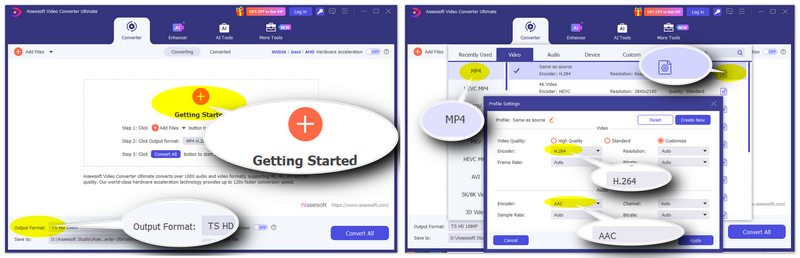
Steg 2. Klicka på den stora +‑knappen eller dra din videofil till mitten av gränssnittet.
Steg 3. Öppna rullgardinsmenyn "Output Format" och välj "MP4".
Steg 4. Klicka på kugghjulsikonen (Custom Profile) bredvid ditt val. Kontrollera att Encoder är inställd på H.264 (inte HEVC/H.265) och att ljudet är inställt på AAC. Detta är exakt det språk Canva förstår.
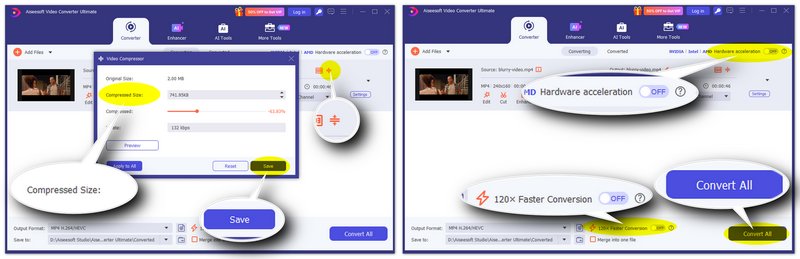
Steg 5. Om din fil är över 1 GB (vilket orsakar felet "we couldn't upload some files canva"), klicka på ikonen Compress Video (ser oftast ut som en hoptryckt fil) bredvid filens utmatning.
Steg 6. Om du vill snabba upp konverteringsprocessen kan du aktivera "Hardware acceleration", men slå inte på "120× Faster Conversion", som bara konverterar behållarformatet och inte kodeken.
Steg 7. Klicka på "Convert All" för att starta bearbetningen.
Sätt 5: Använd Canva Desktop App
Webbläsare (Chrome, Edge, Safari) begränsar hur mycket RAM ett webbplats kan använda. Om du laddar upp en video på 500 MB kan webbläsaren avbryta processen för att spara minne. Canva Desktop App har direkt åtkomst till dina systemresurser.
Steg 1. Ladda ned appen från Canvas webbplats.
Steg 2. Försök att ladda upp där.
Många användare rapporterar att när webbversionen misslyckas ("Canva fungerar inte"), lyckas skrivbordsappen direkt.
Del 4. Specifika problem: bilder och mobil
Även om den här guiden fokuserar på video drabbas ofta samma användare av relaterade problem.
Åtgärda "Canva laddar inte upp bilder"
Om du märker att Canva inte laddar upp bilder tillsammans med dina videor är problemet nästan säkert format eller storlek.
För HEIC-filer: Om du laddar upp från en iPhone kan dina foton vara i HEIC-format. Canva föredrar JPG eller PNG. Konvertera HEIC till JPG eller PNG först.
För enorma dimensioner: En bild som är 10 000 x 10 000 pixlar kan komma att nekas. Ändra storlek på bilder till under 5 000 pixlar.
Fel vid mobila uppladdningar
Försöker du ladda upp från Canva-appen på din telefon, men din mobila Canva misslyckas med att ladda upp video? Du kan kontrollera följande lösningar:
Bevilja behörigheter: Gå till "Inställningar" > "Canva" > "Foton". Kontrollera att den är inställd på "Alla foton", inte "Valda foton". Om Canva inte kan "se" videon på grund av behörigheter kommer den att visa ett generiskt fel.
Frigör lagringsutrymme: Har din telefon tillräckligt med utrymme för att bearbeta den temporära filen? Om telefonens lagring är full kan appen inte buffra videon för uppladdning.
Del 5: "Bakdörrs"-lösningarna
Om du har provat allt ovan – rensat cache, konverterat till H.264, använt skrivbordsappen – och Canva ändå inte laddar upp video, kan du använda dessa smarta lösningar för att kringgå den direkta uppladdningsmekanismen.
Workaround A: Google Drive-/Dropbox-integrationen
I stället för att ladda upp direkt till Canva, ladda upp din video till Google Drive först.
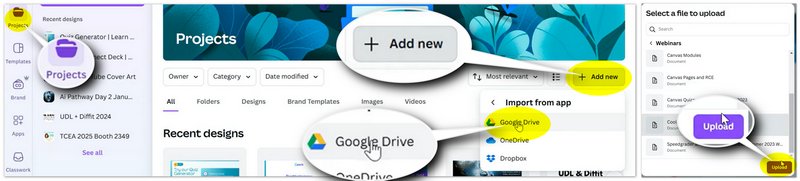
Steg 1. Ladda upp video till Google Drive.
Steg 2. Öppna Canva och ditt projekt efter inloggning.
Steg 3. Klicka på "Add new" i sidofältet till vänster.
Steg 4. Välj "Google Drive".
Steg 5. Bläddra i dina Drive-mappar inne i Canva och klicka på filen och "Upload".
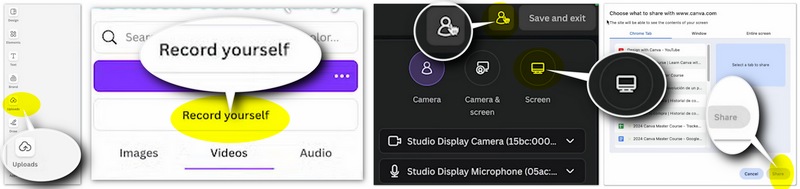
Workaround B: tricket "Spela in dig själv"
Om du bara behöver ett kort klipp:
Steg 1. Spela upp din video på din dator. Klicka på "Uploads" > "Record yourself".
Steg 2. I stället för att spela in din kamera väljer du "Screen" > välj den videoruta som spelas upp.
Steg 3. Klicka på "Share" > "Record" för att spela in den direkt i designen. Obs: Detta försämrar kvaliteten, så använd det bara som en sista utväg.
Del 6: Förstå felmeddelanden på djupet
För att hjälpa dig felsöka snabbare i framtiden följer här en ordlista över de specifika felen och vad de egentligen betyder.
| Felmeddelande | Egentlig betydelse | Lösning |
| "Ett fel uppstod när din media skulle laddas upp. canvas" | Anslutningen tog för lång tid eller serverhandskakningen misslyckades. | Uppdatera sidan, kontrollera Wi‑Fi eller växla till ett tillfälligt 4G/5G‑hotspot. |
| "Vi kunde inte ladda upp vissa filer canva" | En specifik fil i en batch är skadad eller för stor. | Ladda upp filer en och en för att identifiera den "dåliga" filen. |
| "Uppladdning pausad" | Webbläsarfliken tappade prioritet eller internetanslutningen bröts. | Håll Canva-fliken aktiv och överst. Minimera den inte. |
| Varför laddas inte min video upp till Canvas (sökfrågeavsikt) | Vanligtvis formatinkompatibilitet (MOV/AVI). | Konvertera till MP4 H.264. |
Del 7. Vanliga frågor om att Canva inte laddar upp video
Vad är den exakta videostorleksgränsen på Canva?
Oavsett om du har ett gratis- eller Pro-konto begränsar Canva i allmänhet uppladdningen av enskilda videofiler till 1 GB. Om du försöker ladda upp en fil på 2 GB kommer du nästan säkert att se felmeddelandet för Canva‑video.
Varför fastnar min uppladdning halvvägs (t.ex. vid 50%)?
Detta är oftast ett problem med nätverkstimeout, inte ett filproblem. Videouppladdningar kräver en stabil uppströmsanslutning. Om ditt wifi flimrar till även i en mikrosekund kan webbläsaren bryta anslutningen, vilket leder till den generiska varningen "we couldn't upload some files canva".
Jag har Canva Pro, så varför får jag fortfarande lagringsfel?
Även om Canva Pro erbjuder 1 TB lagringsutrymme gäller fortfarande gränser för enskilda filer. Om du dessutom märker att Canva inte laddar upp bilder eller videor, kontrollera om du är med i ett "team". Om teamägarens lagringsutrymme är fullt kan du inte ladda upp filer till just den teamarbetsytan, även om ditt personliga konto är tomt.
Slutsats
Att se att Canva inte laddar upp video kan vara förödande för arbetsflödet, men det är sällan ett permanent problem. Genom att förstå att problemet oftast ligger i filformatet (kodekar), webbläsarmiljön (cache/tillägg) eller nätverkets stabilitet kan du lösa det systematiskt. Låt inte en enkel teknisk störning stoppa din kreativitet. Bokmärk den här sidan så att du nästa gång du ser det där felsmeddelandet om Canva-video vet exakt vilken knapp du ska trycka på.
-
 Hur man spelar in ljud på Canva: Enklaste sättet + Alternativ
 Lär dig hur du spelar in ljud på Canva med hjälp av deras inspelningsstudio och upptäck det bästa gratis onlinealternativet för att spela in internt och externt ljud på Canva.
-
 Hur man tar bort Canva vattenstämplar från foton [fullständiga metoder]
 Canva vattenstämplar från foton är ibland irriterande. Om du vill ta bort dem, gå till det här inlägget. Vi guidar dig för att lära dig hur du tar bort en Canva vattenstämpel.
-
 Hur man tar bort bakgrund från bild: problemfria verktyg
 Upptäck sex verktyg för att enkelt ta bort bakgrunden från vilken bild som helst. Säg adjö till komplicerad redigering och radera bildbakgrunder med lätthet idag!
