


 Video Converter Ultimate
 Skärminspelare
 Video reparation
 Säker nedladdning
Hur man importerar HEIC-fil i Lightroom på Windows och Mac effektivt
Anta att du är intresserad av att förbättra HEIC‑bilden eller organisera den. Då kan du importera HEIC till Lightroom och enkelt sköta all sortering och redigering där. Du kan utan problem ladda upp den här utan att hämta någon extra HEIC‑kodek för att visa eller redigera den i programmet. Om du behöver en guide som lär dig hur du importerar HEIC‑filen i det här programmet kan du läsa och följa metoderna för Windows och Mac som vi tar upp i den här genomgången.
Utan vidare, låt oss läsa följande detaljer för att veta hur man gör det, och om Lightroom misslyckades med att importera HEIC, finns det ett sätt att lägga till det här. Men före något annat måste du ladda ner programvaran på din Windows eller Mac innan du läser följande detaljer.

Del 1. Så här importerar du HEIC till Lightroom på din Windows 10/11 eller uppdaterad
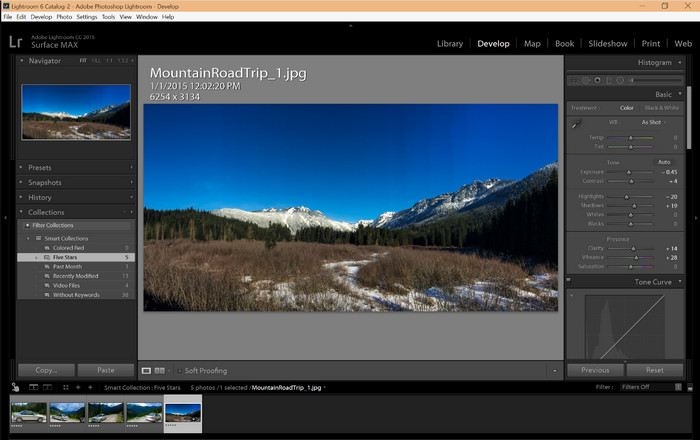
Lightroom stöder en uppdaterad Windows-version; den här delen är till för dig om du laddar ner programvaran på ditt Windows OS. Du behöver inte oroa dig eftersom Lightroom kan öppna HEIC-filer utan ansträngning genom att följa handledningen nedan.
Steg 1. Ladda ner programmet på din Windows 10/11‑dator, installera det och öppna det för att fortsätta.
Steg 2. När programmet redan är igång på systemet klickar du på +-knappen, trycker på Browse och väljer den HEIC‑fil du vill importera hit.
Steg 3. När du har valt dem kan du nu visa HEIC‑filerna med Lightroom på din Windows 10/11‑dator.
Del 2. Hur man öppnar HEIC Photo i Lightroom på din Mac 10.13 eller senare
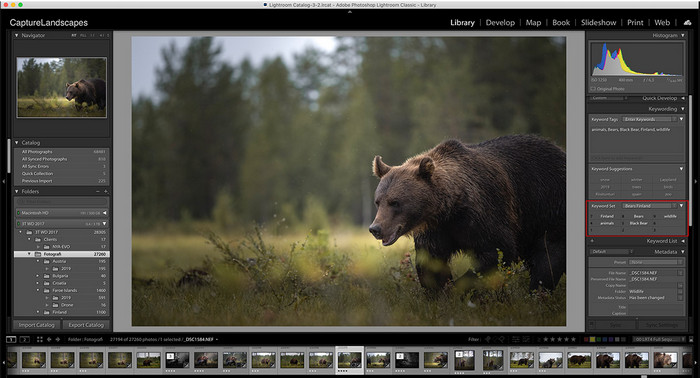
Även utan Lightroom kan du enkelt se HEIC-filen, särskilt om din Mac-version är High Sierra 10.13 eller den nyare på Preview. Även om Preview stöder redigeringsfunktioner räcker det inte att använda för komplicerad redigering, som vad Lightroom kan ge dig. Dessutom behöver du inte oroa dig för det eftersom Lightroom stöder HEIC-filer för att redigera eller organisera dem på din Mac.
Steg 1. Installera programmet på din macOS 10.13 eller senare; om versionen av ditt operativsystem är lägre kommer programmet inte att öppnas. När du har laddat ner Lightroom på skrivbordet ska du öppna det.
Steg 2. Längst upp hittar du olika menyer och namnet Lightroom uppe till vänster, vilket betyder att programmet redan är öppet. Tryck på menyn File och gå vidare till Add Photos, eller använd istället en kortkommando på tangentbordet genom att trycka på Command + Shift + I.
Steg 3. En mapp visas på skärmen; välj bilden du vill importera och klicka på Review for Import.
Del 3. Lightroom kunde inte importera HEIC-fil | Bästa lösningen för att lösa HEIC-problem som inte stöds
Många användare hade problem med att ladda upp HEIC-filen på grund av kompatibilitet med programvara som Lightroom på Windows och Mac; även med hjälp av metoderna ovan är det fortfarande omöjligt. Men du behöver inte känna dig ledsen eftersom det finns ett sätt att importera din HEIC-fil på Lightroom genom att konvertera HEIC till JPG med hjälp av det bästa verktyget på webben.
FVC Free HEIC to JPG Converter är lösningen du bör använda för att konvertera HEIC‑filen på både Windows och Mac utan att installera något program. Ett webbaserat verktyg som detta kan göra om ditt ej stödda format till ett standardformat som JPEG. Du kan ladda upp bilden till Lightroom utan att stöta på fel om format som inte stöds. Förutom att konvertera HEIC till JPG kan du också ladda upp flera HEIC‑bilder här och konvertera dem alla samtidigt, vilket stöder batchkonvertering. Fantastiskt, eller hur? Vill du veta vad som imponerar oss ännu mer? Du kan nämligen snabba upp konverteringen helt gratis. Om du vill lösa problemet med format som inte stöds i HEIC följer du stegen nedan för att se hur du konverterar formatet.
Enkla steg för hur du ändrar HEIC-formatet till JPG med ett webbverktyg:
Steg 1. Öppna FVC Free HEIC to JPG Converter genom att klicka på den här länken, så öppnas konverterarens huvudsida i din favoritwebbläsare. Du behöver inte oroa dig – den är säker att använda och det finns inga störande annonser i webbgränssnittet.
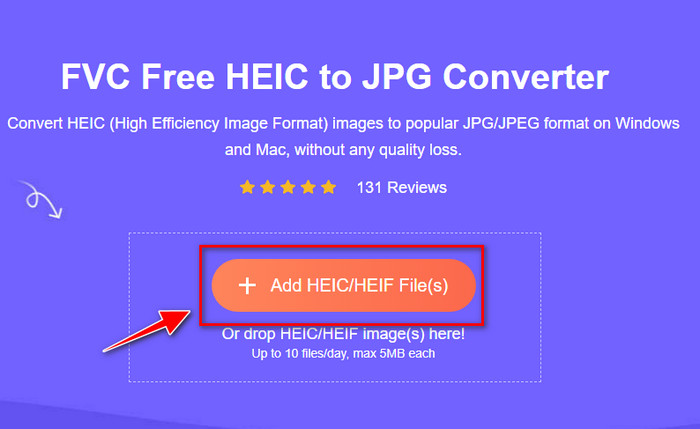
Steg 2. Klicka på Add HEIC/HEIF Files för att ladda upp den HEIC‑bild som Lightroom inte kan öppna. Alternativt kan du dra och släppa filen här istället för att välja den i filutforskaren.
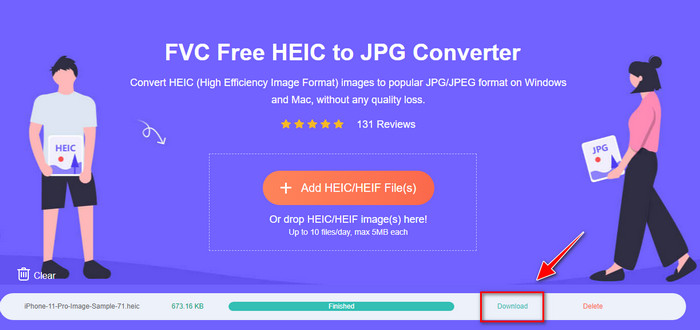
Steg 3. En knapp med texten Download visas när förloppsindikatorn är klar; klicka på den för att spara den nykonverterade HEIC‑filen på ditt skrivbord. Efter det kan du importera filen till Lightroom utan att få upp någon dialogruta som säger att den är osupported eller skadad.
Del 4. Vanliga frågor om import av HEIC i Lightroom
Finns det några begränsningar för import av HEIC-filer på Lightroom?
Fram till denna punkt kan du importera HEIC-filer till Lightroom så många du vill. Det har inga begränsningar för att ladda upp den här typen av format på Lightroom.
Är Lightroom gratis på Windows och Mac?
Tyvärr är Lightroom på Windows och Mac inte gratis, men du kan ladda ner det gratis på din Windows och Mac. Även om programvaran inte är gratis, kan du dra fördel av att använda den kostnadsfria provperioden som den stöder i 7 dagar. Om du känner att du kommer att behöva programvaran under en längre tid kan du prenumerera efter provperioden.
Lämnar export av en HEIC-fil på Lightroom en vattenstämpel?
Som tur är lägger Lightroom inte till någon vattenstämpel på bilden du har laddat upp här. Men du kan lägga till en vattenstämpel om du vill ha en. Om du tänker lägga upp bilden på internet rekommenderar vi att du lägger till en vattenstämpel så att den skyddas mot personer som försöker stjäla den.
Vilket är bättre för bildredigering? Photoshop eller Lightroom?
Det beror på dina krav; med hjälp av Adobe editor Photoshop och Lightroom kan du enkelt göra din bild snyggare i utseende. Anta att du vill ha en lätthanterlig bildredigerare. I så fall är Lightroom ett val som du måste välja för det är den bästa bildredigeraren för att förbättra bilden du har. Men om du vill göra mer detaljerad bildredigering är Photoshop din redigerare som passar alla professionella redigerares behov.
Slutsats
Med hjälp av Lightroom kan du enkelt redigera bilden du har eller organisera dem därefter för att få dem att se snygga ut. Så om du vill importera HEIC-filen till Lightroom kan du följa stegen vi lägger till oavsett om du är Windows- eller Mac-användare. Men om du stöter på problem med att importera HEIC-filen, läs del tre när vi löser den för att göra den kompatibel med Lightroom. Du kan nu fortsätta med att redigera den. Vi hoppas att den här texten ger dig en uppfattning om hur du importerar filen; om du har andra förslag eller rekommendationer kan du lämna ett meddelande till oss.
-
 iMazing HEIC Converter | Funktioner, för- och nackdelar och hur man använder det
 Den här artikeln kommer att granska iMazing HEIC Converter-förmågan och dess alternativ, så om du vill veta mer om det läs detta med försiktighet
-
 3 enklaste sätten att konvertera HEIC till JPG på iPhone som en expert
 Har du ingen aning om hur man ändrar HEIC till JPG på iPhone? Om du är en av användarna som har problem med HEIC, läs detta.
-
 Varför är mina iPhone-bilder i HEIC-format [Skäl och hur man löser]
 Vill du veta varför mina iPhone-bilder är i HEIC-format? Den här artikeln ger trovärdiga bevis på vad som gör HEIC till det bästa.
