


 Video Converter Ultimate
 Skärminspelare
 Video reparation
 Säker nedladdning
Så här skriver du ut HEIC-foton med högkvalitativ bildutmatning på en minut
Despite having less support for other devices, Apple still declares that it will use the HEIC format to take a quick snap and store the image with a hyperspectral image that will cost you nothing but save you space. Regardless, if you want to print, view, or transfer an image to another device that isn't Apple-related, you will only get a notification of unsupported. But if you are a Mac user, you can quickly learn how to print HEIC photos with the same quality you can have on the raw file. So, if you want to know the steps on how to print it out, you must continue reading the following details.

Del 1. 2 effektiva sätt att skriva ut HEIC-foton på Mac
När vi utforskar och provar hur man skriver ut HEIC-foton på Mac märker vi att det finns två sätt du kan göra för att göra en papperskopia av HEIC-filen utan att konvertera formatet. Så om du vill veta hur man gör en papperskopia av HEIC-bilden du har, måste du fortsätta läsa de två metoderna nedan.
Kontrollera om skrivaren är korrekt installerad på Mac och felsök den innan du fortsätter till stegen. OM allt är klart och förberett, då måste du nu gå vidare.
Första metoden: Använda en genvägstangent
Om du vill ha mindre klick måste du använda kortkommandot för att skriva ut en bild på Mac. Följ stegen och tangenterna vi klickar på b för att enkelt skriva ut HEIC-filen på din Mac.
Step 1. Click the HEIC file that is stored on your Mac and open it.
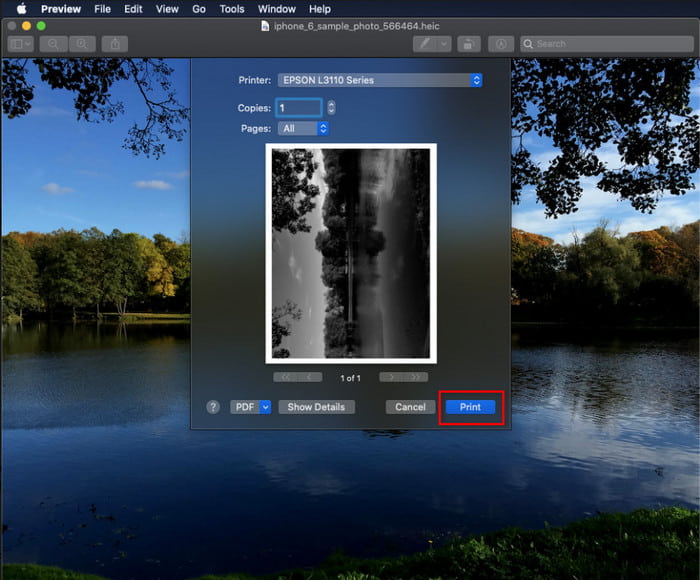
Step 2. After you open it, click the Command + P key on your keyboard.
Step 3. And on the printing dialogue box, you can see the preview of the image and you can adjust the printing status; click Print to make a hard copy of the HEIC image with high quality.
Metod 2: Använda Arkiv-menyn
Om du tror att kortkommandot inte kan hjälpa dig att skriva ut dokumentet, måste du prova att använda Arkiv-menyn. Med den här menyn kan du enkelt klicka på utskriftsknappen och göra några ändringar innan du har en papperskopia av HEIC-bilden. Låt oss börja skriva ut HEIC du har på din macOS utan att använda kortkommandon utan vidare.
Step 1. Open the HEIC file on your Mac before you do anything else.
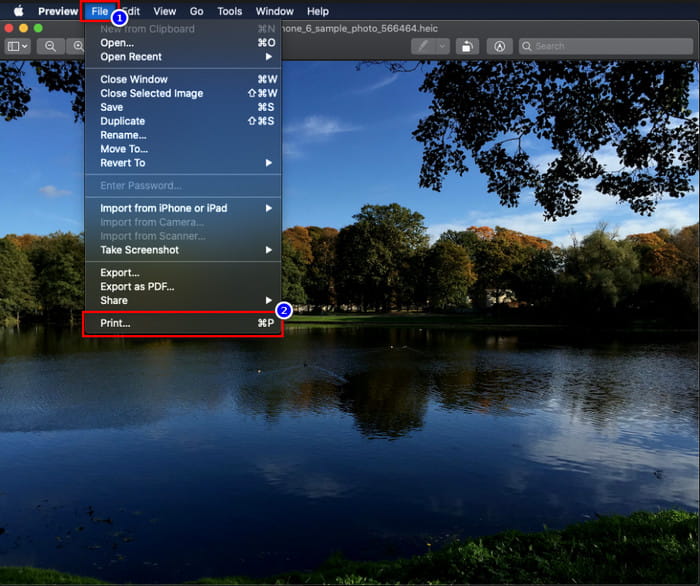
Step 2. On the upper-part section, click the File menu, and a list of options will show on your screen. Now choose the last option, and that is Print.
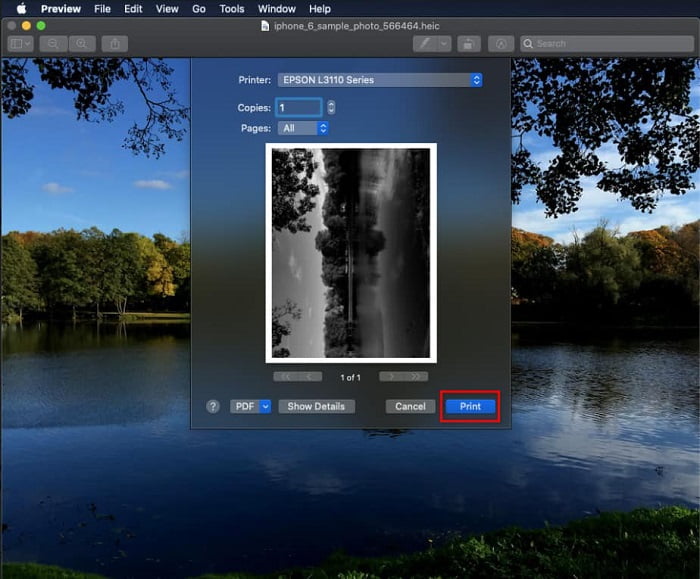
Step 3. Now you will see on your screen that the printing dialogue will open. In the middle part of it, you will see the sample HEIC file you have if it became a hard copy, and on the other side, you can do some tweaking before you print it out. After everything is settled up, click Print to start printing the document.
Del 2. Varför kan jag inte ladda upp mina HEIC-foton för utskrift?
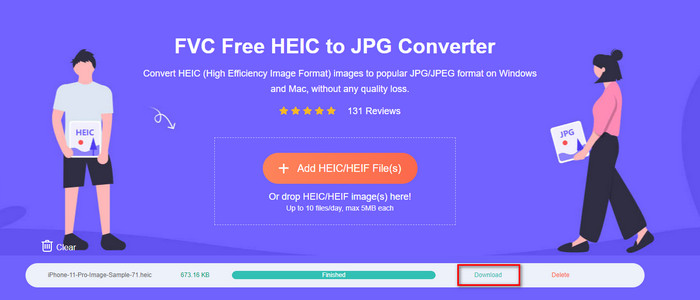
Are you one of the users having a hard time handling the HEIC file because you can't make a hard copy of it? In that case, let us introduce a specific web tool that could help you solve the problem: the FVC Free HEIC to JPG Converter. This web tool can turn your HEIC to JPG at ease. You can now easily upload the file on printing by changing the format to JPEG because the format became more recognizable than the HEIC. Although you are limited to converting up to ten times per day with 5MB or less, it is still a dependable web converter even with that limitations. So, let's not consume any more time and dig into the steps on how to use the best open source web converter at your reach.
Step 1. You can click this link to access the web converter, and a new tab will open promptly.
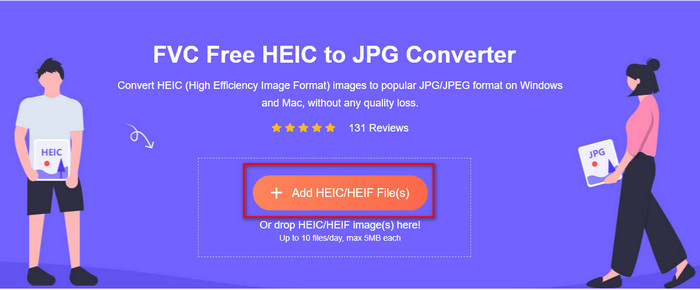
Step 2. Insert the HEIC file by clicking this button, locate the HEIC file on your folder and click Open to upload it fully.
Step 3. The process of converting will begin shortly and after that, click Download to save the file on your desktop. It is now ready to be printed as easily as you can make copies of the HEIC image on your printer with the same quality as the raw image file but in a different format.
Del 3. Vanliga frågor om utskrift av HEIC-foton
Kan jag skriva ut HEIC-foton på Windows?
Tyvärr stöder inte Windows HEIC, så det betyder att det inte kan göra en papperskopia av högkvalitativ HEIC. Men tappa inte hoppet eftersom vi inkluderar ett sätt att konvertera HEIC till ett igenkännbart JPEG-format i del två. Du kan fritt läsa den för att veta hur du gör det och sedan skriva ut HEIC-filen du har på Windows, men filtillägget är annorlunda.
Varför känner inte skrivaren igen HEIC?
Because of the compression and the structure of the format, although it can contain high-quality images in smaller file sizes, smaller than JPEG, it is still hard to recognize because it is newly introduced in the market. But you can still convert the format to the most compatible image format that every printer can realize, and that is undoubtedly the best hi-res image that is still in use up today, and that is the JPEG. If you need a converter, we add one above, but you can click this link to know the other tools you can use to convert HEIC to JPEG as we review all of them for you.
Vad är HEIC-filen?
Moving Picture Expert Group developed HEIC that could be the alternative standard image format for JPEG or JPG. Even though they built both formats, they are still different; if you want to know more about what HEIC is, click this link and read the details as we researched it.
Slutsats
Så nu när vi har fått idén om hur man skriver ut HEIC-foton med stegen ovan, blir det möjligt för varje Mac-användare att göra en papperskopia av det. Men om du är en Windows-användare kan du inte skriva ut en enda HEIC-bild på din skrivare eftersom formatet inte stöds i Windows. Men detta betyder inte att du kommer att tappa hoppet om att skriva ut HEIC-bilden. Även om vi inte kan hjälpa dig att skriva ut den ursprungliga HEIC-filen, är det fortfarande möjligt om du konverterar formatet först till JPEG/JPG innan du publicerar det.
I del två inkluderar vi den bästa online HEIC till JPG-konverteraren du kan komma åt på webben, och den är också fri från virus. Fortfarande inte säker på om det kan göra jobbet att konvertera korrekt? Varför inte ge det ett försök genom att klicka på den här länken? Du kommer säkert att bli imponerad eftersom verktyget kan konvertera HEIC-filerna du har utan ansträngning.
-
 Konvertera HEIC till PDF med hjälp av de fyra bästa sätten 2022
 För att veta mer information om den bästa HEIC till PDF-omvandlaren kan du ladda ner denna 2022. Du kan läsa den här artikeln eftersom vi gav en recension om dem.
-
 5 av de bästa HEIC till JPG-omvandlarna väljer detta 2022
 Med HEIC till JPC-konverteraren kan du enkelt ändra bildformatet till en bärbar JPG. Vill du veta vilka dessa 5 verktyg är? Läs den här artikeln.
-
 Bästa gratis och betalda HEIC-konverterare du måste känna till [Uppdaterad 2022]
 Vill du veta vad HEIC-omvandlaren är? Om så är fallet inkluderar vi de 5 bästa gratis och betalda HEIC-omvandlarna som du kan använda för att ändra HEIC-formatet.
