


 Video Converter Ultimate
 Skärminspelare
 Video reparation
 Säker nedladdning
Procedurer för hur man klipper ut delar av en video på iPhone
Du kanske har spelat in en vacker video med din iPhone eller iPad på fritiden och vill dela den med vänner eller lägga upp den på sociala medier. Men det är bra att först redigera bort de delar av videon som du inte vill ta med. I det här läget kan du snabbt redigera filmer med dina verktyg genom att korta ner eller klippa i dem. Så, hur förkortar man en video på en iPhone? I den här artikeln får du se de bästa metoderna. Om du vill lära dig alla steg, läs igenom informationen nedan.

Del 1. Effektiva procedurer för att klippa video på iPhone
Använder appen Foton
Om du är en iPhone-användare och vill förkorta längden på din video kan appen Foton hjälpa dig. Foto-appen är inte bara bra för att visa bilder och videor. Med hjälp av denna förbyggda applikation kan du också klippa eller trimma din video. Eftersom det är en enkel applikation på iPhone kan du förkorta videon till bara några få klick. På så sätt kan alla användare, särskilt nybörjare, använda applikationen. Dessutom, eftersom det är en förbyggd applikation, krävs ingen installation. Men även om det är en praktisk applikation för att klippa videor, har Photos-appen vissa begränsningar. Applikationen är olämplig om du vill ha avancerade redigeringsverktyg för att förbättra en video förutom att förkorta videolängden. Foto-appen kan bara erbjuda grundläggande redigeringsfunktioner som att klippa, lägga till filter och mer. Om du vill veta hur man trimmar en video på en iPhone, följ stegen nedan.
Steg 1. Lås upp din iPhone och öppna appen Foton.
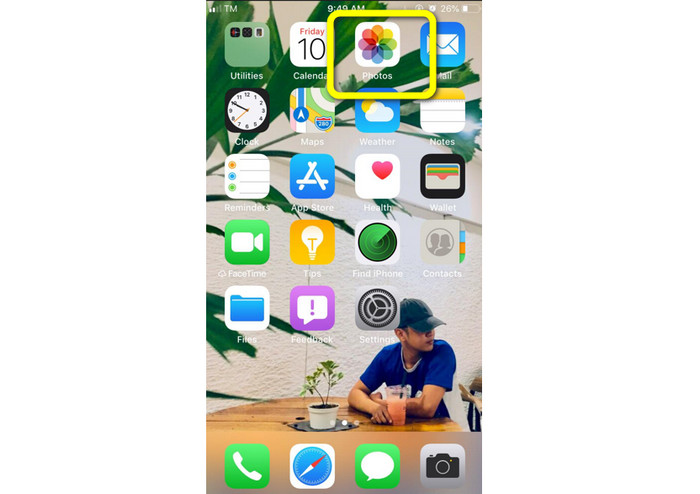
Steg 2. Klicka sedan på den video du vill korta ner. Tryck därefter på knappen Redigera uppe i högra hörnet på skärmen.
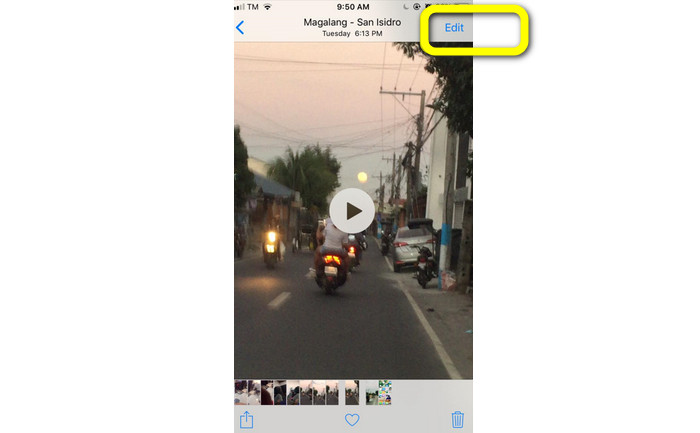
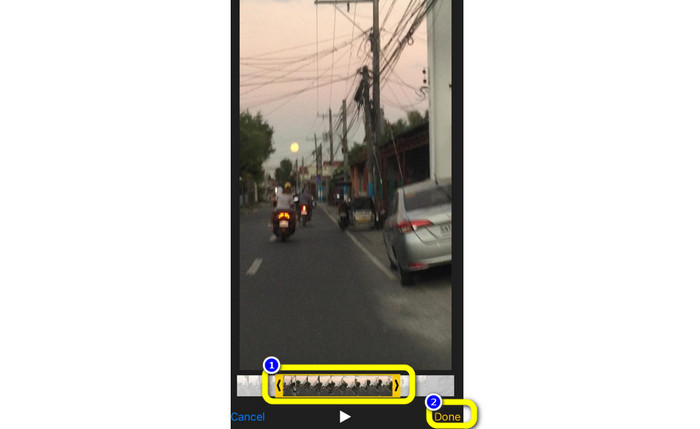
Steg 3. Nu kan du redan korta videon genom att dra i videons kant. Du kan dra i både vänster och höger kant av videon. När du har klippt videon trycker du på knappen Klar för att spara den på din telefon.
Använder iMovie
Vill du redigera några av de filmer du spelat in med din iPhone, till exempel för att ta bort onödiga delar, göra dem kortare eller mer visuellt tilltalande? Det här är en enkel och smidig process när du använder programmet iMovie, som finns tillgängligt för iOS‑enheter. Den inbyggda videoredigeraren i standardappen Foton räcker för de flesta användare, men du kan inte använda den för mer avancerade funktioner som att se din tidslinje, lägga till övergångar, slå ihop flera filmer osv. Ett specialiserat videoredigeringsprogram som iMovie är därför användbart i den här situationen. Apples iMovie är överlägset många andra videoredigeringsverktyg i App Store. Du kan dessutom synka ljud och video med iMovie. iMovie har dock vissa nackdelar. iMovie finns bara till iPhone‑enheter. Det innebär att om du är Android‑användare måste du använda ett annat program för att klippa en video.
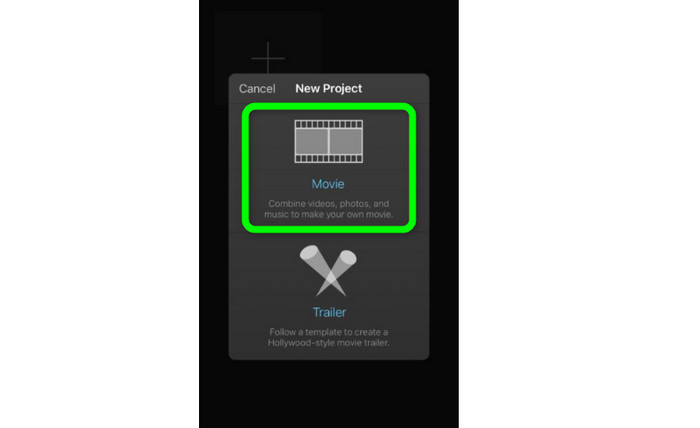
Steg 1. Ladda ner och installera appen iMovie på din iPhone. Starta sedan appen. När gränssnittet visas på skärmen klickar du på alternativet Create Project > Movie och lägger till videon.
Steg 2. Den video du har valt läggs nu in i iMovies tidslinje. Som standard kommer markören att ligga i slutet av klippet, men du kan dra den stegvis åt höger och stanna där du vill klippa videon.
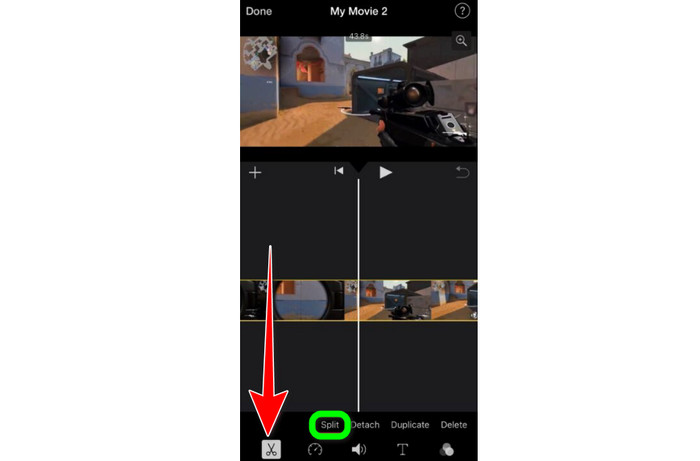
Steg 3. Nu kan du använda flera av de funktioner som iMovie erbjuder. Som visas nedan betecknar ikonen Scissor (sax) verktyget för klippning. Välj verktyget Split i menyn för att klippa videoklippet exakt där du markerat det.
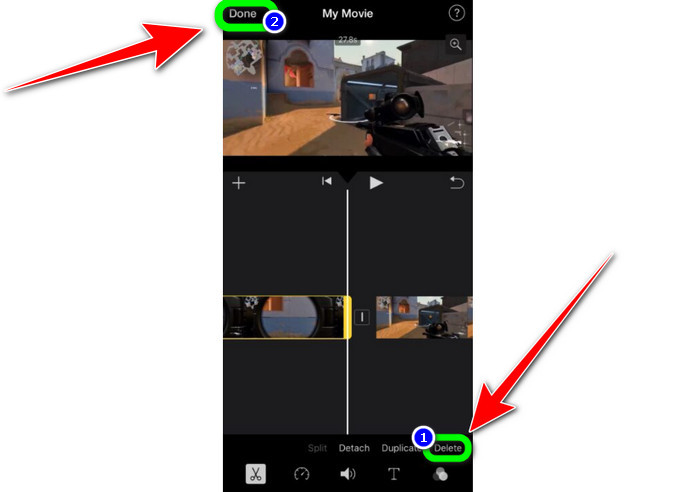
Steg 4. Klicka sedan på alternativet Delete för att ta bort den onödiga delen av videon. När du är klar med att trimma videon klickar du på knappen Klar.
Del 2. Hur man trimmar videor på iPad
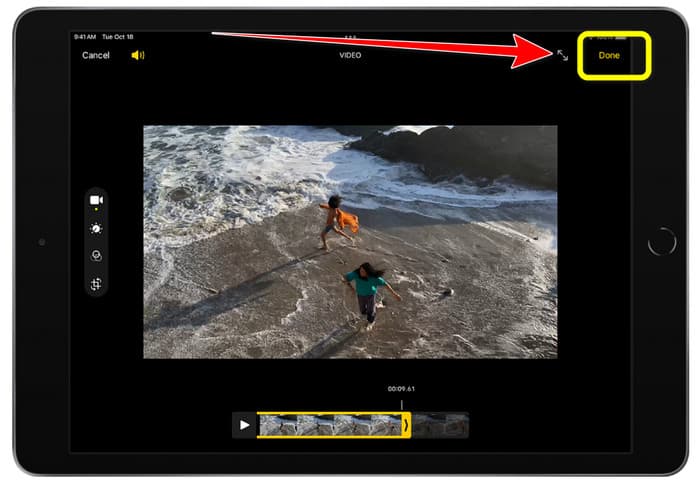
Om du vill klippa eller trimma video med en iPad behöver du inte längre leta efter ett program att ladda ner. Precis som på iPhone kan du trimma eller klippa din video med appen Foton. Appen Foton kan fortfarande ha vissa begränsningar när du använder en iPad. Om ditt mål bara är att klippa video fungerar den bra. Men du kan inte använda appen om du vill ha avancerade redigeringsverktyg. Följ stegen nedan för att klippa eller trimma video på iPad.
Steg 1. Öppna appen Foton på din iPad, klicka på det videoklipp du vill redigera och klicka på alternativet Redigera.
Steg 2. Dra i kanten av bildrutevisaren för att förkorta videons längd och börja trimma.
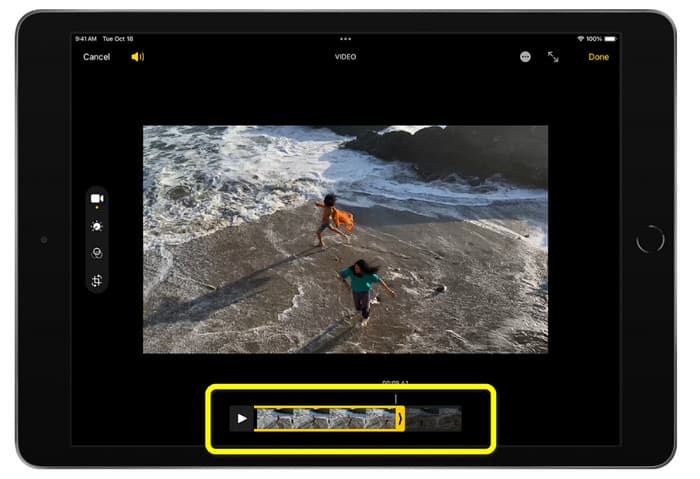
Steg 3. När du är klar med att trimma videon klickar du på knappen Klar.
Del 3. Hur man klipper iPhone-videor på PC
Letar du efter det bästa sättet att klippa iPhone‑videor på en PC? Använd i så fall Video Converter Ultimate. Du kan enkelt klippa din iPhone‑video med hjälp av detta offline‑program. Det har dessutom ett lättanvänt gränssnitt med tydliga steg. Därför passar det alla användare, särskilt nybörjare. Du kan också justera olika inställningar genom att gå till Utdata‑inställningarna. Du kan ändra videons upplösning, skärpa och bildfrekvens. Du kan även ändra ljudets bithastighet, samplingsfrekvens och andra parametrar. Du kan dessutom spara slutresultatet i olika format, som MP4, MOV, AVI, MKV och så vidare. Det är fördelaktigt för användare eftersom Video Converter Ultimate är tillgängligt och kan användas på både Windows‑ och Mac‑datorer. Dessutom lägger programmet inte till några vattenstämplar i den redigerade videon. Du kan alltså titta på videon utan att störas.
Gratis nedladdningFör Windows 7 eller senareSäker nedladdning
Gratis nedladdningFör MacOS 10.7 eller senareSäker nedladdning
Steg 1. Ladda ner Video Converter Ultimate till din PC. Klicka på knappen Download nedan för att enkelt få tillgång till programmet.
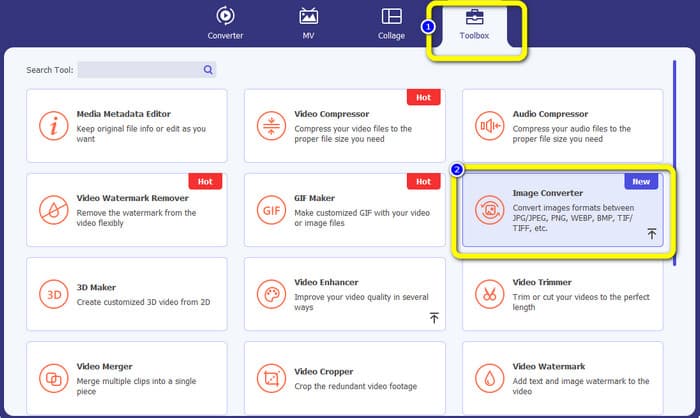
Steg 2. När nedladdningen är klar startar du programmet för att visa huvudgränssnittet. Se till att iPhone‑videon redan har överförts till datorn. Klicka sedan på Toolbox > Video Trimmer Tool när gränssnittet visas.
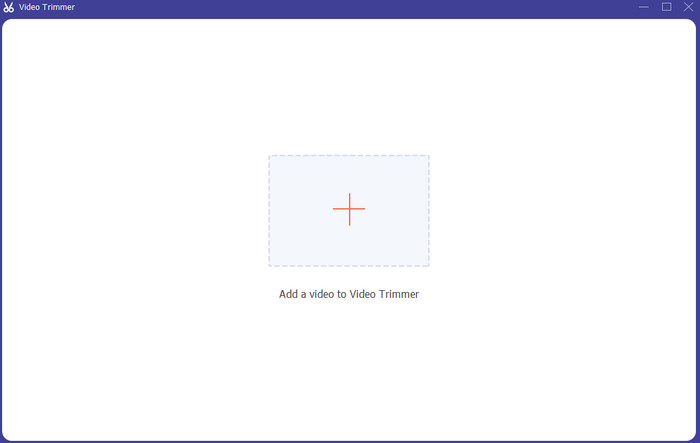
Steg 3. När det nya gränssnittet dyker upp på skärmen klickar du på plustecknet + för att lägga till iPhone‑videon.
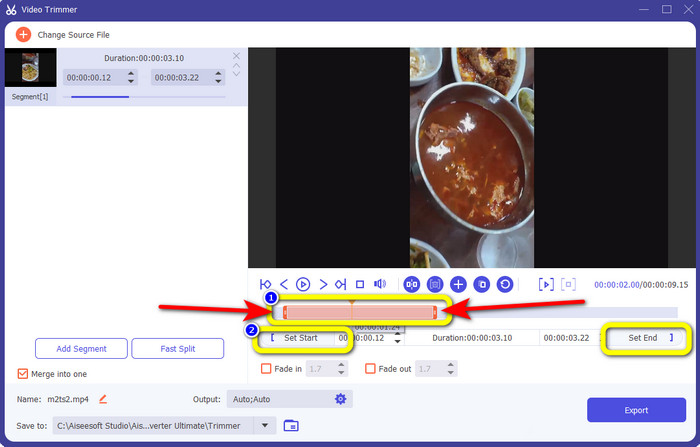
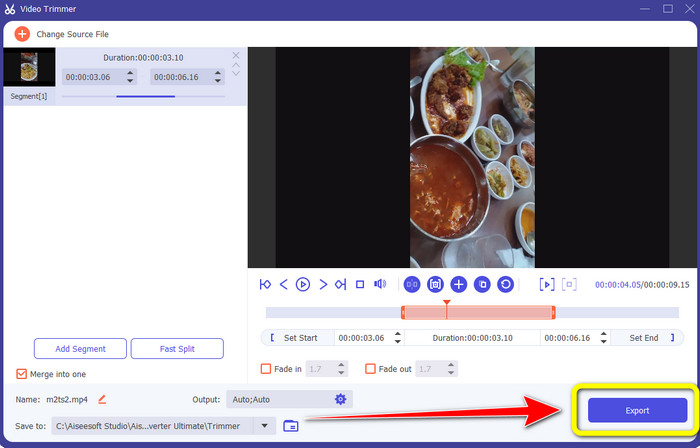
Steg 4. Därefter kan du justera videons kanter för att trimma den. Du kan också använda alternativen Set Start and Set End för att trimma videon manuellt.
Steg 5. Klicka till sist på knappen Export för att spara videon efter trimningen.
Del 4. Vanliga frågor om hur man förkortar en video på iPhone
Hur trimma mitten av videon på en iPhone?
Om du vill trimma mitten av din video med iPhone kan du fortfarande använda de ovan nämnda metoderna. Foto-appen och iMovie kan också trimma mitten av en video.
Hur trimma video på Android-telefon?
Du kan gå till din Galleri-applikation. Öppna sedan videon och klicka på alternativet Redigera. Efter det kan du redan trimma videon genom att dra i kanterna på videon.
Hur överför man video till iPhone från datorn?
Du kan använda många verktyg för att överföra en video från en dator till en iPhone. Du kan använda iPhone Transfer Pro, Dropbox, AirDrop och mer.
Slutsats
Att trimma en video är effektivt när du vill dela eller ladda upp ett videoklipp. I det här fallet beskriver den här informativa artikeln hur man förkortar en video på en iPhone. Dessutom, om du vill korta ner längden på en iPhone‑video med en dator, kan du använda Video Converter Ultimate. Med hjälp av detta offline‑program kan du enkelt och omedelbart klippa iPhone‑video på en PC.
-
 [4 lösningar] Hur man saktar ner en video på iPhone som ett proffs
 Har du problem med att sakta ner en video på iPhone? Om du stöter på det här problemet, oroa dig inte längre, för vi hjälper dig att lösa problemet genom att läsa den här artikeln.
-
 Hur man snabbspolar en video på iPhone – Justera videohastighet
 Hur kan jag snabbspola en video framåt på min iPhone? Hur snabbspolar man en video på iPhone med iMovie? Lär dig tre sätt att snabba upp en video på iPhone- och iPad-enheter.
-
 Handledning - 4 gratis sätt att slå samman videor på iPhone till en ny
 Läs och få fyra enkla sätt att slå samman videor på iPhone. Alla iPhone-modeller och iOS-versioner stöds. Du kan snabbt kombinera 2 och fler videor på iPhone till en ny video.
