


 Video Converter Ultimate
 บันทึกหน้าจอ
 ซ่อมวิดีโอ
ง่ายต่อการเข้าถึงตัวแปลง XviD: วิธีการแปลงไฟล์ XviD เป็นรูปแบบ MOV
ไฟล์ XviD เป็นโค้เดกที่เป็นที่รู้จักมากที่สุดตัวหนึ่งที่ถูกพัฒนาขึ้นมาเพื่อแข่งขันกับ DivX นอกจากนี้ โค้เดกนี้ยังใช้มาตรฐาน MPEG-4 ASP ซึ่งมีฟีเจอร์ต่าง ๆ เช่น b-frames, lumi masking, การชดเชยการเคลื่อนไหวแบบ global และ quarter pixel, trellis quantization, ตาราง quantization แบบกำหนดเอง และ H.263 และด้วยเหตุนี้ XviD จึงกลายเป็นเอนโค้ดเดอร์ที่ได้รับความนิยมมากกว่า DivX สมมติว่าคุณโอนไฟล์ที่เข้ารหัสด้วย XviD มาไว้บนอุปกรณ์ iOS ของคุณ หากไฟล์เล่นไม่ได้ก็ไม่ต้องแปลกใจ เพราะโค้เดกนี้ไม่ได้รองรับอุปกรณ์พกพาอย่าง iOS และอุปกรณ์อื่น ๆ แม้ว่าจะดูเหมือนเป็นปัญหาที่แก้ไม่ได้ แต่ทุกปัญหาย่อมมีทางออก เราจึงเสนอวิธีแก้ไขด้วยการแปลงไฟล์ XviD ให้เป็นรูปแบบ AVI หากคุณอยากรู้ว่าจะแปลงไฟล์ XviD เป็น MOV ได้อย่างไร ให้ติดตามอ่านบทความนี้ต่อไป.

ส่วนที่ 1 บทนำของ XviD และ MOV
อย่างที่ได้กล่าวไปก่อนหน้านี้ ไฟล์ของคุณสามารถมีขนาดเล็กลงได้หากใช้ XviD ในการบีบอัด โดยไม่ทำลายคุณภาพของวิดีโอ และยังสามารถคลายการบีบอัดได้อย่างรวดเร็ว แม้ว่า XviD จะเป็นตัวบีบอัดแบบไม่ผูกขาด แต่ความเข้ากันได้ของโค้เดกนี้ก็ยังจำกัดเมื่อใช้งานกับอุปกรณ์พกพา และยิ่งเมื่อต้องตัดต่อวิดีโอ หากคุณต้องการรับชมหรือแก้ไขวิดีโอที่เข้ารหัสด้วย XviD จึงจำเป็นต้องแปลงไฟล์ให้เป็น MOV ทำไมต้อง MOV? เพราะรูปแบบนี้สามารถบรรจุเมตาดาต้า และไฟล์มีเดียอย่างเสียง วิดีโอ ข้อความ หรือคำบรรยายได้ ไม่เพียงเท่านั้น MOV ยังสามารถเล่นวิดีโอบน iOS และอุปกรณ์อื่น ๆ ได้ด้วย ดังนั้นเพื่อแก้ปัญหาไฟล์ XviD ของคุณ มาดูกันว่าจะแปลง XviD เป็น MOV ได้อย่างไรด้วยเครื่องมือที่แนะนำด้านล่างนี้.
ส่วนที่ 2 ตัวแปลงที่ดีที่สุดเพื่อแปลง XviD เป็น MOV บน Windows & Mac
FVC Video Converter Ultimate
กำลังมองหาตัวแปลง XviD เป็น MOV ที่แปลงไฟล์ได้ในพริบตาอยู่ใช่ไหม? ถ้าอย่างนั้น FVC Video Converter Ultimate คือเครื่องมือเดียวที่คุณกำลังตามหา นอกจากความเร็วในการแปลงที่เร็วขึ้นถึง 30 เท่าให้กับผู้ใช้แล้ว คุณยังสามารถตัดต่อ รวมคลิป ตัดแบ่ง และทำอย่างอื่นกับวิดีโอของคุณเพื่อให้ดูโดดเด่นยิ่งกว่าคลิปอื่น ๆ แม้เครื่องมือนี้จะมีฟีเจอร์ขั้นสูงมากมาย แต่คุณก็ไม่จำเป็นต้องมีคอมพิวเตอร์สเปกแรงเป็นพิเศษเพื่อดาวน์โหลดและใช้งาน.
นอกจากนั้น ซอฟต์แวร์นี้ยังรวมถึงการเร่งด้วยฮาร์ดแวร์และการแปลงที่รวดเร็ว เพื่อให้ประสบการณ์การแปลงของคุณเร็วขึ้นและดีขึ้น และตอนนี้ ถ้าคุณต้องการเรียนรู้วิธีการแปลงไฟล์ Xvid เป็น MOV ด้วยความช่วยเหลือของเครื่องมือนี้ ให้ดำเนินการกับบทช่วยสอนด้านล่าง
ขั้นตอนการแปลง XviD เป็น MOV ด้วย FVC Video Converter Ultimate;
ขั้นตอนที่ 1 ซอฟต์แวร์นี้สามารถดาวน์โหลดได้ทั้งบน PC และ Mac OS ให้คุณกดปุ่มดาวน์โหลดด้านล่าง หลังจากดาวน์โหลดเสร็จแล้ว ให้คลิกไฟล์เพื่อติดตั้ง ตั้งค่าอย่างรวดเร็ว แล้วกด Start Now เพื่อเปิดโปรแกรมทันที.
ดาวน์โหลดฟรีสำหรับ Windows 7 หรือใหม่กว่าดาวน์โหลดอย่างปลอดภัย
ดาวน์โหลดฟรีสำหรับ MacOS 10.7 หรือใหม่กว่าดาวน์โหลดอย่างปลอดภัย
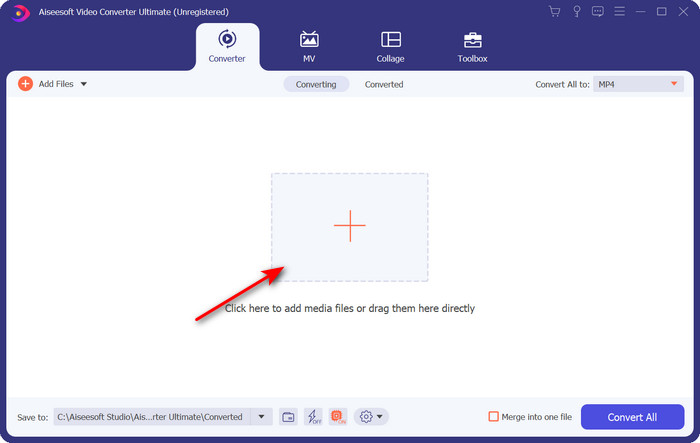
ขั้นตอนที่ 2 หากต้องการใส่ไฟล์ .xvid ให้คลิกปุ่ม + ค้นหาไฟล์ในโฟลเดอร์ แล้วคลิก Open อย่างไรก็ตาม หากมีไฟล์ .xvid มากกว่าสองไฟล์ แนะนำให้ลากและวางไฟล์ทั้งหมดลงบนหน้าต่างโปรแกรม.
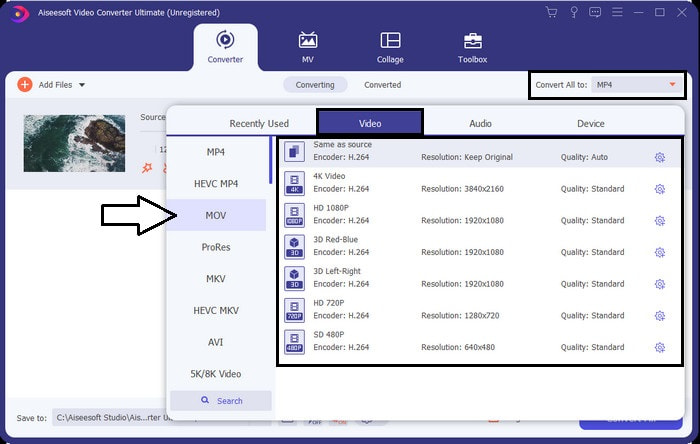
ขั้นตอนที่ 3 คลิกปุ่มดรอปดาวน์ที่มุมขวาบนของอินเทอร์เฟซ จากนั้นค้นหาฟอร์แมต MOV จากรายการ.
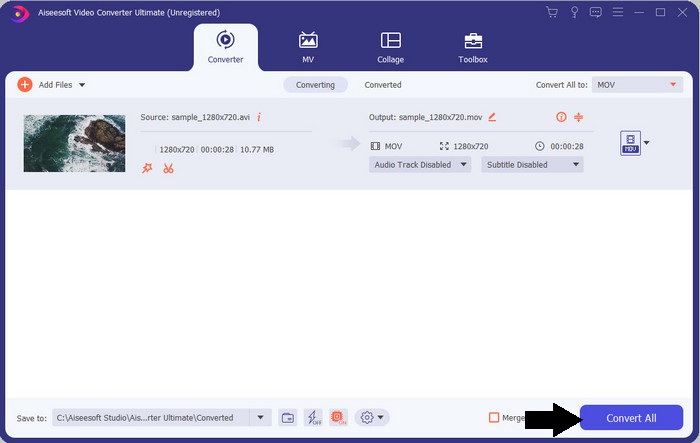
ขั้นตอนที่ 4 เริ่มแปลงไฟล์ XviD ของคุณเป็น MOV ได้เลยโดยคลิก Convert All.
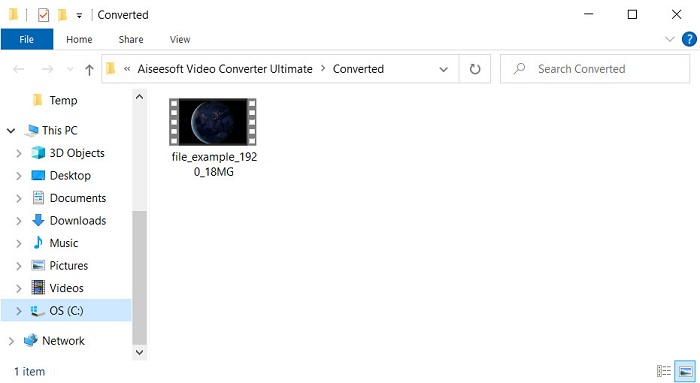
ขั้นตอนที่ 5 รอเพียงไม่กี่วินาทีให้กระบวนการเสร็จสิ้น จะมีโฟลเดอร์ไฟล์ปรากฏขึ้นบนหน้าจอซึ่งมีไฟล์ .mov อยู่ภายใน ให้คลิกไฟล์เพื่อเล่นบนโปรแกรมเล่นมีเดียในเครื่องของคุณและเพลิดเพลินกับวิดีโอ.
ส่วนที่ 3 ตัวแปลงออนไลน์ที่ดีที่สุดในการแปลง Xvid เป็น MOV
FVC โปรแกรมแปลงวิดีโอออนไลน์ฟรี
ถ้าไม่อยากยุ่งยากกับการดาวน์โหลดซอฟต์แวร์ลงในไดรฟ์เพราะพื้นที่เก็บข้อมูลเต็ม และคุณต้องการแปลงแค่ไฟล์เดียวแบบออนไลน์ FVC Free Video Converter Online ก็พร้อมให้ใช้งานผ่านเว็บเบราว์เซอร์ทุกตัว การแปลงไฟล์ XviD ด้วยเครื่องมือนี้สามารถทำเสร็จได้ภายในไม่กี่นาที อีกทั้งไม่จำเป็นต้องสมัครบัญชีเพื่อเข้าใช้งาน และไม่มีโฆษณาบนหน้าอินเทอร์เฟซ เครื่องมือนี้ถือเป็นตัวแปลงไฟล์ออนไลน์ที่สะอาดและเป็นระเบียบที่สุดตัวหนึ่งที่คุณจะหาได้บนเว็บ อย่างไรก็ตาม หากไม่มีการเชื่อมต่ออินเทอร์เน็ต คุณจะไม่สามารถใช้งานได้เพราะเครื่องมือนี้ต้องพึ่งพาเครือข่าย นอกจากนี้ เครื่องมือนี้ยังรองรับฟอร์แมตไฟล์ในระดับปานกลางที่คุณสามารถเลือกและใช้งานได้ หากคุณไม่ต้องการดาวน์โหลดตัวแปลงไฟล์ลงเครื่อง ก็ต้องใช้ตัวแปลง XviD เป็น MOV ออนไลน์ตัวนี้.
ขั้นตอนการแปลงไฟล์ XviD เป็น MOV แบบออนไลน์ด้วย FVC Free Video Converter Online;
ขั้นตอนที่ 1 หากต้องการไปยังหน้าเว็บหลักของตัวแปลงออนไลน์ ให้คลิกที่ลิงก์นี้.
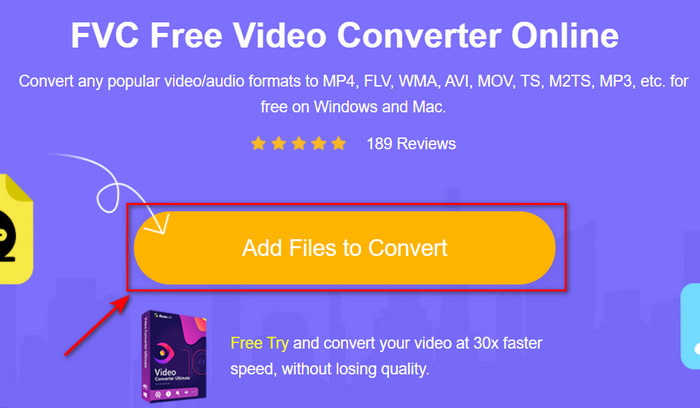
ขั้นตอนที่ 2 กด Add Files to Convert เพื่อเปิดเครื่องมือ จากนั้นจะมีหน้าต่างโฟลเดอร์ปรากฏขึ้น ให้ค้นหาไฟล์ XviD ที่คุณต้องการแปลง แล้วคลิก Open เพื่อดำเนินการต่อ.
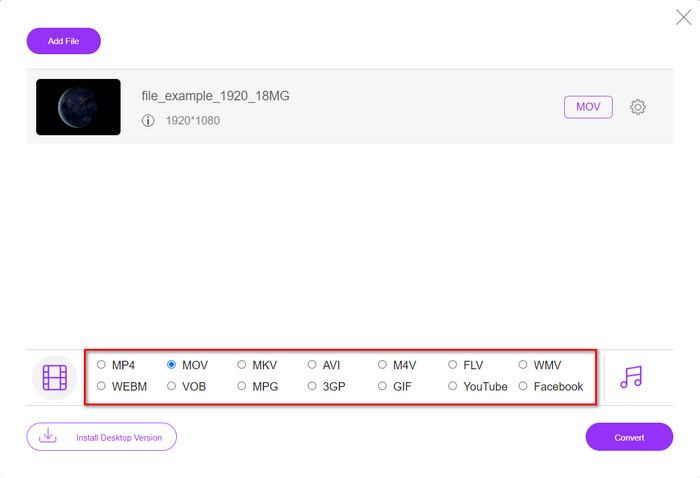
ขั้นตอนที่ 3 หลังจากใส่ไฟล์ XviD แล้ว จะมีหน้าจอใหม่ปรากฏขึ้น ให้เลือกฟอร์แมต MOV หรือตัวเลือกฟอร์แมตอื่นที่ต้องการด้านล่าง.
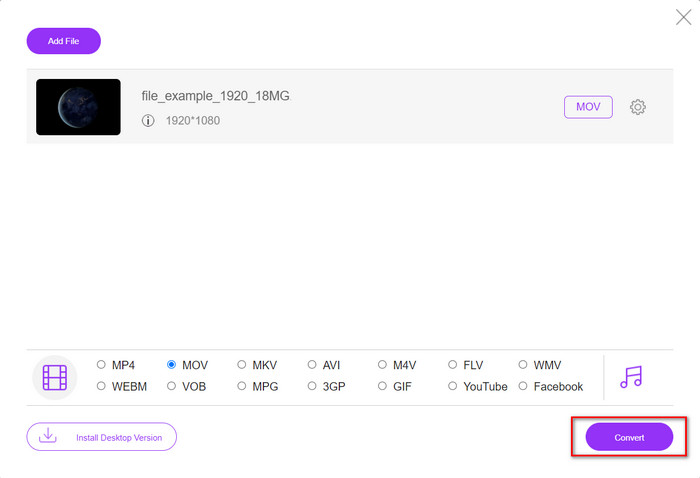
ขั้นตอนที่ 4 หากต้องการเริ่มเปลี่ยนฟอร์แมต ให้คลิก Convert.
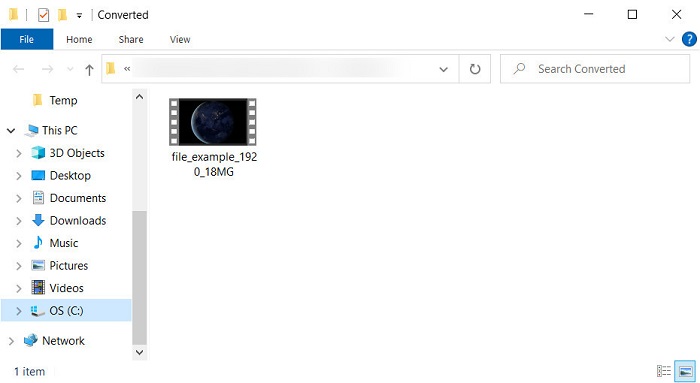
ขั้นตอนที่ 5 การแปลงไฟล์จะใช้เวลาน้อยกว่าตัวแปลงออนไลน์ทั่วไป หลังจากนั้นจะมีโฟลเดอร์แสดงไฟล์ที่คุณแปลงเสร็จแล้ว.
ส่วนที่ 4 คำถามที่พบบ่อยเกี่ยวกับ XviD เป็น MOV Conversion
ฉันจะดูวิดีโอ XviD ได้ที่ไหน
คุณสามารถใช้โปรแกรม VLC Media Player เพื่อเล่นไฟล์ XviD ได้ หากไม่อยากดาวน์โหลดอะไรเพิ่ม ให้ใช้ Windows Media Player ที่มีมาให้ใน Windows ทุกเครื่อง สำหรับผู้ใช้ Mac ให้ใช้ QuickTime แต่ถ้าคุณอยากดูวิดีโอ XviD แบบความคมชัดสูง แนะนำให้อ่านบทความนี้ซึ่งเราได้รวบรวมโปรแกรมเล่น XviD ที่เป็นไปได้ทั้งหมดที่คุณสามารถใช้เพื่อดูไฟล์ XviD.
XviD ฟรีหรือไม่?
XviD นั้นฟรี และพร้อมให้ทุกคนที่ต้องการใช้และบีบอัดไฟล์เพื่อการถ่ายโอนอย่างรวดเร็วผ่านเว็บหรือประหยัดพื้นที่ ทั้งหมดนี้ต้องขอบคุณลิขสิทธิ์ซอฟต์แวร์ฟรีของ GPL ดังนั้นจึงทำให้ใช้งานได้ฟรี
เหตุใดฉันจึงแก้ไขวิดีโอ XviD ไม่ได้
สาเหตุหลักประการหนึ่งที่คุณแก้ไขวิดีโอภายใต้ตัวแปลงสัญญาณประเภทนี้ไม่ได้ก็คือไม่รองรับ ในกรณีนั้น โปรแกรมตัดต่อวิดีโอขั้นต่ำรองรับเฉพาะตัวแปลงสัญญาณประเภทนี้เนื่องจากความซับซ้อน ดังนั้น สมมติว่าคุณต้องการแก้ไขวิดีโอในรูปแบบนี้ คุณต้องพิจารณาแปลงวิดีโอก่อน ในกรณีนั้น จำเป็นต้องมีตัวแปลงอเนกประสงค์ที่สามารถแปลงไฟล์ XviD เป็น MP4, AVI, MOV หรือเหมือนกัน หลังจากแปลงไฟล์แล้ว ให้อัปโหลดไฟล์ถัดไปในโปรแกรมแก้ไขเพื่อแก้ไขตามที่คุณต้องการ
สรุป
หลังจากอ่านบทความนี้แล้ว ความรู้ของเราที่มีต่อ XviD ก็เพิ่มมากขึ้น และตอนนี้เราสามารถมองเห็นมุมมองที่หลากหลายของ XviD ได้ชัดเจน ถ้าคุณต้องการบันทึกหรือเล่นวิดีโอบน iOS ก่อนอื่นคุณต้องแปลงไฟล์ให้เป็น MOV เสียก่อน อย่างที่ได้อธิบายไปแล้วว่าเครื่องมือทั้งสองที่กล่าวถึงนี้ทำงานได้ดีมากในการแปลงไฟล์เป็นฟอร์แมต MOV แม้ทั้งคู่จะดูสมบูรณ์แบบ แต่ความเร็วและประสิทธิภาพของ FVC Video Converter Ultimate นั้นเหนือกว่า และดีกว่าเครื่องมือเดสก์ท็อปหรือเว็บใด ๆ ที่มีอยู่ หากคุณต้องการการแปลงไฟล์แบบออนไลน์ที่ปลอดภัยและฟรี ให้เลือกใช้ FVC Free Video Converter Online แทน.
-
 วิธีแปลง AVI เป็น MOV ด้วยขั้นตอนและเครื่องมือง่ายๆ
 คุณต้องการทราบวิธีการแปลง AVI เป็น MOV ที่เล่นได้? คุณต้องทำตามบทความนี้เพื่อทราบวิธีการและเคล็ดลับในการแปลงที่ประสบความสำเร็จ
-
 นำเข้าและแปลง AVI เป็นรูปแบบที่รองรับ iMovie [2021]
 มีปัญหาเพราะคุณไม่สามารถนำเข้าไฟล์ AVI ของคุณบน iMovie? หากคุณอ่านบทความนี้ แสดงว่าคุณได้เลือกวิธีแก้ปัญหาที่ถูกต้องแล้ว
-
 วิธีการแปลง TS เป็น AVI / MKV / MOV / WMV ออนไลน์และฟรีบน Win / Mac
 ต้องการแปลงไฟล์ TS เป็น AVI / MKV / MOV / WMV อย่างรวดเร็วหรือไม่? บทความนี้แสดงตัวแปลงวิดีโอออนไลน์และออฟไลน์พร้อมคู่มือฉบับสมบูรณ์ บางทีคุณอาจได้รับตัวแปลง TS ฟรีที่ดีที่สุดที่นี่
