


 Video Converter Ultimate
 บันทึกหน้าจอ
 ซ่อมวิดีโอ
วิธีลบลายน้ำออกจาก GIF ออนไลน์ [ทีละขั้นตอน]
การเพิ่มลายน้ำบน GIF กลายเป็นหนึ่งในวิธีการป้องกันไฟล์ GIF ของคุณ แต่ถ้าคุณต้องการลบลายน้ำที่คุณใส่ลงไปใน GIF เองล่ะ ควรทำอย่างไร? โปรแกรมทำ GIF ของคุณมีฟีเจอร์นี้หรือไม่? ถ้าไม่มีตัวลบลายน้ำจะทำอย่างไร? เราเข้าใจดีว่าปัญหานี้สร้างความยุ่งยากใช่ไหม? แต่อย่าเพิ่งกังวลไป เพราะคำถามเหล่านี้จะมีคำตอบในภายหลัง เนื่องจากเราได้ค้นหา 4 เครื่องมือลบลายน้ำที่คุณสามารถใช้ได้ทั้งแบบออฟไลน์และออนไลน์ เครื่องมือเหล่านี้คัดมาอย่างดีจากท้องตลาดเพื่อมอบตัวเลือกที่ดีที่สุดให้คุณในการลบลายน้ำบน GIF.

ภาพรวมของแอปเหล่านี้
| Video Converter Ultimate | เครื่องมือ GIF ออนไลน์ | WatermarkRemover.io | Pixlr | โฟโต้ช็อป | |
| ความละเอียด | 8ก | 1080P | 5K | 8ก | 300K |
| ความเร็วของกระบวนการ | เร็ว | ปานกลาง | ปานกลาง | เร็ว | ขึ้นอยู่กับฮาร์ดแวร์ของคุณ |
| ข้อกำหนดด้านฮาร์ดแวร์ | ต่ำ | ไม่มี | ปานกลาง | สูง | สูงมาก |
ส่วนที่ 1 วิธีที่ง่ายที่สุดในการลบลายน้ำออกจาก GIF บน Windows & Mac อย่างรวดเร็ว
Video Converter Ultimate สามารถช่วยคุณลบลายน้ำออกจาก GIF ได้อย่างมีประสิทธิภาพ ไม่ว่าคุณจะต้องการในรูปแบบใดก็ตาม เครื่องมือนี้ช่วยให้คุณทั้งเพิ่มและลบลายน้ำได้ เรียกได้ว่าเป็นเครื่องมือแบบออลอินวันที่คุณต้องมีติดเครื่องบน Windows หรือ Mac ไม่เพียงเท่านั้น ด้วยโปรแกรมนี้คุณยังสามารถสร้าง GIF ของคุณเองและใส่ลายน้ำเพื่อป้องกัน GIF ที่คุณสร้างขึ้นได้อีกด้วย หากอยากลองใช้งาน คุณเพียงทำตามขั้นตอนง่าย ๆ ที่เราให้ไว้ แค่นั้นเอง จากนั้นคุณก็จะได้ GIF ที่ไม่มีลายน้ำพร้อมใช้งานภายในเวลาไม่ถึงหนึ่งนาที.
ข้อดีของ Video Converter Ultimate:
◆ เป็นตัวเลือกที่ดีที่สุดในการลบและเพิ่มลายน้ำบน GIF ของคุณ
◆ GUI ที่ใช้งานง่ายสามารถช่วยให้คุณเข้าใจได้อย่างรวดเร็วว่าเกิดอะไรขึ้นกับอินเทอร์เฟซของเครื่องมือ
◆ กระบวนการแปลงที่รวดเร็วเป็นพิเศษและการเร่งด้วยฮาร์ดแวร์ในตัวสามารถช่วยคุณในการนำเข้าและส่งออกด้วยความเร็วสูง
◆ ดาวน์โหลดได้บนทุกแพลตฟอร์ม เช่น Windows และ Mac
◆ มีคุณลักษณะขั้นสูงของเครื่องสร้าง GIF ที่ดีที่สุดที่คุณสามารถใช้ได้บนเดสก์ท็อปของคุณเพื่อสร้าง GIF ในแบบของคุณ
ขั้นตอนการลบลายน้ำออกจาก GIF ด้วยโปรแกรม Ultimate Watermark Remover
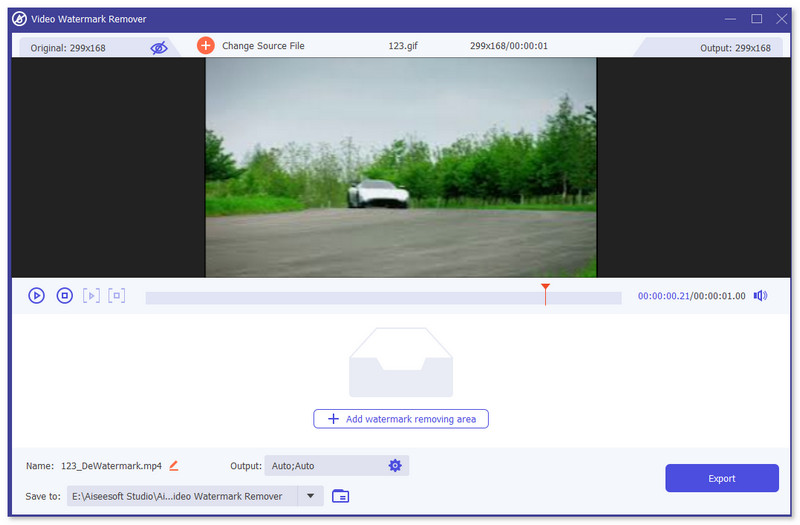
ขั้นตอนที่ 1. ดาวน์โหลดซอฟต์แวร์ลงในไดรฟ์คอมพิวเตอร์ของคุณโดยคลิกปุ่มด้านล่าง จากนั้นเปิดโปรแกรมและอัปโหลด GIF หรือวิดีโอ.
ดาวน์โหลดฟรีสำหรับ Windows 7 หรือใหม่กว่าดาวน์โหลดอย่างปลอดภัย
ดาวน์โหลดฟรีสำหรับ MacOS 10.7 หรือใหม่กว่าดาวน์โหลดอย่างปลอดภัย
ขั้นตอนที่ 2. เปิดฟังก์ชันลบลายน้ำ ไปที่เมนู Toolbox แล้วมองหา Video Watermark Remover.

ขั้นตอนที่ 3. อัปโหลด GIF หรือวิดีโอแล้วคลิก Export.
ที่เกี่ยวข้อง:
ลบลายน้ำออกจาก GIF ด้วย Adobe Photoshop
หากคุณติดตั้ง Adobe PhotoShop ไว้ในคอมพิวเตอร์ของคุณแล้ว คุณยังสามารถใช้โปรแกรมนี้เพื่อลบลายน้ำหรือเงาออกจากรูปภาพได้อีกด้วย PhotoShop ถือเป็นหนึ่งในเครื่องมือแก้ไขรูปภาพที่ได้รับความนิยมและทรงพลังที่สุด ซึ่งช่วยให้คุณเพิ่มเอฟเฟกต์ ฟิลเตอร์ ลบวัตถุ ฯลฯ ได้ แม้ว่าจะไม่ใช่โปรแกรมแก้ไขรูปภาพฟรี แต่คุณสามารถทดลองใช้งานฟรีได้ 30 วัน ตอนนี้คุณสามารถทำตามคำแนะนำด้านล่างเพื่อลบวัตถุที่ไม่ต้องการออกจากรูปภาพได้แล้ว
ขั้นตอนที่ 1. เปิดใช้งาน PhotoShop บนคอมพิวเตอร์ของคุณ คุณสามารถไปที่เว็บไซต์ทางการของ Adobe เพื่อดาวน์โหลด PhotoShop ฟรีและทดลองใช้งานได้.
ขั้นตอนที่ 2. คุณสามารถลากและวางเพื่อเพิ่มไฟล์รูปภาพที่ต้องการแก้ไขได้โดยตรง หรือคลิกเมนู File บนแถบเมนู จากนั้นคลิก Open เพื่อเลือกรูปภาพจากเครื่องคอมพิวเตอร์ของคุณ.
ขั้นตอนที่ 3. คุณสามารถใช้ เครื่องมือ Select and Mask เพื่อเลือกวัตถุที่ไม่ต้องการ ในขั้นตอนนี้คุณสามารถเลือกใช้เครื่องมือที่เหมาะสมเพื่อระบุพื้นที่ที่ต้องการลบได้อย่างอิสระ.
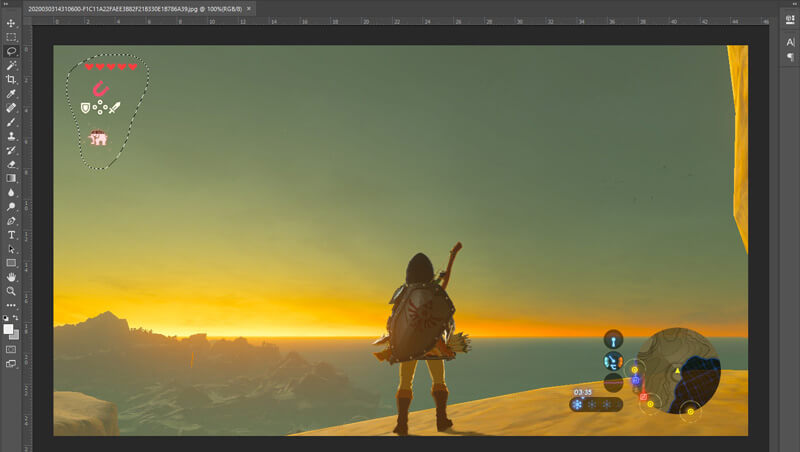
ขั้นตอนที่ 4. ตอนนี้คุณสามารถใช้เครื่องมือ Content-Aware Fill ของ Photoshop เพื่อลบวัตถุออกจากรูปภาพ และแทนที่ส่วนดังกล่าวด้วยเนื้อหาที่เหมาะสม โดยทั่วไปแล้ว หากคุณไม่ได้ต้องการเพียงลบวัตถุออกไปแบบง่าย ๆ ฟีเจอร์ Content-Aware Fill จะให้ผลลัพธ์ที่ดีกว่า.
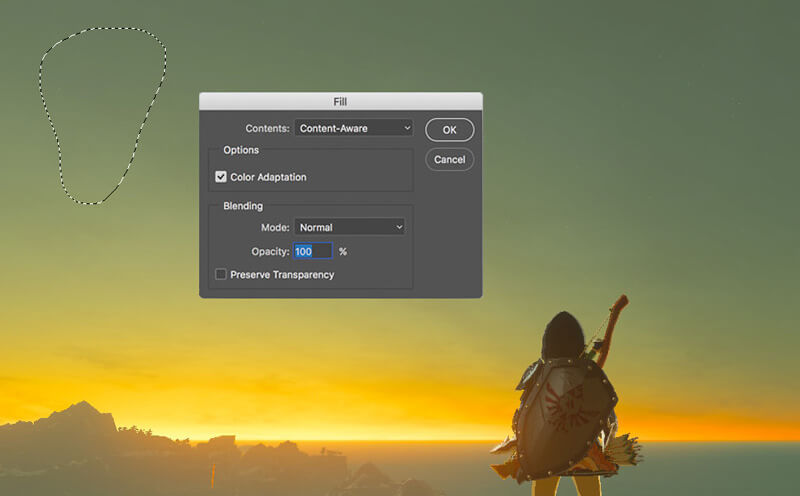
ขั้นตอนที่ 5. หลังจากที่ PhotoShop ลบวัตถุออกจากรูปให้แล้ว คุณสามารถคลิก File แล้วเลือก Save เพื่อบันทึกรูปภาพที่แก้ไขลงในคอมพิวเตอร์ คุณสามารถเลือกรูปแบบไฟล์ยอดนิยมได้ เช่น JPG, PNG, GIF และอื่น ๆ เป็นรูปแบบเอาต์พุต ที่นี่คุณยังสามารถกด Ctrl + S เพื่อบันทึกและส่งออกไฟล์รูปภาพจาก PhotoShop ได้เช่นกัน.
ส่วนที่ 2. วิธีการลบลายน้ำออกจาก GIF ออนไลน์
ด้วยเครื่องมือออนไลน์ฟรีเหล่านี้ คุณสามารถลบลายน้ำบน GIF ได้ แต่คุณต้องจำไว้ว่าเครื่องมือเหล่านี้จะใช้งานไม่ได้หากคุณไม่มีการเชื่อมต่ออินเทอร์เน็ต เนื่องจากเครื่องมือทั้งหมดขึ้นอยู่กับเครือข่าย นอกจากนี้ การใช้สิ่งเหล่านี้อาจต้องใช้เวลาเนื่องจากจะบัฟเฟอร์เมื่อคุณใช้เครื่องมือเว็บเหล่านี้ ดังนั้น หากคุณต้องการทราบโปรแกรมกำจัด GIF ออนไลน์ฟรี โปรดอ่านรายละเอียดด้านล่าง
ลบลายน้ำออกจาก GIF ด้วยเครื่องมือ GIF ออนไลน์
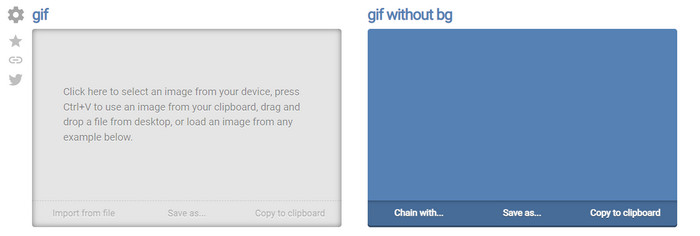
Online GIF Tools เป็นเครื่องมือออนไลน์ฟรีที่คุณสามารถใช้ลบลายน้ำบน GIF ได้ เครื่องมือนี้มีฟีเจอร์ลบขั้นสูง เช่น การลบลายน้ำที่เป็นพื้นหลังของ GIF อย่างไรก็ตาม แม้ตัวเครื่องมือจะน่าสนใจ แต่การลบลายน้ำอาจซับซ้อน เนื่องจากต้องลบพิกเซลของสีแต่ละสีในแต่ละเฟรม.
ขั้นตอนที่ 1. เปิด Online GIF Tools บนเว็บเบราว์เซอร์ของคุณ.
ขั้นตอนที่ 2. คลิก Import File เพื่ออัปโหลด GIF ใต้หัวข้อ background color ให้คลิก options color coder เพื่อระบุสีของลายน้ำ.
ขั้นตอนที่ 3. คลิก Save As และ Download จากนั้นเพื่อบันทึก GIF ลงในไดรฟ์ของคุณ.
ลบลายน้ำออกจาก GIF ด้วย Watermark Remover ออนไลน์
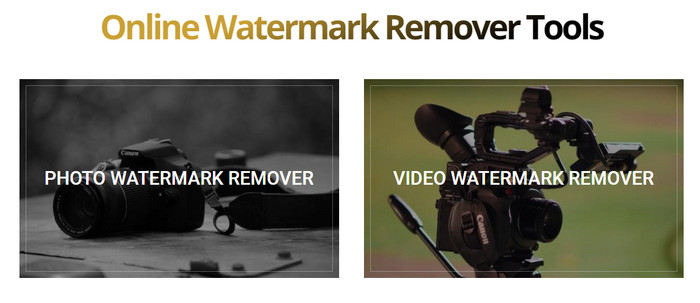
ด้วย WatermarkRemover.io ลายน้ำบน GIF ของคุณจะถูกลบออกโดยอัตโนมัติ เครื่องมือนี้ยอดเยี่ยมสำหรับการลบลายน้ำแบบฟรี ๆ ช่วยให้ผู้ใช้ยุ่งยากน้อยลงในการลบลายน้ำ เพราะคุณไม่จำเป็นต้องทำเอง เครื่องมือจะจัดการให้ทั้งหมด อย่างไรก็ตาม บริการนี้อาจไม่รองรับบางภูมิภาค กล่าวคือ คุณอาจไม่สามารถดาวน์โหลด GIF ที่ลบลายน้ำแล้วได้.
ขั้นตอนที่ 1. เปิด WatermarkRemover.io แล้วเพิ่มไฟล์ GIF โดยคลิกที่ส่วนด้านล่างโลโก้.
ขั้นตอนที่ 2. หลังจากเพิ่มไฟล์แล้ว กระบวนการจะเริ่มต้นโดยอัตโนมัติ ให้รอจนเสร็จสิ้น.
ขั้นตอนที่ 3. คลิกปุ่มดาวน์โหลดเพื่อบันทึกไฟล์ลงในคอมพิวเตอร์ของคุณ.
ลบลายน้ำออกจาก GIF ด้วย Pixlr
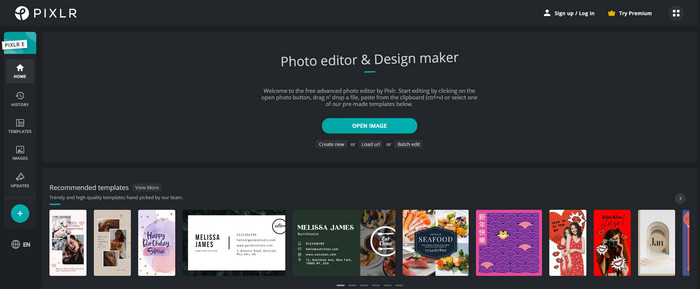
หากคุณต้องการเครื่องมือออนไลน์ที่ดีที่สุดในการลบลายน้ำออกจาก GIF ของคุณ ให้ลองใช้ Pixlr ตัวเลือกนี้แตกต่างจากสองเว็บทูลก่อนหน้าอย่างมาก เพราะมีฟังก์ชันให้ใช้งานมากมายที่ช่วยในการลบลายน้ำ แม้เครื่องมือนี้จะคล้ายกับ Photoshop แต่บางส่วนก็ยังให้ผลลัพธ์ได้ไม่ดีเท่ากับ Photoshop โดยเฉพาะการลบลายน้ำจาก GIF และยังมีลายน้ำที่ท้ายไฟล์หลังการส่งออกอีกด้วย.
ขั้นตอนที่ 1. ค้นหา Pixlr แล้วเปิดเว็บไซต์.
ขั้นตอนที่ 2. คลิก Advance Editor แล้วเพิ่ม GIF จากนั้นคลิก Open Image หลังจากเพิ่ม GIF แล้ว ให้คลิกไอคอน หยดน้ำ (droplet) เพื่อเบลอลายน้ำ จากนั้นคลิกซ้ำ ๆ บนตำแหน่งลายน้ำเพื่อให้แน่ใจว่าลบออกไป.
ขั้นตอนที่ 3. คลิก File แล้ว Save.
ส่วนที่ 3 คำถามที่พบบ่อยเกี่ยวกับการลบลายน้ำออกจาก GIF
การลบลายน้ำทำให้ขนาดไฟล์เล็กลงหรือไม่?
ขนาดไฟล์จะเปลี่ยนไป แต่จะไม่มีผลกระทบมากนัก เนื่องจากคุณเพิ่งลบลายน้ำบนวิดีโอของคุณออกเล็กน้อย ดังนั้น หากขนาดไฟล์ดั้งเดิมและลายน้ำที่แยกออกมาไม่ใกล้เคียงกัน ปัญหาอยู่ที่สิ่งที่คุณใช้
เหตุใดวิดีโอของฉันจึงเบลอหลังจากลบลายน้ำแล้ว
มีภาพเบลอในวิดีโอของคุณหลังจากที่คุณลบลายน้ำแล้ว เนื่องจากนั่นเป็นวิธีการลบลายน้ำของเครื่องมือ เป็นหนึ่งในเครื่องมือวิธีการลบลายน้ำบนวิดีโอหรือรูปภาพด้วยการทำให้เบลอ
คุณภาพของ GIF จะเปลี่ยนไปหลังจากลบลายน้ำหรือไม่
คุณจะไม่สังเกตเห็นการเปลี่ยนแปลงเกี่ยวกับคุณภาพหลังจากลบลายน้ำบน GIF ของคุณ แต่เครื่องมือบางอย่างลดคุณภาพของ GIF ลงเนื่องจากไม่รองรับ GIF คุณภาพสูง ดังนั้น อย่าลืมเลือกเครื่องมือที่เหมาะสมซึ่งรองรับการส่งออกผลงานคุณภาพสูง แม้ว่าคุณจะลบลายน้ำออกไปแล้วก็ตาม
สรุป
กล่าวโดยสรุป บล็อกนี้ทำให้เราได้เรียนรู้วิธีลบลายน้ำบน GIF หรือวิดีโอที่เราใช้งานอยู่ได้อย่างมีประสิทธิภาพ เครื่องมือต่าง ๆ ที่เรานำเสนอถือว่ามีประสิทธิภาพและเหมาะอย่างยิ่งสำหรับการลบลายน้ำบน GIF ของเรา และถึงอย่างนั้น Video Converter Ultimate ก็ยังโดดเด่นในด้านการลบหรือเพิ่มลายน้ำบน GIF หากคุณเห็นด้วยกับเราว่าเครื่องมือนี้ดี คุณควรลองใช้ และหากคุณยังไม่มั่นใจ ก็ควรลองดาวน์โหลดมาใช้งานเพื่อลบลายน้ำบน GIF ของคุณสักครั้ง หลังจากนั้นโปรแกรมจะช่วยให้คุณทำงานได้รวดเร็วขึ้น และมุมมองของคุณต่อความสามารถของเครื่องมือนี้อาจเปลี่ยนไป.
-
 วิธีที่ดีที่สุดในการเพิ่มลายน้ำให้กับวิดีโอใน Photoshop บน Windows & Mac
 ต้องการทราบวิธีการเพิ่มลายน้ำให้กับวิดีโอใน Photoshop? ในกรณีนั้น บทความนี้จะให้ข้อมูลบางอย่างที่คุณจำเป็นต้องรู้
-
 3 วิธีแก้ปัญหาที่ดีที่สุดเกี่ยวกับวิธีลบลายน้ำออกจากวิดีโออย่างง่ายดาย
 ต้องการลบลายน้ำที่น่ารำคาญในวิดีโอหรือไม่? ด้วยบล็อกนี้ คุณสามารถเรียนรู้แนวคิดต่างๆ ในการลบลายน้ำบนวิดีโอ
-
 5 วิธีที่ดีที่สุดในการเปลี่ยนรูปภาพเป็น GIF แบบเคลื่อนไหว [อัปเดต 2022]
 ต้องการภาพแปลงเป็น GIF หรือไม่? บทความนี้จะให้ห้าตัวแปลงที่ดีที่สุดที่เราหาได้ในตลาด ดังนั้น ให้'ค้นหาเครื่องมือเหล่านี้โดยการอ่านบทความนี้
