


 Video Converter Ultimate
 บันทึกหน้าจอ
 ซ่อมวิดีโอ
 ดาวน์โหลดอย่างปลอดภัย
วิธีพิมพ์ภาพถ่าย HEIC ด้วยเอาต์พุตรูปภาพคุณภาพสูงในไม่กี่นาที
ถึงแม้ว่าจะมีการรองรับอุปกรณ์อื่น ๆ น้อยกว่า แต่ Apple ก็ยังยืนยันว่าจะใช้รูปแบบไฟล์ HEIC ในการถ่ายภาพอย่างรวดเร็วและเก็บภาพร่วมกับข้อมูลภาพไฮเปอร์สเปกตรัม ซึ่งไม่เสียค่าใช้จ่ายเพิ่มเติมแต่ช่วยประหยัดพื้นที่จัดเก็บ อย่างไรก็ตาม หากคุณต้องการพิมพ์ ดู หรือถ่ายโอนภาพไปยังอุปกรณ์อื่นที่ไม่ใช่อุปกรณ์ของ Apple คุณจะได้รับเพียงการแจ้งเตือนว่าไม่รองรับ แต่ถ้าคุณเป็นผู้ใช้ Mac คุณสามารถเรียนรู้ได้อย่างรวดเร็วว่าวิธีพิมพ์รูป HEICให้ได้คุณภาพระดับเดียวกับไฟล์ต้นฉบับต้องทำอย่างไร ดังนั้นหากคุณอยากรู้ขั้นตอนการพิมพ์ออกมา ให้คุณอ่านรายละเอียดต่อไปด้านล่างนี้ให้จบ.

ส่วนที่ 1 2 วิธีที่มีประสิทธิภาพในการพิมพ์ภาพถ่าย HEIC บน Mac
ขณะที่เราสำรวจและลองใช้วิธีพิมพ์ภาพถ่าย HEIC บน Mac เราสังเกตเห็นว่ามีสองวิธีที่คุณสามารถทำได้เพื่อสร้างสำเนาของไฟล์ HEIC โดยไม่ต้องแปลงรูปแบบ ดังนั้น ถ้าคุณต้องการทราบวิธีการสร้างสำเนาของภาพ HEIC ที่คุณมี คุณต้องอ่านสองวิธีด้านล่างต่อไป
โปรดตรวจสอบว่าเครื่องพิมพ์ได้รับการติดตั้งอย่างถูกต้องสำหรับ Mac และแก้ไขปัญหาก่อนดำเนินการตามขั้นตอน หากทุกอย่างพร้อมและพร้อมแล้ว คุณต้องดำเนินการต่อไป
วิธีที่ 1: การใช้ปุ่มลัด
หากคุณต้องการคลิกน้อยลง คุณต้องใช้ปุ่มลัดเพื่อพิมพ์ภาพบน Mac ทำตามขั้นตอนและปุ่มที่เราคลิก b เพื่อพิมพ์ไฟล์ HEIC บน Mac ของคุณได้อย่างง่ายดาย
ขั้นตอนที่ 1. คลิกไฟล์ HEIC ที่เก็บไว้บน Mac ของคุณแล้วเปิดไฟล์นั้นขึ้นมา.
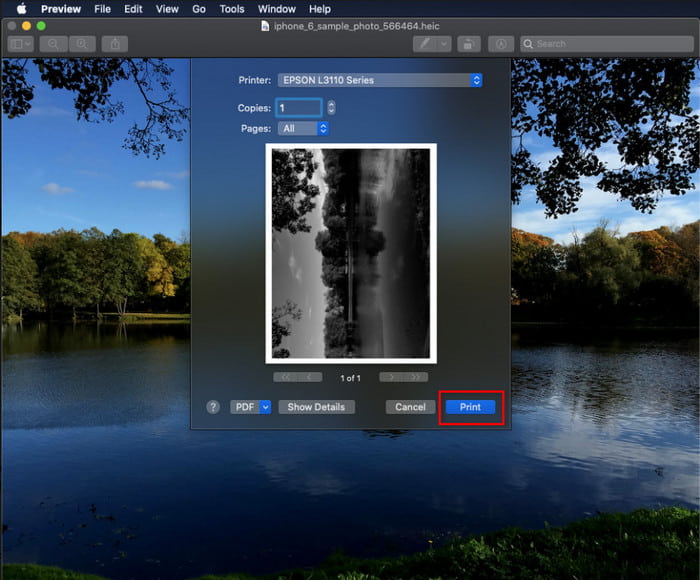
ขั้นตอนที่ 2. หลังจากเปิดไฟล์แล้ว ให้กดปุ่ม Command + P บนคีย์บอร์ดของคุณ.
ขั้นตอนที่ 3. ในหน้าต่างกล่องโต้ตอบการพิมพ์ คุณจะเห็นตัวอย่างภาพและสามารถปรับการตั้งค่าการพิมพ์ได้ จากนั้นคลิก Print เพื่อพิมพ์ไฟล์ HEIC ออกมาเป็นกระดาษโดยยังคงคุณภาพไว้ในระดับสูง.
วิธีที่ 2: การใช้เมนูไฟล์
ถ้าคุณคิดว่าปุ่มลัดไม่สามารถช่วยคุณพิมพ์เอกสารได้ คุณต้องลองใช้เมนูไฟล์ ด้วยเมนูนี้ คุณสามารถคลิกปุ่มพิมพ์และทำการเปลี่ยนแปลงบางอย่างได้อย่างง่ายดายก่อนที่จะมีสำเนาของภาพ HEIC มาเริ่มพิมพ์ HEIC ที่คุณมีบน macOS โดยไม่ต้องใช้ปุ่มลัดโดยไม่ต้องกังวลใจอีกต่อไป
ขั้นตอนที่ 1. เปิดไฟล์ HEIC บน Mac ของคุณก่อนทำอย่างอื่น.
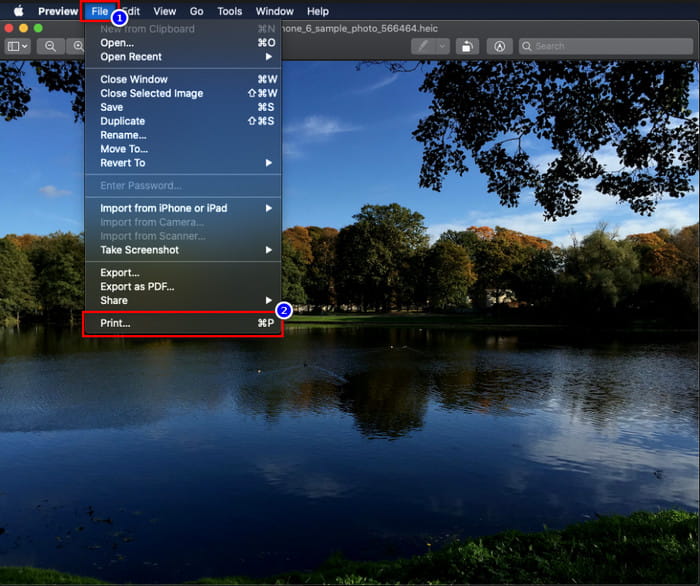
ขั้นตอนที่ 2. ที่แถบด้านบน ให้คลิกเมนู File แล้วจะมีรายการตัวเลือกปรากฏขึ้นบนหน้าจอ ตอนนี้ให้เลือกตัวเลือกสุดท้ายคือ Print.
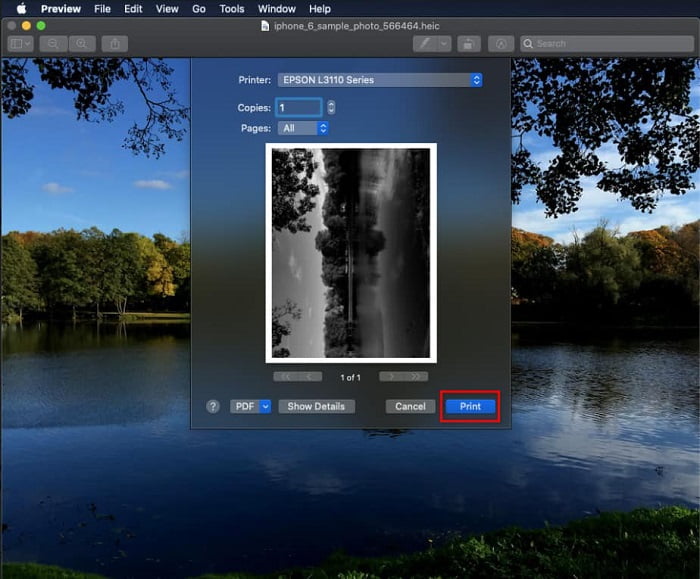
ขั้นตอนที่ 3. จากนั้นคุณจะเห็นบนหน้าจอว่ากล่องโต้ตอบการพิมพ์ถูกเปิดขึ้น ตรงกลางหน้าต่างคุณจะเห็นตัวอย่างไฟล์ HEIC ของคุณหากพิมพ์ออกมาเป็นกระดาษ และด้านข้างจะมีตัวเลือกให้ปรับแต่งก่อนพิมพ์ หลังจากตั้งค่าทุกอย่างเรียบร้อยแล้ว ให้คลิก Print เพื่อเริ่มพิมพ์เอกสาร.
ส่วนที่ 2 เหตุใดฉันจึงไม่สามารถอัปโหลดภาพถ่าย HEIC เพื่อพิมพ์ได้
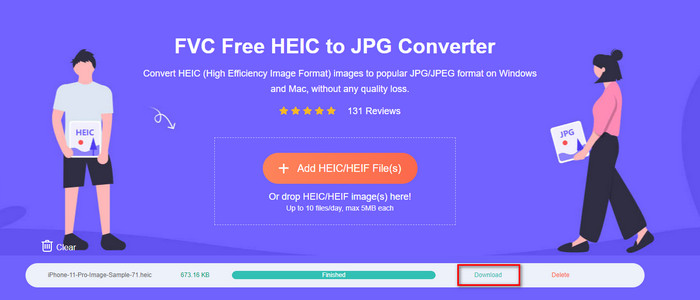
คุณเป็นหนึ่งในผู้ใช้ที่ลำบากกับไฟล์ HEIC เพราะไม่สามารถพิมพ์ออกมาเป็นกระดาษได้หรือไม่ ในกรณีนั้น ขอแนะนำเครื่องมือออนไลน์ตัวหนึ่งที่จะช่วยแก้ปัญหาให้คุณได้ คือ FVC Free HEIC to JPG Converter เครื่องมือบนเว็บนี้สามารถแปลง HEIC เป็น JPG ได้อย่างง่ายดาย คุณจึงสามารถอัปโหลดไฟล์สำหรับการพิมพ์ได้สะดวกขึ้นเพียงเปลี่ยนรูปแบบไฟล์เป็น JPEG ซึ่งเป็นฟอร์แมตที่เป็นที่รู้จักกว่างาน HEIC แม้ว่าคุณจะถูกจำกัดให้แปลงได้เพียงวันละสิบครั้ง และไฟล์ต้องมีขนาดไม่เกิน 5MB แต่ตัวแปลงบนเว็บนี้ก็ยังถือว่าเชื่อถือได้แม้จะมีข้อจำกัดดังกล่าว ดังนั้นอย่าเสียเวลาไปมากกว่านี้ มาดูขั้นตอนการใช้เว็บคอนเวอร์เตอร์แบบโอเพ่นซอร์ซที่คุณเข้าถึงได้ง่ายกันเลย.
ขั้นตอนที่ 1. คุณสามารถคลิก ลิงก์นี้ เพื่อเข้าใช้เว็บคอนเวอร์เตอร์ และจะมีแท็บใหม่เปิดขึ้นทันที.
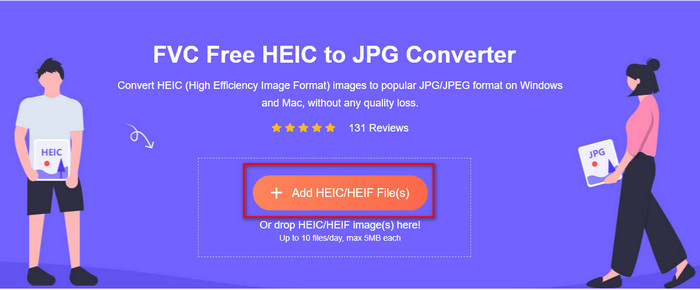
ขั้นตอนที่ 2. ใส่ไฟล์ HEIC โดยคลิกปุ่มนี้ จากนั้นค้นหาไฟล์ HEIC ในโฟลเดอร์ของคุณแล้วคลิก Open เพื่ออัปโหลดไฟล์ให้เสร็จสมบูรณ์.
ขั้นตอนที่ 3. ขั้นตอนการแปลงไฟล์จะเริ่มขึ้นในไม่ช้า และหลังจากนั้นให้คลิก Download เพื่อบันทึกไฟล์ลงบนเดสก์ท็อป ตอนนี้ไฟล์ของคุณก็พร้อมสำหรับการพิมพ์แล้ว และคุณสามารถพิมพ์สำเนาภาพ HEIC เหล่านั้นได้ง่าย ๆ บนเครื่องพิมพ์ของคุณ โดยยังคงคุณภาพเทียบเท่าไฟล์ภาพต้นฉบับ แต่เป็นฟอร์แมตคนละแบบ.
ส่วนที่ 3 คำถามที่พบบ่อยเกี่ยวกับการพิมพ์ภาพถ่าย HEIC
ฉันสามารถพิมพ์ภาพถ่าย HEIC บน Windows ได้หรือไม่
น่าเศร้าที่ Windows ไม่รองรับ HEIC ดังนั้นจึงไม่สามารถทำสำเนาเอกสาร HEIC คุณภาพสูงได้ แต่อย่าหมดหวัง เพราะเรามีวิธีแปลง HEIC ให้เป็นรูปแบบ JPEG ที่จดจำได้ในส่วนที่สอง คุณสามารถอ่านได้อย่างอิสระเพื่อทราบวิธีการ จากนั้นพิมพ์ไฟล์ HEIC ที่คุณมีใน Windows แต่นามสกุลไฟล์ต่างกัน
ทำไมเครื่องพิมพ์ไม่รู้จัก HEIC
ด้วยโครงสร้างและการบีบอัดของรูปแบบไฟล์นี้ แม้จะสามารถเก็บภาพคุณภาพสูงในขนาดไฟล์ที่เล็กกว่า JPEG ได้ แต่ก็ยังถูกจดจำหรือรองรับได้ยากเพราะเป็นฟอร์แมตใหม่ในตลาด อย่างไรก็ตาม คุณยังคงสามารถแปลงไฟล์ให้เป็นฟอร์แมตรูปภาพที่เครื่องพิมพ์ทุกเครื่องรองรับได้ดีที่สุด นั่นคือ JPEG ซึ่งยังคงเป็นไฟล์ภาพความละเอียดสูงที่ใช้อย่างแพร่หลายมาจนถึงปัจจุบัน หากคุณต้องการโปรแกรมแปลงไฟล์ เราได้แนะนำไว้ข้างต้นแล้ว แต่คุณยังสามารถคลิกลิงก์นี้เพื่อดูเครื่องมืออื่น ๆ ที่ใช้แปลง HEIC เป็น JPEG โดยเราได้รีวิวแต่ละตัวไว้ให้คุณแล้ว.
ไฟล์ HEIC คืออะไร?
กลุ่ม Moving Picture Expert Group เป็นผู้พัฒนารูปแบบ HEIC ซึ่งอาจกลายเป็นมาตรฐานรูปแบบภาพแทน JPEG หรือ JPG ได้ แม้ทั้งสองฟอร์แมตจะถูกสร้างขึ้นโดยกลุ่มเดียวกัน แต่ก็ยังมีความแตกต่างกันอยู่ หากคุณต้องการทราบเพิ่มเติมว่า HEIC คืออะไร ให้คลิกลิงก์นี้และอ่านรายละเอียดที่เราได้ค้นคว้าและรวบรวมไว้ให้แล้ว.
สรุป
ตอนนี้เรามีแนวคิดในการพิมพ์ภาพถ่าย HEIC ด้วยขั้นตอนข้างต้นแล้ว ผู้ใช้ Mac ทุกคนจึงสามารถสร้างสำเนาเอกสารได้ อย่างไรก็ตาม หากคุณเป็นผู้ใช้ Windows คุณจะไม่สามารถจัดการพิมพ์ภาพ HEIC เดียวบนเครื่องพิมพ์ของคุณได้ เนื่องจาก Windows ไม่รองรับรูปแบบ แต่นี่ไม่ได้หมายความว่าคุณจะหมดความหวังในการพิมพ์ภาพ HEIC แม้ว่าเราไม่สามารถช่วยคุณพิมพ์ไฟล์ HEIC ต้นฉบับได้ แต่ยังคงเป็นไปได้หากคุณแปลงรูปแบบเป็น JPEG/JPG ก่อนเผยแพร่
ในส่วนที่สอง เราได้รวมตัวแปลง HEIC เป็น JPG ออนไลน์ที่ดีที่สุดที่คุณสามารถเข้าถึงได้บนเว็บ และยังปราศจากไวรัสอีกด้วย ยังไม่แน่ใจว่าจะทำหน้าที่แปลงได้อย่างถูกต้องหรือไม่? ถ้าอย่างนั้นทำไมคุณไม่ลองดูโดยคลิกที่ลิงค์นี้? แน่นอนคุณจะต้องประทับใจเพราะเครื่องมือนี้สามารถแปลงไฟล์ HEIC ที่คุณมีได้อย่างง่ายดาย
-
 แปลง HEIC เป็น PDF โดยใช้วิธีปรับปรุง 4 อันดับแรกในปี 2022
 หากต้องการทราบข้อมูลเพิ่มเติมเกี่ยวกับตัวแปลง HEIC เป็น PDF ที่ดีที่สุด คุณสามารถดาวน์โหลด 2022 นี้ได้ คุณสามารถอ่านบทความนี้ในขณะที่เราให้คำวิจารณ์ไว้
-
 5 ตัวแปลง HEIC เป็น JPG ที่ดีที่สุดเลือกในปี 2022
 ด้วยตัวแปลง HEIC เป็น JPC คุณสามารถเปลี่ยนรูปแบบภาพเป็น JPG แบบพกพาได้อย่างง่ายดาย อยากทราบว่า 5 เครื่องมือนี้คืออะไร? อ่านบทความนี้
-
 ตัวแปลง HEIC ฟรีและจ่ายเงินที่ดีที่สุดที่คุณต้องรู้จัก [อัปเดต 2022]
 คุณต้องการทราบว่าตัวแปลง HEIC คืออะไร? หากเป็นเช่นนั้น เราจะรวมตัวแปลง HEIC ฟรีและจ่ายเงิน 5 อันดับแรกที่คุณสามารถใช้เพื่อเปลี่ยนรูปแบบ HEIC
