


 Video Converter Ultimate
 บันทึกหน้าจอ
 ซ่อมวิดีโอ
 ดาวน์โหลดอย่างปลอดภัย
วิธีที่ง่ายและดีที่สุดในการแปลง JPG เป็น HEIC ออนไลน์และออฟไลน์
รูปแบบ PG เป็นรูปแบบไฟล์ภาพมาตรฐานที่หลายคนใช้ เป็นที่ทราบกันดีว่าเป็นรูปแบบภาพที่แชร์กันมากที่สุดบนอินเทอร์เน็ต นอกจากนี้ ไฟล์ JPG ยังมีคุณภาพที่ยอดเยี่ยมและสามารถดูได้บนแพลตฟอร์มสื่อทั้งหมด เช่น Windows และ Mac อย่างไรก็ตาม ไฟล์ JPG มีขนาดไฟล์ที่ใหญ่ และอาจต้องใช้พื้นที่จัดเก็บข้อมูลในอุปกรณ์ของคุณหากคุณรวบรวมไฟล์ JPG บนอุปกรณ์ Mac ของคุณมากเกินไป
ดังนั้นทางเลือกที่ดีที่สุดสำหรับคุณคือการแปลง JPG เป็น HEIC ซึ่งอุปกรณ์ของ Apple รองรับโดยกำเนิด นอกจากนี้ไฟล์ HEIC ยังมีขนาดไฟล์เล็กแต่คุณภาพดีมาก นั่งพักผ่อนสบาย ๆ แล้วคุณจะได้รู้จักโปรแกรมแปลง JPG เป็น HEIC ที่ดีที่สุดเพื่อใช้แปลงJPG เป็น HEIC.

ส่วนที่ 1 วิธีแปลง JPG เป็น HEIC โดยใช้ตัวแปลงออนไลน์ที่ดีที่สุด
มีเครื่องมือเพียงไม่กี่ตัวเท่านั้นที่สามารถแปลง JPG เป็น HEIC ได้ ดังนั้นการมองหาตัวแปลง JPG เป็น HEIC ที่ดีที่สุดจึงค่อนข้างยาก ดังนั้น คุณจะรู้จักตัวแปลง JPG เป็น HEIC ออนไลน์ที่ดีที่สุดและวิธีใช้งานในส่วนนี้
Convertio
หนึ่งในตัวแปลง JGP เป็น HEIC ที่มีชื่อเสียงมากที่สุดบนอินเทอร์เน็ตคือ Convertio Convertio เป็นตัวแปลง JPG เป็น HEIC ออนไลน์ที่ใช้งานง่ายเพราะมีส่วนติดต่อผู้ใช้ที่เรียบง่าย นอกจากนี้ยังสามารถแปลงไฟล์ JPG ของคุณเป็น HEIC ได้ทันที และหากคุณกำลังมองหาตัวแปลงวิดีโอ เครื่องมือนี้ก็มีฟีเจอร์นี้ให้คุณ อย่างไรก็ตาม บางครั้งคุณอาจพบว่ากระบวนการแปลงค่อนข้างช้าเพราะเป็นแอปบนเว็บ ถึงอย่างนั้น ผู้คนจำนวนมากก็ใช้เครื่องมือนี้เพื่อแปลง JPG เป็น HEIC.
ขั้นตอนที่ 1 ก่อนอื่นให้ค้นหา Convertio ในเบราว์เซอร์ของคุณ บนหน้าหลักของซอฟต์แวร์ ให้คลิกปุ่ม Choose Files จากนั้นจะปรากฏไฟล์ต่าง ๆ บนคอมพิวเตอร์ของคุณ ให้เลือกไฟล์ JPG ของคุณ แล้วไฟล์ JPG ของคุณจะถูกอัปโหลดไปยังหน้าหลักของซอฟต์แวร์.

ขั้นตอนที่ 2 หลังจากอัปโหลดไฟล์ JPG ของคุณแล้ว ให้คลิกปุ่มแบบดรอปดาวน์ แล้วเลือก HEIC เป็นรูปแบบไฟล์เอาต์พุต.
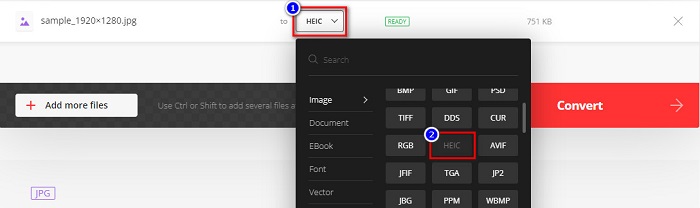
ขั้นตอนที่ 3 สุดท้ายให้คลิกปุ่ม Convert เพื่อแปลงไฟล์ JPG ของคุณเป็นรูปแบบไฟล์ HEIC จากนั้นรอให้การแปลงเสร็จสิ้น แล้วดาวน์โหลดไฟล์ HEIC ของคุณเมื่อพร้อม.

ข้อดี
- มีกระบวนการแปลงที่รวดเร็ว
- ปลอดภัยและใช้งานได้ฟรี
- มีอินเทอร์เฟซซอฟต์แวร์ที่ใช้งานง่าย
- รองรับไฟล์รูปภาพหลากหลายรูปแบบ รวมถึง JPG, HEIC, PNG, JPEG, GIF และอื่นๆ
จุดด้อย
- เมื่อการเชื่อมต่ออินเทอร์เน็ตของคุณไม่เสถียร คุณอาจพบว่ามีกระบวนการแปลงที่ช้า
Aconvert
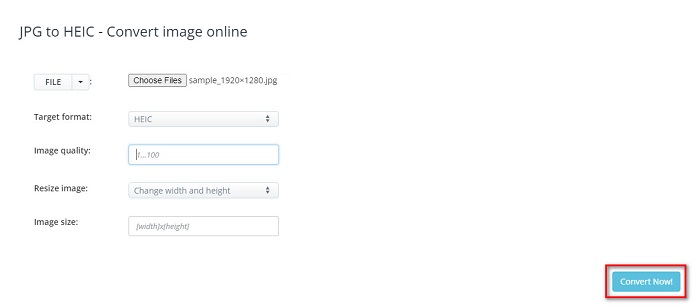
Aconvert เป็นตัวแปลง JPG เป็น HEIC ออนไลน์ที่สามารถแปลงไฟล์ JPG ของคุณเป็น HEIC ได้อย่างง่ายดาย ตัวแปลงออนไลน์นี้เป็นเครื่องมือที่ใช้งานง่ายเพราะมีส่วนติดต่อผู้ใช้ที่เรียบง่าย นอกจากนี้คุณยังสามารถปรับขนาดรูปภาพของคุณด้วยเครื่องมือนี้ได้ อีกทั้งยังสามารถปรับคุณภาพของรูปภาพเอาต์พุตได้ด้วย อย่างไรก็ดี เว็บไซต์นี้มีโฆษณาที่น่ารำคาญ ซึ่งอาจรบกวนคุณได้.
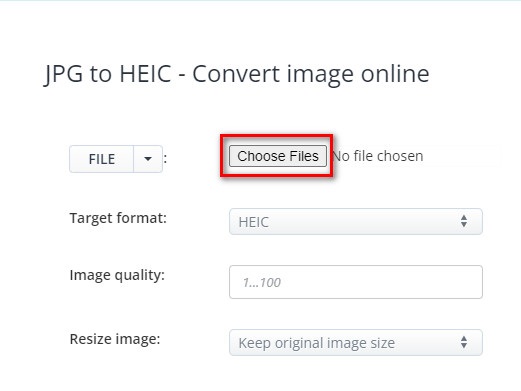
ขั้นตอนที่ 1 ในเบราว์เซอร์ของคุณให้ค้นหาตัวแปลงออนไลน์ Aconvert คลิกปุ่ม Choose Files เพื่ออัปโหลดรูปภาพ JPG ของคุณบนหน้าหลัก.
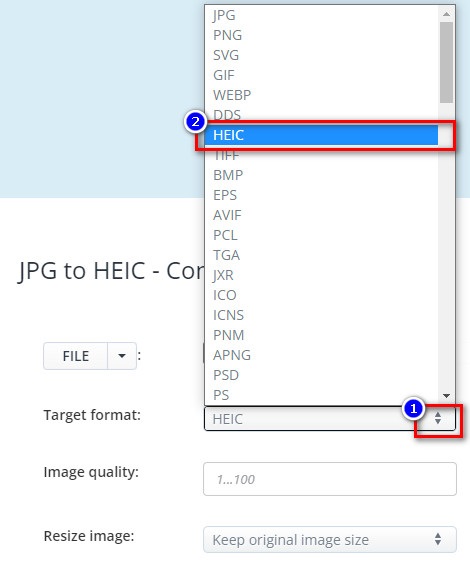
ขั้นตอนที่ 2 จากนั้นคลิกปุ่มขึ้น/ลง เพื่อเลือกรูปแบบเอาต์พุตที่คุณต้องการ คลิกรูปแบบไฟล์ HEIC.
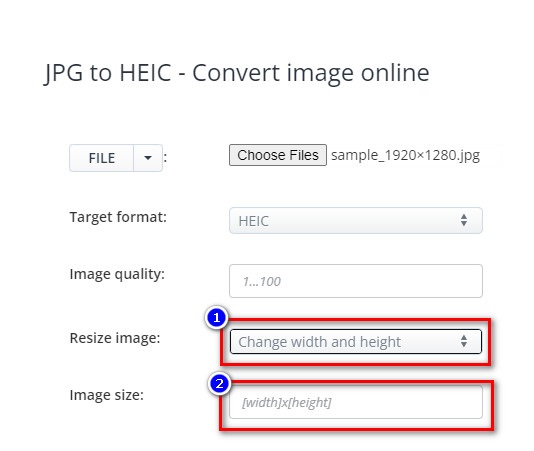
หากคุณต้องการปรับขนาดไฟล์ JPG ของคุณ ให้คลิกปุ่มขึ้น/ลง ถัดจากตัวเลือก Resize Image คุณสามารถปรับความกว้างและความสูงของไฟล์ได้โดยคลิกตัวเลือกที่คุณต้องการ จากนั้นพิมพ์ความกว้างหรือความสูงที่คุณต้องการสำหรับรูปภาพของคุณ หากคุณไม่ต้องการเปลี่ยนขนาดรูปภาพ ให้ไปยังขั้นตอนถัดไป.
ขั้นตอนที่ 3 สุดท้ายคลิกปุ่ม Convert Now เพื่อแปลงไฟล์ JPG ของคุณเป็นไฟล์ HEIC เพียงรอไม่กี่วินาที จากนั้นคุณก็สามารถดาวน์โหลดไฟล์ HEIC ของคุณได้.
ข้อดี
- มีส่วนต่อประสานผู้ใช้ที่ใช้งานง่าย
- มีความปลอดภัยและปลอดภัยในการใช้งาน
- มีคุณสมบัติในการปรับคุณภาพของภาพ
จุดด้อย
- มันมีโฆษณา
AnyConv
ตัวแปลงสุดท้ายที่เราจะพูดถึงคือตัวแปลง AnyConv ตัวแปลง JPG เป็น HEIC ออนไลน์นี้ฟรีและปลอดภัย หากคุณต้องการแปลงไฟล์ JPG ของคุณเป็น HEIC เป็นชุด ตัวแปลงนี้มีฟีเจอร์นั้นสำหรับคุณ นอกจากนี้ยังมีอินเทอร์เฟซซอฟต์แวร์ที่ใช้งานง่าย ทำให้เป็นตัวแปลงที่เป็นมิตรกับผู้เริ่มต้นใช้งาน แม้ว่าจะมีโฆษณาที่สร้างความรำคาญมากมาย แต่ก็มีชื่อเสียงสำหรับผู้ใช้ที่กำลังมองหาตัวแปลง JPG เป็น HEIC
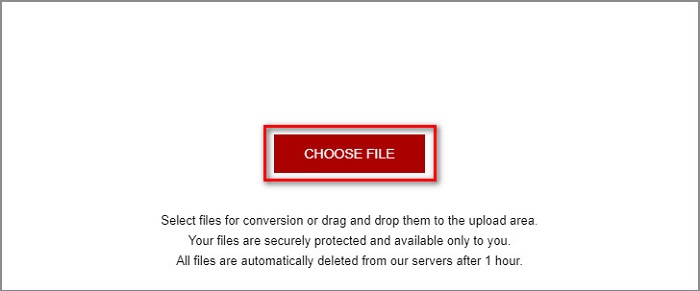
ขั้นตอนที่ 1 ในเบราว์เซอร์ที่คุณใช้ ให้ค้นหา AnyConv ในช่องค้นหา จากนั้นคลิกตัวแปลง AnyConv บนหน้าผลการค้นหา แล้วบนหน้าหลักของซอฟต์แวร์ ให้คลิกปุ่ม Choose File.
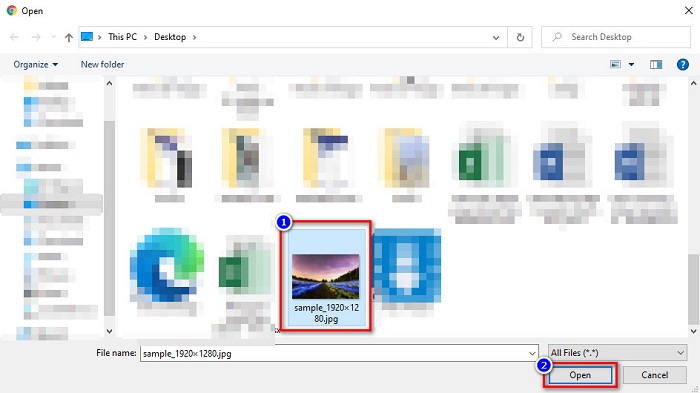
ขั้นตอนที่ 2 หลังจากคลิกปุ่ม Choose File แล้ว โฟลเดอร์ในคอมพิวเตอร์ของคุณจะปรากฏขึ้น เลือกไฟล์ JPG ของคุณ จากนั้นคลิก Open.
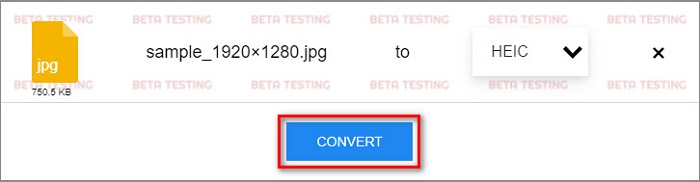
ขั้นตอนที่ 3 จากนั้นคลิกปุ่ม Convert สำหรับขั้นตอนสุดท้าย แล้วรอให้ไฟล์ของคุณแปลงเสร็จ จากนั้นดาวน์โหลดไฟล์ HEIC ของคุณลงในอุปกรณ์.
ข้อดี
- มีส่วนต่อประสานผู้ใช้ที่เรียบง่าย
- ช่วยให้คุณสามารถแปลงไฟล์ JPG เป็นไฟล์ HEIC ได้
- เข้าถึงได้บนเว็บเบราว์เซอร์เกือบทั้งหมด รวมทั้ง Google, Firefox และ Safari
จุดด้อย
- บางครั้งมีกระบวนการโหลดช้า
ส่วนที่ 2 คำแนะนำ: ตัวแปลง HEIC ที่ดีที่สุดในการแปลงไฟล์ HEIC
การแปลงไฟล์ JPG เป็น HEIC อาจฟังดูง่ายโดยใช้ตัวแปลง JPG เป็น HEIC ที่กล่าวถึงข้างต้น แต่ถ้าคุณเป็นคนหนึ่งที่กำลังมองหาวิธีแปลงไฟล์ HEIC เป็นรูปแบบไฟล์อื่นเพื่อให้เข้ากันได้กับแพลตฟอร์มสื่ออื่นๆ ให้พิจารณาใช้เครื่องมือนี้ Aiseesoft HEIC Converter เป็นตัวแปลงออฟไลน์ที่แปลงไฟล์ HEIC เป็นรูปแบบ JPG และ PNG
แม้ว่าจะสามารถสร้างผลงานระดับมืออาชีพได้ แต่ก็เป็นเครื่องมือที่ใช้งานง่าย นอกจากนี้ คุณสามารถปรับคุณภาพของไฟล์ที่ส่งออกและเก็บข้อมูล EXIF ของไฟล์ของคุณ นอกจากนี้ยังสามารถแปลงไฟล์ HEIC ของคุณเป็นรูปแบบ PNG หรือ JPG ได้อีกด้วย น่าทึ่งใช่มั้ย? ดังนั้น หากคุณกำลังมองหาตัวแปลง HEIC ที่มีคุณสมบัติที่ดีที่สุดและฟรี 100% เครื่องมือนี้เป็นตัวแปลงที่ดีที่สุดสำหรับคุณ
ดาวน์โหลดฟรีสำหรับ Windows 7 หรือใหม่กว่าดาวน์โหลดอย่างปลอดภัย
ดาวน์โหลดฟรีสำหรับ MacOS 10.7 หรือใหม่กว่าดาวน์โหลดอย่างปลอดภัย
คุณสมบัติของ Aiseesoft HEIC Converter:
- มี GUI ที่ใช้งานง่าย
- สามารถแปลงไฟล์ HEIC ของคุณเป็น PNG และรูปแบบไฟล์ JPG ได้.
- เก็บข้อมูล EXIF ของไฟล์ของคุณ
- มันสามารถแปลงไฟล์ HEIC ของคุณเป็นรูปแบบ JPG หรือ PNG ได้
- พร้อมใช้งานบนแพลตฟอร์มข้ามสื่อทั้งหมด รวมทั้ง Windows และ Mac
ส่วนที่ 3 คำถามที่พบบ่อยเกี่ยวกับวิธีการแปลง JPG เป็น HEIC
การแปลง JPG เป็น HEIC ส่งผลต่อขนาดไฟล์ของไฟล์ของคุณหรือไม่?
ใช่ เนื่องจาก HEIC เป็นรูปแบบไฟล์บีบอัด เมื่อคุณแปลง JPG เป็น HEIC ขนาดไฟล์ของไฟล์ JPG ของคุณจะลดลง
แบบไหนดีกว่ากัน JPG หรือ HEIC
เมื่อพูดถึงคุณภาพและขนาดไฟล์ของภาพ HEIC จะดีกว่า อย่างไรก็ตาม รูปแบบไฟล์ JPG เข้ากันได้กับแพลตฟอร์มอื่นมากกว่าภาพ HEIC
คุณสามารถดูไฟล์ HEIC บน Windows ได้หรือไม่?
น่าเสียดายที่คุณไม่สามารถเปิดไฟล์ HEIC บน Windows ได้เนื่องจากระบบ Windows ไม่รองรับภาพ HEIC แต่หากคุณต้องการเปิดไฟล์ HEIC บน Windows คุณสามารถแปลง HEIC เป็นไฟล์รูปแบบ JPG หรือ PNG ซึ่ง Windows รองรับได้.
สรุป
เพื่อสรุปทุกอย่าง มีหลายวิธีในการแปลงรูปแบบ JPG เป็น HEIC อย่างไรก็ตาม ไม่ใช่ว่าตัวแปลงทั้งหมดจะมีคุณสมบัติเหมือนกันในการใช้งาน แต่ตัวแปลง JPG เป็น HEIC ออนไลน์ดังกล่าวเป็นตัวแปลงที่ได้รับความนิยมและใช้กันมากที่สุดบนอินเทอร์เน็ต อย่างไรก็ตาม หากคุณกำลังมองหาตัวแปลง HEIC ให้ดาวน์โหลด Aiseesoft HEIC Converter ซึ่งเป็นเครื่องมือที่ดีที่สุดสำหรับการแปลง HEIC
-
 สุดยอดตัวแปลง 9 HEIC เป็น PNG สำหรับพีซีและ Mac [ออนไลน์และออฟไลน์]
 ค้นหาตัวแปลงออนไลน์และออฟไลน์ที่ดีที่สุดที่นี่ เรานำเสนอตัวแปลง HEIC เป็น PNG อันดับต้น ๆ และฟรีสำหรับ Windows และ Mac
-
 CopyTrans HEIC รีวิว คุณสมบัติ และทางเลือก
 หากคุณต้องการทราบว่า CopyTrans HEIC สามารถทำอะไรได้บ้าง เราขอเสนอฟีเจอร์ ข้อดี และทางเลือกอื่นๆ ของเครื่องมือให้คุณ
-
 HEIC Viewer ที่ดีที่สุดทั้งแบบออนไลน์และออฟไลน์ [ฟรี]
 หากคุณกำลังมองหาตัวแสดง HEIC ที่ดีที่สุด เราก็มีสิ่งที่คุณกำลังมองหา ดูภาพ HEIC ของคุณได้ฟรีโดยใช้เครื่องมือเหล่านี้
