


 Video Converter Ultimate
 บันทึกหน้าจอ
 ซ่อมวิดีโอ
 ดาวน์โหลดอย่างปลอดภัย
วิธีการแปลง M2TS เป็น MP4 โดยไม่ลดคุณภาพ
“ เมื่อฉันใส่วิดีโอจากกล้อง Sony ไปยังคอมพิวเตอร์ไฟล์เหล่านี้จะเป็นไฟล์ M2TS ซึ่งไม่สามารถแชร์บน Facebook หรือ YouTube ได้ ฉันจะหาตัวแปลงวิดีโอเพื่อแปลงไฟล์เป็น MP4 และดูบนคอมพิวเตอร์ของฉันได้ที่ไหน "
Sometimes you want to play M2TS files on some portable devices, or upload them to YouTube or Facebook. It’s wise to convert them to a common video format like MP4. In this post, we will share you 5 free ways to convert M2TS to MP4 on Windows and Mac.

ส่วนที่ 1 วิธีที่ดีที่สุดในการแปลง M2TS เป็น MP4 ฟรี
Not all media players support M2TS files. To better enjoy M2TS video from HD camcorders, you’d better change M2TS to commonly used MP4 for for playback. FVC Free M2TS Converter is an all-in-one M2TS converter and editor. You can not only convert M2TS files to MP4, MKV, AVI, MOV, etc., but also edit the M2TS files like compress, merge, theme, and more.
ดาวน์โหลดฟรีสำหรับ Windows 7 หรือใหม่กว่าดาวน์โหลดอย่างปลอดภัย
ดาวน์โหลดฟรีสำหรับ MacOS 10.7 หรือใหม่กว่าดาวน์โหลดอย่างปลอดภัย
Step 1.By clicking the Free Download button, you can quickly download Free M2TS Converter. Then install and launch it on your Windows computer. Click Add File(s) button to import the M2TS file into the program.
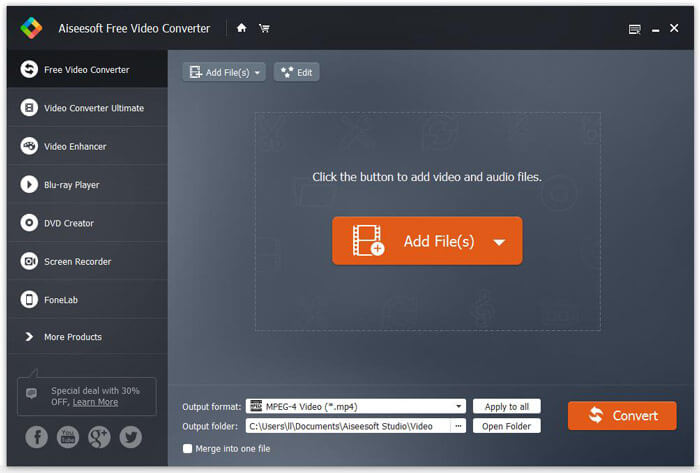
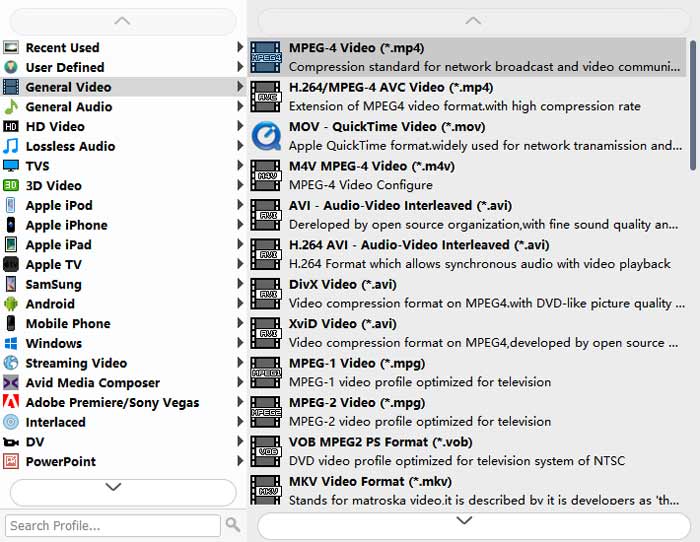
Step 2.Click the drop down button of Output format, and choose MPEG-4 Video (*.mp4) as the output format. You can also set the output folder to save the converted file.
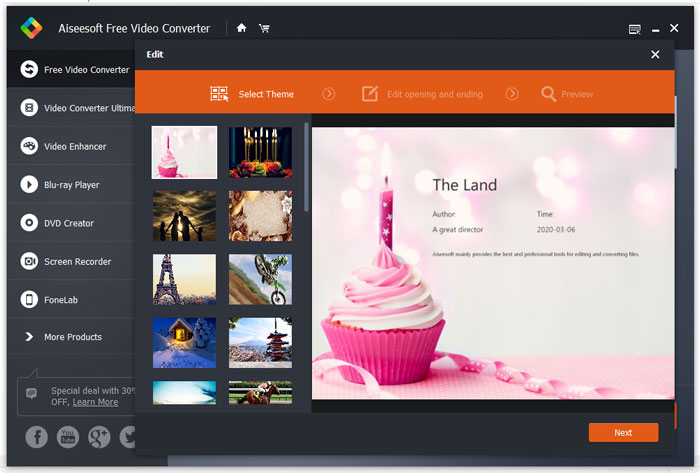
Step 3.If you want to add a specific them for the video, you can click the Edit button on the top menu to choose a proper theme. After all settings are set, you can click Convert button to start changing M2TS file to MP4.
ตอนที่ 2. วิธีการเปลี่ยน M2TS เป็น MP4 ออนไลน์
If you want to convert M2TS to MP4 online for free, FVC Free Online Video Converter will be a great choice. As a free online multimedia converter, it supports converting nearly all mainstream videos and audio to MP4, FLV, MKV, MOV, M4V, MTS, TS, M2TS, WMV, ASF, VOB, MP3, AAC, etc. Besides it’s quite easy to use.
Step 1. Go to the website of FVC Free Online Video Converter. Click Add Files to Convert on the top. Then download and install FVC launcher.
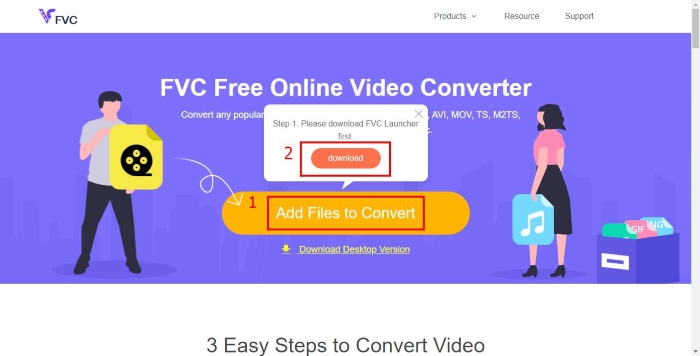
Step 2. Select the video you want to convert. If you want a MP4 video, just click MP4. Then Convert.
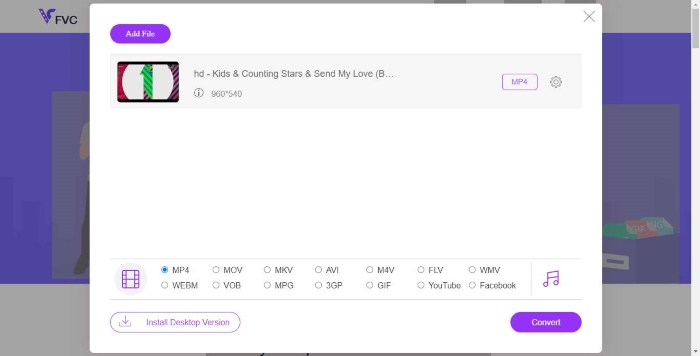
Step 3. You can just save the MP4 video to the desktop. After that, the conversion will start automatically.
ส่วนที่ 3 วิธีการแปลง M2TS เป็น MP4 ด้วย ConvertFiles
ConvertFiles คือตัวแปลง M2TS เป็น MP4 บนเว็บที่รองรับวิดีโอเสียงรูปภาพเอกสารงานนำเสนอและไฟล์เก็บถาวรมากกว่า 200 รูปแบบ ทำตามขั้นตอนง่ายๆด้านล่างเพื่อเริ่มการแปลงไฟล์ M2TS เป็น MP4 ทางออนไลน์
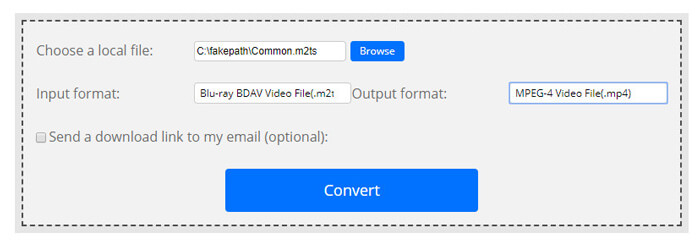
Step 1.Go to the official page of ConvertFiles. Click Browse button to upload your local M2TS file.
Step 2.Click the Input format box and select HDV Video File(.m2ts), and click Output format box to select MPEG-4 Video File(.mp4) as the output format.
Step 3.Click the Convert button to start transforming M2TS to MP4 for free. The conversion may take within minutes. After that, you can click the download link to download the converted MP4 file.
บางครั้งการแปลงอาจล้มเหลวเนื่องจากรูปแบบการป้อนข้อมูลไม่ถูกต้อง เพื่อให้ได้อัตราความสำเร็จสูงคุณสามารถลองใช้ M2TS Converter ฟรีแทนได้
ส่วนที่ 4. วิธีการแปลง M2TS เป็น MP4 ด้วย VLC
VLC Media Player เป็นเครื่องเล่นมัลติมีเดียแบบโอเพนซอร์สสำหรับ Windows, Mac, Linux, iOS และ Android นอกจากนี้ยังทำงานเป็นตัวแปลง M2TS เป็น MP4 ที่ยอดเยี่ยมเพื่อแปลงไฟล์ M2TS เป็น MP4, MOV, AVI และอื่น ๆ ยิ่งไปกว่านั้นคุณสามารถแก้ไขไฟล์ M2TS เช่นครอบตัดตัดหมุนเพิ่มเอฟเฟกต์ภาพและอื่น ๆ
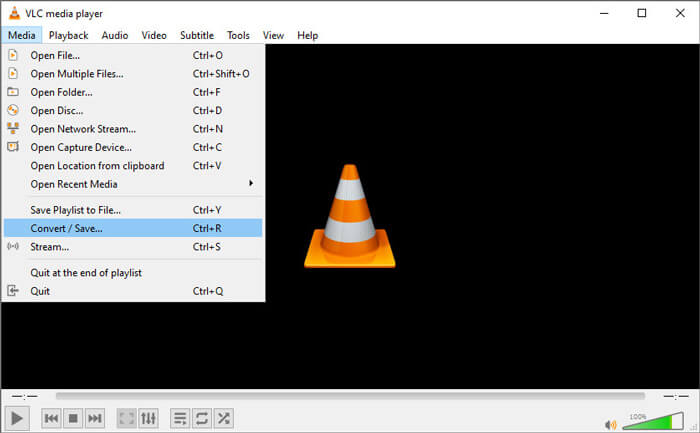
Step 1.Download and run VLC Media Player on your computer. Click Media > Convert / Save... to move on. Then click Add... button to add your M2TS file.
Step 2.Click Convert / Save button to enter the Convert window. Click the Profile drop down button to select Video - H.264 + MP3 (MP4) as the output format.
Step 3.Click Browse button to choose a destination folder. Then click the Start button to start converting M2TS to MP4.
ส่วนที่ 5. วิธีการส่งออก MP4 จาก M2TS ด้วย Handbrake
HandBrake เป็นอีกหนึ่งตัวแปลงรหัสวิดีโอแบบโอเพนซอร์สฟรีที่สามารถแปลงวิดีโอได้เกือบทุกรูปแบบ คุณสามารถลอง Handbrake เพื่อแปลงไฟล์ M2TS เป็น MP4 โดยทำตามขั้นตอนต่อไปนี้
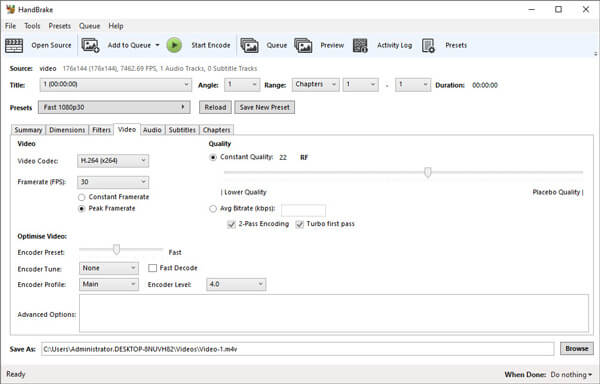
Step 1.Free download, install and launch HandBrake on your Windows/Mac. Click Open Source on the left corner to import the M2TS file from your local folder.
Step 2.You can adjust the settings to the M2TS file. Select MP4 from the drop down button of Format in Summary tab. In the Video tab, you can adjust video codec, video quality, framerate, and optimize video.
Step 3.Click Browse button to set the destination folder. Then click Start Encode button to start converting M2TS to MP4 for free.
ตอนที่ 6. คำถามที่พบบ่อยเกี่ยวกับการแปลง M2TS เป็น MP4
What is the difference between M2TS and MP4?
M2TS ย่อมาจาก MPEG-2 Transport System เป็นรูปแบบไฟล์คอนเทนเนอร์ Blu-ray Disc Audio Video และใช้สำหรับวิดีโอมัลติเพล็กซ์เสียงและสตรีมอื่น ๆ โดยทั่วไปไฟล์ M2TS จะมีขนาดใหญ่กว่าไฟล์ MP4 ในคุณภาพเดียวกัน ไฟล์ MP4 ได้รับการสนับสนุนในเครื่องเล่นสื่อเกือบทั้งหมด แต่ไฟล์ M2TS สามารถเล่นได้บนเครื่องเล่นบางประเภทเท่านั้น
How do I play M2TS files on my PC?
คุณสามารถเปิดไฟล์ M2TS ได้โดยตรงในแอพพลิเคชั่นเครื่องเล่นสื่อยอดนิยมบางตัวเช่น Windows Media Player, VLC Media Player, 5K Player, SMPlayer, Splash และอื่น ๆ คุณยังสามารถเล่นไฟล์ M2TS ด้วยซอฟต์แวร์ Sony Picture Motion Browser
Can VLC play M2TS files?
ใช่. คุณสามารถเล่นไฟล์ M2TS ด้วย VLC Media Player บน Windows และ Mac เพียงแค่เรียกใช้ VLC media player แล้วคลิก Media เพื่อเปิดไฟล์เพื่อเล่นไฟล์ M2TS ใน VLC หากไม่ได้ผลสำหรับปัญหาตัวแปลงสัญญาณคุณควรแปลง M2TS เป็นรูปแบบวิดีโอที่รองรับ VLC ก่อน
Conclusion
ด้วยวิธีการฟรี 5 วิธีข้างต้นคุณสามารถแปลงไฟล์ M2TS เป็น MP4 ได้อย่างสบายใจ หลังจากเปรียบเทียบแล้ว FVC Free M2TS Converter ควรเป็นตัวแปลง M2TS เป็น MP4 ที่ดีที่สุด ด้วยเทคโนโลยีการเร่งความเร็วฮาร์ดแวร์จะส่งออกไฟล์ MP4 คุณภาพสูงภายในไม่กี่นาที คุณสามารถทดลองใช้ตัวแปลงฟรีนี้ได้ในครั้งเดียว
-
 คำแนะนำที่ครอบคลุมเกี่ยวกับวิธีการแปลง TS เป็น MP4
 ไฟล์ TS คืออะไรและต้องการแปลง TS เป็น MP4 ในโพสต์นี้เราจะแบ่งปันวิธีการฟรีและออนไลน์ในการแปลง TS เป็น MP4
-
 วิธีการแปลงไฟล์ MTS เป็น MP4
 ไม่ทราบวิธีการแปลงไฟล์ MTS เป็น MP4? ในคู่มือนี้คุณจะพบ 6 วิธีที่ง่ายและฟรีในการเปลี่ยนรูปแบบ MTS เป็น MP4 บน Windows หรือ Mac โดยไม่สูญเสียคุณภาพ
-
 2 วิธีง่ายๆในการแปลง MTS เป็น MP3 ฟรี
 มีความต้องการที่จะแยกเสียง MP3 จากไฟล์ MTS แต่ไม่รู้ว่าจะทำอย่างไร? โพสต์นี้แชร์ 2 วิธีง่ายๆที่จะช่วยคุณแปลง MTS / M2TS เป็น MP3 ด้วยคุณภาพเสียงระดับสูง
