


 Video Converter Ultimate
 บันทึกหน้าจอ
 ซ่อมวิดีโอ
เครื่องบันทึก FLV 4 อันดับแรกเหมาะสำหรับคอมพิวเตอร์ Chrome, Windows และ Mac
คุณเคยสงสัยหรือไม่ว่าอะไรทำให้วิดีโอที่คุณเห็นปรากฏอยู่บนเว็บ? เว็บไซต์ HTML 5 ส่วนใหญ่ใช้รูปแบบ WebM เพื่อเล่นวิดีโอ นอกเหนือจาก WebM แล้ว FLV ก็ถูกใช้เช่นกัน โดยเฉพาะอย่างยิ่งเว็บไซต์ฟรีภาพยนตร์และรายการทีวีฟรี คุณจะรู้ได้อย่างไรว่าเป็นไฟล์ FLV? โดยปกติ หากวิดีโอไม่เล่น คุณจะเห็นข้อความแสดงข้อผิดพลาดที่ระบุว่าติดตั้ง Adobe Flash Player ทุกวันนี้ วิดีโอจำนวนมากถูกฝังอยู่ในไฟล์ FLV แต่เมื่อคุณบันทึกวิดีโอโดยใช้เครื่องบันทึกในตัวหรือเครื่องบันทึกอื่น คุณภาพของวิดีโออาจมีการเปลี่ยนแปลงสูง
ดังนั้น การใช้โปรแกรมอัดหน้าจอที่สามารถสร้างไฟล์ FLV ได้ด้วย หรือสามารถสร้างวิดีโอคุณภาพสูงโดยไม่จำกัดรูปแบบไฟล์ จะเป็นตัวเลือกที่ดีกว่า หากคุณกังวลว่าคุณภาพวิดีโอจะถูกเปลี่ยนแปลง ลองค้นหาโปรแกรมอัดหน้าจอเป็นไฟล์ FLVที่ไม่ต้องลงทะเบียนก่อนใช้งานดูได้เลย.

ส่วนที่ 1 ทางเลือกที่ดีที่สุดสำหรับผู้ใช้ - FVC Screen Recorder
จากบรรดาโปรแกรมอัดหน้าจอ FLV ที่พบได้ทางออนไลน์ FVC Screen Recorder นับได้ว่าเป็นหนึ่งในตัวท็อป หรือจะพูดแบบง่าย ๆ ก็คือเป็นตัวที่ดีที่สุด ความต้องการของผู้ใช้งานมักจะสูงกว่าสิ่งที่โปรแกรมทั่วไปมอบให้ได้ และไม่ใช่ว่าทุกโปรแกรมจะเป็นตัวเลือกที่ดีที่สุด ลูกค้าหลายคนกำลังมองหาโปรแกรมที่ดีที่สุดสำหรับตัวเองอยู่ FVC Screen Recorder ทำได้ดีกว่าโปรแกรมอัดหน้าจอระดับพรีเมียมกว่าพันตัว โดยเฉพาะถ้าเทียบกับตัวที่คุณใช้อยู่ ด้วยประสิทธิภาพการบันทึกที่ลื่นไหล คุณจะสามารถดึงศักยภาพสูงสุดจากวิดีโอที่ต้องการอัดได้ ยิ่งไปกว่านั้น คุณยังปรับบิตเรตและอัตราเฟรมของวิดีโอเพื่อให้ได้คุณภาพที่ดียิ่งขึ้น จึงเรียกได้ว่าคุณไม่ควรพลาดรีวิวโปรแกรมอัดหน้าจอ FLV ตัวนี้ไป ในระหว่างนี้ มาดูวิธีใช้งานแบบเข้าใจง่ายกันด้านล่าง.
ขั้นตอนที่ 1 ใช้ปุ่มดาวน์โหลดด้านล่างเพื่อติดตั้งแอป ทำการติดตั้งและทำตามคำแนะนำไปเรื่อย ๆ จนกว่าแอปจะถูกเปิดใช้งาน.
ดาวน์โหลดฟรีสำหรับ Windows 7 ขึ้นไปดาวน์โหลดอย่างปลอดภัย
ดาวน์โหลดฟรีสำหรับ MacOS 10.7 ขึ้นไปดาวน์โหลดอย่างปลอดภัย
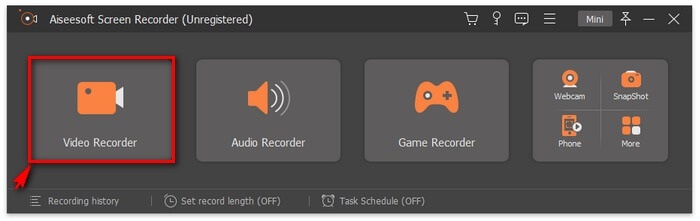
ขั้นตอนที่ 2 เลือกแท็บที่ต้องการ เนื่องจากเราต้องการอัดวิดีโอ ให้คลิกที่ Video Recorder จากนั้นจะมีกรอบเส้นประพร้อมแถบลอยปรากฏขึ้นมา.
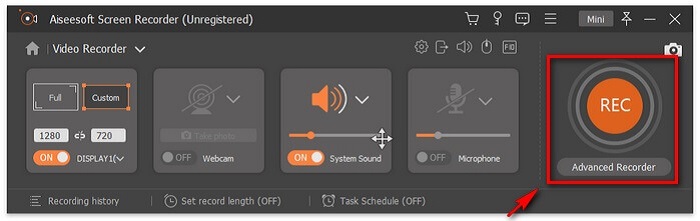
ขั้นตอนที่ 3 ปรับกรอบเส้นประเพื่อกำหนดอัตราส่วนหน้าจอ จากนั้นคลิกปุ่ม REC เพื่อเริ่มบันทึก.
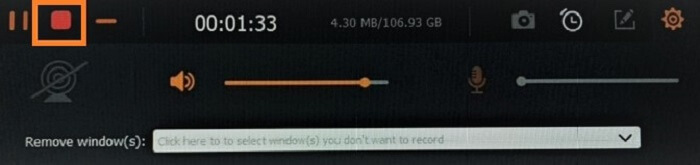
ขั้นตอนที่ 4 เมื่อต้องการหยุดการบันทึก ให้คลิกปุ่มรูปสี่เหลี่ยมสีแดงบนแถบลอย จากนั้นจะมีหน้าต่างใหม่เด้งขึ้นมา ที่นี่คุณสามารถเลือกบันทึกไฟล์หรืออัดใหม่หากยังไม่พอใจกับผลลัพธ์.
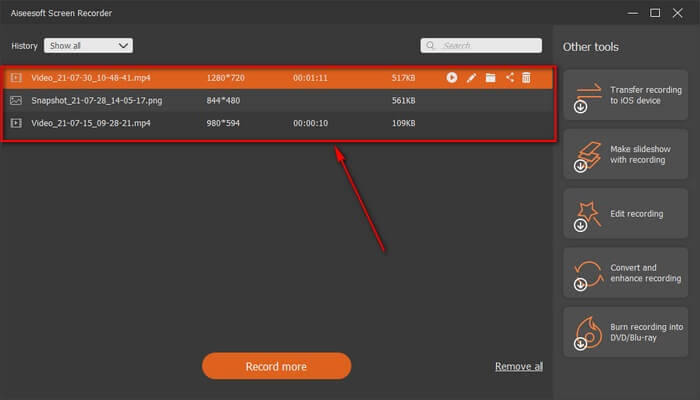
ขั้นตอนที่ 5 สมมติว่าคุณบันทึกไฟล์แล้ว หน้าต่างถัดไปจะให้คุณเลือกตำแหน่งจัดเก็บไฟล์ เลือกโฟลเดอร์แล้วคลิก Next.
ส่วนที่ 2 เครื่องบันทึกวิดีโอ FLV ฟรีอื่นๆ
โปรแกรมบันทึก FLV สำหรับเบราว์เซอร์ทั้งหมด - โปรแกรมบันทึกหน้าจอ FVC ฟรี
เป็นที่ทราบกันดีว่า FVC Free Screen Recorder มีขนาดเล็กแต่คุณสมบัติทรงพลัง ดังนั้น หากคุณเป็นมือใหม่ที่อยากอัดวิดีโอเล่น ๆ ก็ใช้ได้ หรือหากคุณเป็นมืออาชีพที่ต้องการอัดการประชุมธุรกิจก็เหมาะเช่นกัน ไม่ว่ากรณีใดก็ใช้งานได้ดี คุณสมบัติที่โดดเด่นที่สุดของโปรแกรมนี้คือคุณสามารถอัดได้ทุกส่วนของหน้าจอโดยไม่ถูกรบกวนจากแถบลอยของเครื่องมือ เพราะตัวโปรแกรมจะบันทึกเฉพาะหน้าจอโดยอัตโนมัติ ถ่ายภาพหน้าจอได้ไม่จำกัดโดยไม่ถูกรบกวนด้วยฟีเจอร์ Lock-in screen ไม่ต้องพูดพร่ำทำเพลง มาดูวิธีใช้โปรแกรมอัด FLV ตัวนี้กันเลย คุณต้องทำตามขั้นตอนด้านล่างนี้.
ขั้นตอนที่ 1 ไปที่เว็บไซต์ทางการของ FVC Free Screen Recorder แล้วเปิดแอป.
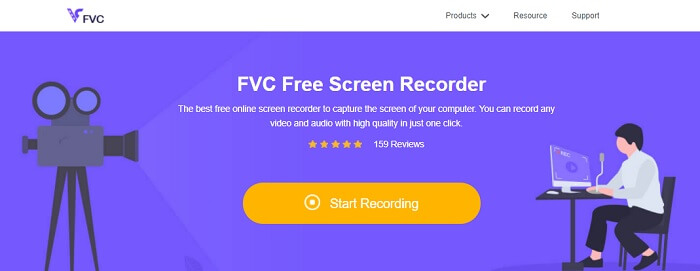
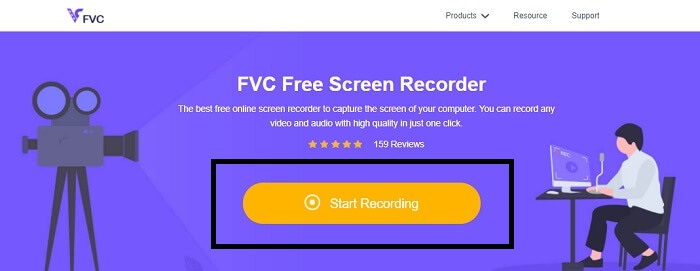
ขั้นตอนที่ 2 เปิดใช้งานเครื่องมือโดยคลิกที่ Start Recording แล้วไปยังขั้นตอนถัดไป.
ขั้นตอนที่ 3 ที่แถบเครื่องมือ ให้คลิกปุ่มรูปเฟืองเพื่อเปลี่ยนการตั้งค่าตามความต้องการ เมื่อเข้าสู่เมนูการตั้งค่าแล้ว ให้หาแท็บ Output และเปลี่ยนรูปแบบวิดีโอตามที่ต้องการ คลิก OK เมื่อทุกอย่างตั้งค่าเรียบร้อย.
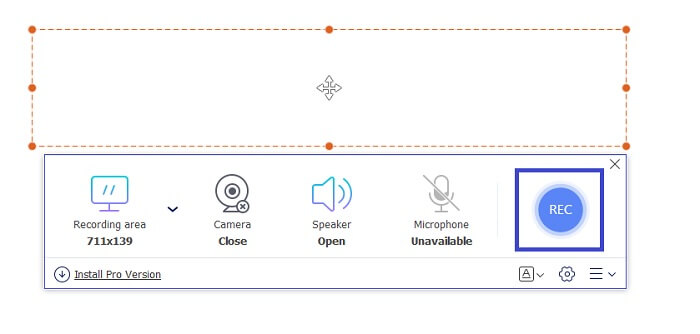
ขั้นตอนที่ 4 บนแถบเครื่องมือแบบลอย คุณสามารถปรับอัตราส่วนกรอบหน้าจอได้ และยังสามารถเพิ่มภาพปฏิกิริยาจากใบหน้าคุณโดยเปิด Webcam เปิด System Sound เพื่อบันทึกเสียงจากโปรแกรมตามจริง และสุดท้ายเพิ่มเสียงพูดของคุณด้วยการเปิดไมโครโฟน เมื่อต้องการเริ่มอัดเป็นไฟล์ FLV ให้คลิกปุ่ม REC เพื่อเริ่ม.
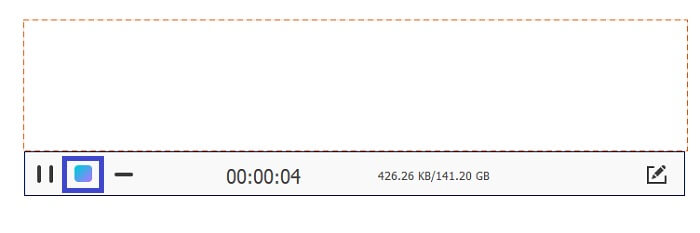
ขั้นตอนที่ 5 เมื่อต้องการจบการอัดเป็นไฟล์ FLV ให้คลิกปุ่มรูปสี่เหลี่ยมเพื่อหยุด จากนั้นคลิก Save และ Next การบันทึกทั้งหมดที่คุณทำจะถูกเก็บไว้ในรายการประวัติ (History list).
FLV Recorder สำหรับ Chrome - SCREEN.IO
หากคุณไม่ต้องการดาวน์โหลดไฟล์เพิ่มเติมในไดรฟ์ คุณสามารถใช้เครื่องบันทึก Chrome ในตัวนี้ได้ โปรแกรมบันทึก FLV สำหรับ Chrome ช่วยเหลือผู้คนมากมายในเว็บทั้งหมด ดังนั้น หากคุณเป็นแฟนตัวยงของการประหยัดพื้นที่ในที่เก็บข้อมูลของคุณ คุณต้องลองใช้ SCREEN.IO นี้ แม้ว่าเครื่องมือนี้จะไม่มีคุณลักษณะพิเศษที่คล้ายกับเครื่องบันทึกอื่น แต่ความสามารถในการบันทึกของมันเป็นมาตรฐานมาก หากเราเปรียบเทียบเครื่องบันทึก Chrome และเครื่องบันทึกบนเดสก์ท็อป เดสก์ท็อปเป็นวิธีที่มีประสิทธิภาพในการบันทึก เนื่องจากคุณจะไม่มีปัญหาหากการเชื่อมต่ออินเทอร์เน็ตถูกขัดจังหวะ
FLV Recorder สำหรับ Windows - VLC Media Player
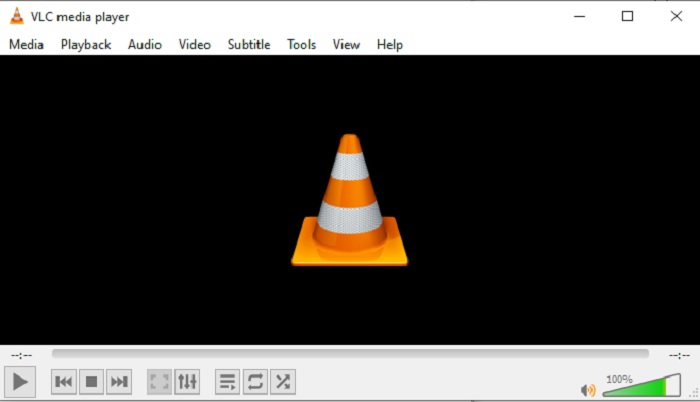
VLC Media Player ไม่ได้มีชื่อเสียงแค่ในฐานะโปรแกรมเล่นมีเดียที่ดีที่สุดเท่านั้น แต่ยังมีฟีเจอร์ต่าง ๆ เช่น การอัดวิดีโอ การแปลงไฟล์ และอื่น ๆ อีก อย่างไรก็ตาม แม้ว่าจะเป็นโปรแกรมเล่นมีเดียที่ดีมาก แต่ฟีเจอร์เหล่านี้ก็ไม่ได้ดีที่สุดเสมอไป และในบางกรณี ไฟล์วิดีโอหรือเสียงบางรูปแบบก็ไม่สามารถเล่นได้เพราะใช้โค้ดแทรก (codec) แบบมีลิขสิทธิ์ ดังนั้นแทนที่จะใช้ VLC คุณสามารถใช้ โปรแกรมเล่นมีเดียทางเลือกแทน VLC ที่รองรับไฟล์แม้จะเป็นแบบมีลิขสิทธิ์ได้.
FLV Recorder สำหรับ Mac - OBS Studio
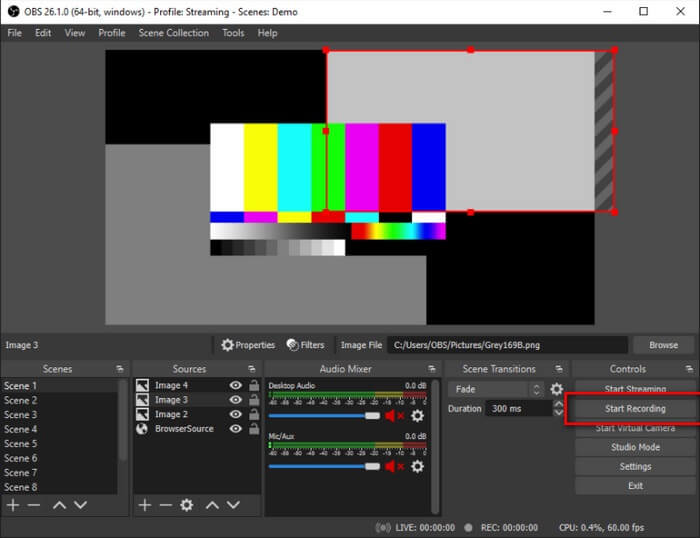
คุณอาจกำลังกังวลว่าเราอาจลืมผู้ใช้ Mac ไป โปรแกรมอัด FLV สำหรับ Mac ตัวนี้เป็นหนึ่งในโปรแกรมที่ทรงพลังที่สุดในลิสต์ เพราะคุณสามารถสตรีมมิงได้ด้วย แม้จะมีฟีเจอร์ที่ยอดเยี่ยม แต่ตัวโปรแกรมอาจดูน่ากังวลเล็กน้อยหากคุณเพิ่งเริ่มอัดหน้าจอใหม่ ๆ เนื่องจากมีองค์ประกอบต่าง ๆ บนหน้าจอจำนวนมากเมื่อเปิดโปรแกรมขึ้นมา.
ส่วนที่ 3 คำถามที่พบบ่อยเกี่ยวกับ FLV Video Recorder
FLV ดาวน์โหลดบนพีซีของฉันได้อย่างปลอดภัยหรือไม่
ในความเป็นจริง ไม่ใช่ไฟล์ที่เรากำลังพูดถึงเมื่อพูดถึงเรื่องความปลอดภัย ไฟล์ FLV ถูกฝังอยู่ในเว็บไซต์แบ่งปันวิดีโอ ดังนั้นคำถามของคุณคือ ฉันจะระบุได้อย่างไรว่าวิดีโอที่ฉันดาวน์โหลดจากเว็บไซต์ไม่มีมัลแวร์ ใช้การป้องกันสำหรับพีซีของคุณ มีซอฟต์แวร์ป้องกันและสแกนเนอร์มากมายที่คุณสามารถหาได้ทางออนไลน์ แต่ตัวไฟล์เองนั้นปลอดภัย เว้นแต่พวกเขาจะใส่มัลแวร์เข้าไป มันปลอดภัย
โปรแกรมอะไรเปิดไฟล์ FLV ได้?
มีโปรแกรมเล่นมีเดียมากมายให้เลือกใช้ แต่ตัวที่ฉันแนะนำคือ VLC Player โปรแกรมนี้ใช้งานได้หลากหลายและเล่นได้แทบทุกไฟล์ ไม่ว่าจะบีบอัดหรือไม่บีบอัด คลิกที่นี่เพื่อดูโปรแกรมเล่นไฟล์ FLV ยอดนิยมอื่น ๆ.
ข้อดีของไฟล์ FLV คืออะไร?
ข้อได้เปรียบหลักประการแรกของ FLV คือความสามารถในการผลิตวิดีโอคุณภาพสูงในขนาดที่เล็ก โดยธรรมชาติแล้ว ไฟล์นั้นมีความยืดหยุ่น ทำไม คุณสามารถแปลงไฟล์นี้เป็นรูปแบบอื่นได้อย่างง่ายดายแม้โดยใช้ตัวแปลงออนไลน์
ส่วนที่ 4 แผนภูมิเปรียบเทียบ
| คุณสมบัติ | เครื่องบันทึกหน้าจอ FVC | FVC บันทึกหน้าจอฟรี | VLC Media Player | OBS Studio |
| บันทึกหน้าจอ |  | | | |
| บันทึกเสียง | | | | |
| รองรับ FLV | | | | |
| เครื่องเล่นมัลติมีเดีย |  | | | |
| อัตราบิตและอัตราเฟรมที่ปรับได้ | | | | |
สรุป
เครื่องมือทั้งหมดที่ระบุไว้มีประโยชน์ในการบันทึกวิดีโอ FLV และสร้างคุณภาพวิดีโอที่ดีที่สุดเท่าที่จะเป็นไปได้ นอกจากนี้ หากคุณไม่แน่ใจว่าจะใช้เครื่องมือใด คุณสามารถดูแผนภูมิเปรียบเทียบที่เขียนไว้ได้ แต่ในบรรดาเครื่องบันทึก FLV ที่ระบุไว้ FVC Screen Recorder มีความได้เปรียบมากกว่าเนื่องจากคุณสมบัติการล็อคหน้าต่าง
-
 โปรแกรมบันทึก OGG ที่มีประโยชน์ที่สุดแห่งปี 2021 [ฟรี & ออนไลน์]
 บทความนี้พูดถึงเครื่องมือบันทึก OGG ที่ดีที่สุดที่ช่วยคุณในการบันทึกเสียง OGG หากต้องการเพิ่มข้อมูลรายละเอียดเพิ่มเติมสำหรับผู้ใช้ โปรดอ่านต่อไป
-
 ซอฟต์แวร์บันทึก M4B ที่ดีที่สุด 5 อันดับแรกสำหรับพีซีและ Mac [ฟรีและจ่ายเงิน]
 การบันทึก M4B ถูกบีบอัดแบบสูญเสียสำหรับไฟล์หนังสือเสียง MPEG-4 ในบางแง่มุม M4A และ M4B เกือบจะพบได้ทั่วไปแต่มีความแตกต่างกัน หากต้องการทราบว่ามันคืออะไรอ่านบทความ
-
 เครื่องมือบันทึก AMR ที่ดีที่สุด 5 อันดับแรกสำหรับระบบปฏิบัติการทั้งหมด
 ต้องการทราบว่ารูปแบบ AMR คืออะไรและตัวบันทึก AMR ที่ดีที่สุดคืออะไรที่คุณควรเลือกซึ่งจะให้การบันทึกที่น่าทึ่ง
