


 Video Converter Ultimate
 บันทึกหน้าจอ
 ซ่อมวิดีโอ
 ดาวน์โหลดอย่างปลอดภัย
วิธีการเฟดเสียงใน iMovie: บทช่วยสอนสำหรับ Mac และ iPhone
เอฟเฟกต์เฟด (Fade) คือเอฟเฟกต์ที่ใช้ทำให้เสียงหรือภาพค่อย ๆ ดังขึ้นหรือลดลงอย่างต่อเนื่องในสื่อชนิดต่าง ๆ สำหรับงานตัดต่อเสียง การเรียนรู้วิธีใส่เอฟเฟกต์เฟดถือว่าสำคัญมาก เพราะใช้สำหรับการเปลี่ยนช่วงเสียง (transition) หรือใช้บอกให้ผู้ฟังรู้ว่าเสียงกำลังจะค่อย ๆ เบาลงหรือจบลง ซึ่งมีผลต่อคุณภาพของผลงานเสียงโดยรวม ผู้ใช้สามารถใส่เอฟเฟกต์เฟดด้วย iMovie ได้อย่างง่ายดาย ซึ่งเป็นซอฟต์แวร์ตัดต่อสื่อที่ Apple ออกแบบมาโดยเฉพาะ อ่านต่อเพื่อดูวิธีใช้ Mac และ iPhone ของคุณในการใส่เอฟเฟกต์เฟด และค้นหาเครื่องมือทางเลือกแบบครบจบในตัวเดียวสำหรับใส่เอฟเฟกต์เฟดให้กับไฟล์เสียงของคุณได้ด้วย.

ส่วนที่ 1. การเฟดเพลงใน iMovie บน Mac
ด้ามจับเฟด
วิธีแรกในการเพิ่มเอฟเฟ็กต์เฟดในเสียงโดยใช้ iMovie เวอร์ชัน Mac คือการใช้ตัวจัดการเฟด ซึ่งเป็นวิธีที่ง่ายที่สุด เนื่องจากผู้ใช้เพียงแค่โหลดไฟล์เสียงแล้วลากตัวจัดการเฟดแต่ละอันที่ปรากฏที่จุดเริ่มต้นและจุดสิ้นสุดของคลิป
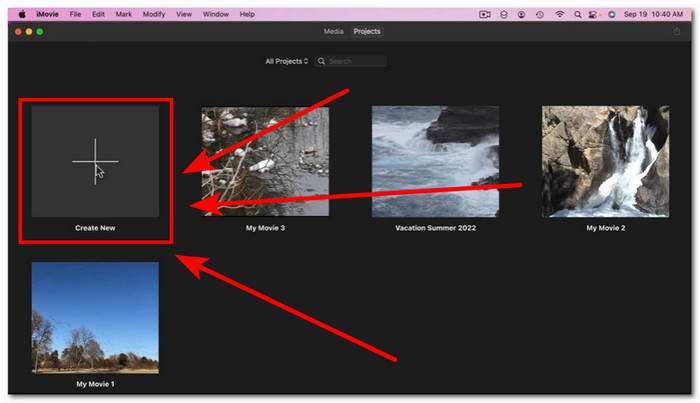
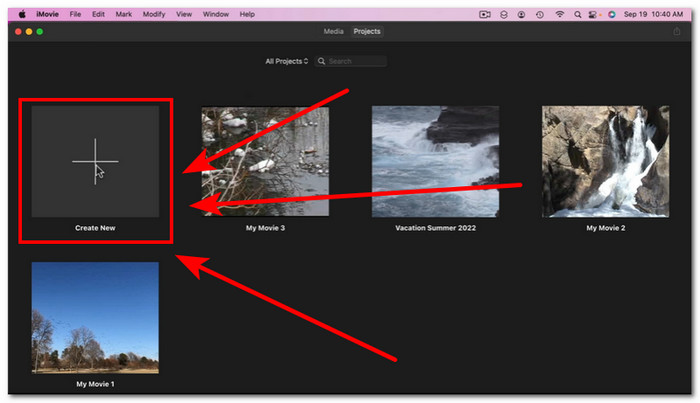
ขั้นตอนที่ 1 เปิดแอปพลิเคชัน iMovie บน Mac ของคุณ แล้วนำเข้าไฟล์เสียงที่ต้องการโดยลากและวางลงบนไทม์ไลน์ของซอฟต์แวร์.
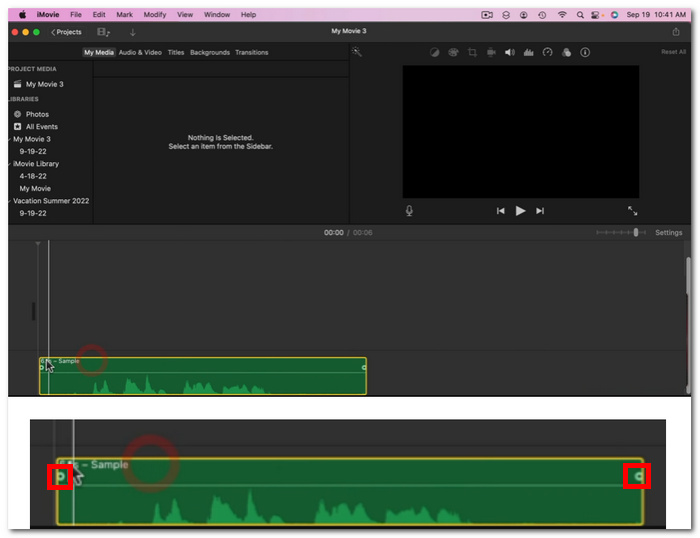
ขั้นตอนที่ 2 เมื่อไฟล์เสียงถูกวางในไทม์ไลน์ของ iMovie แล้ว คุณจะเห็นวงกลมเล็ก ๆ ปรากฏขึ้นที่จุดเริ่มต้นและจุดสิ้นสุดของแต่ละแทร็ก แสดงว่าแทร็กนั้นสามารถใช้ตัวควบคุมเฟดเพื่อสร้างเอฟเฟกต์เฟดได้.
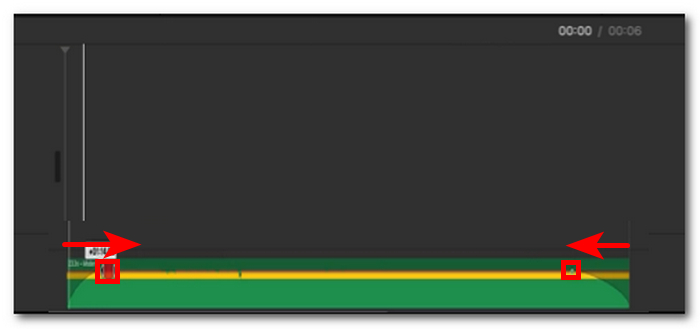
ขั้นตอนที่ 3 เพียงลากแฮนด์เดิลเฟดเข้าด้านในของแทร็กเสียงเพื่อสร้างเอฟเฟกต์เฟด.
หมายเหตุ: อย่างที่คุณเห็น มันจะสร้างภาพแบบลาดเอียงในแทร็ก ซึ่งบ่งบอกว่าเสียงของคุณมีเอฟเฟกต์การเฟดแล้ว
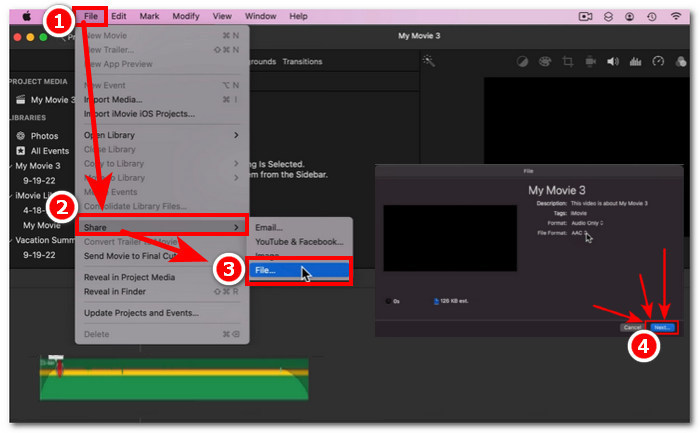
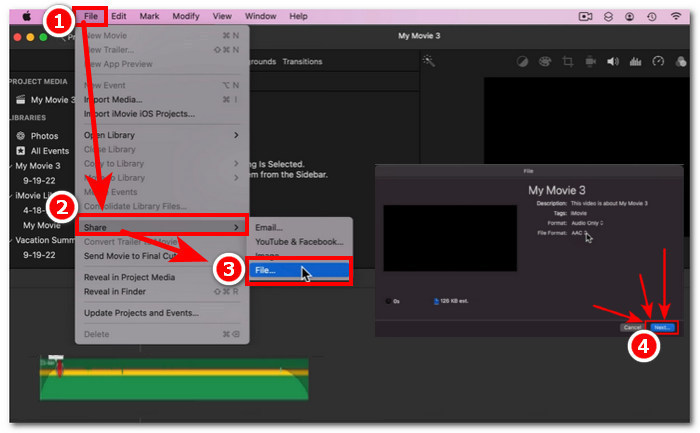
ขั้นตอนที่ 4 เมื่อเสร็จแล้ว ให้บันทึกไฟล์ของคุณโดยคลิกที่ File > Share > File… จากนั้นคลิก Next เพื่อดาวน์โหลดไฟล์ลงในโฟลเดอร์ดาวน์โหลดของ Mac.
หลังจากคุณดาวน์โหลดวิดีโอที่มีไฟล์เสียงใส่เฟดเรียบร้อยแล้ว หากพบว่าเสียงไม่ซิงก์กับวิดีโอใน iMovie คุณสามารถเปิดอ่านโพสต์นี้เพื่อแก้ไขปัญหาดังกล่าวได้.
ผู้ตรวจสอบเสียง
อีกวิธีหนึ่งในการเฟดเสียงออกใน iMovie โดยใช้ Mac คือการใช้ Audio Inspector ซึ่งมีความซับซ้อนมากกว่า Fade Handles มาก ช่วยให้ผู้ใช้กำหนดเอฟเฟ็กต์เฟดได้อย่างแม่นยำ เนื่องจากจะแสดงระยะเวลาที่คำนวณได้และเฉพาะเจาะจงมากขึ้นสำหรับวินาทีที่คุณต้องการให้เฟดอินและเฟดเอาต์เกิดขึ้นในเสียงของคุณ
ขั้นตอนที่ 1 บน Mac ของคุณ ให้เปิดหรือโหลดไฟล์เสียงที่ต้องการใส่เอฟเฟกต์เฟดเข้าไป โดยใช้ซอฟต์แวร์ iMovie.
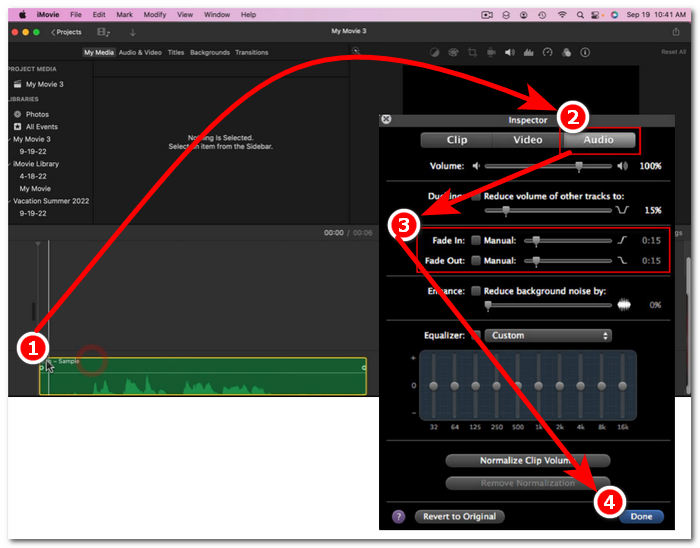
ขั้นตอนที่ 2 เมื่อไฟล์เสียงอยู่ในหน้าต่างหลักของซอฟต์แวร์แล้ว ให้ดับเบิลคลิกที่ไฟล์เสียงในไทม์ไลน์ จากนั้นเลือก Clip Adjustments เพื่อเปิดหน้าต่าง Inspector.
ขั้นตอนที่ 3 เมื่อหน้าต่าง Inspector เปิดขึ้น ให้ไปที่ส่วน Audio จากนั้นคุณสามารถปรับค่าของ Fade-in และ Fade-out ของแทร็กได้ เพียงลากความยาวของเอฟเฟกต์เฟดด้วยตนเองตามที่ต้องการ เมื่อเสร็จแล้วให้คลิกปุ่ม Done เพื่อบันทึกการเปลี่ยนแปลงในไฟล์เสียง.
ขั้นตอนที่ 4 เมื่อทุกอย่างเรียบร้อยแล้ว คุณสามารถดาวน์โหลดไฟล์เสียงได้โดยคลิกที่ปุ่ม File ซึ่งอยู่ด้านบนของหน้าจอ แล้วเลือก Share > File > Next.
ส่วนที่ 2. การเฟดเพลงใน iMovie บน iPhone
การเฟดเสียงใน iMovie โดยใช้ iPhone เป็นเรื่องง่ายมาก เนื่องจาก iMovie เวอร์ชันมือถือสำหรับผู้ใช้ iPhone นั้นทำได้ง่ายมาก ผู้ใช้แม้แต่ผู้ที่ไม่ค่อยมีความรู้ด้านเทคโนโลยีก็สามารถทำได้โดยไม่ต้องเหนื่อยยาก
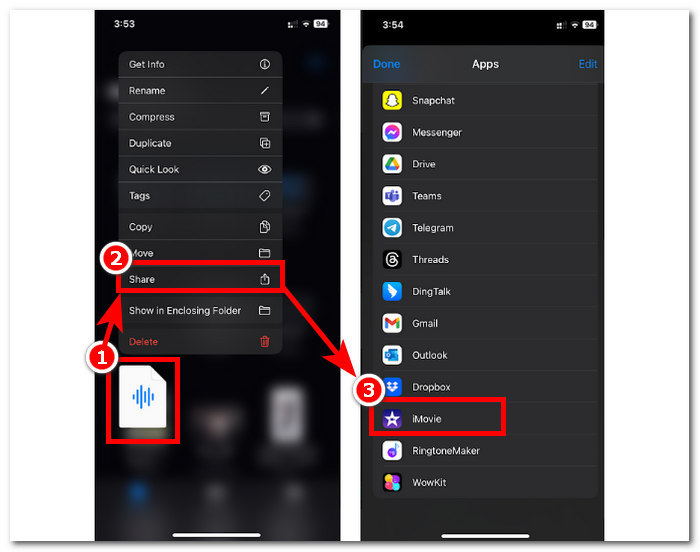
ขั้นตอนที่ 1 หากต้องการใส่เอฟเฟกต์เฟดให้ไฟล์เสียง คุณต้องโหลดไฟล์เสียงของคุณเข้าสู่แอป iMovie บน iPhone เสียก่อน,
ขั้นตอนที่ 2 เมื่อเข้าสู่หน้าจอหลักของแอปแล้ว ให้แตะที่ Sound > Fade เพื่อให้แถบปรับเฟดปรากฏขึ้น เมื่อแถบเฟดปรากฏแล้ว ให้ลากเข้าด้านในของไฟล์เสียงแล้วปรับตามต้องการ เมื่อพอใจแล้วให้แตะปุ่ม Done เพื่อบันทึกการเปลี่ยนแปลง.
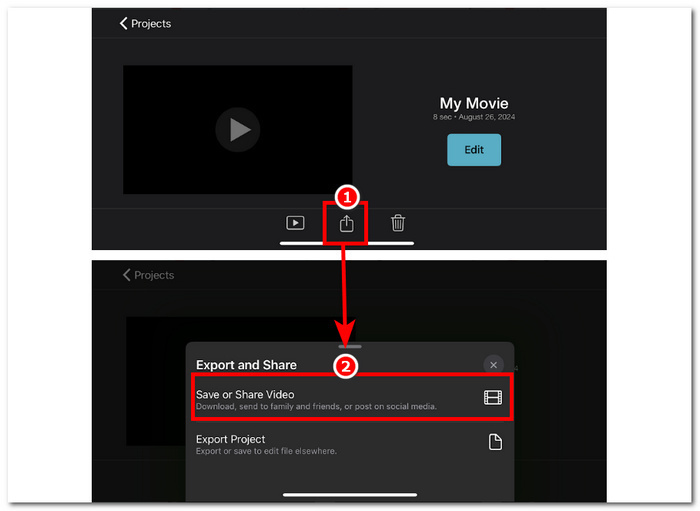
ขั้นตอนที่ 3 หากต้องการบันทึกไฟล์ ให้แตะไอคอน Share แล้วเลือกตัวเลือก Save หรือ Share Video.
ส่วนที่ 3. ทางเลือก iMovie ที่ดีที่สุดสำหรับ Fade Music
เมื่อ iMovie ซึ่งเป็นโปรแกรมตัดต่อวิดีโอยอดนิยมบน Mac และ iPhone เกิดปัญหาทางเทคนิคขึ้น FVC-picked Video Converter Ultimate ก็จะกลายเป็นตัวเลือกทางเลือกที่เหมาะสม ซอฟต์แวร์นี้ถูกออกแบบมาเป็นพิเศษเพื่อช่วยใส่เอฟเฟกต์เฟดให้กับวิดีโอได้อย่างราบรื่น ด้วยฟังก์ชัน Fade In และ Fade Out โดยเฉพาะ ผู้ใช้สามารถกำหนดระยะเวลาของเอฟเฟกต์เฟดได้อย่างแม่นยำตามต้องการ FVC-picked Video Converter Ultimate ไม่ได้มีแค่ฟังก์ชันตัดหรือครอบเสียงพื้นฐานเท่านั้น แต่ยังมาพร้อมชุดเครื่องมือตัดต่อที่หลากหลาย นอกจากนี้ ความเร็วในการประมวลผลที่ยอดเยี่ยมยังช่วยให้ตัดต่อได้อย่างมีประสิทธิภาพโดยยังคงคุณภาพเสียงแบบไม่สูญเสีย (lossless) ทำให้โดดเด่นกว่าซอฟต์แวร์อื่น.
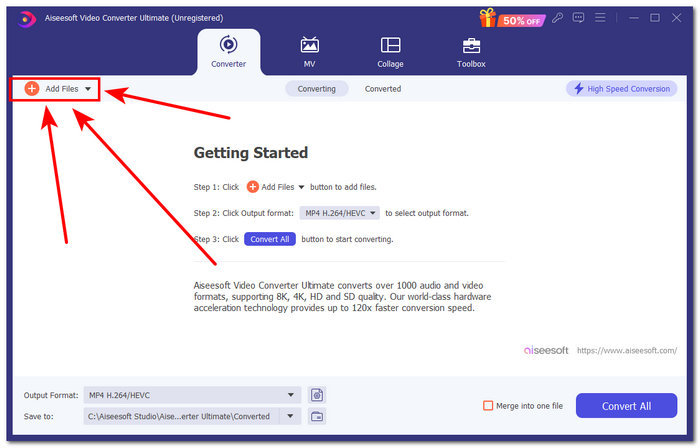
ขั้นตอนที่ 1 บนคอมพิวเตอร์ของคุณ ให้ดาวน์โหลดและเปิดใช้ซอฟต์แวร์ FVC-picked Video Converter Ultimate จากนั้นค้นหาปุ่ม Add Files บนหน้าต่างซอฟต์แวร์แล้วคลิกเพื่อโหลดไฟล์เสียง ขั้นตอนนี้สำคัญหากคุณต้องการตัดหรือตัดช่วงบางส่วนของไฟล์เสียงออก.
ดาวน์โหลดฟรีสำหรับ Windows 7 หรือใหม่กว่าดาวน์โหลดอย่างปลอดภัย
ดาวน์โหลดฟรีสำหรับ MacOS 10.7 หรือใหม่กว่าดาวน์โหลดอย่างปลอดภัย
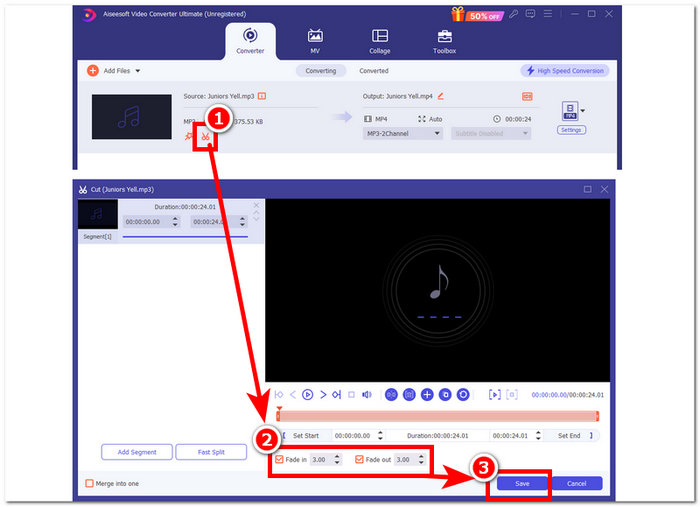
ขั้นตอนที่ 2 คลิกปุ่มรูปกรรไกร เพื่อเข้าสู่ฟังก์ชันตัดและครอบของซอฟต์แวร์ ในหน้าต่างตัดต่อ คุณจะเห็นกล่อง Fade In & Out หากต้องการใส่เอฟเฟกต์เฟดให้ไฟล์เสียง เพียงติ๊กเครื่องหมายถูกในกล่องนี้.
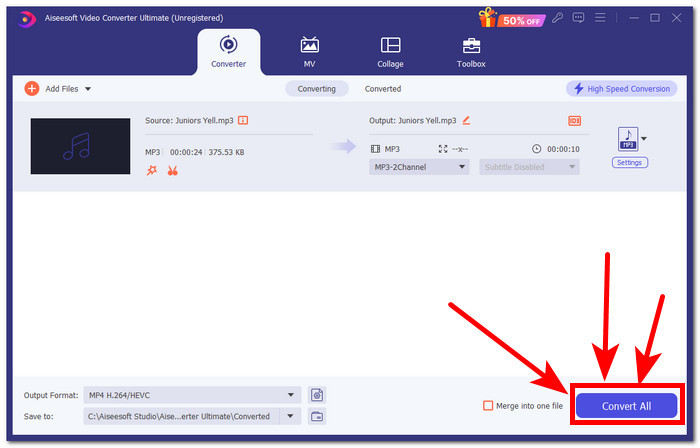
ขั้นตอนที่ 3 คลิกปุ่ม Convert All การดำเนินการนี้จะบันทึกการแก้ไขและจัดเก็บไฟล์ไว้ในโฟลเดอร์ที่กำหนดบนคอมพิวเตอร์ของคุณ เพื่อให้มั่นใจว่าการเปลี่ยนแปลงทั้งหมดถูกบันทึกไว้อย่างปลอดภัย.
ส่วนที่ 4 คำถามที่พบบ่อยเกี่ยวกับวิธีการเฟดเพลงใน iMovie
ความแตกต่างระหว่าง Fade-out กับ Fade-in คืออะไร?
การเฟดหมายถึงการค่อยๆ เพิ่มระดับเสียงขึ้นเรื่อยๆ จนเงียบสนิท ในขณะที่การเฟดออกหมายถึงการค่อยๆ ลดระดับเสียงของเสียงลงจนเงียบสนิท
iMovie มีการเฟดอินหรือเปล่า?
ใช่แล้ว iMovie มีเอฟเฟกต์เฟดอินและเฟดเอาต์ ซึ่งช่วยให้ผู้ใช้ Apple สามารถปรับเพิ่มและลดระดับเสียงในโปรเจ็กต์ของตนได้อย่างราบรื่น ดังนั้น iMovie จึงไม่เพียงแต่ใช้กับเสียงเท่านั้น แต่ยังมีเอฟเฟกต์เฟดในโปรแกรมตัดต่อวิดีโออีกด้วย
ทำไมคุณถึงใช้เฟดเอาต์?
เอฟเฟกต์เฟดเอาต์สามารถช่วยเพิ่มอรรถรสให้กับโปรเจ็กต์ได้ โดยเอฟเฟกต์นี้จะสร้างการเปลี่ยนผ่านหรือจุดจบที่ราบรื่น ป้องกันการหยุดกะทันหัน ซึ่งจะฟังไม่สบายหู โดยเฉพาะในดนตรี
สรุป
ผู้ใช้ Apple ไม่จำเป็นต้องกังวลอีกต่อไปว่าจะทำให้เพลงเฟดออกใน iMovie ได้อย่างไร เพราะ iMovie บน Mac และ iPhone สามารถทำงานลักษณะนี้ได้อย่างง่ายดาย นอกจากขั้นตอนการใส่เอฟเฟกต์เฟดให้ไฟล์เสียงที่ราบรื่นแล้ว บทความยังได้กล่าวถึงซอฟต์แวร์ทางเลือกที่ใช้เป็นตัวสำรองในกรณีที่ iMovie ทำงานผิดปกติ FVC-picked Video Converter Ultimate ช่วยให้กระบวนการทำงานรวดเร็ว ตัวโปรแกรมมีขนาดเบา ใช้งานง่าย และมาพร้อมฟังก์ชันใส่เอฟเฟกต์เฟดเข้าและเฟดออกอย่างสะดวก.
-
 วิธีง่ายๆ ในการเพิ่มข้อความลงในวิดีโอโดยใช้ iMovie บน Mac & iPhone
 ต้องการเพิ่มข้อความลงในวิดีโอโดยใช้ iMovie หรือไม่ อ่านโพสต์บล็อกทั้งหมดเพื่อเรียนรู้วิธีเพิ่มชื่อข้อความใน iMovie ของคุณด้วยขั้นตอนโดยละเอียด
-
 บทช่วยสอน iMovie - วิธีบันทึกวิดีโอและเสียงหน้าจอด้วย iMovie
 อ่านและดูขั้นตอนโดยละเอียดในการบันทึกวิดีโอด้วย iMovie หากคุณพบปัญหากับการบันทึก iMovie คุณสามารถรับ iMovie ทางเลือกฟรีสำหรับการบันทึกหน้าจอบน Windows และ Mac โดยไม่มีลายน้ำ
-
 วิธีเพิ่มลายน้ำให้กับวิดีโอใน iMovie บน Mac [All Embracing]
 คุณต้องการทราบเคล็ดลับในการเพิ่มลายน้ำให้กับวิดีโอใน iMovie หรือไม่? อย่าทำชาหกใส่ใคร และเรียนรู้โดยการอ่านบทความนี้
