


 Video Converter Ultimate
 บันทึกหน้าจอ
 ซ่อมวิดีโอ
วิธีสร้าง GIF จากรูปภาพที่คุณบันทึกไว้บนเดสก์ท็อป
เช่นเดียวกับวิดีโอ รูปภาพก็มีบทบาทสำคัญในการรวบรวมทุกช่วงเวลาที่เราอยากเก็บไว้ให้ประทับใจที่สุด และคนส่วนใหญ่ก็มักจะชอบถ่ายท้องฟ้า ผีเสื้อ พระจันทร์และดวงดาว สัตว์เลี้ยง รวมถึงตัวเราเอง ดังนั้นหากคุณอยากทำให้ภาพนิ่งของคุณเหมือนมีชีวิต ลองสร้าง GIF จากรูปภาพที่คุณถ่ายไว้เพื่อให้ได้เอฟเฟกต์ภาพที่น่าสนใจมากขึ้น เมื่ออ่านต่อไป คุณจะค้นหาเครื่องมือได้ง่ายขึ้น เพราะเราได้รวบรวมเครื่องมือบางส่วนที่คุณสามารถใช้สร้าง GIF จากรูปภาพที่อยู่ในไดรฟ์ของคุณไว้ให้แล้ว ลองดูจากลิสต์นี้และเลือกดูว่าแบบไหนคือทางออกที่ดีที่สุดสำหรับคุณในการใช้งาน.

ส่วนที่ 1 วิธีแก้ปัญหาที่ยอดเยี่ยมที่สุดในการสร้าง GIF จากรูปภาพ
Video Converter Ultimate ไม่ได้เป็นแค่โปรแกรมแปลงไฟล์ธรรมดาที่คุณใช้หรือพึ่งพาได้เท่านั้น เครื่องมือนี้ได้ช่วยเหลือผู้ใช้งานนับล้านบนโลกออนไลน์ในการแก้ปัญหาเรื่องการแปลงไฟล์ ปรับคุณภาพ สร้าง GIF จากรูปภาพหรือวิดีโอ และอื่น ๆ อีกมากมาย ดังนั้นถ้าคุณอยากให้เครื่องมือนี้ช่วย ก็ลองใช้ดูแล้วคุณจะไม่ผิดหวัง นอกจากนี้ซอฟต์แวร์ตัวนี้ยังมีฟีเจอร์ขั้นสูงอีกมากมายให้คุณลองใช้งาน ซึ่งเข้าใจได้ง่ายแม้แต่สำหรับผู้ที่ไม่มีประสบการณ์ด้านการตัดต่อ เพื่อให้คุณสามารถทำ GIF ให้ออกมาดีกว่าเครื่องมืออื่น ๆ ที่มีให้ใช้งาน.
คุณสมบัติที่สำคัญสำหรับ Video Converter Ultimate:
◆ใช้งานง่ายและเป็นมิตรกับงบประมาณ
◆มันมีคุณสมบัติขั้นสูงมากมายที่คุณสามารถใช้ได้
◆ผลลัพธ์สุดท้ายที่น่าประทับใจแม้คุณจะทึ่ง
◆ไม่จำเป็นต้องเชื่อมต่ออินเทอร์เน็ตหากคุณใช้เครื่องมือนี้
ดาวน์โหลดฟรีสำหรับ Windows 7 หรือใหม่กว่าดาวน์โหลดอย่างปลอดภัย
ดาวน์โหลดฟรีสำหรับ MacOS 10.7 หรือใหม่กว่าดาวน์โหลดอย่างปลอดภัย
ขณะที่เราสำรวจเครื่องมือนี้ต่อไป ด้านล่างนี้คือขั้นตอนเพื่อให้คุณปฏิบัติตาม อ่านอย่างระมัดระวังเพื่อให้ได้ความสมบูรณ์แบบ 100% ในการสร้าง GIF
ขั้นตอนการสร้าง GIF ด้วย Video Converter Ultimate
ขั้นตอนที่ 1. ดาวน์โหลดซอฟต์แวร์ลงเดสก์ท็อปของคุณและเลือกเวอร์ชันสำหรับ PC หรือ Mac จากนั้นติดตั้งโปรแกรมให้เรียบร้อยและตั้งค่าเบื้องต้นอย่างรวดเร็ว.
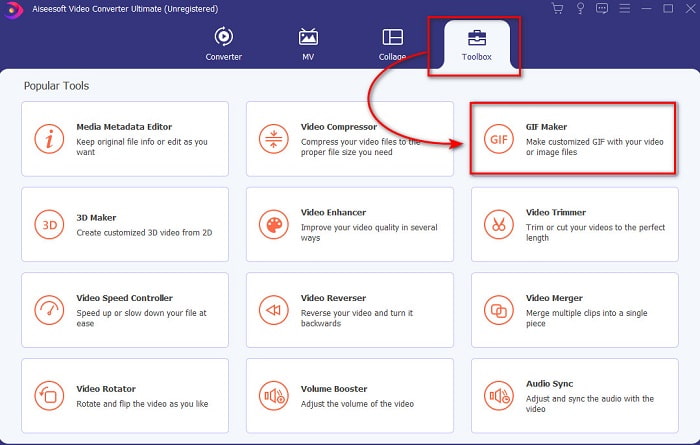
ขั้นตอนที่ 2. ไปที่เมนู Toolbox จากนั้นมองหา GIF Maker แล้วคลิกเข้าไป.
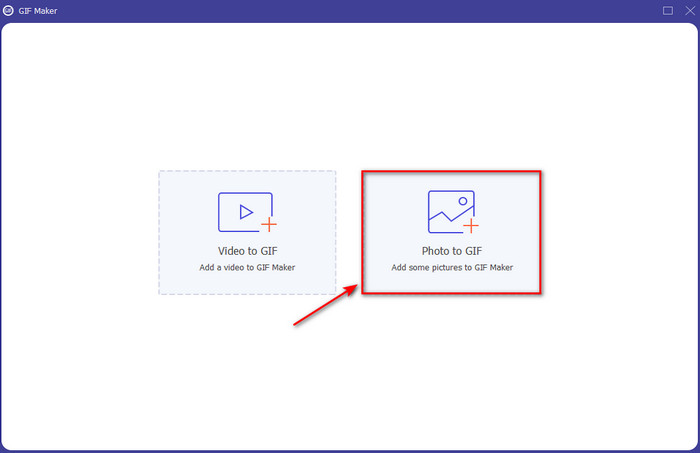
ขั้นตอนที่ 3. ก่อนที่คุณจะแปลงรูปภาพให้กลายเป็น GIF ให้คลิกที่ Photos to GIF ก่อน แล้วค้นหารูปภาพในโฟลเดอร์ที่จะแสดงขึ้นมา เลือกรูปภาพแรกแล้วคลิก Open เพื่อไปต่อ.
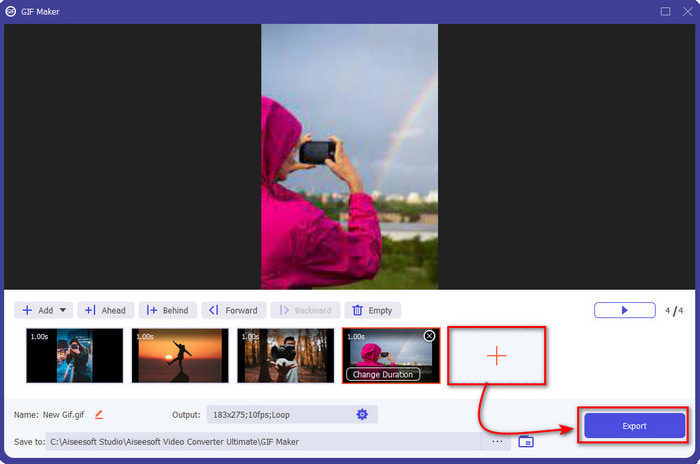
ขั้นตอนที่ 4. จากนั้นเปลี่ยนค่าใน Output Setting ที่แสดงบนหน้าจอของคุณแล้วคลิก OK เพื่อบันทึกการเปลี่ยนแปลงที่คุณทำ หรือจะข้ามไปต่อเลยก็ได้ จากนั้นคลิกปุ่ม + เพื่อเพิ่มรูปภาพที่คุณต้องการให้อยู่ใน GIF หลังจากเพิ่มรูปภาพครบแล้ว ให้กด Export เพื่อบันทึก GIF ที่คุณสร้างลงในไดรฟ์.
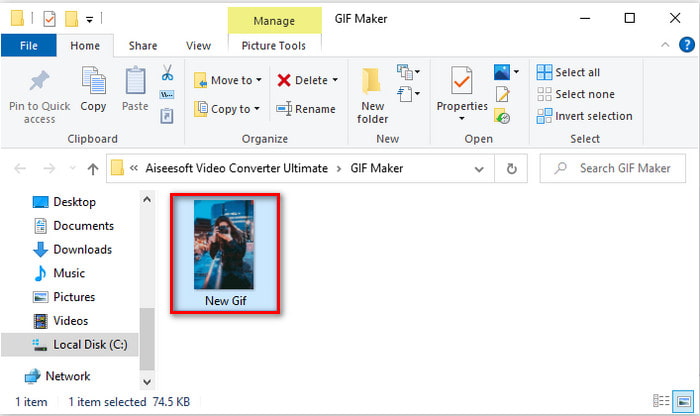
ขั้นตอนที่ 5. รอสักครู่เพื่อให้ระบบประมวลผล GIF เมื่อเสร็จแล้วจะมีหน้าต่างโฟลเดอร์เด้งขึ้นมาบนหน้าจอพร้อมกับ GIF ที่คุณสร้างเสร็จเรียบร้อย.
ส่วนที่ 2 วิธีเปลี่ยน GIF จากรูปภาพด้วยเครื่องมือออนไลน์
1.Imgflip
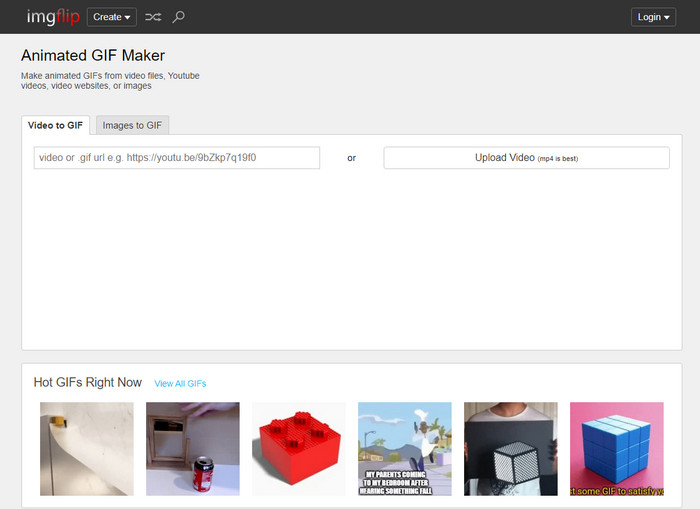
หนึ่งในเว็บทูลที่คุณเข้าใช้งานได้ฟรีคือ Imgflip. หากคุณเข้าไปที่หน้าเว็บหลักของเครื่องมือนี้ คุณจะเห็น GIF สำเร็จรูปจำนวนมากให้เลือกใช้ นอกจากนี้คุณไม่ได้ทำแค่แปลงรูปภาพเป็น GIF ได้เท่านั้น แต่ยังสามารถสร้างมีม แผนภูมิ และวิดีโอแนวดำดิ่งกำลังใจ (demotivational) ได้ด้วย อย่างไรก็ตาม เว็บทูลนี้จะให้ผู้ใช้เข้าถึงฟีเจอร์ได้ค่อนข้างจำกัด แม้ว่าอาจมีโฆษณาปรากฏบ้าง แต่ก็ยังถือว่าจัดการได้สำหรับผู้ใช้ทั่วไป และหน้าตาเว็บก็จะเรียบ ๆ ดูจืดตา แทบไม่มีสีอื่นเลย นอกจาก GIF ที่โพสต์ไว้กับแถบด้านบน.
2. GIPHY
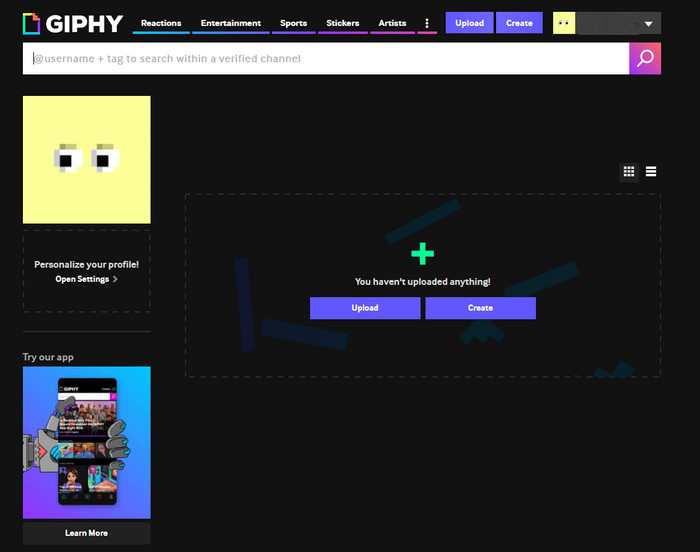
ถ้า Imgflip มีคลัง GIF สำเร็จรูปของตัวเอง แต่ก็ยังไม่ใหญ่เท่ากับ GIPHY. เครื่องมือนี้มีไลบรารี GIF ของตัวเองให้คุณเลือกใช้เช่นเดียวกับ Imgflip แต่ถือว่าดีกว่า อินเทอร์เฟซของเว็บทูลดูหรูหราและเป็นระเบียบกว่าที่อื่นที่กล่าวถึงในที่นี้ แต่ก่อนที่คุณจะเรียนรู้วิธีสร้าง GIF จากรูปภาพ คุณต้องสมัครสมาชิกก่อน ซึ่งเมื่อสมัครแล้ว คุณจะได้รับอีเมลอัปเดตจากเว็บทูลจำนวนมากที่อาจน่ารำคาญ รวมถึงข้อความต่าง ๆ ที่บอกว่าเครื่องมือ “คิดถึงคุณ” หากคุณไม่ได้เข้าใช้งานมานาน.
3.FreeGIFMaker.me
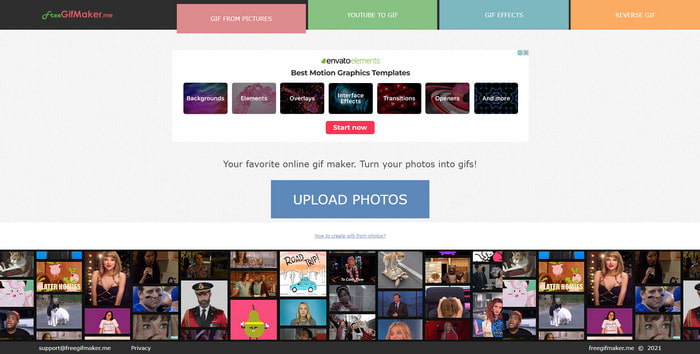
อีกหนึ่งเครื่องมือออนไลน์ที่คุณใช้สร้าง GIF ได้ฟรีคือ FreeGIFMaker.me. ต่างจากเว็บทูลสองตัวแรก เครื่องมือนี้ไม่มีคลัง GIF สำเร็จรูปจำนวนมากให้เลือกใช้ โดยหลัก ๆ จะเน้นที่การสร้าง GIF จากรูปภาพ เพิ่มเอฟเฟกต์ง่าย ๆ และการเล่นย้อนกลับ แม้ว่าเครื่องมือนี้จะเหมาะกับผู้ที่ไม่อยากสมัครสมาชิกก่อนใช้งาน แต่ประสบการณ์ในการสร้าง GIF ที่น่าประทับใจยังคงจำกัดอยู่ และเมื่อคุณบันทึกไฟล์ลงดิสก์ คุณภาพของภาพก็จะลดลง เช่น ถ้าคุณใส่รูปภาพขนาด 1080 พิกเซล ก็ให้คาดไว้เลยว่าขนาดจะลดลงเหลือราว ๆ 720 หรืออาจต่ำกว่านั้น.
ส่วนที่ 3 คำถามที่พบบ่อยเกี่ยวกับการสร้าง GIF จากรูปภาพ
ฉันสามารถแก้ไข GIF ที่สร้างไว้ล่วงหน้าได้หรือไม่
แน่นอนว่า การตัดต่อคือส่วนหนึ่งของขั้นตอนหลังการผลิตในทุกโปรเจกต์ที่คุณทำ ส่วนนี้มีความสำคัญเพื่อให้คุณสร้าง GIF ที่ชาญฉลาด น่าทึ่ง สร้างแรงบันดาลใจ และอื่น ๆ ได้ตามต้องการ ดังนั้นหากคุณคลิกลิงก์นี้ คุณจะพบกับรายการ9 อันดับซอฟต์แวร์ตัดต่อ GIF เคลื่อนไหวที่ดีที่สุด ที่คุณสามารถใช้เพื่ออัปเกรดเอฟเฟกต์ภาพของ GIF ของคุณได้.
จะลดขนาด GIF ของฉันได้อย่างไร
ส่วนใหญ่แล้ว ขนาดไฟล์ GIF จะใหญ่เพราะระยะเวลาการเล่นของ GIF ที่คุณสร้าง หากต้องการหลีกเลี่ยงปัญหานี้ คุณสามารถตัดระยะเวลาของ GIF ให้สั้นลง หรือจะดีกว่าหากคุณบีบอัดไฟล์ ดังนั้นหากต้องการเรียนรู้วิธีบีบอัด GIF ให้เข้าไปที่ลิงก์ที่เตรียมไว้ให้.
GIF ถือเป็นรูปแบบวิดีโอหรือรูปภาพหรือไม่
แม้ว่าจะดูสับสนเพราะ GIF เคลื่อนไหวแบบเคลื่อนไหวเป็นชุด แต่รูปแบบนี้ก็ยังถือว่าเป็นรูปแบบรูปภาพ
สรุป
เมื่อจบการสำรวจนี้ จะเห็นได้ชัดเจนมากขึ้นว่าเครื่องมือต่าง ๆ ที่นำเสนอในบทความนี้ เหมาะกับการใช้งานของคุณ ช่วยให้คุณทำให้ภาพนิ่งมีชีวิตขึ้นมาเหมือนศิลปิน ซึ่งเป็นสิ่งที่เราให้ความสำคัญที่สุดในการคัดเลือกเครื่องมือโดยอ้างอิงจากมาตรฐานที่ผู้อ่านต้องการ อย่างไรก็ตาม ไม่ใช่ทุกเครื่องมือที่มาพร้อมฟีเจอร์ตัดต่อระดับสุดยอดเหมือนกับ Video Converter Ultimate. แม้ว่าเครื่องมือนี้จะมีฟีเจอร์ขั้นสูงจำนวนมาก แต่ก็ยังใช้งานได้ง่ายสำหรับผู้ใช้ที่อยากเรียนรู้วิธีเปลี่ยนรูปภาพให้กลายเป็น GIF ดังนั้นหากคุณยังตัดสินใจไม่ได้ เราแนะนำให้เลือกใช้ตัวที่ดีที่สุดอย่างโปรแกรมตัวนี้.
-
 เปลี่ยน GIF เป็นรูปแบบวิดีโอ: แปลง GIF Memes เป็นวิดีโอ [2021]
 กำหนดวิธีการแปลง GIF เป็นรูปแบบวิดีโอด้วยความช่วยเหลือของเครื่องมือที่แสดงด้านล่าง เลือกข้อใดและเรียนรู้วิธีดำเนินการ เนื่องจากเรารวบรวมหลักฐานเพียงพอ
-
 แอพ GIF ที่ยอดเยี่ยมสำหรับวิดีโอสำหรับอุปกรณ์ Android และ iOS
 คุณรู้หรือไม่ว่าคุณสามารถแปลง GIF เป็นรูปแบบวิดีโอใดก็ได้ที่คุณต้องการโดยใช้โทรศัพท์ของคุณ เลือกแอพที่ดีที่สุดบน Android หรือ iOS ของคุณ
-
 คำแนะนำง่ายๆ เกี่ยวกับวิธีการเปลี่ยน GIF ของคุณเป็น WMV บน Windows/Mac
 คุณต้องการทราบวิธีการแปลงรูปแบบ GIF เป็น WMV หรือไม่? จากนั้นทำตามบทความนี้เนื่องจากจะแสดงโซลูชันต่างๆ ที่คุณสามารถเลือกได้
