


 Video Converter Ultimate
 บันทึกหน้าจอ
 ซ่อมวิดีโอ
สร้างผลงานชิ้นเอกด้วยความช่วยเหลือของ GIF Speed Changer
ใกล้จะเที่ยงคืนแล้ว และคุณอยากอวยพรวันเกิดให้เพื่อนของคุณ ในฐานะเพื่อนที่ดี คุณอยากให้เขาจดจำคุณได้ในวันพิเศษนี้แม้คุณจะไม่ได้อยู่ด้วยกัน คุณจึงกำลังหาภาพ GIF ที่เข้ากับข้อความยาว ๆ ที่คุณเตรียมไว้ แต่ GIF ในโทรศัพท์หรือคอมพิวเตอร์ของคุณกลับดูไม่ตื่นเต้นเท่าไหร่ นั่นจึงทำให้คุณไม่รู้จะทำอย่างไร และเริ่มคิดว่าจะปรับความเร็วของ GIF อย่างไร ลองอ่านบทความด้านล่างเพื่อทำความเข้าใจให้กระจ่าง โดยเฉพาะในสถานการณ์เร่งด่วน ว่าควรทำอะไรได้บ้าง และมีวิธีไหนที่จะช่วยแก้ปัญหาข้างต้นได้.

ส่วนที่ 1 วิธีเพิ่มความเร็วของ GIF อย่างมืออาชีพ [ชำระเงิน]
Video Converter Ultimate เป็นซอฟต์แวร์ที่ดาวน์โหลดได้ฟรีในแพ็คเกจทั้งหมด ซึ่งมีความสามารถในการปรับความเร็วของ GIF ด้วยการใช้เครื่องมือ Video Speed Controller นอกจากนี้ยังมีเครื่องมือมากมายที่จะช่วยคุณแปลงและแก้ไข GIF นอกจากนี้ เครื่องมือทั้งหมดยังใช้งานง่ายและมีเทมเพลตที่พร้อมใช้งานเพื่อปรับปรุงภาพรวมภาพยนตร์ของ GIF ของคุณ Video Converter Ultimate พร้อมใช้งานบน Windows และ Mac
ข้อดี
- นำเสนอเครื่องมือที่ใช้งานง่ายและคุณสมบัติอื่นๆ
- ให้ผลผลิตคุณภาพสูง
จุดด้อย
- จำเป็นต้องซื้อคุณสมบัติอื่น ๆ เพื่อเข้าถึงแบบเต็ม
ขั้นตอนที่ 1: ดาวน์โหลดซอฟต์แวร์ได้โดยคลิกปุ่ม ดาวน์โหลดฟรี จากนั้นตั้งค่าและติดตั้งโปรแกรมตามต้องการ.
ดาวน์โหลดฟรีสำหรับ Windows 7 หรือใหม่กว่าดาวน์โหลดอย่างปลอดภัย
ดาวน์โหลดฟรีสำหรับ MacOS 10.7 หรือใหม่กว่าดาวน์โหลดอย่างปลอดภัย
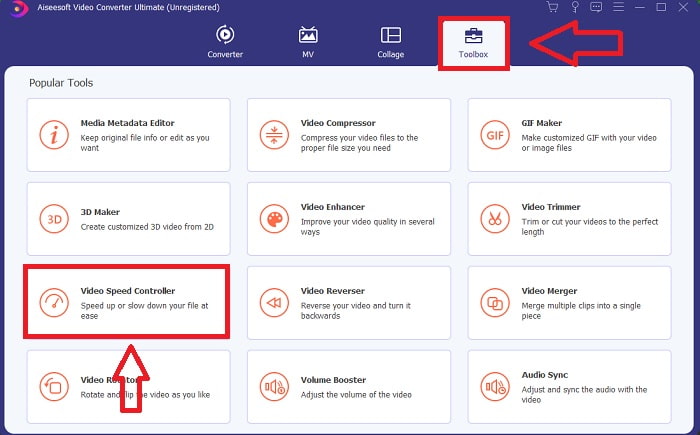
ขั้นตอนที่ 2: หลังจากติดตั้งซอฟต์แวร์แล้ว ให้ไปที่ฟีเจอร์ Toolbox แล้วเลือก Video Speed Controller.
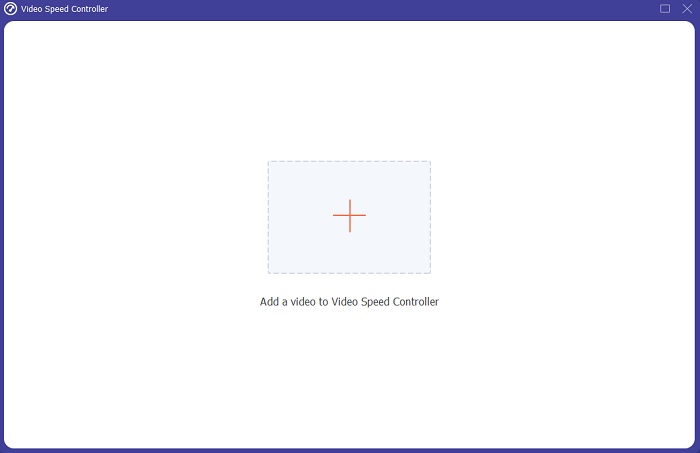
ขั้นตอนที่ 3: กดปุ่ม + ตามต้องการเพื่อเพิ่มไฟล์ GIF ใด ๆ แล้วดำเนินการแก้ไขวิดีโอต่อไป.
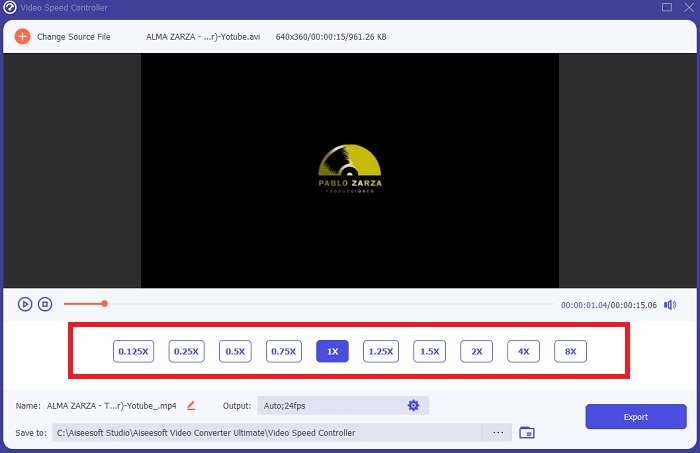
ขั้นตอนที่ 4: จากนั้นคุณสามารถปรับความเร็วของวิดีโอได้โดยเพิ่มหรือลดความเร็วการเล่น.
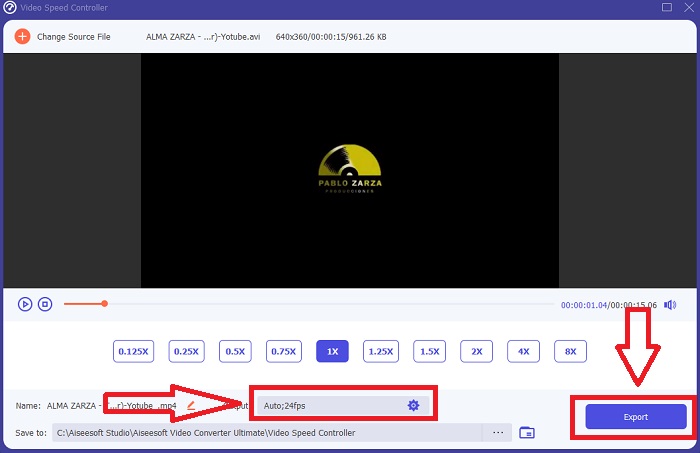
ขั้นตอนที่ 5: หลังจากคุณแก้ไขความเร็วการเล่นของคลิปวิดีโอเสร็จแล้ว คุณสามารถเลือกผลลัพธ์ที่ต้องการได้โดยเปลี่ยนรูปแบบ ความละเอียด และคุณภาพ รวมถึงตัวเลือกอื่น ๆ เมื่อพร้อมแล้วให้คลิก Export และเลือกตำแหน่งจัดเก็บผลงานของคุณ.
ส่วนที่ 2 วิธีอื่นในการเพิ่มความเร็ว GIF [ฟรี]
วิธีเพิ่มความเร็วของ GIF โดยใช้ ImageOnline.co
คุณสามารถสร้างภาพ Gif ด้วยเครื่องมือที่ใช้งานได้ฟรีนี้อย่างง่ายดาย ตราบใดที่คุณสามารถเข้าถึงคอมพิวเตอร์และเว็บเบราว์เซอร์ได้ นอกจากนี้ เครื่องมือนี้ไม่ได้ใช้งานง่ายเพียงเป็นเครื่องมือแก้ไขความเร็ว GIF เท่านั้น ไม่มีการจำกัดจำนวนภาพ gif ที่คุณสามารถสร้างโดยใช้เครื่องมือเว็บนี้ คุณสามารถสร้างภาพ gif ได้โดยไม่มีข้อจำกัด และความแม่นยำของเรายังคงที่ตลอด
ข้อดี
- สามารถเข้าถึงได้โดยผู้ใช้ที่หลากหลาย
- มีคุณสมบัติมากมายในการใช้งาน
- มันมีบันทึกเพื่อติดตามในการใช้แต่ละคุณสมบัติ
จุดด้อย
- อินเทอร์เฟซมีโฆษณาและโฆษณามากมาย
- อินเทอร์เฟซง่ายเกินไป
ขั้นตอนที่ 1: ค้นหา GIF Image Tools ที่มุมซ้ายของหน้าต่างโปรแกรม แล้วคลิก Make GIF animations.
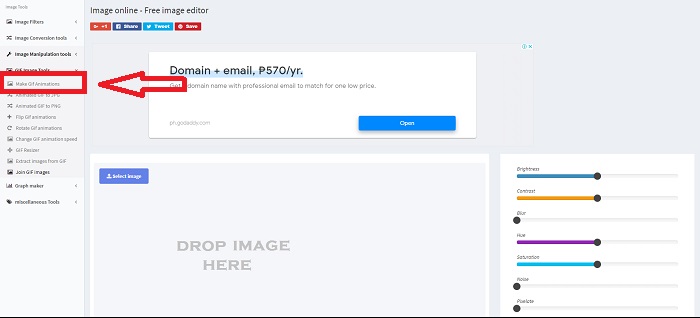
ขั้นตอนที่ 2: เลือกรูปภาพจากเดสก์ท็อปของคุณโดยคลิก Select Image หรือคุณสามารถลากไฟล์มาวางที่หน้าเว็บก็ได้.
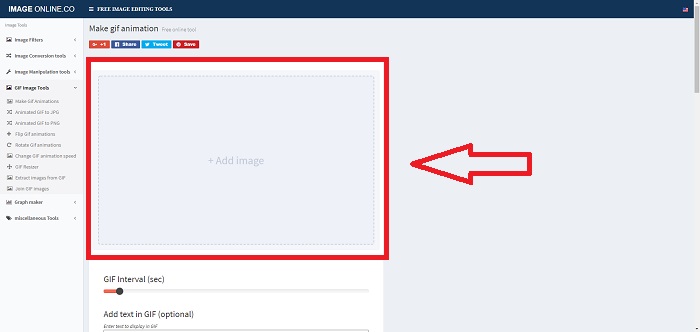
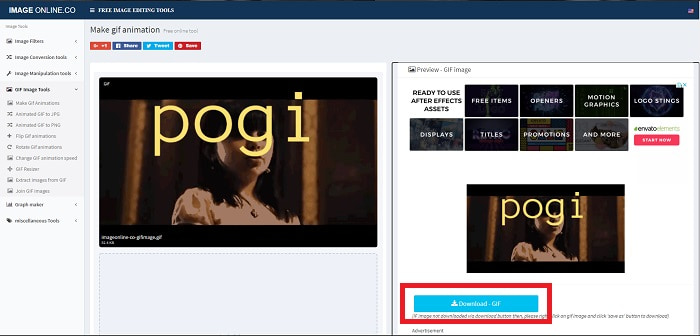
ขั้นตอนที่ 3: ปรับช่วงเวลา (time interval) ของ GIF ด้วยการลาก Slider คุณยังสามารถเพิ่มข้อความลงใน GIF หรือปรับขนาดโดยกำหนดมิติใหม่ได้ หากทุกอย่างเรียบร้อยแล้วให้คลิก Apply Changes จากนั้นคลิก Download เพื่อบันทึกไฟล์ลงในคอมพิวเตอร์ของคุณ.
วิธีเพิ่มความเร็วของ GIF โดยใช้ LunaPic
เครื่องมือเว็บนี้เป็นเครื่องมือแก้ไขงบประมาณต่ำที่ครอบคลุมเครื่องมือต่างๆ ที่มีให้สำหรับเครื่องมือเว็บที่ใช้งานได้ฟรี ซึ่งสามารถให้การแก้ไขเปอร์สเปคทีฟแบบมืออาชีพแก่คุณ การแก้ไขกลายเป็นเศษขนมปัง และมอบประสบการณ์ที่ยอดเยี่ยมให้กับบรรณาธิการมืออาชีพบางคน เนื่องจากเครื่องมือเว็บนี้ครอบคลุมรูปแบบและโซเชียลมีเดียส่วนใหญ่ที่มีอยู่ คุณจะเห็นเครื่องมือต่างๆ ที่เครื่องมือเว็บอื่นๆ ไม่มีให้บริการ อินเทอร์เฟซเรียบง่ายและปรับแต่งได้ตามความต้องการของผู้ใช้ทุกคน
ข้อดี
- มันมีเครื่องมือมากมายที่จะใช้ในการแก้ไข
- บรรณาธิการอย่างมืออาชีพ
จุดด้อย
- เครื่องมือบางอย่างต้องการคำชี้แจงหรือคำอธิบายเพื่อให้ผู้ชมหรือผู้ใช้ทั่วไปทราบ
- มันซับซ้อนที่จะใช้สำหรับผู้ใช้ระดับเริ่มต้น
ขั้นตอนที่ 1: คลิกแท็บ Upload ที่มุมซ้ายบนของหน้าเว็บ แล้วเพิ่มไฟล์ด้วยการคลิก Choose file.
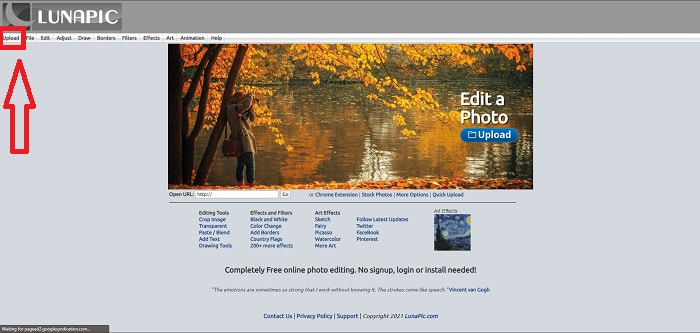
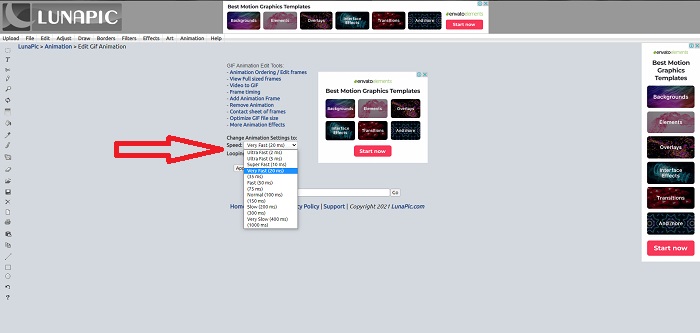
ขั้นตอนที่ 2: คุณสามารถเริ่มแก้ไข GIF ได้ทันทีจากหน้าจอแรกหลังอัปโหลดไฟล์ แต่ถ้าต้องการเพิ่มความเร็วของ GIF ให้ไปที่แท็บ Animations จากนั้นคลิก Edit GIF Animation.
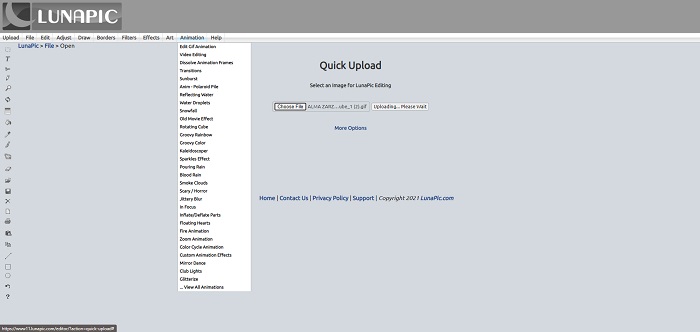
ขั้นตอนที่ 3: ปรับความเร็วโดยเลือกความเร็วการเล่นของ GIF เมื่อเลือกความเร็วเสร็จแล้วให้คลิก Apply ใต้หน้าตัวอย่าง GIF ของคุณ ให้คลิก More Options และเลือกฟอร์แมตที่คุณต้องการใช้กับ GIF.
วิธีเพิ่มความเร็วของ GIF โดยใช้ GIFntext
นอกจากนี้ยังเป็นเครื่องมือเว็บที่ใช้งานได้ฟรีซึ่งมีเครื่องมือแก้ไขต่างๆ และเกี่ยวข้องกับการเพิ่มความเร็วและการชะลอความเร็วของ GIF เครื่องมือเว็บนี้ใช้งานง่าย และไม่เหมือนกับเครื่องมือเว็บอื่นๆ Gifntext รองรับ GIF URL และให้บทแนะนำเกี่ยวกับวิธีการใช้เครื่องมือเด่นที่มีอยู่ในเครื่องมือเว็บ นอกจากนี้ยังไม่ทิ้งลายน้ำบนไฟล์วิดีโอที่ส่งออกซึ่งอาจนำไปสู่เทคนิคการโฆษณา
ข้อดี
- อินเทอร์เฟซไม่มีโฆษณาและโฆษณา
- มีการสอนวิธีใช้เครื่องมือต่างๆ
จุดด้อย
- มันมีเครื่องมือน้อยกว่าที่จะใช้ในการแก้ไข
- มันแปลงช้ากว่าเครื่องมืออื่นๆ
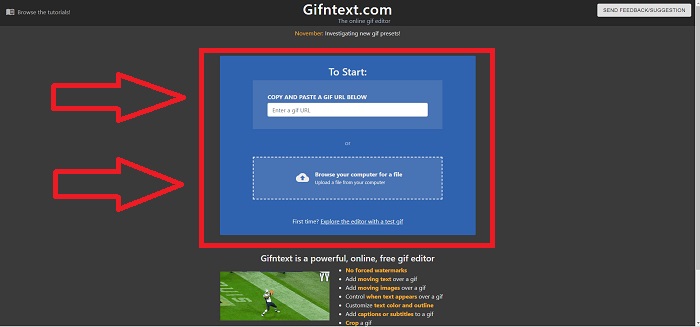
ขั้นตอนที่ 1: บนหน้าอินเทอร์เฟซหลัก คุณสามารถเลือกได้ว่าจะอัปโหลดด้วย URL ของ GIF หรือเลือกไฟล์ GIF จากเดสก์ท็อปของคุณ.
ขั้นตอนที่ 2: แก้ไขความเร็วโดยลาก Slider.
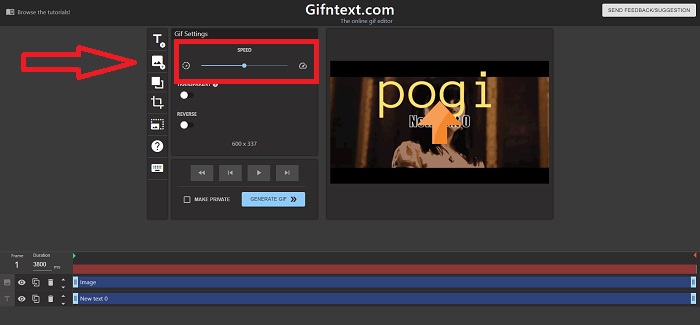
ขั้นตอนที่ 3: คลิก Generate GIF เพื่อประมวลผล GIF ของคุณ รอจนการประมวลผลเสร็จสิ้น จากนั้นคลิก Download GIF เพื่อดาวน์โหลด.
ส่วนที่ 3 คำถามที่พบบ่อยเกี่ยวกับ GIF Speed Changer
GIF คืออะไร?
เนื่องจากการรองรับและความสะดวกในการพกพา ทำให้รูปแบบไฟล์กราฟิกอินเตอร์เชนจ์ (Graphic Interchange Format หรือย่อว่า GIF) ถูกใช้กันอย่างแพร่หลายในอินเทอร์เน็ต ในรูปแบบ GIF แต่ละเฟรมสามารถใช้พาเลตต์สีได้สูงสุด 256 สี ข้อจำกัดด้านพาเลตต์ของ GIF ทำให้มันไม่เหมาะเท่าฟอร์แมตอื่น ๆ เช่น JPEG สำหรับภาพที่มีความซับซ้อนมากขึ้น ทั้งในแง่การแสดงภาพถ่ายสีหรือภาพประกอบที่มีการไล่เฉดสี.
ฉันจะแปลง MP4 เป็น GIF ได้อย่างไร
ไฟล์วิดีโอรูปแบบอื่นบางชนิดไม่สามารถแปลงเป็น GIF ได้ แต่เนื่องจาก MP4 เป็นไฟล์วิดีโอมาตรฐาน จึงมีบทความเกี่ยวกับการแปลง MP4 เป็น GIF.
ฉันจะสูญเสียคุณภาพหรือไม่หากฉันแปลงรูปแบบอื่นเป็น GIF
การแปลงไฟล์วิดีโอทุกฟอร์แมตให้เป็น GIF สามารถทำให้คุณภาพวิดีโอลดลงได้ เพราะการทำ GIF จำเป็นต้องบีบอัดไฟล์ แต่ก็มีโปรแกรมแปลงบางตัวที่สร้าง GIF โดยลดการเสื่อมคุณภาพของวิดีโอได้ Video Converter Ultimate สามารถให้ผลลัพธ์คุณภาพสูงในการสร้าง GIF รวมถึงการปรับความเร็วของ GIF ให้เร็วขึ้นได้อย่างมีประสิทธิภาพ.
สรุป
ตลอดทั้งบทความ เราทราบดีว่า GIF เป็นรูปแบบที่ต้องทำให้ช้าลงและเพิ่มความเร็วในการแสดงภาพหรือข้อความ เนื่องจาก GIF ไม่มีเสียง มีหลายวิธีที่จะทำได้ทั้งแบบฟรีและแบบชำระเงิน เครื่องมือเว็บและซอฟต์แวร์เหล่านี้เน้นการแก้ไขในระดับต่อไป แต่ถ้าคุณต้องการเข้าถึงซอฟต์แวร์แก้ไขเพื่อให้การเชื่อมต่ออินเทอร์เน็ตไม่ก่อให้เกิดปัญหาในการใช้งาน ดาวน์โหลด Video Converter Ultimate และใช้เป็นโปรแกรมแก้ไขและเชื่อถือได้ในรูปแบบคลิปวิดีโออื่น ๆ เช่น GIF
-
 5 ตัวเลือกที่ดีที่สุดในการบันทึกรูปแบบ GIF ด้วยเครื่องบันทึก GIF สำหรับพีซีและ Mac
 เครื่องบันทึก GIF ที่ดีที่สุดที่คุณควรใช้บันทึก GIF คืออะไร รายการด้านล่างแสดงหลักฐานว่าเครื่องบันทึกหน้าจอใดดีที่สุด
-
 วิธีแปลงไฟล์ MPG เป็นรูปแบบ GIF [ออนไลน์และออฟไลน์]
 ต้องการแสดงอารมณ์ที่ดีขึ้นหรือไม่? จากนั้นคุณต้องใช้ GIF แทน บทความนี้จะสอนวิธีแปลงไฟล์ MPG เป็น GIF เพื่อแสดงความรู้สึกของคุณได้ดีขึ้นมาก
-
 [อัปเดตปี 2025] 9 โปรแกรมแก้ไข GIF ที่ดีที่สุดสำหรับ PC, Mac, iOS และ Android
 ต้องการเพิ่มความรู้สึกส่วนตัวบน GIF เพื่อให้สามารถแสดงออกได้มากขึ้นหรือไม่? อ่านบทความนี้ต่อเพื่อทราบวิธีการแก้ไขและเครื่องมือที่ดีที่สุดสำหรับงาน
