


 Video Converter Ultimate
 บันทึกหน้าจอ
 ซ่อมวิดีโอ
GIF ที่เข้าถึงได้ดีที่สุดเพื่อแปลงวิดีโอบนอุปกรณ์ดิจิทัล [2021]
GIF เป็นเครื่องมือสร้างมีมที่เป็นที่รู้จักกันดีสำหรับอุปกรณ์ Android และ iOS แม้ว่าจะมีชื่อเสียงในลักษณะนี้ แต่แพลตฟอร์มบางอย่างเช่น Instagram และ Twitter ก็ไม่ยอมรับไฟล์รูปแบบนี้ แทนที่จะใช้ GIF เราจึงใช้รูปแบบอื่นที่รองรับ เช่น MOV, MP4, AVI และอื่น ๆ แม้กระนั้น เราก็ยังสามารถแปลงไฟล์และคงคุณภาพเดียวกับ GIF เอาไว้ได้ ดังนั้นหากคุณพร้อมจะเริ่มแปลงไฟล์และอยากรู้ว่าแอปไหนคือแอปทำวิดีโอจาก GIFที่ดีที่สุด ก็อ่านบทความนี้ต่อไปเพื่อดูว่าคุณควรใช้เครื่องมือใดในการแปลงไฟล์ GIF ให้เป็นวิดีโอรูปแบบใหม่ได้บ้าง.

ส่วนที่ 1 2 GIF ที่ดีที่สุดเพื่อโปรแกรมแปลงวิดีโอสำหรับ iOS
1. GIF เป็น MP4
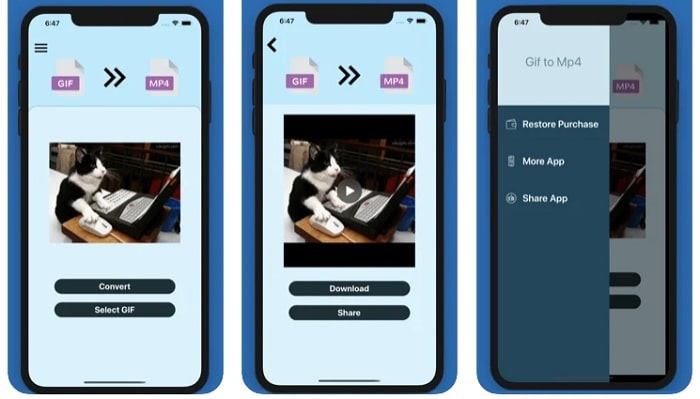
คุณสามารถใช้แอปทำวิดีโอจาก GIFนี้บน iOS ได้ GIF to MP4 มีคะแนนรีวิว 4.7 ดาว ซึ่งหมายความว่าเป็นตัวแปลง GIF ที่ดีมาก เครื่องมือนี้ใช้งานได้ตรงจุด จนแม้ว่าคุณจะไม่เคยมีประสบการณ์แปลงไฟล์มาก่อนก็ยังใช้งานได้ แต่ถึงแม้จะได้คำชมมากมาย บริการลูกค้ากลับแย่มาก แทบไม่มีการตอบกลับข้อสงสัยของผู้ใช้เพื่อพัฒนาเครื่องมือเลย ดังนั้นหากคุณมีคำถามเกี่ยวกับแอปนี้ คุณสามารถคอมเมนต์ทิ้งไว้ด้านล่างได้ แต่ไม่ต้องคาดหวังว่าจะได้รับคำตอบอย่างรวดเร็ว.
2. GIF Cracker - GIF เป็นวิดีโอ
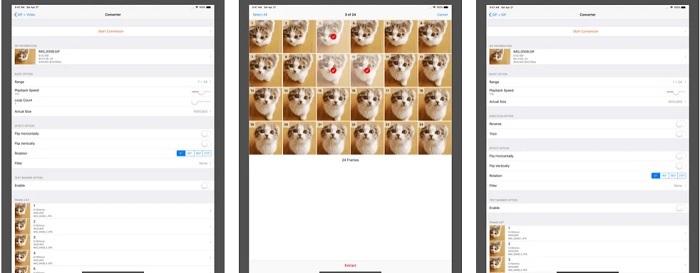
อีกหนึ่งเครื่องมือบน iOS ที่คุณสามารถใช้แปลง GIF เป็นวิดีโอรูปแบบใดก็ได้ตามต้องการก็คือ GIF Cracker เครื่องมือนี้รองรับรูปแบบไฟล์ได้มากกว่าแอปแรก นอกจากนี้ยังสามารถแปลง GIF เป็นรูปภาพได้ด้วย ดังนั้นหากคุณอยากได้ไฟล์ JPG จาก GIF ก็ใช้แอปนี้ได้ เมื่อมองเผิน ๆ เหมือนแอปจะสมบูรณ์แบบ แต่จริง ๆ แล้วยังมีบักอยู่บ้าง บางปัญหาย่อย ๆ ได้รับการแก้ไขแล้วแต่ก็ไม่ทั้งหมด อย่างไรก็ตาม คุณสามารถซื้อเวอร์ชันโปรเพื่อประสบการณ์ใช้งานที่ดียิ่งขึ้น.
ส่วนที่ 2 3 GIF ที่ดีที่สุดเพื่อโปรแกรมแปลงวิดีโอสำหรับ Android
1. GIF Maker - วิดีโอเป็น GIF, GIF Editor
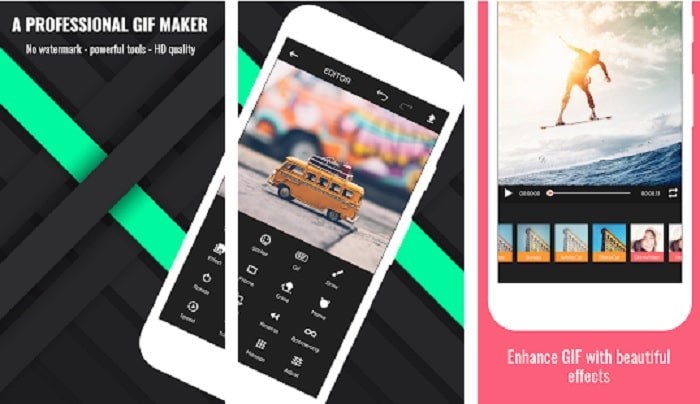
คุณสามารถใช้แอปทำวิดีโอจาก GIFนี้ได้ และไม่เพียงเท่านั้น ยังรองรับฟีเจอร์การตัดต่อภาพเคลื่อนไหวด้วย ทำให้คุณสร้าง GIF บนมือถือได้โดยตรง ฟีเจอร์ระดับเดสก์ท็อปบางอย่างไม่ถูกยกมาเพราะขนาดค่อนข้างใหญ่ นอกจากนี้คุณยังสามารถสร้าง GIF ของตัวเองได้ด้วยเอฟเฟกต์มากกว่า 30 แบบ ความถี่ 20fps ต่อภาพ ใส่อีโมจิหรือข้อความ และตัดต่อความยาววิดีโอได้ด้วย แต่ในแอปจะมีโฆษณา หากต้องการลบโฆษณา คุณจำเป็นต้องซื้อแอปตัวเต็ม.
2. GIF เป็นวิดีโอ
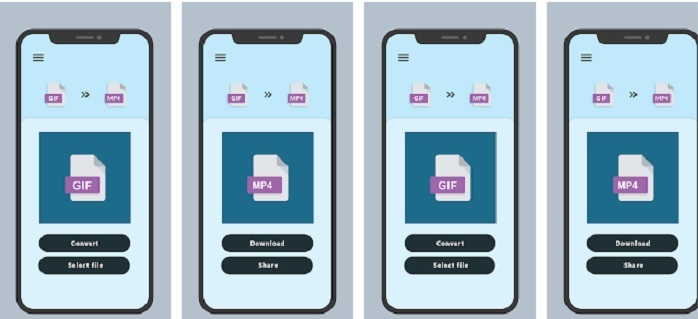
นี่คือหนึ่งในเครื่องมือที่ดีที่สุดในการแปลง GIF เป็นรูปแบบใหม่ เลือก GIF ใดก็ได้จากแกลเลอรีของคุณแล้วแปลงทั้งหมดด้วย GIF to VIDEO เช่นเดียวกับเครื่องมือแรกบน iOS ด้านบน แอปนี้รองรับการแปลงจาก GIF เป็น MP4 เพียงรูปแบบเดียว แต่คุณสามารถแปลง GIF ได้อย่างง่ายดายด้วยความช่วยเหลือของเครื่องมือที่สั่งงานได้ตรงจุด เน้นเฉพาะการแปลงไฟล์เท่านั้น นอกจากนี้ แอปนี้เพิ่งได้รับการอัปเดตล่าสุดจากผู้พัฒนา RAYO INNOVATIONS PRIVATE LIMITED.
3. GIF2VIDEO- แปลง GIF เป็น VIDEO
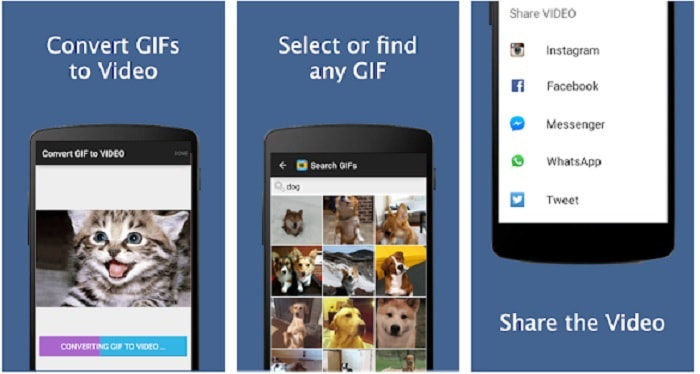
แปลง GIF ของคุณให้เป็นวิดีโอรูปแบบใหม่ที่สามารถแชร์บนแพลตฟอร์มอื่นได้อย่างถูกต้อง นอกจากนี้คุณยังค้นหา GIF ได้ง่ายผ่านแถบค้นหาด้วยความช่วยเหลือของ GIF2VIDEO อีกด้วย คุณยังสามารถตั้งค่าวิดีโอเอาต์พุตให้เป็นอัตราส่วน 1:1 หรือ 4:3 ได้อย่างง่ายดาย ถึงแม้ว่าแอปนี้จะทำงานได้ดีในด้านการแปลงไฟล์ แต่หน้าตาอินเทอร์เฟซยังต่ำกว่ามาตรฐานอยู่บ้าง บางครั้งคุณไม่สามารถดาวน์โหลด GIF ได้ และแม้จะดาวน์โหลดได้คุณภาพก็อาจลดลง.
ส่วนที่ 3 GIF ที่แนะนำเพื่อแปลงวิดีโอบน Windows หรือ Mac
ตัวอย่างเช่น หากคุณต้องการวิธีการแปลงที่แม่นยำยิ่งขึ้น และต้องการเพิ่มสัมผัสพิเศษของคุณเองลงในวิดีโอ คุณสามารถใช้เครื่องมือ Video Converter Ultimate ที่มีอยู่ใน PC และ Mac และต้องทำตามขั้นตอนตามลำดับที่เหมาะสม
เป็นที่ยอมรับกันว่าโทรศัพท์มือถือในยุคนี้เปรียบเสมือนคอมพิวเตอร์ขนาดเล็ก แต่ไม่ใช่ว่าแอปทั้งหมดบนมือถือจะมีเวอร์ชันสำหรับคอมพิวเตอร์ หรือในทางกลับกัน Video Converter Ultimate แอปแปลง GIF เป็นวิดีโอสำหรับคอมพิวเตอร์ ถือว่าเหนือกว่าตัวแปลงทุกตัวที่มีบน Play Store หรือ App Store ซอฟต์แวร์บนมือถือไม่สามารถทำงานได้มากไปกว่าการแปลงไฟล์ แต่โปรแกรมนี้ทำได้มากกว่านั้น เพราะยังช่วยปรับปรุงคุณภาพวิดีโอและเสียงระหว่างการสร้างหรือหลังจากนั้นได้อีกด้วย ดังนั้นหากคุณอยากสัมผัสว่ามันทรงพลังแค่ไหน คุณต้องทำตามขั้นตอนด้านล่างนี้อย่างเคร่งครัด เพราะแต่ละขั้นตอนล้วนสำคัญต่อการแปลงไฟล์ให้สมบูรณ์แบบตามที่คุณต้องการ.
ขั้นตอนที่ 1. ดาวน์โหลดโปรแกรมลงคอมพิวเตอร์ของคุณ ปรับการตั้งค่าตามต้องการ แล้วคลิก Finish เพื่อบันทึกการตั้งค่า.
ดาวน์โหลดฟรีสำหรับ Windows 7 หรือใหม่กว่าดาวน์โหลดอย่างปลอดภัย
ดาวน์โหลดฟรีสำหรับ MacOS 10.7 หรือใหม่กว่าดาวน์โหลดอย่างปลอดภัย
ขั้นตอนที่ 2. เปิดโปรแกรมบนเดสก์ท็อปของคุณ คลิกปุ่ม Add Files เพื่อเพิ่มไฟล์ แต่หากคุณมี GIF มากกว่าสองไฟล์ แนะนำให้ใช้วิธีลากแล้ววางลงบนอินเทอร์เฟซของโปรแกรมจะสะดวกกว่า.
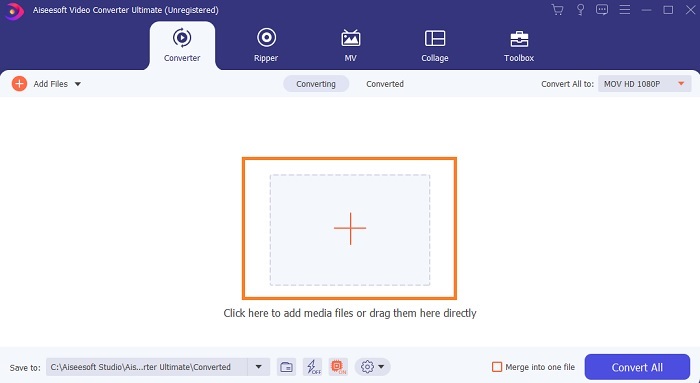
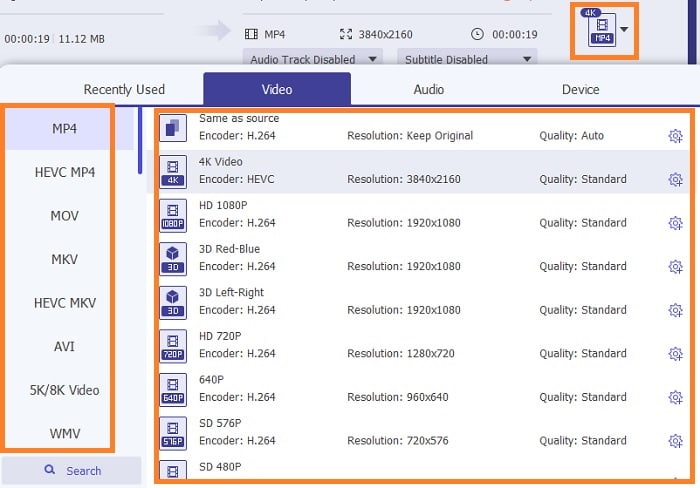
ขั้นตอนที่ 3. เลือกรูปแบบไฟล์ตามที่คุณต้องการจากเมนูดรอปดาวน์ของ Convert All to จากนั้นคลิกปุ่ม Convert All เพื่อเริ่มการแปลงไฟล์.
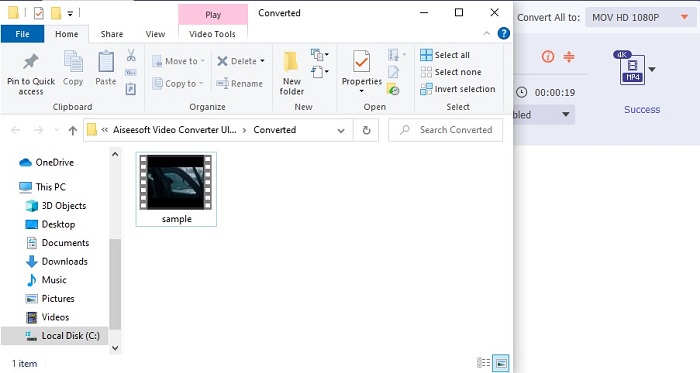
ขั้นตอนที่ 4. กระบวนการแปลงจะใช้เวลาเพียงเล็กน้อย จากนั้นคุณสามารถตรวจสอบไฟล์และถ่ายโอนไปยังอุปกรณ์มือถือของคุณได้ เมื่อเสร็จขั้นตอนทั้งหมดแล้ว คุณก็พร้อมเพลิดเพลินกับวิดีโอที่แปลงมาจาก GIF ได้ทันที.
อ่านเพิ่มเติม
ส่วนที่ 4 คำถามที่พบบ่อยเกี่ยวกับแอป GIF เป็นวิดีโอ
fps ของไฟล์ GIF ไฟล์เดียวสูงแค่ไหน?
GIF มาตรฐานบางตัวสามารถขยายได้สูงถึง 15 หรือ 24 เฟรมต่อวินาที แต่ด้วยเทคโนโลยี จึงสามารถขยายได้ถึง 30 ถึง 50 fps ต่อ GIF ซึ่งใช้พื้นที่จัดเก็บมากขึ้นหากคุณดาวน์โหลดลงในโทรศัพท์ของคุณ
GIF ประเภทต่าง ๆ มีอะไรบ้าง
หากคุณไม่ได้สังเกตว่ามี GIF ที่แตกต่างกัน 5 ประเภท ได้แก่ การเล่นซ้ำ GIF ปฏิกิริยา กราฟภาพยนตร์ เทคนิค และ GIF แบบวนซ้ำที่สมบูรณ์แบบ
อะไรอยู่ภายใน GIF?
GIF ทั้งหมดมีชุดข้อมูลรูปภาพที่สามารถเป็นภาพเคลื่อนไหว คลิปสั้นๆ เกี่ยวกับภาพยนตร์ และภาพเคลื่อนไหวหากอยู่บนเว็บ
สรุป
โดยสรุป เครื่องมือที่เลือกทั้งหมดในบทความนี้ได้รับการคัดเลือกอย่างเหมาะสมเพื่อให้ผู้ใช้ทราบ การเรียนรู้วิธีสร้าง GIF เป็นความสามารถที่ยอดเยี่ยม แม้ว่าคุณจะมีความทุ่มเทและใช้เครื่องมือที่เหมาะสมก็ตาม ตัวอย่างเช่น คุณใช้ค้อนเปิดกระป๋องหรือเปล่า? ดังนั้น ถ้าคุณใช้ค้อน ให้เปิดกระป๋องแล้วดึงสิ่งที่อยู่ข้างในออกมา สารที่อยู่ในกระป๋องถูกทำลายไปแล้ว เช่นเดียวกับการแปลงหากคุณใช้เครื่องมือที่ไม่ถูกต้อง มีความเป็นไปได้สูงที่การแปลงจะล้มเหลว ดังนั้น เลือกเครื่องมือที่เหมาะสมสำหรับงาน เช่น Video Converter Ultimate
-
 [คำแนะนำ] วิธีแปลงวิดีโอ M4V เป็น GIF แบบเคลื่อนไหวบน Windows/Mac
 หากคุณต้องการสร้างไฟล์ GIF แบบเคลื่อนไหวจากวิดีโอ M4V ที่คุณชื่นชอบ คุณสามารถเรียนรู้เกี่ยวกับ 2 วิธีที่ง่ายและมีประสิทธิภาพในการแปลงวิดีโอ M4V เป็น GIF ด้วยการตั้งค่าแบบกำหนดเอง
-
 WebM to GIF – 3 ฟรี WebM to GIF Converters เพื่อสร้าง GIF ของคุณเอง
 WebM เป็น GIF หรือไม่ จะเปลี่ยนวิดีโอเป็น GIF ได้อย่างไร? มีตัวแปลง WebM เป็น GIF ฟรีหรือไม่ โพสต์นี้แบ่งปัน 3 วิธีฟรีเพื่อช่วยคุณแปลง WebM เป็น GIF
-
 วิธีแปลงวิดีโอ MKV เป็น GIF แบบเคลื่อนไหวโดยไม่ต้องใช้ Photoshop/FFmpeg
 หลังจากดาวน์โหลดและดูภาพยนตร์ MKV บนคอมพิวเตอร์ของคุณแล้ว คุณอาจต้องการแบ่งปันช่วงเวลาที่ยอดเยี่ยมกับเพื่อน ๆ หรือบนอินเทอร์เน็ตในรูปแบบ GIF ในบทความนี้ คุณสามารถเรียนรู้เกี่ยวกับ 2 วิธีที่ง่ายที่สุดในการแปลง MKV เป็น GIF
