


 Video Converter Ultimate
 บันทึกหน้าจอ
 ซ่อมวิดีโอ
 ดาวน์โหลดอย่างปลอดภัย
วิธีการแปลง MP4 เป็น MP3 บน Windows / Mac / iPhone / Android / ออนไลน์
หากคุณต้องการเก็บแทร็กเสียงของวิดีโอ MP4 เท่านั้นคุณสามารถแปลงรูปแบบ MP4 เป็น MP3 ได้ MP3 เป็นรูปแบบเสียงดิจิทัลที่รองรับโดยอุปกรณ์เครื่องเล่นและบรรณาธิการเกือบทั้งหมด ไม่ว่าคุณจะแปลงวิดีโอ MP4 เป็นเสียง MP3 สำหรับการเล่นออฟไลน์หรือแก้ไขเพิ่มเติมคุณสามารถแยกซาวด์แทร็กและบันทึกเป็นรูปแบบ MP3 ได้ นี่คือ 8 วิธีที่ใช้งานได้ในการแปลง MP4 เป็น MP3 โดยไม่สูญเสียคุณภาพ เพียงแค่อ่านและปฏิบัติตาม

ส่วนที่ 1: วิธีการแปลง MP4 เป็น MP3 ออนไลน์ฟรี
ตัวแปลงไฟล์ MP4 เป็น MP3 ออนไลน์ถือเป็นตัวเลือกที่สะดวกและใช้ฟรี คุณสามารถแปลงไฟล์ MP4 เป็นรูปแบบ MP3 เพื่อดึงเสียงออกมาได้โดยไม่ต้องใช้โปรแกรมของบุคคลที่สาม อย่างไรก็ตาม ตัวแปลงไฟล์ MP4 เป็น MP3 ออนไลน์ส่วนใหญ่มักกำหนดขนาดไฟล์สูงสุดไว้ หากคุณต้องการแปลงไฟล์ MP4 เป็น MP3 แบบเป็นชุดออนไลน์ การใช้ FVC Free Online Video Converter สามารถเป็นตัวเลือกแรกของคุณได้.
• 100% ฟรีในการแปลง MP4 เป็น MP3 ออนไลน์
•รองรับการแปลงแบทช์
•ปรับตัวเข้ารหัสเสียงช่องอัตราตัวอย่างและบิตเรต
•อินเตอร์เฟซที่ใช้งานง่ายและสะอาด
ขั้นตอนที่ 1: คลิก Add Files to Convert บนเว็บไซต์ทางการ ครั้งแรกที่ใช้ตัวแปลงเสียงออนไลน์ คุณต้องดาวน์โหลดตัวเรียกใช้งาน ซึ่งมีขนาดเพียงไม่กี่กิโลไบต์เท่านั้น.
ขั้นตอนที่ 2: เลือกวิดีโอ MP4 ที่คุณต้องการแปลงเป็น MP3 แล้วคลิก Open เพื่อยืนยัน.
ขั้นตอนที่ 3: คลิกไอคอน Audio ที่มุมล่างขวา ตั้งค่า MP3 ให้เป็นรูปแบบเสียงขาออก.
ขั้นตอนที่ 4: หากต้องการปรับคุณภาพเสียงและขนาดไฟล์ คุณสามารถคลิกไอคอนรูปเฟือง Settings ที่นี่คุณสามารถปรับอัตราสุ่มเสียง (sample rate) ช่องสัญญาณ (channel) บิตเรต (bitrate) และตัวเข้ารหัส (encoder) จากนั้นคลิก OK เพื่อบันทึกการเปลี่ยนแปลง.
ขั้นตอนที่ 5: คลิก Convert เพื่อแปลงไฟล์จาก MP4 เป็น MP3 ออนไลน์ คุณสามารถแปลงไฟล์ MP4 เป็น MP3 แบบเป็นชุดที่มีขนาดเกิน 100MB หรือใหญ่กว่านั้นได้ฟรี.
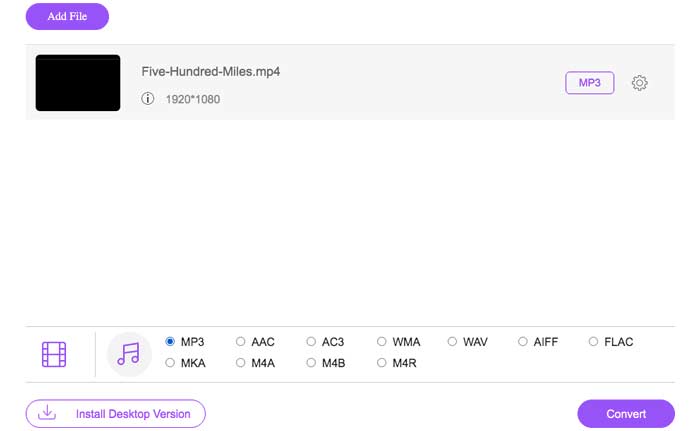
ตัวแปลง MP4 ออนไลน์ฟรีนี้ยังสามารถแปลง MP4 เป็นรูปแบบอื่น ๆ เช่น M2TS, MTS, MOV, MKV, WMV, TS, GIF เป็นต้น.
ส่วนที่ 2: วิธีการแปลง MP4 เป็น MP3 บน Windows ด้วย Windows Media Player
หากคุณต้องการแปลง MP4 เป็น MP3 โดยไม่ต้องดาวน์โหลดคุณสามารถใช้ Windows Media Player เป็นโปรแกรมที่ติดตั้งไว้ล่วงหน้าซึ่งสามารถช่วยคุณเปลี่ยน MP4 เป็น MP3 บน Windows ได้ฟรี ดังนั้นคุณสามารถแปลง MP4 เป็น MP3 ด้วย Windows Media Player บน Windows 10 / 8.1 / 7
ขั้นตอนที่ 1: เปิดโปรแกรม Windows Media Player คลิก File ด้านบน จากนั้นเลือก Open เพื่อเพิ่มไฟล์ MP4.
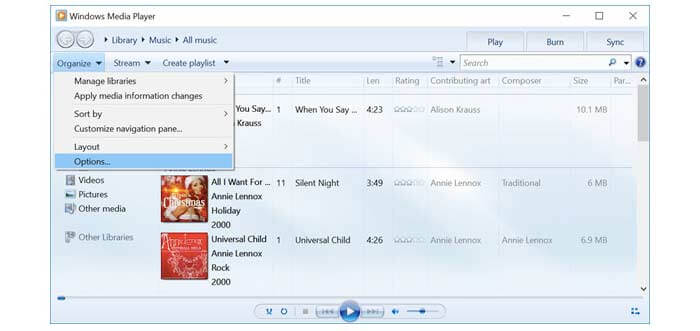
ขั้นตอนที่ 2: คลิก Organize และเลือก Options จากรายการ.
ขั้นตอนที่ 3: ในหน้าต่าง Options ให้เลือกแท็บ Rip Music.
ขั้นตอนที่ 4: เลือก MP3 จากรายการ Format ใต้หัวข้อ Rip settings.
ขั้นตอนที่ 5: คลิก Apply และ OK เพื่อแปลง MP4 เป็น MP3 ด้วย Windows Media Player.
ส่วนที่ 3: วิธีการแปลง MP4 เป็น MP3 บน Mac ด้วย iTunes
iTunes ได้รับการติดตั้งไว้ล่วงหน้าในคอมพิวเตอร์ Mac ทุกเครื่อง คุณสามารถใช้ iTunes เพื่อเปลี่ยน MP4 เป็น MP3 บน Mac ได้ฟรี เพียงสร้างเวอร์ชัน MP3 ที่ตั้งไว้ล่วงหน้า ในภายหลังคุณสามารถเปลี่ยน MP4 เป็น MP3 โดยใช้ iTunes ได้โดยตรง
ขั้นตอนที่ 1: อัปเดต iTunes ให้เป็นเวอร์ชันล่าสุด เลือก Preferences จากเมนู Edit.
ขั้นตอนที่ 2: ในส่วน General ให้คลิก Import Settings.
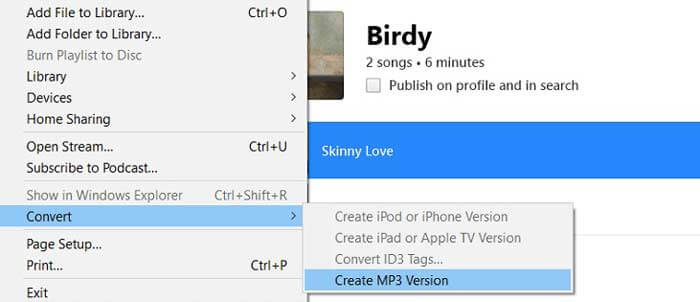
ขั้นตอนที่ 3: คลิกรายการดรอปดาวน์ถัดจาก Import Using เลือก MP3 Encoder จากนั้นคลิก OK เพื่อยืนยัน.
ขั้นตอนที่ 4: เพิ่มวิดีโอ MP4 ลงในไลบรารี iTunes ของคุณ.
ขั้นตอนที่ 5: คลิก File ด้านบน เลือก Convert แล้วเลือก Create MP3 Version ตอนนี้คุณก็สามารถแปลง MP4 เป็น MP3 ด้วย iTunes บน Mac ได้แล้ว.
ส่วนที่ 4: วิธีการแปลง MP4 เป็น MP3 บน iPhone ด้วย Media Converter
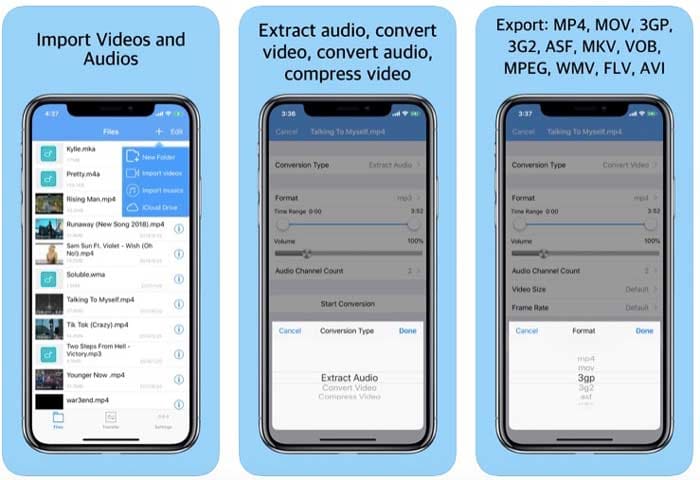
หากคุณต้องการสร้างไฟล์ MP3 จาก MP4 บน iPhone คุณสามารถใช้แอป Media Converter แอปนี้ช่วยให้ผู้ใช้สามารถดึงเสียงออกจากไฟล์ MP4 ให้เป็นรูปแบบ MP3 ได้ นอกจากนี้คุณยังสามารถแปลงวิดีโอ MP4 เป็นรูปแบบวิดีโอและเสียงอื่น ๆ ได้อีกด้วย.
ขั้นตอนที่ 1: ดาวน์โหลดและติดตั้ง Media Player บน iPhone ฟรี.
ขั้นตอนที่ 2: แตะสัญลักษณ์ + ที่มุมบนขวา เลือก Import videos เพื่อเพิ่มวิดีโอ MP4 ของคุณ.
ขั้นตอนที่ 3: เลือกไอคอน Information จากนั้นเลือก Extract Audio จาก Conversion Type ตั้งค่า MP3 ให้เป็นรูปแบบขาออก.
ขั้นตอนที่ 4: เลือก Convert เพื่อแปลง MP4 เป็น MP3 บน iPad และ iPhone.
ตอนที่ 5: วิธีการแปลง MP4 เป็น MP3 บน Android ด้วย Video to MP3 Converter
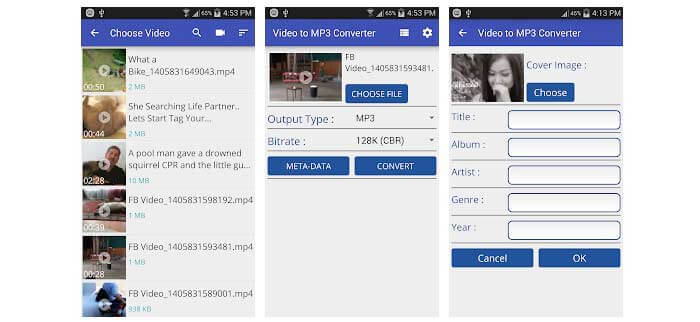
สำหรับผู้ใช้ Android คุณสามารถแปลงวิดีโอ MP4 ที่ดาวน์โหลดมาเป็น MP3 ด้วยแอป Video to MP3 Converter เช่นเดียวกับชื่อที่แสดงแอปพลิเคชันสามารถแยกเสียง MP3 จากวิดีโอได้ ดังนั้นคุณสามารถแปลงไฟล์เสียง MP4 เป็น MP3 บน Android ได้ที่นี่
ขั้นตอนที่ 1: เปิดแอป Video to MP3 Converter.
ขั้นตอนที่ 2: เรียกดูและเลือกวิดีโอ MP4 ที่คุณต้องการดึงเสียงออกมา.
ขั้นตอนที่ 3: เลือก MP3 ในรายการ Output Type จากนั้นปรับบิตเรตของเสียง.
ขั้นตอนที่ 4: เลือก Convert เพื่อแปลงวิดีโอ MP4 เป็น MP3 บน Android.
ตอนที่ 6: วิธีการแปลง MP4 เป็น MP3 ด้วย VLC Media Player
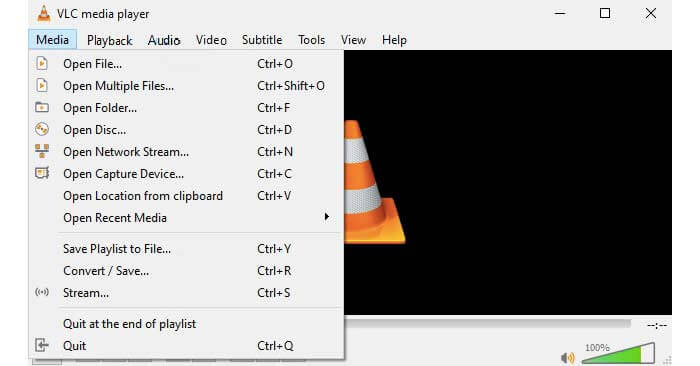
VLC เป็นเครื่องเล่นและตัวแปลงมัลติมีเดียแบบโอเพนซอร์สฟรีในหลายแพลตฟอร์ม คุณสามารถแปลง MP4 เป็น MP3 โดยใช้ VLC บนโทรศัพท์หรือคอมพิวเตอร์ของคุณ VLC สามารถเป็นฟรีแวร์ตัวแปลง MP4 เป็น MP3 เพื่อเปลี่ยนรูปแบบวิดีโอและเสียง
ขั้นตอนที่ 1: เปิดโปรแกรม VLC Media Player เลือก Convert/Save จากเมนูแบบดรอปดาวน์ Media.
ขั้นตอนที่ 2: คลิก Add เพื่อเพิ่มวิดีโอ MP4 แล้วคลิก Convert/Save ใกล้ด้านล่าง.
ขั้นตอนที่ 3: หาเมนู Profile ใต้หัวข้อ Settings เลือก Audio- MP3 เพื่อใช้สำหรับการแปลง MP4 เป็น MP3.
ขั้นตอนที่ 4: คลิก Start เพื่อเริ่มแปลงไฟล์ MP4 เป็น MP3 ผ่าน VLC Media Player.
ตอนที่ 7: วิธีการแปลง MP4 เป็น MP3 ด้วย HandBrake
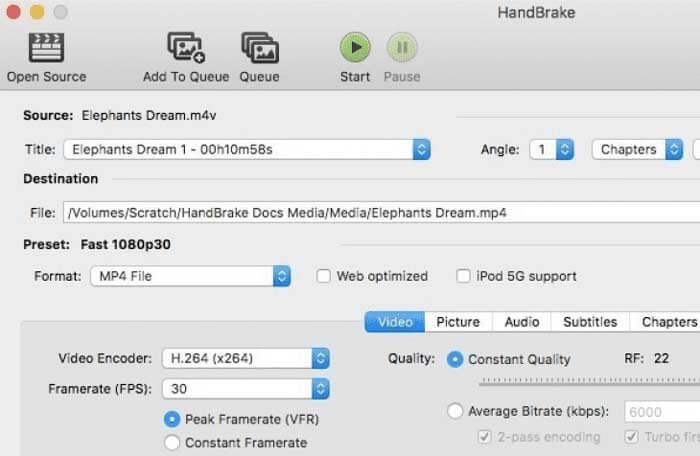
HandBrake เป็นโปรแกรมแปลงวิดีโอโอเพ่นซอร์สฟรีที่สามารถแปลงจาก MP4 เป็น MP3 บน Windows และ Mac คุณยังสามารถปรับการตั้งค่าเอาต์พุตเสียงก่อนที่จะแปลงไฟล์เสียง MP4 เป็น MP3
ขั้นตอนที่ 1: เปิดโปรแกรม HandBrake คลิก Source แล้วเลือก Open File เพื่อเพิ่มวิดีโอ MP4 เข้าไปใน HandBrake.
ขั้นตอนที่ 2: ในส่วน Output Settings ให้เลือก MP3 จากรายการ Container.
ขั้นตอนที่ 3: ระบุการตั้งค่าโปรไฟล์และฟิลเตอร์ที่ต้องการ.
ขั้นตอนที่ 4: คลิก Start ด้านบนเพื่อใช้ HandBrake แปลงไฟล์ MP4 เป็นรูปแบบ MP3.
ตอนที่ 8: วิธีการแปลง MP4 เป็น MP3 ด้วย FFmpeg
FFmpeg สามารถเป็นซอฟต์แวร์แปลง MP4 เป็น MP3 ได้ฟรีเช่นกัน เพียงป้อนบรรทัดคำสั่งต่อไปนี้ใน FFmpeg หลังจากนั้นคุณสามารถแยก MP3 จาก MP4 บนหลายแพลตฟอร์มโดยใช้ FFmpeg
ขั้นตอนที่ 1: ดาวน์โหลด ติดตั้ง และเปิดใช้งาน FFmpeg ฟรี.
ขั้นตอนที่ 2: คัดลอกและวางคำสั่ง ffmpeg -i filename.mp4 filename.mp3.
ขั้นตอนที่ 3: กดปุ่ม Enter บนแป้นพิมพ์ของคุณ.
ขั้นตอนที่ 4: ใช้ FFmpeg เพื่อแปลงวิดีโอ MP4 ให้เป็นเสียง MP3.
ส่วนที่ 9: คำถามที่พบบ่อยของ MP4 เป็น MP3
คุณสามารถแปลง MP4 เป็น MP3 ด้วย Audacity ได้หรือไม่?
ใช่. คุณต้องดาวน์โหลด Audacity และ FFmpeg ก่อน ในภายหลังคุณสามารถแยกเสียงจาก MP4 ด้วย Audacity
สามารถแปลง MP4 เป็น MP3 โดยใช้ลิงค์ได้หรือไม่?
ใช่. ตัวแปลงออนไลน์บางตัวอนุญาตให้ผู้ใช้แปลงวิดีโอ MP4 ออนไลน์เป็น MP3 คุณสามารถใช้ Convertio, Ytmp3.cc และอื่น ๆ อย่างไรก็ตามอัตราความสำเร็จในการแปลง MP4 เป็น MP3 จาก URL นั้นไม่สูงนัก
จะเปลี่ยนนามสกุลไฟล์จาก. mp4 เป็น. mp3 ได้อย่างไร?
คุณยังสามารถสร้างไฟล์ MP3 จาก MP4 ได้ด้วยการเปลี่ยนนามสกุลไฟล์เช่นกัน เพียงคลิกขวาที่ไฟล์ MP4 เลือก Rename แล้วไฮไลต์ส่วน .mp4 คุณสามารถแทนที่ .mp4 ด้วย .mp3 เพื่อแปลงไฟล์ MP4 ให้เป็น MP3 ได้เช่นกัน.
สรุปแล้วคุณสามารถแปลง MP4 เป็น MP3 บนโทรศัพท์หรือคอมพิวเตอร์ของคุณด้วยวิธีการข้างต้น ไม่ว่าคุณต้องการแยกเสียง MP3 จากวิดีโอ MP4 จำนวนมากหรือทีละรายการคุณสามารถเลือกจากตัวแปลงวิดีโอออนไลน์และออฟไลน์ด้านบนได้ ในกรณีส่วนใหญ่การแปลง MP4 เป็น MP3 สามารถเสร็จสิ้นภายในไม่กี่นาที หากคุณแปลงไฟล์ MP4 เป็น MP3 นานกว่า 2 ชั่วโมงคุณควรลองใช้เครื่องมือใหม่ เพียงแค่แทนที่ตัวแยกเสียงที่ไม่ทำงานนี้ด้วยเครื่องมืออื่น ๆ ที่กล่าวถึงข้างต้น
-
 วิธีการแปลง MOV เป็น MP4 โดยไม่สูญเสียคุณภาพ
 ต้องการแปลงไฟล์ MOV (Apple QuickTime Movie) เป็น MP4 หรือไม่? โพสต์นี้แชร์ 4 วิธีฟรีในการแปลงไฟล์วิดีโอ MOV ของคุณเป็นรูปแบบ MP4 บน Windows 10/8/7 / XP และ Mac OS X
-
 2 วิธีง่ายๆในการแปลง MTS เป็น MP3 ฟรี
 มีความจำเป็นต้องแยกเสียง MP3 จากไฟล์ MTS แต่ไม่รู้ทำอย่างไร ตัวแปลง MTS เป็น MP3 ที่ดีที่สุดคืออะไร? โพสต์นี้แชร์ 2 วิธีง่ายๆที่จะช่วยคุณแปลง MTS / M2TS เป็น MP3 ด้วยคุณภาพเสียงระดับสูง
-
 วิธีการแปลงวิดีโอ FLV ของคุณเป็นไฟล์เสียง MP3 บนเดสก์ท็อปและออนไลน์
 จะแปลงไฟล์ FLV เป็นไฟล์ MP3 ได้อย่างไร? สิ่งที่คุณต้องทำคืออ่านบทความนี้อย่างละเอียดค้นหาวิธีที่คุณชื่นชอบและทำตามคำแนะนำทีละขั้นตอนเพื่อให้ได้สิ่งที่คุณต้องการ
