


 Video Converter Ultimate
 บันทึกหน้าจอ
 ซ่อมวิดีโอ
 ดาวน์โหลดอย่างปลอดภัย
4 สุดยอดตัวแปลง MP4 เป็น SWF เพื่อแปลง MP4 เป็น SWF ด้วยคุณภาพสูง
เมื่อคุณแบ่งปันวิดีโอ MP4 ไปยังเว็บไซต์หรือไซต์โซเชียลมีเดียของคุณคุณจะต้องมีภาพรวมที่น่าสนใจ แน่นอนคุณยังสามารถแปลงไฟล์ MP4 เป็น SWF ซึ่งสามารถเล่นได้โดยอัตโนมัติ เรียนรู้รายละเอียดเพิ่มเติมเกี่ยวกับตัวแปลง MP4 เป็น SWF ฟรี 4 ตัวและเลือกตัวแปลงที่ต้องการตามความต้องการของคุณ

ส่วนที่ 1: 4 วิธีที่ดีที่สุดในการแปลง MP4 เป็น SWF
อันดับ 1: แปลง MP4 เป็น SWF ผ่าน FVC Free Online Video Converter
FVC Free Online Video Converter เป็นตัวแปลงไฟล์ MP4 เป็น SWF แบบอเนกประสงค์ ที่ช่วยให้คุณแปลงวิดีโอ/เสียงรูปแบบยอดนิยมใด ๆ เป็น SWF ได้อย่างง่ายดาย นอกจากนี้ ยังให้คุณปรับบิตเรตวิดีโอ ค่าแซมเปิล อัตราเฟรม และความละเอียดวิดีโอตามต้องการได้อีกด้วย.
- 1. อินเทอร์เฟซผู้ใช้ที่เรียบง่ายในการแปลงไฟล์ MP4 เป็น SWF ออนไลน์ภายในไม่กี่คลิก
- 2. ปรับบิตเรตของวิดีโออัตราตัวอย่างอัตราเฟรมความละเอียดระดับเสียงและอื่น ๆ
- 3. รองรับการแปลงวิดีโอกระแสหลักส่วนใหญ่ด้วยคุณภาพต้นฉบับ
- 4. แปลง MP4 เป็น SWF โดยไม่ จำกัด ขนาดลายน้ำหรือการลงทะเบียน
ขั้นตอนที่ 1. ไปที่ตัวแปลง MP4 เป็น SWF แบบออนไลน์ จากนั้นคลิกปุ่ม Add Files to Convert หากนี่เป็นครั้งแรกที่คุณแปลงไฟล์ MP4 คุณต้องดาวน์โหลดตัวเรียกใช้งานตัวดาวน์โหลดวิดีโอล่วงหน้าก่อน.

ขั้นตอนที่ 2. หลังจากนั้น เลือกวิดีโอ MP4 ที่ต้องการแปลงจากคอมพิวเตอร์ของคุณ นอกจากนี้ คุณยังสามารถคลิกปุ่ม Add File เพื่อโหลดไฟล์ MP4 เพิ่มเติมสำหรับการแปลงแบบแบตช์ได้.
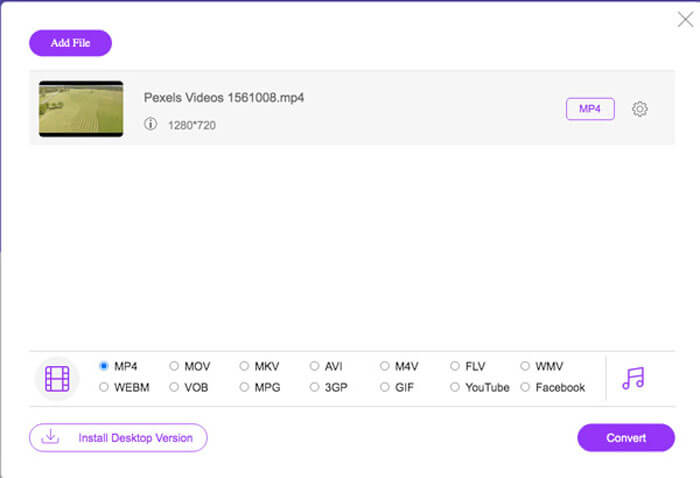
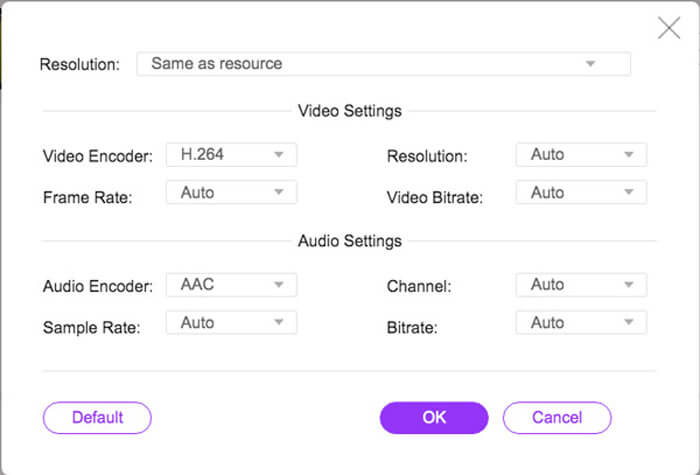
ขั้นตอนที่ 3. เลือก SWF หรือ FLV เป็นรูปแบบเอาต์พุตจากแถบด้านล่าง คุณยังสามารถคลิกไอคอน Gear เพื่อปรับตัวเข้ารหัสวิดีโอ (video encoder) อัตราเฟรม บิตเรตวิดีโอ อัตราแซมเปิล และการตั้งค่าอื่น ๆ ได้.
ขั้นตอนที่ 4. จากนั้นคลิกปุ่ม Convert เพื่อแปลง MP4 เป็น SWF บนคอมพิวเตอร์ของคุณ เครื่องมือนี้ช่วยให้คุณแปลงไฟล์ MP4 หลายไฟล์เป็นรูปแบบวิดีโอที่ต้องการได้ภายในครั้งเดียว (ดูวิธี แปลง SWF เป็น MP4)
อันดับ 2: แปลงรหัส MP4 เป็น SWF ด้วย Convertio
Convertio เป็นอีกหนึ่งตัวแปลง MP4 เป็น SWF ออนไลน์ที่รองรับไฟล์มากกว่า 45 รูปแบบ ช่วยให้คุณสามารถโหลดไฟล์ MP4 จากแหล่งต่างๆเช่นฮาร์ดไดรฟ์ Dropbox Google Drive และอื่น ๆ อีกมากมาย คุณยังสามารถปรับแต่งการตั้งค่าสำหรับวิดีโอที่ส่งออกได้
1. จัดเตรียมวิธีการที่หลากหลายในการเพิ่มไฟล์ MP4 เช่นฮาร์ดไดรฟ์คลาวด์เป็นต้น
2. รองรับมากกว่า 200 รูปแบบรวมถึง MP4, SWF, เสียงและอื่น ๆ
3. ส่งอีเมลเพื่อแจ้งให้คุณทราบเมื่อการแปลง MP4 เป็น SWF เสร็จสิ้น
4. ปรับคุณภาพวิดีโออัตราเฟรม CBR ตัวแปลงสัญญาณเสียงและอื่น ๆ อีกมากมาย
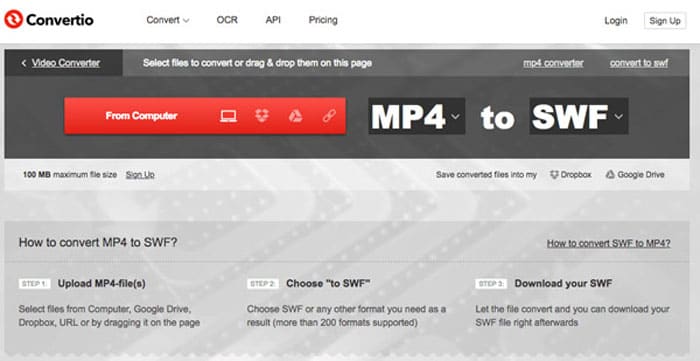
ขั้นตอนที่ 1. เปิดเว็บไซต์ Convertio บนเบราว์เซอร์ใดก็ได้ จากนั้นเลือก MP4 เป็นรูปแบบอินพุต และเลือก SWF เป็นรูปแบบเอาต์พุต แล้วจึงเลือกวิดีโอ MP4 จากฮาร์ดไดรฟ์คอมพิวเตอร์ Google Drive หรือ Dropbox ของคุณ.
ขั้นตอนที่ 2. หากต้องการปรับการตั้งค่าวิดีโอ ให้คลิกตัวเลือก Advanced เพื่อปรับอัตราเฟรม CBR VBR ตัวแปลงสัญญาณเสียง (audio codec) ระดับเสียง และการตั้งค่าอื่น ๆ เพื่อแปลง MP4 เป็น SWF ตามที่คุณต้องการ.
ขั้นตอนที่ 3. จากนั้นคลิกปุ่ม Convert เพื่อแปลงวิดีโอที่โหลดไว้ให้เป็นรูปแบบ SWF กระบวนการแปลงจะใช้เวลาสักครู่ จากนั้นคุณสามารถคลิกปุ่ม Download เพื่อบันทึกไฟล์ SWF ได้.
3 อันดับแรก: เปลี่ยน MP4 เป็น SWF ผ่าน CloudConvert
CloudConvert ช่วยให้คุณสามารถแปลงรูปแบบไฟล์ส่วนใหญ่เช่น MP4, SWF, WebM, AVI และอื่น ๆ อีกมากมาย นอกจากนี้คุณยังสามารถใช้ตัวเลือกของตัวแปลง MP4 เป็น SWF เพื่อควบคุมความละเอียดของวิดีโอคุณภาพวิดีโอและขนาดไฟล์ได้อย่างง่ายดาย
1. รองรับไฟล์มากกว่า 200 รูปแบบเช่นเสียงวิดีโอเอกสาร ฯลฯ
2. ไม่ต้องกังวลเกี่ยวกับความปลอดภัยของข้อมูลเมื่อทำการแปลงไฟล์
3. ปรับการตั้งค่าคุณภาพวิดีโอและตัวเลือกอื่น ๆ ตามความต้องการของคุณ
4. จัดเตรียม API ขั้นสูงที่ช่วยให้สามารถผสานรวมกับแอปของคุณได้
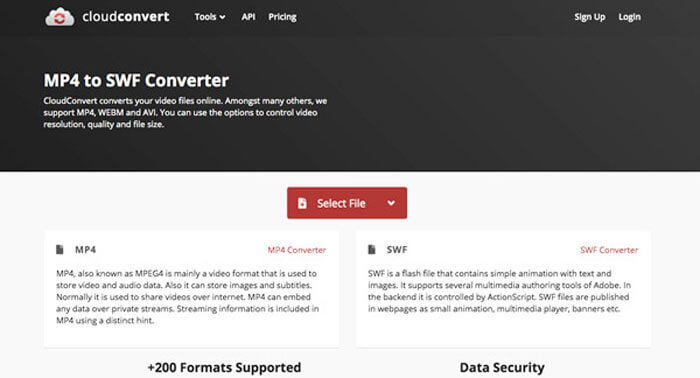
ขั้นตอนที่ 1. ไปที่ CloudConvert แล้วเลือก MP4 เป็นรูปแบบอินพุต และเลือก SWF เป็นรูปแบบเอาต์พุต หรือคุณสามารถเข้าโดยพิมพ์ลิงก์นี้ลงในเบราว์เซอร์โดยตรง https://cloudconvert.com/mp4-to-swf.
ขั้นตอนที่ 2. คลิกปุ่ม Select File จากนั้นเลือกไฟล์ MP4 จากคอมพิวเตอร์ URL Google Drive Dropbox หรือแม้แต่ OneDrive คุณยังสามารถคลิก Add more Files เพื่อโหลดวิดีโอเพิ่มเติมได้.
ขั้นตอนที่ 3. เครื่องมือนี้ยังให้คุณปรับการตั้งค่าวิดีโอและเสียงได้เช่นกัน เสร็จแล้วเพียงคลิกปุ่ม Convert เพื่อแปลงไฟล์ MP4 เป็นวิดีโอ SWF ตามความต้องการของคุณ.
อันดับ 4: เปลี่ยน MP4 เป็น SWF ด้วย XMedia Recode
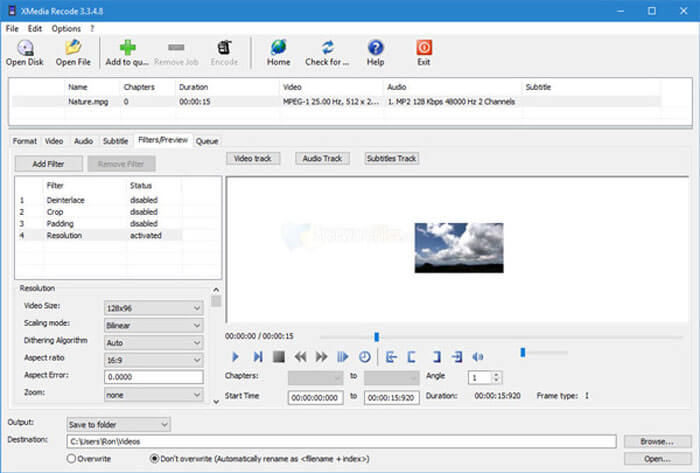
XMedia Recode เป็นโปรแกรมแปลง Windows MP4 เป็น SWF ฟรีเพื่อแปลงวิดีโอ MP4 หลายรายการเป็นรูปแบบ SWF ด้วยกระบวนการแบตช์ นอกจากนี้ยังช่วยให้คุณสามารถแก้ไขวิดีโอด้วยคุณสมบัติขั้นสูงมากมายเช่น Box Blur, Color Curves, Denoise และอื่น ๆ
1. รองรับรูปแบบวิดีโออินพุตและเอาต์พุตอื่น ๆ อีกมากมายสำหรับการแปลง
2. จัดหาเครื่องมือคำนวณบิตเรตเพื่อปรับแต่งไฟล์ SWF ที่ส่งออก
3. คุณสมบัติการตัดต่อวิดีโอขั้นสูงเพื่อลดสัญญาณรบกวนพลิกแก้ไขสี ฯลฯ
4. ปรับแต่งอัตราเฟรมโหมดสีบิตเรตความยาว GOP และการตั้งค่าอื่น ๆ
ขั้นตอนที่ 1. เมื่อเปิดโปรแกรมแล้ว ให้คลิกปุ่ม Open File เพื่อเพิ่มวิดีโอ MP4 ทั้งหมดที่คุณต้องการแปลงเป็น SWF จากนั้นตั้งค่ารูปแบบเอาต์พุตเป็น SWF จากแท็บ Format.
ขั้นตอนที่ 2. หากต้องการแก้ไขวิดีโอ ให้ไปที่ Filters และใช้ตัวเลือกการตัดต่อที่มีอยู่หลากหลาย สำหรับการปรับแต่งไฟล์ SWF ที่ได้ออกมา ให้ไปที่แท็บ Video and Audio และตั้งค่าคอนฟิกต่าง ๆ ที่ต้องการ.
ขั้นตอนที่ 3. จากนั้นคลิกปุ่ม Encode เพื่อเริ่มแปลง MP4 เป็น SWF ขั้นตอนการแปลงใช้เวลาไม่นานในการแปลงไฟล์ MP4 เป็นรูปแบบวิดีโอที่คุณต้องการ.
ส่วนที่ 2: คำถามที่พบบ่อยเกี่ยวกับการแปลง MP4 เป็น SWF
1. SWF File Format คืออะไร?
ไฟล์ SWF เป็นรูปแบบไฟล์ Adobe Flash ที่พัฒนาโดยระบบ Macromedia และ Adobe เป็นที่รู้จักกันในชื่อ ShockWave Flash แต่เปลี่ยนเป็น Small Web Format ในภายหลัง เมื่อคุณแปลง MP4 เป็น SWF โดยตรงอาจไม่มีภาพเคลื่อนไหวหรือแอพเพล็ตของการโต้ตอบและฟังก์ชัน
2. SWF VS MP4 แตกต่างกันอย่างไร?
ทั้ง SWF และ MP4 เป็นรูปแบบวิดีโอยอดนิยมสำหรับไซต์สตรีมมิ่งออนไลน์ แต่อุปกรณ์เคลื่อนที่เช่น iPhone และ iPad ไม่รองรับไฟล์ SWF ข้อดีประการเดียวสำหรับการแปลง MP4 เป็น SWF คือรูปแบบวิดีโอสามารถโต้ตอบกับผู้ชมของคุณได้ดีขึ้น
3. สามารถแปลง MP4 เป็น SWF ด้วย VLC Media Player ได้หรือไม่?
ไม่ VLC Media Player เป็นตัวแปลงวิดีโออเนกประสงค์ซึ่งช่วยให้คุณสามารถแปลง SWF เป็น MP4 ได้ แต่ไม่รองรับ SWF เป็นรูปแบบเอาต์พุต แน่นอนคุณสามารถใช้ปลั๊กอินบางตัวเพื่อแปลง MP4 เป็น SWF ได้อย่างง่ายดายหรือเลือกทางเลือกออนไลน์แทน
สรุป
เมื่อคุณต้องการแปลง MP4 เป็น SWF คุณสามารถเรียนรู้เพิ่มเติมเกี่ยวกับตัวแปลง MP4 เป็น SWF ฟรีที่ดีที่สุด 5 ตัวจากบทความ หากคุณต้องการแปลงไฟล์ MP4 หลายไฟล์แบบออนไลน์โดยไม่มีข้อ จำกัด FVC Free Online Video Converter ควรเป็นตัวเลือกเริ่มต้นที่คุณต้องคำนึงถึง
-
 วิธีการแปลงไฟล์วิดีโอ FLV ของคุณเป็น MP4 โดยไม่ต้องเสียเงิน
 คู่มือนี้แบ่งปันวิธีการฟรีสี่วิธีในการแปลงไฟล์วิดีโอ FLV ของคุณเป็นรูปแบบ MP4 บน Windows 10/8/7 / XP และ Mac OS X เพื่อให้คุณสามารถเพลิดเพลินกับวิดีโอบนอุปกรณ์ใดก็ได้
- จาก 50MB ถึง 5MB - วิธีบีบอัดไฟล์ MP4 ในไม่กี่วินาที
คุณสามารถค้นหาซอฟต์แวร์แปลงวิดีโอฟรีจาก FVC studio รองรับรูปแบบวิดีโอ / เสียงใด ๆ รวมถึง MP4, MOV, TS, AVI, WMV, FLAC, MP3 และอื่น ๆ
-
 ฉันจะแปลง MP4 เป็น WAV ออนไลน์ฟรีได้อย่างไร
 พยายามอย่างยิ่งที่จะแปลง MP4 เป็น WAV หรือไม่? ไม่ทราบว่าตัวแปลงใดที่สามารถช่วยคุณได้อย่างสมบูรณ์แบบโดยไม่ต้องเสียเงิน? อ่านโพสต์นี้และคำถามทั้งหมดของคุณจะได้รับคำตอบ
