


 Video Converter Ultimate
 บันทึกหน้าจอ
 ซ่อมวิดีโอ
 ดาวน์โหลดอย่างปลอดภัย
ตัวแปลง MP4 ที่ดีที่สุดสำหรับการเพิ่มเนื้อหา - เครื่องมือสำหรับการแปลงที่ราบรื่น
การแปลงไฟล์วิดีโอเป็นรูปแบบ MP4 กลายเป็นสิ่งจำเป็นสำหรับทุกคนที่ต้องการเพลิดเพลินกับการเล่นที่ราบรื่นบนอุปกรณ์ต่างๆ แม้ว่าจะมีเครื่องมือนับไม่ถ้วนในการแปลงวิดีโอเป็น MP4 แต่เครื่องมือทั้งหมดไม่ได้ให้คุณภาพและประสิทธิภาพที่เหมือนกัน
นั่นคือเหตุผลที่เราได้ใช้เวลาในการตรวจสอบและเปรียบเทียบโปรแกรมแปลงไฟล์ MP4 ที่ดีที่สุดในท้องตลาด เพื่อให้คุณตัดสินใจได้อย่างรอบรู้และทำให้ขั้นตอนการทำงานด้านวิดีโอของคุณลื่นไหลขึ้น ไม่ว่าคุณจะเป็นช่างวิดีโอมืออาชีพ ครีเอเตอร์คอนเทนต์ หรือแค่ต้องการแปลงวิดีโอไว้ใช้งานส่วนตัว รีวิวแบบครบถ้วนของเราเกี่ยวกับโปรแกรมแปลงไฟล์ MP4 ที่ได้รับคะแนนสูงสุดจะช่วยให้คุณหาเครื่องมือที่เหมาะสมกับความต้องการได้อย่างลงตัว.

ส่วนที่ 1 การเปรียบเทียบโปรแกรม
หากคุณต้องการทราบโปรแกรมที่ดีที่สุดสำหรับความต้องการของคุณอย่างรวดเร็ว คุณสามารถดูตารางเปรียบเทียบโปรแกรมที่กล่าวถึงในโพสต์นี้ โปรแกรมทั้งหมดนี้รับประกันว่าจะช่วยให้คุณแปลงเป็น MP4 ได้
| โปรแกรม | การแปลงแบทช์ | การเร่งความเร็วของ GPU | คุณลักษณะเพิ่มเติม |
| แปลงวิดีโอออนไลน์ฟรี | ใช่ | ไม่ | การปรับแต่งรูปแบบเอาต์พุต การแปลงเป็นชุด |
| Online-Convert.com | ใช่ | ไม่ | การแปลงไฟล์ประเภทต่างๆ |
| CloudConvert | ใช่ | ไม่ | การผสานรวมกับบริการที่เก็บข้อมูลบนคลาวด์ |
| Convertio | ใช่ | ไม่ | การผสานรวมกับบริการพื้นที่เก็บข้อมูลบนคลาวด์ การแปลงไฟล์ประเภทต่างๆ |
| FVC Video Converter Ultimate | ใช่ | ใช่ | ตัดต่อวิดีโอ ชง GIF ชง 3D |
| VLC Media Player | ไม่ | ไม่ | เครื่องเล่นมีเดีย การสตรีมวิดีโอ การแปลงเสียง |
| เบรกมือ | ใช่ | ไม่ | ตัดต่อวิดีโอ สแกนเป็นชุด |
ส่วนที่ 2 สุดยอดตัวแปลง MP4 4 ออนไลน์
ด้วยโปรแกรมแปลงไฟล์ออนไลน์ คุณสามารถแปลงไฟล์ของคุณจากอุปกรณ์ใดก็ได้อย่างง่ายดายโดยไม่จำเป็นต้องดาวน์โหลดซอฟต์แวร์เพิ่มเติมใดๆ โปรแกรมแปลงไฟล์ออนไลน์มักจะเร็วมาก ใช้งานฟรี และปลอดภัย ทำให้มั่นใจได้ว่าข้อมูลของคุณจะได้รับการปกป้องจากการเข้าถึงโดยไม่ได้รับอนุญาต ดังนั้น หากคุณต้องการแปลงเป็น MP4 หรือแปลงจาก MP4 คุณสามารถตรวจสอบโปรแกรมออนไลน์เหล่านี้ได้
1. แปลง MP4 ฟรีออนไลน์
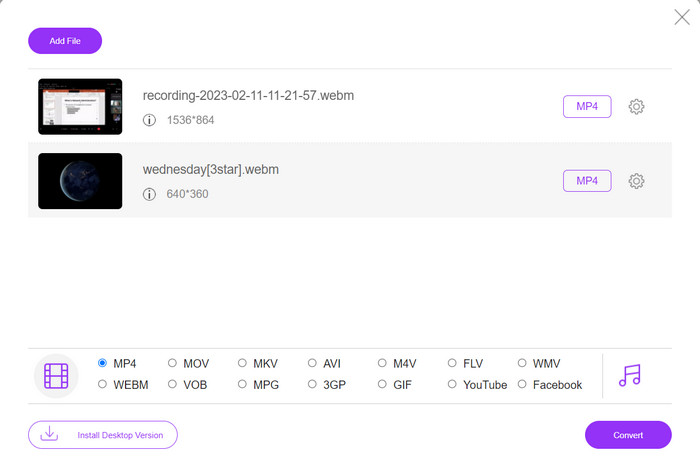
การแปลงไฟล์แบบออนไลน์นั้นสะดวกมาก เพราะคุณสามารถทำได้จากอุปกรณ์ใดก็ได้ที่เชื่อมต่ออินเทอร์เน็ต โดยไม่ต้องดาวน์โหลดซอฟต์แวร์เพิ่มเติม นั่นคือจุดประสงค์ของ Free MP4 Converter Online ซึ่งหมายความว่าคุณไม่จำเป็นต้องติดตั้งอะไรบนอุปกรณ์เพื่อแปลงไฟล์เป็น MP4 หนึ่งในฟีเจอร์เด่นคือการตั้งค่าปรับแต่งเองได้ ผู้ใช้สามารถแก้ไขความละเอียดวิดีโอ บิตเรต เฟรมเรต เป็นต้น นอกจากนี้ ขั้นตอนการใช้งานยังง่ายและตรงไปตรงมา.
คุณสมบัติเด่น:
◆ แปลงวิดีโอเป็นรูปแบบเอาต์พุตจำนวนมากอย่างรวดเร็ว
◆ ไม่จำกัดขนาดไฟล์ที่ผู้ใช้สามารถดาวน์โหลดได้
◆ เข้าถึงได้จากเบราว์เซอร์และอุปกรณ์ใดๆ ที่มีอินเทอร์เน็ต
ขั้นตอนที่ 1. คุณสามารถใช้โปรแกรมแปลงวิดีโอ MP4 นี้ได้โดยเข้าไปที่เว็บไซต์ทางการ เพียงเปิดเบราว์เซอร์ใดก็ได้บนคอมพิวเตอร์ของคุณแล้วเข้าเว็บไซต์ทันที.
ขั้นตอนที่ 2. ติดตั้งตัวเรียกใช้งานขนาดเล็กทันที จากนั้นอัปโหลดวิดีโอที่คุณต้องการแปลงเป็น MP4 จากเมนูเลือกรูปแบบด้านล่าง ให้เลือก MP4 โดยการติ๊กที่ปุ่มตัวเลือกของมัน.
ขั้นตอนที่ 3. สุดท้ายให้กดปุ่ม Convert เพื่อเริ่มกระบวนการแปลงไฟล์.
2. ออนไลน์-Convert.com
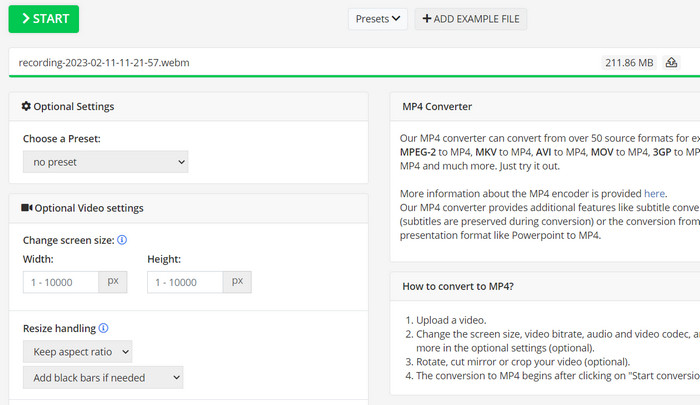
Online-Convert เป็นตัวแปลง MP4 ออนไลน์ที่ใช้งานง่ายและหลากหลายซึ่งรองรับรูปแบบอินพุตและเอาต์พุตที่หลากหลาย รวมถึงการปรับแต่งการตั้งค่าเอาต์พุต เช่น ความละเอียด บิตเรต และอัตราเฟรม เครื่องมือนี้ทำงานรวดเร็วและเชื่อถือได้ พร้อมการผสานรวมที่เก็บข้อมูลบนคลาวด์และคุณลักษณะด้านความปลอดภัย เช่น การเข้ารหัส SSL เพื่อปกป้องไฟล์ของคุณระหว่างขั้นตอนการอัปโหลดและการแปลง นอกจากนี้ยังใช้งานได้ฟรีโดยไม่มีค่าใช้จ่ายแอบแฝง ทำให้เป็นตัวเลือกที่สามารถเข้าถึงได้สำหรับทุกคนที่ต้องการแปลงไฟล์วิดีโอด้วยงบประมาณที่จำกัด
คุณสมบัติเด่น:
◆ มันมาพร้อมกับรูปแบบวิดีโอที่หลากหลาย
◆ ส่วนต่อประสานที่ใช้งานง่าย
◆ การแปลงที่รวดเร็วและเชื่อถือได้
ขั้นตอนที่ 1. ไปที่เว็บไซต์ Online-Convert.com แล้วเลือก Video Converter จากรายการเครื่องมือ.
ขั้นตอนที่ 2. คลิก Choose Files เพื่อเพิ่มไฟล์วิดีโอที่ต้องการแปลง คุณยังสามารถลากไฟล์มาวางลงในกล่องได้ด้วย.
ขั้นตอนที่ 3. คุณยังสามารถเปลี่ยนความละเอียด บิตเรต และเฟรมเรตของไฟล์ผลลัพธ์ได้หากต้องการ โดยการตั้งค่าจะอยู่ใต้พื้นที่สำหรับแปลงไฟล์.
ขั้นตอนที่ 4. เพื่อเริ่มกระบวนการแปลง ให้คลิกปุ่ม Start แถบแสดงความคืบหน้าจะบอกให้คุณทราบว่าการแปลงดำเนินไปถึงไหนแล้วบนหน้าเว็บ.
3. CloudConvert
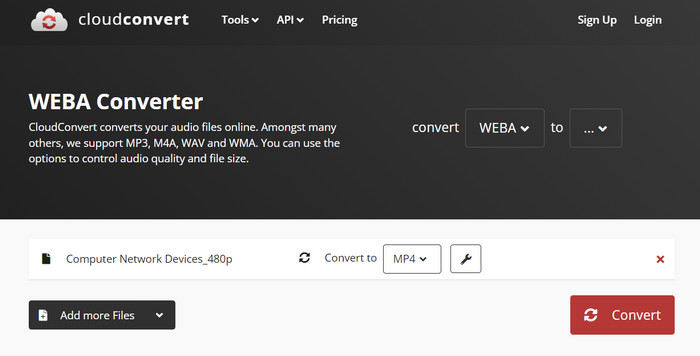
CloudConvert เป็นตัวแปลงไฟล์ MP4 ออนไลน์ที่นำเสนอคุณสมบัติที่ครอบคลุมแก่ผู้ใช้ รวมถึงการรองรับรูปแบบที่ครอบคลุม การตั้งค่าเอาต์พุตที่ปรับแต่งได้ อินเทอร์เฟซที่เป็นมิตรต่อผู้ใช้ การผสานรวมที่เก็บข้อมูลบนคลาวด์ ความปลอดภัยและความเป็นส่วนตัว การรวม API และตัวเลือกทั้งแบบฟรีและแบบชำระเงิน นอกจากนี้ ตัวแปลงวิดีโอเป็น MP4 ยังเป็นเครื่องมืออเนกประสงค์ที่เชื่อถือได้สำหรับการแปลงไฟล์วิดีโอเป็นรูปแบบ MP4 การตั้งค่าเอาต์พุตที่ปรับแต่งได้ทำให้เป็นตัวเลือกที่ยอดเยี่ยมสำหรับผู้ใช้ที่ต้องการปรับแต่งคุณภาพและขนาดของวิดีโอให้เหมาะกับความต้องการเฉพาะของพวกเขา
คุณสมบัติเด่น:
◆ CloudConvert เสนอการรวม API สำหรับการรวมเวิร์กโฟลว์
◆ ใช้การเข้ารหัส SSL เพื่อป้องกันไฟล์ของผู้ใช้
◆ รองรับการรวมที่เก็บข้อมูลบนคลาวด์
ขั้นตอนที่ 1. ไปที่เว็บไซต์ CloudConvert และสมัครบัญชีฟรีหากคุณยังไม่มี.
ขั้นตอนที่ 2. คลิก Select Files เพื่อเพิ่มไฟล์วิดีโอที่ต้องการแปลง หรือจะลากไฟล์มาวางในช่องอัปโหลดก็ได้ จากนั้นเลือก MP4 จากเมนูดรอปดาวน์เป็นรูปแบบไฟล์ขาออก.
ขั้นตอนที่ 3. เปลี่ยนตัวเลือกเอาต์พุต เช่น ความละเอียด บิตเรต และเฟรมเรต ถ้าคุณต้องการ.
ขั้นตอนที่ 4. คลิกปุ่ม Convert เพื่อเริ่มต้นการแปลงไฟล์.
4. Convertio
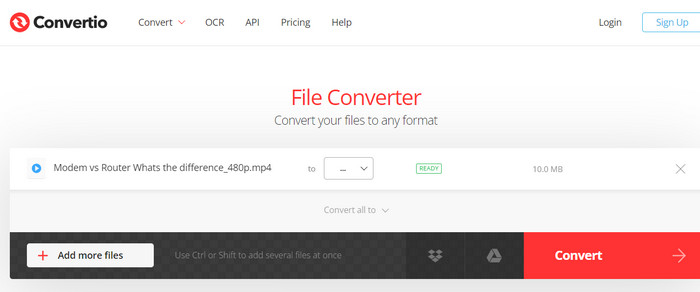
Convertio เป็นตัวเลือกที่ยอดเยี่ยมหากคุณต้องการแปลงไฟล์วิดีโอเป็นรูปแบบ MP4 อย่างรวดเร็ว ด้วยอินเทอร์เฟซที่ใช้งานง่ายและเวลาในการแปลงที่รวดเร็ว จึงเป็นเรื่องง่ายที่จะเปลี่ยนภาพยนตร์ของคุณเพื่อให้สามารถดูได้บนอุปกรณ์และแพลตฟอร์มที่หลากหลาย Convertio เป็นเครื่องมือสารพัดประโยชน์ที่สามารถรองรับทุกความต้องการในการแปลงวิดีโอของคุณ ทำงานร่วมกับที่เก็บข้อมูลบนคลาวด์และให้คุณใช้ไฟล์อินพุตและเอาต์พุตได้หลากหลาย ค้นหาว่าตัวแปลง MP4 ฟรีนี้ทำงานอย่างไร
คุณสมบัติเด่น:
◆ การแปลงเป็นชุดสำหรับหลายไฟล์
◆ การผสานรวมกับบริการต่างๆ เช่น Google Drive, Dropbox เป็นต้น
◆ คุณสมบัติขั้นสูง เช่น OCR สำหรับการแปลงเอกสารที่สแกน
ขั้นตอนที่ 1. คลิก Choose Files บนเว็บไซต์ Convertio (https://convertio.co/) เพื่อเพิ่มไฟล์วิดีโอที่คุณต้องการแปลง คุณอาจเลือกที่จะลากไฟล์มาวางในพื้นที่อัปโหลดได้เช่นกัน.
ขั้นตอนที่ 2. จากกล่องดรอปดาวน์ ให้เลือก MP4 เป็นรูปแบบที่ต้องการใช้ คุณยังสามารถเปลี่ยนความละเอียด บิตเรต และเฟรมเรตของผลลัพธ์ได้หากต้องการ.
ขั้นตอนที่ 3. เพื่อเริ่มกระบวนการแปลง ให้คลิกปุ่ม Convert แถบแสดงความคืบหน้าจะบอกให้คุณทราบว่าการแปลงดำเนินไปถึงไหนแล้วบนหน้าเว็บ.
ขั้นตอนที่ 4. เมื่อกระบวนการเสร็จสิ้น คุณสามารถคลิก Download เพื่อบันทึกไฟล์ MP4 ลงในคอมพิวเตอร์ของคุณ.
ส่วนที่ 3 สุดยอดตัวแปลง MP4 3 ตัวออฟไลน์
ตอนนี้ หากในบางกรณี คุณพบว่าตัวเองไม่สามารถเข้าถึงอินเทอร์เน็ตได้ คุณสามารถเลือกโปรแกรมออฟไลน์ได้ในกรณีเหล่านี้ ดังนั้น นี่คือเครื่องมือที่คุณวางใจได้
1. FVC Video Converter Ultimate
FVC Video Converter Ultimate เป็นซอฟต์แวร์ทรงพลังที่ให้โซลูชันแบบครบวงจรสำหรับการแปลงไฟล์วิดีโอให้เป็นรูปแบบ MP4 รองรับรูปแบบไฟล์ขาเข้าและขาออกหลากหลาย รวมถึงวิดีโอแบบ HD และ 4K และยังมีการตั้งค่าเอาต์พุตที่ปรับแต่งได้เพื่อให้แน่ใจว่าคุณภาพวิดีโอสูง นอกจากนี้ โปรแกรมแปลงไฟล์ MP4 ตัวนี้ยังรองรับการแปลงแบบกลุ่มสำหรับหลายไฟล์พร้อมกัน และมีเครื่องมือตัดต่อสำหรับตัดต่อ คร็อปภาพ ใส่ลายน้ำ และอื่น ๆ ด้วยความเร็วในการแปลงที่สูงและคุณภาพเอาต์พุตที่ยอดเยี่ยม FVC Video Converter Ultimate จึงเป็นเครื่องมือที่เชื่อถือได้และยืดหยุ่นสำหรับทุกความต้องการในการแปลงไฟล์ MP4 ของคุณ.
คุณสมบัติเด่น:
◆ รองรับวิดีโอ HD และ 4K เพื่อรักษาวิดีโอคุณภาพสูง
◆ รองรับการเร่งฮาร์ดแวร์สำหรับ GPU NVIDIA และ AMD
◆ รองรับอุปกรณ์เอาท์พุตต่างๆ
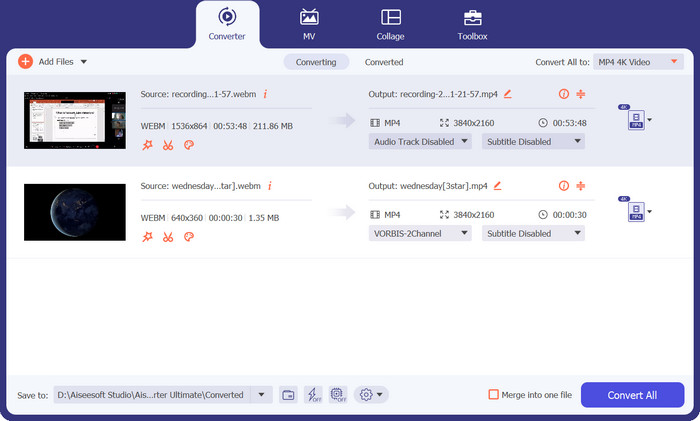
ขั้นตอนที่ 1. สิ่งแรกที่คุณต้องทำเพื่อใช้โปรแกรมแปลงไฟล์นี้คือดาวน์โหลดตัวติดตั้ง จากนั้นติดตั้งลงในอุปกรณ์ คุณสามารถดาวน์โหลดแอปได้โดยใช้ปุ่ม Free Download ด้านล่าง.
ดาวน์โหลดฟรีสำหรับ Windows 7 ขึ้นไปดาวน์โหลดอย่างปลอดภัย
ดาวน์โหลดฟรีสำหรับ MacOS 10.7 ขึ้นไปดาวน์โหลดอย่างปลอดภัย
ขั้นตอนที่ 2. จากนั้นเปิดโปรแกรมและโหลดวิดีโอใดก็ได้ด้วยการคลิกปุ่มเครื่องหมายบวกจากหน้าหลักของโปรแกรม.
ขั้นตอนที่ 3. ต่อไป ไปที่เมนู Profile แล้วเลือก MP4 จากแท็บ Video สุดท้ายให้กดปุ่ม Convert All แล้วคุณจะได้วิดีโอทั้งหมดถูกแปลงเป็นไฟล์ MP4.
2. VLC Media Player
VLC Media Player เป็นเครื่องเล่นมัลติมีเดียฟรีที่ได้รับการยอมรับอย่างกว้างขวางว่าสามารถเล่นไฟล์เสียงหรือวิดีโอได้เกือบทุกรูปแบบ สิ่งที่หลายคนอาจไม่รู้ก็คือ VLC Media Player เป็นตัวแปลงวิดีโอที่ทรงพลังที่สามารถแปลงวิดีโอของคุณเป็นรูปแบบ MP4 ได้อย่างง่ายดาย ด้านล่างนี้เป็นคุณสมบัติหลักบางประการเพื่อทราบข้อมูลเพิ่มเติมเกี่ยวกับโปรแกรมนี้
คุณสมบัติเด่น:
◆ มันสามารถแก้ไขตัวแปลงสัญญาณวิดีโอและเสียง ความละเอียด และอัตราบิต
◆ สามารถเพิ่มซับไตเติลลงในวิดีโอได้.
◆ สามารถดูตัวอย่างวิดีโอก่อนที่จะแปลง
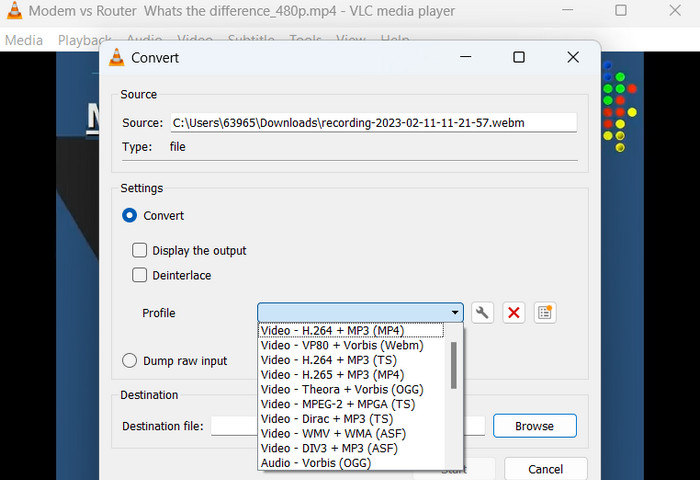
ขั้นตอนที่ 1. เปิดโปรแกรม VLC Media Player บนคอมพิวเตอร์ของคุณ คลิกที่เมนู Media ด้านบนแล้วเลือก Convert/Save จากเมนูดรอปดาวน์.
ขั้นตอนที่ 2. คลิกปุ่ม Add เพื่อเลือกไฟล์วิดีโอที่คุณต้องการแปลง เมื่อเพิ่มไฟล์แล้วให้คลิกปุ่ม Convert/Save.
ขั้นตอนที่ 3. ในส่วน Profile ให้เลือก Video - H.264 + MP3 (MP4) เป็นรูปแบบเอาต์พุต แล้วคลิกปุ่ม Start เพื่อเริ่มกระบวนการแปลง และรอจนกว่าการแปลงจะเสร็จสิ้น.
3. เบรกมือ
HandBrake เป็นตัวแปลงรหัสวิดีโอแบบโอเพ่นซอร์สที่ให้คุณแปลงไฟล์วิดีโอเป็นรูปแบบต่างๆ รวมถึง MP4 เป็นเครื่องมือยอดนิยมในหมู่ผู้ที่ชื่นชอบวิดีโอเนื่องจากใช้งานง่ายและมีคุณสมบัติที่ทรงพลัง ในทำนองเดียวกัน โปรแกรมแปลงวิดีโอ MP4 นี้ยังมีการประมวลผลเป็นชุด ดังนั้นคุณจึงสามารถแปลงไฟล์หลายไฟล์พร้อมกันได้ และยังมีค่าที่ตั้งไว้ล่วงหน้ามากมายที่ทำให้ง่ายต่อการปรับแต่งวิดีโอของคุณสำหรับอุปกรณ์และแพลตฟอร์มต่างๆ
คุณสมบัติเด่น:
◆ ซอฟต์แวร์ฟรีและโอเพ่นซอร์ส
◆ รองรับคำบรรยายและผู้สร้างบท
◆ พรีเซ็ตสำหรับการเพิ่มประสิทธิภาพเอาต์พุตวิดีโอ
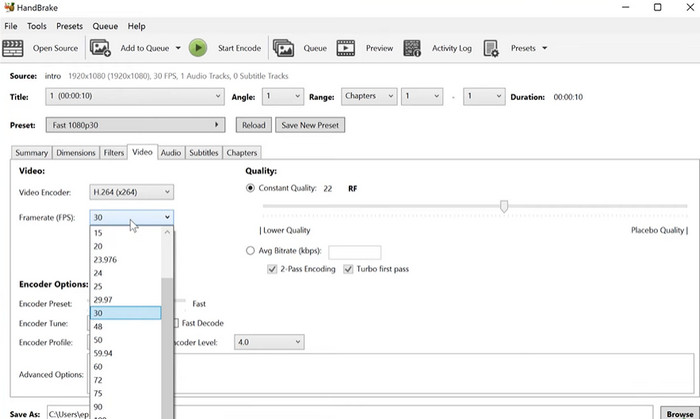
ขั้นตอนที่ 1. ดาวน์โหลดและติดตั้ง HandBrake จากเว็บไซต์ทางการ เปิด HandBrake แล้วเลือกไฟล์วิดีโอที่ต้องการแปลงโดยคลิกปุ่ม Open Source ที่มุมซ้ายบนของหน้าต่าง.
ขั้นตอนที่ 2. เลือกพรีเซ็ตสำหรับไฟล์เอาต์พุตของคุณโดยเลือกหนึ่งในตัวเลือกจากเมนู Presets ในแถวด้านบนของหน้าต่าง หากคุณไม่แน่ใจว่าจะใช้พรีเซ็ตใด คุณสามารถเลือก Fast 1080p30 เพื่อความสมดุลที่ดีระหว่างความเร็วและคุณภาพ.
ขั้นตอนที่ 3. คลิกปุ่ม Start Encode ในแถบเมนูด้านบนเพื่อเริ่มกระบวนการแปลงไฟล์.
ส่วนที่ 4 คำถามที่พบบ่อยเกี่ยวกับตัวแปลง MP4
ฉันสามารถเล่นไฟล์ MP4 บน iPhone ของฉันได้หรือไม่
ใช่ MP4 เป็นรูปแบบที่อุปกรณ์ iPhone รองรับอยู่แล้ว MP4 เป็นฟอร์แมตวิดีโอสากลที่ใช้งานได้กับอุปกรณ์ส่วนใหญ่ รวมถึง iPhone ด้วย ดังนั้นคุณไม่จำเป็นต้องใช้โปรแกรมแปลงไฟล์จาก MP4 เป็นรูปแบบสำหรับ iPhone เป็นพิเศษ คุณเพียงใช้โปรแกรมเล่นวิดีโอที่ติดตั้งมากับ iPhone หรือหาแอปเล่นวิดีโอสำหรับ iPhoneของผู้พัฒนารายอื่นมาใช้ก็ได้.
ฉันสามารถอัปโหลดไฟล์ MP4 ไปยัง TikTok ได้หรือไม่
ใช่. คุณไม่จำเป็นต้องหาตัวแปลง MP4 เป็น TikTok เพื่ออัปโหลด เนื่องจาก TikTok ยอมรับไฟล์วิดีโอ MP4 เป็นหนึ่งในรูปแบบที่รองรับสำหรับการอัปโหลดวิดีโอไปยังแพลตฟอร์ม
ฉันสามารถแปลงไฟล์ MP4 เป็นรูปแบบที่รองรับ iTunes ได้หรือไม่
ใช่. คุณไม่จำเป็นต้องหาตัวแปลง MP4 เป็น iTunes คุณสามารถใช้ตัวแปลง เช่น HandBrake เพื่อช่วยในเรื่องนี้
สรุป
โปรแกรมแปลงไฟล์ MP4 เป็นเครื่องมือสำคัญสำหรับผู้ที่ต้องการดูหรือแชร์วิดีโอของตนบนอุปกรณ์หรือแพลตฟอร์มที่หลากหลาย และช่วยให้มั่นใจได้ถึงความเข้ากันได้ของไฟล์และการเล่นวิดีโอคุณภาพสูงอย่างสะดวกและเชื่อถือได้ ดังนั้น เราจึงได้รวบรวมและเปรียบเทียบโปรแกรมที่ดีที่สุด เพื่อช่วยให้คุณเลือกแอปที่เหมาะกับคุณที่สุด.
-
 โปรแกรมแก้ไข MP4 ที่ดีที่สุดสำหรับ Windows และ Mac ในปี 2023
 ไม่ว่าคุณจะใช้คอมพิวเตอร์ในการตัดต่อวิดีโอ MP4 หรือทำงานบนโทรศัพท์คุณจะพบตัวเลือกดีๆที่นี่รวมถึงโปรแกรมแก้ไข MP4 ที่ดีที่สุดสำหรับ Windows และ Mac
-
 วิธีบีบอัดวิดีโอ MP4 ให้มีขนาดเล็กลง
 วิดีโอ MP4 ใหญ่เกินไปสำหรับการอัปโหลด? ต้องการลดขนาดวิดีโอหรือไม่? นี่คือ 3 วิธีที่มีประสิทธิภาพในการบีบอัดไฟล์ MP4 ให้มีขนาดเล็กลงโดยไม่มีขีด จำกัด
-
 5 ตัวแก้ไขข้อมูลเมตา MP4 อันดับสูงสุด [อัปเดต 2023]
 ฉันจะเปลี่ยนข้อมูลเมตา MP4 ได้อย่างไร วิธีที่ดีที่สุดในการเปลี่ยนข้อมูลเมตาของ MP4 คือการใช้ตัวแก้ไขแท็กที่รองรับรูปแบบ MP4 เช่นตัวอย่างที่เราแสดงรายการด้านล่าง
