


 Video Converter Ultimate
 บันทึกหน้าจอ
 ซ่อมวิดีโอ
 ดาวน์โหลดอย่างปลอดภัย
วิธีเล่น MP4 ใน Windows Media Player บนคอมพิวเตอร์ Windows 10
บางครั้งไฟล์ MP4 ไม่เล่นใน Windows Media Player แต่สามารถเล่นบนเครื่องเล่นอื่นๆ เช่น VLC Media Player หรือ KM Player เนื่องจาก MP4 เป็นรูปแบบวิดีโอยอดนิยมที่เข้ากันได้กับเครื่องเล่นสื่อและอุปกรณ์มัลติมีเดียทั้งหมด คุณอาจมีไฟล์วิดีโอจำนวนมากที่บันทึกในรูปแบบ MP4 ค่อนข้างน่ารำคาญหากไฟล์ MP4 ไม่สามารถเล่นใน Windows Media Player แล้วจะเล่นไฟล์ MP4 ใน Windows 10 ได้อย่างไร? ดีไม่จำเป็นต้องกังวลเกี่ยวกับ ต่อไปนี้คือวิธีแก้ปัญหาทั้งหมดเพื่อแก้ไข Windows Media Player ที่ไม่เล่นไฟล์ MP4

ส่วนที่ 1 ทำไม Windows Media Player ไม่เล่น MP4
According to Microsoft, not all versions of Windows Media Player support MP4 file format. Windows Media Player 7, Windows Media Player for Windows XP, Windows Media Player 9 Series, Windows Media Player 10/11 don't support MP4 file format.
หาก Windows Media Player ไม่สามารถเล่นคลิปวิดีโอ MP4 ได้ อาจเป็นเพราะวิดีโอ MP4 เสียหายหรือเสียหาย ในกรณีนี้ คุณสามารถลองเล่นไฟล์ MP4 ที่ไม่สามารถเล่นได้ในเครื่องเล่นสื่ออื่น
เหตุผลอื่นที่ Windows Media Player ไม่เล่น MP4 ก็คือไฟล์ MP4 ไม่มีชุดตัวแปลงสัญญาณที่เหมาะสม
ส่วนที่ 2 เล่น MP4 ด้วยทางเลือกที่ดีที่สุดสำหรับ Windows Media Player
If MP4 videos still not playing, you can switch to a media player like FVC Free Video Player. It is a free online video player that plays all popular multimedia files like MP4, MKV, FLV, MOV, AVI, 3GP, MP3, FLAC, AAC, etc. on Windows and Mac. Based on HTML 5 technology, you can play any video files, whether it is from local computer or downloaded.
Step 1. Visit the official website of FVC Free Video Player (https://www.free-videoconverter.net/free-video-player/). Click Play Now button to download and install launcher.

Step 2. Click Open File button to load the MP4 file you want to play. You can also click File menu and select Open File to add the MP4 file.

Once the MP4 video is uploaded, it will be playing on your Windows computer automatically.If you want to edit video effects, you can click Tools and select Effects option and you can adjust hue, brightness, contrast, saturation and gamma to enhance your video.

ส่วนที่ 3 แปลง MP4 สำหรับเล่นใน Windows Media Player
If Windows Media Player cannot play the MP4 file, one simple way is to convert the MP4 file to other format supported by Windows Media Player. You can use a video converter tool like FVC Video Converter Ultimate to convert the MP4 to the default file format for Windows Media Player like WMV, ASF or WMA.
ดาวน์โหลดฟรีสำหรับ Windows 7 หรือใหม่กว่าดาวน์โหลดอย่างปลอดภัย
ดาวน์โหลดฟรีสำหรับ MacOS 10.7 หรือใหม่กว่าดาวน์โหลดอย่างปลอดภัย
Step 1. Free download, install and launch Video Converter Ultimate on your Windows computer. Click Add Files button to add the MP4 file you want to play.

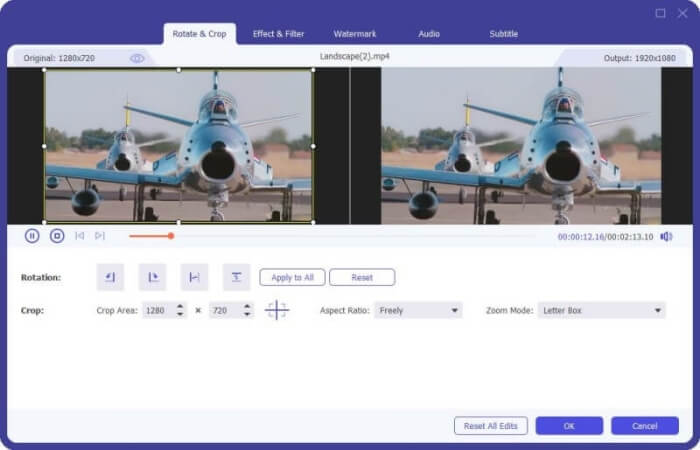
Step 2. If you want to add some effects to your MP4 file, you can click the Edit icon to enter the editing interface. Here you can add effects, apply a filter, rotate or crop the MP4 file, add watermark, adjust audio track and subtitles.
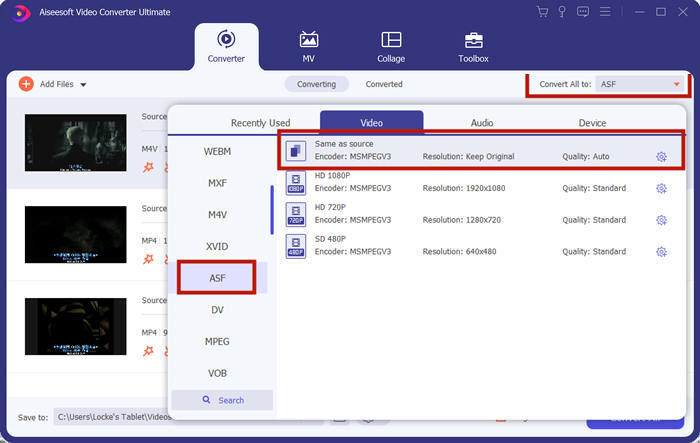
Step 3. Then click the drop-down arrow next to Convert All to, locate in Video tab and select ASF or WMV as the output format.
Step 4. Finally, set the output folder where the converted MP4 file will be saved. Click the Convert All button to convert the MP4 file. After conversion, you can play the converted MP4 file in Windows Media Player.

ส่วนที่ 4 เคล็ดลับทั่วไปในการเล่น MP4 ใน Windows Media Player
To play MP4 on Windows 10, you can locate in the folder where MP4 files are stored. Right-click on the MP4 file you want to play, select Open with and choose Windows Media Player. As simple as it is, sometimes you may get failed to open MP4 file in Windows Media Player. To fix the issue, you can try the following tips.
1. เล่น MP4 กับเครื่องเล่นสื่ออื่นๆ
If your MP4 file doesn't play in Windows Media Player, you can try other media players to open the MP4 file. There are so many media players like FVC Free Video Player, VLC Media Player, KM Player, Real Player, GOM Player, BS Player, DivX Player and more.
2. ติดตั้งตัวแปลงสัญญาณที่เหมาะสมสำหรับ Windows Media Player
มีตัวแปลงสัญญาณหายไปหาก Windows Media Player ไม่เล่นไฟล์ MP4 ในการแก้ปัญหา คุณต้องติดตั้งตัวแปลงสัญญาณที่ถูกต้องสำหรับ Windows Media Player
Step 1. Open Windows Media Player. Click Organize menu and select Options.
Step 2. Move to the Privacy tab and check Download usage rights automatically when I play or sync a file option.
Step 3. To play the MP4 file, you can click the OK button to save the changes.
3. เรียกใช้ตัวแก้ไขปัญหาบน Windows
หาก MP4 ไม่สามารถเล่นใน Windows Media Player คุณสามารถใช้เครื่องมือแก้ไขปัญหาเพื่อแก้ไขปัญหาใน Windows 10 ทำตามขั้นตอนเพื่อแก้ไขปัญหา
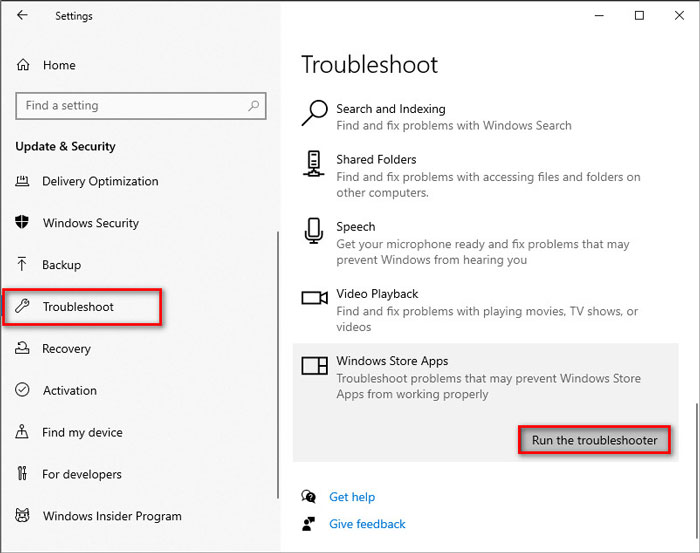
Step 1. On your Windows 10 computer, open Settings and select Update & Security.
Step 2. Go to Troubleshoot area, and click Windows Store Apps.
Step 3. Click Run the troubleshooter button to troubleshoot the Windows Media Player playback issue.
ส่วนที่ 5. คำถามที่พบบ่อยเกี่ยวกับการเล่น MP4 ใน Windows Media Player
รูปแบบวิดีโอเริ่มต้นของ Windows Media Player คืออะไร?
รูปแบบไฟล์เริ่มต้นของ Windows Media Player คือ WMV (Windows Media Video) และ WMA (Windows Media Audio) นอกจากนี้ยังรองรับ ASF (รูปแบบระบบขั้นสูง) และรูปแบบเพลย์ลิสต์ตาม XML ของตัวเอง, Windows Playlist
เครื่องเล่น MP4 ที่ดีที่สุดคืออะไร?
There are many popular MP4 players on the market, including FVC Free Video Player, VLC Media Player, KM Player, QuickTime Player, RealPlayer, Media Player Classic, GOM Player, PotPlayer and more.
ฉันสามารถเล่น MKV ใน Windows Media Player ได้หรือไม่
Windows Media Player 12 ในตัวใน Windows 10 ไม่รองรับการเล่น MKV คุณต้องติดตั้งตัวแปลงสัญญาณที่เหมาะสมสำหรับการเล่น
สรุป
MP4 เป็นรูปแบบมัลติมีเดียดิจิทัลยอดนิยมที่ใช้กันทั่วไปในการจัดเก็บวิดีโอและเสียง เป็นเรื่องน่าผิดหวังหากไฟล์ MP4 ไม่สามารถเล่นใน Windows Media Player หวังว่าคุณจะสามารถเล่นไฟล์ MP4 ได้อย่างคล่องแคล่วใน Windows 10 พร้อมคำแนะนำและวิธีแก้ปัญหาทั้งหมดของเรา คุณสามารถลองใช้เครื่องเล่นวิดีโออื่น เช่น FVC Free Video Player เพื่อเล่นไฟล์ MP4 ของคุณ
-
 วิธีเล่นไฟล์ MP4 ใน Google Drive
 MP4 ไม่เล่นใน Google Drive ของฉัน? จะเล่นไฟล์ MP4 ใน Google Drive ได้อย่างไร? โพสต์นี้บอก 3 วิธีในการเล่นวิดีโอ MP4 ใน Google Drive
-
 เล่นไฟล์ MP4 บน Chromebook 2021
 คุณสามารถเล่นวิดีโอบน Chromebook ได้หรือไม่ วิธีเล่นไฟล์ MP4 จาก USB บน Chromebook โพสต์นี้แชร์ 3 วิธีในการเล่น MP4 บน Chromebook
-
 วิธีเล่น DVD บน Windows Media Player ในปี 2021
 ทำไมดีวีดีของฉันไม่เล่นบน Windows Media Player จะเล่น DVD บนเครื่องเล่นสื่อ Windows 7 ได้อย่างไร? โพสต์นี้แชร์ 3 วิธีในการเล่นดีวีดีที่มีหรือไม่มี WMP
