


 Video Converter Ultimate
 บันทึกหน้าจอ
 ซ่อมวิดีโอ
 ดาวน์โหลดอย่างปลอดภัย
เครื่องบันทึกสตรีม ASF ที่ดีที่สุดในทุกแพลตฟอร์มเพื่อบันทึกวิดีโอ ASF
Microsoft จัดการกับคอนเทนต์ของไฟล์ ASF หรือที่รู้จักกันในชื่อ Advanced System Format นอกจากนี้ ผู้ใช้ Mac ก็สามารถใช้ไฟล์รูปแบบนี้ได้เช่นกัน เช่นเดียวกัน ASF ถือเป็นที่เก็บ (repository) ที่ประกอบด้วยวิดีโอและเสียงหลายไฟล์แบบอิสระหรือพึ่งพากันสำหรับ Windows Media คุณสามารถใช้ไฟล์ ASF เพื่อสตรีมวิดีโอและไฟล์เสียงได้ และผู้ใช้บางคนก็พบว่ายากที่จะเลือกโปรแกรมอัดสตรีม ASF ที่มีคุณภาพตรงตามความต้องการของผู้ใช้ เมื่อคุณอ่านรายละเอียดด้านล่างต่อไป คุณจะเห็นเครื่องมือหลากหลายที่รองรับแพลตฟอร์มของคุณ ด้านล่างนี้คือรายชื่อโปรแกรมอัด ASFที่ยอดเยี่ยมที่สุดที่รองรับไฟล์รูปแบบ ASF ทั้งนี้ โปรดอ่านรายละเอียดอย่างรอบคอบ แล้วมาดูตัวซอฟต์แวร์และความสามารถเฉพาะตัวของแต่ละตัวไปพร้อมกัน.

ส่วนที่ 1 ตัวบันทึก ASF ที่ดีที่สุดสำหรับ Windows และ Mac (จำกัด & ฟรี)
FVC บันทึกหน้าจอฟรี
เครื่องมือที่ใช้บันทึกการถ่ายทอดสดได้ฟรีแบบไม่มีค่าใช้จ่ายคือ FVC Free Screen Recorder หากคุณมีอินเทอร์เน็ตและต้องการอัดสตรีม ข่าว หรือการถ่ายทอดสดใด ๆ ไว้ดูย้อนหลังแบบไม่เสียเงิน การใช้เครื่องมือนี้ถือว่าเพียงพอแล้ว คุณยังสามารถใช้เว็บแคม ไมค์ และฮาร์ดแวร์อื่น ๆ ร่วมกับโปรแกรมเพื่อใช้บันทึกได้ด้วย เครื่องมือนี้ช่วยให้ผู้ใช้บันทึกการถ่ายทอดสดใด ๆ ได้ในรูปแบบไฟล์ MP4 หรือ WMV อีกคุณสมบัติที่โดดเด่นคือไม่จำเป็นต้องดาวน์โหลดโปรแกรม เพียงเปิดเบราว์เซอร์ของคุณ เปิดใช้งาน แล้วปล่อยให้เครื่องมือทำงานต่อไป เมื่อเข้าสู่คำอธิบายอย่างละเอียดมากขึ้น ด้านล่างนี้คือขั้นตอนการอัดสตรีมสดด้วย ASF Streamer Recorder.
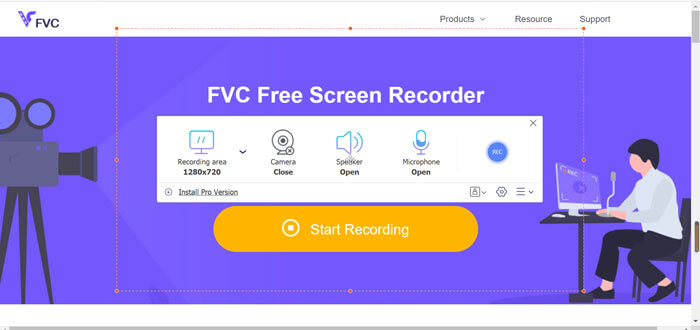
ขั้นตอนที่ 1 เปิดเบราว์เซอร์ของคุณและไปที่เว็บไซต์ทางการของ FVC Free Screen Recorder คุณสามารถคลิกลิงก์เพื่อเปิดแอป แถบลอยและเส้นประสีแดงจะปรากฏขึ้นบนหน้าจอของคุณ.
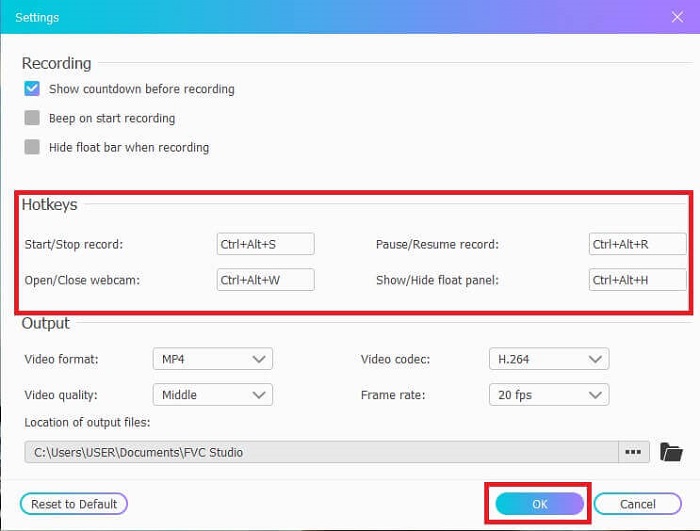
ขั้นตอนที่ 2 คลิกไอคอน Settings ที่อยู่ด้านล่างปุ่ม REC คุณสามารถปรับ Hotkeys ให้เหมาะกับความต้องการของคุณได้ จากนั้นคลิก OK ด้านล่างเพื่อบันทึกการเปลี่ยนแปลง.
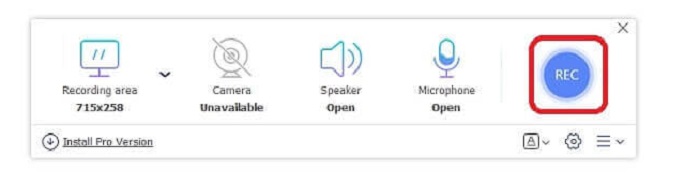
ขั้นตอนที่ 3 ปรับขนาดเฟรม (Frame size) เพื่อเปลี่ยนอัตราส่วนภาพหากจำเป็น เปิด Speaker เพื่อบันทึกเสียงระบบ เปิด Mic เพื่อเพิ่มเสียงพูดของคุณ และเปิด Webcam หากต้องการบันทึกภาพตัวคุณเอง จากนั้นคลิกปุ่มกลม REC เพื่อเริ่มบันทึกวิดีโอ ASF.
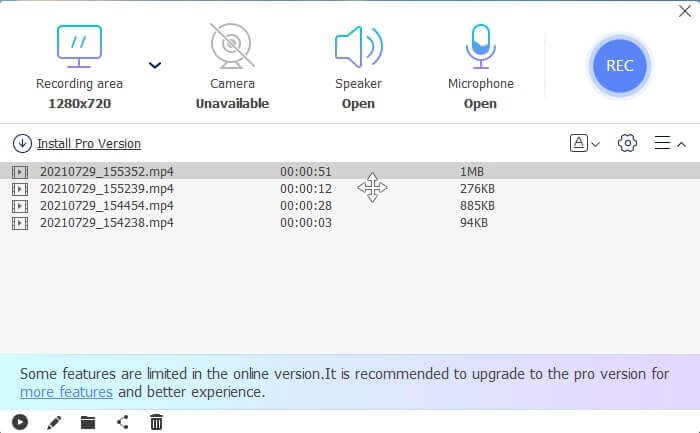
ขั้นตอนที่ 4 รอเป็นเวลา 3 วินาที เพื่อเริ่มบันทึก นอกจากนี้ยังมีรายชื่อปุ่มควบคุมและฮอตคีย์ที่คุณตั้งค่าไว้สำหรับการบันทึกแสดงอยู่ด้วย.
ขั้นตอนที่ 5 เมื่อจะหยุดบันทึก ให้คลิกปุ่ม Square จากนั้นเล่นไฟล์วิดีโอบนสุดซึ่งเป็นไฟล์ล่าสุด หลังจากเล่นวิดีโอแล้ว คุณสามารถตัดต่อ วาด หรือทำให้เป็นสโลว์โมชั่นได้โดยคลิกที่ไอคอนรูป Pencil เพื่อแก้ไข เสร็จแล้วบันทึกและเพลิดเพลินกับวิดีโอที่อัดไว้.
ข้อดี
- บันทึกหน้าจอออนไลน์ฟรี ไม่จำเป็นต้องดาวน์โหลด เพียงแค่เปิดแอป
- ส่วนต่อประสานที่ใช้งานง่ายซึ่งอนุญาตให้ผู้ใช้จัดการเครื่องมือด้วยวิธีที่ง่าย
- การจัดเก็บเป็นมิตรเนื่องจากข้อมูลที่ถูกบีบอัด ไม่ต้องกังวลเรื่องการจัดเก็บของคุณเลย
จุดด้อย
- หากคุณไม่มีอินเทอร์เน็ต การคัดกรองบันทึกไม่ใช่ตัวเลือกที่ดีที่สุด เนื่องจากเครื่องมือนี้ขึ้นอยู่กับอินเทอร์เน็ต
ส่วนที่ 2 เครื่องบันทึก ASF ยอดนิยมอื่น ๆ เพื่อบันทึกวิดีโอ ASF (ผู้เชี่ยวชาญ & ไม่จำกัด)
1. เครื่องบันทึกหน้าจอ FVC
โปรแกรมอัดหน้าจอตัวนี้เป็นที่นิยมเพราะตอบโจทย์ความต้องการของผู้ใช้ FVC Screen Recorder จึงถูกเลือกโดยผู้ใช้จำนวนมากเนื่องจากมีส่วนติดต่อผู้ใช้ที่เข้าใจง่าย เป็นโปรแกรมแบบดาวน์โหลดที่ต้องชำระเงินซึ่งสามารถจับทุกการเคลื่อนไหวบนหน้าจอของคุณได้ทั้งขณะออนไลน์และออฟไลน์ รองรับทุกแพลตฟอร์มที่ผู้ใช้ใช้งาน การเลือกใช้เครื่องมือตัวนี้ถือเป็นตัวเลือกที่ดีที่สุดสำหรับการเป็น asf stream recorder เพราะมีฟีเจอร์ระดับท็อปไลน์ที่คุณคาดหวังจากโปรแกรมอัดหน้าจอ นอกจากนี้ หากคุณมองหาโปรแกรมอัดหน้าจอราคาย่อมเยาแต่ให้วิดีโอคุณภาพระดับมืออาชีพ เพื่อให้คุณเข้าใจรายละเอียดเกี่ยวกับเครื่องมือนี้ โปรดทำตามขั้นตอนต่อไปนี้แล้วคุณจะรู้ว่าการอัดหน้าจอด้วยโปรแกรมนี้นั้นง่ายมาก.
ขั้นตอนที่ 1 คลิกปุ่ม Free Download ให้ตรงกับระบบปฏิบัติการของคุณ ไม่ว่าจะเป็น Windows หรือ Mac แล้วทำการติดตั้ง ปรับ preference ให้เหมาะกับความต้องการของคุณ จากนั้นเปิดโปรแกรม แถบเครื่องมือแบบลอยจะปรากฏขึ้น.
ดาวน์โหลดฟรีสำหรับ Windows 7 ขึ้นไปดาวน์โหลดอย่างปลอดภัย
ดาวน์โหลดฟรีสำหรับ MacOS 10.7 ขึ้นไปดาวน์โหลดอย่างปลอดภัย
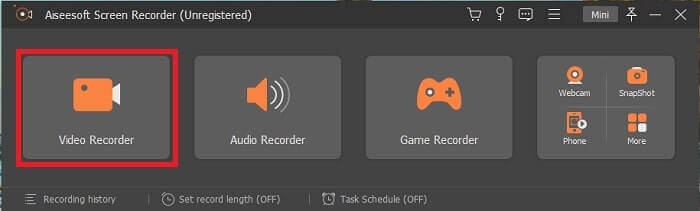
ขั้นตอนที่ 2 คลิก Video Recorder เพื่อบันทึกทุกสิ่งที่อยู่บนหน้าจอของคุณ.
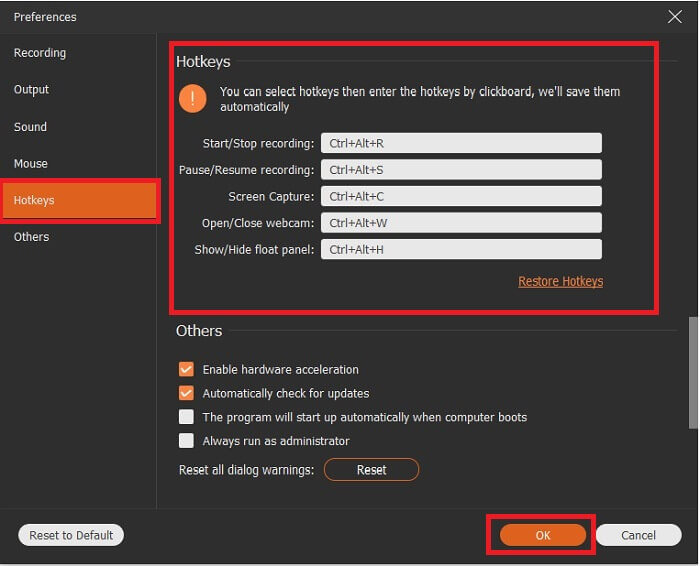
ขั้นตอนที่ 3 ดำเนินการต่อโดยคลิกปุ่ม Record setting แล้วหน้าต่างนี้จะปรากฏขึ้น บนอินเทอร์เฟซให้คลิก Hotkeys ตั้งค่า Hotkeys ตามที่คุณต้องการก่อนเริ่มบันทึก อย่าลืมกด OK เพื่อบันทึกการตั้งค่า.
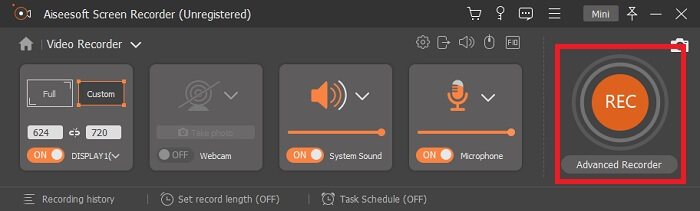
ขั้นตอนที่ 4 คลิก Custom ใต้เมนู Display เพื่อเลือกบันทึกเฉพาะบางส่วนของหน้าจอ คุณอาจเปิด Speaker หากต้องการบันทึกเสียงด้วย ทั้งนี้ ฟีเจอร์บางส่วนจะทำงานได้เมื่อมีการใช้งานฮาร์ดแวร์ หากต้องการบันทึกเสียงของคุณเอง ให้เปิด Microphone หรือหากต้องการบันทึกภาพตัวเองบนหน้าจอ ให้เปิด Webcam เมื่อพร้อมแล้วให้คลิกปุ่มรูปดิสก์ Rec เพื่อเริ่มบันทึก หลังจากผ่านไป 3 วินาที วิดีโอจะเริ่มบันทึก.
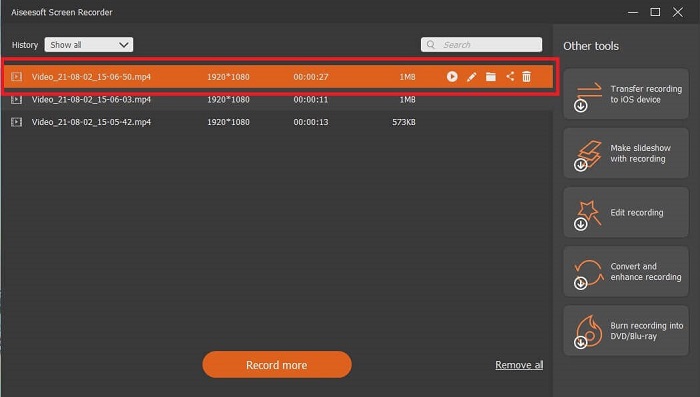
ขั้นตอนที่ 5 เมื่อบันทึกเสร็จแล้ว ให้คลิกปุ่ม Square สีแดงเพื่อหยุด จากนั้นคลิก Save และ Next เพื่อดำเนินการต่อ คลิกปุ่ม Play เพื่อดูวิดีโอสตรีมสดที่คุณบันทึกไว้.
ข้อดี
- คุณลักษณะเฉพาะของเครื่องมือนี้คือมีคุณลักษณะล็อคหน้าจอเพื่อไม่ให้รบกวนผู้ใช้
- ราคาไม่แพงและยืดหยุ่น สามารถใช้ได้กับทุกแพลตฟอร์ม ดังนั้นไม่ต้องกังวลหากคุณเปลี่ยนแพลตฟอร์ม
- เอาต์พุตวิดีโอนั้นโดดเด่นกว่าเครื่องบันทึกหน้าจออื่นๆ
จุดด้อย
- เสียเงินแต่ไม่แพง
- ต้องการกินพื้นที่เก็บข้อมูล 2.4mb เพื่อดาวน์โหลด
2. OBS Studio
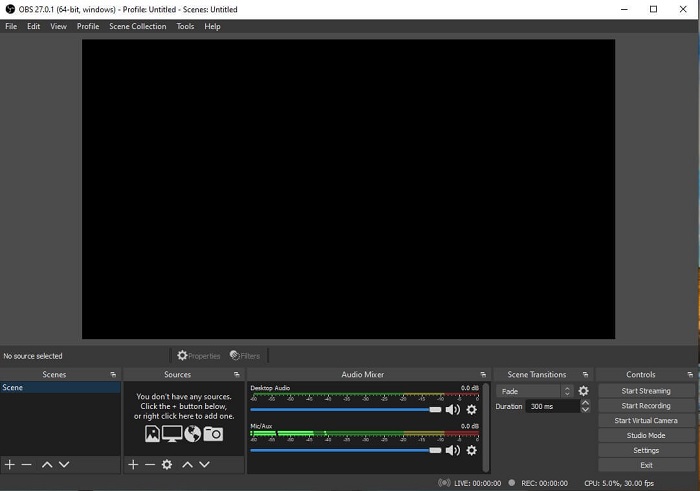
OBS Studio เป็นโปรแกรมดาวน์โหลดฟรีที่ทำให้การบันทึกและสตรีมมิงของคุณมีประสิทธิภาพสูง คุณยังสามารถสลับการตั้งค่าไปยังฉาก (scenes) จำนวนไม่จำกัดผ่านทรานซิชันแบบกำหนดเอง อย่างไรก็ตาม ขนาดไฟล์ของโปรแกรมค่อนข้างใหญ่สำหรับโปรแกรมอัด ASF ที่ทำงานได้คล้ายกับโปรแกรมอัดตัวอื่น ๆ อินเทอร์เฟซมีองค์ประกอบแสดงผลค่อนข้างมาก รายละเอียดบางอย่างดูรบกวนสายตาเพราะเป็นรูปแบบเก่า จึงไม่ใช่ตัวเลือกที่ดีที่สุดสำหรับผู้เริ่มต้นเนื่องจากมีรายละเอียดค่อนข้างซับซ้อน.
ข้อดี
- ดาวน์โหลดฟรี
- มิกเซอร์เสียงที่ใช้งานง่ายพร้อมการรองรับ VST
- ตรวจสอบฉากต่างๆ ได้มากถึง 8 ฉากและเปลี่ยนได้อย่างง่ายดายเพียงแค่คลิกสองครั้ง
- ตั้งค่าปุ่มลัดสำหรับเกือบทุกการกระทำ
จุดด้อย
- ดาวน์โหลดไฟล์ขนาดใหญ่
- รายละเอียดมากเกินไปบนอินเทอร์เฟซ
3. Fraps
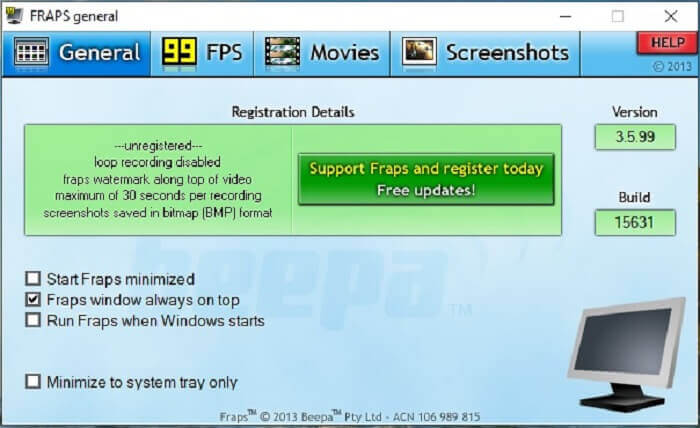
แชร์มอนทาจและวิดีโอสุดเจ๋งของคุณด้วย Fraps ซึ่งมอบเอาต์พุตคุณภาพสูงให้กับผู้ใช้ นอกจากนี้ ด้วยอัตราเฟรม 120 fps ทำให้มันกลายเป็นหนึ่งในตัวเลือกที่ดีที่สุดสำหรับการสตรีม ASF อย่างไรก็ตาม เวอร์ชันฟรีสามารถบันทึกได้เพียง 30 วินาทีเท่านั้น ต่อมา ฟังก์ชัน fraps windows always on top จะช่วยให้มั่นใจว่าโปรแกรมยังทำงานอยู่เสมอ สุดท้าย ตั้งค่าให้รัน Fraps ตอนที่ Windows เริ่มทำงานเพื่อให้โปรแกรมถูกเปิดใช้พร้อมกับเดสก์ท็อปของคุณ.
ข้อดี
- วิดีโอคุณภาพสูงเพราะ 120 fps
- ซอฟต์แวร์การเปรียบเทียบจะให้ข้อมูลโดยละเอียดเกี่ยวกับ fps ที่มุมของหน้าจอ
- ไม่พบปัญหาใดๆ ตั้งแต่เริ่มจนจบวิดีโอ
จุดด้อย
- เวอร์ชันฟรีมีให้สำหรับการบันทึก 30 วินาทีพร้อมลายน้ำเท่านั้น ภาพหน้าจอจะมีให้ในรูปแบบ BMP เท่านั้น
- พื้นที่เก็บข้อมูลขนาดใหญ่สำหรับวิดีโอเนื่องจากรูปแบบไฟล์ที่ไม่บีบอัด ไม่ใช่ทางเลือกที่ดีที่สุดสำหรับเดสก์ท็อปจัดเก็บข้อมูลขนาดเล็ก
4. ShareX
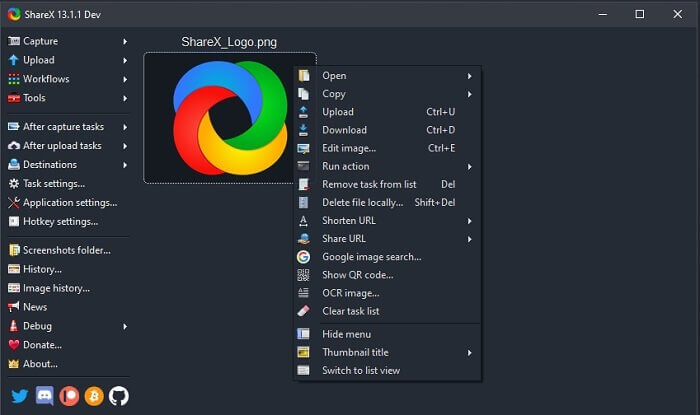
อีกประเภทหนึ่งของโปรแกรมบันทึกหน้าจอคือ ShareX ซึ่งทำงานได้อย่างยอดเยี่ยมในการจับภาพหน้าจอ ใส่คำอธิบายประกอบ และอัปโหลด ตัวโปรแกรมเองค่อนข้างจัดการยาก คุณต้องใช้เวลาพอสมควรในการเรียนรู้วิธีใช้งาน คุณสามารถเลือกอัปโหลดรูปภาพ ข้อความ และไฟล์ประเภทอื่น ๆ ไปยังจุดหมายปลายทางที่รองรับมากกว่า 80 แห่ง อย่างไรก็ตาม โปรแกรมนี้ไม่ค่อยเป็นมิตรกับผู้ใช้ แทนที่จะได้บันทึกและสตรีมวิดีโอได้ง่าย ๆ คุณอาจต้องเสียเวลาศึกษาวิธีใช้อยู่พอสมควร.
ข้อดี
- เป็นโอเพ่นซอร์สและฟรี
- ให้คุณปรับแต่งแป้นพิมพ์ลัดเพื่อให้บันทึกสตรีม ASF ดีขึ้น
- คุณสามารถจับภาพหน้าจอ ใส่คำอธิบายประกอบ และอัปโหลดได้อย่างง่ายดาย
จุดด้อย
- มันล้นหลามเกินไปสำหรับผู้ใช้ใหม่ และแม้ว่าคุณจะเป็นมือโปรก็ตาม เครื่องมือนี้ก็มีหลายอย่างที่ต้องรับมือ
- ปัญหามัลแวร์
ส่วนที่ 3 แผนภูมิเปรียบเทียบ
หากคุณไม่ชอบอ่านบทความ แผนภูมินี้จะช่วยคุณตัดสินใจ
| คุณสมบัติ | FVC บันทึกหน้าจอฟรี | เครื่องบันทึกหน้าจอ FVC | OBS Studio | Fraps | แชร์X |
| การบันทึกหน้าจอวิดีโอ/เสียง |  | | | | |
| ความพร้อมใช้งานของปุ่มลัด | | | | | |
| คุณสมบัติล็อคหน้าจอ |  | | | | |
| เครื่องมือแก้ไขขณะบันทึก | | | | | |
| มัลแวร์ปลอดภัย | | | | | มีไฟล์ปฏิบัติการ ในบางกรณีอาจทำให้คอมพิวเตอร์ของคุณเสียหายได้ แต่การดาวน์โหลดนั้นปลอดภัย |
| ระบบปฏิบัติการที่ใช้ได้ | ในทุกแพลตฟอร์ม | ในทุกแพลตฟอร์ม | ในทุกแพลตฟอร์ม | Windows XP, 2003, Vista และ Windows 7 | Windows |
| ขนาดไฟล์ | ไม่กี่ kb สำหรับตัวเรียกใช้งานโดยไม่ต้องดาวน์โหลดออนไลน์ | 2.1mb | 85.8mb | 2.4mb | ใหม่ล่าสุด 7.84 MB |
| ความซับซ้อนของเครื่องมือ | ใช้งานง่ายและการตั้งค่าตรงไปตรงมามาก | ใช้งานง่ายและตั้งค่าตรงไปตรงมามาก | ซับซ้อน แต่ไม่ยากที่จะเรียนรู้ | เครื่องมือตรงจุดที่เรียบง่าย แต่มีหลายอย่างเกิดขึ้น | ใช้งานง่ายแต่ไม่ค่อยตรงประเด็น |
| รูปแบบเอาต์พุตที่ใช้ได้ | ASF และ MP4 | WMV, MP4, MOV, F4V, TS, AVI, WMA, MP3, M4A, AAC, PNG, JPG / JPEG, BMP, GIF, TIFF | FLV และ MKV | AVI รูปแบบ | MP4, WebM, MKV, AVI |
| ช่วงราคา | ฟรีโอเพ่นซอร์สออนไลน์ | เป็นเวลา 1 เดือน: $25.00 หนึ่งปี: $31.20 สำหรับใบอนุญาตตลอดชีพ: $55.20 | เครื่องมือดาวน์โหลดฟรี | ได้ฟรี และคุณยังสามารถลงทะเบียนสำหรับ $37 | แผนถาวร $59.99 แผนรายปี $39.99/ปี แผนรายเดือน $7.9/เดือน |
ส่วนที่ 4 คำถามที่พบบ่อยเกี่ยวกับ ASF Recorder
อะไรอยู่ในไฟล์ ASF?
ไฟล์นี้แบ่งออกเป็น 3 ส่วนของไฟล์ ASF: ส่วนหัว ข้อมูล และดัชนีอย่างง่าย
ข้อมูลส่วนขยายอื่น ๆ ที่เก็บไว้ในไฟล์ ASF คืออะไร
นามสกุลไฟล์ เช่น .WMA เป็นรูปแบบไฟล์เสียงที่สูญเสีย ซึ่งให้เสียงที่มีคุณภาพมากกว่ารูปแบบเสียง .mp3 อีกไฟล์หนึ่งคือ .WMV ซึ่งมักใช้สำหรับจัดเก็บเอาต์พุตวิดีโอจำนวนมากในหน้าต่าง นอกจากนี้ยังให้วิดีโอคุณภาพสูงแก่คุณและประหยัดพื้นที่ดิสก์ขนาดเล็กสำหรับข้อมูลของคุณ หากคุณใช้แท็บเล็ต Windows, Lumia หรือ Windows PC ดังนั้นควรใช้รูปแบบนี้
VLC รองรับรูปแบบประเภทนี้หรือไม่
ใช่ VLC media player รองรับรูปแบบไฟล์ชนิดนี้ เพราะมันสามารถเข้ารหัส (encode) และถอดรหัส (decode) ได้ โปรแกรมเล่นสื่ออื่น ๆ บน Windows ที่รองรับ ได้แก่ GOM Player, Media PlayerLite และ PotPlayer ส่วนบน Mac ก็สามารถใช้ QuickTime ได้.
สรุป
ในการวิเคราะห์ขั้นสุดท้าย ให้เลือกเครื่องบันทึก ASF ที่ดีที่สุดในรายการด้านบนซึ่งตรงกับความต้องการของคุณ แม้ว่าบางอันจะฟรีและบางส่วนก็จะทำให้คุณเสียเงิน แต่พวกเขาจะให้เอาต์พุตเสียงและวิดีโอที่ดีที่สุดที่คุณต้องการเห็นในเครื่องบันทึก screencast
หากคุณยังไม่แน่ใจว่าจะเลือกอะไรเป็นโปรแกรม asf screencast recorder คำแนะนำนี้คือสำหรับคุณ เครื่องมือที่เหมาะสมที่สุดสำหรับงานบันทึกหน้าจอคือ FVC Screen Recorder นี่คือเหตุผลบางประการที่คุณควรเลือก FVC Screen Recorder มากกว่าเครื่องมืออื่น ๆ ในรายการ เพราะใช้งานง่าย มีฟีเจอร์ให้เลือกใช้มาก และเป็นมิตรต่อกระเป๋าสตางค์ ไม่จำเป็นต้องลังเล เพราะ FVC คือทางเลือกที่ดีที่สุดเหนือโปรแกรมอื่นทั้งหมด.
-
 เปิดตัวบันทึกหน้าจอ - สุดยอดรีวิวและทางเลือกที่ดีที่สุด
 NCH Debut Video Capture และ Screen Recorder เป็นเครื่องมือที่ยอดเยี่ยมสำหรับการจับภาพวิดีโอของทุกสิ่งที่คุณส่งไปยังหน้าจอคอมพิวเตอร์รวมถึงการเคลื่อนไหวของเมาส์
-
 4 เครื่องบันทึกการเปิดเว็บฟรีที่ดีที่สุดเพื่อจับภาพวิดีโอหน้าจอ
 กำลังมองหาวิธีที่ดีที่สุดในการบันทึกกิจกรรมบนหน้าจอบนเดสก์ท็อปโดยไม่ต้องเสียเงินใช่หรือไม่? นี่คือเครื่องบันทึกการเปิดเว็บฟรี 4 รายการที่ใช้บ่อยที่สุด
-
 เครื่องบันทึกเสียงรีวิว Cinch ที่เป็นกลางและทางเลือกที่ดีที่สุด
 Cinch Audio Recorder เป็นวิธีที่ดีที่สุดในการดาวน์โหลดเพลงจากเว็บไซต์สตรีมมิ่ง เพียงเรียนรู้เพิ่มเติมเกี่ยวกับบทวิจารณ์ที่เป็นกลางและทางเลือกที่ดีที่สุดจากบทความ
