


 Video Converter Ultimate
 บันทึกหน้าจอ
 ซ่อมวิดีโอ
 ดาวน์โหลดอย่างปลอดภัย
วิธีการนำเข้าไฟล์ HEIC ใน Lightroom บน Windows & Mac อย่างมีประสิทธิภาพ
สมมติว่าคุณต้องการปรับปรุงคุณภาพภาพ HEIC หรือจัดระเบียบไฟล์เหล่านั้น คุณสามารถนำเข้าไฟล์ HEIC ไปยัง Lightroom แล้วจัดเรียงและแก้ไขได้อย่างสะดวก คุณสามารถอัปโหลดไฟล์มาที่นี่ได้โดยไม่ต้องดาวน์โหลดโค้ดเช็กเพิ่มสำหรับ HEIC เพื่อเปิดดูหรือแก้ไขด้วยซอฟต์แวร์นี้ ดังนั้นหากคุณต้องการคู่มือที่สอนวิธีนำเข้าไฟล์ HEIC ในโปรแกรมนี้ คุณสามารถอ่านและทำตามขั้นตอนสำหรับ Windows และ Mac ที่เราได้รวมไว้ในบทความนี้.
โดยไม่ต้องกังวลใจอีกต่อไป มาอ่านรายละเอียดต่อไปนี้เพื่อทราบวิธีการดำเนินการ และหาก Lightroom ไม่สามารถนำเข้า HEIC มีวิธีที่เราจะเพิ่มเข้าไปที่นี่ด้วย แต่ก่อนอื่น คุณต้องดาวน์โหลดซอฟต์แวร์บน Windows หรือ Mac ก่อนอ่านรายละเอียดต่อไปนี้

ส่วนที่ 1 วิธีนำเข้า HEIC ลงใน Lightroom บน Windows 10/11 หรืออัปเดต
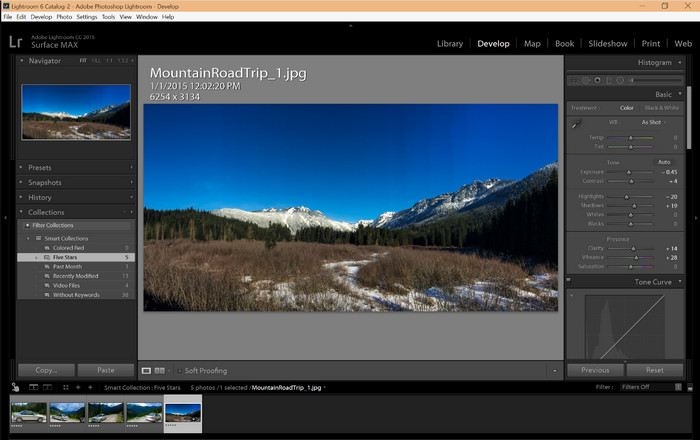
Lightroom รองรับเวอร์ชัน Windows ที่อัปเดต; ส่วนนี้เหมาะสำหรับคุณหากคุณดาวน์โหลดซอฟต์แวร์บนระบบปฏิบัติการ Windows ของคุณ คุณไม่ต้องกังวลเพราะ Lightroom สามารถเปิดไฟล์ HEIC ได้อย่างง่ายดายโดยทำตามบทช่วยสอนด้านล่าง
ขั้นตอนที่ 1. ดาวน์โหลดซอฟต์แวร์ลงบน Windows 10/11 จากนั้นติดตั้งและเปิดโปรแกรมเพื่อดำเนินการต่อ.
ขั้นตอนที่ 2. เมื่อซอฟต์แวร์ทำงานบนระบบของคุณแล้ว ให้คลิกปุ่ม + กดปุ่ม Browse แล้วเลือกไฟล์ HEIC ที่คุณต้องการนำเข้ามาที่นี่.
ขั้นตอนที่ 3. หลังจากเลือกไฟล์แล้ว คุณก็สามารถดูไฟล์ HEIC ด้วย Lightroom บน Windows 10/11 ของคุณได้ทันที.
ส่วนที่ 2 วิธีเปิด HEIC Photo ใน Lightroom บน Mac 10.13 ขึ้นไป
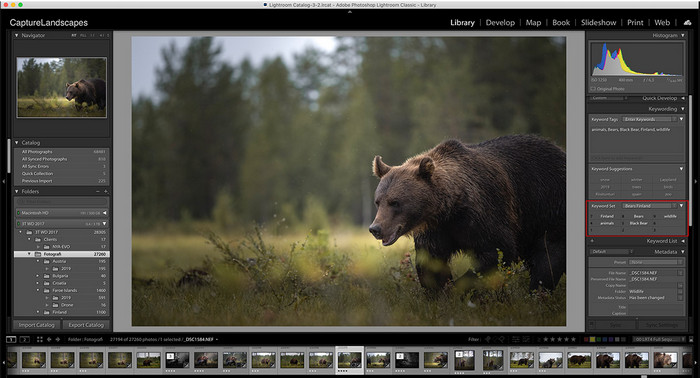
แม้จะไม่มี Lightroom คุณก็สามารถดูไฟล์ HEIC ได้อย่างง่ายดาย โดยเฉพาะอย่างยิ่งหากเวอร์ชัน Mac ของคุณคือ High Sierra 10.13 หรือใหม่กว่าใน Preview แม้ว่า Preview จะรองรับคุณสมบัติการแก้ไข แต่ก็ไม่เพียงพอที่จะใช้สำหรับการแก้ไขที่ซับซ้อน เช่นที่ Lightroom สามารถมอบให้คุณได้ นอกจากนี้ คุณไม่จำเป็นต้องกังวลเรื่องนี้เพราะ Lightroom รองรับไฟล์ HEIC เพื่อแก้ไขหรือจัดระเบียบไฟล์บน Mac ของคุณ
ขั้นตอนที่ 1. ติดตั้งซอฟต์แวร์บน macOS 10.13 ขึ้นไป หากเวอร์ชันระบบปฏิบัติการของคุณต่ำกว่านี้ ให้คาดการณ์ได้เลยว่าโปรแกรมจะไม่สามารถเปิดได้ หลังจากดาวน์โหลด Lightroom บนเดสก์ท็อปแล้ว ให้เปิดโปรแกรมขึ้นมา.
ขั้นตอนที่ 2. ในส่วนด้านบนของหน้าจอ คุณจะเห็นเมนูต่าง ๆ และชื่อ Lightroom อยู่ด้านซ้ายบน แสดงว่าโปรแกรมเปิดใช้งานแล้ว ให้กดเมนู File แล้วไปที่ Add Photos หรือจะใช้ปุ่มลัดบนคีย์บอร์ดแทนโดยกด Command + Shift + I ก็ได้
ขั้นตอนที่ 3. จะมีโฟลเดอร์แสดงขึ้นบนหน้าจอของคุณ ให้เลือกภาพที่ต้องการนำเข้าแล้วคลิก Review for Import.
ส่วนที่ 3 Lightroom ไม่สามารถนำเข้าไฟล์ HEIC | ทางออกที่ดีที่สุดในการแก้ปัญหา HEIC ที่ไม่รองรับ
ผู้ใช้หลายคนมีปัญหาในการอัปโหลดไฟล์ HEIC เนื่องจากเข้ากันได้กับซอฟต์แวร์เช่น Lightroom บน Windows และ Mac; แม้จะใช้วิธีข้างต้นแล้วก็ยังเป็นไปไม่ได้ แต่ไม่จำเป็นต้องรู้สึกเศร้าเพราะมีวิธีนำเข้าไฟล์ HEIC ของคุณบน Lightroom โดยการแปลง HEIC เป็น JPG ด้วยความช่วยเหลือของเครื่องมือที่ดีที่สุดบนเว็บ
FVC Free HEIC to JPG Converter คือวิธีแก้ปัญหาที่คุณควรใช้ในการแปลงไฟล์ HEIC บน Windows และ Mac โดยไม่ต้องติดตั้งซอฟต์แวร์เพิ่มเติม เครื่องมือออนไลน์แบบนี้สามารถแปลงไฟล์รูปแบบที่ไม่รองรับให้กลายเป็นรูปแบบมาตรฐานอย่าง JPEG ได้ คุณจึงอัปโหลดภาพไปยัง Lightroom ได้อย่างราบรื่นโดยไม่เจอปัญหาไฟล์ไม่รองรับ นอกจากจะแปลง HEIC เป็น JPG ได้แล้ว คุณยังสามารถอัปโหลดภาพ HEIC หลายไฟล์พร้อมกัน และแปลงทั้งหมดในครั้งเดียวเพื่อรองรับการแปลงแบบแบตช์ น่าทึ่งใช่ไหมล่ะ แล้วรู้ไหมว่าสิ่งที่ทำให้เราทึ่งกว่านั้นคืออะไร คุณสามารถเร่งความเร็วการแปลงไฟล์ได้ฟรี หากต้องการแก้ปัญหาไฟล์ HEIC ไม่รองรับ ให้ทำตามขั้นตอนด้านล่างนี้เพื่อเรียนรู้วิธีแปลงรูปแบบไฟล์.
ขั้นตอนง่ายๆ ในการเปลี่ยนรูปแบบ HEIC เป็น JPG โดยใช้เครื่องมือบนเว็บ:
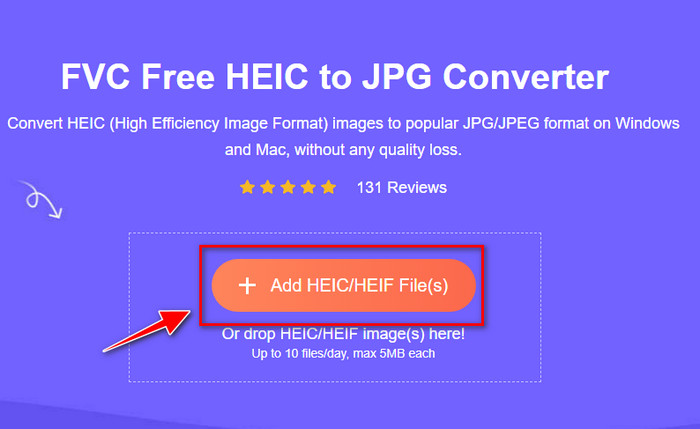
ขั้นตอนที่ 1. เปิด FVC Free HEIC to JPG Converter โดยคลิกลิงก์นี้ คุณจะเข้าสู่หน้าเว็บไซต์หลักของตัวแปลงผ่านเครื่องมือค้นหาที่คุณชื่นชอบ ไม่ต้องกังวลเพราะเว็บไซต์นี้ปลอดภัยต่อการใช้งาน และไม่มีโฆษณากวนใจบนหน้าเว็บอินเทอร์เฟซ.
ขั้นตอนที่ 2. คลิก Add HEIC/HEIF Files เพื่ออัปโหลดรูปภาพ HEIC ที่ Lightroom ไม่สามารถเปิดได้มาที่นี่ หรือคุณจะใช้วิธีลากและวางไฟล์มาบริเวณนี้แทนการเลือกจากโฟลเดอร์ก็ได้.
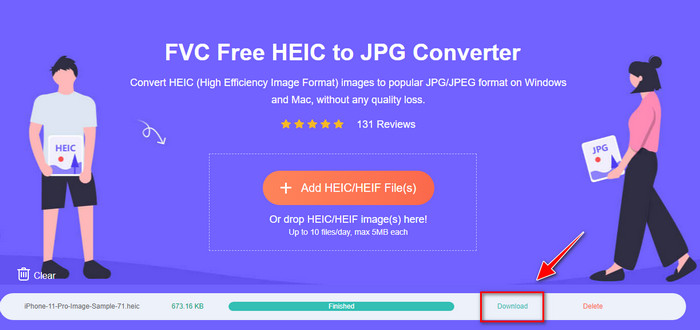
ขั้นตอนที่ 3. เมื่อแถบสถานะการประมวลผลเต็มแล้ว ปุ่ม Download จะปรากฏขึ้น ให้คลิกเพื่อบันทึกไฟล์ HEIC ที่แปลงแล้วลงบนเดสก์ท็อป หลังจากนั้นคุณก็สามารถนำเข้าไฟล์ไปยัง Lightroom ได้โดยไม่ขึ้นกล่องข้อความแจ้งว่าไม่รองรับหรือไฟล์เสียหายอีกต่อไป.
ส่วนที่ 4 คำถามที่พบบ่อยเกี่ยวกับการนำเข้า HEIC ใน Lightroom
มีข้อ จำกัด ในการนำเข้าไฟล์ HEIC บน Lightroom หรือไม่?
ถึงจุดนี้ คุณสามารถนำเข้าไฟล์ HEIC บน Lightroom ได้มากเท่าที่คุณต้องการ ไม่มีข้อจำกัดในการอัปโหลดรูปแบบประเภทนี้บน Lightroom
Lightroom ฟรีบน Windows และ Mac หรือไม่
ขออภัย Lightroom บน Windows และ Mac ไม่ฟรี แต่คุณสามารถดาวน์โหลดได้ฟรีบน Windows และ Mac แม้ว่าซอฟต์แวร์จะไม่ฟรี แต่คุณสามารถใช้ประโยชน์จากการทดลองใช้ฟรีที่รองรับได้ 7 วัน หากคุณรู้สึกว่าคุณจะต้องใช้ซอฟต์แวร์เป็นเวลานาน คุณสามารถสมัครสมาชิกได้หลังจากช่วงทดลองใช้งาน
การส่งออกไฟล์ HEIC บน Lightroom จะทิ้งลายน้ำหรือไม่
โชคดีที่ Lightroom จะไม่ใส่ลายน้ำลงบนภาพที่คุณอัปโหลดมาที่นี่ แต่คุณสามารถเพิ่มลายน้ำได้หากต้องการ หากคุณตั้งใจจะโพสต์ภาพบนอินเทอร์เน็ต เราขอแนะนำให้คุณใส่ลายน้ำลงในภาพเพื่อให้มีการป้องกันจากคนที่อาจพยายามขโมยผลงานของคุณ.
ไหนดีกว่าสำหรับการแก้ไขภาพ? Photoshop หรือ Lightroom?
ขึ้นอยู่กับความต้องการของคุณ ด้วยความช่วยเหลือของโปรแกรมแก้ไข Adobe Photoshop และ Lightroom คุณสามารถทำให้ภาพของคุณดูดีขึ้นได้อย่างง่ายดาย สมมติว่าคุณต้องการโปรแกรมแก้ไขรูปภาพที่ใช้งานง่าย ในกรณีนั้น Lightroom เป็นตัวเลือกที่คุณต้องเลือกเพราะเป็นโปรแกรมแก้ไขภาพที่ดีที่สุดสำหรับการปรับปรุงภาพที่คุณมี แต่ถ้าคุณต้องการแก้ไขรูปภาพที่มีรายละเอียดมากขึ้น Photoshop คือโปรแกรมแก้ไขของคุณที่เหมาะกับความต้องการของบรรณาธิการมืออาชีพทุกคน
สรุป
ด้วยความช่วยเหลือของ Lightroom คุณสามารถแก้ไขรูปภาพที่คุณมีหรือจัดระเบียบเพื่อให้ดูเรียบร้อยได้อย่างง่ายดาย ดังนั้น หากคุณต้องการนำเข้าไฟล์ HEIC บน Lightroom คุณสามารถทำตามขั้นตอนที่เราเพิ่มได้ไม่ว่าคุณจะเป็นผู้ใช้ Windows หรือ Mac แต่ถ้าคุณประสบปัญหาในการนำเข้าไฟล์ HEIC โปรดอ่านส่วนที่สามในขณะที่เราแก้ไขเพื่อให้เข้ากันได้กับ Lightroom ตอนนี้คุณสามารถดำเนินการแก้ไขได้ เราหวังว่าบทความนี้จะช่วยให้คุณมีแนวคิดในการนำเข้าไฟล์ หากคุณมีข้อเสนอแนะหรือคำแนะนำอื่น ๆ คุณสามารถฝากข้อความถึงเรา
-
 iMazing HEIC Converter | ฟังก์ชั่น ข้อดีและข้อเสีย และวิธีการใช้งาน
 บทความนี้จะทบทวนความสามารถของ iMazing HEIC Converter และทางเลือกอื่นๆ ดังนั้นหากคุณต้องการทราบข้อมูลเพิ่มเติม โปรดอ่านอย่างระมัดระวัง
-
 3 วิธีที่ง่ายที่สุดในการแปลง HEIC เป็น JPG บน iPhone อย่างผู้เชี่ยวชาญ
 ไม่รู้ว่าจะเปลี่ยน HEIC เป็น JPG บน iPhone ได้อย่างไร หากคุณเป็นหนึ่งในผู้ใช้ที่มีปัญหากับ HEIC โปรดอ่านสิ่งนี้
-
 เหตุใดรูปภาพ iPhone ของฉันจึงอยู่ในรูปแบบ HEIC [เหตุผลและวิธีแก้ปัญหา]
 คุณต้องการที่จะรู้ว่าทำไมภาพถ่าย iPhone ของฉันถึงอยู่ในรูปแบบ HEIC? บทความนี้แสดงหลักฐานที่น่าเชื่อถือเกี่ยวกับสิ่งที่ทำให้ HEIC ดีที่สุด
