


 Video Converter Ultimate
 บันทึกหน้าจอ
 ซ่อมวิดีโอ
ค้นพบวิธีเพิ่มระดับเสียงบน AirPods & Aid Pods Pro ด้วยขั้นตอน
คุณสามารถสั่ง Siri ฟังเพลงโปรด รับสาย และทำสิ่งต่างๆ ได้มากขึ้นด้วย AirPods & AirPods Pro ข้อดีอีกอย่างของการมี Air Pod คือมันเป็นแบบไร้สาย ซึ่งหมายความว่าคุณจะไม่ต้องลำบากในการถอดสายที่ผูกปมออกจากหูฟังของคุณ นอกจากนี้ คุณสามารถเปลี่ยนระดับเสียงได้อย่างง่ายดายโดยสั่ง Siri ให้เพิ่มหรือลดระดับเสียง
But there are times that Siri can't detect your voice, so the best to change the volume is to do it manually. Below are the best ways to turn your volume up and the steps indicated between the functions. All of these functions are tested and do great on changing the volume of the sound. Let's learn how to turn up the volume on AirPods or AirPods Pro without further ado.
ส่วนที่ 1 วิธีเพิ่มระดับเสียงของ AirPods/AirPods Pro บนอุปกรณ์ iOS ของคุณ
All these techniques that we provide will help you if you need to increase the audio on your AirPods. Although some of them are not new to us, we still include them. But before anything else, ensure that your AirPods or Air Pod Pro is connected to your phone via Bluetooth. If you don't know how to connect it, you can bring your AirPods or AirPods Pro next to your iOS device; make sure that it is under 30 meters. Open the case, press and hold the button on the case's back. Immediately a prompt will be on your screen; tap Connect. Once connected, the light on the case will blink, then permanently turn into solid. You can now play the sound on your AirPods after that.
วิธีที่ 1. ใช้ปุ่มเพิ่มระดับเสียง
เป็นวิธีทั่วไปที่สุดในการเพิ่มระดับเสียงของเสียงที่เล่นบน iOS ของคุณ ซึ่งก็คือการใช้ปุ่มปรับระดับเสียงแบบฮาร์ด ฮาร์ดคีย์เหล่านี้อยู่ทางด้านซ้ายของอุปกรณ์ iOS ของคุณ มาเรียนรู้วิธีเพิ่มระดับเสียงบน Aird Pods Pro หรือ AirPods ของคุณโดยไม่ชักช้ากัน
Step 1. Once the AirPods or AirPods Pro is connected, you can play the sound on your iOS. After playing, click the volume up key on your phone to increase the audio.
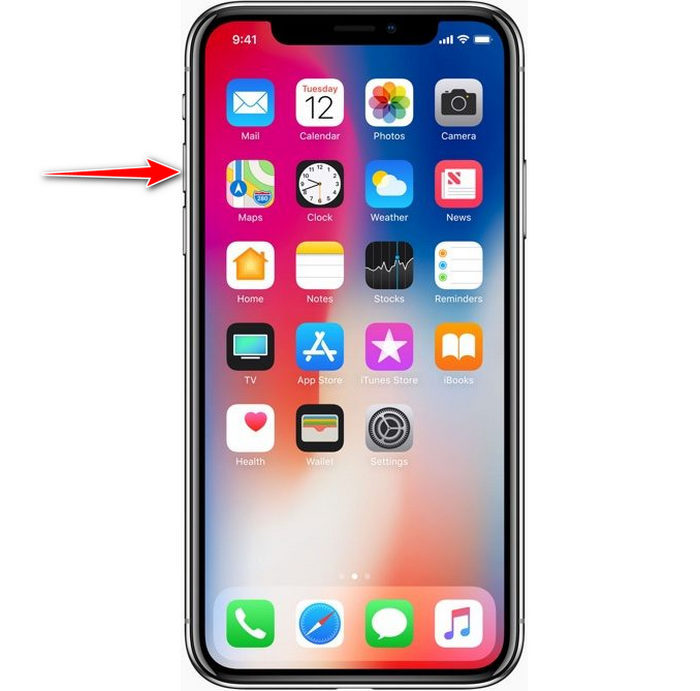
Step 2. If you feel that the sounds became high, click the volume down key to balance it.
วิธีที่ 2. ใช้ศูนย์ควบคุม
เทคนิคต่อไปนี้เหมือนกับเทคนิคแรก อย่างไรก็ตาม มันเป็นเรื่องปกติที่จะใช้สิ่งนี้เพราะเทคนิคแรกนั้นง่ายกว่ามาก แต่สิ่งนี้มีประโยชน์หากปุ่มปรับระดับเสียงเสียหรือไม่สามารถใช้งานได้ ดังนั้นหากต้องการลองใช้เทคนิคนี้ ให้ทำตามขั้นตอนต่อไปนี้
Step 1. Click the System Touch presented on your iOS devices, and click Control Center.
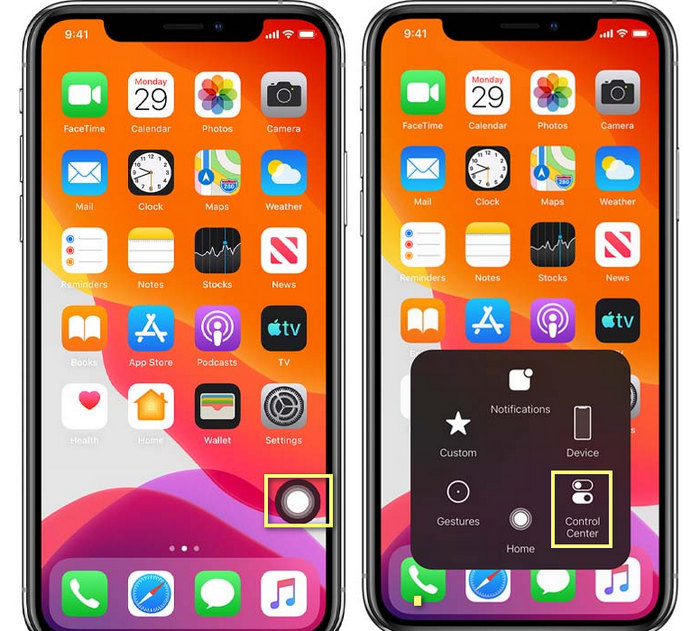
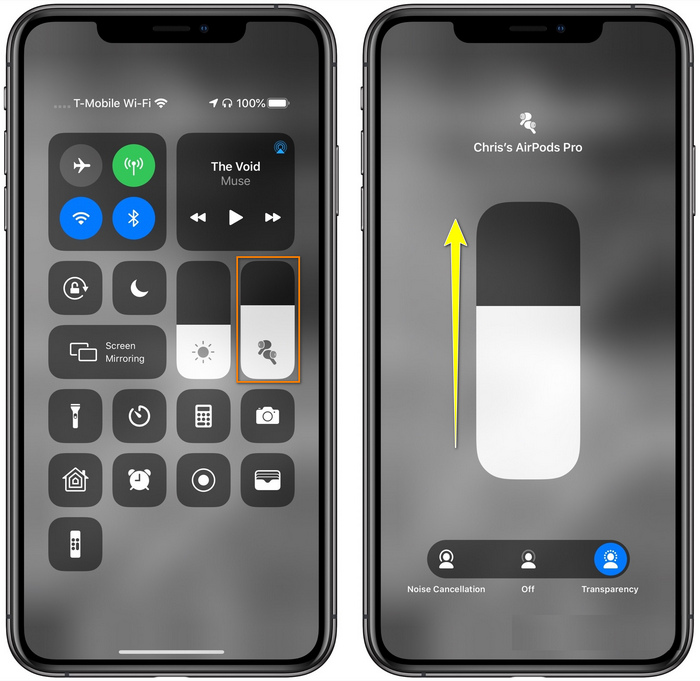
Step 2. At the Control Center, tap and hold the audio slider, adjust the slider up on the next function you will see on the screen, in this area, you can turn on the noise cancellation and transparency if you need.
วิธีที่ 3 ใช้การตั้งค่า
Did you know you can make a major adjustment on your volume if you go to the Settings of your iOS. However, this step only works if you stream music on your AirPods. Also, the volume will change a little bit, but it will increase. So, if you are ready to dig into how to turn up the volume on AirPods thru Settings, you can follow the steps below.
Step 1. Open the Settings, find Music, and click it.
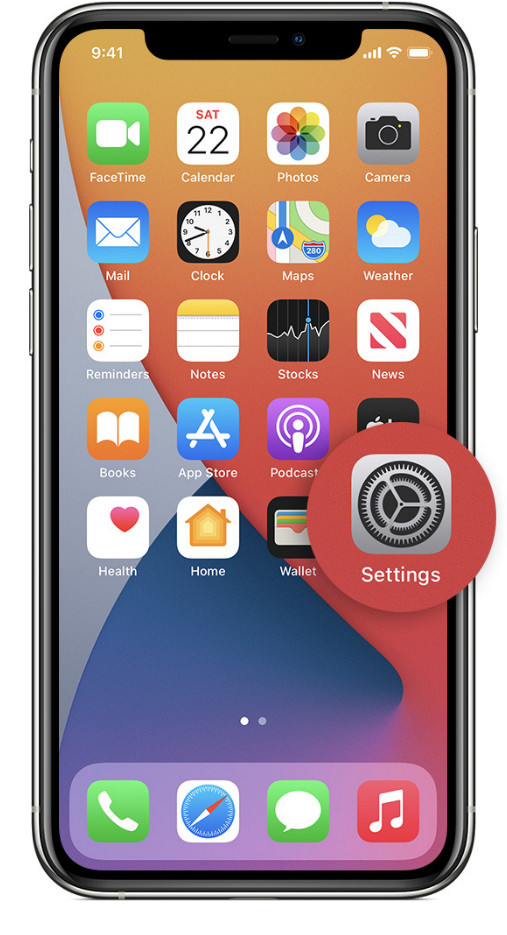
Step 2. Under Playback options, click the EQ choose one of the equalizers you want to add to your music.
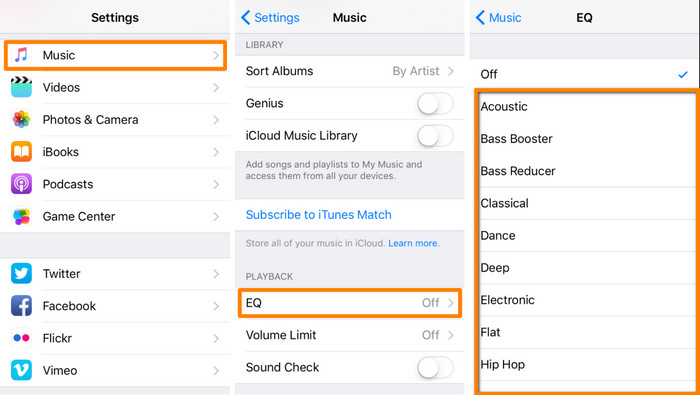
Step 3. After choosing, you can now click the volume key up on your phone to increase.
โบนัส: วิธีเพิ่มปริมาณวิดีโอของคุณด้วย Volume Booster ที่ดีที่สุดบน Windows & Mac
Not satisfied with the volume techniques we taught above? In that case, you can use the FVC Video Converter Ultimate to increase the volume of the file to hear it loud and clear. With this tool, you can extend the volume of the video file before you watch it first. But the downside of it is that it is not available on any mobile devices, and it can only increase one file audio.
นอกจากนี้ หากคุณต้องการเพิ่มระดับเสียงที่นี่ คุณจะได้ยินความแตกต่างระหว่างเสียงต้นฉบับกับเสียงที่ปรับปรุง คุณสามารถทำตามขั้นตอนที่ให้ไว้ แต่ก่อนสิ่งอื่นใด อย่าลืมโอนไฟล์เสียงที่คุณต้องการเพิ่มระดับเสียง โปรดทำตามขั้นตอนด้านล่างเพื่อเรียนรู้วิธีเพิ่มระดับเสียงใน AirPods
Step 1. Download the software on your desktop, install it, then follow the installation process, and press Start Now to run the tool on your system.
ดาวน์โหลดฟรีสำหรับ Windows 7 หรือใหม่กว่าดาวน์โหลดอย่างปลอดภัย
ดาวน์โหลดฟรีสำหรับ MacOS 10.7 หรือใหม่กว่าดาวน์โหลดอย่างปลอดภัย
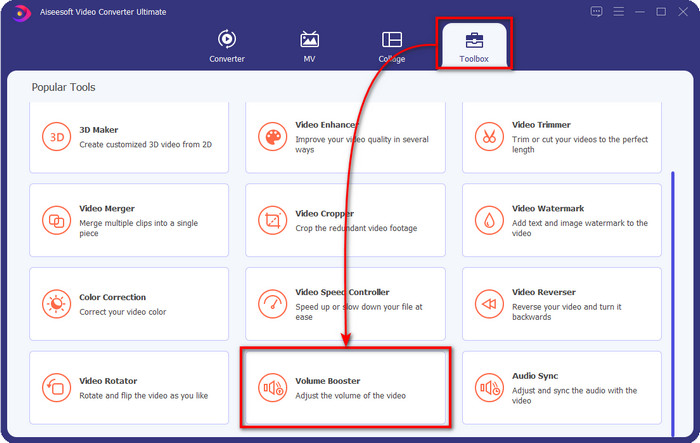
Step 2. Go to the Toolbox tab, look for the Volume Booster, and click it.
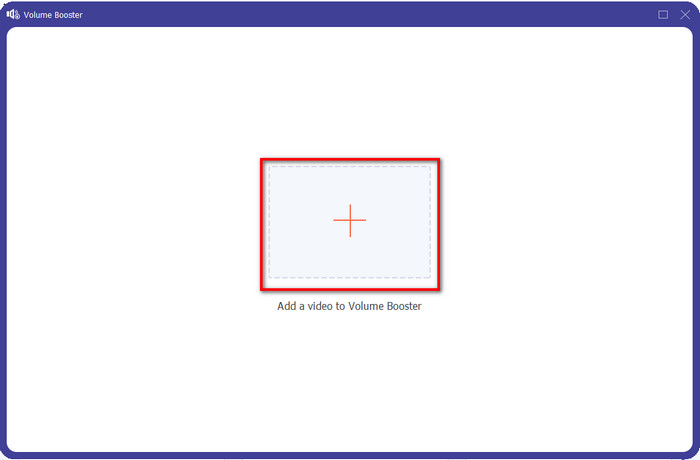
Step 3. A new window will show; click the add button to insert the file to increase the volume. Browse for the file, and press Open.
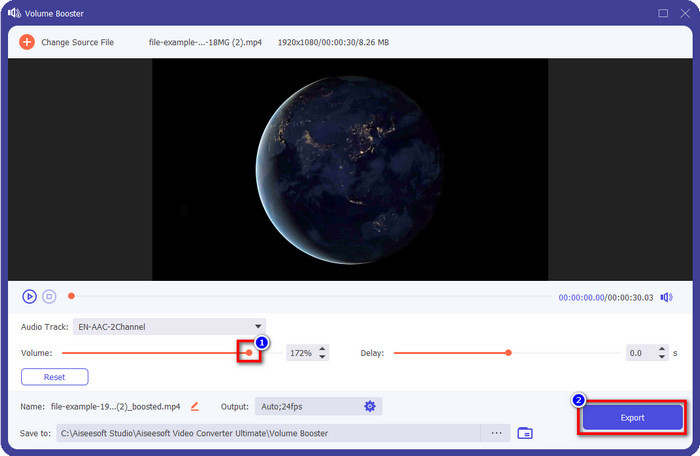
Step 4. After that, go to the Volume and adjust it by dragging the slider to the right to increase volume. Once you've done, click Export to proceed. With that, you have already increased the volume of the video you want.
ที่เกี่ยวข้อง:
ส่วนที่ 2 คำถามที่พบบ่อยเกี่ยวกับการเพิ่มระดับเสียงใน AirPods
ฟังเสียงดังฟังแล้วดีหรือไม่?
ไม่ ไม่เหมาะกับหูของคุณ แม้ว่าการฟังเพลงในระดับสูงสุดจะดีสำหรับเรา แต่ก็ไม่เหมาะกับหูของเรา ตรวจสอบให้แน่ใจว่าคุณไม่ได้เปิดรับแสงเกิน 70 เดซิเบลเพื่อหลีกเลี่ยงการสูญเสียการได้ยินและความเสียหายถาวรอื่นๆ โดยหลักแล้ว หากคุณใช้หูฟังหรือ AirPods โดยทั่วไปแล้ว การดำเนินการนี้จะไม่ส่งผลต่อหูของคุณทันที เนื่องจากชุดหูฟังของเราไม่สามารถสร้างเสียงที่ทำให้หูหนวกเหมือนการระเบิดได้ แต่ในระยะยาวจะมีผลเสีย ดังนั้นก่อนที่จะเกิดเหตุการณ์นั้นคุณต้องป้องกันไว้ก่อน
ทำไมฉันต้องเพิ่มเสียง?
ในบางกรณี คุณจะต้องเพิ่มระดับเสียงเพื่อให้ได้ยินเสียงได้ดีขึ้น โดยเฉพาะการฟังรายละเอียดเครือญาติที่เป็นส่วนหนึ่งของเสียงหรือวิดีโอ แต่อย่าลืมว่าไม่ควรเปิดหูเปิดเสียงดังเกินไปเพื่อหลีกเลี่ยงภาวะแทรกซ้อนที่อาจนำไปสู่ความเสียหายถาวร
ทำไม AirPods ของฉันถึงมี Buzz
มีสาเหตุหลายประการที่ทำให้ AirPods ของคุณส่งเสียงกระหึ่มได้ สาเหตุหนึ่งมาจากการที่คุณกดดัน AirPods อย่างมากในขณะที่เล่นเสียงเบสนานเกินไป ฉวัดเฉวียนจะเกิดขึ้นหลังจากแรงกดบน AirPods อย่างต่อเนื่อง ดังนั้นเพื่อหลีกเลี่ยงไม่ให้สิ่งนี้เกิดขึ้น คุณต้องใช้ระดับเสียงอย่างถูกต้องและไม่ดังเกินไป
สรุป
Now we have learned how to turn up the volume on AirPods on your iOS devices quickly. Although the technique we present can help you increase the volume, it is sometimes not enough. So, if you are still not satisfied with the volume, you can use the FVC Video Converter Ultimate with the ways we taught. With this tool, you can quickly increase the volume of your audio within a few clicks. Today is your lucky day because you can download it right away by clicking the download button below. What are you waiting for? No need to worry; it is safe to download for everyone.
-
 วิธีทำให้ระดับเสียงของคุณดังขึ้นและสัมผัสกับคุณภาพเสียงที่ดีที่สุด [2021]
 มีปัญหาเพราะปริมาณการรับชมของคุณต่ำมาก? จากนั้นอ่านบทความนี้ในขณะที่เรามีเคล็ดลับในการเพิ่มระดับเสียงและเครื่องมือที่คุณสามารถใช้ได้
-
 วิธีที่รวดเร็วและง่ายดายในการซิงค์เสียงและวิดีโอใน Adobe Premiere Pro
 คุณต้องการทราบวิธีการซิงค์เสียงและวิดีโอใน Premiere Pro หรือไม่? บทความนี้จะเหมาะกับความต้องการของคุณ เมื่อเราลองทำด้วยตัวเอง วิธีการซิงค์ให้เฉพาะขั้นตอนจริงและง่ายเท่านั้น
-
 วิธีแก้ปัญหา 3 อันดับแรกเกี่ยวกับวิธีการแก้ไขปัญหาความล่าช้าของเสียง [2021]
 คุณต้องการทราบวิธีแก้ไขความล่าช้าของเสียงในวิดีโอของคุณหรือไม่? ถ้าอย่างนั้นคุณก็มาถูกที่แล้วในขณะที่เราอธิบายว่ามีปัจจัยอะไรบ้างและจะแก้ไขอย่างไร
