


 Video Converter Ultimate
 บันทึกหน้าจอ
 ซ่อมวิดีโอ
 ดาวน์โหลดอย่างปลอดภัย
คู่มือฉบับสมบูรณ์ในการแปลงวิดีโอเป็น GIF ด้วยเครื่องมือที่ดีที่สุด
คุณเบื่อและเบื่อกับการเลื่อนดูฟีดโซเชียลมีเดียไม่รู้จบและเห็นภาพคงที่แบบเดิมๆ หรือไม่? ทำไมไม่ลองเติมชีวิตชีวาให้กับการแสดงตนทางออนไลน์ของคุณด้วย GIF ล่ะ แอนิเมชันสั้นๆ แบบวนซ้ำเหล่านี้ได้รับความนิยมมากขึ้นในช่วงไม่กี่ปีที่ผ่านมา และเข้าใจได้ไม่ยากว่าทำไม ไม่เพียงดึงดูดความสนใจ แต่ยังสามารถถ่ายทอดอารมณ์หรือแนวคิดที่ซับซ้อนในแบบที่ภาพนิ่งไม่สามารถทำได้
ข่าวดีคือคุณไม่จำเป็นต้องเป็นนักอนิเมชันมืออาชีพก็สามารถสร้าง GIF ของตัวเองได้ ในโพสต์นี้ เราจะแสดงวิธีแปลงวิดีโอเป็น GIF ให้คุณเริ่มแชร์แอนิเมชันแบบกำหนดเองของคุณกับคนทั้งโลก เพิ่มการมองเห็นบนออนไลน์ และดึงดูดความสนใจของผู้ชมด้วยภาพเคลื่อนไหวที่สะดุดตาได้ตั้งแต่วันนี้!

ส่วนที่ 1 แปลงวิดีโอเป็น GIF บนคอมพิวเตอร์
การเปลี่ยนวิดีโอเป็น GIF เป็นวิธีที่สนุกและสร้างสรรค์ในการเปลี่ยนเนื้อหาที่มีอยู่ หากคุณมีวิดีโอที่คุณชื่นชอบแต่ไม่ต้องการแบ่งปันทั้งหมด คุณสามารถแปลงเป็น GIF และเน้นช่วงเวลาหรือฉากที่ต้องการได้อย่างง่ายดาย สิ่งนี้ช่วยให้คุณเติมชีวิตใหม่ให้กับเนื้อหาเก่าของคุณ และทำให้สถานะออนไลน์ของคุณสดใหม่และน่าตื่นเต้น ดังนั้น โปรแกรมต่อไปนี้จะสาธิตกระบวนการสร้าง GIF จากวิดีโอ
1. Video Converter Ultimate (แบบออฟไลน์)
FVC Video Converter Ultimate เป็นแอปเดสก์ท็อปอเนกประสงค์ที่ช่วยให้คุณแปลงวิดีโอเป็นรูปแบบไฟล์ต่างๆ รวมถึง GIF ได้ ด้วยเครื่องมือสร้าง GIF ในตัว คุณสามารถเปลี่ยนวิดีโอโปรดให้กลายเป็นไฟล์ GIF ที่แชร์ได้อย่างง่ายดาย เหมาะสำหรับโซเชียลมีเดีย แอปแชต และอื่นๆ.
ฟีเจอร์สร้าง GIF ใน FVC Video Converter Ultimate มีตัวเลือกการปรับแต่งมากมาย รวมถึงความสามารถในการเลือกเวลาเริ่มต้นและสิ้นสุดของวิดีโอ ปรับอัตราเฟรมและขนาดของ GIF และเลือกจำนวนการวนซ้ำ นอกจากนี้ คุณสามารถเพิ่มลายน้ำข้อความหรือรูปภาพลงใน GIF ของคุณเพื่อวัตถุประสงค์ในการปรับเปลี่ยนในแบบของคุณหรือเพื่อสร้างแบรนด์ หากต้องการใช้โปรแกรมสร้าง GIF นี้จากวิดีโอ คุณสามารถทำตามขั้นตอนด้านล่าง:
ขั้นตอนที่ 1 ดาวน์โหลดโปรแกรมและติดตั้ง
ก่อนอื่น คุณต้องติดตั้งโปรแกรมลงในคอมพิวเตอร์ของคุณก่อน สำหรับการติดตั้ง ให้คลิกที่ปุ่ม ดาวน์โหลดฟรี ด้านล่าง จากนั้นดำเนินการติดตั้งโปรแกรมตามตัวช่วยติดตั้ง (Setup Wizard) เมื่อติดตั้งเสร็จแล้วให้เปิดโปรแกรมขึ้นมา.
ดาวน์โหลดฟรีสำหรับ Windows 7 ขึ้นไปดาวน์โหลดอย่างปลอดภัย
ดาวน์โหลดฟรีสำหรับ MacOS 10.7 ขึ้นไปดาวน์โหลดอย่างปลอดภัย
ขั้นตอนที่ 2 เข้าถึงเครื่องมือสร้าง GIF
เมื่อเปิดและเข้าสู่โปรแกรมแล้ว คุณก็สามารถเริ่มขั้นตอนต่างๆ ได้โดยไปที่เครื่องมือ GIF Maker ของโปรแกรม ไปที่แท็บ กล่องเครื่องมือ (Toolbox) แล้วมองหา GIF Maker จากนั้นในหน้าอินเทอร์เฟซถัดไป คุณจะเห็นพื้นที่ให้อัปโหลดไฟล์.
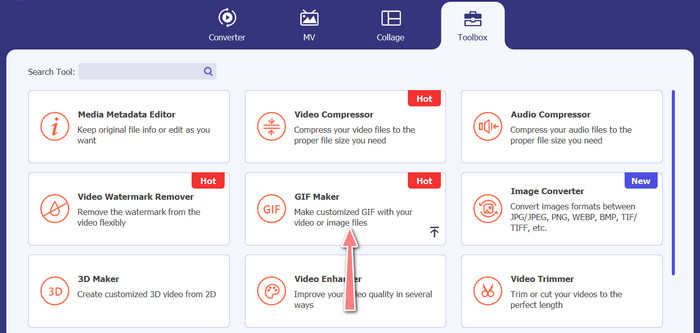
ขั้นตอนที่ 3 โหลดวิดีโอ
คราวนี้ให้คลิกปุ่ม Video to GIF แล้วเลือกวิดีโอที่คุณต้องการแปลงเป็น GIF โปรแกรมจะให้คุณเลือกวิดีโอจากไดรฟ์ภายในคอมพิวเตอร์ของคุณ หลังจากเลือกวิดีโอเป้าหมายแล้ว คุณก็สามารถเริ่มแก้ไขวิดีโอและกำหนดวิธีการสร้าง GIF จากวิดีโอได้เลย.
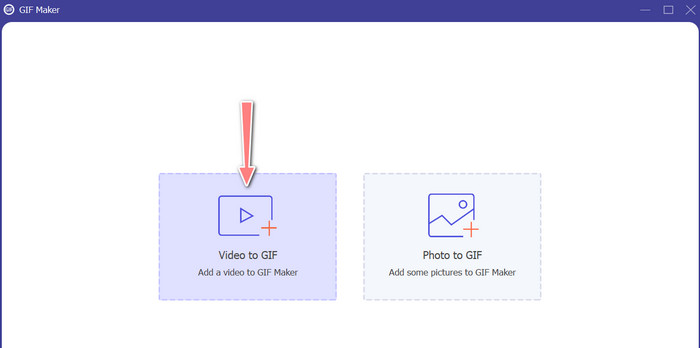
ขั้นตอนที่ 4 สร้าง GIF จากวิดีโอ
เมื่อคุณเข้าไปที่ GIF Maker ได้แล้ว คุณสามารถตัดต่อวิดีโอที่อัปโหลด ปรับขนาดเอาต์พุต ปรับอัตราเฟรม หรือแก้ไขรายละเอียดอื่นๆ ได้ นอกจากนี้ยังสามารถเลือกเปิดหรือปิดการเล่นวนซ้ำของแอนิเมชันได้ด้วย สุดท้ายให้คลิกปุ่ม Generate GIF เมื่อคุณพอใจกับผลลัพธ์แล้ว.
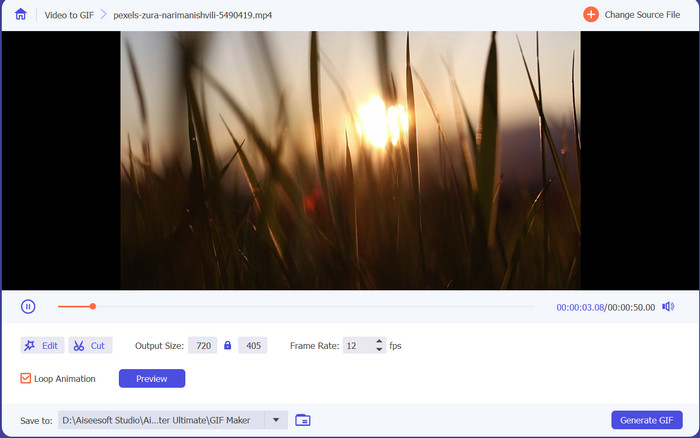
ข้อดี
- อัลกอริทึมการประมวลผลวิดีโอขั้นสูงสำหรับการสร้าง GIF คุณภาพสูง
- ปรับอัตราเฟรม ขนาด และคุณภาพของ GIF
- ส่วนต่อประสานที่ใช้งานง่าย
จุดด้อย
- การแปลงอาจช้า ขึ้นอยู่กับฮาร์ดแวร์ของคอมพิวเตอร์
2. คนพิการ
GIMP (GNU Image Manipulation Program) เป็นซอฟต์แวร์แก้ไขรูปภาพแบบโอเพ่นซอร์สที่มีประสิทธิภาพและใช้งานได้หลากหลาย ซึ่งมอบเครื่องมือและคุณสมบัติที่หลากหลายแก่ผู้ใช้สำหรับการสร้างและจัดการรูปภาพ คุณสมบัติหลักอย่างหนึ่งของ GIMP คือความสามารถในการสร้าง GIF แบบเคลื่อนไหว ด้วยเครื่องมือสร้างวิดีโอ GIF นี้ คุณสามารถสร้าง GIF แบบเคลื่อนไหวได้อย่างง่ายดายโดยการรวมรูปภาพหรือเฟรมหลาย ๆ ภาพไว้ในแอนิเมชั่นเดียว คุณสามารถนำเข้ารูปภาพไปยัง GIMP เพิ่มเลเยอร์ และใช้คุณสมบัติแอนิเมชันเพื่อสร้างแอนิเมชันที่ราบรื่นและไร้รอยต่อ คุณยังสามารถเพิ่มข้อความ รูปร่าง และองค์ประกอบอื่นๆ ลงใน GIF ของคุณเพื่อทำให้น่าสนใจและมีส่วนร่วมมากขึ้น หากต้องการสร้าง GIF จากวิดีโอ ให้ดูขั้นตอนด้านล่าง
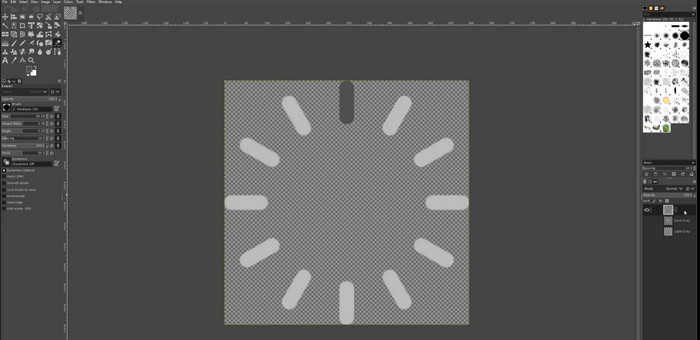
ขั้นตอนที่ 1 เปิด GIMP และนำเข้าวิดีโอของคุณ โดยไปที่เมนู File > Open แล้วเลือกไฟล์วิดีโอที่คุณต้องการใช้.
ขั้นตอนที่ 2 เมื่อนำเข้าวิดีโอแล้ว GIMP จะแจ้งให้คุณเลือกอัตราเฟรม เลือกอัตราเฟรมที่คุณต้องการใช้กับ GIF จากนั้นคลิก Import คุณจะเห็นว่าทุกเฟรมของวิดีโอถูกแยกเป็นเลเยอร์ในแผง Layers คุณสามารถลบเฟรมที่ไม่ต้องการใช้ใน GIF ได้โดยคลิกขวาที่เฟรมนั้นแล้วเลือก Delete Layer.
ขั้นตอนที่ 3 คลิกขวาที่เลเยอร์แรกแล้วเลือก Duplicate Layer จากเมนู จากนั้นเลือกเลเยอร์ที่คัดลอก แล้วไปที่ Filters > Animation > Blend ตั้งค่า Opacity ของเลเยอร์เป็น 50% และตั้งค่าโหมดการผสม (Blend Mode) เป็น Addition.
ขั้นตอนที่ 4 ไปที่ File > Export As แล้วเลือกไฟล์รูปแบบ GIF เพื่อส่งออกไฟล์ GIF ตั้งชื่อไฟล์และเลือกโฟลเดอร์ที่ต้องการบันทึก อย่าลืมเลือกตัวเลือก As Animation และกำหนดค่าหน่วงเวลาเฟรมที่คุณต้องการในหน้าต่าง Export นอกจากนี้คุณยังสามารถเลือกจำนวนรอบการเล่นแอนิเมชัน หรือกำหนดให้เล่นวนซ้ำตลอดเวลาก็ได้.
ข้อดี
- วิดีโอเป็น GIF ใน GIMP นั้นฟรีและเป็นโอเพ่นซอร์ส
- มีอยู่ในหลายแพลตฟอร์ม
- เครื่องมือแก้ไขภาพที่ทรงพลัง
จุดด้อย
- เส้นโค้งการเรียนรู้ที่สูงชัน
- ขาดการรวมเข้ากับซอฟต์แวร์อื่น
3. โปรแกรมแปลงวิดีโอออนไลน์ฟรี
หากคุณต้องการแปลงวิดีโอโปรดเป็น GIF ทันที คุณสามารถเลือกใช้ Free Video Converter Online โดย FVC ซึ่งช่วยให้คุณอัปโหลดวิดีโอหลายรูปแบบและแปลงเป็นหลายชนิดของไฟล์ รวมถึง GIF ดังนั้นหากคุณกำลังมองหาเครื่องมือแปลงวิดีโอเป็น GIF ออนไลน์ คุณควรพิจารณาใช้เครื่องมือนี้ นอกจากนี้ ขั้นตอนการใช้งานยังง่ายและไม่กินเวลามาก สิ่งที่คุณต้องทำมีเพียงอัปโหลดไฟล์ แล้วการแปลงก็ทำได้ในคลิกเดียว ต่อไปนี้คือขั้นตอนการแปลงวิดีโอเป็น GIF ฟรีแบบออนไลน์.
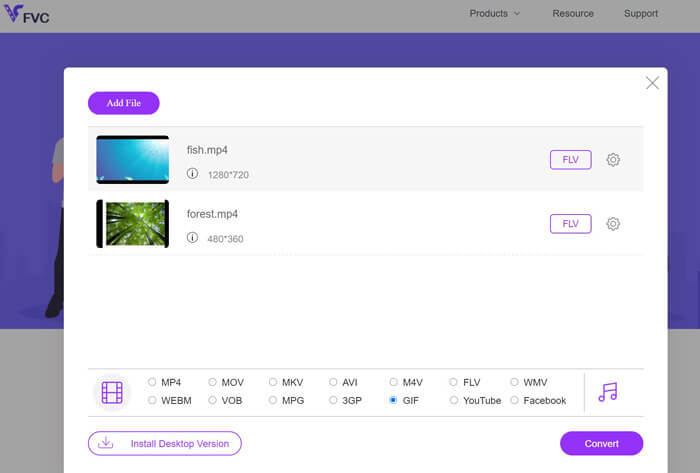
ขั้นตอนที่ 1 เปิดเบราว์เซอร์ในคอมพิวเตอร์ของคุณ แล้วไปยังเว็บไซต์ทางการของโปรแกรม บนหน้าแรกคุณจะเห็นปุ่มอัปโหลดแล้ว.
ขั้นตอนที่ 2 คลิกปุ่ม Add Files to Upload จากนั้นระบบจะให้คุณดาวน์โหลดตัวเรียกใช้งาน (Launcher) เพื่อเปิดใช้การอัปโหลด ติดตั้งให้เรียบร้อย แล้วคุณก็พร้อมใช้งาน.
ขั้นตอนที่ 3 จากนั้นเพิ่มวิดีโอที่คุณเลือกจากคอมพิวเตอร์ แล้วเลือกฟอร์แมตโดยตั้งค่าให้ GIF เป็นรูปแบบวิดีโอเอาต์พุต.
ขั้นตอนที่ 4 คุณสามารถคลิกไอคอนรูปเฟืองข้างรูปตัวอย่างวิดีโอเพื่อปรับการตั้งค่าเอาต์พุตบางอย่าง สุดท้ายให้คลิกปุ่ม Convert เพื่อแปลงวิดีโอให้เป็น GIF.
ข้อดี
- แปลงไฟล์โดยไม่สูญเสียคุณภาพ
- รองรับไฟล์ได้หลายรูปแบบ
จุดด้อย
- การพึ่งพาการเชื่อมต่ออินเทอร์เน็ต
Ezgif เป็นเครื่องมือออนไลน์ฟรีที่ให้คุณครอบตัด ปรับขนาด เพิ่มข้อความหรือเอฟเฟ็กต์ และแปลงระหว่างรูปภาพและวิดีโอรูปแบบต่างๆ นอกจากนี้ยังมีเครื่องมือสำหรับสร้าง GIF ที่ให้ผู้ใช้สร้าง GIF แบบเคลื่อนไหวจากไฟล์วิดีโอหรือลำดับของรูปภาพ โดยรวมแล้ว Ezgif เป็นเครื่องมือที่มีประโยชน์สำหรับการแก้ไขรูปภาพและ GIF ขั้นพื้นฐาน และเครื่องมือสร้าง GIF ของมันทำให้การสร้าง GIF แบบเคลื่อนไหวเป็นเรื่องง่าย แต่มันอาจจะไม่ดีสำหรับงานแก้ไขที่ซับซ้อนกว่านี้ และการที่มันมีข้อจำกัดเกี่ยวกับขนาดไฟล์และการควบคุมอาจทำให้ผู้ใช้บางคนรำคาญ เรียนรู้วิธีสร้าง GIF ด้วยวิดีโอโดยใช้โปรแกรมนี้ตามขั้นตอนด้านล่าง
4. EZGIF
Ezgif เป็นเครื่องมือออนไลน์ฟรีที่ให้คุณครอบตัด ปรับขนาด เพิ่มข้อความหรือเอฟเฟ็กต์ และแปลงระหว่างรูปภาพและวิดีโอรูปแบบต่างๆ นอกจากนี้ยังมีเครื่องมือสำหรับสร้าง GIF ที่ให้ผู้ใช้สร้าง GIF แบบเคลื่อนไหวจากไฟล์วิดีโอหรือลำดับของรูปภาพ โดยรวมแล้ว Ezgif เป็นเครื่องมือที่มีประโยชน์สำหรับการแก้ไขรูปภาพและ GIF ขั้นพื้นฐาน และเครื่องมือสร้าง GIF ของมันทำให้การสร้าง GIF แบบเคลื่อนไหวเป็นเรื่องง่าย แต่มันอาจจะไม่ดีสำหรับงานแก้ไขที่ซับซ้อนกว่านี้ และการที่มันมีข้อจำกัดเกี่ยวกับขนาดไฟล์และการควบคุมอาจทำให้ผู้ใช้บางคนรำคาญ เรียนรู้วิธีสร้าง GIF ด้วยวิดีโอโดยใช้โปรแกรมนี้ตามขั้นตอนด้านล่าง
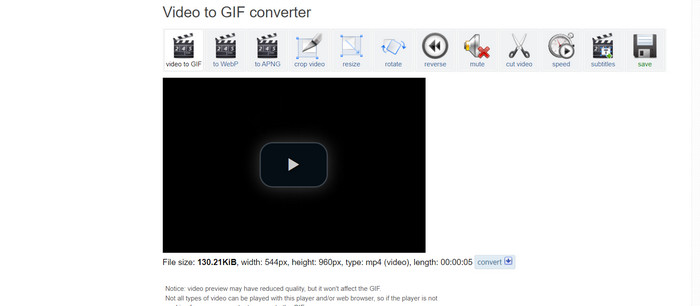
ขั้นตอนที่ 1 ไปที่เว็บไซต์ EZGIF จากนั้นเลือกเมนู Video to GIF จากตัวเลือกของ EZGIF.
ขั้นตอนที่ 2 คลิก Choose File เพื่ออัปโหลดไฟล์วิดีโอที่คุณต้องการแปลงเป็น GIF หรือคุณจะกรอก URL ของวิดีโอก็ได้.
ขั้นตอนที่ 3 หลังจากคุณอัปโหลดวิดีโอแล้ว คุณสามารถใช้แถบเลื่อนเพื่อเลือกจุดเริ่มต้นและจุดสิ้นสุดของ GIF ได้ นอกจากนี้คุณยังใช้ตัวเลือกต่างๆ เพื่อใส่ข้อความ เพิ่มฟิลเตอร์ หรือเปลี่ยนขนาดของ GIF ได้ด้วย.
ขั้นตอนที่ 4 คลิกปุ่ม Convert to GIF เมื่อคุณพอใจกับการตั้งค่าต่างๆ แล้ว หลังจากแปลงเสร็จ คุณสามารถคลิกปุ่ม Download เพื่อบันทึก GIF ลงในอุปกรณ์ของคุณ.
ข้อดี
- มันมีคุณสมบัติที่หลากหลายและ ตัวแก้ไข GIF.
- สร้าง GIF จากลำดับภาพ
- ใช้งานฟรีโดยสมบูรณ์
จุดด้อย
- เว็บไซต์แสดงโฆษณา
- ฟังก์ชันการแก้ไขที่จำกัด
ส่วนที่ 2 แปลงวิดีโอเป็น GIF บน Android และ iPhone
แอปมือถือ GIPHY เป็นเครื่องมือทรงพลังสำหรับสร้างและแชร์ไฟล์ GIF แบบเคลื่อนไหวได้ทุกที่ทุกเวลา ด้วยแอปนี้ คุณสามารถแปลงวิดีโอและรูปภาพเป็น GIF เพื่อใช้งานบนโซเชียลมีเดีย แอปแชต และอื่นๆ ได้อย่างง่ายดาย แอปยังให้คุณเข้าถึงคลัง GIF สำเร็จรูปขนาดใหญ่ที่สามารถค้นหาและแชร์ได้ทันที ไม่ว่าคุณจะมองหา GIF แสดงอารมณ์ มีมตลกๆ หรือคลิปสัตว์น่ารัก คุณก็จะพบได้ใน GIPHY ทำตามคำแนะนำต่อไปนี้เพื่อแปลงวิดีโอเป็น GIF บนเครื่อง Android และ iOS.
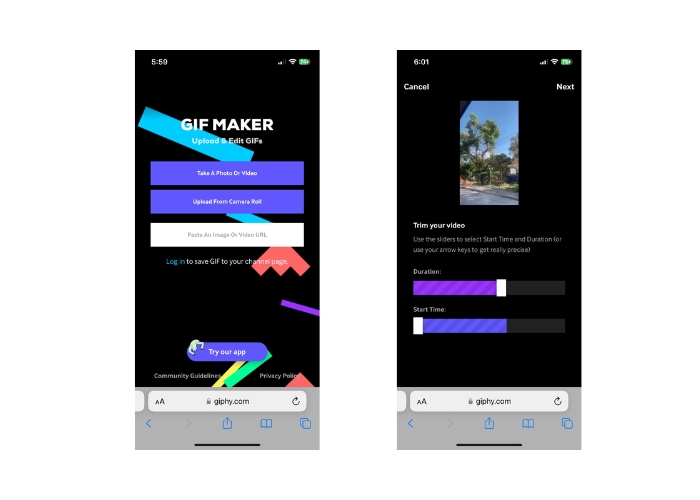
ขั้นตอนที่ 1 ดาวน์โหลดแอป GIPHY จาก App Store (iOS) หรือ Google Play Store แล้วติดตั้งลงในโทรศัพท์ของคุณ (Android) จากนั้นเปิดแอปแล้วแตะไอคอนกล้องเพื่อสร้าง GIF ใหม่.
ขั้นตอนที่ 2 เลือกวิดีโอหรือรูปภาพที่คุณต้องการใช้ทำ GIF.
ขั้นตอนที่ 3 ใช้เครื่องมือตัดต่อเพื่อตัดบางส่วนของวิดีโอ เพิ่มฟิลเตอร์ เปลี่ยนความเร็ว หรือปรับตัวเลือกการเล่นวนซ้ำ.
ขั้นตอนที่ 4 แตะปุ่มที่ระบุว่า Create GIF เพื่อสร้าง GIF ของคุณ เมื่อสร้างเสร็จแล้ว คุณสามารถบันทึกลงในคลังรูปภาพ (Camera Roll) หรือแชร์ไปยังโซเชียลมีเดียหรือแอปแชตได้โดยตรง.
ข้อดี
- ใช้งานได้ฟรี
- ความเข้ากันได้ข้ามแพลตฟอร์ม
- ไลบรารีขนาดใหญ่ของ GIF ที่สร้างไว้ล่วงหน้า
จุดด้อย
- ปัญหาลิขสิทธิ์.
- ความยาววิดีโอจำกัด
ส่วนที่ 3 คำถามที่พบบ่อยเกี่ยวกับการแปลงวิดีโอเป็น GIF
ฉันจะแบ่งปัน GIF ของฉันหลังจากสร้างได้อย่างไร
เมื่อคุณสร้าง GIF แล้ว คุณสามารถแชร์บนโซเชียลมีเดีย แอพส่งข้อความ หรือแพลตฟอร์มอื่นๆ ได้โดยการอัปโหลดโดยตรงหรือใช้ลิงก์ไปยังไฟล์ เครื่องมือสร้าง GIF หลายตัวยังมีตัวเลือกการแชร์ในตัวเพื่อให้การแชร์ GIF กับผู้อื่นเป็นเรื่องง่าย
ข้อจำกัดของการสร้าง GIF จากวิดีโอคืออะไร
การสร้าง GIF จากวิดีโออาจทำให้คุณภาพลดลง เนื่องจาก GIF มักมีความละเอียดต่ำกว่าและมีจานสีจำกัด นอกจากนี้ อาจมีข้อจำกัดเกี่ยวกับความยาวและขนาดของ GIF ที่ได้ ทั้งนี้ขึ้นอยู่กับเครื่องมือที่คุณใช้
ความยาวที่เหมาะสำหรับ GIF ที่สร้างจากวิดีโอคือเท่าใด
ความยาวที่เหมาะสมที่สุดสำหรับ GIF ที่สร้างจากวิดีโอนั้นขึ้นอยู่กับวัตถุประสงค์การใช้งานและแพลตฟอร์มที่จะแบ่งปัน สำหรับแพลตฟอร์มโซเชียลมีเดีย ความยาวที่แนะนำมักจะอยู่ระหว่าง 3-6 วินาที
สรุป
ด้วยตัวเลือกของเว็บแปลงไฟล์ออนไลน์ ซอฟต์แวร์บนคอมพิวเตอร์ และแอปมือถือที่มีให้ใช้สำหรับสร้าง GIF จากวิดีโอ ทุกวันนี้การแชร์คอนเทนต์ภาพเคลื่อนไหวสนุกๆ กับเพื่อนและผู้ติดตามจึงง่ายกว่าที่เคย หากต้องการสร้าง GIF จากวิดีโอ ให้มีคุณภาพ ควรเลือกวิดีโอที่มีแสงสว่างเพียงพอ กล้องสั่นไหวน้อย และมีความยาวเหมาะสมกับแพลตฟอร์มที่ต้องการโพสต์.
-
 คำแนะนำทีละขั้นตอนเกี่ยวกับการแปลง MP4 เป็น GIF บนเดสก์ท็อปหรือออนไลน์
 กำลังมองหาวิธีที่ดีที่สุดในการแปลงวิดีโอ MP4 ของคุณเป็น GIF แบบเคลื่อนไหวหรือไม่? นี่คือคำแนะนำโดยละเอียดใน Photoshop, Windows Movie Maker ตัวแปลงวิดีโอออนไลน์และอื่น ๆ
-
 วนลูป GIF กับ Animated GIF Looper ที่ดีที่สุดบน Windows & Mac
 ต้องการทราบเคล็ดลับสำหรับ GIF ลูปที่ดีที่สุดหรือไม่? ต้องการทำหรือไม่? ถ้าใช่ คุณมาถูกที่แล้ว ดังนั้น เรียนรู้วิธีสร้างลูปด้วย looper ที่ดีที่สุด
-
 วิธีแยก GIF และปรับแต่งไฟล์ GIF เคลื่อนไหวที่ชื่นชอบ
 เรียนรู้วิธีแยก GIF ออกเป็นเฟรมและปรับแต่งให้เหมาะกับความต้องการของคุณด้วยคำแนะนำที่ทำตามได้ง่ายของเรา ประหยัดเวลาและใช้เฉพาะส่วนของ GIF ที่คุณต้องการ
