


 Video Converter Ultimate
 บันทึกหน้าจอ
 ซ่อมวิดีโอ
 ดาวน์โหลดอย่างปลอดภัย
วิธีที่น่าทึ่งในการตัดวิดีโอบน Snapchat [รวมถึงวิธีออฟไลน์]
แอป Snapchat เป็นอีกแอปหนึ่งที่ได้รับความนิยมเพิ่มขึ้นเมื่อไม่นานมานี้ เดิมทีจุดประสงค์หลักของ Snapchat คือการแลกเปลี่ยนรูปภาพส่วนตัวที่ปรับแต่งได้ แต่ในปัจจุบัน คุณสามารถใช้เพื่อทำงานหลากหลายอย่างได้ เช่น ส่งวิดีโอคลิปและเข้าร่วมวิดีโอคอลแบบสด อีกด้านหนึ่ง คุณยังสามารถใช้แอปนี้เพื่อตัดวิดีโอของคุณได้ ตามที่เราทราบกันดีว่า Snapchat รองรับวิดีโอได้สูงสุดเพียง 60 วินาที การตัดวิดีโอจึงเป็นทางออกที่ดีที่สุด หากคุณต้องการอัปโหลดหรือนำวิดีโอไปโพสต์ในแอปบนมือถือแอปนี้ ในกรณีนั้น โปรดอ่านบทความนี้เพื่อดูวิธีการอย่างละเอียดที่คุณสามารถลองทำตามได้เกี่ยวกับวิธีตัดวิดีโอบน Snapchat และการตัดวิดีโอสำหรับ Snapchat.

ส่วนที่ 1 วิธีตัดแต่งวิดีโอสำหรับ Snapchat โดยใช้พีซี
Snapchat มีข้อจำกัดในการโพสต์วิดีโอ หนึ่งในวิธีแก้ปัญหาที่ดีที่สุดคือการทำให้วิดีโอสั้นลง ด้วยวิธีนี้ เมื่อคุณตัดหรือครอปวิดีโอแล้ว คุณก็สามารถเพิ่มวิดีโอลงใน Snapchat ได้ หากคุณต้องการซอฟต์แวร์ตัดต่อวิดีโอที่ดีเพื่อใช้ตัดวิดีโอยาว ๆ สำหรับ Snapchat ให้ใช้ Video Converter Ultimate โปรแกรมนี้มีฟังก์ชันการแยกไฟล์วิดีโอที่ยอดเยี่ยม ช่วยแยกวิดีโอของคุณออกเป็นหลายส่วนได้ นอกจากนี้ ขั้นตอนการแยกวิดีโอยังเหมาะสำหรับผู้ใช้ที่ไม่ใช่มืออาชีพ คุณสามารถแยกวิดีโอได้ภายในไม่กี่คลิก และด้วยหน้าตาโปรแกรมที่ใช้งานง่าย ทำให้คุณเข้าใจตัวเลือกต่าง ๆ ได้ไม่ยาก นอกจากนี้ ยังมีฟีเจอร์อื่นที่ยอดเยี่ยมมากกว่าการแยกวิดีโออีกด้วย Video Converter Ultimate ให้คุณครอบ หมุน และปรับปรุงคุณภาพวิดีโอตามที่คุณต้องการ อีกทั้งยังรองรับรูปแบบไฟล์วิดีโอหลากหลาย เช่น MP4, MOV, MKV, AVI และอื่น ๆ นอกจากนี้ ผู้ใช้ทั้ง Windows และ Mac ยังสามารถใช้งานโปรแกรมได้ เพราะมีให้ดาวน์โหลดทั้งบนคอมพิวเตอร์ Mac และ Windows.
ขั้นตอนที่ 1 คลิกปุ่ม ดาวน์โหลด ด้านล่างเพื่อดาวน์โหลด Video Converter Ultimate เนื่องจากโปรแกรมใช้ได้ทั้งบนคอมพิวเตอร์ Mac และ Windows ด้านล่างจึงมีปุ่มให้เลือกสองปุ่ม ให้คลิกปุ่มตามอุปกรณ์ที่คุณใช้งาน จากนั้นเปิดโปรแกรม.
ดาวน์โหลดฟรีสำหรับ Windows 7 หรือใหม่กว่าดาวน์โหลดอย่างปลอดภัย
ดาวน์โหลดฟรีสำหรับ MacOS 10.7 หรือใหม่กว่าดาวน์โหลดอย่างปลอดภัย
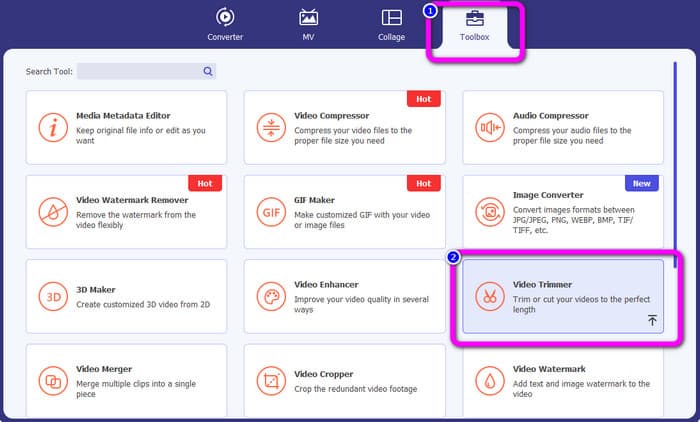
ขั้นตอนที่ 2 คลิกแถบ กล่องเครื่องมือ (Toolbox) ที่ด้านบนของหน้าต่างโปรแกรม เมื่อเครื่องมือต่าง ๆ ใต้เมนูกล่องเครื่องมือปรากฏขึ้น ให้เลือกเครื่องมือ Video Trimmer.
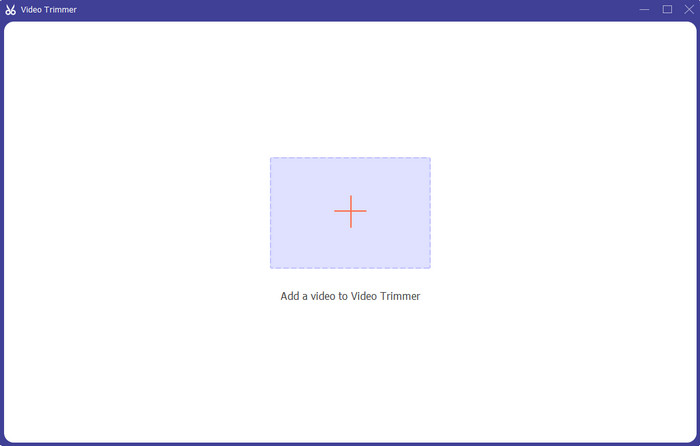
ขั้นตอนที่ 3 คลิกสัญลักษณ์ เครื่องหมายบวก ตรงกลางหน้าต่างโปรแกรม จากนั้นเลือกวิดีโอที่คุณต้องการตัดจากโฟลเดอร์ไฟล์.
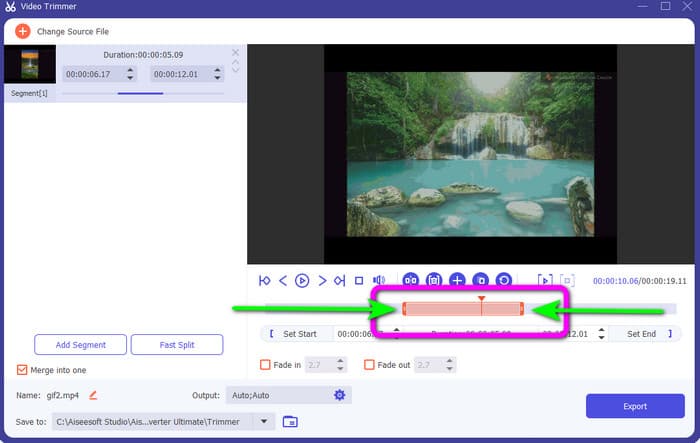
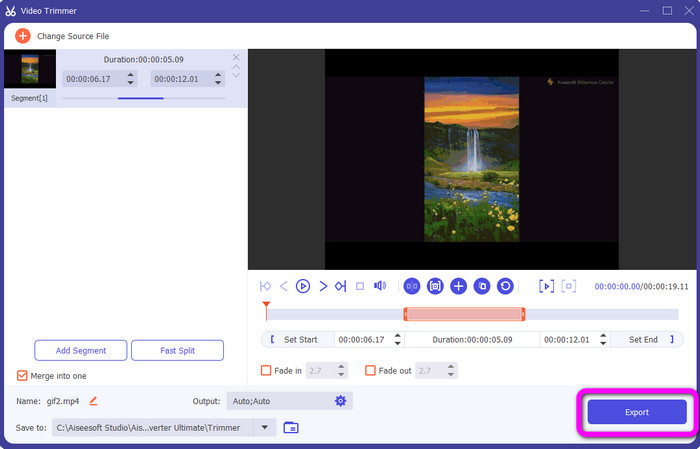
ขั้นตอนที่ 4 คุณสามารถตัดวิดีโอได้โดยปรับ แถบสีส้ม ที่ด้านล่างของวิดีโอ แถบนี้จะมีขอบอยู่ทั้งสองด้าน ให้ปรับขอบของแถบเพื่อเลือกช่วงวิดีโอที่คุณต้องการตัด.
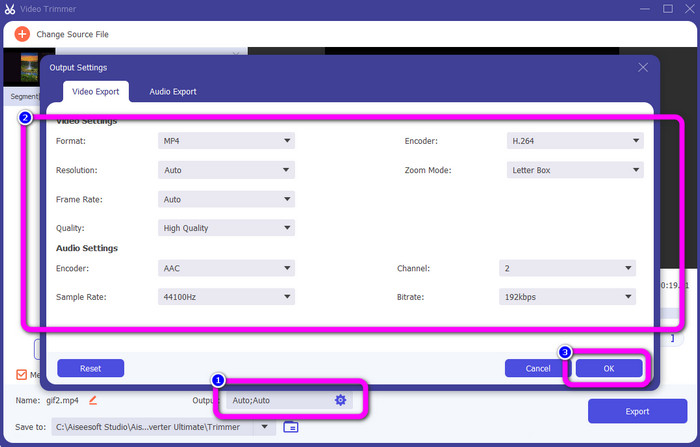
ขั้นตอนที่ 5 โดยการคลิกตัวเลือก Output Settings คุณสามารถปรับอัตราเฟรม คุณภาพ ความละเอียด และโหมดซูมของวิดีโอเพื่อแก้ไขเพิ่มเติมได้ นอกจากนี้ คุณยังสามารถเปลี่ยนอัตราการสุ่มสัญญาณ (sample rate) และบิตเรตของเสียงได้ จากนั้นคลิก OK.
ขั้นตอนที่ 6 ในขั้นตอนสุดท้าย ให้คลิกปุ่ม Export รอให้โปรแกรมประมวลผลสักครู่ จากนั้นคุณก็สามารถบันทึกวิดีโอฉบับสุดท้ายที่ตัดต่อแล้วลงในคอมพิวเตอร์ของคุณได้.
ส่วนที่ 2 วิธีตัดวิดีโอบน Snapchat
ในส่วนนี้ คุณจะได้เรียนรู้วิธีการตัดแต่งวิดีโอบน Snapchat แอปพลิเคชั่นมือถือนี้ยอดเยี่ยมสำหรับการถ่ายภาพและวิดีโอ มันให้เอฟเฟกต์มากมายแก่คุณเพื่อปรับปรุงและสร้างความพึงพอใจให้กับผู้ใช้ นอกจากนี้ยังถือเป็นแพลตฟอร์มการสื่อสารสำหรับบุคคลอื่น ยิ่งไปกว่านั้น Snapchat ไม่เพียงมีความสามารถในสิ่งนั้นเท่านั้น แอปพลิเคชั่นมือถือยังช่วยให้คุณตัดหรือตัดแต่งวิดีโอได้อย่างง่ายดาย นอกเหนือจากนั้น Snapchat ยังให้คุณแก้ไขวิดีโอของคุณโดยเปลี่ยนฟิลเตอร์ เพิ่มเอฟเฟ็กต์ ครอบตัด และอื่นๆ อีกมากมาย อย่างไรก็ตาม เช่นเดียวกับแอปพลิเคชันอื่นๆ Snapchat มุ่งเน้นไปที่การถ่ายภาพและวิดีโอ ดังนั้น คุณไม่สามารถใช้เครื่องมือแก้ไขขั้นสูงจากแอปพลิเคชันได้ นอกจากนี้ยังรับเฉพาะวิดีโอสั้น ๆ ซึ่งไม่เป็นที่พอใจสำหรับผู้ใช้ที่ต้องการอัปโหลดวิดีโอที่มีความยาว ดูขั้นตอนด้านล่างเกี่ยวกับวิธีย่อวิดีโอใน Snapchat
ตัดวิดีโอหลังจากบันทึก
ขั้นตอนที่ 1 ดาวน์โหลด Snapchat จาก App Store หรือ Google Play Store หลังจากติดตั้งแอปแล้ว ให้เปิดแอปในโทรศัพท์ของคุณ.
ขั้นตอนที่ 2 จากนั้นให้บันทึกวิดีโอด้วย Snapchat เมื่อบันทึกเสร็จแล้ว จะมีคลิปขนาดเล็กปรากฏขึ้นที่ด้านล่างของหน้าจอ ให้แตะที่คลิปนั้นเพื่อเริ่มขั้นตอนการตัดวิดีโอ.
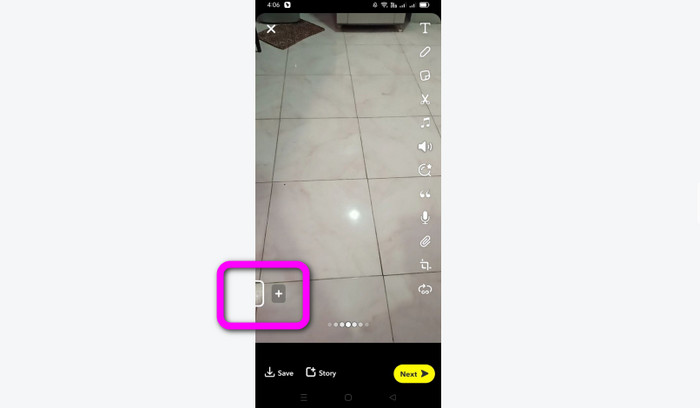
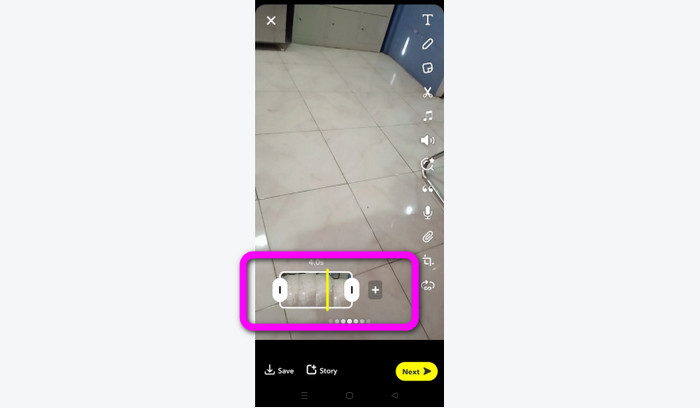
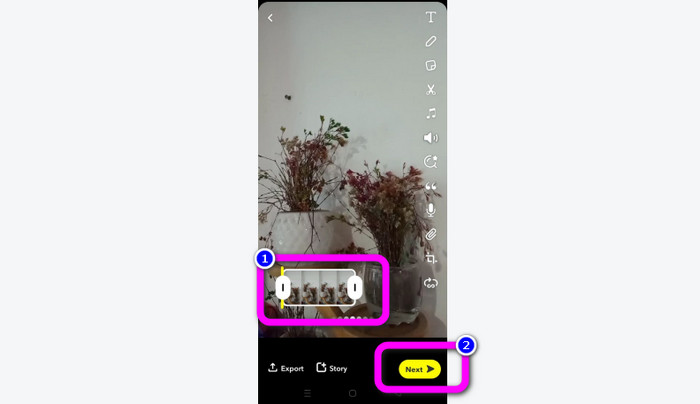
ขั้นตอนที่ 3 เมื่อคลิปปรากฏขึ้นบนหน้าจอแล้ว คุณสามารถดำเนินการต่อได้ โดยให้ลากขอบของคลิปเพื่อปรับความยาวและตัดวิดีโอตามที่คุณต้องการ.
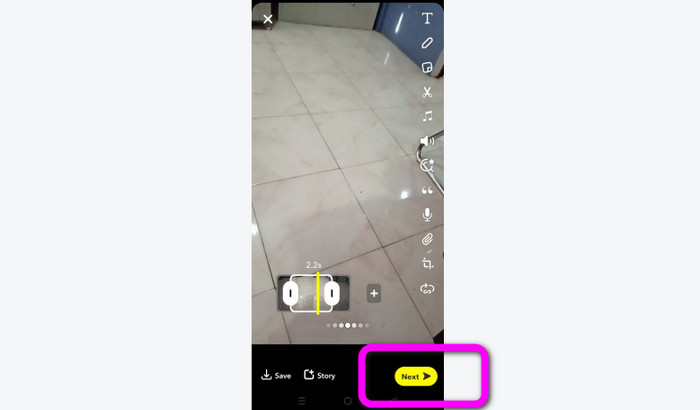
ขั้นตอนที่ 4 เมื่อคุณพอใจกับผลลัพธ์สุดท้ายแล้ว ให้กดปุ่ม Next ที่มุมล่างซ้ายของหน้าจอ ด้วยวิธีนี้ คุณก็จะสามารถบันทึกวิดีโอที่ตัดแล้วได้.
ตัดวิดีโอจากความทรงจำ
ขั้นตอนที่ 1 เปิดแอป Snapchat จากโทรศัพท์ของคุณ จากนั้นไปที่ Memories ในส่วนนี้ คุณจะเห็นวิดีโอของคุณ ให้แตะค้างที่วิดีโอเพียงไม่กี่วินาทีแล้วคลิกตัวเลือก Edit.
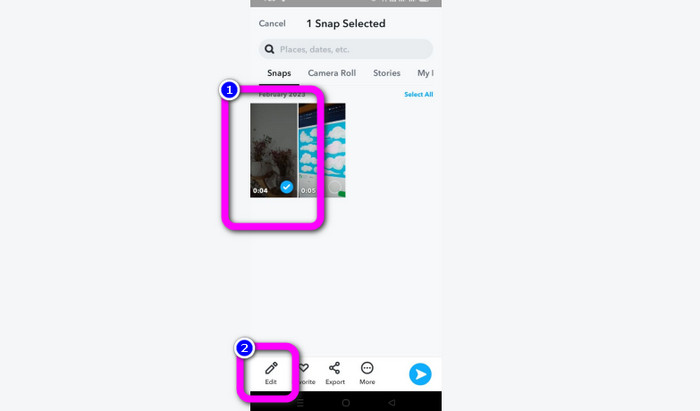
ขั้นตอนที่ 2 จากนั้นคุณจะเห็นไทม์ไลน์ของวิดีโอที่ด้านล่างของหน้าจอ วิดีโอนี้จะให้คุณเลื่อนขอบด้านซ้ายและขวาเพื่อเริ่มตัดวิดีโอได้ หลังจากตัดเสร็จแล้ว ให้คลิกปุ่ม Next เพื่อบันทึกวิดีโอฉบับสุดท้าย.
11 โปรแกรมตัดวิดีโอที่น่าสนใจให้ลองใช้ [ทั้งแบบฟรีและเสียเงิน]
วิธีตัดวิดีโอออนไลน์อย่างสะดวกสบายที่ควรรู้
ส่วนที่ 3 คำถามที่พบบ่อยเกี่ยวกับวิธีตัดวิดีโอบน Snapchat
1. การตัดแต่งวิดีโอบน Snapchat หมายความว่าอย่างไร
การตัดแต่งวิดีโอคือการตัดที่กำหนดส่วนที่ระบุเป็นจุดเริ่มต้นและส่วนเฉพาะเป็นจุดสิ้นสุดของวิดีโอคลิป ตัวเลือกนี้ให้คุณเลือกตำแหน่งเริ่มต้นและจุดสิ้นสุดของวิดีโอใน Snapchat ตัวเลือกนี้เหมาะอย่างยิ่งหากคุณต้องการอัปโหลดบางส่วนของวิดีโอที่ตอนแรกมีความยาวเกิน 10 วินาที
2. คุณสามารถใช้คุณสมบัติแยกใน snapchat ได้หรือไม่?
คุณไม่สามารถใช้คุณสมบัตินี้ได้หากคุณอัปโหลดวิดีโอจาก Camera Roll หากคุณใช้กล้อง Snapchat ในการจับภาพ คุณสามารถทำได้ คุณสามารถใช้เครื่องมือ Split เพื่อแยกภาพยนตร์ออกเป็นส่วนๆ ที่แก้ไขได้ และลบส่วนใดๆ ที่คุณไม่ต้องการเก็บไว้
3. ขนาดวิดีโอสูงสุดสำหรับวิดีโอ snapchat เดียวคือเท่าใด
หากคุณส่งรูปถ่ายหรือวิดีโอจากม้วนฟิล์มของคุณไปยัง Snapchat คุณสามารถส่งวิดีโอเดียวที่มีขนาดสูงสุด 2.5MB ไฟล์ของคุณถูกบีบอัดก่อนที่จะส่ง
สรุป
หากคุณใช้ Snapchat เพื่อตัดวิดีโอ บทความนี้เหมาะสำหรับคุณ บทความนี้ได้แนะนำวิธีที่ดีที่สุดเกี่ยวกับวิธีตัดวิดีโอบน Snapchat ให้คุณแล้ว นอกจากนี้ หากคุณต้องการตัดวิดีโอสำหรับ Snapchat บนคอมพิวเตอร์ ก็มีโปรแกรมที่คุณสามารถใช้ได้คือ Video Converter Ultimate ซึ่งเป็นโปรแกรมที่ยอดเยี่ยมสำหรับการตัดวิดีโอบนคอมพิวเตอร์ มีอินเทอร์เฟซที่ใช้งานง่าย และใช้งานได้ฟรีอย่างสมบูรณ์.
-
 6 ตัวเลือกที่ชื่นชอบ Snapchat ตัวกรอง Snapchat แบบเคลื่อนไหวบน Snapchat
 ต้องการทราบวิธีที่ดีที่สุดในการเพิ่มตัวกรองในวิดีโอ Snapchat หรือไม่? คุณสามารถคลิกที่นี่และเรียนรู้ตัวกรองต่างๆ ที่คุณสามารถใช้เพื่อนำไปใช้กับวิดีโอ Snapchat
-
 วิธีทำให้วิดีโอช้าลงใน Snapchat ได้อย่างง่ายดายบนอุปกรณ์ทุกชนิด
 วิธีที่ดีที่สุดในการทำให้วิดีโอช้าลงใน Snapchat มีอยู่แล้วที่นี่ หากต้องการทราบเทคนิคเหล่านี้ในการทำให้วิดีโอช้าลงมีอะไรบ้าง ให้ทำตามอย่างถี่ถ้วน
-
 วิธีที่ง่ายที่สุดในการลบข้อความ Snapchat จากภาพหน้าจอ
 มาลบข้อความ Snapchat ออกจากรูปภาพและวิดีโอโดยใช้เครื่องมือที่เชื่อถือได้ทั้งทางออนไลน์และออฟไลน์ เราจะเสนอวิธีง่ายๆ ให้คุณ ลองเลย แล้วมาลองดูกัน!
