


 Video Converter Ultimate
 บันทึกหน้าจอ
 ซ่อมวิดีโอ
วิธีเปลี่ยนวอลล์เปเปอร์หน้าจอที่น่าเบื่อของคุณให้เป็น GIF ที่มีชีวิตชีวาที่น่าทึ่ง
พวกเราส่วนใหญ่มักใช้รูปภาพคุณภาพสูงเป็นภาพพื้นหลัง และบางคนก็ใช้วิดีโอวอลเปเปอร์ แต่คุณรู้หรือไม่ว่าคุณสามารถใช้ไฟล์ GIF เป็นวอลเปเปอร์ เพื่อทำให้ฉากหลังของคุณมีชีวิตชีวามากกว่าที่เคยได้? ดังนั้นหากคุณอยากรู้ไอเดียวิธีทำให้ GIF กลายเป็นวอลเปเปอร์ของคุณ ก็ให้ดูขั้นตอนด้านล่างนี้ ใช้เวลาไม่ถึงห้านาที คุณก็จะรู้วิธีตั้งค่า และเรายังจะแนะนำวิธีสร้าง GIF ที่สมบูรณ์แบบจากวิดีโอหรือรูปภาพให้ด้วย.

ส่วนที่ 1 วิธีสร้าง GIF เป็นวอลเปเปอร์ของคุณบน iPhone
ทุกวันนี้แทบทุกคนมีโทรศัพท์มือถืออยู่ในมือ เช่น iPhone แต่คุณรู้หรือไม่ว่าคุณสามารถเปลี่ยนพื้นหลังเรียบ ๆ ให้ดูดีขึ้นมากได้? ใช่แล้ว วอลเปเปอร์บน iPhone ของคุณสามารถกลายเป็น GIF ที่ดูมีเวทมนตร์ได้ อย่างไรก็ตาม iPhone ไม่รองรับการใช้ไฟล์ GIF เป็นวอลเปเปอร์โดยตรง วิธีแก้คือให้แปลง GIF เป็น Live Photo ก่อน แล้วค่อยตั้งให้เป็นภาพพื้นหลัง ไม่อย่างนั้นคุณจะได้แค่ภาพนิ่งแทนภาพที่ขยับได้ ในกรณีนี้คุณต้องแปลง GIF เป็น Live Photo โดยดาวน์โหลดแอป Convert - GIF & Live Wallpaper มาใช้ในการแปลง จากนั้นค่อยไปต่อในส่วนวิธีทำให้ GIF เป็นวอลเปเปอร์บน iPhone ด้วยการทำตามขั้นตอนต่อไปนี้.
ขั้นตอนในการแปลง GIF เป็น Live Photo:
ขั้นตอนที่ 1. ใน App Store ให้ดาวน์โหลดแอป Convert - GIF & Live Wallpaper แล้วเปิดใช้งานทันที.
ขั้นตอนที่ 2. แตะ Allow เพื่อให้แอปเข้าถึงรูปภาพของคุณ แล้วเลือก GIF จากแกลเลอรี.
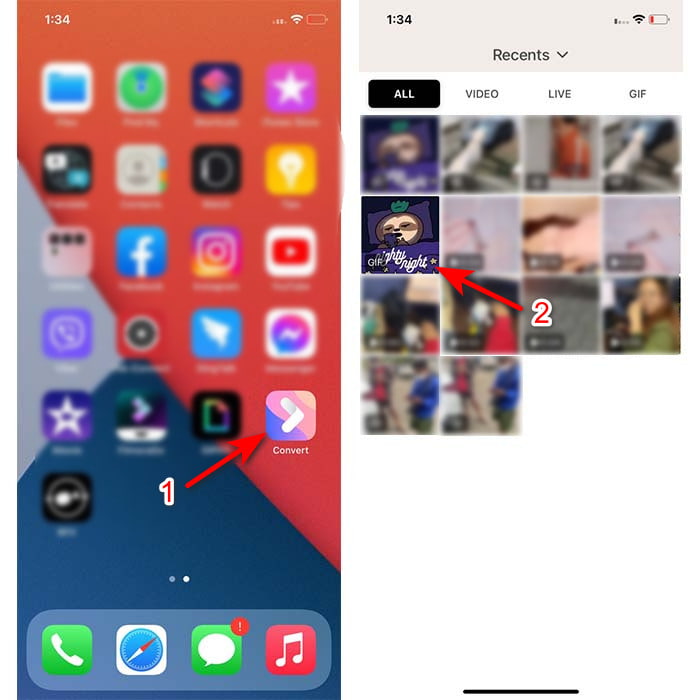
ขั้นตอนที่ 3. จากนั้นแตะปุ่มดาวน์โหลด ตั้งค่าการบันทึกเป็น Live Photo แล้วแตะ Save เพื่อดำเนินการต่อ.
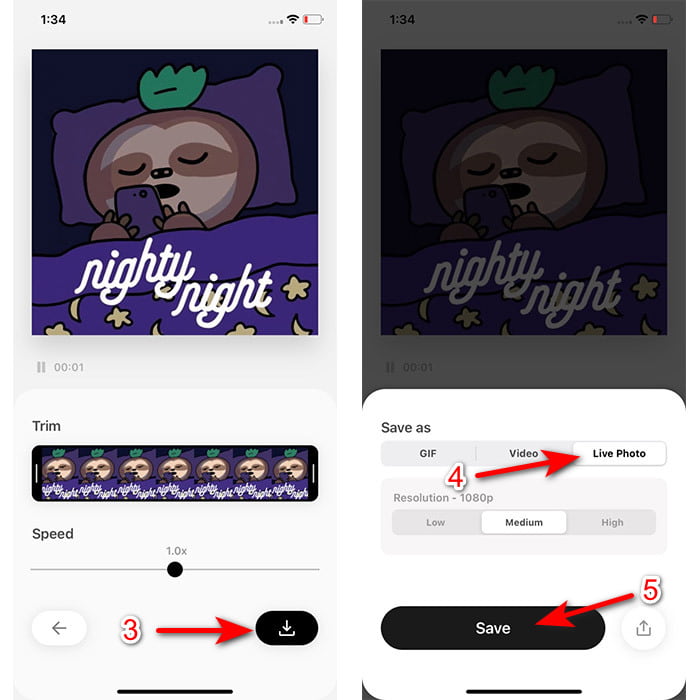
ขั้นตอนในการสร้าง Live Photo เป็นวอลล์เปเปอร์ของคุณบน iPhone:
ขั้นตอนที่ 1. แตะที่แอป Photos แล้วค้นหาในคลังภาพ (library) เพื่อหารูป GIF ที่คุณแปลงไว้.
ขั้นตอนที่ 2. จากนั้นแตะปุ่ม Share แล้วค้นหาเมนู Use as Wallpaper.
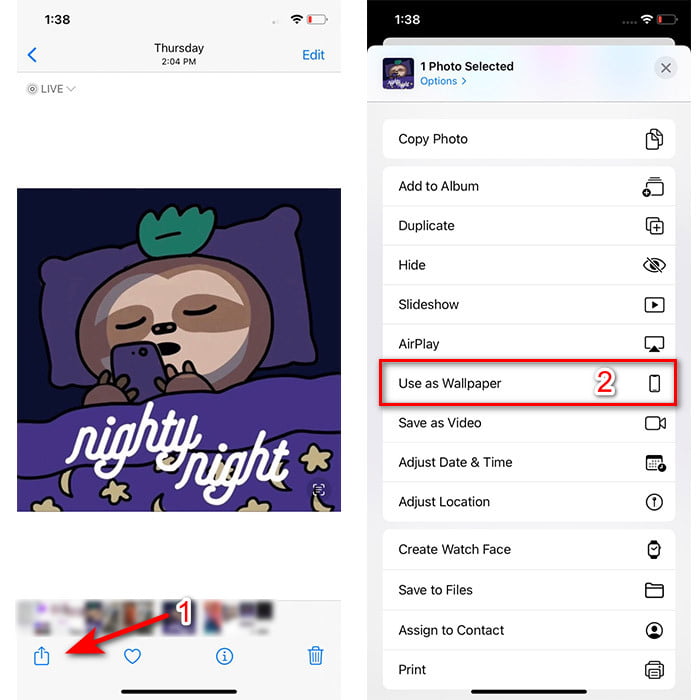
ขั้นตอนที่ 3. แตะที่ Live Photo ให้แน่ใจว่าเปิดใช้งานอยู่ แล้วแตะ Set เลือกว่าอยากใช้เป็นวอลเปเปอร์หน้าจอล็อก (Lock Screen) หน้าจอหลัก (Home Screen) หรือทั้งสองอย่าง นอกจากนี้ Live Photos จะไม่ทำงานบนหน้าจอหลัก เพราะคุณต้องกดค้างที่หน้าจอประมาณ 3–5 วินาที ดังนั้นจึงเหมาะจะใช้ Live Photo เป็นวอลเปเปอร์บนหน้าจอล็อกมากกว่า.
ส่วนที่ 2 วิธีการสร้าง GIF เป็นวอลเปเปอร์ของคุณบน Windows
หากคุณอยากทำให้ฉากหลังบน Windows ดูเจ๋งขึ้น ให้ลองทำตามขั้นตอนด้านล่าง แม้ในกรณีนี้คุณจะไม่สามารถใส่ GIF เป็นฉากหลังโดยตรงได้ เพราะจะกลายเป็นแค่ภาพนิ่งเท่านั้น เพื่อหลีกเลี่ยงปัญหานี้ คุณจำเป็นต้องใช้เครื่องมือของบุคคลที่สามอย่าง Lively Wallpaper และต่อไปนี้เราจะเริ่มต้นขั้นตอนวิธีทำให้ GIF เป็นวอลเปเปอร์บน Windows 10.
ขั้นตอนที่ 1. ดาวน์โหลด Lively Wallpaper จาก Microsoft Store จากนั้นเปิดโปรแกรมหลังจากดาวน์โหลดเสร็จ.
ขั้นตอนที่ 2. คลิกปุ่ม + ที่มุมซ้ายบน แล้วกด Browse ค้นหาไฟล์ GIF ในโฟลเดอร์ที่เด้งขึ้นมาบนหน้าจอ แล้วคลิก Open จากนั้นจะมีไลบรารีเล็ก ๆ แสดงขึ้นมา ให้คลิก OK แล้วกด Save
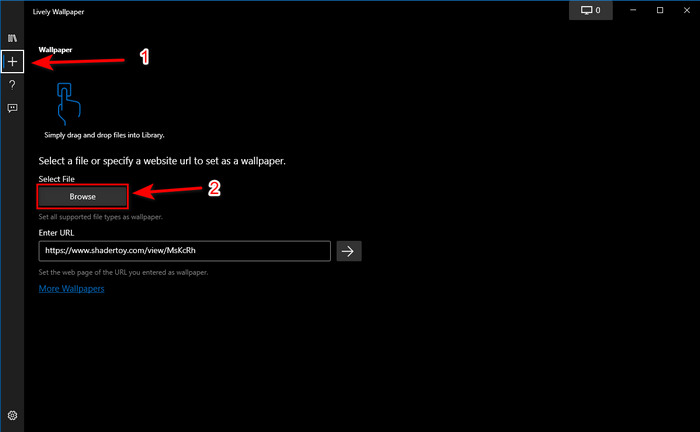
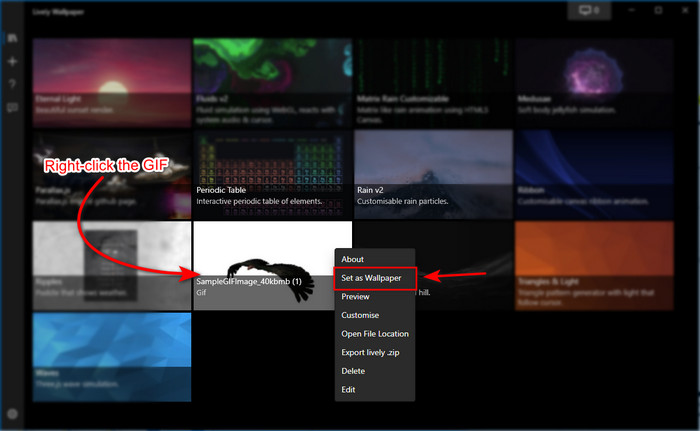
ขั้นตอนที่ 3. หาไฟล์ GIF ในแกลเลอรีที่มีมาให้ในโปรแกรม จากนั้นคลิกขวา แล้วเลือก ตั้งเป็นวอลเปเปอร์.
ส่วนที่ 3 วิธีการสร้าง GIF จากวิดีโอ/ภาพถ่ายด้วย Video Converter Ultimate
ทำให้พื้นหลังหน้าจอของคุณมีชีวิตชีวาด้วยการใช้ GIF แบบเคลื่อนไหวที่สร้างใน Video Converter Ultimate ซอฟต์แวร์นี้พิสูจน์แล้วว่าการสร้าง GIF สามารถทำได้ง่าย ๆ ไม่ว่าจะเป็นรูปภาพหรือวิดีโอ นอกจากนี้ ไม่เหมือนกับเครื่องมืออื่นๆ ทางออนไลน์และออฟไลน์ เครื่องมือนี้มีความพิเศษมากเมื่อเทียบกับเครื่องมือเหล่านี้ เนื่องจาก Ultimate Converter มีคุณสมบัติขั้นสูงทั้งหมดที่คุณน่าจะใช้อยู่แล้ว
แม้ซอฟต์แวร์นี้จะรองรับฟีเจอร์ขั้นสูง แต่ก็ยังใช้งานง่าย เหมาะทั้งมือโปรและมือใหม่ ตอนนี้เราจะมาสอนคุณวิธีสร้าง GIF สำหรับใช้เป็นวอลเปเปอร์ บน PC, Mac, Android และ iPhone นอกจากนี้ เรายังจะแสดงหลายวิธีให้เห็นว่าแค่มีวิดีโอหรือรูปภาพก็สามารถแปลงให้กลายเป็น GIF สวย ๆ ได้ ด้วยความช่วยเหลือจากโปรแกรม Video Converter Ultimate ก่อนเข้าสู่ขั้นตอน คุณจำเป็นต้องดาวน์โหลดเครื่องมือตัวนี้มาติดตั้งลงในไดรฟ์ของคุณก่อน ทำการติดตั้ง ตั้งค่าคร่าว ๆ ให้เรียบร้อย แล้วคลิก Finish เพื่อไปต่อ.
ดาวน์โหลดฟรีสำหรับ Windows 7 หรือใหม่กว่าดาวน์โหลดอย่างปลอดภัย
ดาวน์โหลดฟรีสำหรับ MacOS 10.7 หรือใหม่กว่าดาวน์โหลดอย่างปลอดภัย
4 ขั้นตอนง่ายๆ ในการสร้างภาพเคลื่อนไหว GIF จากวิดีโอ:
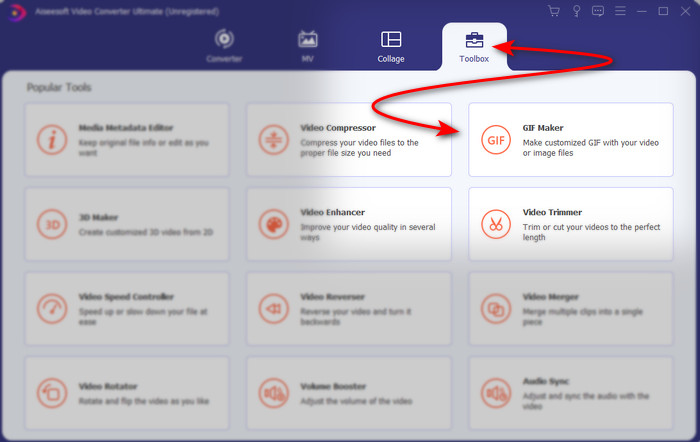
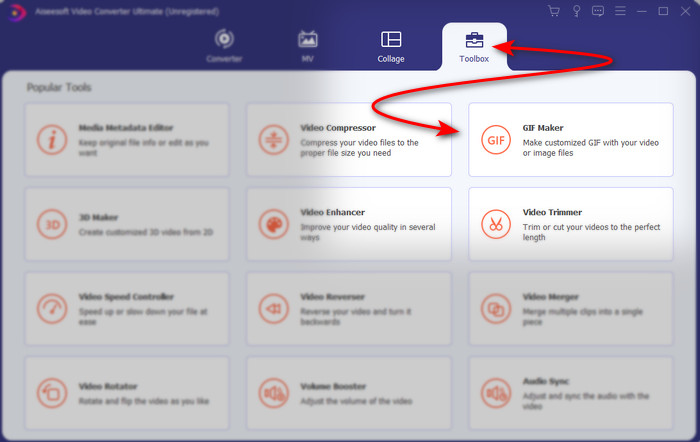
ขั้นตอนที่ 1. เปิดโปรแกรม แล้วไปที่ส่วน Toolbox ภายในนั้นจะมี GIF Maker ให้คลิกเข้าไป.
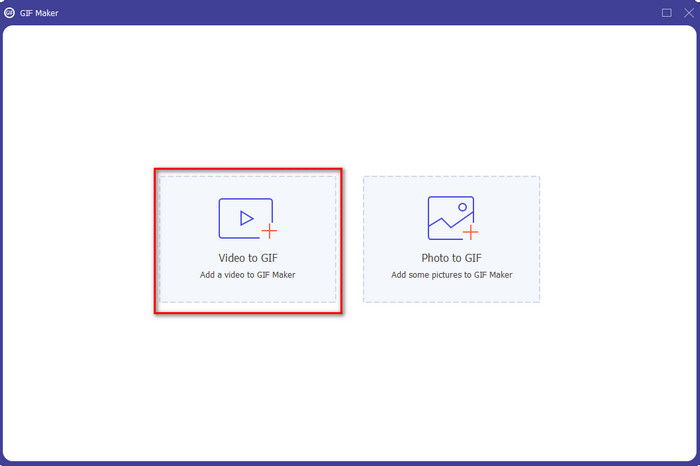
ขั้นตอนที่ 2. คลิก Video to GIF จากนั้นจะมีหน้าต่างเลือกไฟล์เด้งขึ้นมา เลือกไฟล์วิดีโอที่คุณต้องการแปลงเป็น GIF แล้วกด Open.
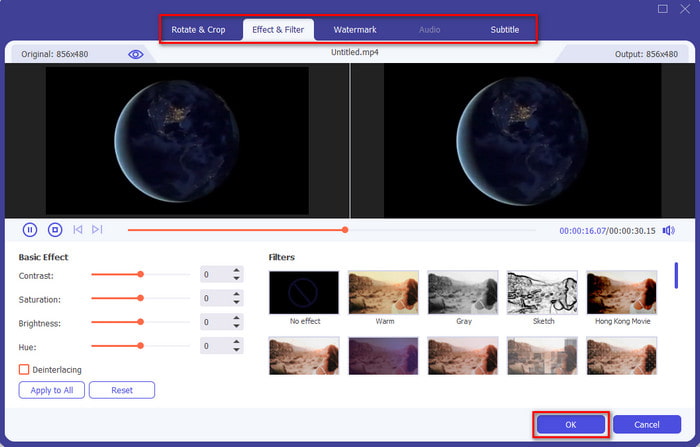
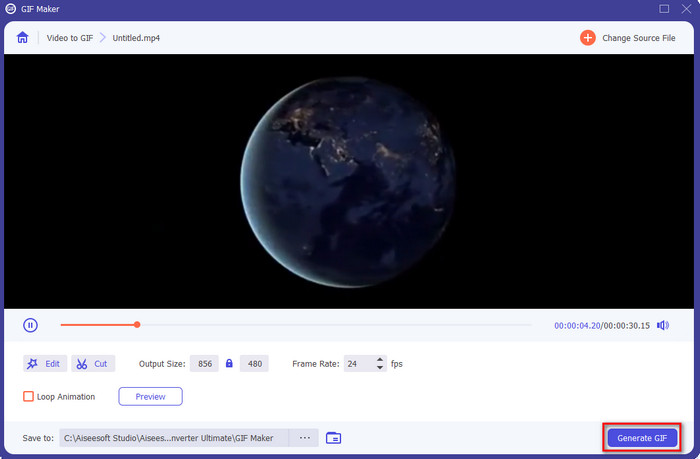
ขั้นตอนที่ 3. บนหน้าต่างหลัก ให้คลิกปุ่มรูปไม้กายสิทธิ์ (wand) เพื่อแก้ไขวิดีโอของคุณ หลังจากแก้ไขเสร็จ ให้คลิก OK เพื่อบันทึกการปรับแต่งที่คุณทำ.
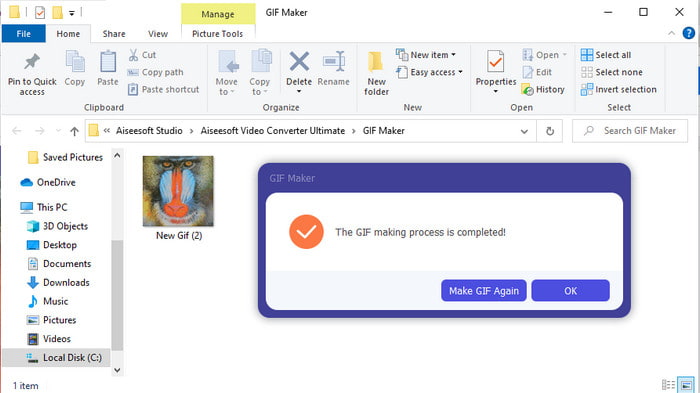
ขั้นตอนที่ 4. คลิก Generate GIF เพื่อบันทึก GIF ลงในพื้นที่จัดเก็บของคุณทันที หลังจากแปลงวิดีโอเป็น GIF เสร็จแล้ว หน้าต่างตัวจัดการไฟล์จะปรากฏขึ้นมาพร้อมไฟล์ GIF ให้คุณคลิกเปิดดูได้เลย.
4 ขั้นตอนง่ายๆ ในการสร้างภาพเคลื่อนไหว GIF จากรูปภาพ:
ขั้นตอนที่ 1. หากติดตั้งซอฟต์แวร์เรียบร้อยแล้ว ให้เปิดโปรแกรม ไปที่ส่วน Toolbox และค้นหา GIF Maker.
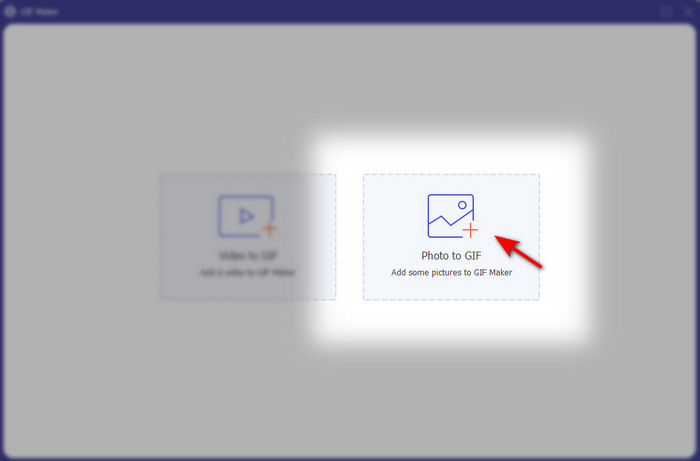
ขั้นตอนที่ 2. เพื่อเปลี่ยนรูปภาพของคุณให้เป็น GIF เคลื่อนไหว ให้คลิก Image to GIF จากนั้นจะมีหน้าต่างโฟลเดอร์เด้งขึ้นมาบนหน้าจอ ให้เลือกรูปภาพแรกแล้วคลิก Open.
ขั้นตอนที่ 3. หน้าต่าง Output Setting จะปรากฏขึ้นโดยอัตโนมัติ ให้คลิก OK เพื่อดำเนินการต่อ หากต้องการเพิ่มรูปภาพตั้งแต่ 2 รูปขึ้นไป ให้คลิกปุ่ม + เพิ่ม นอกจากนี้ ในส่วนนี้คุณจะไม่สามารถแก้ไขได้ละเอียดเหมือนฟีเจอร์แปลงวิดีโอเป็น GIF แต่คุณยังสามารถปรับตำแหน่งของรูปภาพและระยะเวลาแสดงผลแต่ละรูปได้.
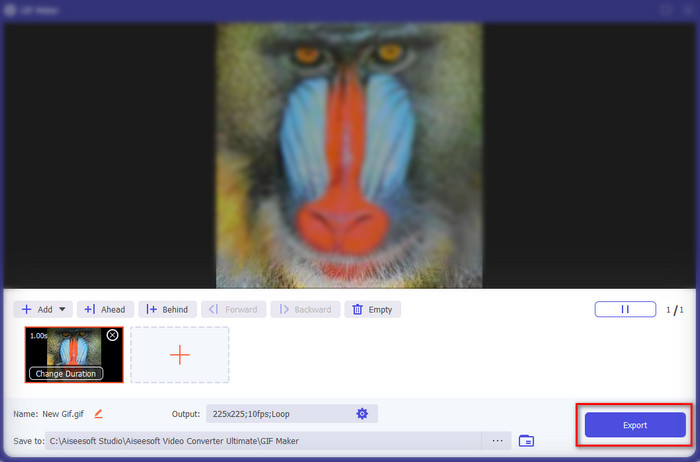
ขั้นตอนที่ 4. หากทุกอย่างเรียบร้อยแล้ว ก็ถึงเวลาคลิกปุ่ม Export เพื่อดำเนินการต่อ เมื่อตัวโปรแกรมส่งออกไฟล์เสร็จแล้ว จะมีหน้าต่างตัวจัดการไฟล์เด้งขึ้นมาพร้อมไฟล์ GIF ที่คุณสร้างไว้ก่อนหน้า.
ที่เกี่ยวข้อง:
สุดยอดเว็บแปลง GIF เป็นวิดีโอออนไลน์
ส่วนที่ 4 คำถามที่พบบ่อยเกี่ยวกับการทำ GIF เป็นวอลเปเปอร์ของคุณ
เหตุใด GIF จึงค้างเมื่อใช้เป็นพื้นหลัง
อุปกรณ์ทั้งหมดไม่รองรับ GIF เป็นพื้นหลังอย่างเป็นธรรมชาติ อย่างไรก็ตาม คุณยังคงใช้เครื่องมือของบุคคลที่สามเพื่อใช้ GIF กับพื้นหลังได้
ฉันสามารถบันทึก GIF แบบเคลื่อนไหวทางออนไลน์และใช้เป็นวอลเปเปอร์บน iPhone ของฉันได้หรือไม่
แน่นอนใช่! คุณสามารถบันทึกได้ หากคุณกำลังใช้ GIPHY ให้คลิกจุดไข่ปลาเพื่อบันทึกเป็นภาพถ่ายสด ดังนั้นตอนนี้ คุณสามารถข้ามขั้นตอนในการแปลง GIF เป็นวิดีโอสด และดำเนินการเกี่ยวกับวิธีใช้ GIF เพื่อใช้เป็นพื้นหลังด้านบนได้
วอลล์เปเปอร์เคลื่อนไหวใช้พลังงานแบตเตอรี่หรือไม่?
อันที่จริง ใช่ เพราะวอลเปเปอร์เคลื่อนไหวหรือวอลเปเปอร์เคลื่อนไหวใช้พลังงานแบตเตอรี่เกือบ 2-4% เนื่องจาก CPU และ GPU ยังคงทำงานในพื้นหลัง
สรุป
เมื่อมาถึงส่วนท้าย เราก็ได้รู้แล้วว่าเราสามารถใช้ GIF เป็นวอลเปเปอร์ เพื่อทำให้ภาพนิ่งธรรมดากลับมามีชีวิตชีวาได้ แน่นอนว่าแอปทั้งหมดที่แนะนำไปล้วนยอดเยี่ยมในหน้าที่ของตัวเอง เช่นเดียวกับโปรแกรม Video Converter Ultimate ที่ช่วยให้คุณเรียนรู้วิธีใช้ GIF เป็นวอลเปเปอร์ ได้อย่างง่ายดาย ไม่ว่าคุณจะใช้แพลตฟอร์มไหนก็ตาม หากคุณอยากสร้าง GIF ไม่ซ้ำใคร ก็ลองดาวน์โหลดเครื่องมือนี้ลงบนเดสก์ท็อปของคุณแล้วลองใช้งานดู.
-
 บทแนะนำการบีบอัด GIF และลดขนาดไฟล์ด้วยคุณภาพสูง
 ต่อไปนี้คือ 2 วิธีง่ายๆ ในการบีบอัด GIF บนคอมพิวเตอร์หรือโทรศัพท์มือถือของคุณ คุณสามารถใช้ FVC Free Online Video Compressor และ Photoshop ลดขนาดไฟล์ GIF ในด้านต่างๆ ได้
-
 สร้าง GIF เคลื่อนไหวที่ดีที่สุดของคุณผ่าน Online GIF Maker [2021]
 บทวิจารณ์ที่ให้ข้อมูลเกี่ยวกับวิธีการสร้าง GIF โดยใช้เครื่องสร้าง GIF ออนไลน์แบบง่ายๆ ที่คุณเคยพบเห็นหรือไม่ผ่านทางเว็บ
-
 เลือก GIF Cropper ที่ดีที่สุดออนไลน์และออฟไลน์เพื่อครอบตัด GIF [2021]
 การเลือกเครื่องมือครอบตัดที่ดีที่สุดคือสิ่งที่ต้องทำ และผู้ผลิต GIF บางรายไม่มีคุณสมบัตินี้ แต่เครื่องมือครอบตัด GIF ที่ดีที่สุดคืออะไรและใช้งานอย่างไร
