


 视频转换大师
 屏幕录影大师
 视频修复
视频修复
 安全下载
安全下载如何轻松在 Google Chrome 上截屏
在当今数字化的世界中,截图已经变得非常实用。无论你是要保存重要信息、分享有趣的表情包,还是记录对话,学会如何快速捕获屏幕内容都能让生活更轻松。Google Chrome 是许多人首选的浏览器,以其速度快、界面简洁而闻名。有鉴于此,在本指南中,我们将为你介绍几种简单的方法,教你如何在 Chrome 上截图。无论你是刚开始使用,还是已经用 Chrome 多年,这些技巧都能让你迅速成为截图高手。准备好学习了吗?那就开始吧!

第 1 部分。如何使用快捷方式在 Google Chrome 上截屏
使用键盘快捷键在 Google Chrome 上截取屏幕截图仍然是首选,原因如下。首先,快捷键速度极快且效率极高,可让您截取所需内容而不会降低浏览速度。这些快捷键适用于不同的操作系统,如 Windows、macOS 和 Chrome OS,因此无论您使用哪种设备,都可以使用。此外,快捷键内置于 Chrome 中,因此无需下载其他软件或扩展程序。
为此,您需要记住以下快捷方式,以便在 Google Chrome 上轻松截屏:
对于 Windows
全屏截图:按下Ctrl + PrtScn或Windows 键 + PrtScn。
当前活动窗口截图:按下Alt + PrtScn。
对于 macOS
全屏截图:按下Command + Shift + 3。
当前窗口截图:按下Command + Shift + 4,然后按下空格键(Spacebar)。现在,点击或选中你想要捕获的窗口。如果你想在 Mac 上裁剪截图,需要使用其快速工具栏。
对于 Chrome 操作系统
全屏截图:按下Ctrl + 显示窗口键(Show Windows)F5。
部分截图:按下Ctrl + Shift + 显示窗口键(Show Windows),然后点击并拖动以选中你想要捕获的区域。
使用这些快捷键,您可以依靠一致且可靠的方式在 Google Chrome 上截取屏幕截图,从而最大限度地减少任何潜在故障。它们旨在供所有人使用,包括残障人士。简而言之,键盘快捷键是首选方法,可为各个级别的用户提供速度、可访问性和可靠性。
第 2 部分。如何使用屏幕录像机在 Google Chrome 上截屏
虽然键盘快捷键提供了一种在 Google Chrome 上快速有效地截取屏幕截图的方法,但使用屏幕录像机软件工具也有其自身的优势,使其成为满足屏幕截图需求的引人注目的替代方案。
FVC Screen Recorder凭借其多功能性,在 Google Chrome 上进行截图时脱颖而出,成为一款全面的解决方案。用户可以将截图保存为多种格式,包括 JPG、PNG 等。
要使用它,请按照以下简单步骤操作:
步骤 1. 首先下载并安装 FVC Screen Recorder。
步骤 2:下载完成后,运行该工具并点击右上角的快照图标。接着,选择“屏幕截图”(Screen Capture)。
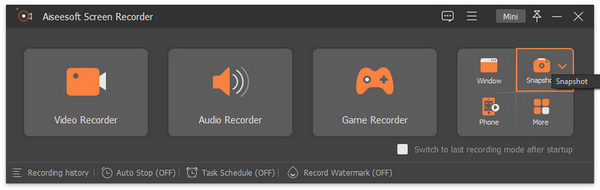
步骤 3:现在,当视频在你的 Google Chrome 浏览器中播放时,你可以拖动光标来选择想要截图的视频区域。
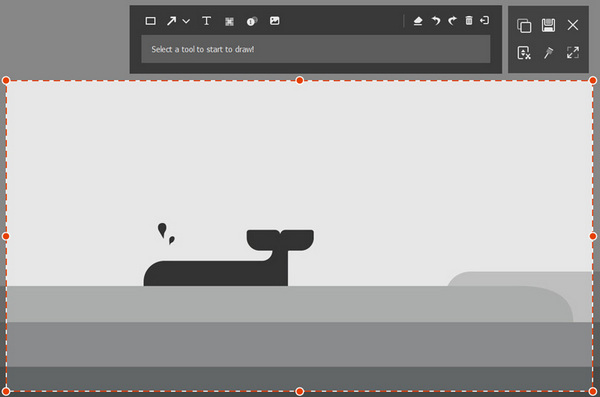
步骤 4:完成后,只需点击保存(Save)按钮。别忘了选择你偏好的图片格式。
通过 Aiseesoft Screen Recorder 的简单设置和导航,用户确实可以简化截屏过程,使他们能够专注于捕获内容,而不会被复杂的设置或配置所困扰。
第 3 部分。如何使用 Google Chrome 扩展程序截屏
使用 Google Chrome 扩展程序进行截图是一种方便且集成的解决方案,可直接在浏览器中捕获内容。Awesome Screenshot 是一款值得注意的扩展程序,它通过丰富的功能增强了截图体验。
Awesome Screenshot 允许用户在 Google Chrome 上截取屏幕截图,用文字、形状和箭头进行注释,然后轻松保存或分享。
步骤 1:从 Chrome 网上应用店获取 Awesome Screenshot 扩展程序。
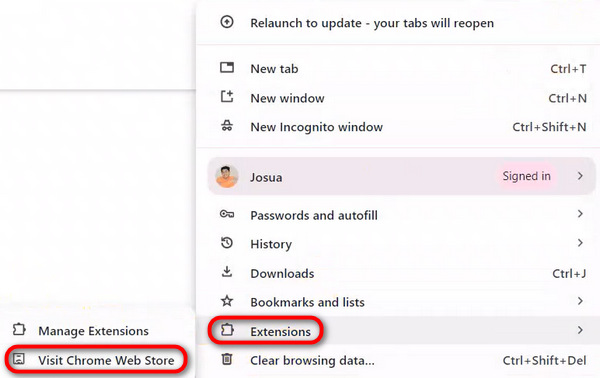
步骤 2:然后,在搜索栏中搜索 Awesome Screenshot 扩展程序。

步骤 3:之后,点击添加至 Chrome(Add to Chrome)。
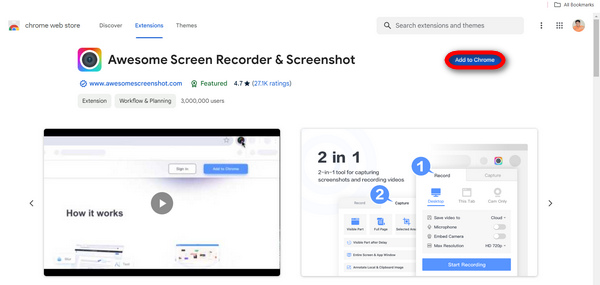
步骤 4:现在,选择Capture(捕获)标签,并选择你想要使用的截图类型。
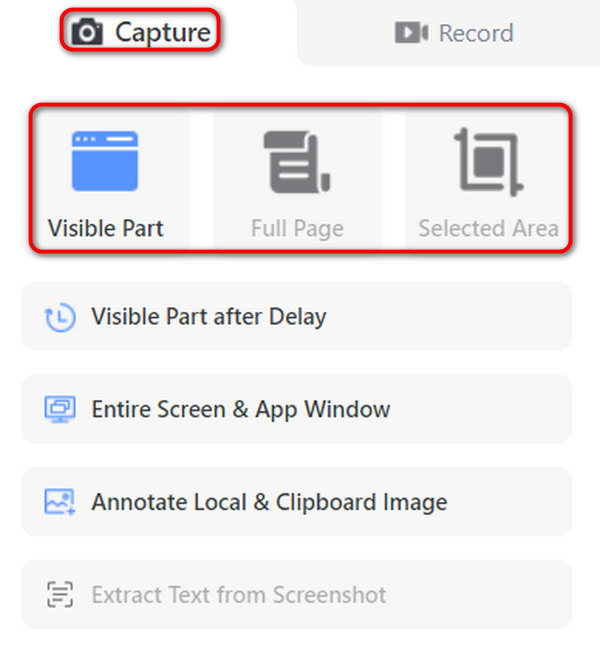
步骤 5:如有需要,可对截图进行自定义或编辑。完成后,它会自动保存到你的设备上。
就是这样!使用 Awesome Screenshot,在 Google Chrome 上截取和共享屏幕截图既快速又简单。
第 4 部分。有关 Google Chrome 截图的常见问题解答
在使用键盘快捷键或扩展程序在 Google Chrome 中截取屏幕截图之前,我需要调整任何浏览器设置或首选项吗?
要使用键盘快捷键或扩展程序在 Google Chrome 中截取屏幕截图,通常不需要调整特定的浏览器设置或偏好设置。但是,最好确保您的浏览器是最新的,以避免与快捷键或扩展程序出现任何兼容性问题。
是否可以捕获网页内特定元素的屏幕截图,例如下拉菜单或弹出窗口?
是的。可以使用某些扩展程序或通过使用键盘快捷键选择所需区域来截取网页内特定元素的屏幕截图。Awesome Screenshot 等扩展程序通常允许用户选择截取整个页面或选择要截取的特定部分。
使用 Google Chrome 中的键盘快捷键或扩展程序捕获的屏幕截图的大小或分辨率是否有限制?
使用 Google Chrome 中的键盘快捷键或扩展程序截取的屏幕截图的大小或分辨率通常没有固有限制。不过,屏幕截图的质量可能取决于显示器的分辨率以及所用扩展程序或键盘快捷键的设置等因素。
我如何确保我的屏幕截图中不包含密码或个人数据等敏感信息?
为了确保敏感信息不会被截取到您的屏幕截图中,请在选择要截取的区域时小心谨慎,并在保存或共享之前检查内容。此外,某些扩展程序可能会提供模糊工具或裁剪敏感信息等功能。
我可以直接在 Google Chrome 中编辑屏幕截图,然后保存或分享,而无需使用其他软件或扩展程序吗?
虽然 Google Chrome 本身没有内置的截图编辑功能,但 Awesome Screenshot 等扩展程序可在浏览器中直接提供基本的编辑工具。这些工具可能包括在保存或共享截图之前添加注释、文本、形状或模糊敏感信息的选项。或者,您可以使用外部图像编辑软件来编辑保存到设备的截图。
学习如何在 Google Chrome 上截图,对于高效捕获和分享在线内容至关重要。无论是使用键盘快捷键、录屏工具,还是浏览器扩展,都有多种方法可供选择,以满足不同用户的偏好。通过遵循上述步骤并解决常见疑问,你可以提升浏览体验和工作效率。
优化你的工作流程,从今天开始在 Chrome 上轻松截图吧!
-
 [详细指南] 如何修复 Google Drive 视频无法在计算机上播放
 Google Drive 上的视频无法播放,并出现错误“播放此视频时出现问题”。这可能是由 Google Drive 本身或 chrome 问题引起的。本文将详细介绍 6 种解决方案。
-
 适用于 Windows/Mac/Mobile 的 8 款最佳屏幕录像机 [在线和离线]
 查找适用于 Windows 和 Mac 的最出色的屏幕录像机。阅读本文以了解最好的免费在线和离线屏幕录像机。
-
 ShareX屏幕录像机评论以及如何使用ShareX记录屏幕
 ShareX屏幕录像机有什么作用?如何在ShareX上记录我的屏幕?这篇文章对ShareX进行了回顾,并展示了如何使用ShareX记录屏幕。
