


 Video Converter Ultimate
 Screen Recorder
 Oprava videa
 Bezpečné stažení
Jak se zdarma připojit k souborům MOV (QuickTime)
Po shromáždění mnoha video materiálů MOV možná budete chtít materiály uspořádat a spojit je do jednoho úplného souboru. Pro začátečníky nebo amatérské producenty videa však může být používání technického nástroje, jako je Adobe Premiere Pro, příliš komplikované. Možná strávíte dny nebo dokonce měsíce studiem, jak program provozovat.
Ve skutečnosti, pokud chcete pouze spojovat videoklipy, můžete k vyřešení svého problému použít jednoduchý a efektivní nástroj pro spojování videí, díky němuž za pár minut sloučíte dva nebo více souborů MOV dohromady.
Pomocí níže uvedených kroků můžete snadno sloučit soubory MOV jak na Macu, tak ve Windows. Čtěte tedy dál a jednotlivé metody si sami vyzkoušejte.

Část 1. Jak sloučit videa MOV v QuickTime
MOV, také známý jako QuickTime File Format (QTFF), je digitální video kontejner s kodekem MPEG‑4. Byl představen společností Apple v roce 1998 na podporu přehrávače QuickTime Player. Pokud tedy máte Mac, můžete vlastně použít QuickTime Player k tomu, abyste snadno spojili soubory MOV.
QuickTime překvapivě není jen přehrávačem médií, ale také videoeditorem, který umožňuje sloučit samostatná videa, upravovat videoklipy a dokonce nahrávat zvuk nebo video na vašem počítači Mac. Kromě toho je snadno použitelný a zachovává původní kvalitu videa.
Tady jsou kroky, jak se připojit k videoklipům v QuickTime.
Krok 1. Najděte videa, která chcete sloučit, a jedno z nich otevřete v QuickTime Playeru. (Abyste si práci usnadnili, můžete je nejprve přesunout do jedné složky nebo na plochu.)
Krok 2. Po otevření souboru se na obrazovce zobrazí okno přehrávače. Nyní přetáhněte další videoklip do QuickTime Playeru. Videoklip můžete podržet a přetáhnout do správného pořadí. Když uvolníte tlačítko myši, objeví se vedle vašich videoklipů tlačítko Hotovo. Klikněte na něj.
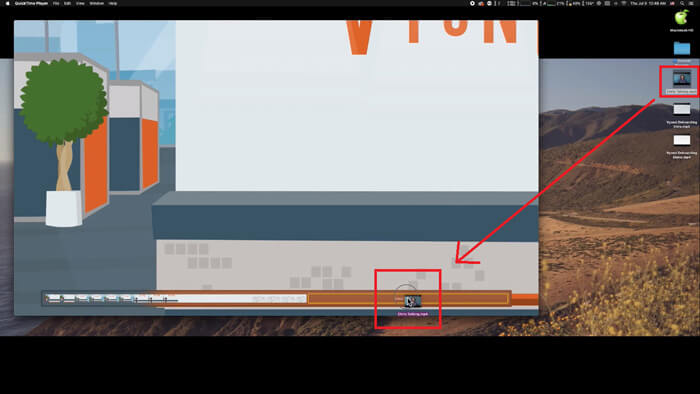
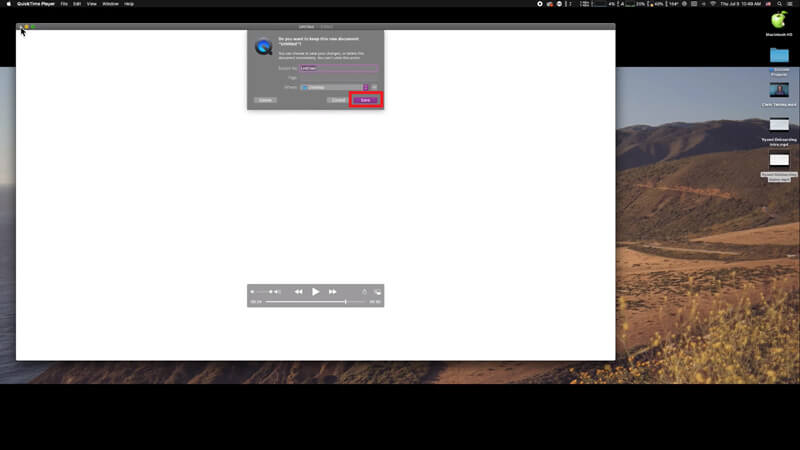
Krok 3. Ukončete QuickTime a okamžitě se zobrazí výzva k uložení sloučeného videa. Stačí zadat nový název a vybrat umístění, než kliknete na tlačítko Uložit.
Část 2. Jak sloučit soubory MOV online a zdarma
QuickTime vám však nemůže pomoci sloučit různé videosoubory v odlišných formátech, jako jsou MP4, MOV, AVI, WMV, FLV atd., do jednoho souboru MOV. V takovém případě je třeba použít profesionálnější nástroj pro spojování videí, který podporuje více videoformátů.
Seznamte se tedy s nástrojem FVC Free Online Video Merger, nejlepším spojovačem videí pro bezplatné slučování. S tímto nástrojem můžete bez omezení nahrát tolik videí, kolik chcete. Kromě MOV můžete exportovat i jiné populární videoformáty, což je velmi pohodlné, pokud chcete video sdílet na streamovacích platformách, jako je YouTube.
Namísto instalace seriózního a nákladného programu do počítače můžete připojit libovolná videa a vytvořit jedno úžasné video online pomocí tohoto snadno použitelného kombinátoru videí, který vám také umožní vytvořit video bez vodoznaku. Bez ohledu na to, jaký systém používáte, Windows, Mac nebo Linux, může fungovat dobře. Vše, co potřebujete, je prohlížeč a stabilní síť.
Následující kroky vás provedou provozem tohoto nástroje pro slučování videa.
Krok 1. Kliknutím na výše uvedený odkaz otevřete v prohlížeči webovou stránku FVC Free Online Video Merger.
Krok 2. Nejprve klikněte na tlačítko Upload Videos to Merge v banneru. Poté podle pokynů na obrazovce stáhněte a nainstalujte do počítače spouštěč.
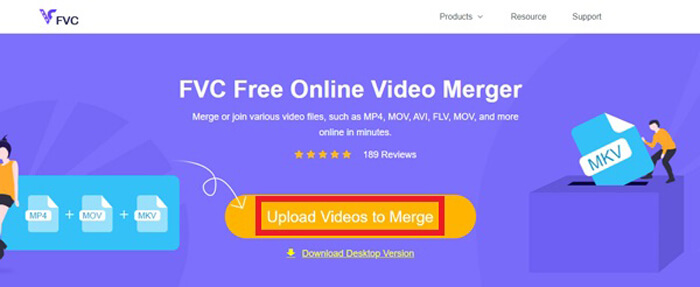
Krok 3. Jakmile instalace skončí, okamžitě se objeví vyskakovací okno. Nyní můžete vybrat a přidat všechny soubory MOV, které chcete spojit, do tohoto nástroje pro slučování videí.
Krok 4. Po nahrání zkontrolujte, zda je pořadí videoklipů správné. Poté podle potřeby změňte Resolution (rozlišení) a Format (formát) na MOV nebo jakýkoli jiný požadovaný formát.
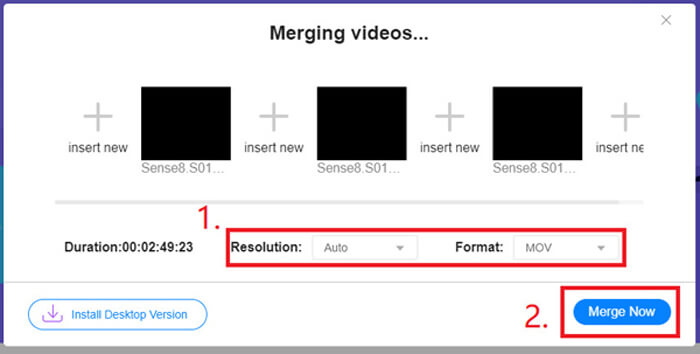
Krok 5. Kliknutím na Merge Now spusťte slučování.
Část 3. Jak sloučit soubory MOV ve Windows 10
Pokud nemáte počítač Mac, ale vlastníte počítač se systémem Windows 10, můžete zkusit následující soubory připojit ke souborům MOV.
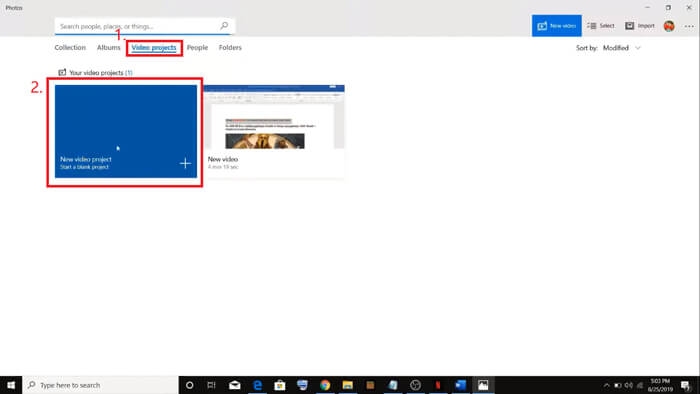
Krok 1. Otevřete v počítači aplikaci Fotky (Photos). Najdete ji tak, že ji vyhledáte v Hledání (Search). Potom nahoře vyberte kartu Video projects a klikněte na New video project. Projekt videa pojmenujte.
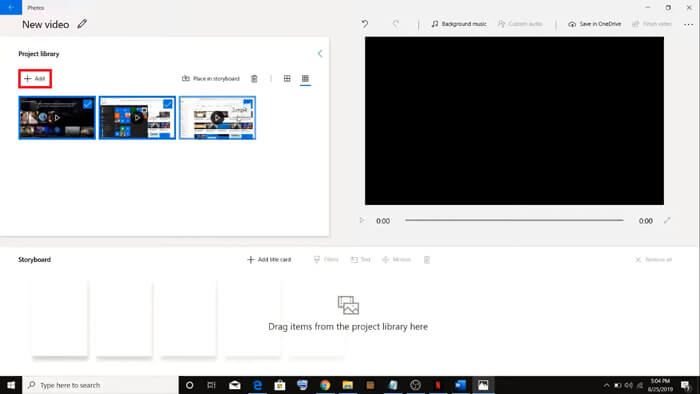
Krok 2. Klikněte na tlačítko Add v levém horním rohu a z počítače vyberte všechna videa, která chcete převést.
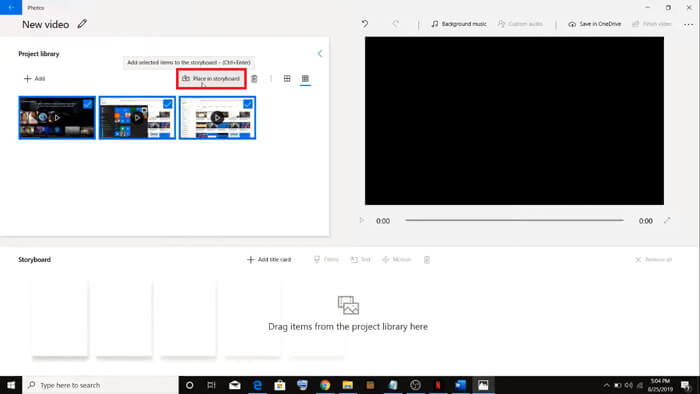
Krok 3. Poté klikněte na tlačítko Place in storyboard, abyste všechny své soubory MOV zkombinovali.
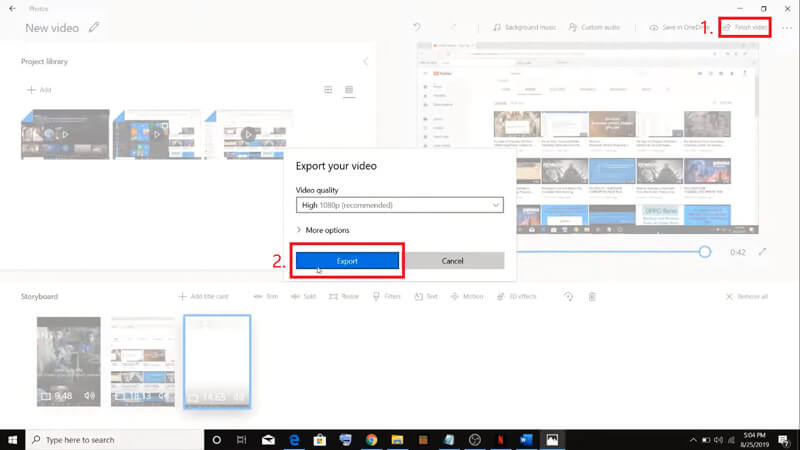
Krok 4. Po úpravě pořadí videí klikněte vpravo nahoře na Finish video. Poté exportujte sloučené video do svého počítače.
Část 4. Časté dotazy ke sloučení MOV
1. Mohu používat QuickTime Player ve Windows?
I když Apple už QuickTime pro Windows nepodporuje, instalační balíček QuickTime stále najdete na internetu. Měli byste si však uvědomit, že jej můžete používat pouze k přehrávání videí. Takže je to v podstatě obyčejný přehrávač, který vám příliš nepomůže.
Pokud jste uživatel Windows a chcete sloučit soubory MOV, můžete jednoduše použít výkonný nástroj FVC Free Online Video Merger.
2. Co je lepší pro YouTube, MOV nebo MP4?
Po vytvoření skvělého videa sloučením všech vašich materiálů jej možná budete chtít nahrát na YouTube, Facebook, Instagram nebo jiné platformy. V takovém případě bude lepší volbou formát MP4, protože má menší velikost a snadněji se sdílí přes internet.
Možná se chcete dozvědět více o rozdílech mezi MOV a MP4.
3. Může QuickTime Player exportovat video ve formátu MP4?
Ano i ne. QuickTime sám o sobě totiž nepodporuje export souborů MP4. Pokud jste si však QuickTime zakoupili a upgradovali na QuickTime Pro, můžete si užívat slučování souborů MOV a zároveň automaticky získat převedený soubor MP4. Jestliže nechcete utratit ani korunu, ale přesto chcete na Macu převést MOV na MP4, můžete vyzkoušet bezplatný online převodník s názvem FVC Free Online Video Converter, který je kompatibilní jak s Macem, tak s Windows.
Závěr
Toto jsou tedy metody, které můžete použít, když potřebujete sloučit soubory MOV do jednoho. Pokud používáte Mac, můžete přímo využít vestavěný software QuickTime Player a získat sloučený soubor MOV. Uživatelé Windows 10 mohou vyzkoušet aplikaci Fotky. A ostatní uživatelé Windows si mohou zvolit FVC Free Online Video Merger a užít si fantastické slučování videí bez omezení, bez reklam a bez virů.
Pokud se vám tento příspěvek líbí a je pro vás praktický, můžete jej sdílet se svými přáteli. A neváhejte nám zanechat svůj komentář. Nyní je řada na vás, abyste vyzkoušeli metody a sloučili své soubory.
-
 Jak převést QuickTime na MP4 na Windows / Mac / Online / iOS / Android
 Přečtěte si a získejte 4 způsoby, jak převést QuickTime na videa MP4 zdarma v telefonu nebo počítači. Můžete snadno změnit formát souboru z MOV na MP4 ve Windows / Mac / iPhone / Android / online.
-
 Nejlepší 4 způsoby, jak zdarma převést MP4 na MOV
 Jak převést MP4 na MOV na Mac? Existuje nějaký bezplatný způsob, jak převést MP4 na MOV bez ztráty kvality? Tento příspěvek sdílí 4 jednoduché způsoby, které vám pomohou provést převod videa z MP4 na MOV na počítačích Mac, Windows PC a online.
-
 Jak převést M2TS na MOV v systému Windows / Mac (online / offline)
 Potřebujete převést M2TS na MOV pro přehrávání video souborů na řadě přehrávačů a platforem? Tento článek vám pomůže najít nejlepší online / offline metodu pro převod M2TS na MOV ve Windows / Mac.
