


 Video Converter Ultimate
 Bildschirm recorder
 Videoreparatur
 Sicherer Download
So ändern Sie HEIC auf dem iPhone einfach mit Apps in JPG
Unlike JPEG, the HEIC doesn't get a lot of support, and because of that, converting it became necessary before transferring the file. But selecting a converter on your device might be challenging because not all of them perform very well in converting the image file. So, if you want to know the techniques to change the format to a JPEG on your device, you must follow this article. There are three different methods to shift HEIC to JPG on iPhone and desktop easily without losing the quality of the raw HEIC file.

Teil 1. Konvertieren von HEIC in JPG auf dem iPhone mit der Datei-App
With a file manager like the File App you can easily convert HEIC to JPG on iPhone without downloading additional files. Besides the storing features, the tool supports locally on your iPhone; it also supports other cloud storage apps, which became one reason why this feature became popular on every iPhone user. If you like to try using this file manager built-in app on iOS devices, then follow the steps below to do it effectively.
Schritte zum Konvertieren von HEIC in JPG mit der Datei-App:
Step 1. Open the Library of the HEIC image you want to copy.
Step 2. Then open the File App and select On My iPhone. While using it, you can also access Google Drive or another iCloud drive to upload the HEIC file if the HEIC file isn't available on your local drive, but you will need to have an internet connection to do it.
Step 3. After you've opened the app, you must now create a folder, paste the file, and the format will automatically be saved in JPEG format.
Teil 2. So konvertieren Sie HEIC in JPG mit einer Drittanbieter-App auf dem iPhone
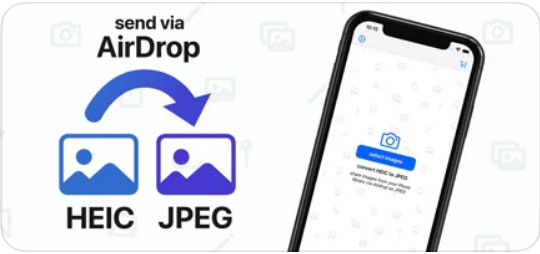
One of the best free apps you can use to change the format of your HEIC is the HEIC to JPEG. This app is open-source, which means you can download it for free on any iOS device. If you want to know how to convert HEIC to JPG on iPhone, you can follow the steps below.
Schritte zum Konvertieren von HEIC in JPG mit HEIC in JPEG:
Step 1. Search the HEIC to JPEG on the App Store, and click the download button to install the app on your iOS device.
Step 2. After the installation, tap the app to open it. By tapping the Select Image, you can directly access the Photos of your iOS and select the HEIC image you want to convert.
Step 3. If you have uploaded the HEIC file in the app, you must check them out by tapping them individually. After you tap the HEIC file you want to convert, tap the Share as JPEG located at the upper right corner of your screen.
Step 4. In this area, tap the Save Image, and the HEIC photo will convert into a JPEG.
Teil 3. So konvertieren Sie HEIC in JPEG und übertragen die Fotos auf Windows und Mac
Suppose the third-party iOS app and the built-in file manager didn't work based on your need, then what should you do? No need to worry because we got your back. FVC Free HEIC to JPG Converter is a web-based tool that allows its users to convert the HEIC file automatically into a JPEG. With it, you can use the tool and finish the task of converting in three easy steps. Here are the steps to convert HEIC to JPEG if you don't have an iPhone to use.
Schritte zum Konvertieren von HEIC in JPG mit FVC Free HEIC to JPG Converter:
Step 1. Click this link to open the official website of the web tool on your favorite browser.
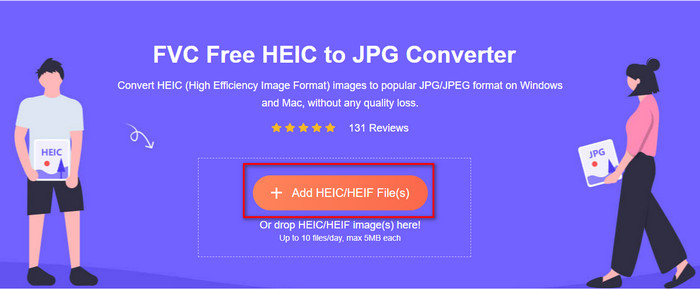
Step 2. Then click Add HEIC/HEIF File(s), locate the HEIC image you want to change the format, and click Open to upload the file successfully.
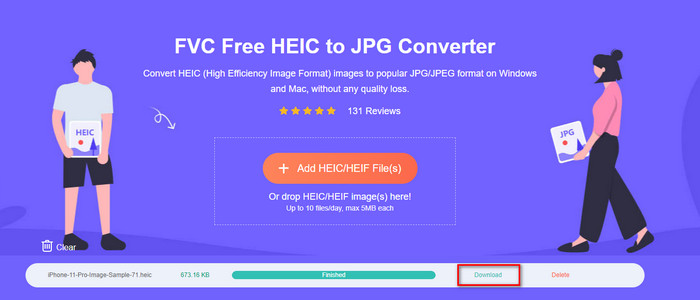
Step 3. Converting the format into JPEG will start soon, and after the procedure, click Download to save the image file on your drive with a JPEG format. As we promised, you will only go to read three easy steps to successfully change the format of the image you have into a JPEG. So if the app on iPhone didn't work well, then this is the tool you must use as a substitute for them.
Teil 4. Häufig gestellte Fragen zum Konvertieren von HEIC in JPEG auf dem iPhone
Muss ich die HEIC-Datei in JPEG konvertieren, bevor ich sie auf das iPhone übertrage?
It depends on the version of the iOS device of the receiver; if the receiver uses an iOS 11 or up, then converting the format to JPEG isn't necessary because you can open the file here as it is natively supported. But if the receiver's version is lower than the iOS 11, that is the time you will need to convert HEIC into a JPEG.
Dauert das Übertragen von HEIC auf ein anderes Gerät Zeit?
Nicht wegen der Komprimierung, die dieses Format hat, daher ist die Übertragung des Bildes in diesem Format einfach. Wenn Sie es jedoch in großen Mengen an das andere Gerät senden, müssen Sie warten, bis der Vorgang abgeschlossen ist. Wenn Sie es über eine Internetverbindung übertragen, benötigen Sie eine schnelle, um es schnell zu verarbeiten.
Bleibt nach der Konvertierung von HEIC in JPEG die hohe Qualität des Bildes erhalten?
HEIC und JPEG können Bilder in hoher Qualität speichern, sodass beim Konvertieren von HEIC in JPEG kein Qualitätsverlust während der Konvertierung auftritt. Einige Konverter reduzieren jedoch die Qualität des Bildes, um es schnell zu verarbeiten. Um eine schlechte Qualität der rohen HEIC-Datei zu vermeiden, müssen Sie den besten Konverter auswählen, um das Format einfach in JPEG zu ändern, ohne die ursprüngliche Qualität zu verlieren.
Fazit
We have now learned how to change the HEIC to JPG on iPhone without worrying about the quality lost. Despite having trouble handling the HEIC format with this article, you have lessened the burden you carry because you now have ways to convert it. So, if you want to try the two methods we mentioned above on your iPhone, go and follow them accordingly. But if you think that it will not suffice your needs, you must choose the online converter we mentioned. There are guidelines on how to use the converter on the web. Follow it to get the whole idea of how to use it. We hope that you like reading this article, visit our website as we gathered also other ways to solve your daily task on video and audio problems.
-
 Konvertieren Sie HEIC in PDF mit den 4 wichtigsten verbesserten Möglichkeiten im Jahr 2022
 Um weitere Informationen über den besten HEIC-zu-PDF-Konverter zu erhalten, können Sie diesen 2022 herunterladen. Sie können diesen Artikel lesen, da wir eine Rezension dazu bereitgestellt haben.
-
 5 der besten HEIC-zu-JPG-Konverter-Auswahl dieses Jahr 2022
 Mit dem HEIC-zu-JPC-Konverter können Sie das Bildformat ganz einfach in ein tragbares JPG ändern. Möchten Sie wissen, was diese 5 Tools sind? Lesen Sie diesen Artikel.
-
 Bester kostenloser und kostenpflichtiger HEIC-Konverter, den Sie kennen müssen [Aktualisiert 2022]
 Möchten Sie wissen, was der HEIC-Konverter ist? In diesem Fall stellen wir die 5 besten kostenlosen und kostenpflichtigen HEIC-Konverter vor, mit denen Sie das HEIC-Format ändern können.
