


 Video Converter Ultimate
 Bildschirm recorder
 Videoreparatur
 Sicherer Download
Einfachste Möglichkeiten zum Reparieren von HEIC-Fotos mit den besten Tools
HEIC‑Fotos sind Bildformate, die Windows nicht öffnen kann. Obwohl sie aufgrund ihrer hohen Auflösung bei geringer Dateigröße weit verbreitet sind, können Sie sie nur auf Apple‑Geräten direkt öffnen. Wenn Ihr Bild außerdem Daten verloren hat oder beschädigt ist, benötigen Sie ein Tool, mit dem Sie Ihr Bild reparieren und die verlorenen Daten wiederherstellen können. In diesem Artikel erfahren Sie, welches das beste Tool ist, um Ihr HEIC‑Bild auf Ihrem Windows‑PC zu öffnen, und wie Sie HEIC‑Fotos reparieren können – mühelos.

Teil 1. Wie Sie Ihr HEIC-Bild auf Ihrem Windows-PC reparieren und anzeigen
Sie können Ihr HEIC-Bild nicht auf Ihrem Windows-PC anzeigen, obwohl Ihr Bild nicht beschädigt ist. Die beste Option für Sie ist also die Verwendung von Tools, die Ihr HEIC-Bild anzeigen oder in andere von Windows unterstützte Bildformate wie JPG und PNG konvertieren können. Daher präsentieren wir Ihnen die besten Tools zum Anzeigen eines HEIC-Bildes auf Ihrem Windows-PC und zum Konvertieren Ihres HEIC-Bildes in das JPG-Bildformat.
Verwenden Sie einen Konverter
Aiseesoft HEIC Converter ist ein Online-HEIC-Konverter, mit dem Sie Ihr HEIC-Bild in das JPG- oder PNG-Bildformat konvertieren können. Dieses Tool hat eine einfache Benutzeroberfläche, die es zu einem benutzerfreundlichen Tool macht. Darüber hinaus können Sie die Qualität Ihres Bildes ändern, wenn Sie Ihr HEIC-Bild konvertieren. Es kann auch die EXIF-Daten Ihres Bildes behalten, während es in andere Bildformate konvertiert wird. Darüber hinaus können Sie dieses Tool verwenden, um HEIC-Bilder in JGP zu konvertieren, ohne etwas zu bezahlen.
Schritt 1. Laden Sie den Aiseesoft HEIC Converter auf Ihren PC herunter. Folgen Sie dem Installationsvorgang und öffnen Sie die App.
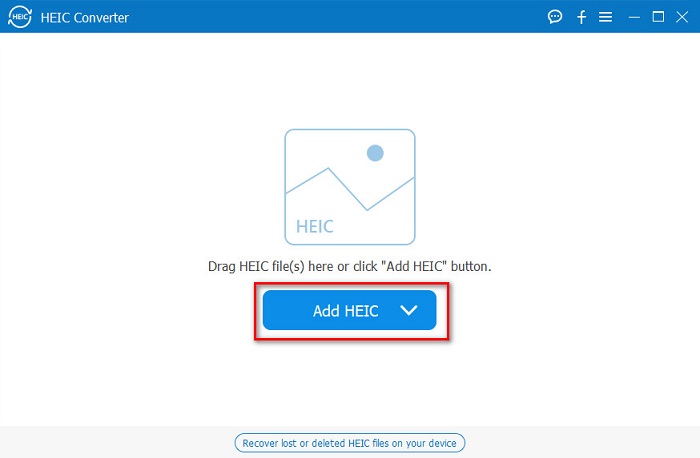
Schritt 2. Klicken Sie auf die Schaltfläche HEIC hinzufügen, um Ihr HEIC‑Bild in die Hauptoberfläche der Software zu laden.
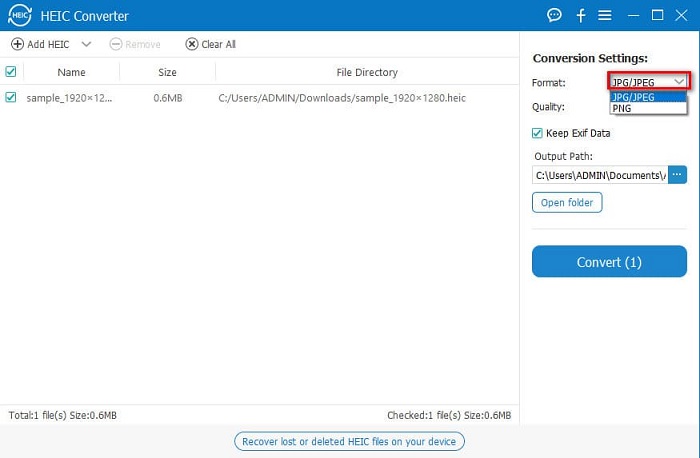
Schritt 3. Wählen Sie anschließend das Ausgabeformat, indem Sie auf die Dropdown‑Schaltfläche neben Format klicken. Wählen Sie dann das Bildformat JPG/JPEG aus.
Schritt 4. Klicken Sie abschließend auf die Schaltfläche Konvertieren, um Ihr HEIC‑Bild in das JPG‑Bildformat zu konvertieren.
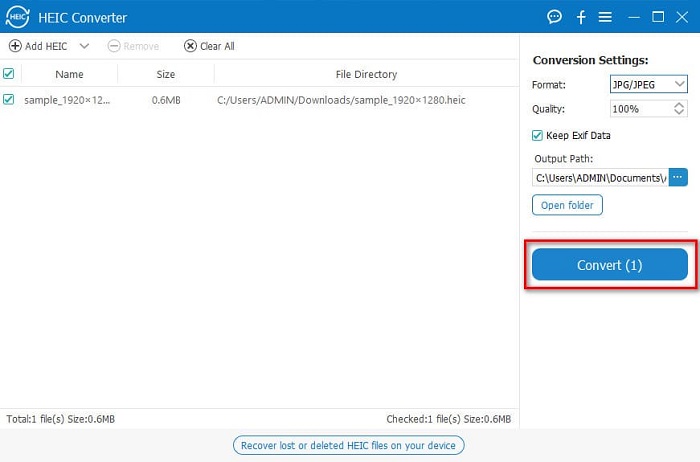
Indem Sie diesen einfachen Schritten folgen, können Sie Ihr HEIC-Bild in das JPG-Bildformat konvertieren, um es auf Ihrem Windows-Gerät anzuzeigen.
Sie können auch den FVC HEIC Converter ausprobieren, der über ebenso leistungsstarke Funktionen wie der Aiseesoft Converter verfügt:
Gratis DownloadFür Windows 7 oder neuerSicherer Download
Gratis DownloadFür MacOS 10.7 oder neuerSicherer Download
Verwandt:
Verwenden Sie einen Viewer
1. HEIC Image Viewer Decoder
HEIC Image Viewer Decoder ist eine HEIC‑Viewer‑App, mit der Sie Ihr HEIC‑Bild online ansehen können. Nachdem Sie Ihr HEIC‑Bild betrachtet oder decodiert haben, können Sie es als PNG‑ oder JPG‑Bildformat speichern. Darüber hinaus verfügt sie über eine einfache Oberfläche, sodass Sie Ihr HEIC‑Bild leicht betrachten können.
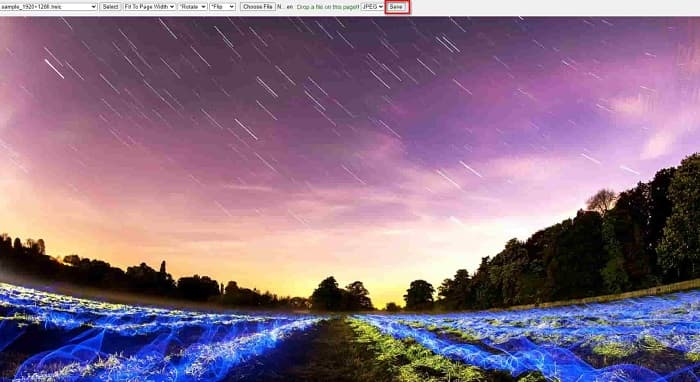
Schritt 1. Suchen Sie in dem von Ihnen verwendeten Browser nach HEIC Image Viewer Decoder. Ziehen Sie anschließend auf der Hauptoberfläche der Software Ihr HEIC‑Bild in das rechteckige Feld oder klicken Sie auf die Schaltfläche Dateien auswählen.

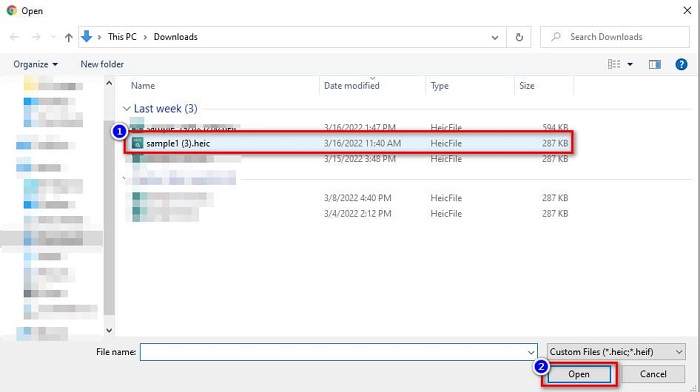
Schritt 2. Dann werden Ihre Computerordner angezeigt, in denen Sie Ihr HEIC‑Bild suchen. Wählen Sie es aus und klicken Sie auf Öffnen.
Schritt 3. Nachdem Sie Ihr HEIC‑Bild hochgeladen haben, können Sie Ihr Bild ansehen. Klicken Sie anschließend auf die Schaltfläche Speichern, um Ihr HEIC‑Bild im JPG‑Bildformat zu speichern.
2. CompressJPG.net
CompressJPG.net ist ein Online‑HEIC‑Viewer mit einer intuitiven Benutzeroberfläche. Er ist auf Mobilgeräten, unter Windows und auf Tablets verfügbar. Außerdem gibt es keine Beschränkung der Dateigröße, wenn Sie Ihr HEIC‑Bild anzeigen. Da es sich jedoch um eine webbasierte Anwendung handelt, kann der Ladevorgang bei langsamer Internetverbindung ebenfalls langsam sein. Nichtsdestotrotz nutzen viele Menschen dieses Online‑Tool, um ihre HEIC‑Bilder anzusehen.
Schritt 1. Suchen Sie in Ihrem Browser nach CompressJPG.net, und klicken Sie dann auf die Website des Tools, die auf der Ergebnisseite angezeigt wird. Klicken Sie auf der Hauptoberfläche der Software auf die Schaltfläche Dateien auswählen.

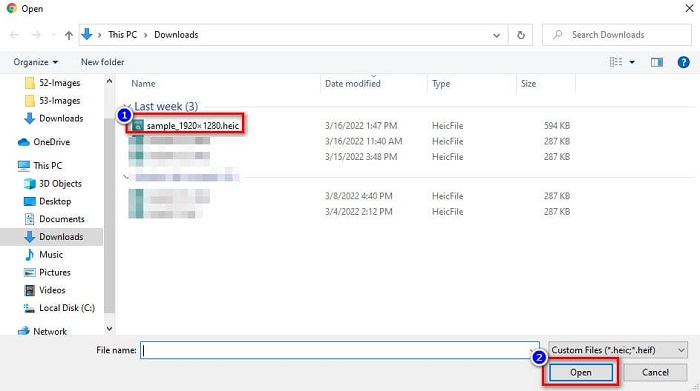
Schritt 2. Anschließend werden Ihre Computerdateien angezeigt. Suchen Sie Ihr HEIC‑Bild und wählen Sie es aus. Nachdem Sie Ihr HEIC‑Bild ausgewählt haben, klicken Sie auf die Schaltfläche Öffnen, um Ihr HEIC‑Bild hochzuladen.
Schritt 3. Nun können Sie Ihr HEIC‑Bild auf Ihrem Windows‑PC ansehen.

Einfach nicht wahr? Indem Sie die oben genannten Online-Tools befolgen und verwenden, können Sie Ihr HEIC-Bild ganz einfach auf Ihrem Windows-PC anzeigen.
Teil 2. Beschädigtes HEIC-Bild reparieren
Wenn Ihr HEIC-Bild auf Ihrem Apple-Gerät nicht geöffnet werden kann, stimmt etwas nicht. Das häufigste Problem, auf das viele Menschen stoßen, ist der Verlust von Daten. Wenn dies passiert, bedeutet dies, dass Ihre Bilddatei beschädigt ist. Sie müssen also ein Tool verwenden, das Ihre verlorenen Daten wiederherstellen kann. In diesem Teil erfahren Sie, wie Sie die Daten Ihres HEIC-Images wiederherstellen.
Verwenden Sie den EaseUS-Datenwiederherstellungsassistenten
Der EaseUS Data Recovery Wizard ist ein Softwaretool, mit dem Sie bis zu 2 GB Ihrer verlorenen Daten wiederherstellen können. Dieses Tool ist benutzerfreundlich, da es nur eine einfache Benutzeroberfläche hat. Darüber hinaus kann dieses Tool den Speicher Ihres Geräts scannen und eine Liste verlorener Dateien anzeigen. Obwohl Sie es kostenlos verwenden können, kann die Testversion die beschädigten Dateien nur finden, aber nicht wiederherstellen. Daher müssen Sie dennoch die Pro‑Version der Anwendung erwerben. Nichtsdestotrotz ist es eines der am häufigsten verwendeten Datenrettungstools, die Sie im Internet finden werden.
Vorteile
- Es kann bis zu 2 GB Ihrer verlorenen Daten wiederherstellen.
- Es hat eine intuitive Benutzeroberfläche.
- Verfügbar auf fast allen Medienplattformen, einschließlich Windows und Mac.
Nachteile
- Sie müssen die Pro-Version kaufen, um die verlorenen Daten wiederherzustellen.
Verwenden Sie Recuva
Ein weiteres Datenrettungstool, das Sie verwenden sollten, ist Recuva. Diese Anwendung verfügt über eine leicht zu bedienende Benutzeroberfläche und ist damit ein einsteigerfreundliches Tool. Beeindruckend an diesem Tool ist, dass es dauerhaft gelöschte Dateien wiederherstellen kann, die vom Betriebssystem als freier Speicherplatz markiert wurden. Außerdem kann es Daten auf USB‑Sticks, Festplatten, Speicherkarten und anderen Medien wiederherstellen. Es gibt zudem 32‑Bit‑ und 64‑Bit‑Versionen.
Vorteile
- Es hat eine einfache GUI.
- Es ermöglicht Ihnen, Daten auf USB-Sticks, Festplatten, Speicherkarten und anderen Speichergeräten wiederherzustellen.
- Es kann Ihre schwer zu findenden Dateien tief scannen.
Nachteile
- Kaufen Sie die Premium-App, bevor Sie auf ihre einzigartigen Funktionen zugreifen.
Teil 3. FAQs zum Reparieren von HEIC-Fotos
Was kann das HEIC-Bild öffnen, ohne ein Drittanbieter-Tool zu verwenden?
Da Apple HEIC-Bilder entwickelt, können Sie die HEIC-Bilder nativ auf jedem Apple-Gerät anzeigen.
Kann ich die Daten meines HEIC-Images auf dem Mac wiederherstellen?
Ja, du kannst. Sie können die oben genannten Tools auch verwenden, um die verlorenen Daten Ihres Bildes wiederherzustellen oder wenn Ihr HEIC-Bild beschädigt ist.
Kann ich andere Bildformate in ein HEIC-Bild konvertieren?
Ja. Mit einigen Tools können Sie andere Bildformate wie JGP und PNG in HEIC konvertieren. Es ist also möglich, JPG- und PNG-Bilder in HEIC-Bilder zu konvertieren.
Fazit
Alles in allem ist es nicht besonders kompliziert, HEIC‑Fotos zu reparieren, wenn Sie die oben genannten Tools verwenden. Mit diesen Tools können Sie die verlorenen Daten Ihres Bildes wiederherstellen und die Schäden beheben. Wenn Ihr HEIC‑Bild jedoch völlig in Ordnung ist und Sie es lediglich auf Ihrem Windows‑Gerät anzeigen möchten, ist der beste Weg, Ihr HEIC‑Bild mit dem Aiseesoft HEIC Converter in das JPG‑Dateiformat zu konvertieren.
-
 Konvertieren Sie HEIC einfach mit den besten Konvertern in RAW
 Wie konvertiere ich HEIC in RAW? Dieser Artikel zeigt Ihnen die besten Möglichkeiten, HEIC mit den besten Online- und Offline-Konvertern in RAW zu konvertieren.
-
 CopyTrans HEIC Review, Funktionen und Alternativen
 Wenn Sie wissen möchten, was CopyTrans HEIC kann, stellen wir Ihnen die Funktionen, Vorteile und Alternativen des Tools vor.
-
 Der beste HEIC-Viewer online und offline [kostenlos]
 Wenn Sie nach dem besten HEIC-Viewer suchen, dann haben wir, wonach Sie suchen. Sehen Sie sich Ihr HEIC-Bild kostenlos mit diesen Tools an.
