


 Video Converter Ultimate
 Bildschirm recorder
 Videoreparatur
 Sicherer Download
So importieren Sie HEIC-Dateien effektiv in Lightroom unter Windows und Mac
Suppose you are interested in improving the HEIC image or organizing it. In that case, you can import HEIC to Lightroom and do all of the arranging and editing at ease. You can easily upload it here without downloading an additional codec for HEIC to view or edit with this software. So if you need a guide that will teach you how to import the HEIC file in this software, you can read and follow the Windows and Mac ways we include in this write-up.
Lassen Sie uns ohne weiteres die folgenden Details lesen, um zu erfahren, wie es geht, und wenn Lightroom den HEIC nicht importieren konnte, gibt es eine Möglichkeit, ihn hier hinzuzufügen. Aber vor allem anderen müssen Sie die Software auf Ihrem Windows oder Mac herunterladen, bevor Sie die folgenden Details lesen.

Teil 1. So importieren Sie HEIC in Lightroom auf Ihrem Windows 10/11 oder aktualisiert
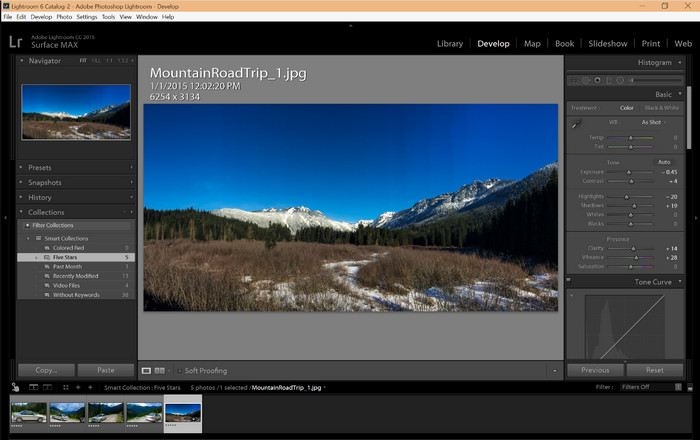
Lightroom unterstützt eine aktualisierte Windows-Version; Dieser Teil ist für Sie, wenn Sie die Software auf Ihr Windows-Betriebssystem herunterladen. Sie müssen sich keine Sorgen machen, da Lightroom HEIC-Dateien mühelos öffnen kann, indem Sie dem folgenden Tutorial folgen.
Step 1. Download the software on your Windows 10/11, then install it and open it to proceed.
Step 2. When the software is already running on your system, click the + button, press the Browse, and select the HEIC file you want to import here.
Step 3. After selecting them, you can now view the HEIC files using Lightroom on your Windows 10/11.
Teil 2. So öffnen Sie HEIC Photo in Lightroom auf Ihrem Mac 10.13 oder höher
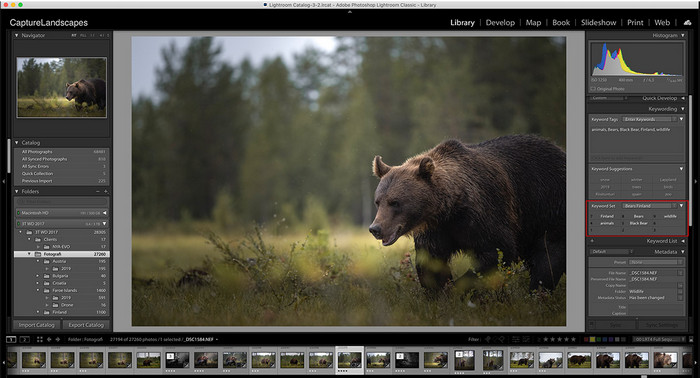
Auch ohne Lightroom können Sie die HEIC-Datei mühelos anzeigen, insbesondere wenn Ihre Mac-Version High Sierra 10.13 oder neuer in der Vorschau ist. Obwohl die Vorschau Bearbeitungsfunktionen unterstützt, reicht sie nicht aus, um sie für komplizierte Bearbeitungen zu verwenden, wie sie Lightroom Ihnen bieten kann. Außerdem müssen Sie sich keine Sorgen machen, da Lightroom HEIC-Dateien unterstützt, um sie auf Ihrem Mac zu bearbeiten oder zu organisieren.
Step 1. Install the software on your macOS 10.13 or higher; if the version of your operating is lower, then expect that the software won't open. After you download Lightroom on your desktop, you must now open it.
Step 2. In the upper part section, you will find different menus and the name of Lightroom on the upper-left side, which means the software is already open. Press the File menu and proceed to the Add Photos, or you can use a hotkey on your keyboard instead by pressing Command + Shift + I.
Step 3. A folder will show on your screen; select the image you want to import and click Review for Import.
Teil 3. Lightroom konnte die HEIC-Datei nicht importieren | Beste Lösung zur Lösung des nicht unterstützten HEIC-Problems
Viele Benutzer hatten Probleme beim Hochladen der HEIC-Datei aufgrund der Kompatibilität mit Software wie Lightroom unter Windows und Mac; selbst mit Hilfe der oben genannten Methoden ist es immer noch unmöglich. Aber kein Grund, traurig zu sein, denn es gibt eine Möglichkeit, Ihre HEIC-Datei in Lightroom zu importieren, indem Sie HEIC mit Hilfe des besten Tools im Internet in JPG konvertieren.
FVC Free HEIC to JPG Converter is the solution you must use to convert the HEIC file on your Windows and Mac without the software downloaded. A web tool like this can turn your un-supported format into a standard one like the JPEG. You can upload the image efficiently on Lightroom without experiencing an unsupported format. In addition to converting HEIC to JPG, you can also upload multiple HEIC images here and convert them all simultaneously to support batch conversion. Amazing right? Do you want to know what amazes us more? Well, you can do a speed-up conversion for free. If you want to fix the unsupported problem you encounter on HEIC, follow the indicated steps below to know how to convert the format.
Einfache Schritte zum Ändern des HEIC-Formats in JPG mit einem Webtool:
Step 1. FVC Free HEIC to JPG Converter by clicking this link, you can open the main website of the converter on your favorite search engine. No need to worry because it is safe to use, and there aren't any ads that could be pesky on the web interface.
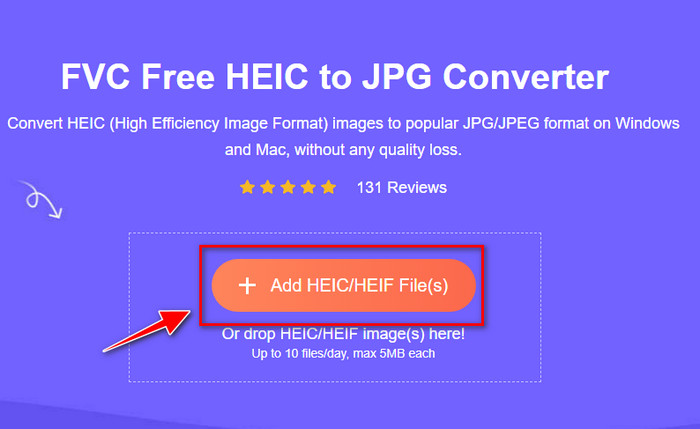
Step 2. Click the Add HEIC/HEIF Files to upload the HEIC image that Lightroom can't open here. Alternatively, you can drag and drop the file here instead of selecting them in the file folder.
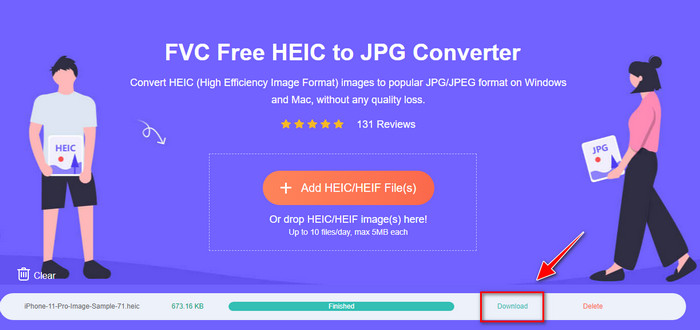
Step 3. A Download button will show up if the progress bar is complete; click it to save the newly converted HEIC file on your desktop. After that, you can now import the file on Lightroom without accepting a dialogue box that says unsupported or corrupted.
Teil 4. Häufig gestellte Fragen zum Importieren von HEIC in Lightroom
Gibt es Einschränkungen beim Importieren von HEIC-Dateien in Lightroom?
Bis zu diesem Punkt können Sie beliebig viele HEIC-Dateien in Lightroom importieren. Es gibt keine Einschränkungen beim Hochladen dieser Art von Format in Lightroom.
Ist Lightroom für Windows und Mac kostenlos?
Leider ist Lightroom für Windows und Mac nicht kostenlos, aber Sie können es kostenlos auf Ihrem Windows und Mac herunterladen. Obwohl die Software nicht kostenlos ist, können Sie die kostenlose Testversion nutzen, die sie 7 Tage lang unterstützt. Wenn Sie der Meinung sind, dass Sie die Software längere Zeit benötigen, können Sie sie nach Ablauf der Testphase abonnieren.
Hinterlässt der Export einer HEIC-Datei in Lightroom ein Wasserzeichen?
Luckily, Lightroom doesn't add a watermark to the image you've uploaded here. But you can add a watermark if you want to add one. So, if you are going to post the picture on the internet, then we suggest that you add a watermark on it so that it has protection from the people who will try to steal it.
Was ist besser für die Bildbearbeitung? Photoshop oder Lightroom?
Es hängt von Ihren Anforderungen ab; Mit Hilfe des Adobe-Editors Photoshop und Lightroom können Sie Ihr Bild ganz einfach optisch verbessern. Angenommen, Sie möchten einen einfach zu handhabenden Bildeditor. In diesem Fall ist Lightroom eine Wahl, die Sie auswählen müssen, da es der beste Bildeditor zur Verbesserung des Bildes ist, das Sie haben. Wenn Sie jedoch eine detailliertere Bildbearbeitung durchführen möchten, ist Photoshop Ihr Editor, der die Anforderungen jedes professionellen Editors erfüllt.
Fazit
Mit Hilfe von Lightroom können Sie das vorhandene Bild einfach bearbeiten oder entsprechend organisieren, damit es ordentlich aussieht. Wenn Sie also die HEIC-Datei in Lightroom importieren möchten, können Sie den von uns hinzugefügten Schritten folgen, unabhängig davon, ob Sie ein Windows- oder Mac-Benutzer sind. Wenn Sie jedoch Probleme beim Importieren der HEIC-Datei haben, lesen Sie Teil drei, während wir es lösen, um es mit Lightroom kompatibel zu machen. Sie können nun mit der Bearbeitung fortfahren. Wir hoffen, dass Ihnen dieser Artikel eine Vorstellung davon gibt, wie Sie die Datei importieren können; Wenn Sie weitere Vorschläge oder Empfehlungen haben, können Sie uns eine Nachricht hinterlassen.
-
 iMazing HEIC-Konverter | Funktionen, Vor- und Nachteile und Verwendung
 In diesem Artikel werden die iMazing HEIC Converter-Fähigkeit und ihre Alternativen beschrieben. Wenn Sie also mehr darüber erfahren möchten, lesen Sie dies mit Vorsicht
-
 3 einfachste Möglichkeiten zum Konvertieren von HEIC in JPG auf dem iPhone wie ein Experte
 Haben Sie keine Ahnung, wie Sie die HEIC auf dem iPhone in JPG ändern können? Wenn Sie einer der Benutzer sind, die ein Problem mit dem HEIC haben, lesen Sie dies.
-
 Warum sind meine iPhone-Fotos im HEIC-Format [Gründe und Lösungswege]
 Möchten Sie wissen, warum meine iPhone-Fotos im HEIC-Format vorliegen? Dieser Artikel liefert glaubwürdige Beweise dafür, was HEIC zum Besten macht.
