


 Video Converter Ultimate
 ضبط صفحه
 تعمیر ویدیو
نحوه افزودن فیلتر به GIF در Windows/Mac/iPhone/Android با مراحل
Want to know how to spice your GIF by adding a filter on it? No need to worry because this article will provide the most picked GIF editor you can use on your desktop and phone to have filters. The information we include here will provide credible evidence on adding filters to a GIF. Let's investigate further what GIF filter software you can use on your operating system without further ado.

بخش 1. چرا باید فیلتر را به GIF اضافه کنم؟
اگر GIF را در وب به اشتراک می گذارید، ابتدا باید بسته به سفارشی سازی خود، یک فیلتر به GIF اضافه کنید تا رنگ را افزایش دهید. طبق تحقیقات انجام شده، GIF فیلتر شده بیشتر از GIF هایی که فاقد آن هستند، مخاطب را جذب می کند. بنابراین اگر میخواهید مخاطبان زیادی را جذب کنید، باید شروع به اضافه کردن فیلتر روی هر GIF کنید که با ویرایشگر GIF ساخته شده است. حال، اگر نمی دانید که چگونه یک فیلتر را به GIF خود اضافه کنید، پیشنهاد می کنیم کل مقاله را مطالعه کنید.
قسمت 2. افزودن فیلترها به GIF با ویرایشگر GIF فوق العاده در ویندوز و مک [ساده ترین راه]
Video Converter Ultimate is the best GIF editor we've seen and pick-out on the market. It is known for being your one-stop GIF editor as it offers multiple editing features like adding filters on a video or GIF. With this tool, you won't need to be a pro to use it, but you know what's great? You will have a pro output within a few touches. So now, if you want to add a filter to the GIF, you can follow the tutorial without breaking a sweat.
Step 1. To use the GIF editor, you must push the download button below and choose which operating system you are using. After downloading it, install the software by following the installation process, then open it to begin adding a filter to the GIF.
دانلود رایگانبرای ویندوز 7 یا بالاتردانلود امن
دانلود رایگانبرای MacOS 10.7 یا بالاتردانلود امن
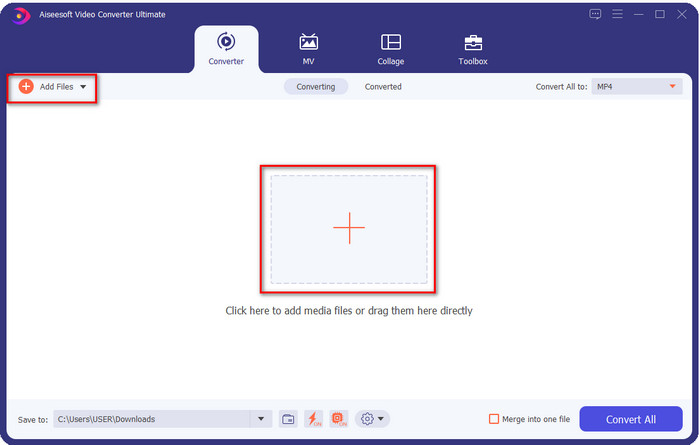
Step 2. Upload the GIF you want by clicking the + icon on the center of the main interface, but you can also click Add Files if you want; whether of the two you choose, they do function the same. Search the .gif on the desktop folder that will show on your screen, and click Open to upload it.
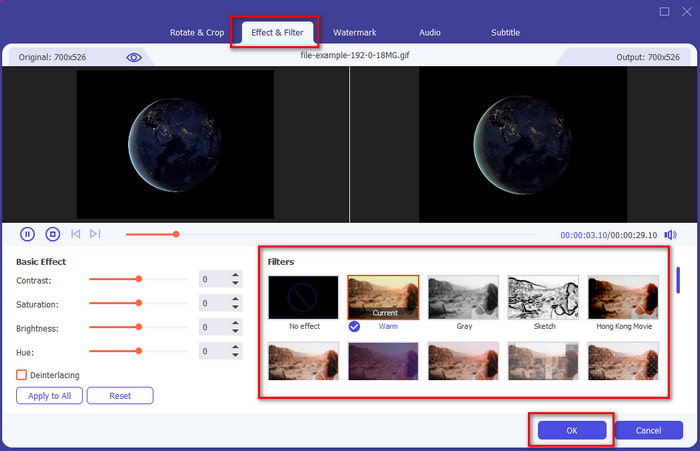
Step 3. Click the wand button to open a new window to add a filter to the GIF. Go to the Effect & Filters under it, and you will see a different set of filters you can use to make your GIF look better than the other GIFs on the web. You can try out all the filters by clicking them individually; if you are happy with the filter, you must click OK to successfully apply the filter on the GIF.
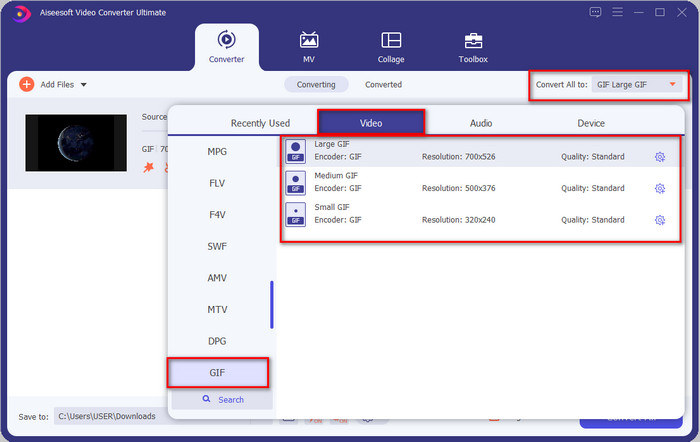
If you want to keep the format of your GIF, click the Convert All to and look for the GIF format. Select the GIF format you want to have and click it.
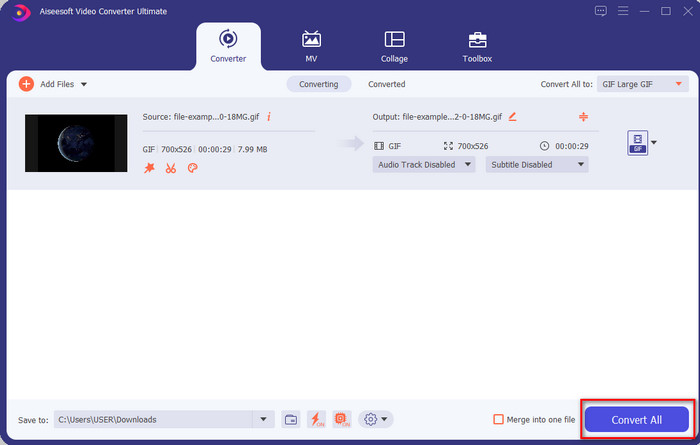
Step 4. And to download the GIF with the filter on it, click the Convert All button. Easy isn't it? With the Video Converter Ultimate, you can almost do everything regarding the GIF without breaking any sweat at all.
قسمت 3. نحوه افزودن فیلتر به GIF با GIF Maker- Editor موجود در دستگاه های Android
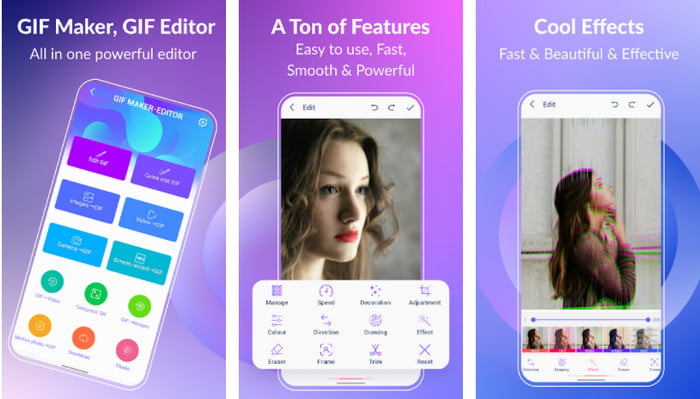
GIF Maker-Editor is an all-in-one tool you can download on your Android. This tool supports different filters to help you create a beautiful GIF. Although the tool is excellent, the ads on this tool are coming out of nowhere; you must be careful not to click them. So now, here are the steps on how to add a GIF color filter to your GIFs.
Step 1. Download the tool on your Play Store and open it.
Step 2. Click Edit GIF and choose the GIF that is on your image library.
Step 3. Look for the effects by sliding the options, then click it. Choose the filter you want, click the check icon, and OK to save the GIF.
قسمت 4. نحوه اعمال فیلتر روی GIF با GIF Maker موجود در دستگاه های آیفون
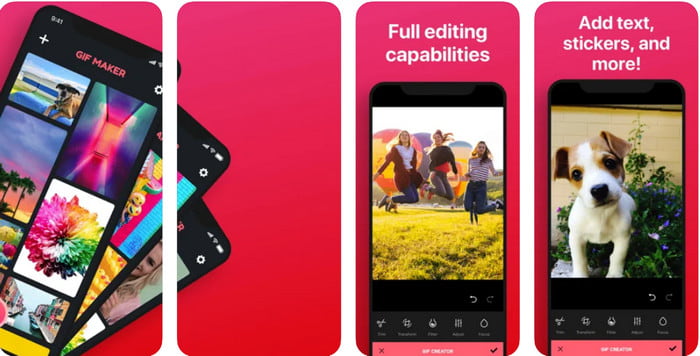
GIF Maker is the one-stop GIF editor you can download on your iPhone. With this tool, you create your custom GIFs within a few clicks. However, you can't directly use a GIF because the format isn't supported, but you can click this link and learn how to convert GIFs into a live wallpaper. After converting the GIF into a live wallpaper, you can follow the next steps to add a filter to the GIFs.
نسخه رایگان این ابزار یک واترمارک برای GIF که صادر می کنید باقی می گذارد.
Step 1. You can download the app for free on your App Store.
Step 2. Open the tool, click the + icon, click Choose Live Photo From Library, and choose the live photo to upload it.
Step 3. After uploading the live photo, click Filter, and choose which filter you want to add to your GIF. Click check to apply the video, and click the check again to export the file.
بخش 5. سوالات متداول در مورد افزودن فیلترها به GIF
آیا فیلترها روی رنگ گیف تأثیر می گذارند؟
اگر فیلتر را اضافه کنید، ترکیب رنگ روی GIF یا هر رسانه ای تأثیر می گذارد. این فیلترها برای تصحیح ترکیب رنگی که می خواهید داشته باشید استفاده می شود، بنابراین تعجب نکنید اگر رنگ بسیار عمیق تر یا روشن تر از تصویر خام GIF باشد.
چه افکت هایی در اینستاگرام وجود دارد؟
There are numerous video filters you can use on Instagram, and if you wonder what these are, you can click this link and know the top 10 picks filters on Instagram.
آیا می توانم از طریق فیلترها یک ویدیو با کیفیت بالا بسازم؟
You can highlight the colors of the video to make it look high quality. However, filters can only enhance the colors of the video and not the overall quality. But if you want to extend the video quality of your video, you can read this and learn how to improve video quality.
نتیجه
و اکنون که ایده ای در مورد نحوه افزودن فیلتر به GIF داریم، باید ابزارهایی را که در بالا ارائه می دهیم امتحان کنید. اگرچه ابزارها نقاط قوت متفاوتی را در فیلتر کردن گیف شما ارائه می دهند، اما همچنان معتقدیم که Video Converter Ultimate بهترین فیلترهایی را که می توانید برای ساختن یک GIF فیلتر شده عالی استفاده کنید، به شما ارائه می دهد. نه تنها این، با این ابزار، می توانید برش دهید، ادغام کنید، برش دهید، GIF های شخصی ایجاد کنید و کارهای بیشتری انجام دهید. آیا با اطلاعاتی که ما ارائه می کنیم قانع نشده اید؟ ما فکر می کنیم یک راه وجود دارد که بتوان به شما ثابت کرد که این ابزار بهترین انتخاب برای ویرایش گیف است و آن کلیک کردن روی دکمه دانلود در بالا و دنبال کردن آموزشی است که ارائه می دهیم و لذت می بریم!
-
 چگونه صوتی و موسیقی را به صورت رایگان در رایانه / تلفن خود اضافه کنیم
 این مقاله 4 روش آسان برای افزودن صدا به فیلم به صورت رایگان را نشان می دهد. مهم نیست که کدام آهنگ صوتی را می خواهید به فیلم خود اضافه کنید ، می توانید در اینجا نتایج رضایت بخشی کسب کنید.
-
 تبدیل GIF به فرمت ویدیو: تبدیل الگوهای گیف به ویدیو [2021]
 نحوه تبدیل GIF به فرمت ویدیویی را با کمک ابزارهای فهرست شده در زیر تعیین کنید. کدام یک را انتخاب کنید و یاد بگیرید که چگونه آن را انجام دهید، زیرا شواهد کافی در مورد آنها جمع آوری می کنیم.
-
 GIF شگفت انگیز به برنامه های ویدئویی برای دستگاه های Android و iOS
 آیا میدانستید که میتوانید فایلهای GIF را با استفاده از گوشی خود به هر فرمت ویدیویی که دوست دارید تبدیل کنید؟ بهترین برنامه ها را در اندروید یا iOS خود انتخاب کنید.
