


 Video Converter Ultimate
 ضبط صفحه
 تعمیر ویدیو
چگونه ویدیوها را در اندروید در چند دقیقه با بهترین روش ها بچرخانیم
آیا دوست دارید لحظههای ارزشمند زندگی را با دستگاه اندرویدی خود ثبت کنید اما از کج یا وارونه ضبط شدن ویدیوها خسته شدهاید؟ این یک مشکل رایج است، اما خوشبختانه رفع آن خیلی ساده است. نیازی به مهارتهای پیشرفته ویرایش ویدیو ندارید. فقط به دستگاه اندرویدی خود یا یک اپلیکیشن اندروید برای چرخاندن ویدیوها و چند دقیقه زمان نیاز دارید.
در پایان پست، میتوانید ویدیوهای خود را مانند یک حرفهای بچرخانید و دیگر نیازی به تماشای ویدیوهای جانبی ندارید. با این اوصاف، بیایید شروع کنیم و یاد بگیریم که چگونه ویدیوها را در اندروید بچرخانیم!

قسمت 1. نحوه چرخش ویدیوها در گالری اندروید
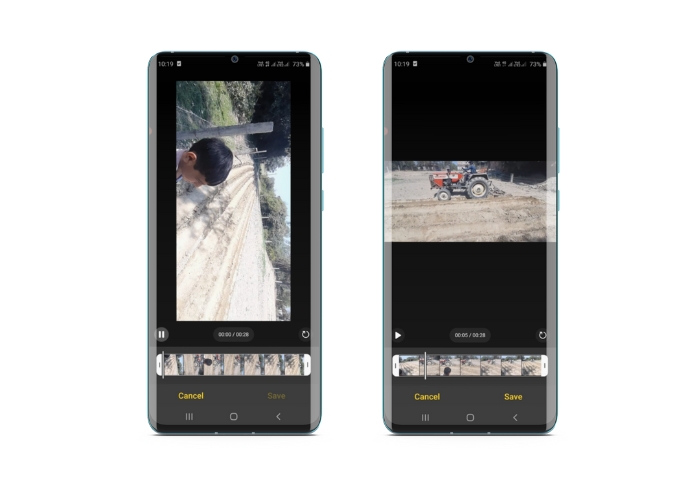
برنامه گالری اندروید تعدادی ابزار برای ویرایش ویدیوها دارد که می تواند به شما کمک کند ویدیوهای خود را بهتر کنید. با برنامه گالری، می توانید برش، برش، چرخش و حتی فیلتر و افکت به ویدیوهای خود اضافه کنید. چه بخواهید بخشهای ناخواسته را حذف کنید، چه نسبت تصویر را تنظیم کنید، یا کمی خلاقیت اضافه کنید، برنامه گالری شما را تحت پوشش قرار میدهد. و بهترین بخش؟ برای استفاده از این ویژگیها نیازی به تجربه قبلی در ویرایش ویدیو ندارید. رابط کاربری بصری است، و ساختن ویدیوهای خیره کننده را مستقیماً از دستگاه Android خود برای هر کسی آسان می کند. برای یادگیری نحوه چرخش ویدیوها در گالری در اندروید به مراحل داده شده مراجعه کنید.
مرحله ۱. برنامه گالری (Gallery) را در دستگاه اندرویدی خود اجرا کنید. ویدیویی را که میخواهید بچرخانید پیدا کرده و روی آن بزنید تا باز شود.
مرحله ۲. روی آیکون ویرایش (که شبیه مداد است) در پایین صفحه ضربه بزنید. اکنون مجموعهای از ابزارهای ویرایشی مانند برش (Trim)، کراپ (Crop)، فیلترها (Filters) و تنظیم (Adjust) را در پایین صفحه میبینید.
مرحله ۳. برای چرخاندن ویدیو، ابزار Adjust را انتخاب کنید. حالا مجموعهای از گزینههای تنظیم از جمله روشنایی (Brightness)، کنتراست (Contrast)، اشباع رنگ (Saturation) و موارد دیگر را خواهید دید. گزینه Rotate را پیدا کرده و روی آن ضربه بزنید.
مرحله ۴. هر بار ضربه روی دکمه Rotate ویدیو را ۹۰ درجه به سمت راست میچرخاند. بنابراین میتوانید در اندروید ویدیوها را ۹۰ درجه بچرخانید. ضربه زدن را ادامه دهید تا ویدیو به جهت دلخواه برسد. وقتی از چرخش راضی بودید، روی آیکون ذخیره (Save) بزنید تا تغییرات اعمال شود.
قسمت 2. نحوه چرخش ویدیوها در برنامه PowerDirector Android
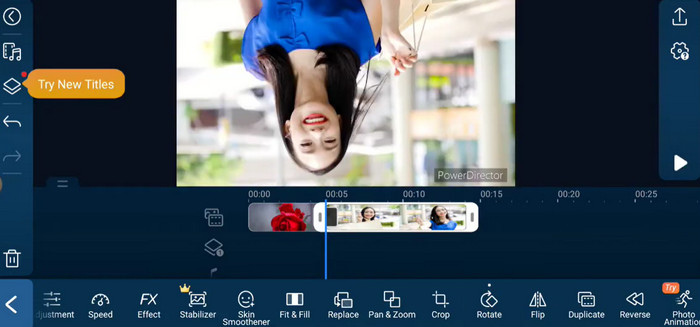
PowerDirector یک برنامه ویرایش ویدیو است که در پلتفرم اندروید موجود است. این یک برنامه پر از ویژگی است که به کاربران اجازه می دهد ویدیوها را در تلفن هوشمند و تبلت خود ویرایش کنند. این برنامه به کاربران اجازه می دهد ویدیوهای خود را در هر جهتی بچرخانند، چه در جهت عقربه های ساعت باشد و چه در خلاف جهت عقربه های ساعت. این به ویژه برای ویدیوهایی که در جهت اشتباه گرفته شده اند مفید است، مانند ویدیوهای عمودی که باید به حالت افقی چرخانده شوند. راهنمای ساده زیر را دنبال کنید تا در نحوه چرخاندن ویدیوها در PowerDirector در دستگاه Android مهارت پیدا کنید.
مرحله ۱. برنامه PowerDirector را در دستگاه اندرویدی خود اجرا کنید. سپس روی دکمه Create a video project بزنید تا یک پروژه جدید شروع کنید.
مرحله ۲. ویدیویی را که میخواهید بچرخانید با زدن روی دکمه Add media انتخاب کنید و در فضای ذخیرهسازی دستگاه خود بهدنبالش بگردید. سپس کلیپ ویدیو را بکشید و در تایملاین رها کنید.
مرحله ۳. بعد از آن، روی کلیپ ویدیویی در تایملاین بزنید تا انتخاب شود. اکنون روی دکمه Edit که بالای تایملاین ظاهر میشود ضربه بزنید.
مرحله ۴. در منوی ویرایشی که ظاهر میشود روی دکمه Rotate بزنید. از دکمههای Rotate left و Rotate right برای چرخاندن ویدیو در جهت دلخواه استفاده کنید. در نهایت، برای ذخیره تغییراتی که روی ویدیو اعمال کردهاید، روی دکمه Done ضربه بزنید.
قسمت 3. نحوه چرخش فیلم ها در برنامه VLC Android
VLC یک پخشکننده رسانهای شناختهشده است که میتوان آن را روی پلتفرمهای زیادی از جمله اندروید استفاده کرد. این یک اپلیکیشن قدرتمند و انعطافپذیر است که با فرمتهای رسانهای مختلفی کار میکند و امکانات زیادی دارد؛ از جمله قابلیت چرخاندن ویدیوها. علاوه بر این، امکانات مفید دیگری هم ارائه میدهد، مانند توانایی تنظیم سرعت پخش، افزودن زیرنویس و اعمال فیلترهای صوتی و تصویری. در ادامه مراحل چرخاندن ویدیوها در VLC روی دستگاه اندرویدی آمده است.
مرحله ۱. برنامه VLC را روی دستگاه اندرویدی خود باز کنید. سپس در نوار منوی پایین روی دکمه Video ضربه بزنید.
مرحله ۲. ویدیویی را که میخواهید بچرخانید از فضای ذخیرهسازی دستگاه خود انتخاب کنید. پس از آن، روی دکمه More options در گوشه بالا-راست صفحه ضربه بزنید.
مرحله ۳. در نهایت، برای دسترسی به گزینههای چرخش ویدیو روی Rotate ضربه بزنید. جهت چرخاندن ویدیو (ساعتگرد یا پادساعتگرد) را انتخاب کنید.
قسمت 4. نحوه چرخش ویدیوهای اندروید در رایانه
بهدنبال یک مبدل ویدیویی قدرتمند هستید که همه کارها را انجام دهد؟ FVC Video Converter Ultimate را از دست ندهید. این نرمافزار پیشرفته برای این طراحی شده که کنترل کامل ویدیوهایتان را به شما بدهد. با قابلیت چرخاندن ویدیوها، میتوانید جهت ویدیوی خود را ۹۰، ۱۸۰ یا حتی ۲۷۰ درجه تغییر دهید یا ویژگی چرخش تمامصفحه ویدیو در اندروید را شبیهسازی کنید. اما قابلیتهای این برنامه به اینجا ختم نمیشود. این کار را بدون هیچ افت کیفیتی انجام میدهد. در ادامه راهنمای استفاده از این برنامه برای چرخاندن ویدیوها روی رایانه شخصی آمده است.
مرحله ۱. یک نسخه از برنامه را دریافت و نصب کنید
ابتدا باید یک کپی از نصب کننده برنامه دریافت کرده و آن را روی رایانه خود تنظیم کنید. پس از آن، بلافاصله آن را شروع کنید.
دانلود رایگانبرای ویندوز 7 یا بالاتردانلود ایمن
دانلود رایگانبرای macOS 10.7 یا بالاتردانلود ایمن
مرحله ۲. ویدیویی را برای چرخاندن وارد کنید
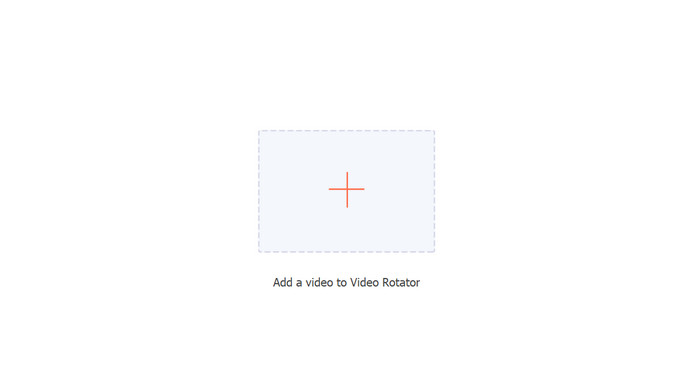
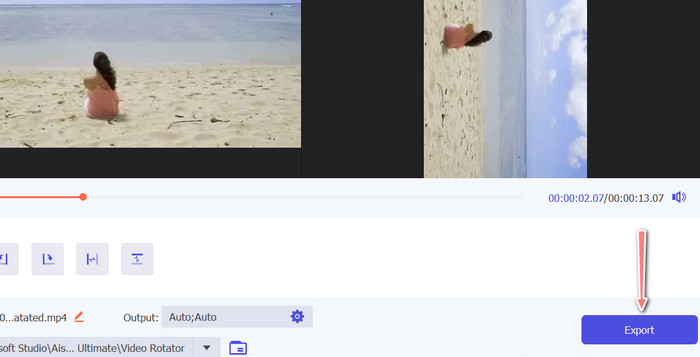
سپس میتوانید از تب Toolbox به بخش Video Rotator برنامه دسترسی پیدا کنید. اگر این گزینه را انتخاب کنید، از شما خواسته میشود یک ویدیو به حساب خود اضافه کنید. برای بارگذاری ویدیو، اکنون فقط روی دکمه + بزنید.
مرحله ۳. روش چرخش را انتخاب کنید
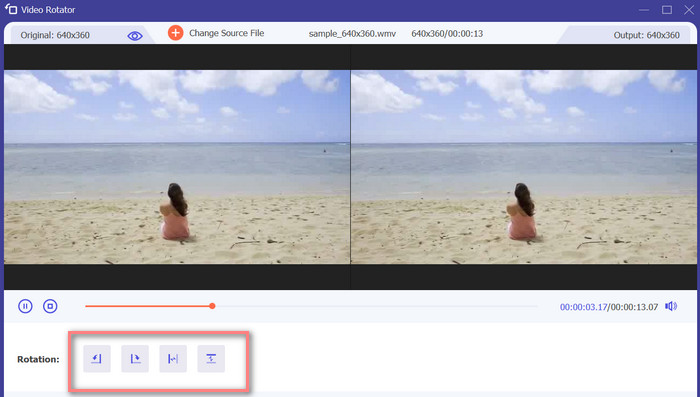
برای شروع، تصمیم بگیرید که چگونه می خواهید ویدیو بچرخد. چرخش افقی، چرخش عمودی، چرخش 90 درجه و چرخش 90 درجه چهار گزینه هستند. به سادگی روش چرخش مورد نظر خود را انتخاب کنید.
مرحله ۴. فایل ویدیو را خروجی بگیرید
وقتی تمام تغییرات را انجام دادید، میتوانید تنظیمات صدا و تصویر را از منوی خروجی اصلاح کنید. سپس برای پایان دادن به فرایند، روی دکمه Export علامت بزنید.
بخش 5. سوالات متداول در مورد چرخش ویدیوها در اندروید
آیا می توانم یک ویدیو را با استفاده از پخش کننده ویدیوی پیش فرض اندروید خود بچرخانم؟
خیر، پخشکننده ویدیوی پیشفرض در بیشتر دستگاههای اندرویدی معمولاً امکان چرخاندن ویدیوها را ندارد. در این صورت، اپلیکیشن گالری میتواند به شما کمک کند.
آیا چرخاندن یک ویدیو در دستگاه اندرویدی من بر کیفیت آن تأثیر می گذارد؟
اگر از یک برنامه ویرایش ویدیو با کیفیت بالا در دستگاه اندرویدی خود استفاده می کنید، چرخش فیلم کیفیت را کاهش نمی دهد.
آیا چرخاندن یک ویدیو در دستگاه Android من نسبت تصویر را تغییر می دهد؟
چرخاندن یک ویدیو در دستگاه Android شما ممکن است بسته به جهت ویدیوی اصلی و درجه چرخش اعمال شده، نسبت تصویر را تغییر دهد.
نتیجه
چرخاندن ویدیوها روی دستگاه اندرویدی میتواند هنگام ویرایش و اشتراکگذاری ویدیوها بسیار مفید باشد. با این حال، مهم است توجه داشته باشید که چرخاندن یک ویدیو ممکن است نسبت تصویر و کیفیت ویدیوی اصلی را تحت تأثیر قرار دهد؛ بسته به نوع اپلیکیشن اندروید برای چرخاندن ویدیو مورد استفاده و میزان چرخش اعمالشده. بنابراین استفاده از یک برنامه معتبر ویرایش ویدیو، مانند FVC Video Converter Ultimate، که هنگام چرخش ویدیو آن را فشرده نکند یا وضوح آن را کاهش ندهد، ضروری است.
-
 راهنمای نحوه تعمیر فیلم هایی که در تلفن های Android پخش نمی شوند
 آیا می خواهید بدانید دلایل عدم پخش فیلم ها در دستگاه اندرویدی شما چیست؟ و اگر چنین است ، آیا راهی برای حل مشکل به تنهایی وجود دارد؟ برای آشنایی بیشتر به خواندن ادامه دهید.
-
 ساده ترین راه ها برای افزایش سرعت ویدیو در دستگاه های اندرویدی خود [2023]
 آیا می دانستید که می توانید سرعت ویدیو را در اندروید خود افزایش دهید؟ بنابراین، اگر می خواهید بدانید که چگونه سرعت یک ویدیو را در تلفن اندرویدی خود افزایش دهید، این نوشته را بخوانید.
-
 3 روش عالی در مورد نحوه برش ویدیو در اندروید
 آیا می خواهید از دستگاه اندرویدی خود برای برش ویدیو استفاده کنید؟ پس این پست برای شماست. ما روش های ارزشمندی را در مورد نحوه کوتاه کردن یک ویدیو در اندروید مورد بحث قرار خواهیم داد.
