


 Video Converter Ultimate
 ضبط صفحه
 تعمیر ویدیو
چگونه فایل های صوتی WAV را بدون از دست دادن کیفیت فشرده کنیم
وقتی افراد میخواهند فایلهای موسیقی خود را با بالاترین کیفیت ذخیره کنند، اغلب فرمت WAV را برای صدای خود انتخاب میکنند. با این حال، به طور کلی هرچه کیفیت بالاتر باشد، فضای ذخیرهسازی بیشتری هم اشغال میشود. در مقایسه با MP3، WAV میتواند صدای باکیفیتتری ارائه دهد، اما حجم فایل بزرگتر خواهد بود. بنابراین اگر میخواهید یک فایل WAV را با دوستان خود به اشتراک بگذارید یا آن را در شبکههای اجتماعی بارگذاری کنید، بهتر است ابتدا حجم آن را کاهش دهید. در ادامه، سه ابزار مختلف برای فشردهسازی فایلهای WAV به شما معرفی میکنیم. مزایا، معایب و شیوه استفادهٔ آنها را نیز به تفصیل نشان خواهیم داد. برای اطلاعات بیشتر ادامه مطلب را بخوانید.

قسمت 1. بهترین راه برای فشرده سازی فایل WAV
ابتدا استفاده از یک ابزار نسبتاً کامل و همهکاره برای ویرایش صدا و ویدئو را توصیه میکنیم: FVC-picked Video Converter Ultimate. این برنامه به ابزارهای تحلیل بسیار پیشرفته مجهز است که بلافاصله پس از بارگذاری، پردازش فایلهای شما را آغاز میکنند. اگر به دنبال ابزاری هستید که به شما اجازه دهد درصد فشردهسازی صدای WAV را آزادانه تنظیم کنید، این برنامه بهترین دستیار شما خواهد بود. حتی میتوانید پیش از خروجی گرفتن، طول فایل صوتی را ویرایش کنید، کانال صوتی را تنظیم کنید و حجم صدا را تغییر دهید. پس از باز کردن فشردهساز صوت داخلی آن، یک پنجرهٔ جدید باز میشود. در آنجا میتوانید تنظیمات فراوانی را برای انتخاب ببینید. این نرمافزار امکان شخصیسازی بسیار بالایی دارد و به شما اجازه میدهد پارامترهای صوتی را با دقت کنترل کنید. اگر احساس میکنید حجم یک فایل WAV هنوز هم بیش از حد زیاد است، میتوانید از مبدل ارائهشده توسط FVC استفاده کنید و صدا را به قالبی با قابلیت توزیع آسانتر، مانند MP3، تبدیل کنید.
دانلود رایگانبرای ویندوز 7 یا بالاتردانلود امن
دانلود رایگانبرای MacOS 10.7 یا بالاتردانلود امن
در اینجا نحوه فشرده سازی فایل های WAV با FVC Video Converter Ultimate را به شما آموزش می دهیم.
مرحله 1. FVC Video Converter Ultimate را روی رایانهٔ خود دانلود و نصب کنید.
مرحله 2. وارد رابط اصلی نرمافزار شوید و Toolbox > Audio Compressor را انتخاب کنید.
مرحله 3. پس از ورود به پنجرهٔ Audio Compressor، روی دکمهٔ بزرگ علامت مثبت کلیک کنید تا فایل WAV موردنظر خود را بارگذاری کنید.
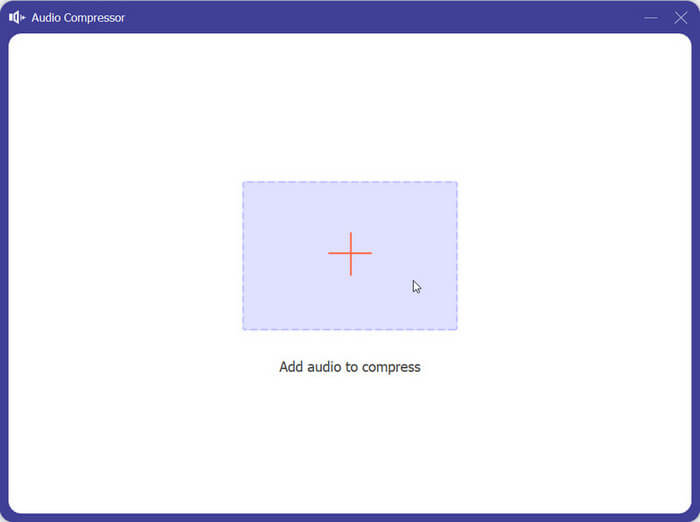
مرحله 4. میتوانید با تغییر مقدار Size، حجم فایل پس از فشردهسازی را تنظیم کنید. بعد از انجام تنظیمات، درصد فشردهشدن فایل را مشاهده خواهید کرد.
همچنین مجاز به تنظیم نام فایل، فرمت، کانال صدا، نرخ نمونه و میزان بیت صدای خود در اینجا هستید.
مرحله 5. برای بررسی خروجی صدا، روی Preview کلیک کنید. اگر از نتیجه راضی بودید، روی Compress کلیک کنید.
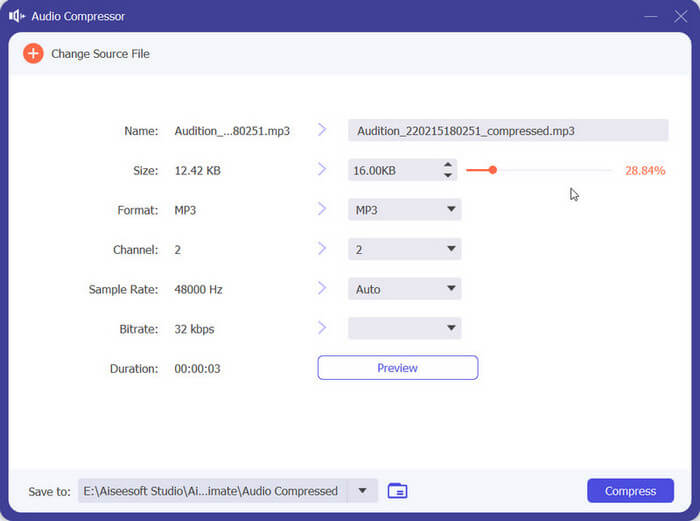
در حال حاضر، می تواند صدای WAV را تا 50% اندازه فایل منبع فشرده کند. سرعت فشرده سازی آن به قدری سریع است که به سختی نیازی به صبر کردن برای صادرات فایل فشرده داریم. به سختی افت کیفیت وجود دارد. با این حال ما فقط 5 شانس رایگان داریم و اگر بیشتر بخواهیم باید هزینه کنیم.
قسمت 2. فشرده سازی فایل WAV آنلاین
نرم افزار دسکتاپ ویژگی های ویرایش بیشتری را ارائه می دهد اما از شما می خواهد که آنها را دانلود و بر روی رایانه خود نصب کنید. این همچنین مقداری از حافظه رایانه شما را اشغال می کند و مدتی طول می کشد تا نرم افزار راه اندازی شود. اگر میخواهید فشردهسازی سریعتر فایل صوتی WAV را تجربه کنید، ابزارهای آنلاین را امتحان کنید. در میان بسیاری از محصولات موجود، توصیه می کنیم FreeConvert WAV Compressor را امتحان کنید، یک کمپرسور سایز آزاد با رابط کاربری بسیار کاربر پسند. تنها کاری که باید انجام دهید این است که به وب سایت رسمی آن بروید و بلافاصله دکمه هدف را پیدا خواهید کرد. حتی اگر قبلاً از آن استفاده نکردهاید، میتوانید در کوتاهمدت شروع به کار کنید.
در اینجا نحوه کاهش حجم فایل WAV با FreeConvert WAV Compressor را به شما آموزش می دهیم.
مرحله 1. با مرورگر خود FreeConvert WAV Compressor را باز کنید.
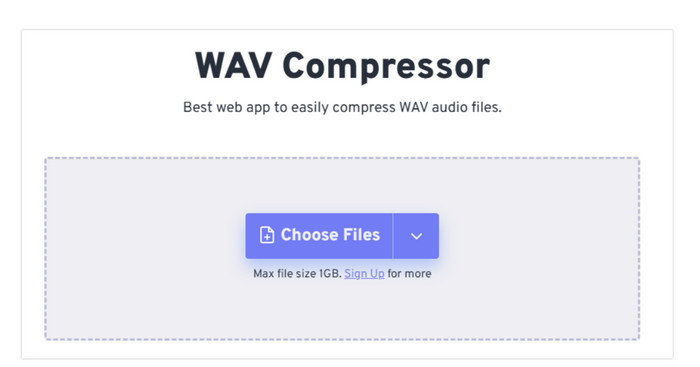
مرحله 2. روی Choose Files کلیک کنید تا فایل صوتی موردنظر برای فشردهسازی را بارگذاری کنید.
.
مرحله 3. برای تنظیم میزان فشردهسازی، روی Advanced settings (optional) کلیک کنید. میتوانید بین سه سطح Low، Medium و Strong یکی را انتخاب کنید. سپس Apply Settings را بزنید.
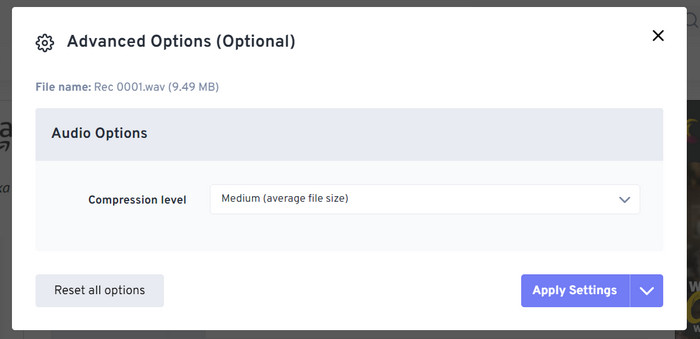
مرحله 4. در نهایت، روی Compress Now کلیک کنید. برنامه به صورت آنلاین فایل WAV شما را فشرده خواهد کرد.
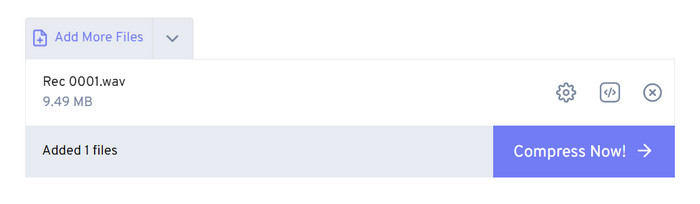
پس از تلاش های ما، متوجه شدیم که کاملا کارآمد عمل می کند و کیفیت صدای فایل خروجی تفاوت چندانی با فایل منبع ندارد. با این حال، تنها سه نرخ فشردهسازی وجود دارد که میتوانید انتخاب کنید، و نمیتوانید درصد فشردهسازی و اندازه فایل فشردهشده را تجسم کنید. در حال حاضر، کاربران فقط می توانند از آن برای فشرده سازی فایل های تا 1 گیگابایت استفاده کنند.
قسمت 3. فشرده سازی فایل WAV در Audacity
علاوه بر نرمافزارهای همهکارهٔ پردازش چندرسانهای، ابزارهای زیادی وجود دارند که به طور ویژه برای صوت طراحی شدهاند. این ابزارها در زمینهٔ ویرایش موسیقی حرفهایتر و دقیقتر عمل میکنند. اگر برای کوچک کردن حجم فایل WAV از یک ابزار حرفهای استفاده کنید، ممکن است کیفیت صدا تا حد امکان حفظ شود. Audacity بهعنوان یکی از بهترینها، در طول سالها بیرقیب مانده است. کاربران میتوانند با استفاده از آن، یک فرایند یکجای ضبط و ویرایش صدا را تکمیل کنند. عملیات ویرایشی که توسط آن قابل انجام است شامل تنظیم طول موسیقی، فشردهسازی حجم فایل، تبدیل فرمت صوتی و افزودن افکتهای صوتی ویژه است. همهٔ این کارها برای آن بسیار ساده و بدیهی است.
در ادامه شما را در فشرده سازی فایل های WAV با Audacity راهنمایی می کنیم.
مرحله 1. Audacity را روی دستگاه خود دانلود و نصب کنید.
مرحله 2. برنامه را باز کرده و روی File > Open کلیک کنید.
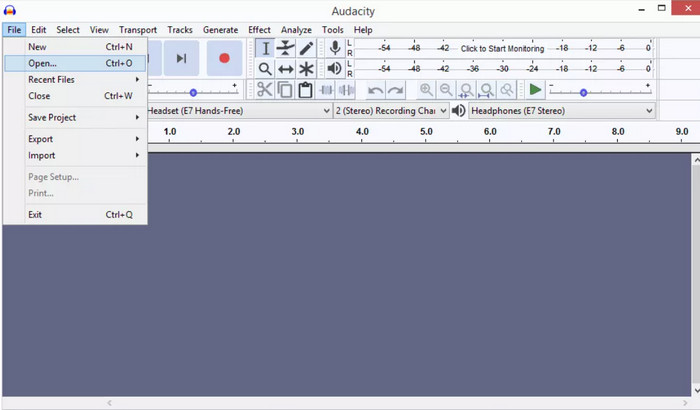
مرحله 3. فایل موردنظر برای فشردهسازی را بارگذاری کرده و روی صفحهکلید خود Ctrl + A را بزنید تا ترک صوتی انتخاب شود. سپس روی Effect > Compressor کلیک کنید.
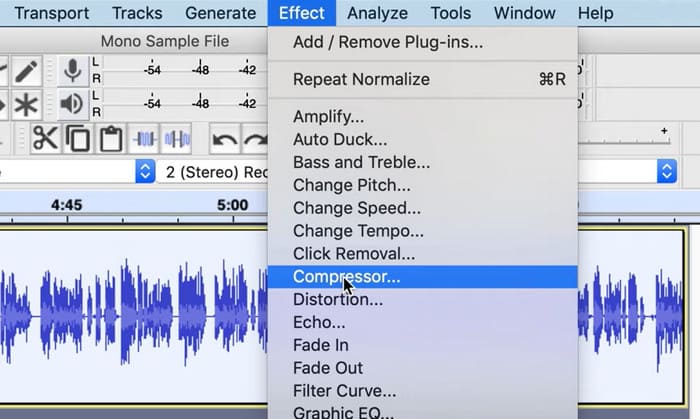
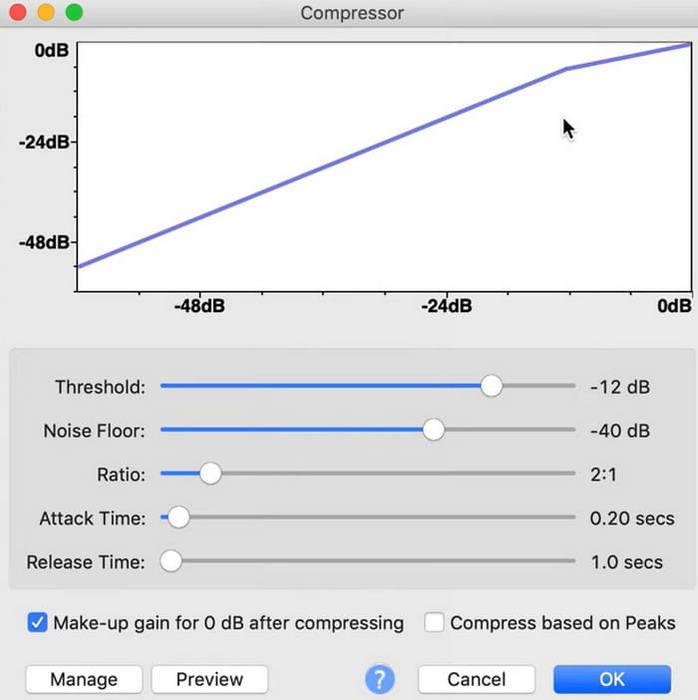
مرحله 4. اکنون میتوانید پارامترهای فایل WAV خود، از جمله آستانه (Threshold)، کف نویز (Noise Floor)، نسبت (Ratio)، زمان حمله (Attack) و زمان رهاسازی (Release) را تغییر دهید.
مرحله 5. در پایان، دوباره روی File کلیک کرده و Export را انتخاب کنید.
این به شما امکان می دهد فایل های WAV را به صورت رایگان و بدون محدودیت اندازه فایل فشرده کنید. شما می توانید دقیقاً میزان فشرده سازی را کنترل کرده و به محض اعمال تنظیمات، محصول نهایی را صادر کنید. رابط کاربری آن بسیار پیچیده است و کاربران بی تجربه در یافتن ویژگی های مورد نیاز خود با مشکل مواجه خواهند شد. یادگیری نحوه استفاده ماهرانه از آن مدتی طول می کشد.
بخش 4. سوالات متداول فشرده سازی فایل های WAV
چرا فایل WAV من اینقدر بزرگ است؟
فایلهای WAV معمولاً فایلهای صوتی فشردهنشدهای هستند که دادههای صوتی را بهصورت خام و بدون هیچگونه افت کیفیت ذخیره میکنند. همچنین فایلهای WAV اغلب عمق بیت و نرخ نمونهبرداری بالاتری نسبت به قالبهای فشردهٔ صوتی دارند. اگر لازم است حجم فایل WAV خود را کاهش دهید، میتوانید آن را فشرده کنید یا WAV را به MP3 تبدیل کنید.
آیا فشرده سازی یک فایل WAV کیفیت را کاهش می دهد؟
هنگامی که یک فایل WAV را به یک فرمت صوتی با اتلاف مانند MP3، AAC یا OGG فشرده میکنید، معمولاً باعث کاهش کیفیت صدا میشود. با این حال انتخاب یک ابزار فشرده سازی خوب می تواند تا حدودی این مشکل را جبران کند. مهم است که تعادل بین اندازه فایل و کیفیت صدا را در نظر بگیرید.
آیا می توانید یک فایل WAV را در Windows Media Player برش دهید؟
Windows Media Player قابلیت های داخلی برای ویرایش مستقیم یا برش فایل های صوتی مانند فایل های WAV ندارد. برای برش دادن یک فایل WAV در ویندوز، میتوانید از برنامههای نرمافزار دیگری که ویژگیهای ویرایش صدا را ارائه میدهند، مانند FVC Video Converter Ultimate و Audacity استفاده کنید.
نتیجه
این مقاله برای حل مشکل فشردهسازی فایلهای WAV تهیه شده است. ما سه ابزار مختلف برای انتخاب در اختیار شما قرار دادهایم. اگر میخواهید از یک سرویس جامعتر برای ویرایش صدا بهره ببرید، از FVC-picked Video Converter Ultimate استفاده کنید. اگر نمیخواهید نرمافزار اضافی روی رایانهٔ خود نصب کنید، میتوانید FreeConvert WAV Compressor را در نظر بگیرید. اگر به حرفهایترین نرمافزار پردازش صدا برای فشردهسازی فایلهای خود نیاز دارید، Audacity پاسخگوی نیازهای شما خواهد بود.
-
 WAV Player - 5 برنامه برتر WAV Player برای Android ، iPhone ، PC و Mac
 چگونه می توان فایل های WAV را در تلفن Android بازی کرد؟ کدام بازیکن می تواند WAV بازی کند؟ این پست 5 بهترین پخش کننده WAV رایگان برای Android ، iPhone ، Mac و PC را به اشتراک می گذارد.
-
 آموزش فشرده سازی عمیق صدا در سال 2024 (گام به گام)
 آیا نیاز به فشرده سازی صدا دارید اما برای اینکه بفهمید از کجا شروع کنید به کمک نیاز دارید؟ در این پست بهترین انتخاب ها را برای کاهش حجم فایل تراک های شما ارائه خواهیم داد.
-
 کمپرسورهای صوتی موثر برای کاربران آفلاین و آنلاین
 با فایل های صوتی حجیم مشکلی دارید؟ کمپرسورهای فایل صوتی زیادی برای کاربران آفلاین و آنلاین موجود است. آنها را اینجا بررسی کنید.
