


 Video Converter Ultimate
 ضبط صفحه
 تعمیر ویدیو
4 روش برتر تبدیل MP4 به MOV
فرمت ویدیویی MP4 یکی از محبوبترین فرمتهاست که توسط بیشتر پخشکنندهها، ویرایشگرها و دستگاهها بهخوبی پشتیبانی میشود. اما در بعضی مواقع همچنان لازم است MP4 را به MOV تبدیل کنید. میدانید چطور MP4 را به MOV تغییر دهید؟

وقتی در اینترنت در گوگل جستجو میکنید که چگونه MP4 را به MOV تبدیل کنید، میبینید که مبدلهای ویدیویی زیادی وجود دارند که میتوانند در این تبدیل ویدیو به شما کمک کنند، از جمله برخی ابزارهای رایگان تبدیل آنلاین. در این مطلب ۴ روش رایگان را برایتان توضیح میدهیم تا به راحتی MP4 را به MOV تبدیل کنید.
قسمت 1. نحوه تبدیل رایگان MP4 به MOV در Mac / PC بدون افت کیفیت
با اینکه نرمافزارهای زیادی برای تبدیل MP4 به MOV در بازار عرضه شدهاند، بسیاری از آنها در طول فرایند تبدیل مقداری از کیفیت تصویر و صدا را از دست میدهند. اگر میخواهید MP4 را بدون افت کیفیت به MOV تبدیل کنید، باید از Free Video Converter استفاده کنید.
مبدل ویدئو رایگان به طور خاص برای مقابله با انواع تبدیل های ویدیویی و صوتی طراحی شده است. این تقریباً تقریباً از همه فرمت های صوتی / تصویری از جمله MP4 ، MOV ، MKV ، FLV ، AVI ، WMV ، MP3 ، AAC ، FLAC و ... پشتیبانی می کند. این امکان را برای شما فراهم می کند تا ضمن حفظ کیفیت اصلی ، MP4 را به صورت MOV در Mac یا Windows PC تبدیل کنید.
دانلود رایگانبرای Windows 7 یا بالاتردانلود ایمن
دانلود رایگانبرای macOS 10.7 یا بالاتردانلود ایمن
مرحله ۱. روی دکمه دانلود بالا دوبار کلیک کنید و سپس طبق دستورالعملها این مبدل رایگان MP4 به MOV را روی مک یا رایانه ویندوزی خود نصب و اجرا کنید. مطمئن شوید نسخه متناسب با سیستمعامل خود را دانلود میکنید.
مرحله ۲. وقتی وارد پنجره اصلی شدید، میتوانید روی Add File(s) کلیک کنید و فایل(های) MP4 مورد نظر برای تبدیل را وارد کنید. این مبدل رایگان MP4 به MOV به قابلیت تبدیل دستهای مجهز است که به شما اجازه میدهد یک یا چند فایل MP4 را بهطور همزمان تبدیل کنید.
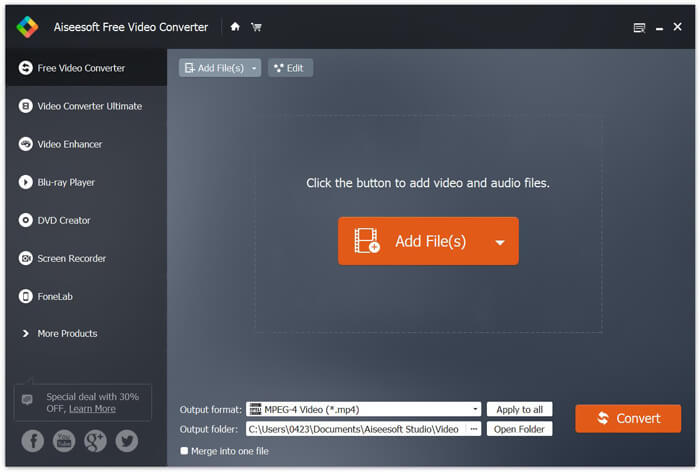
مرحله ۳. روی Output format کلیک کنید و از فهرست کشویی، MOV را بهعنوان فرمت مقصد انتخاب کنید. حالا کافی است روی دکمه Convert کلیک کنید تا تبدیل از MP4 به MOV آغاز شود.
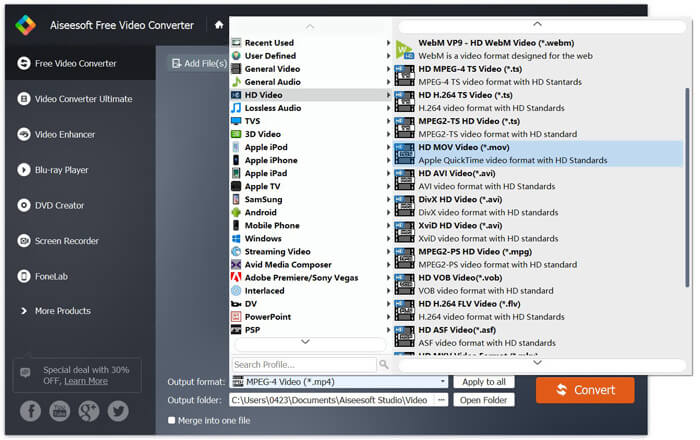
فقط چند ثانیه بعد ، MP4 اصلی به فرمت MOV تبدیل می شود. علاوه بر MOV ، می توانید MP4 را با کیفیت بالا به MKV ، FLV ، AVI و ... تبدیل کنید. این مبدل ویدیوی رایگان همچنین دارای برخی از ویژگی های اساسی ویرایش است. قبل از تبدیل MP4 به MOV نهایی ، می توانید از آنها برای ویرایش فیلم (های) MP4 خود استفاده کنید.
قسمت 2. نحوه تغییر MP4 به MOV رایگان با تبدیل آنلاین ویدیو
همانطور که در بالا ذکر شد ، مبدل های ویدیویی آنلاین رایگان بسیاری در بازار ارائه شده اند که می توانند به شما کمک کنند MP4 را به MOV تبدیل کنید. در اینجا در این پست ، ما 2 روش در مورد نحوه تغییر MP4 به MOV به صورت آنلاین معرفی خواهیم کرد.
1. مبدل ویدیوی آنلاین رایگان FVC
اگر میخواهید بهصورت آنلاین و رایگان MP4 را به MOV تبدیل کنید، FVC Free Online Video Converter بهترین انتخاب برای شما خواهد بود. تنها با ۳ مرحله ساده میتوانید تبدیل را انجام دهید و در عرض چند ثانیه فایل تبدیلشده بدون افت کیفیت را دریافت کنید.
مرحله ۱. روی لینک بالا کلیک کنید و وارد FVC Free Online Video Converter شوید. سپس در وسط بنر روی Add Files to Convert کلیک کنید. بعد از آن، FVC launcher را روی رایانه خود دانلود و نصب کنید.
برای تبدیل دستهای فایلها، نسخهٔ دسکتاپ را دانلود کنید.

مرحله ۲. پس از انتخاب و آپلود ویدیویی که میخواهید تبدیل کنید، باید MOV را بهعنوان فرمت خروجی برای فایل ویدیویی تبدیلشده انتخاب کنید.
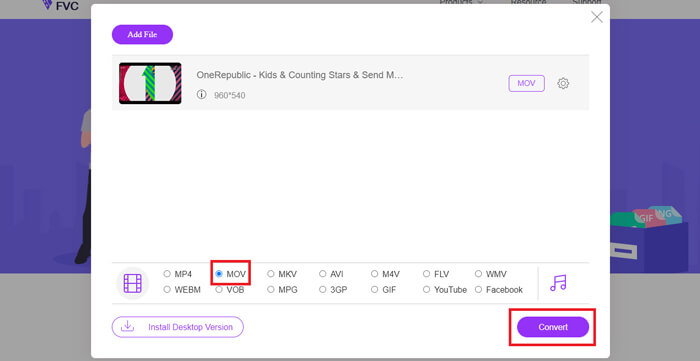
مرحله ۳. روی Convert کلیک کنید. میتوانید محل ذخیره فایل تبدیلشده را دسکتاپ خود انتخاب کنید. بعد از آن، فقط کمی صبر کنید تا ویدیوی MOV خود را دریافت کنید.
2. CloudConvert
CloudConvert ابزاری بسیار محبوب و با کاربرد آسان برای تبدیل فیلم آنلاین است. این قابلیت تبدیل بیش از 200 قالب از جمله صوتی ، تصویری ، سند ، کتاب الکترونیکی ، بایگانی ، تصویر ، صفحه گسترده یا قالب ارائه را دارد. علاوه بر این ، این مبدل آنلاین قابل اعتماد از داده ها و حریم خصوصی شما محافظت می کند.
مرحله ۱. مرورگر خود را باز کنید و به سایت رسمی CloudConvert بروید. این سایت با یک رابط کاربری ساده طراحی شده است تا تجربه تبدیل راحتی به شما ارائه دهد.
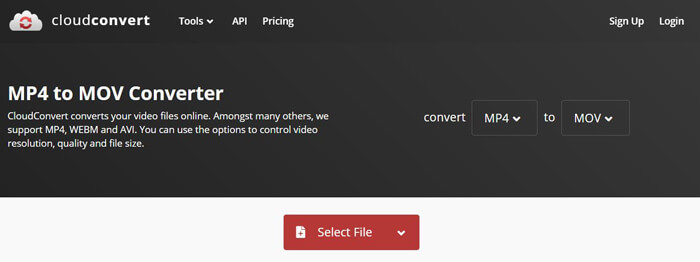
مرحله ۲. روی دکمه Select File کلیک کنید تا فایل MP4 مورد نظر برای تبدیل را آپلود کنید. در اینجا میتوانید فایل را از رایانه، آدرس اینترنتی (URL)، Google Drive، OneDrive یا Dropbox اضافه کنید. در این مرحله امکان افزودن فایلهای بیشتر برای تبدیل نیز وجود دارد.
یکی از مواردی که باید نگران باشید این است که ، این مبدل MP4 به MOV رایگان فقط به شما امکان می دهد ویدیویی کمتر از 1 گیگابایت تبدیل کنید. برای تبدیل پرونده های بزرگتر باید بسته خریداری کنید.
مرحله ۳. روی دکمه Convert کلیک کنید تا بارگذاری و تبدیل فایل MP4 شما آغاز شود. سپس میتوانید روی دکمه Download کلیک کنید و ویدیوی MOV تبدیلشده را در رایانه خود ذخیره کنید.

با استفاده از CloudConvert برای تبدیل MP4 به MOV بصورت آنلاین ، باید زمان بیشتری را برای بارگذاری فیلم ، فرایند تبدیل و بارگیری فیلم اختصاص دهید ، به ویژه هنگامی که در حال تبدیل یک فایل بزرگ هستید.
قسمت 3. نحوه تبدیل MP4 به MOV با VLC Media Player
VLC Media Player یک پخشکننده چندرسانهای محبوب و متنباز است. VLC فقط یک پخشکننده رسانهای نیست، بلکه میتواند بهعنوان یک ابزار تبدیل ویدیو هم عمل کند و به شما در انجام تبدیلهای گوناگون ویدیویی کمک کند. اگر VLC را روی رایانه خود نصب کردهاید، میتوانید برای تبدیل فایل MP4 خود به ویدیوی MOV روی آن حساب کنید.
مرحله ۱. برنامه VLC Media Player را روی رایانه خود باز کنید. اگر VLC را ندارید، میتوانید برای دانلود رایگان آن به سایت رسمیاش مراجعه کنید.
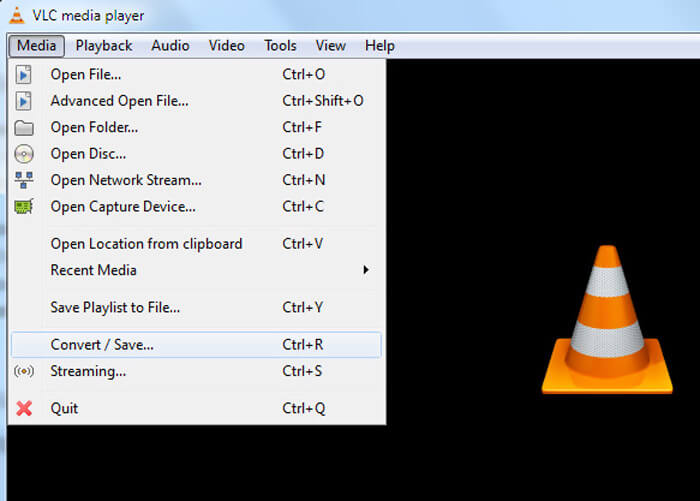
مرحله ۲. روی دکمه Media در نوار منو کلیک کنید و سپس از فهرست کشویی گزینه Convert/Save را انتخاب کنید.
مرحله ۳. پنجره جدیدی با عنوان Open Media باز خواهد شد. در اینجا میتوانید روی File > Add کلیک کنید تا فایل MP4 مورد نظر برای تبدیل را وارد کنید.
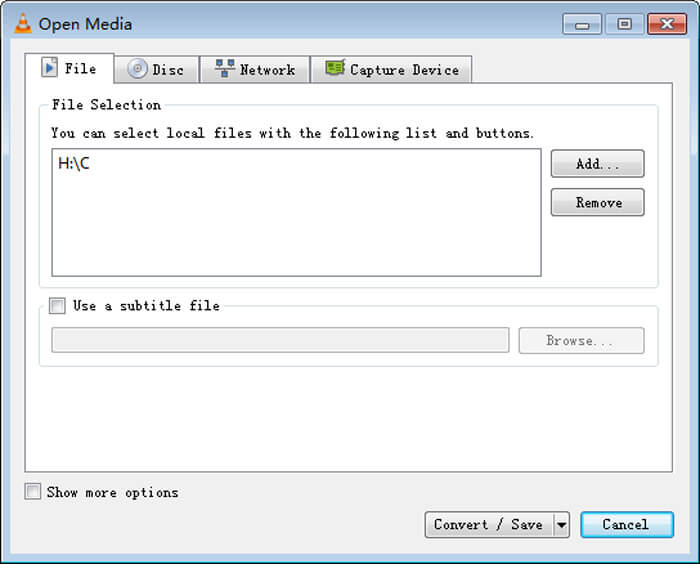
مرحله ۴. روی دکمه Convert/Save در پایین پنجره کلیک کنید تا عملیات تأیید شود. سپس به پنجره Convert هدایت میشوید، جایی که میتوانید پوشه مقصد و فرمت خروجی ویدیو را برای فایل تبدیلشده انتخاب کنید.
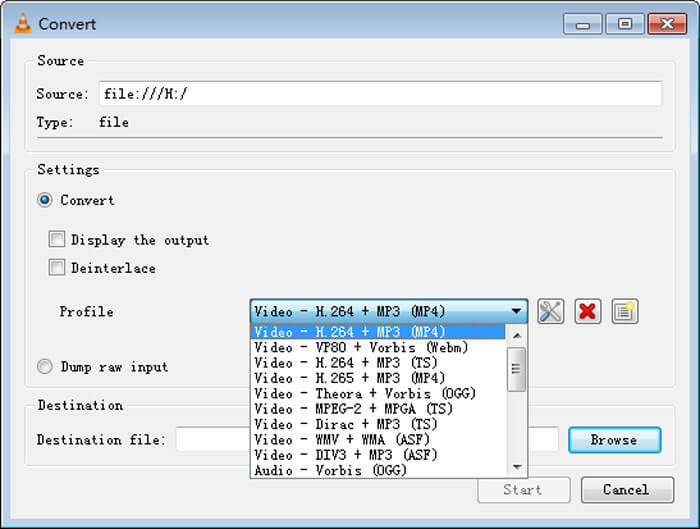
مرحله ۵. از فهرست کشویی Profile، فرمت MOV را بهعنوان خروجی انتخاب کنید. سپس روی Start کلیک کنید تا تبدیل ویدیو از MP4 به MOV در VLC انجام شود.
MP4 در مقابل MOV
فرمت MP4 که توسط گروه متخصصان تصویر متحرک (MPEG) در سال 2001 منتشر شد، می تواند به شما کمک کند داده های ویدئو، صدا، زیرنویس و تصویر را در آهنگ های جداگانه ذخیره کنید. این فرمت کوتاه MPEG-4 Part 14 است. بعلاوه، یکی از محبوب ترین فرمت های مورد استفاده برای پخش و اشتراک گذاری ویدیوها است.
فرمت MOV را می توان برای ذخیره یک فیلم، نمایش تلویزیونی، کلیپ ویدیویی کوتاه یا فیلم خانگی استفاده کرد. در واقع در قالب QuickTime File Format (QTFF) که توسط اپل در سال 1991 معرفی شد، ذخیره می شود. فایل های MOV اغلب زمانی استفاده می شوند که مردم می خواهند ویدیویی را با کیفیت بالا ذخیره کنند.
قسمت 4. سوالات متداول در تبدیل MP4 به MOV
سوال 1. آیا QuickTime می تواند MP4 را به MOV تبدیل کند؟
در صورت نیاز به تبدیل MP4 به MOV در Mac ، می توانید QuickTime را امتحان کنید. می توانید ویدیوی MP4 را با QuickTime Player باز کنید. سپس بر روی دکمه Export کلیک کرده و فرمت MOV را انتخاب کنید. می توانید نام فایل را تغییر دهید ، مکان و وضوح تصویر را انتخاب کنید. سپس می توانید بر روی دکمه صادرات کلیک کنید تا MP4 به MOV در Mac رایگان تبدیل شود.
سوال 2. کدام یک بهتر است ، MOV یا MP4؟
MP4 یکی از محبوبترین فرمتهای ذخیرهسازی فایلهای چندرسانهای است. این فرمت یک فایل محفظه (کانتینر) دیجیتال است؛ یعنی فقط یک پوسته برای ویدیو است و خودِ ویدیو محسوب نمیشود. مشابه MP4، فرمت MOV نیز یک فایل محفظه دیجیتال است. MOV با کُدک MPEG-4 رمزگذاری میشود.تفاوت اصلی بین MOV و MP4 این است که MOV عمدتاً در محیطهای مک استفاده میشود. MOV بهطور ویژه برای QuickTime طراحی شده است. MP4 یک استاندارد بینالمللی است که توسط بیشتر پخشکنندهها و سیستمها پشتیبانی میشود. بهطور کلی، ویدیوی MOV معمولاً کیفیت بالاتر و حجم بزرگتری دارد. فایل MP4 معمولاً فشردهتر و کمحجمتر است. بنابراین نمیتوان بهسادگی گفت MOV بهتر از MP4 است یا برعکس، MP4 گزینه بهتری است.
سوال 3. آیا تبدیل MOV به MP4 کیفیت را از دست می دهد؟
وقتی می خواهید MOV را به MP4 تبدیل کنید یا MP4 را به MOV تغییر دهید ، باید مبدل ویدیویی حرفه ای انتخاب کنید. در بیشتر موارد ، پس از تبدیل ، هیچ افت کیفیتی مشاهده نخواهید کرد.
سوال 4. آیا مبدل MP4 به MOV رایگان وجود دارد؟
مبدلهای ویدئویی رایگان زیادی در اینترنت ارائه شده اند که می توانند به شما کمک کنند MP4 را به MOV تبدیل کنید. علاوه بر CloudConvert توصیه شده ، می توانید به FFmpeg ، HandBrake ، ZAMZAR ، Convert Files و موارد دیگر نیز اعتماد کنید تا نسخه تبدیل را ایجاد کنید.
-
 نحوه تبدیل فایل های ویدئویی MP4 به تصاویر متحرک GIF بدون افت کیفیت
 به دنبال بهترین راه برای تبدیل فیلم MP4 خود به GIF متحرک هستید؟ در اینجا یک راهنمای دقیق برای انجام آن در فتوشاپ ، Windows Movie Maker ، مبدل ویدیوی آنلاین و موارد دیگر آورده شده است.
-
 MOV VS MP4 - کدام یک بهتر است
 MOV VS MP4 ، کدام یک بهتر است؟ این پست تفاوت MP4 و MOV را بیان می کند ، بنابراین شما می توانید انتخاب بهتری برای استفاده برای پرونده های ویدیویی خود داشته باشید.
-
 نحوه تبدیل MOV به MP4 بدون افت کیفیت
 آیا می خواهید فایل های MOV (Apple QuickTime Movie) را به MP4 تبدیل کنید؟ این پست 4 روش رایگان برای تبدیل فایلهای ویدئویی MOV به فرمت MP4 در ویندوز 10/8/7 / XP و Mac OS X را به اشتراک می گذارد.

