


 Video Converter Ultimate
 ضبط صفحه
 تعمیر ویدیو
تبدیل WMV به MP4: کدام یک از 4 روش بهتر است؟
فرمت WMV بیشترین سازگاری را با ویندوز دارد، اما از نظر سازگاری به پای گزینههایی مثل MP4، MOV و غیره نمیرسد. کاربران آیفون، آیپد یا مک ممکن است در باز کردن این فرمت با مشکل روبهرو شوند. کاربران آیفون، آیپد یا مک ممکن است نتوانند فایلهای WMV را بدون مشکل باز کنند و iMovie و QuickTime Player نیز از این فرمت پشتیبانی نمیکنند. برای دور زدن این محدودیت و اطمینان از اینکه فایلهای WMV روی هر دستگاه و در هر نرمافزار ویرایش ویدیو بهراحتی پردازش شوند، باید آن را به فرمت MP4 تبدیل کنیم. ابزارهای زیادی میتوانند این کار را انجام دهند و مسئله این است که کدام را انتخاب کرده و چگونه از آنها استفاده کنیم. اما در این راهنما، هرآنچه لازم است بدانید را به شما نشان میدهیم. بهترین مبدلهای دسکتاپ و آنلاین WMV به MP4 را معرفی خواهیم کرد و FFmpeg، که بهصورت منحصربهفردی اجرا میشود، نیز در این فهرست حضور خواهد داشت. عملکرد آنها را از هر نظر در قالب یک جدول مقایسه میکنیم و برای هر ابزار یک راهنمای تصویریِ گامبهگام ارائه میدهیم.

بخش 1. تبدیل WMV به MP4 در ویندوز/مک با زمان نامحدود
در میان چهار ابزار تبدیل معرفیشده، پیشنهادی که ارزش امتحان کردن دارد FVC Video Converter Ultimate است. دلیل آن این است که تقریباً با تمام فرمتهای رایج سازگار است و هم برای کاربران ویندوز و هم مک مناسب و کاربرپسند است. این پلتفرم فقط WMV را به MP4 تبدیل نمیکند، بلکه به ما اجازه میدهد انواع ویرایشها و بهبودهای مختلف را روی ویدیویی که قرار است خروجی بگیریم انجام دهیم. در رابط کاربری آن میتوانیم ابزارهایی مانند برشدهنده (Trimmer)، بهبوددهنده (Enhancer)، فشردهساز (Compressor)، حذفکننده نویز و غیره را پیدا کنیم و همچنین میتوانیم فیلترهای مختلفی به تصویر اضافه کنیم تا خروجی رنگارنگتر و جذابتر باشد. اگر دوباره به وظیفه تبدیل فرمتها برگردیم، FVC Video Converter Ultimate از فناوری شتابدهی سختافزاری پیشرفته پشتیبانی میکند که امکان تبدیل را تا 30 برابر سریعتر فراهم میسازد و البته تا حد ممکن تضمین میکند که کیفیت ویدیو دچار افت نشود. با FVC Video Converter Ultimate میتوانیم هرگونه پردازش صدا یا تصویر را هم به آن بسپاریم. این برنامه همهکاره که از بیش از 1000 فرمت پشتیبانی میکند، بدون شک بهترین انتخاب برای کاربران است.
دانلود رایگانبرای ویندوز 7 یا بالاتردانلود ایمن
دانلود رایگانبرای macOS 10.7 یا بالاتردانلود ایمن
در اینجا نحوه تبدیل ویدیوی WMV به MP4 با استفاده از FVC Video Converter Ultimate آورده شده است.
مرحله 1. FVC Video Converter Ultimate را روی دستگاه خود دانلود و نصب کنید. آن را اجرا کرده و روی Add Files کلیک کنید تا ویدیوی WMV آماده خود را بارگذاری کنید.

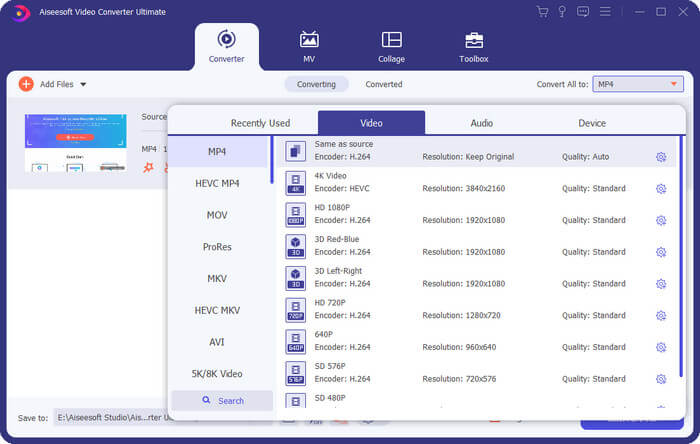
مرحله 2. به بخش Convert All to بروید و Video > MP4 را انتخاب کنید. وضوح (کیفیت) موردنظر خود را بر اساس نیازتان برگزینید.
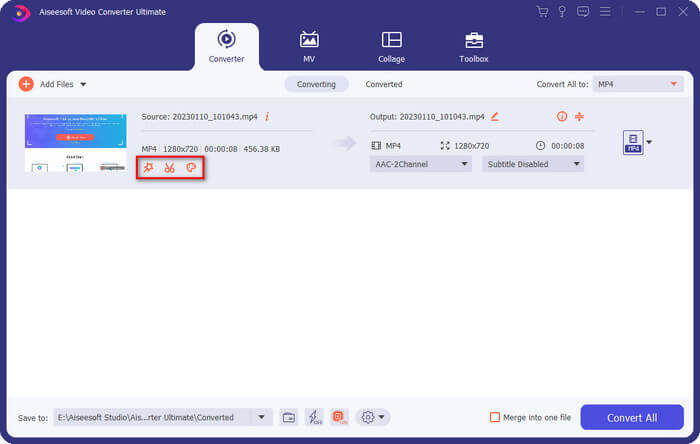
اگر میخواهید قبل از تبدیل، ویدیوی اضافهشده را ویرایش کنید، روی Edit یا Cut کلیک کنید.
مرحله 3. پس از تعیین مسیر ذخیرهسازی، روی Convert All کلیک کنید تا تبدیل بین MP4 و WMV آغاز شود.
بخش 2. تبدیل WMV به MP4 رایگان با استفاده از VLC Media
بازیکن
یکی دیگر از مبدلهای شخص ثالث WMV به MP4 که ارزش امتحان کردن را دارد، VLC Media Player است که برجستهترین مزیت آن متنباز و رایگان بودن آن است. چه کاربر ویندوز، مک یا لینوکس باشید، میتوانید آن را روی دستگاه خود دانلود کنید. این پخشکننده تقریباً با تمام فرمتهای چندرسانهای استاندارد موجود در بازار سازگار است و برخی از ابزارهای ضروری ویرایش ویدیو را دارد.
در اینجا نحوه تبدیل WMV به MP4 به صورت رایگان با VLC Media Player آورده شده است.
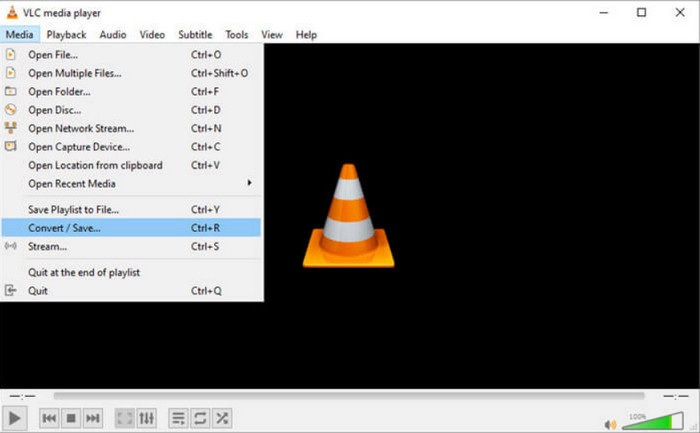
مرحله 1. آخرین نسخه VLC Media Player را روی کامپیوتر خود دانلود و نصب کنید. آن را اجرا کرده و در گوشه بالا سمت چپ روی Media کلیک کنید. در فهرست بازشده، گزینه Convert/Save را انتخاب کنید.
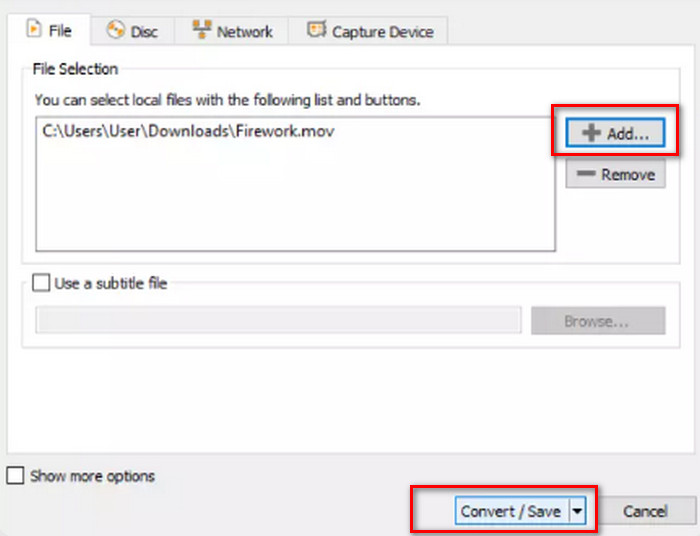
مرحله 2. یک پنجره پاپآپ جدید ظاهر میشود. به تب File بروید و روی +Add کلیک کنید تا فایل WMV موردنظر خود را بارگذاری کنید. سپس روی Convert/Save کلیک کنید.
مرحله 3. اکنون یک پنجره دیگر باز خواهد شد. بخش Profile را پیدا کنید و Video - H.264 + MP3 (MP4) را بهعنوان فرمت خروجی انتخاب کنید.
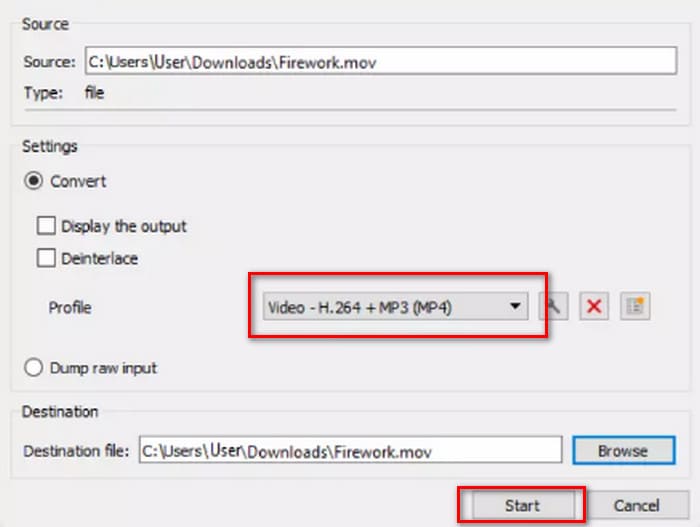
مرحله 4. مسیر ذخیرهسازی مقصد را انتخاب کرده و روی Start کلیک کنید تا WMV به MP4 تبدیل شود.
اگرچه سرویس VLC Media Player کاملاً رایگان است، اما گزینههای پردازش ویدیوی بسیار کمی در آن موجود است. اگر نیاز به ایجاد تغییر در ویدیوهای آپلود شده خود دارید، ما همچنان نرمافزار ویرایش فایلهای چندرسانهای حرفهای مانند FVC Video Converter Ultimate را توصیه میکنیم.
قسمت 3. انتقال WMV به MP4 بدون افت کیفیت از طریق FFmpeg
روشهای رایج تبدیل فرمت WMV به MP4 اغلب مستلزم آن است که ابتدا فایل منبع را آپلود کنیم، فرمت خروجی را انتخاب کنیم و سپس روی دکمه شروع یا تبدیل کلیک کنیم. اما FFmpeg متفاوت است. اگرچه میتواند وظایف تبدیل فرمت و ویرایش ویدیو را نیز انجام دهد، اما رابط کاربری و دکمههای معمولی ندارد؛ بلکه به دستورالعملهای کد متکی است. برای راهاندازی FFmpeg باید الگوی مربوط به عملیات مربوطه را پیدا کنیم و مسیر ذخیرهسازی و فرمت خروجی ویدیو را پر کنیم. این پلتفرم نیز متنباز و رایگان است.
در اینجا نحوه تبدیل WMV به MP4 با FFmpeg آورده شده است.
مرحله 1. FFmpeg را روی کامپیوتر خود نصب کنید. سپس با استفاده از نوار جستجوی سیستم، برنامه Terminal را پیدا کنید.
مرحله 2. به الگوی دستور زیر مراجعه کنید.
ffmpeg -i input.wmv output.mp4
به جای input نام فایل WMV حاوی مسیر ذخیرهسازی را قرار دهید؛ به جای output مسیر خروجی دلخواه خود را با همان فرمت قرار دهید.
نمونه: /home/user/Desktop/XXX
مرحله 3. دستور ویرایششده را وارد کرده و کلید Enter را روی صفحهکلید خود فشار دهید.
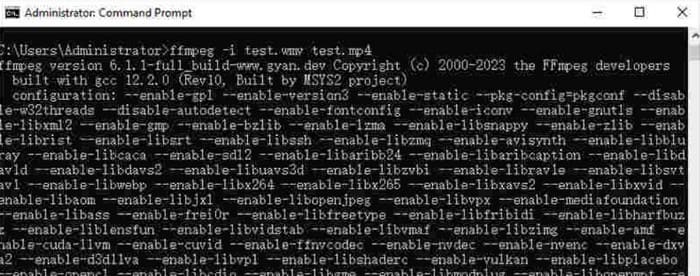
برای کاربرانی که با دستورات کد آشنا هستند یا در استفاده از FFmpeg تجربه دارند، این آسانترین روش برای تبدیل WMV به MP4 در مک یا ویندوز است. اما برای تازهکارها، ویرایش کد دشوار است. به سختی میتوانیم فرآیند تبدیل قابل توجه را ببینیم.
قسمت 4. تبدیل WMV به MP4 به صورت آنلاین و آسان
اگر استفاده از نرمافزارهای دسکتاپ را خیلی دردسرساز میدانید و به دنبال روشی سادهتر و راحتتر هستید، توصیه میکنیم WMV را به MP4 آنلاین تبدیل کنید. پلتفرمهای زیادی از این دست وجود دارند و Convertio انتخاب خوبی است. مزیت این پلتفرم این است که از آپلود ویدیوها از فضای ابری پشتیبانی میکند و تنظیمات شخصیسازیشدهی سادهای را ارائه میدهد. نیازی به نصب هیچ نرمافزار یا افزونهای نیست؛ ما آن را از طریق مرورگر پیدا میکنیم و میتوانیم شروع به استفاده از آن کنیم.
در اینجا نحوه تبدیل WMV به MP4 با Convertio آورده شده است.
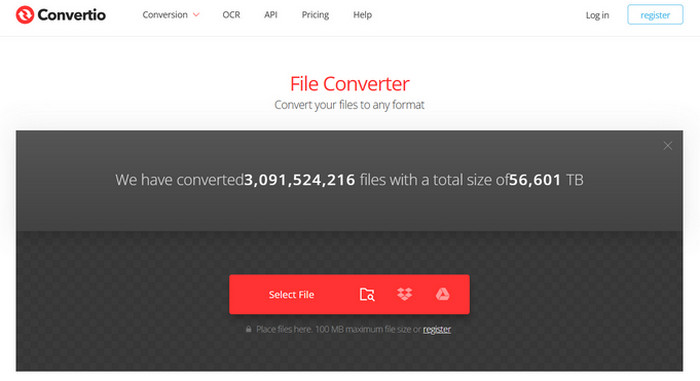
مرحله 1. وبسایت Convertio را در مرورگر خود باز کنید. روی Select File کلیک کنید تا ویدیوی WMV خود را به این پلتفرم اضافه کنید.
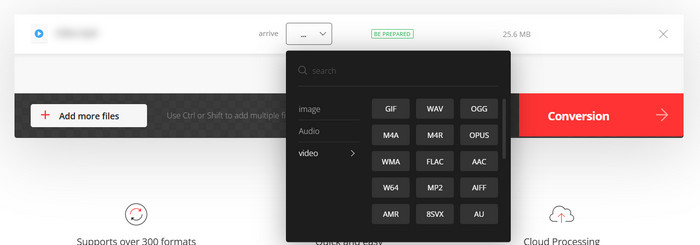
مرحله 2. Arrive > Video > MP4 را انتخاب کنید. در نهایت، گزینه Conversion را برگزینید.
Convertio برای کسانی که کارهای فوری تبدیل فرمت دارند یا نمیخواهند نرمافزارهای شخص ثالث حافظه کامپیوتر را اشغال کنند، مناسب است. با این حال، این پلتفرم ویژگیهای ویرایش ویدیوی بسیار کمی دارد و حداکثر میتواند فایلهایی تا حجم ۱۰۰ مگابایت را مدیریت کند. اگر میخواهید WMV را با زمان نامحدود به MP4 تبدیل کنید، ما همچنان توصیه میکنیم چندین روش دیگر را امتحان کنید.
بخش ۵. مقایسه هر روش در یک جدول
اگر در انتخاب بین چهار مبدل فرمت مشکل دارید، لطفاً به جدول زیر مراجعه کنید. ما عملکرد آنها را از چندین جنبه مقایسه خواهیم کرد.
| سرعت | پلتفرم پشتیبانی | محدودیت اندازه | ویژگی های ویرایش | آسان برای استفاده | |
| FVC Video Converter Ultimate | 30 برابر سریعتر | ویندوز و مک | نه | مختلف | بسیار آسان |
| VLC Media Player | خوب | ویندوز، مک و لینوکس | نه | برخی از تنظیمات اولیه | خوب |
| FFmpeg | خوب | ویندوز، مک و لینوکس | نه | مختلف | دشوار |
| تبدیل | تبدیل را ظرف ۱-۲ دقیقه انجام دهید | همه پلتفرمها شامل دسکتاپ و موبایل میشوند | 100 مگابایت | تعداد بسیار کمی | بسیار آسان |
بخش 6. سوالات متداول در مورد تبدیل WMV به MP4
آیا باید WMV را به MP4 تبدیل کنم؟
در حالی که کیفیت ویدیوی فرمت WMV کمی بالاتر از MP4 است، MP4 از نظر سازگاری و حجم فایل، بر WMV برتری دارد. اگر درباره کیفیت ویدیو بسیار حساس هستید، میتوانید پس از تبدیل، از یک ویرایشگر MP4 برای بهبود کیفیت ویدیو یا تنظیم پارامترهایی مانند بیتریت استفاده کنید.
آیا WMV قدیمی شده است؟
اگرچه WMV خیلی زود ظاهر شد، اما امروزه هنوز هم به طور گسترده مورد استفاده قرار میگیرد و برای انتقال و اشتراکگذاری ویدیوها مناسب است. تنها چیزی که باید نگران آن باشید این است که WMV برای دستگاههای iOS مناسب نیست.
چگونه ویدیو را در ویندوز به MP4 تبدیل کنیم؟
ابزارهای رایگانی مانند VLC Media Player و Handbrake گزینههای خوبی هستند. با این حال، ما FVC Video Converter Ultimate را توصیه میکنیم؛ ابزاری که نهتنها سازگار است، بلکه جامعترین ابزارهای پردازش ویدیو را در اختیار شما قرار میدهد و حتی از افزودن و حذف واترمارک ویدیو نیز پشتیبانی میکند.
نتیجه
این مقاله به شما آموزش میدهد چگونه WMV را به MP4 تبدیل کنید. ما چهار مبدل مناسب معرفی کردهایم: FVC Video Converter Ultimate که همهفنحریفترین است؛ VLC Media Player که رایگان است؛ FFmpeg که روش راهاندازی منحصربهفردی دارد؛ و Convertio که یک ابزار آنلاین است. پس از مقایسه عملکرد آنها، متوجه میشوید که FVC مقرونبهصرفهترین انتخاب است. این برنامه نهتنها محدودیت حجم فایل ندارد، بلکه در میان این چهار ابزار، کاملترین قابلیتهای ویرایش ویدیو را ارائه میدهد و استفاده از آن به سختی FFmpeg نیست.
-
 رایگان | 3 بهترین روش برای تبدیل MP4 به WMV بدون افت کیفیت
 این پست نحوه تبدیل فیلم MP4 به فرمت WMV را در مک یا ویندوز به اشتراک می گذارد. ما همچنین گزینه های مختلفی از جمله نرم افزار دسک تاپ و مبدل های آنلاین مبتنی بر وب را به شما ارائه می دهیم. آیا می خواهید بهترین ابزارهای تبدیل MP4 به WMV را بدانید؟
-
 بررسی 10 بهترین پخش کننده ویدیوی WMV در سال 2025 (رایانه و تلفن)
 چگونه می توانم WMV بازی کنم؟ آیا VLC WMV را پخش می کند؟ چه برنامه ای فایل های WMV را پخش می کند؟ این پست 10 بهترین پخش کننده ویدیوی WMV را برای شما در Mac، Windows PC، Android و iPhone نشان می دهد.
-
 3 بهترین روش برای پیوستن به فایل های WMV آنلاین به صورت رایگان (به روز رسانی 2025)
 چگونه می توان کلیپ های ویدیویی WMV را بصورت آنلاین ادغام کرد؟ FVC Free Online Video Merger و Clideo WMV Joiner دو ابزار قدرتمند برای پیوستن آنلاین به پرونده های WMV هستند. در این مقاله نحوه استفاده از آنها معرفی خواهد شد.

