


 Video Converter Ultimate
 ضبط صفحه
 تعمیر ویدیو
بهترین راه برای ضبط صدا در آیفون از طریق برنامه ها و مبدل های موجود
با داشتن یک تلفن هوشمند در جیبمان، میتوانیم تقریباً هر کاری انجام دهیم. این ابزار کوچک طوری ساخته شده که نسل جدیدی از کامپیوترها باشد که بدون نیاز به راهاندازی، بهراحتی میتوان آن را در سراسر جهان همراه خود برد. بهواسطه آن، اکنون این توانایی را داریم که بدون آماده کردن تجهیزات زیاد، روی گوشی خود صدا ضبط کنیم. برای مثال، میتوانید پادکست خودتان را با آیفون ضبط کنید، اما بدترین دشمن ما، کیفیت بد ضبط است. بنابراین، در این فهرست راههای مختلفی را برای ضبط صدا در آیفون معرفی میکنیم که نیاز به تجهیزات زیاد ندارند و در عین حال کیفیت صدای ضبطشده را از بین نمیبرند.

قسمت 1. نحوه ضبط صدای خارجی در آیفون با 2 تا از بهترین برنامه ها
نحوه استفاده از این ابزار موجود در دستگاه های اپل یا فروشگاه App را بیاموزید. این برنامه های موجود در این لیست به عنوان مورد استفاده بسیاری از کاربران در سراسر جهان شناخته شده است. به خصوص اگر بخواهند خودشان را ضبط کنند یا از طریق صدا ضبط کنند. بنابراین بدون هیچ تاخیری، اجازه دهید 2 ضبط کننده صوتی برتری که می توانید استفاده کنید را به شما معرفی کنیم.
1. یادداشت های صوتی
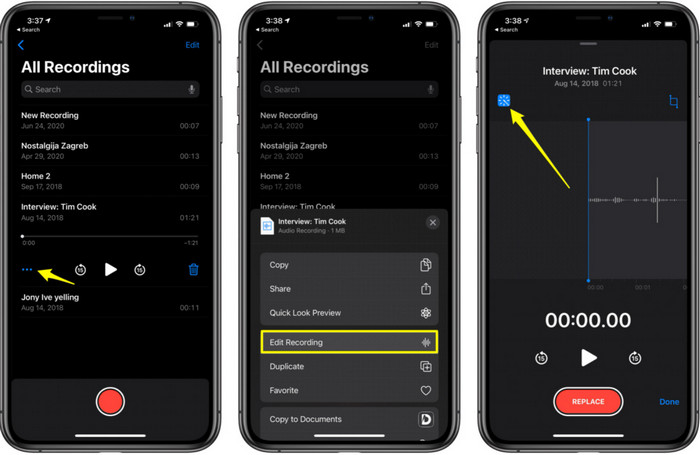
اپلیکیشن Voice Memos بهترین راه ضبط صدا در آیفون است که هم رایگان است و هم نیازی به دانلود ندارد. همچنین میتوانید ویرایش صدای ضبطشده را هم در همینجا انجام دهید. اما قابلیتهای ویرایشی آن فقط به برش (Trim) و افزودن فایلهای صوتی دیگر محدود میشود. پس اگر میخواهید ضبط خود را بهصورت حرفهایتر بهبود دهید، اینجا چنین امکاناتی را در اختیار ندارید. با این حال، ضبطهای ساده مثل یادداشتبرداری صوتی، دفترچه خاطرات صوتی، ضبط کلاسها و موارد دیگر را میتوان با کمک Voice Memos انجام داد.
طرفداران
- ابزار داخلی آیفون برای انجام ضبط صدا به صورت خارجی.
- ویرایش اولیه مانند برش و ادغام در دسترس است.
منفی ها
- هیچ تقویت کننده صوتی برای بهتر کردن ضبط شما ندارد.
- ضبط داخلی امکان پذیر نیست.
2. GarageBand
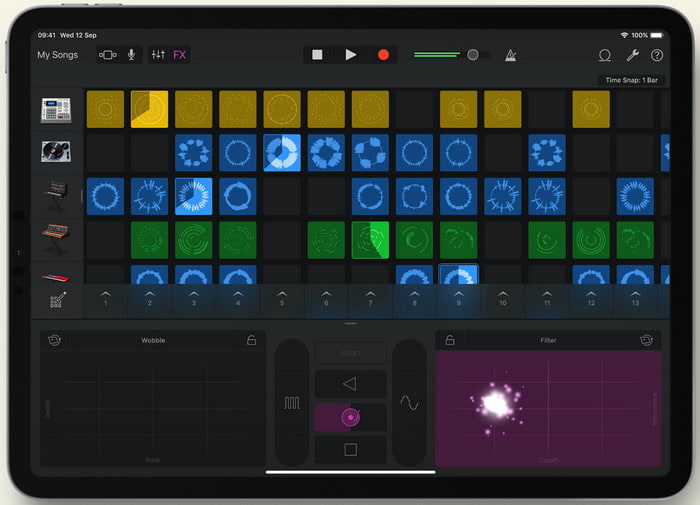
میخواهید ضبطهای موسیقی تولید کنید؟ پس سعی کنید از Garageband استفاده کنید. چون این ابزار امکانات زیادی برای کار کردن در اختیارتان میگذارد. اما نسبت به Voice Memos بسیار پیچیدهتر است، چون این اپ برای تولید موسیقی طراحی شده است. بنابراین یادگرفتن چگونگی ضبط صدا در آیفون با Garageband بخش زیادی از وقت شما را خواهد گرفت. اما اگر برای یادگیری آن وقت بگذارید، میتوانید این ابزار را بهصورت رایگان دانلود کنید؛ حجم فایل آن حدود 1.7 گیگابایت است که شامل امکانات سنگینی میشود که برای ضبط موسیقی به آنها نیاز دارید.
طرفداران
- این بهترین برنامه برای استفاده به عنوان تولید موسیقی قابل حمل است که می تواند صدا را به صورت داخلی ضبط کند.
منفی ها
- به دلیل رابط کاربری پیچیده برنامه، بهترین انتخاب برای یک مبتدی نیست.
- حجم فایل می تواند به بیش از 1.7 گیگابایت برسد.
قسمت 2. چگونه ضبط صفحه آیفون را به فرمت صوتی تبدیل کنیم
از آنجا که آیفون بهطور اختصاصی قابلیت ضبط صدای داخلی را ندارد، میتوانید ابتدا از صفحهنمایش اسکرین رکورد بگیرید و بعداً آن را به صوت تبدیل کنید. با کمک نرمافزار فوقالعاده Video Converter Ultimate میتوانید از میان بیش از 200 فرمت موجود در این ابزار، هر کدام را که میخواهید انتخاب کنید و بخشهای اضافی صدای خود را بهراحتی برش دهید. علاوه بر این، میتوانید صدای خود را در این برنامه تقویت کنید تا شفافتر و بهتر شنیده شود. برخلاف Voice Memos، اگر از این ابزار استفاده کنید و فایل را تبدیل کنید، میتوانید کارهای جادویی زیادی انجام دهید تا آن را به بهترین شکل ممکن درآورید. بدون معطلی، تبدیل اسکرین رکورد خود به یک فرمت صوتی را با دنبال کردن مراحل زیر شروع میکنیم.
مراحل تبدیل اسکرین رکورد به یک فرمت صوتی با Video Converter Ultimate
مرحله 1. روی دکمه دانلود رایگان کلیک کنید تا نرمافزار روی کامپیوتر ویندوزی یا مک شما دانلود شود. پس از اتمام دانلود، آن را نصب و راهاندازی کنید و سپس روی Finish کلیک کنید تا برنامه اجرا شود.
دانلود رایگانبرای ویندوز 7 یا بالاتردانلود امن
دانلود رایگانبرای MacOS 10.7 یا بالاتردانلود امن
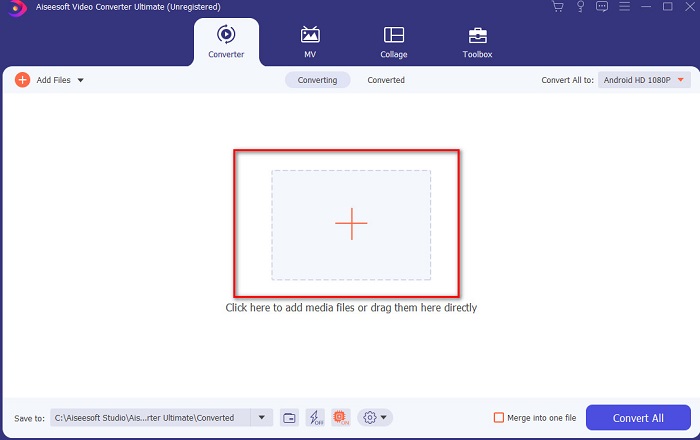
مرحله 2. فایلی را که روی آیفون ضبط کردهاید اضافه کنید و روی دکمه Add Files در قسمت بالا و سمت چپ رابط برنامه کلیک کنید. سپس فایل را در پوشه جستوجو کرده، بعد از ظاهر شدن، روی open کلیک کنید.
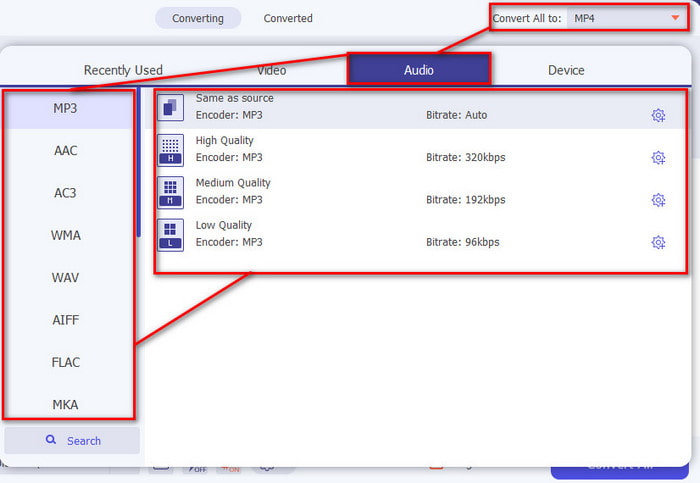
مرحله 3. روی گزینه drop-down کنار Convert All to کلیک کنید و فرمت نهایی موردنظرتان را از فهرست دستهبندی Audio انتخاب کنید تا ادامه دهید. علاوه بر این، اگر روی دکمه wand در رابط اصلی کلیک کنید، میتوانید فایل ضبطشده را نیز ویرایش کنید. بعد از ویرایش، روی OK کلیک کنید تا تغییراتی که اعمال کردهاید ذخیره شود.
مرحله 4. اگر برای شروع فرآیند تبدیل آمادهاید، روی دکمه Convert All کلیک کنید و چند لحظه صبر کنید.
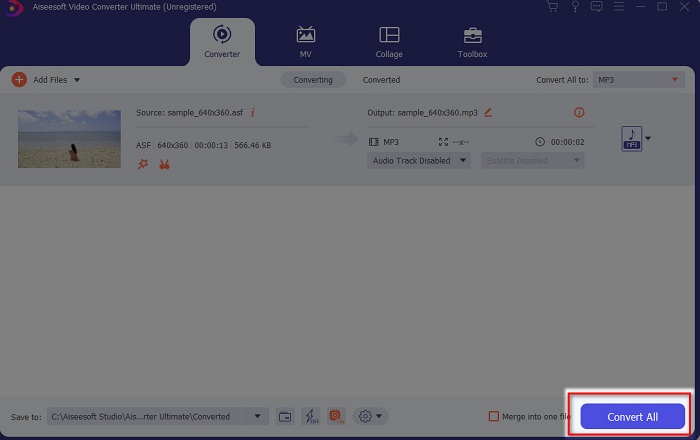
مرحله 5. پس از پایان تبدیل، یک پنجره پوشه فایل ظاهر میشود؛ روی فایل کلیک کنید و به آن گوش دهید، سپس میتوانید آن را به آیفون خود منتقل و در آنجا ذخیره کنید.
طرفداران
- بهترین ابزار فوق العاده ای که برای تبدیل ضبط صفحه نمایش شما به فرمت صوتی استفاده می شود.
- ویژگیهای ویرایش پیشرفته در اینجا برای بهتر کردن ضبط شما موجود است.
- چندین دسته از تبدیل را می توان در اینجا انجام داد.
منفی ها
- نمی توان صفحه نمایش یا ضبط صدا را در اینجا انجام داد زیرا پشتیبانی نمی شود.
- پرداخت می شود اما گران نیست.
بخش 3. سوالات متداول در مورد ضبط صدا در آیفون
بهترین فرمت صوتی برای ضبط صدا چیست؟
فرمت ایدهآلی که اگر بخواهید با بالاترین کیفیت صدا ضبط کنید باید انتخاب شود، فرمت FLAC است. هرچند ابزار بالا امکان تغییر فرمت به این نوع را ارائه نمیدهد، بنابراین نمیتوانید ضبط FLAC انجام دهید. با این حال، اگر روی این لینک کلیک کنید، چیزهای زیادی درباره بهترین ضبطکنندههای FLAC برای ضبط بالاترین سطح کیفیت صدا یاد خواهید گرفت.
چه مدت می توانم در آیفون خود ضبط کنم؟
خوب، تا زمانی که فضای کافی دارید می توانید ضبط کنید. اساساً تخمین زده می شود که هر 1 گیگابایت می توانید حداقل 100 دقیقه ضبط صدا را ذخیره کنید. بنابراین، اگر میخواهید یک بحث یا سخنرانی طولانی ضبط کنید، ایدهآل است که قبل از شروع ضبط، مقداری فضا آزاد کنید.
آیا می توانم ضبط صدا را از طریق VLC انجام دهم؟
قطعاً بله! اگر از VLC استفاده کنید، میتوانید ضبط صدا انجام دهید؛ چه روی کامپیوتر ویندوزی و چه روی مک. برای اینکه بدانید چگونه با VLC ضبط انجام دهید، باید روی این لینک کلیک کنید.
نتیجه
در پایان، ما قبلاً راههای زیادی را معرفی کردهایم که میتوانید برای بهتر و مؤثرتر کردن ضبطهای خود انتخاب کنید. اینها بهترین گزینهها در حوزه ضبط صدا هستند، زیرا ابتدا آنها را امتحان کردهایم و سپس این مطلب را نوشتهایم. اما هیچ ادیتوری که هم استفاده از آن آسان باشد و هم تقویتکننده صدا در اختیارتان بگذارد، بهتر از Video Converter Ultimate نیست. پس اگر میخواهید ضبطهای شما فراتر از «خوب» باشد، سعی کنید با این ابزار آنها را ویرایش و تبدیل کنید.
دانلود رایگانبرای ویندوز 7 یا بالاتردانلود امن
دانلود رایگانبرای MacOS 10.7 یا بالاتردانلود امن
-
 7 تا از بهترین ضبط کننده AAC برای ویندوز و مک [2021]
 کشف کنید که AAC چیست؟
-
 راهنمای نقطه ای: بهترین ضبط کننده M4A برای Windows و Mac چیست؟
 M4A محتویات فایل ACA و ALAC برای فشرده سازی از دست رفته هستند. لیست زیر ابزارهای ضبط M4A هستند که ممکن است از آنها استفاده کنید. مطالب زیر را به طور کامل بخوانید.
-
 مفیدترین ضبط کننده OGG در سال 2021 [رایگان و آنلاین]
 این نوشته در مورد بهترین ابزارهای ضبط OGG صحبت می کند که به شما در انجام ضبط صدای OGG کمک می کند. برای افزودن اطلاعات دقیق تر به کاربر به خواندن آن ادامه دهید
